
Who Can Access What On Your CRM?

Your customer relationship management system, as its name implies, is a very potent management tool. In your CRM, you can monitor everything within your business, from your interactions with customers, to the effectiveness of your employees. In essence, the mouthwatering benefits of CRM systems like Bitrix24 are summarized below:
- Efficient time management
- Remote access to your business operations
- Automation of processes
- Improved customer experience
- Reduced labor costs
- Real-time collaboration among your team members
- Customer retention
However, if your business processes will run without hitches, not every member of your team should have unrestricted access to your CRM. Also, if the integrity of your CRM data will not be compromised, you need to put a check on your CRM's number of users.
From your admins, to your service or sales team, your managers and your business executives, no two category of people should have similar access to your CRM.
The extent of access each employee has to your CRM should depend on their jobs, as their unique authorizations should let them do their jobs comfortably. Nothing more, nothing less. Also bear it in mind that your team members with direct interactions with your clients should be given priority on your CRM. After all, it is called Customer Relationship Management, and your customers should be your greatest priority while using the system.
So, in this illustration, we'll show you how you can actively grant different levels of access to your CRM to different people. However, this integration is only possible on the self-hosted Bitrix24.
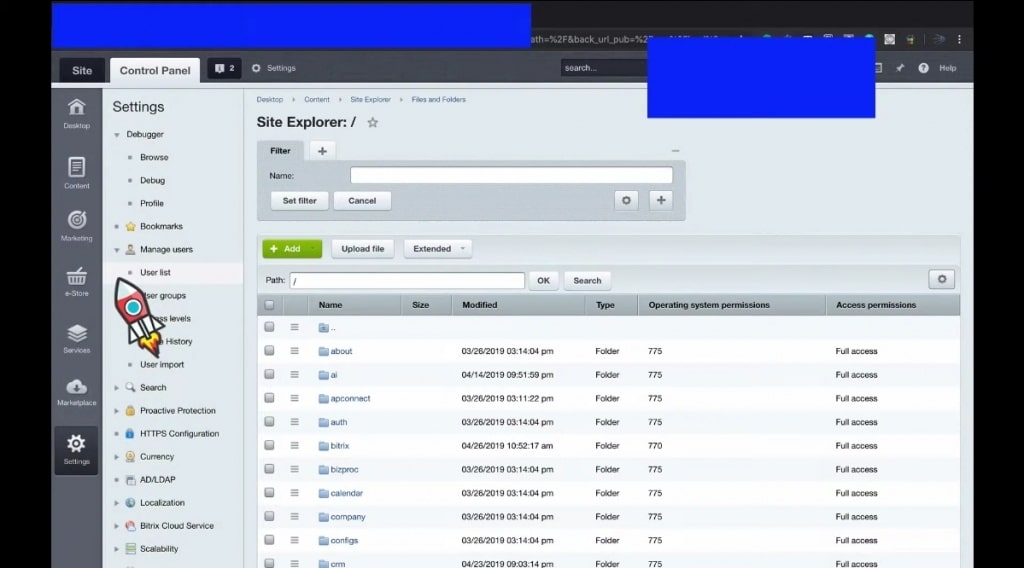
1. First, we navigate to 'user list' under 'settings' in the control panel.
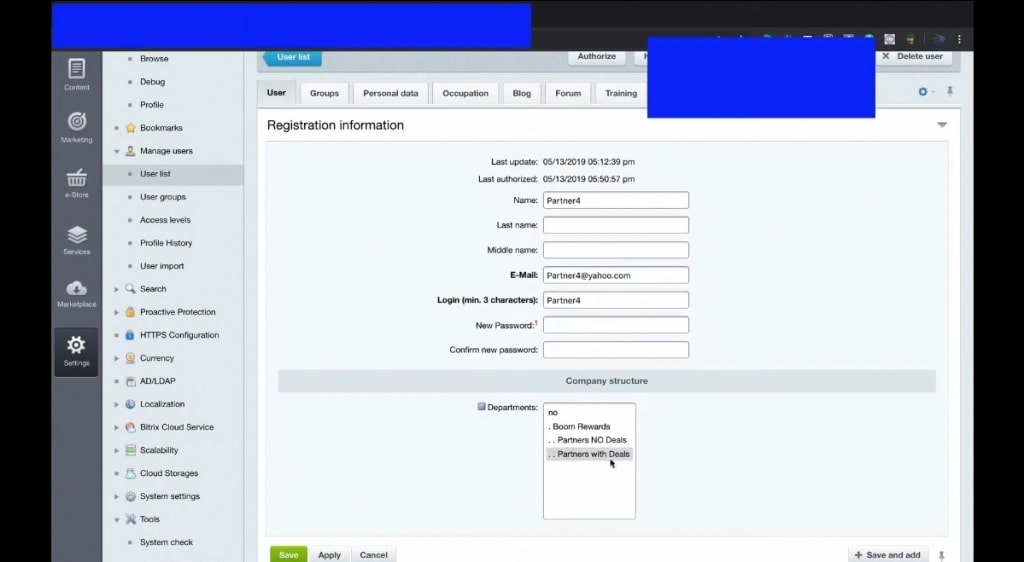
2. On navigating to 'Partner4' in the user list, you can see that we included him in the 'Partners with deals' department.
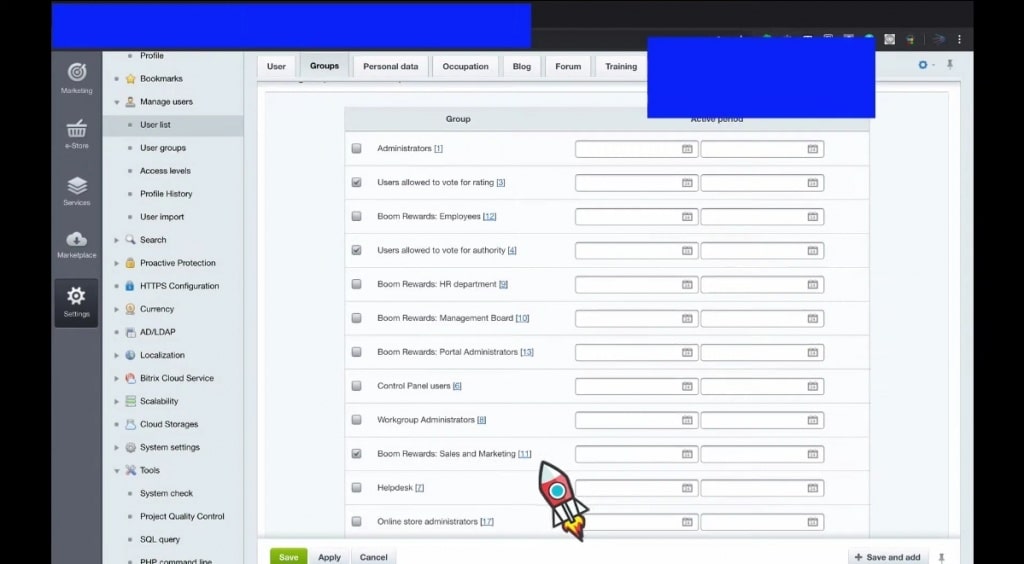
3. Next, we navigate to group, and assign him in the 'sales and marketing' group.
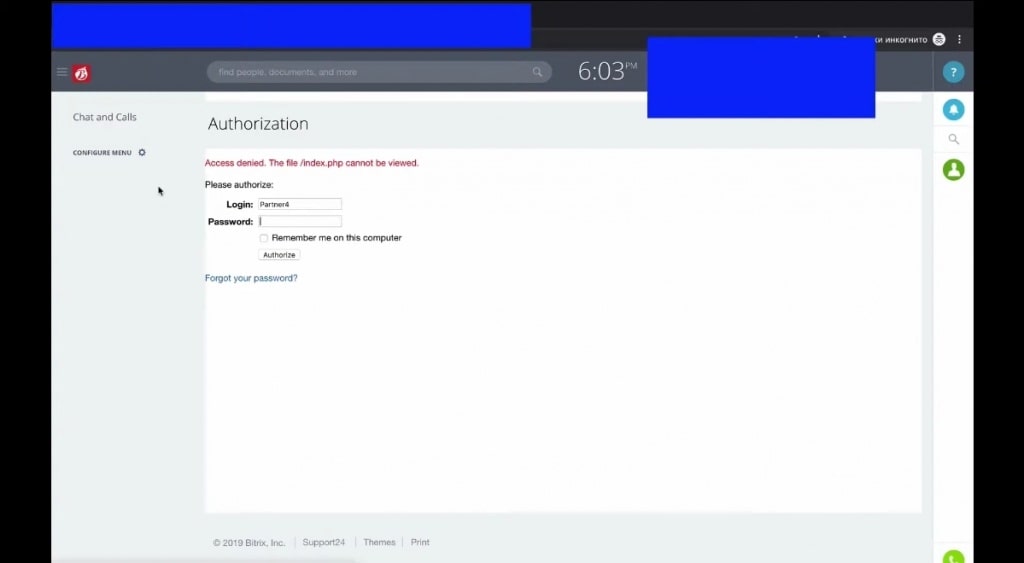
4. In this case, 'partner4' will have access to nothing in the Bitrix24 interface.
5. To give Partner4 access to the CRM, we navigate to 'crm' under 'files and folders' in the 'Content' Menu.
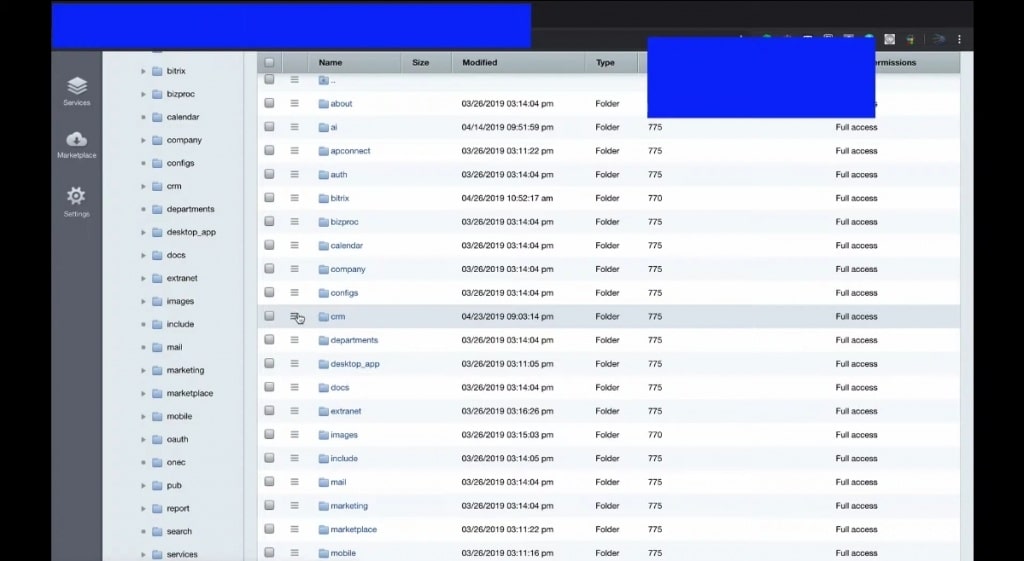
6. Under 'crm' we select 'access permissions' from the dropdown menu.
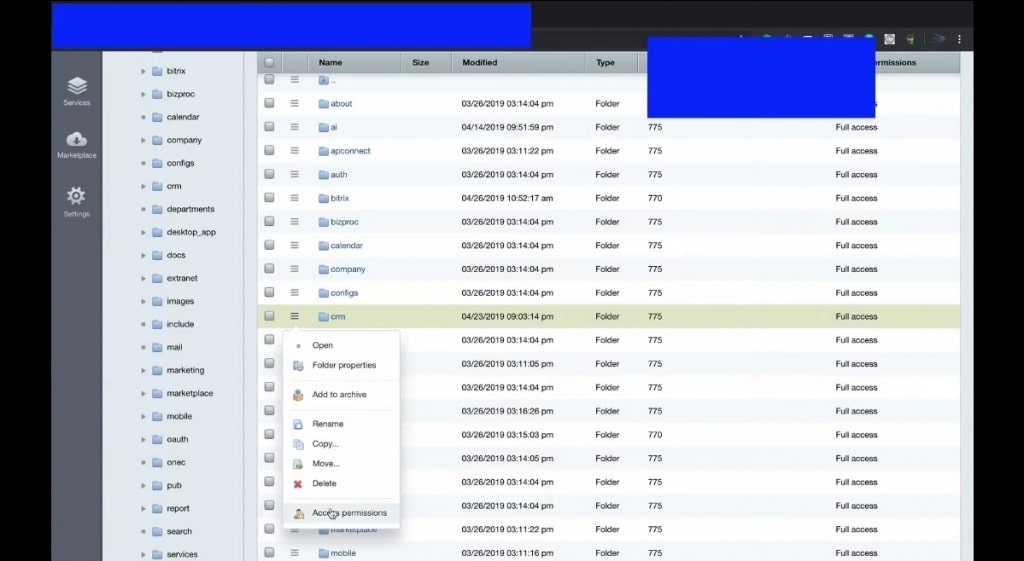
7. Under access permission, we give full access to the sales and marketing group, and then save the changes.
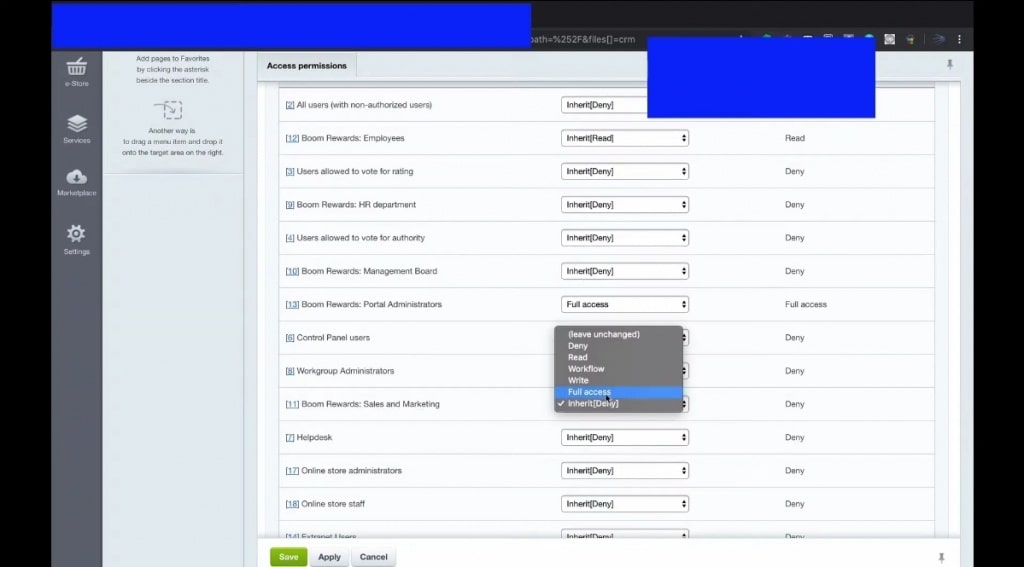
8. After the changes have been saved, Partner4 can now import leads from excel, but he is still unable to create new deals.
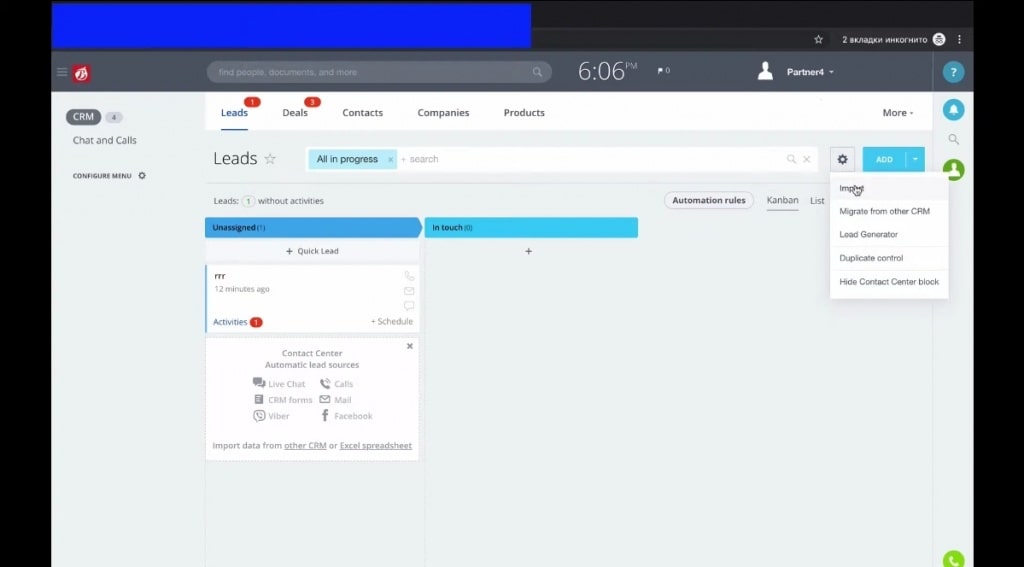
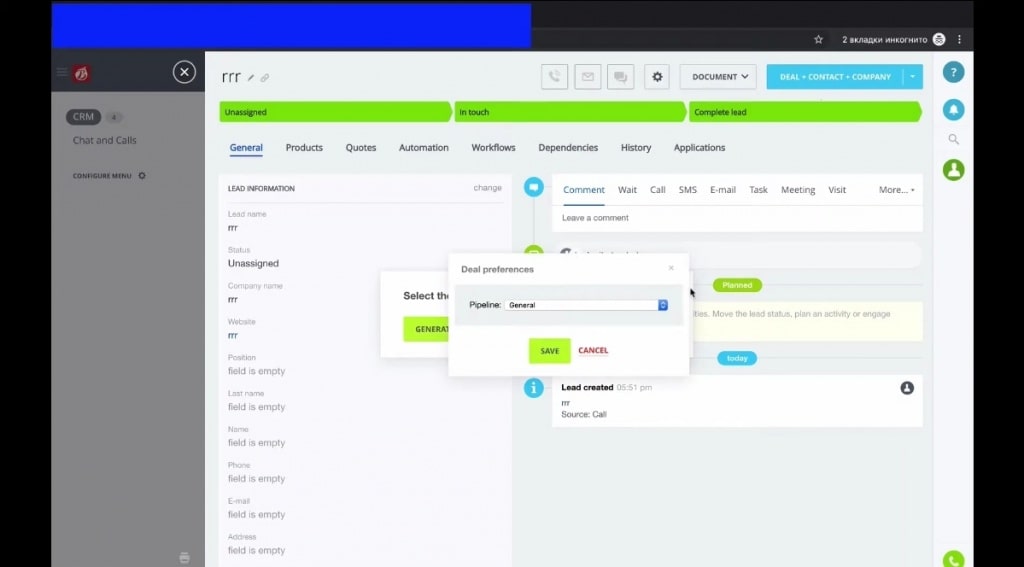
9. Furthermore, Partner4 cannot convert leads to, as the change will not be reflected even if he tries.
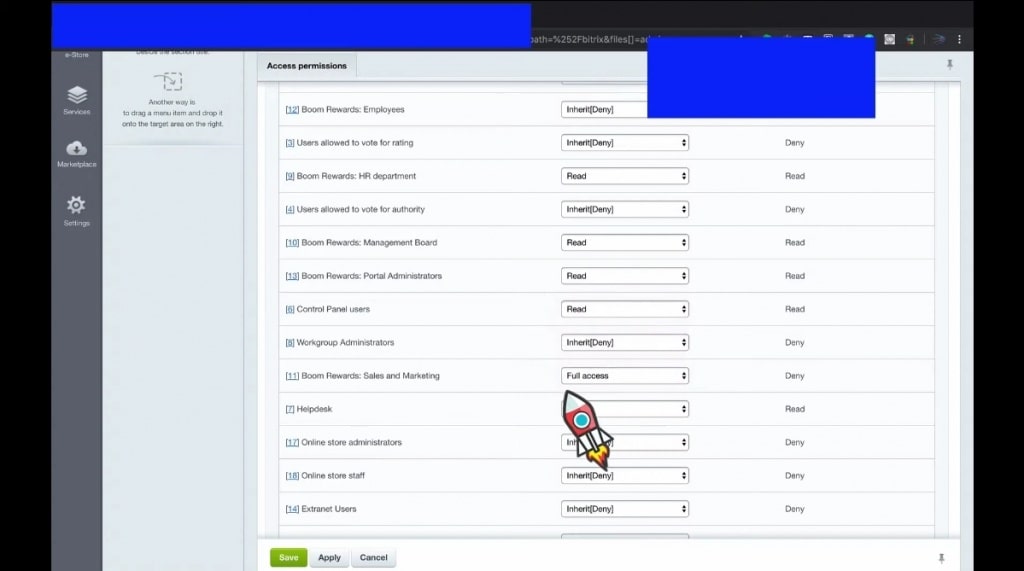
10. To deal with the issues in 8 and 9 above, we navigate back to files and folders in the control panel. We then select Bitrix, then access permissions under admin to give Partner4 full access. Afterwards, save.
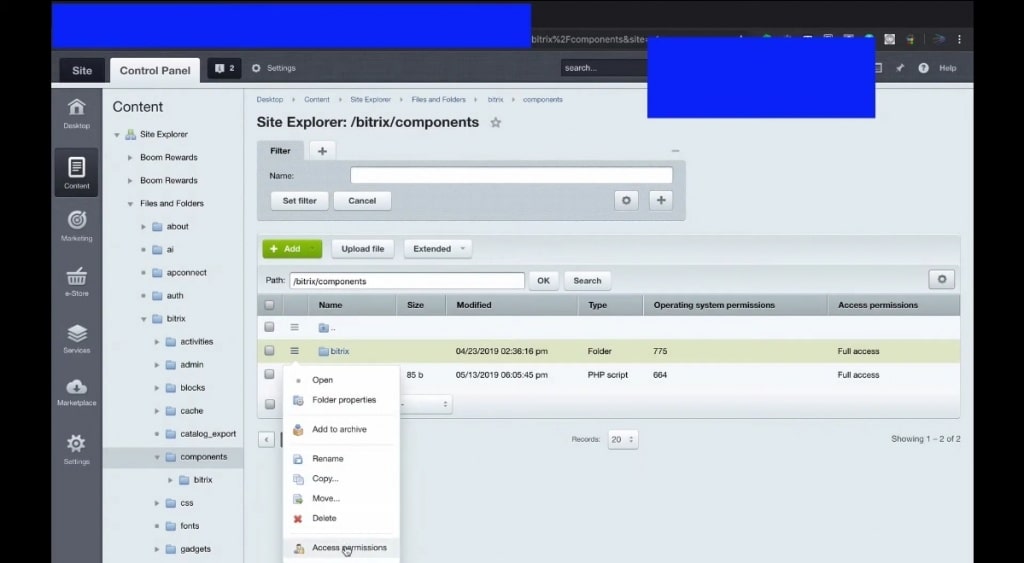
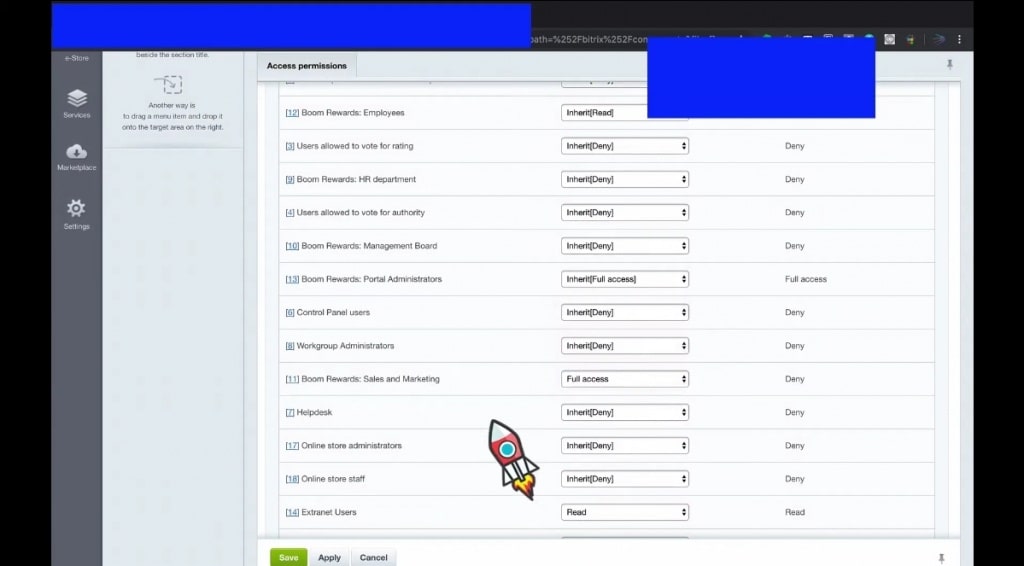
11. Still under bitrix, we navigate to 'components', and then select bitrix (under components). Under bitrix, we navigate to sales and marketing, and then give full access before saving the changes.
12. Going back to Bitrix24 homepage, Partner4 can now create new leads, and also convert them to deals.
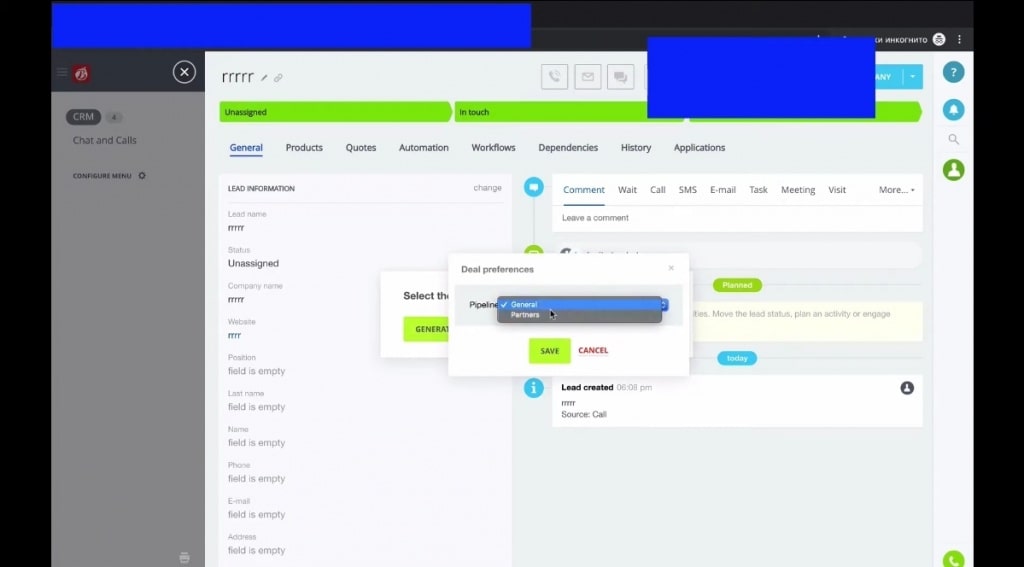
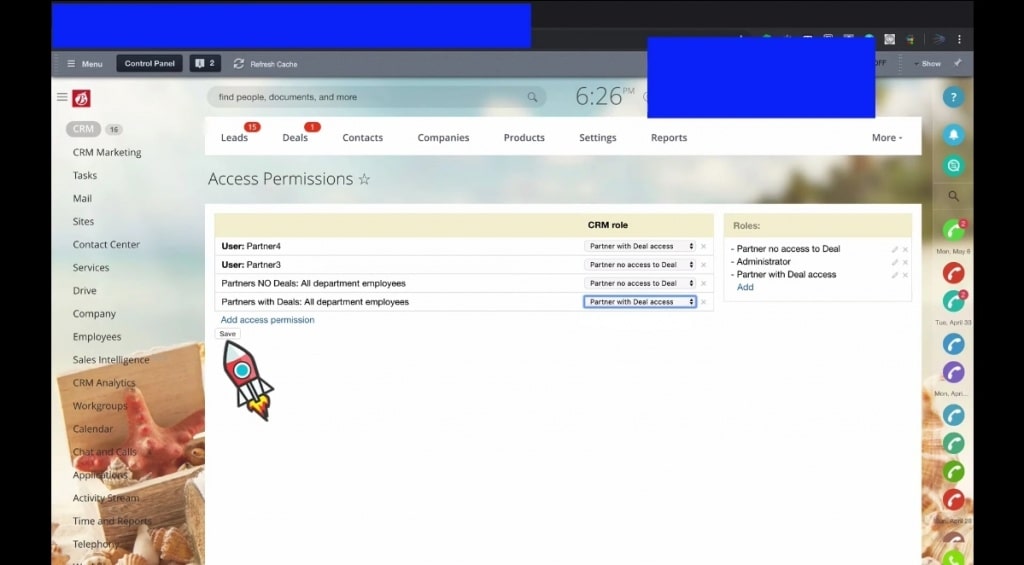
13. Also, to give different types of partners access to CRM features, we navigate to 'settings' from the homepage. Next, we click on permissions and then roles.
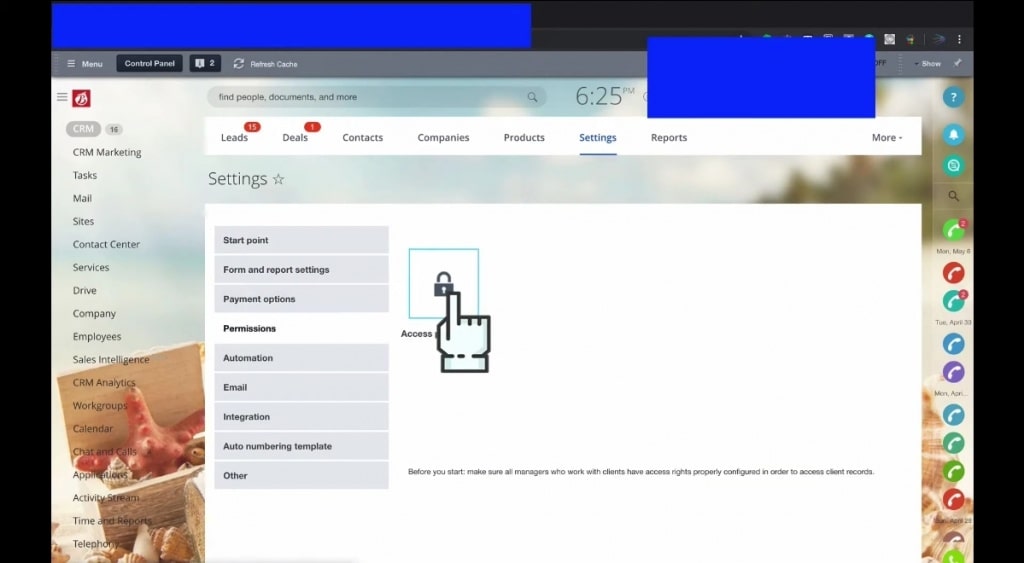
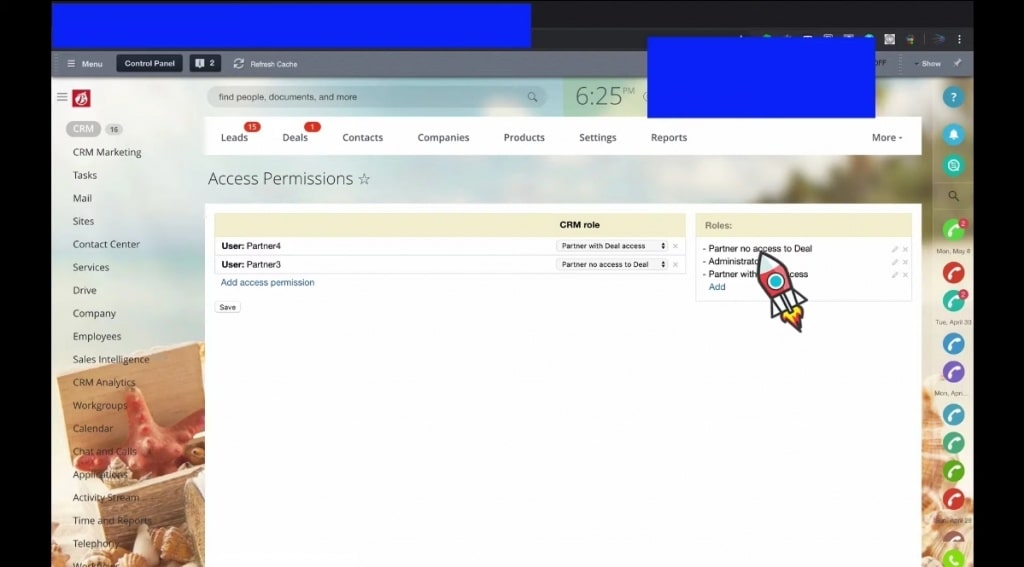
14. Under the roles, there are different categories of partners, from those with no access to deals, to those with deal access.
15. To configure the settings for 'partners with no access to deals' we give personal access to Contact, Company and Lead, we, but no access to deals. Then we save.
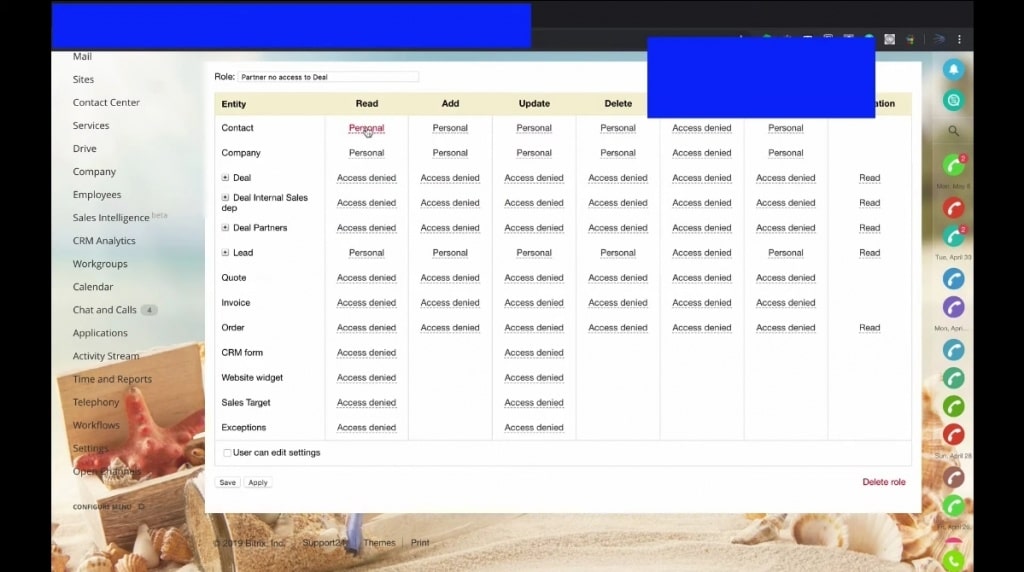
16. To configure 'partners with deal access', we give personal access to every section of Contact, Company, lead and Deals.
17. For a different department, we can create an entirely unique access permission by clicking on 'Add access permission'.
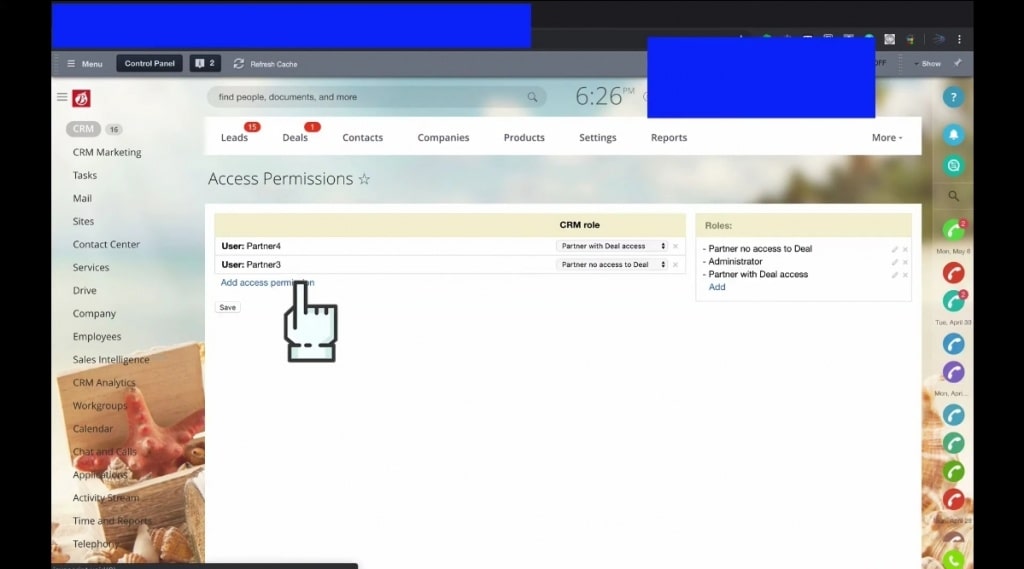
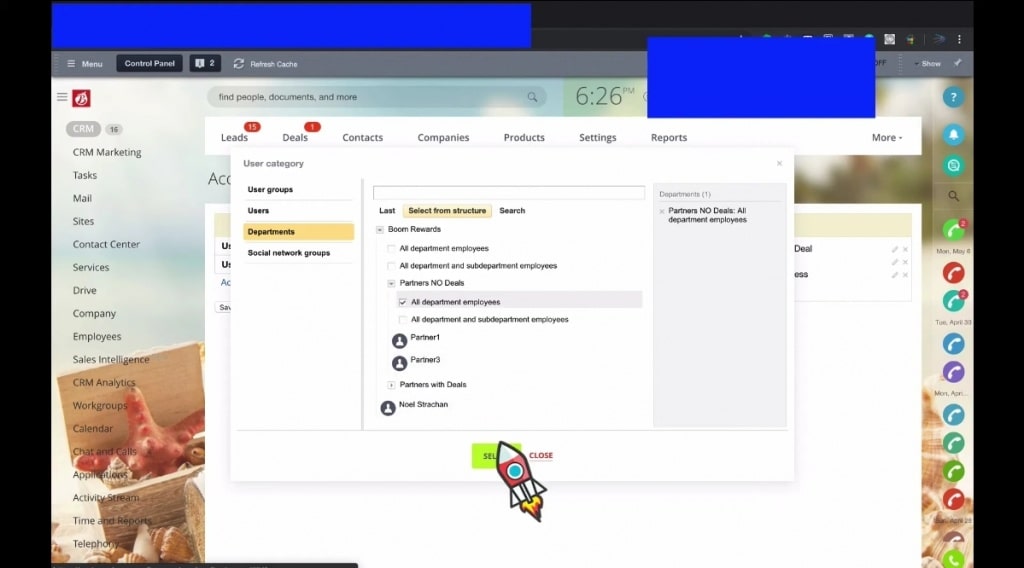
18. Next, we select 'Departments', and then 'select from structure'. Afterwards, we tick 'all department employees' under Partners: NO deals, and then select.
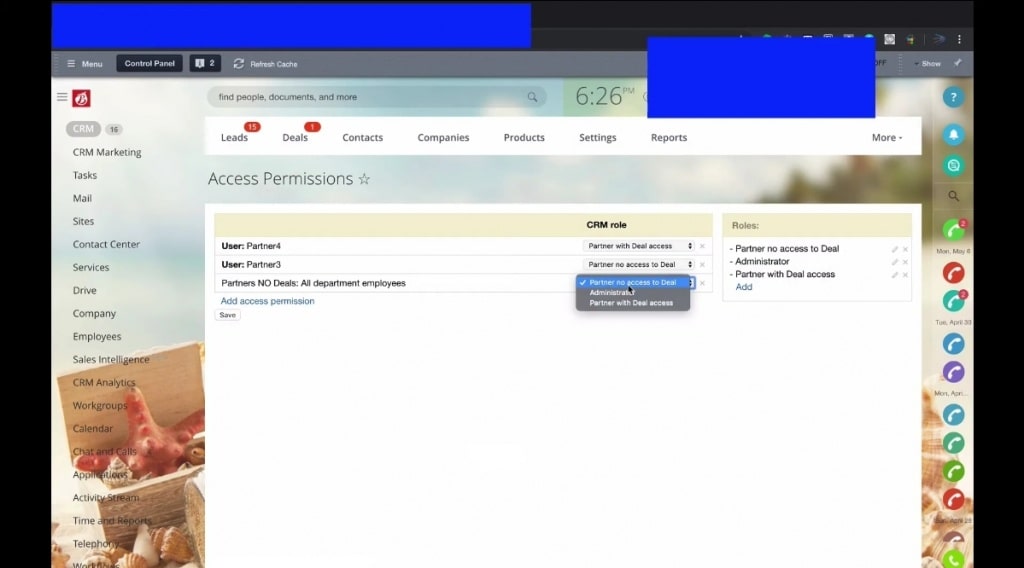
19. Under the CRM Role for number 14 above, we select partners with no access to deal.
20. For 'partners with deals', we make similar selections as in 18, but this time with 'partners with deals' structure.
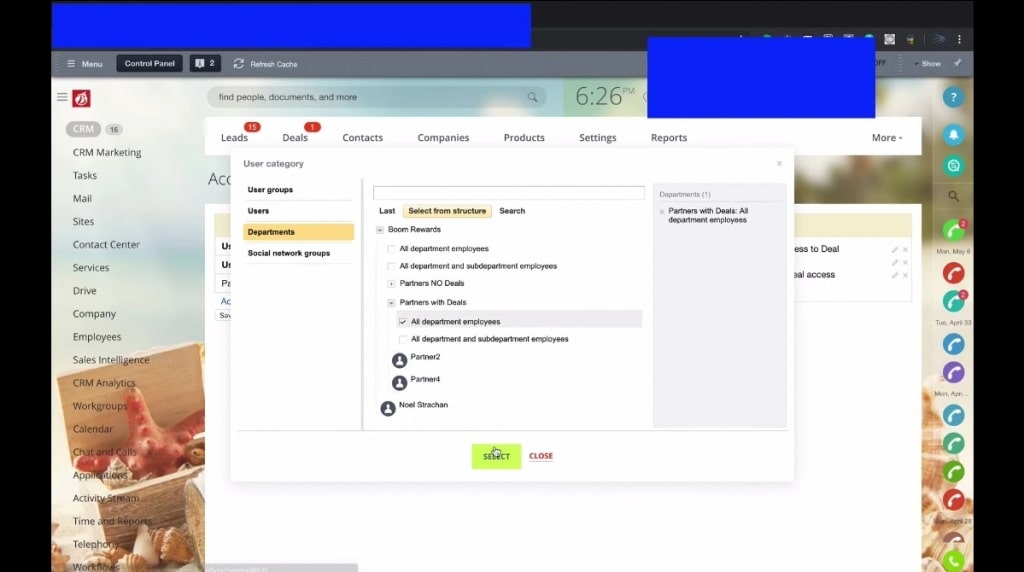
21. Now, we have different partners with varying access.
How much access to your CRM are you looking to give your team members? And check video below about that configuration.
Play video