Bitrix24 email marketing
Email marketing – the most common marketing tool
We continue to explore the power of email marketing for business purposes. Before we revealed how to “properly integrate any mailbox with Bitrix24” and how to “avoid spam from appearing in your Leads or Deals board”.
As stated before, email marketing is one of the most affordable and simple ways to communicate with your clients. However, when you go into detail, a lot of things will arise to sort out.
Newsletters is not the same as email marketing
The main association that comes to mind when we talk about email marketing is newsletters. However, typical newsletters are emails sent on regular basis which should include blocks of content relevant to subscriber. So, newsletter is not only about pushing sells, it rather a nice letter from friend with topics that are interesting for you. Of course, this happens when you know your target audience lifestyle in detail.
Apart from newsletters, there are a plenty of other emails: welcome, promotional, retention and so on. To build your email marketing strategy you should use emails relevant to your product or service and audience.
Email marketing ethics
Using emails, you can stay in touch with your customers in comfortable way for them. Emails are perceived as an obvious channel for sales. Unwanted emails seem to be less irritating, than, for example, unexpected chat from sales managers in messenger, which look like a break into the private space.
CRM systems in email marketing
When you start to discover email marketing in detail, you can be overwhelmed by variety of articles, software and hidden hazards. One app offers you an attractive design and layout, second shall check statistics of openings and clicks while another will help to avoid spam filters.
However, you can use bitrix24 email marketing possibilities to keep things clear.
Let’s see how you can design your email, choose audience segments, analyze statistics and go through your customers’ spam filters using Bitrix24.
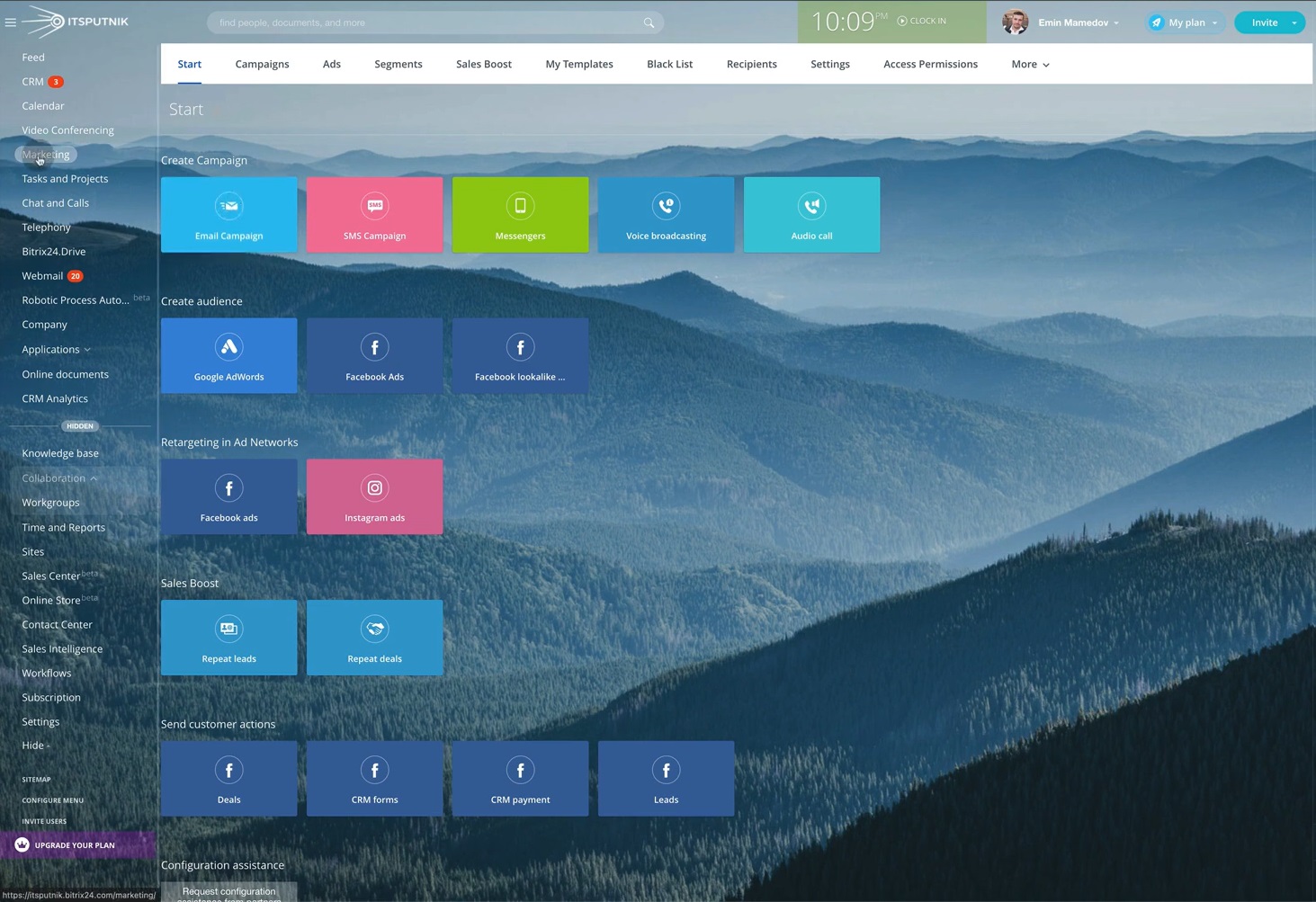
1. In side panel find Marketing and click Email campaign.
2. In window opened you will see campaign templates for different purposes. You can also create your own campaign using custom HTML.
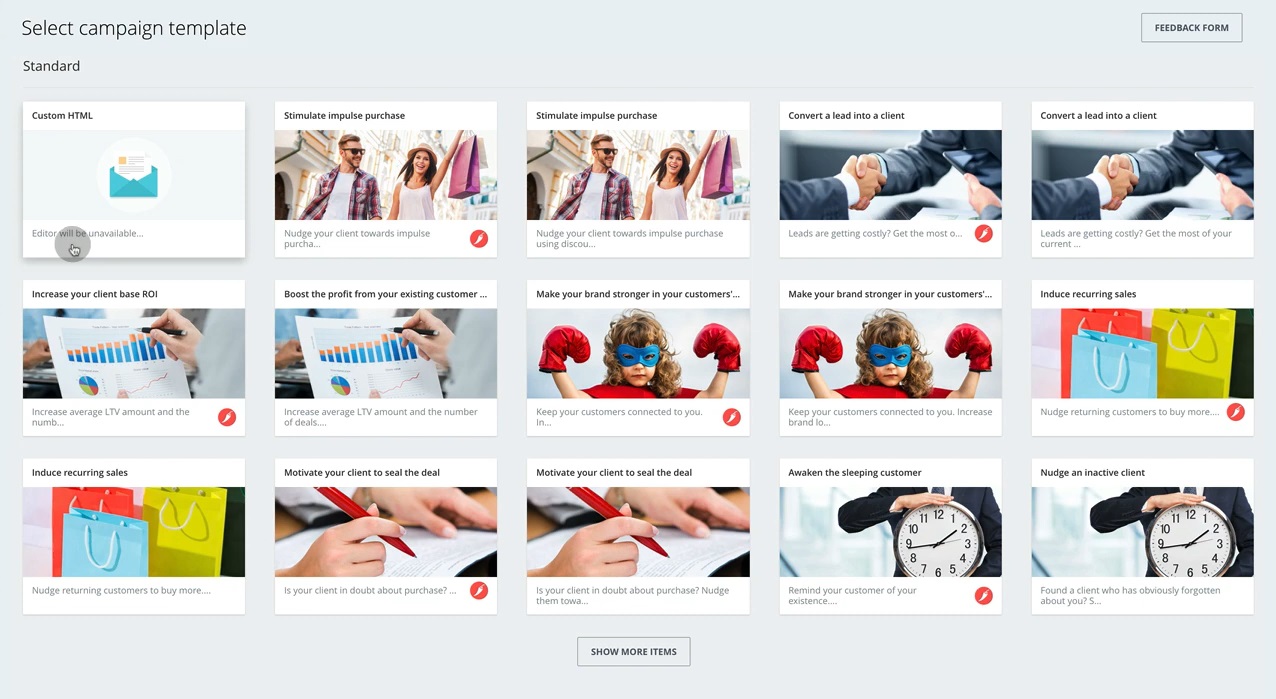
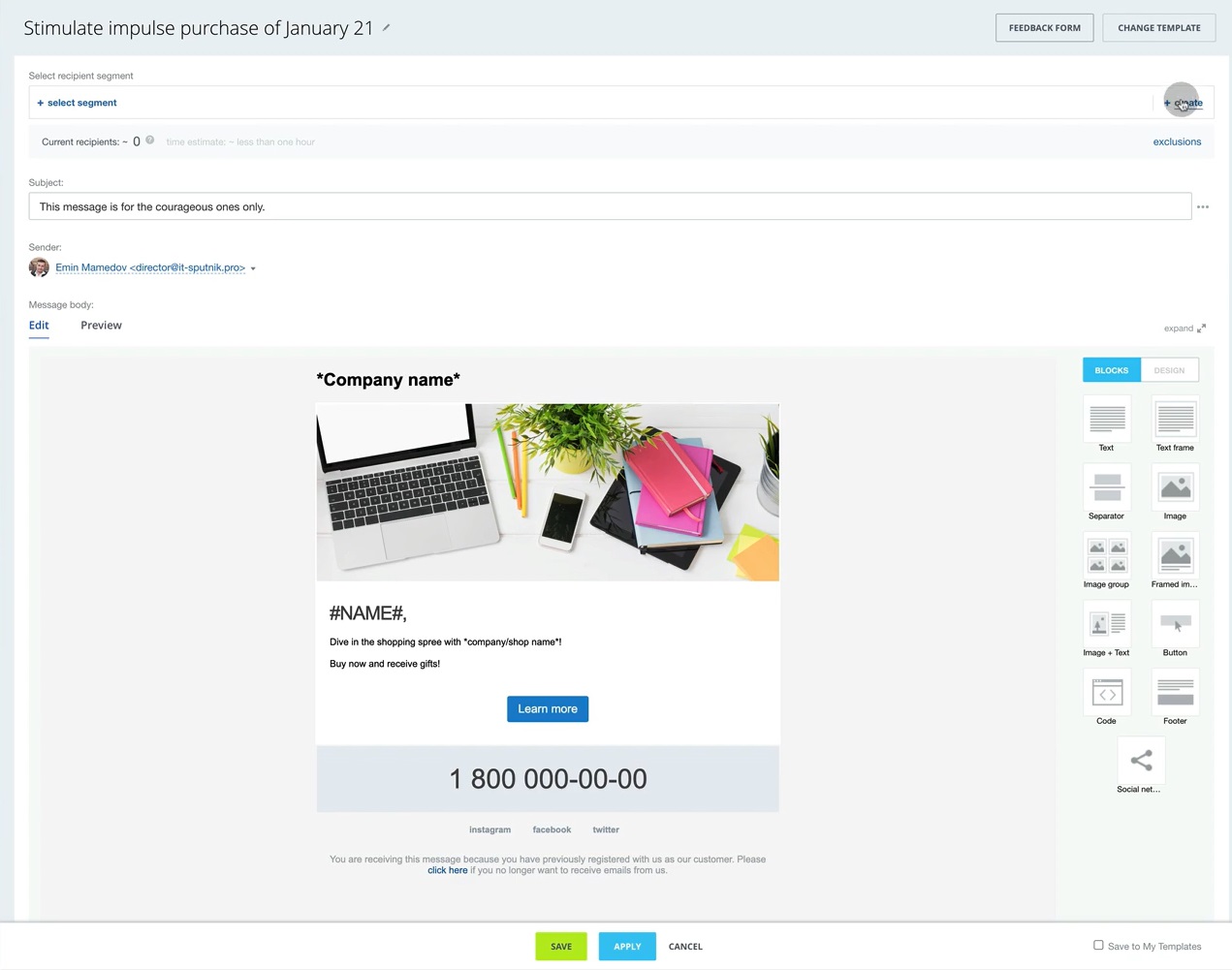
3. In this example we opened Stimulate impulse purchase template. Here you can see a campaign editing tools similar to website builders.
Segment is a list of clients whom you want to reach with your email campaign. As we don’t have previously stated segments, we should click Create.
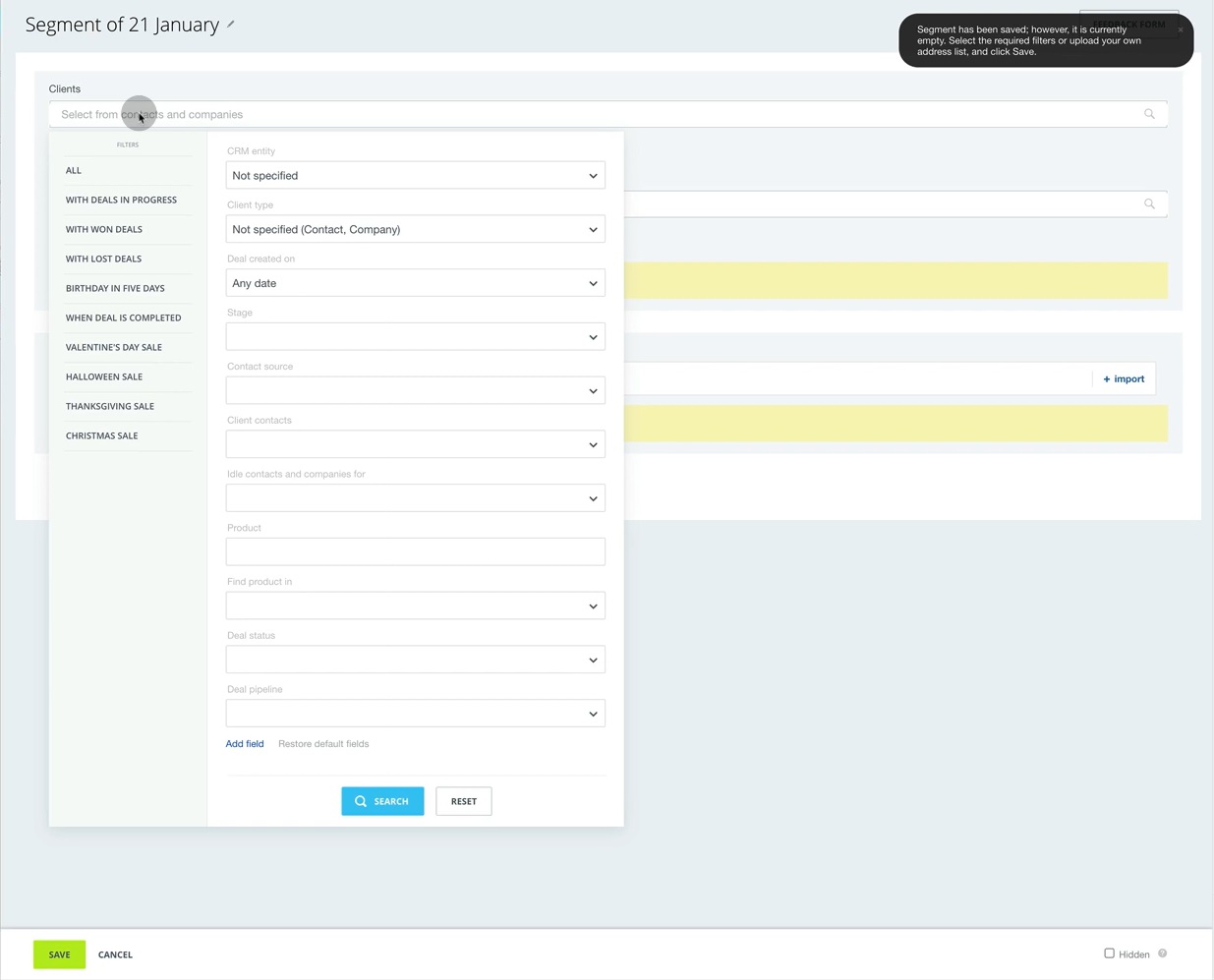
4. Then you need to click on Clients. Here you can select some criteria to choose relevant clients from your database.
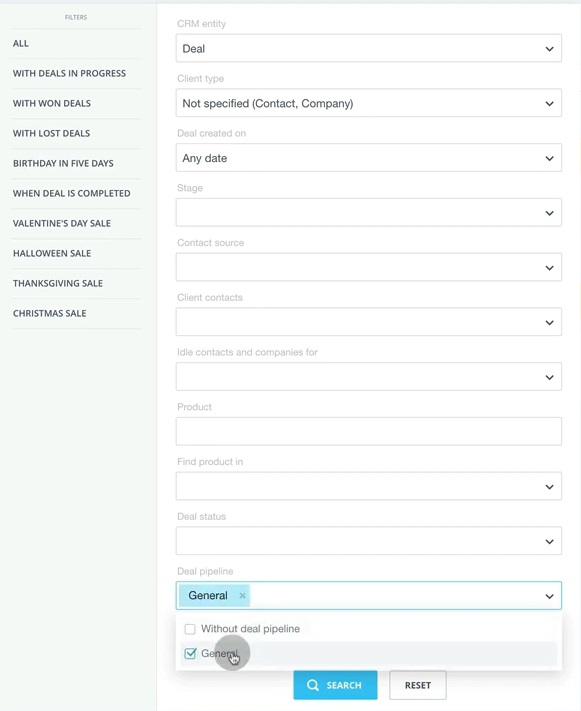
5. In this example, we choose CRM entity as Deals and General Deal pipeline. You can choose Leads instead of Deals and also have several pipelines.
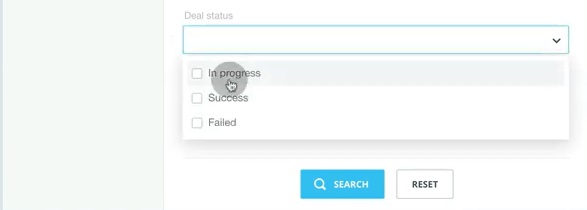
6. In Deal status you can choose from different stages. We chose all Deals from General pipeline which have “In progress” status. Click Select.
7. After setting up a segment, you can see how many emails meet these criteria.
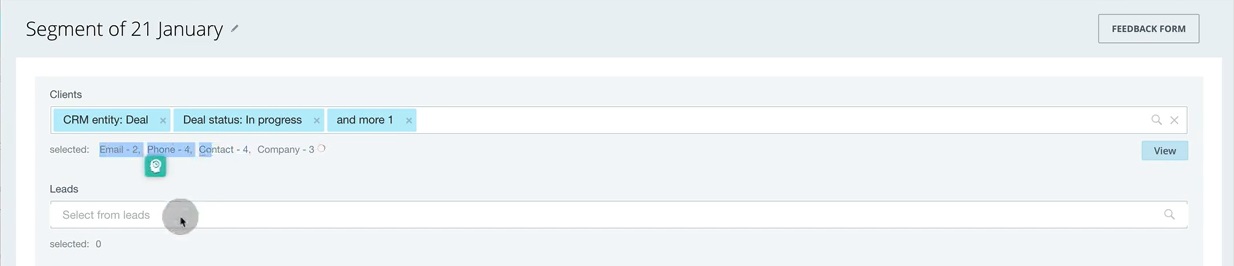
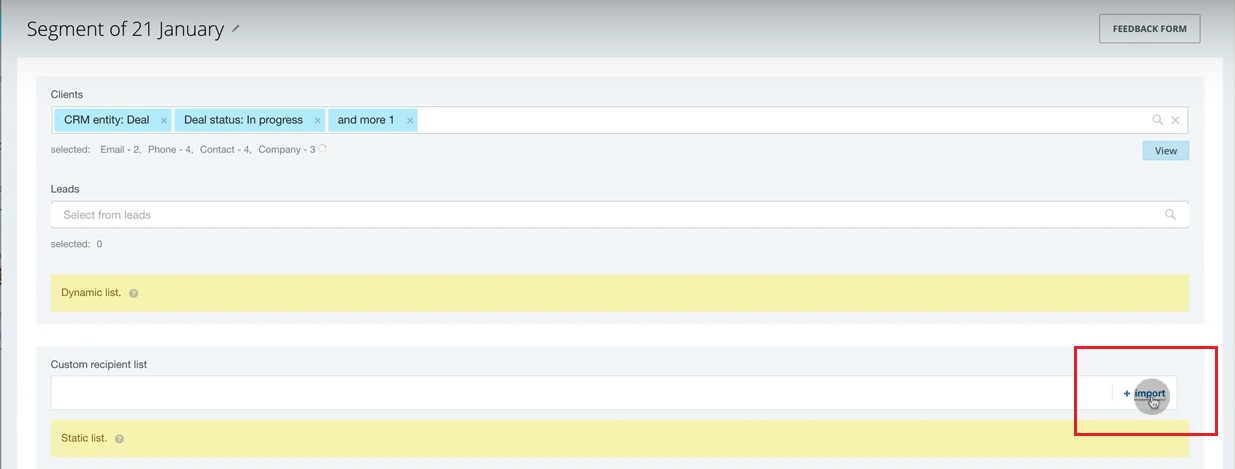
8. To create a custom recipients list, click Import.
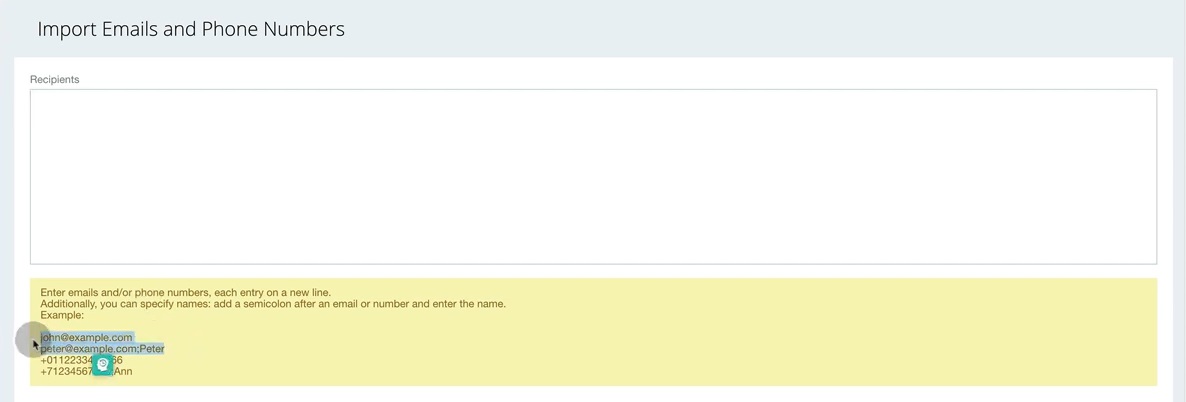
9. In window opened you can put a list of emails as shown below.
10. As you finish with segments, click Save. In email campaign put some subject
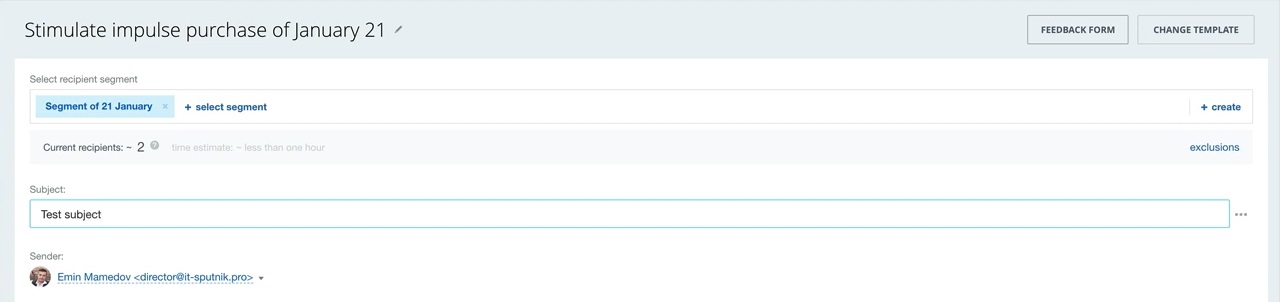
11. Then you can edit the body of email. You can change text, add or delete pictures etc.
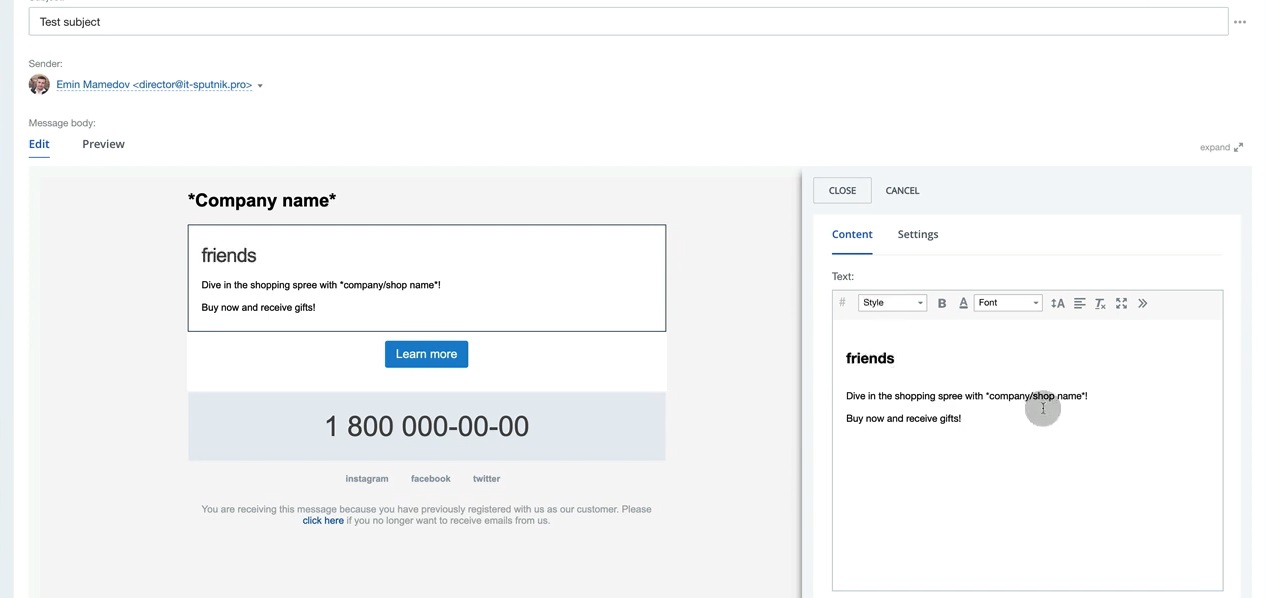
12. Click More to be able upload files and so forth.
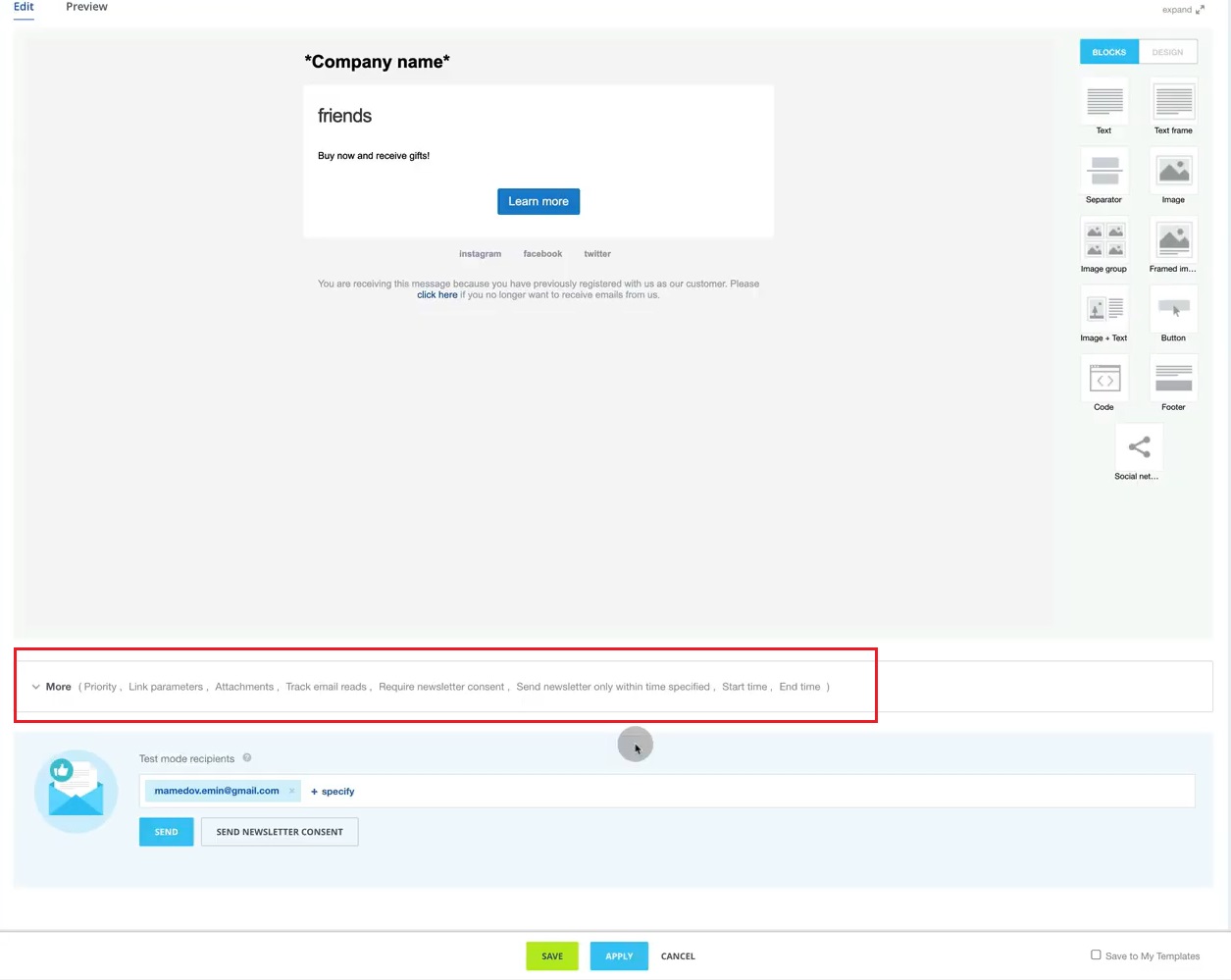
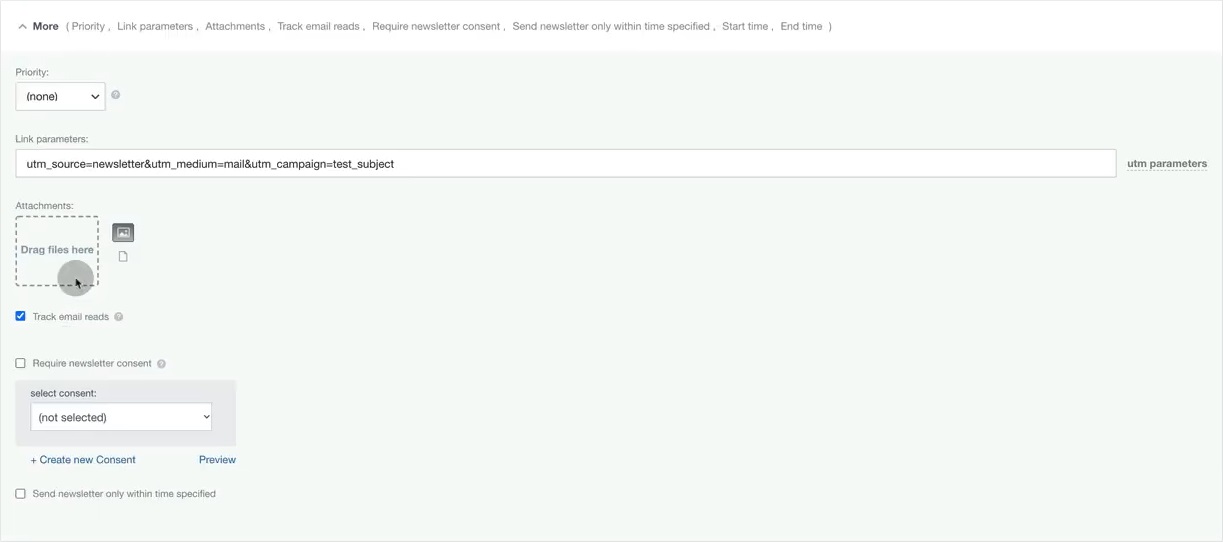
13. Here you can select Priority, use UTM parameters and upload files.
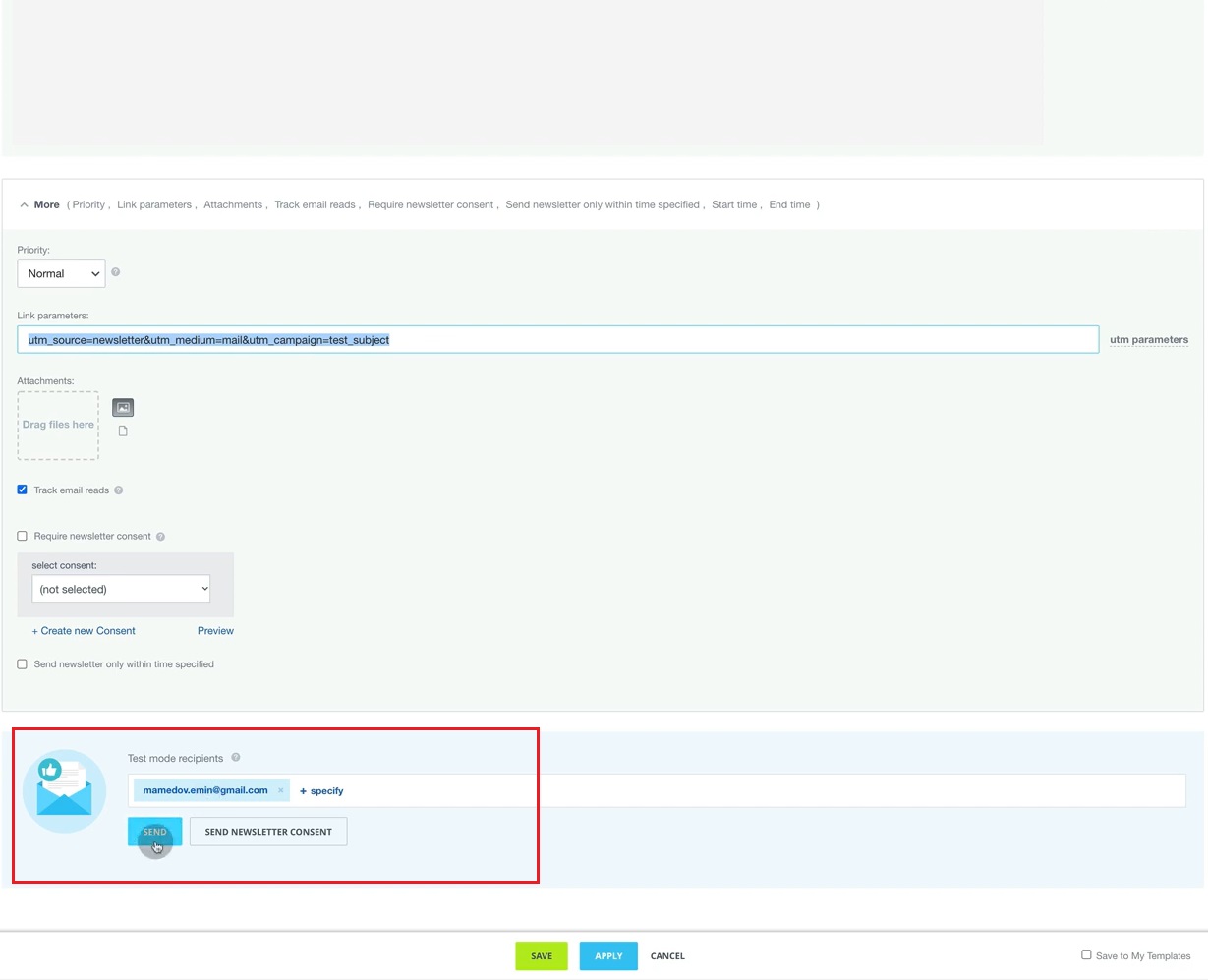
14. Then, before starting your campaign, you must first test it. To do so, put your email in Test mode recipients and click Send. If you are satisfied with test letter, click Apply.
15. Next step is to set up a time of sending your email campaign. There are three options: “now”, “later, manually” and “schedule”.
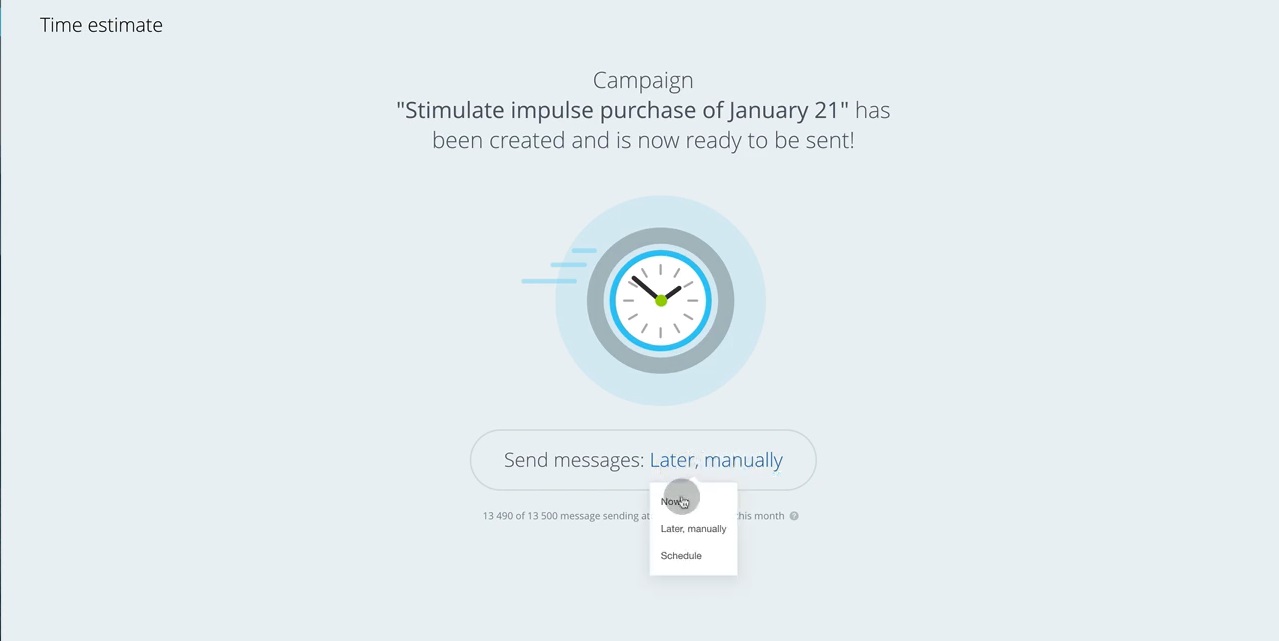
16. If “schedule” is selected, you can state a specific date and time when email campaign will start.

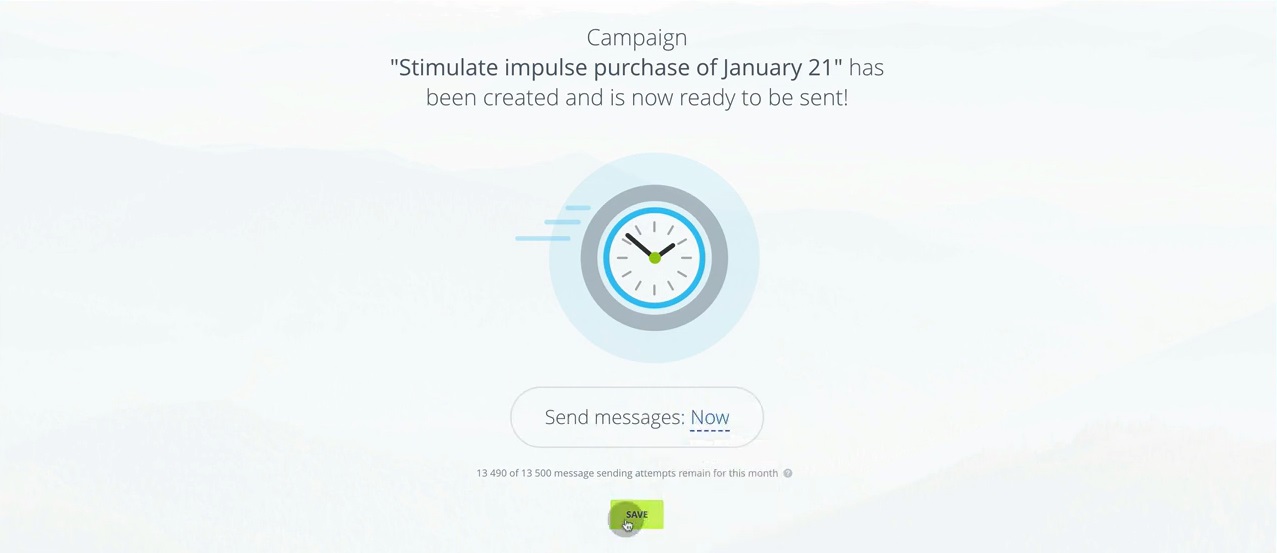
17. If “now” is selected, then email campaign will start as soon as you click Save and agree with terms.
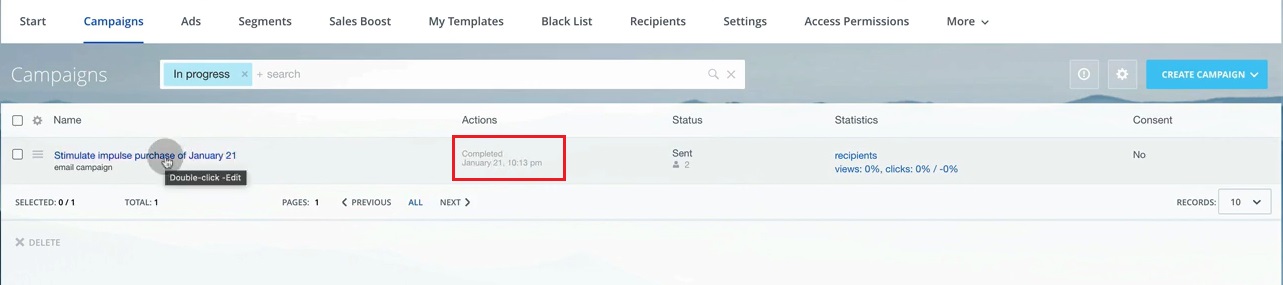
18. When email campaign is finished, in Campaigns you will see “Completed” status.
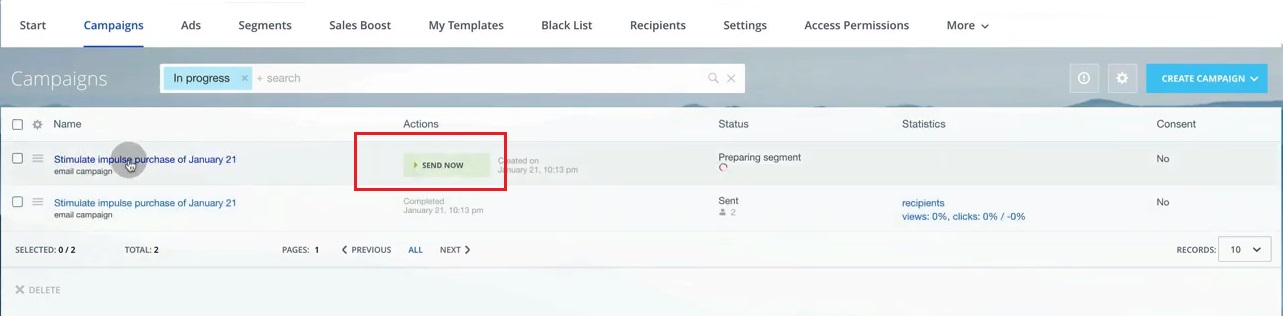
19. And when you select “Later, manually”, then your draft will be saved in Campaigns but not started.
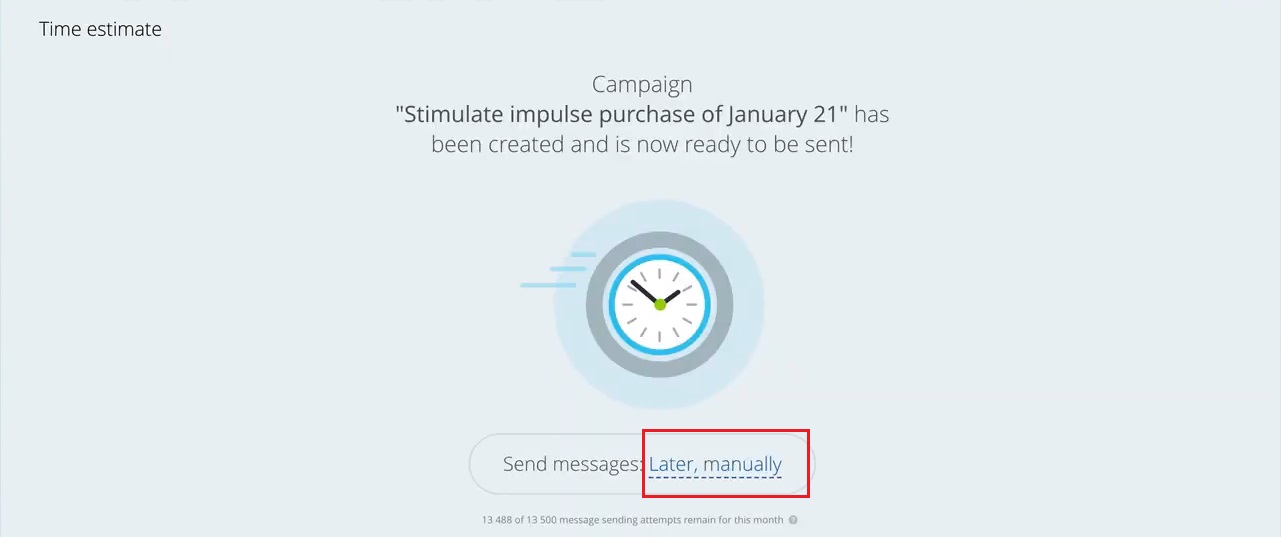
20. To start the campaign, click on “Send now” when you decide to do so.
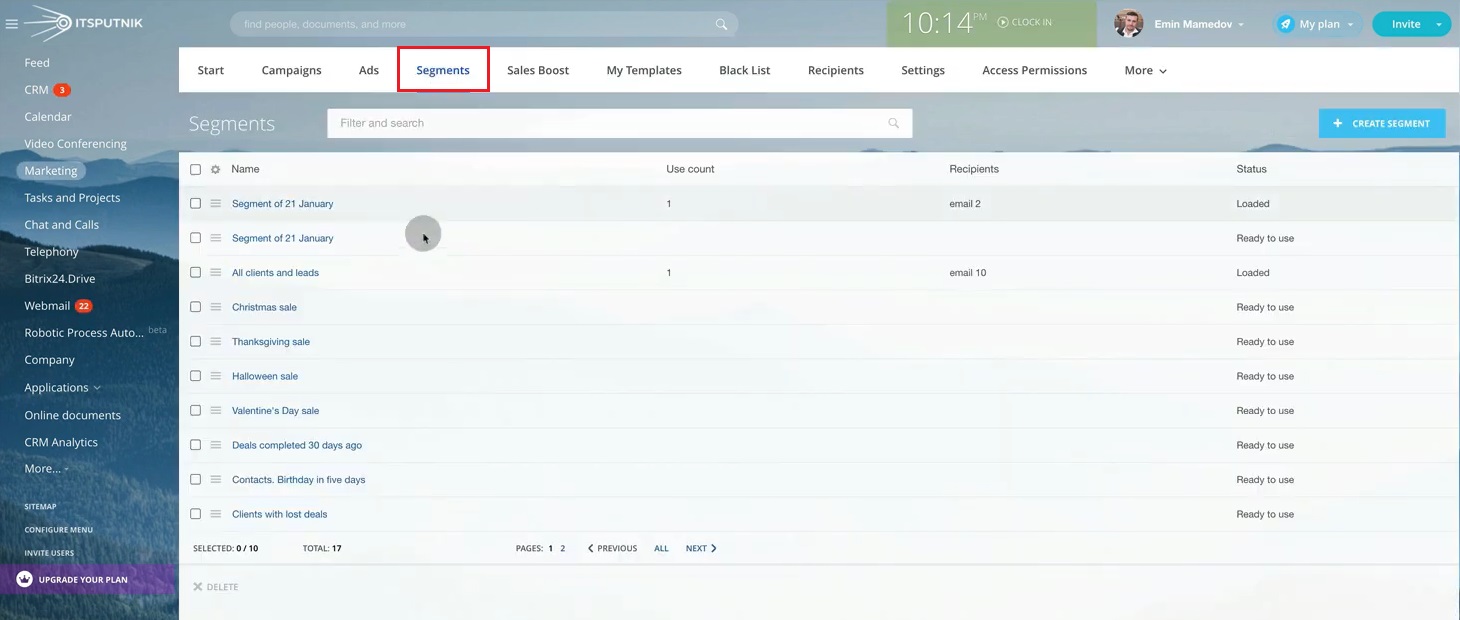
21. In Segments section you can observe all segments you have ever created and saved.
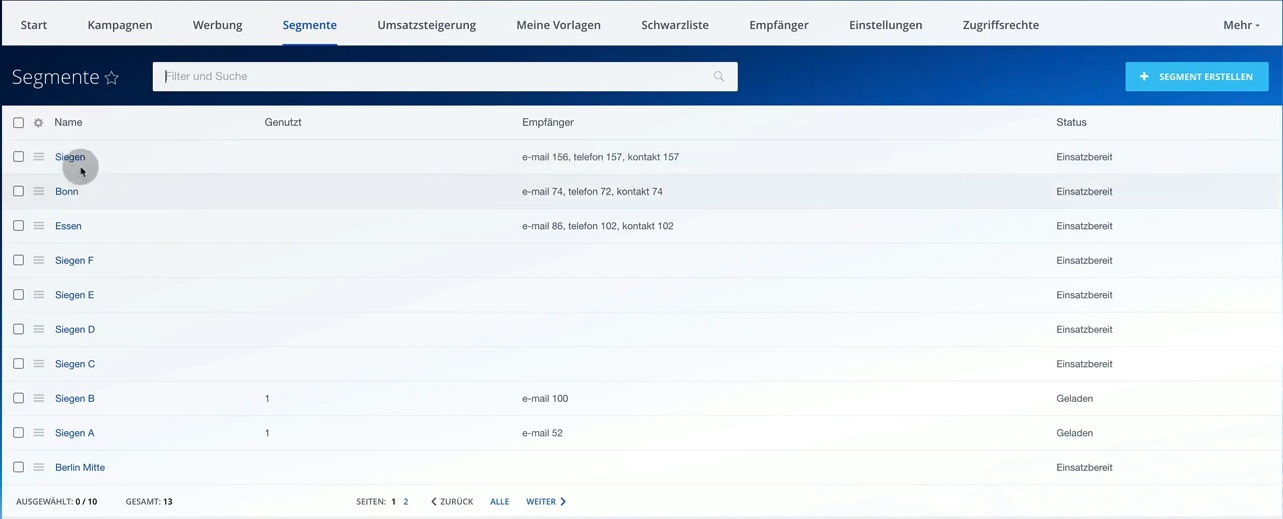
22. Let’s see segments in one of our clients’ Bitrix24 system. In this example, segments divided by cities where client is located. For each segment you can see how many emails it involves.
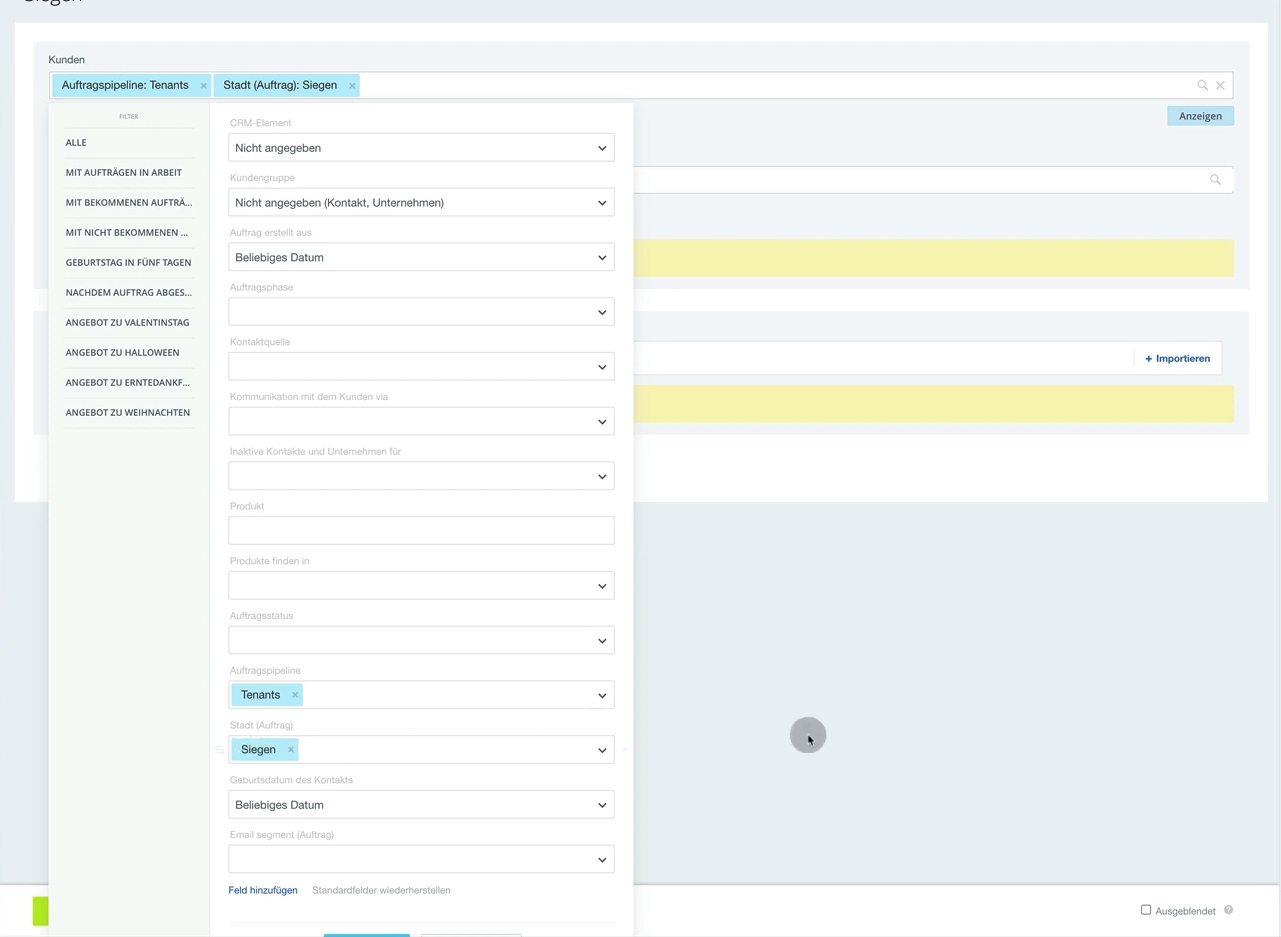
23. If we click on the segment, we’ll see filters used. Here, we chose Deals in specific pipeline in Siegen city.
24. When we send emails, we can see campaign statistics: what percentage of emails was opened and how many of them were clicked on.
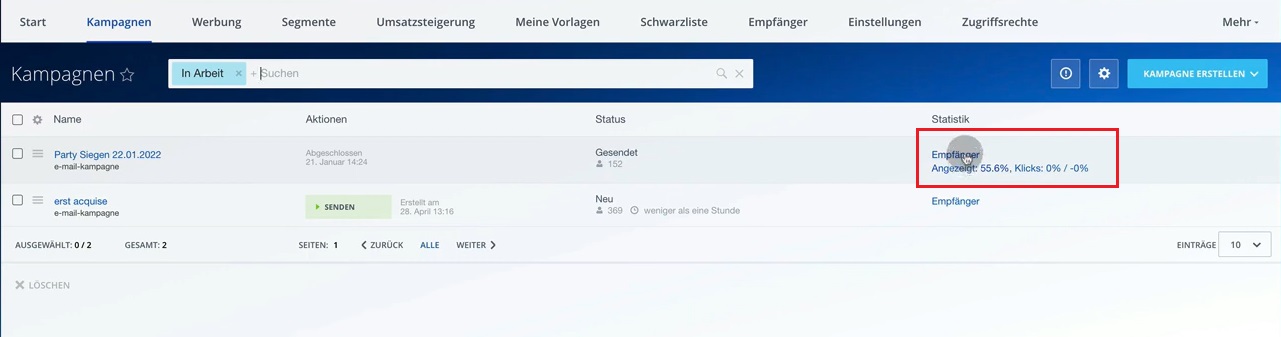
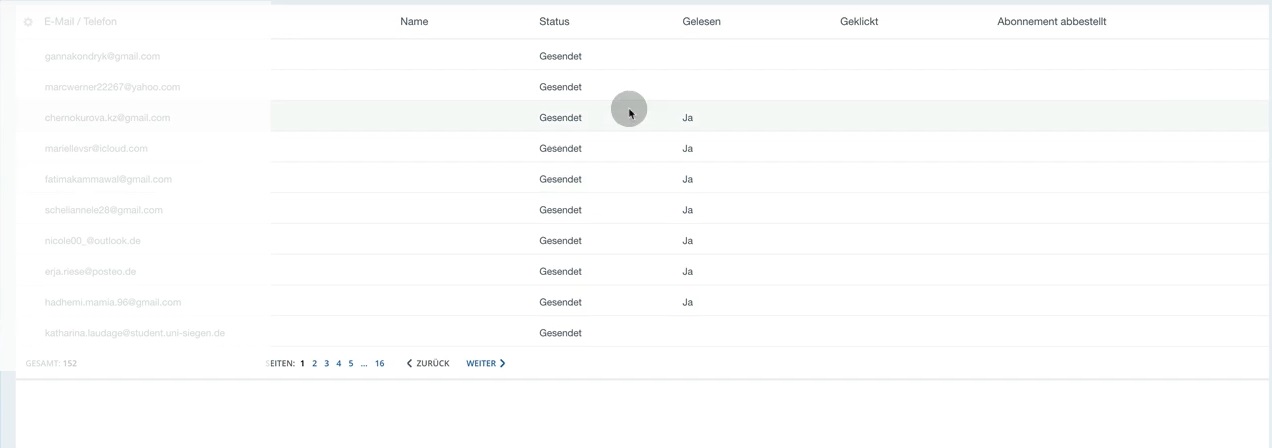
25. If we click on Recipients, we will be able to see the list of all emails and whether they are sent and opened.
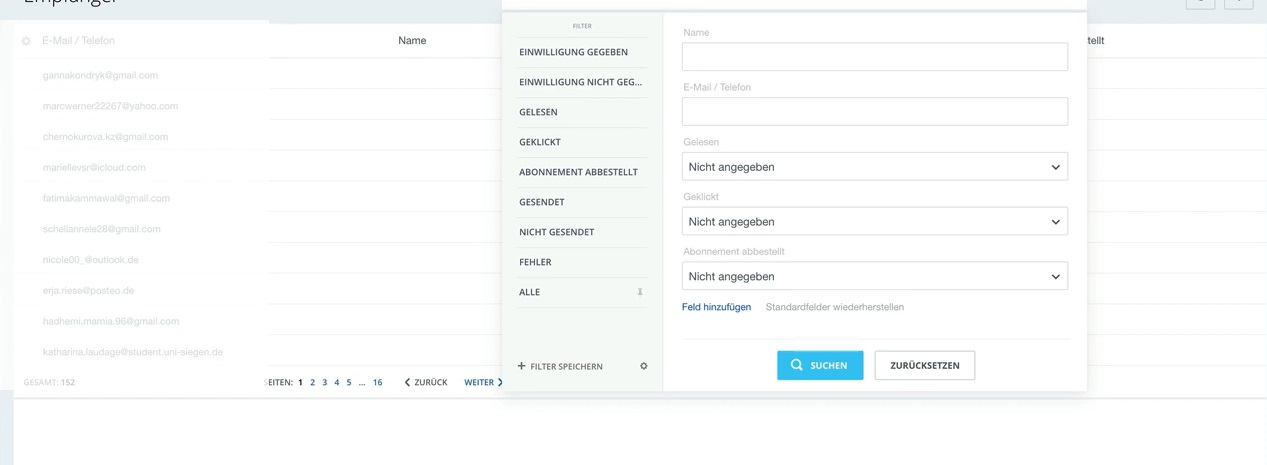
26. Also, you can filter emails by status.
27. To do so, go to Webmail and click on Settings and choose Mailbox settings.But if you are going to send your email campaign for potential clients, then you should use external SMPT to avoid being recognized as spam.
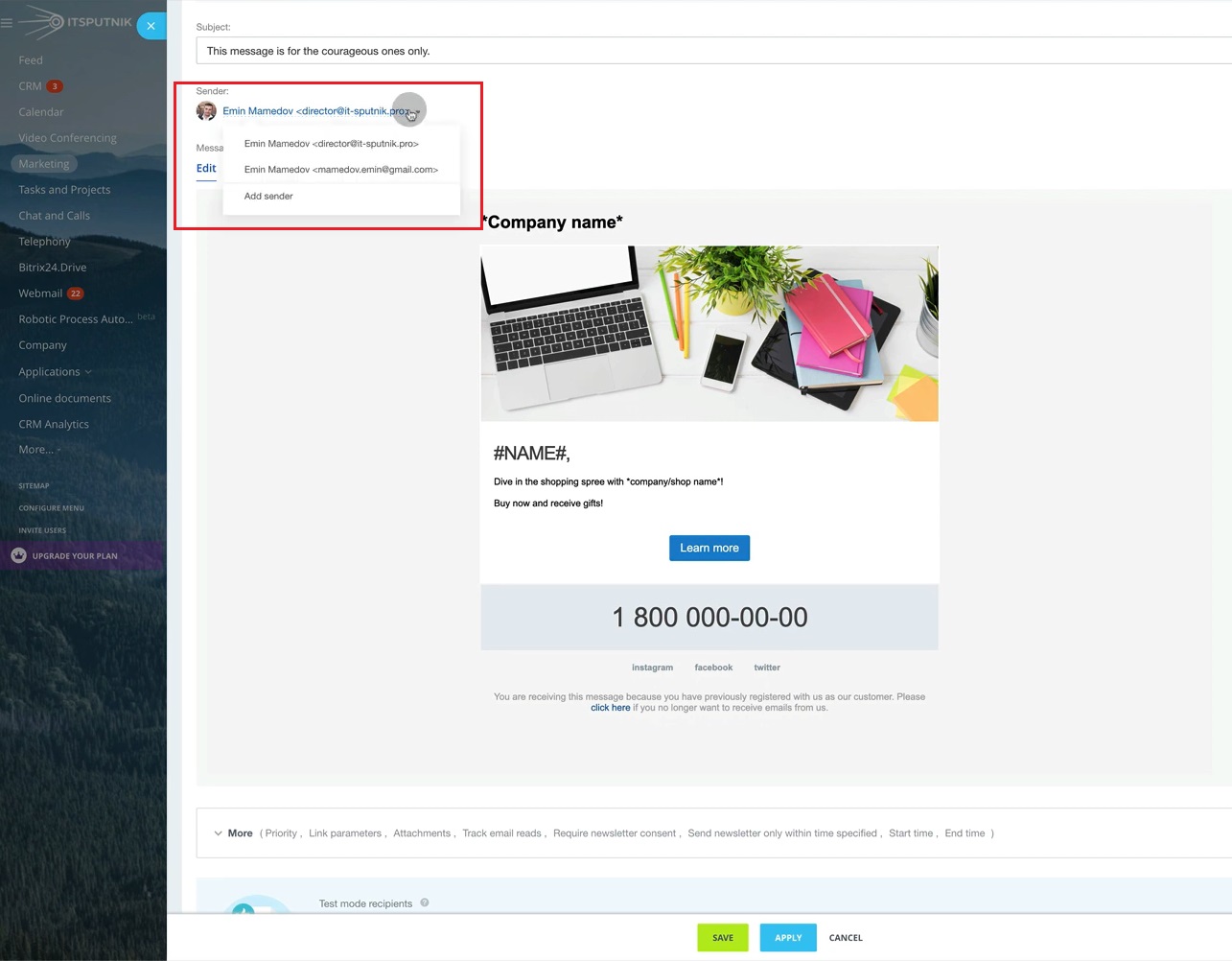
28. To do so, go to Webmail and click on Settings and choose Mailbox settings.

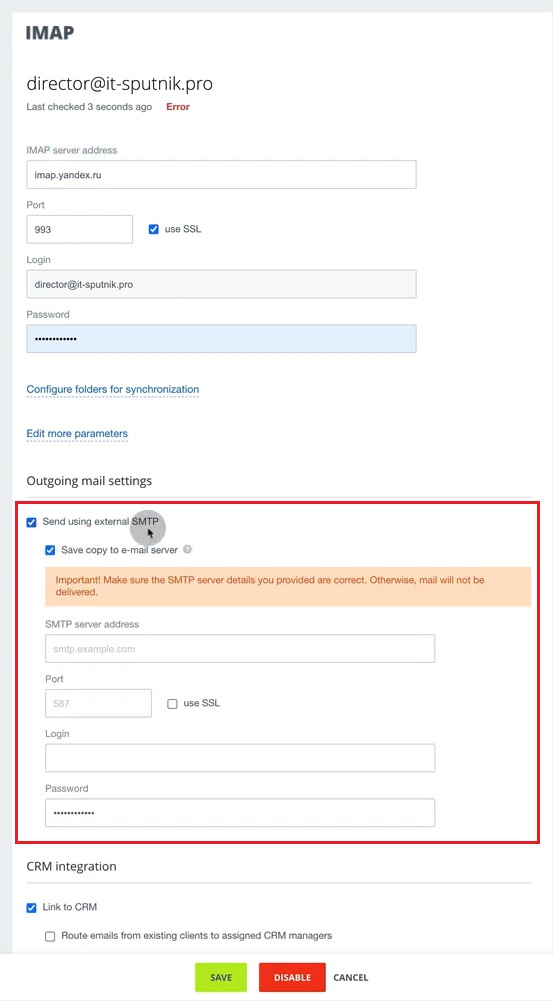
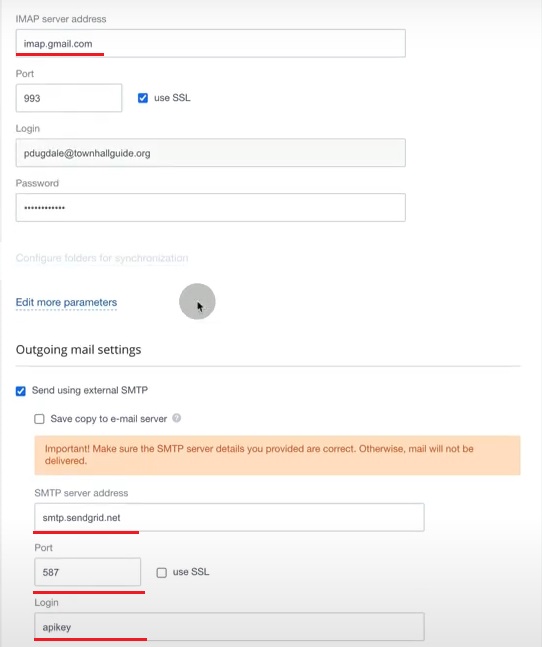
29. Here you should tick “Send using external SMPT” and state relevant credentials.
30. In real example we used Sendgrid as an external SMPT and put its server address, port, login and password as stated below.
That was an overview of bitrix24 email marketing possibilities.
Want to use email marketing at 100% in your company? “Contact us” and we will advise solutions according to your market and audience.
“You can also watch the video of this tutorial below on Youtube”
Play video