
Bitrix24 Training Course 11. CRM Robots: Products.

This video, part of a Bitrix24 training course, focuses on automation and managing products. It covers various aspects of product management within Bitrix24, specifically dealing with automation rules related to products.
The tutorial demonstrates how to create and use different types of robots or automation rules in Bitrix24. The topics covered include:
Adding Product Items
Explains how to add products to deals or leads, including setting up prices, quantities, and discounts.
Copying and Editing Product Items
Shows the process of copying products and editing their details.
Deleting Products
Demonstrates how to delete products from a deal at a certain stage using automation.
Retrieving Product Item Information
Explains how to get information about a specific product in a deal. This part also includes creating tasks with product information.
Detailed instructions on how these robots can be used are described below.
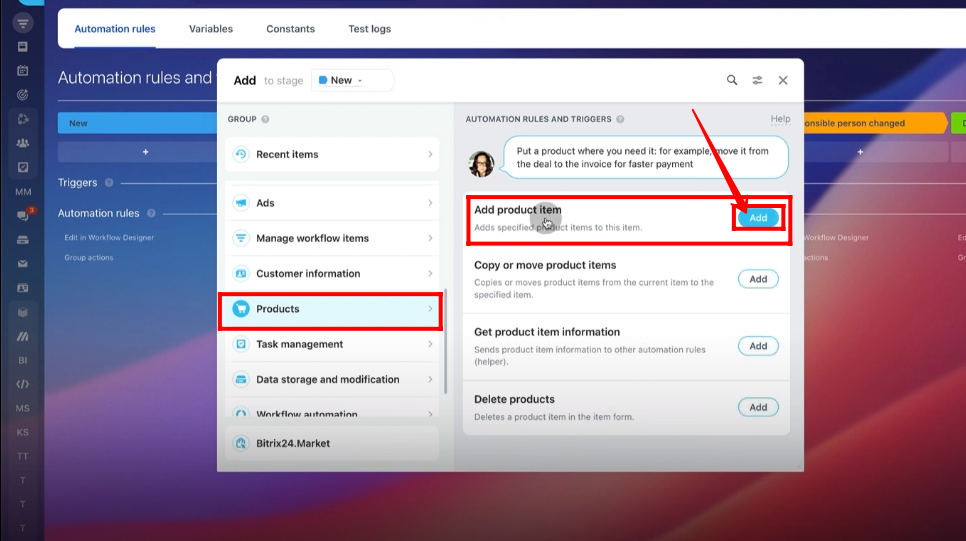
1. Go to “Automation Rules”. Click “Create”. Go to “Products” and add “Add product item” robot.
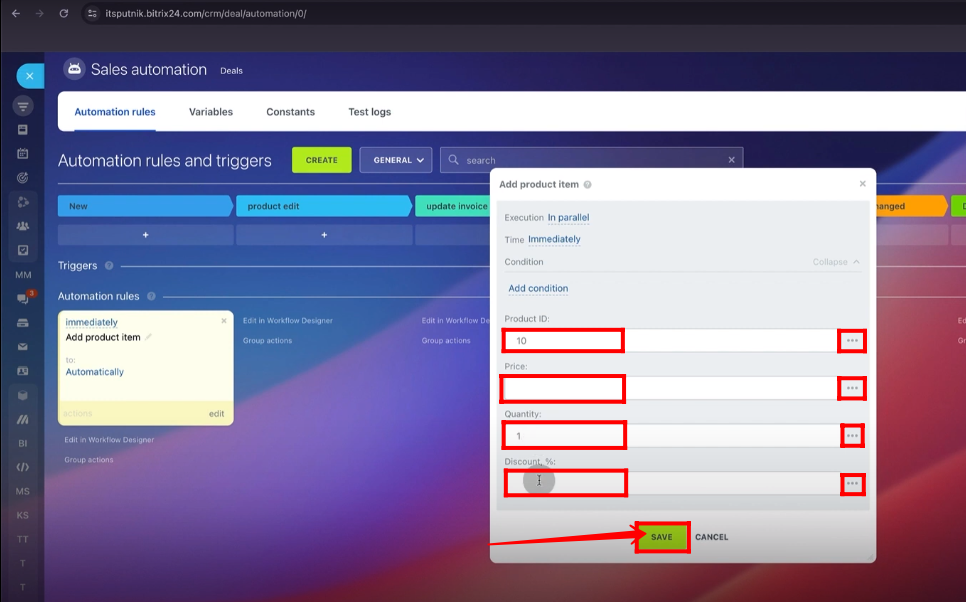
2. Add “Product ID”, “Price”, “Quantity” and “Discount” by selecting dynamically from three dots options or write manually. Click “Save”.
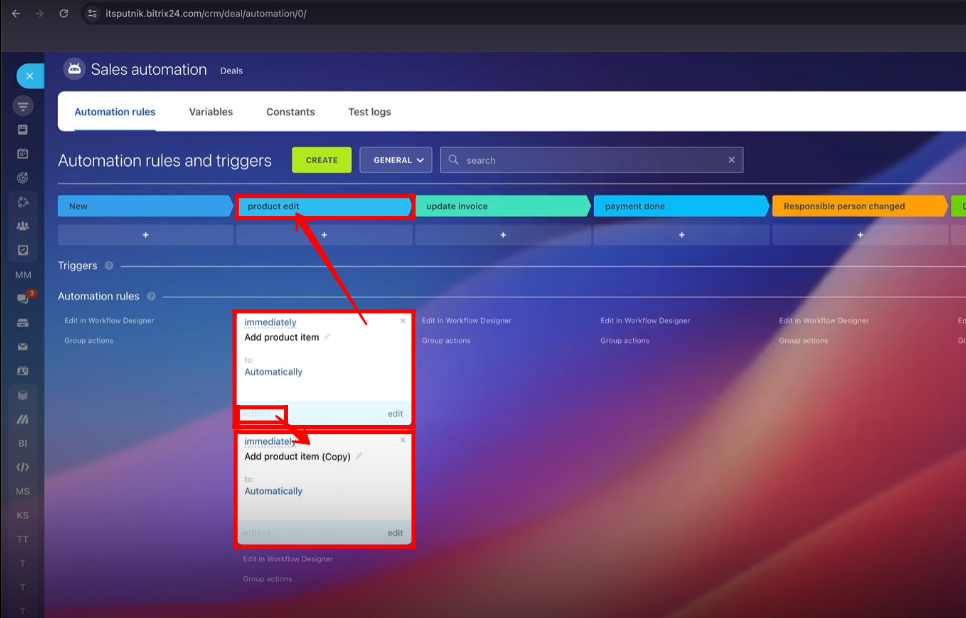
3. Make a copy of the robot “Add product item” from “actions”. In the new copied robot, change the “Product ID” from the previous one to add a different product. And move both robots to “product edit” stage.
4. Create a deal named “test” or whatever you want. Move the deal to “product edit” stage. Open it.
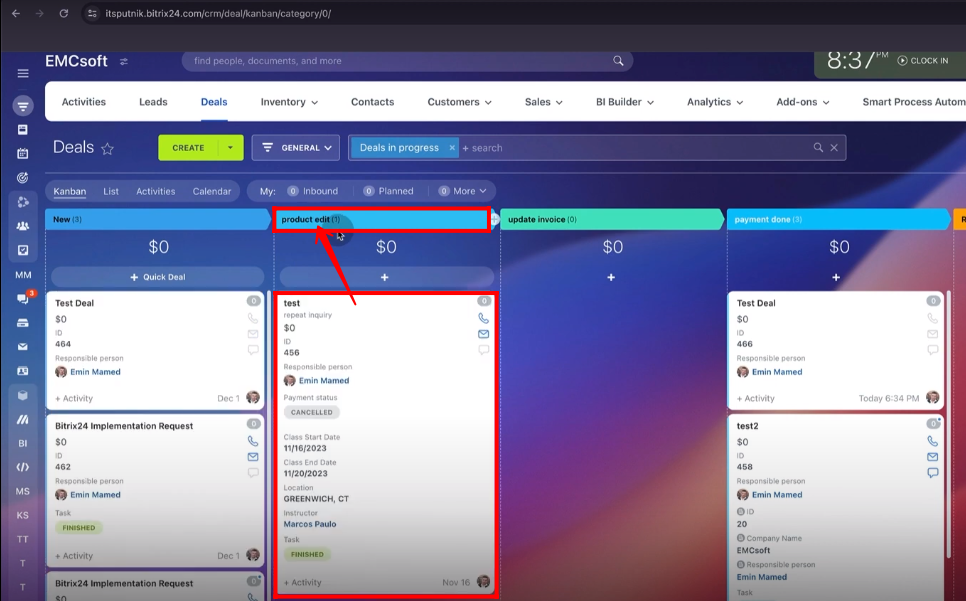
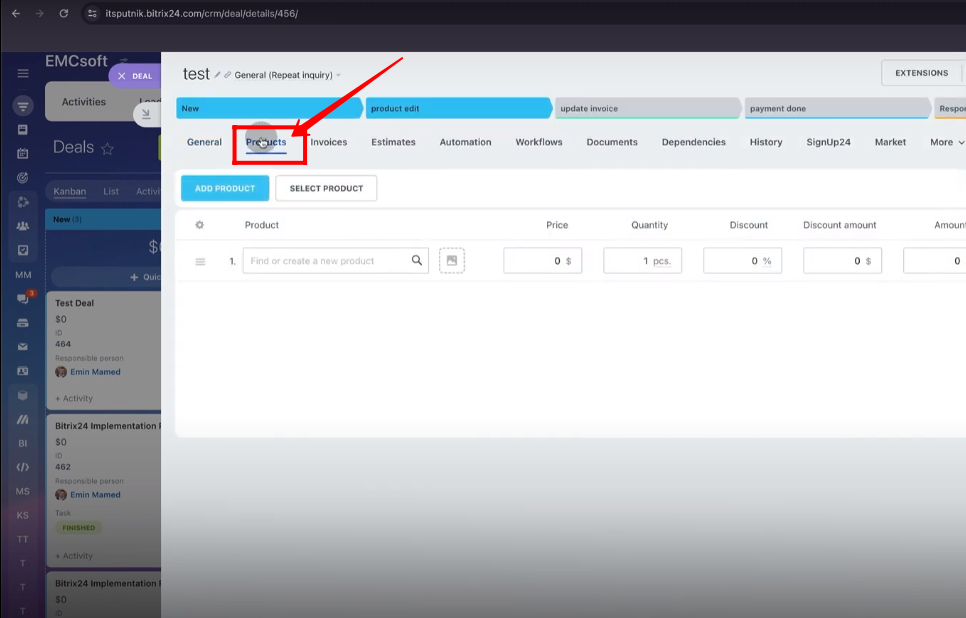
5. In the “Products” tab within the deal, both products have been added through robots.
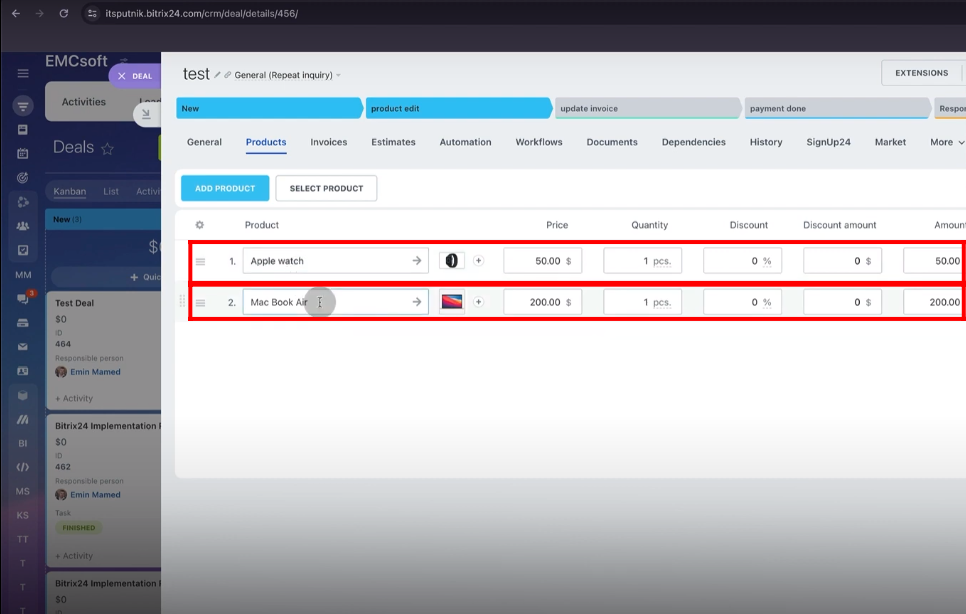
6. Go to “Automation Rules”. Select “Products” and add “Delete Products” robot.
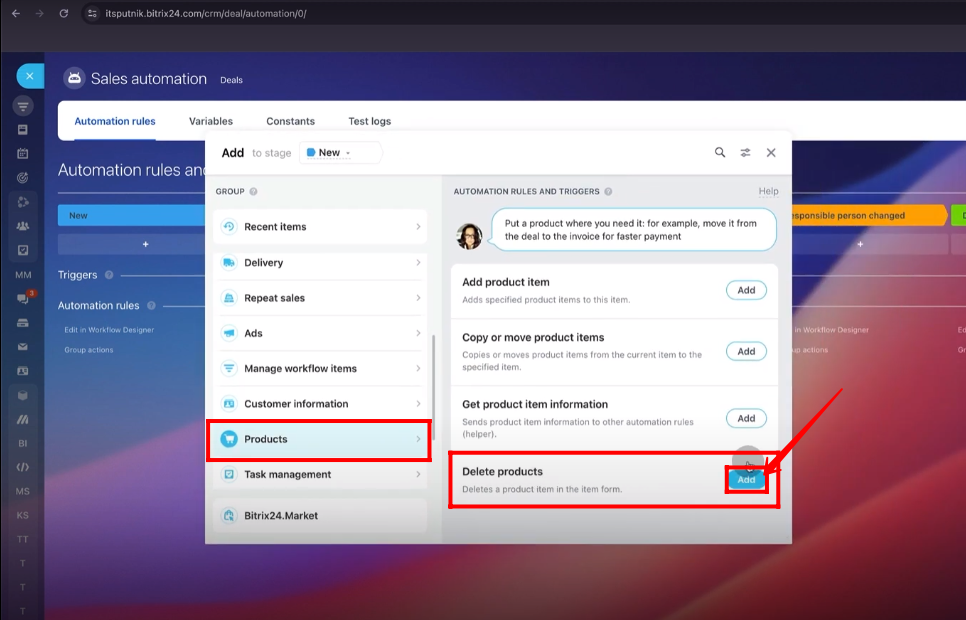
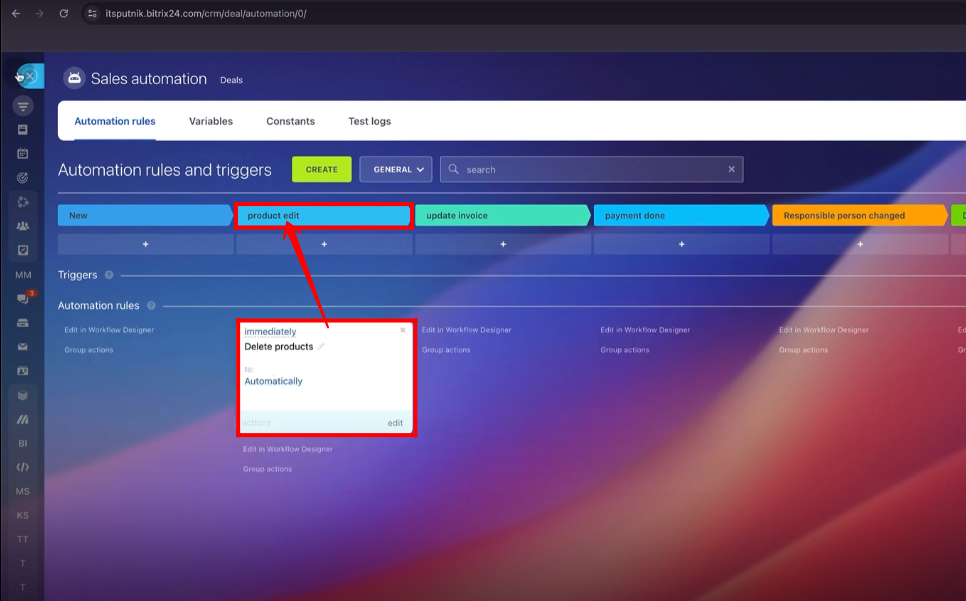
7. Move the “Delete Products” robot to “product edit” stage.
8. Move back the test deal to “New” stage.
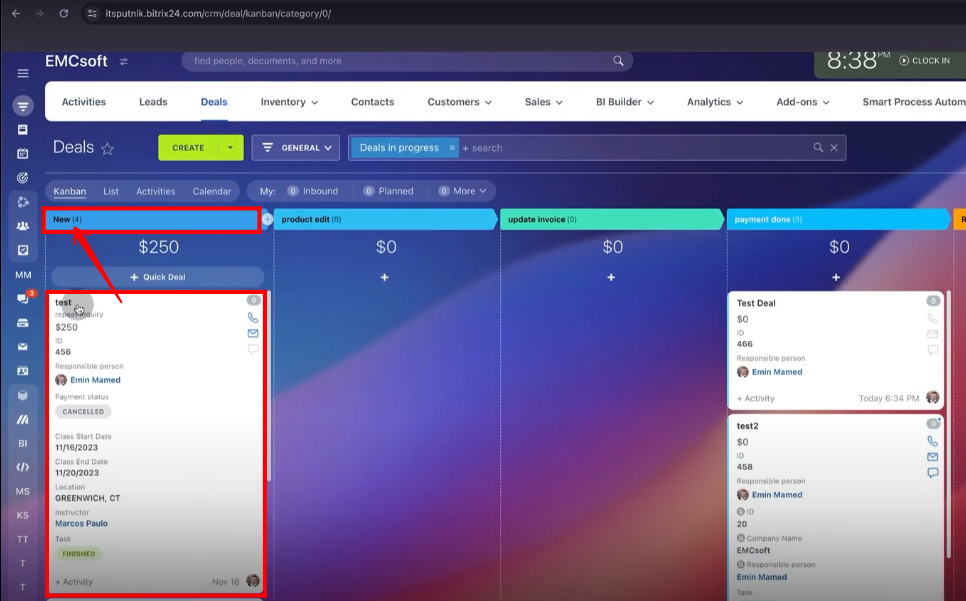
9. Now again move test deal to “product edit” stage. Open it.
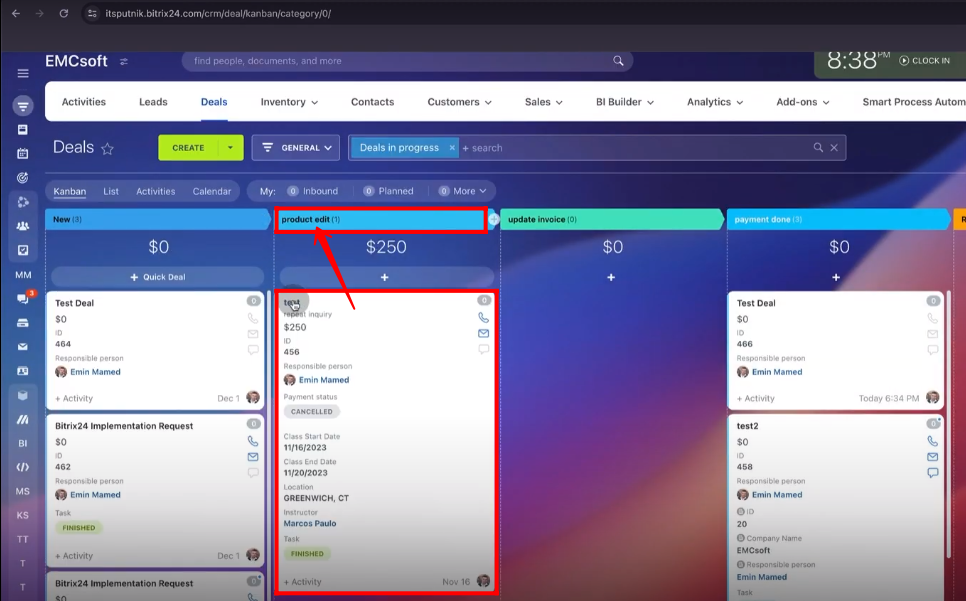
10. Go to “Products” tab and you can see, all products have been deleted.
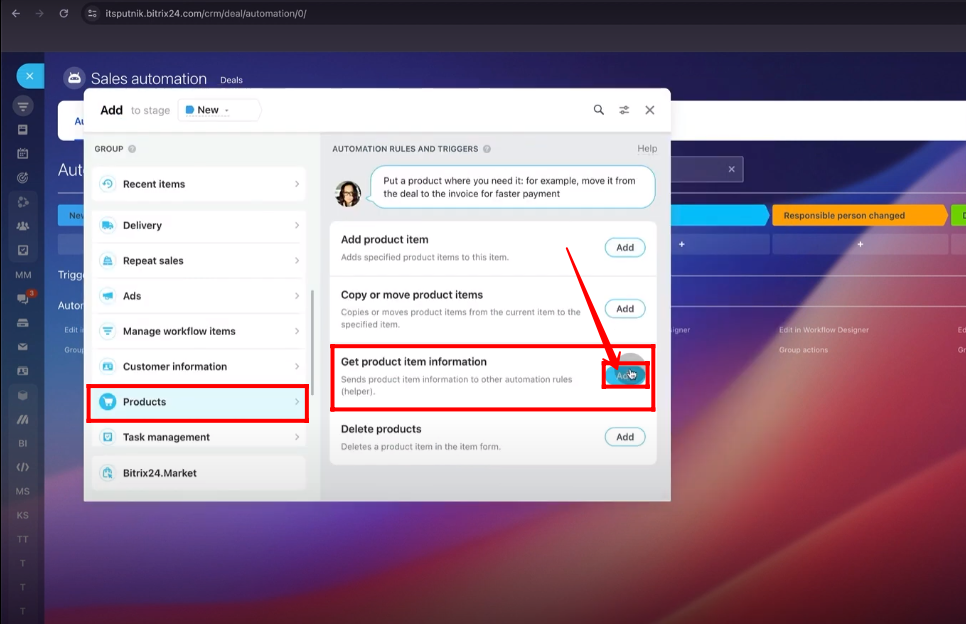
11. Go to “Automation Rules”. Click “Create”. Go to “Products” and add “Get product item information” robot.
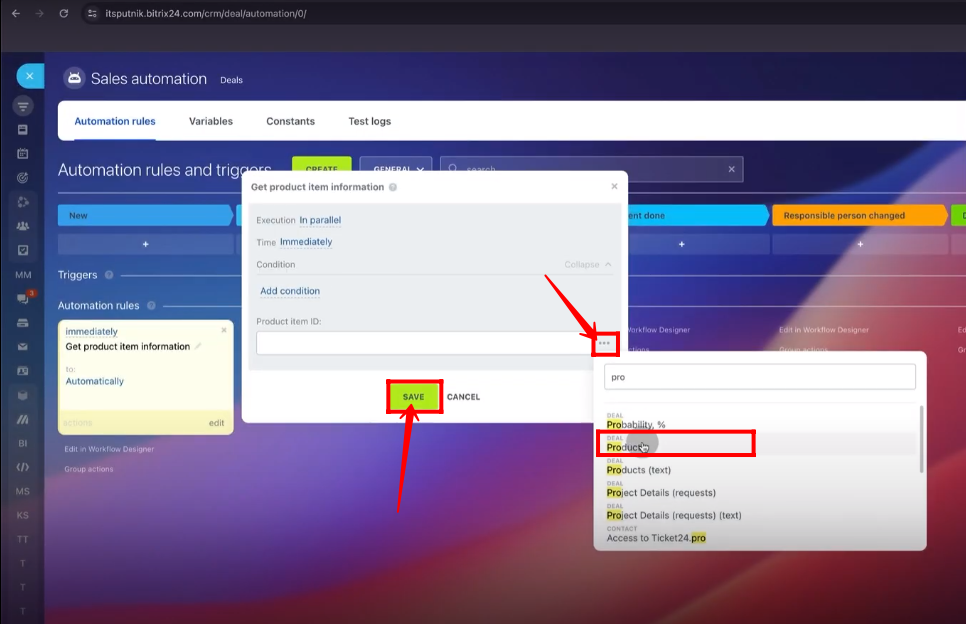
12. Click three dots option and for a while, just select “Products” as a “Product item ID” attribute. Click “Save”.
13. Move “Get product item information” robot to “product edit” stage.
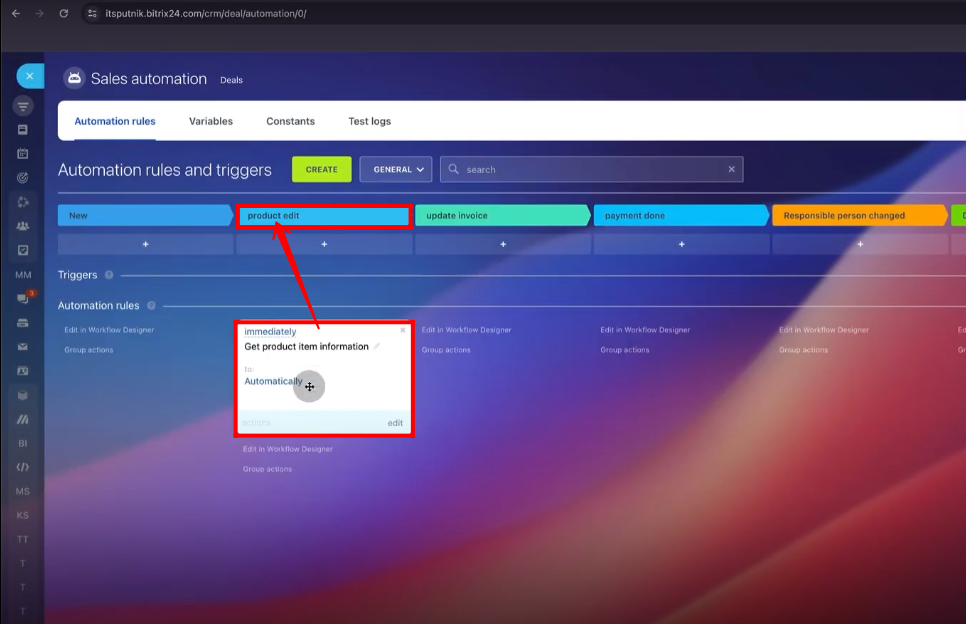
14. Go to “Task Management” and add “Create task” robot.
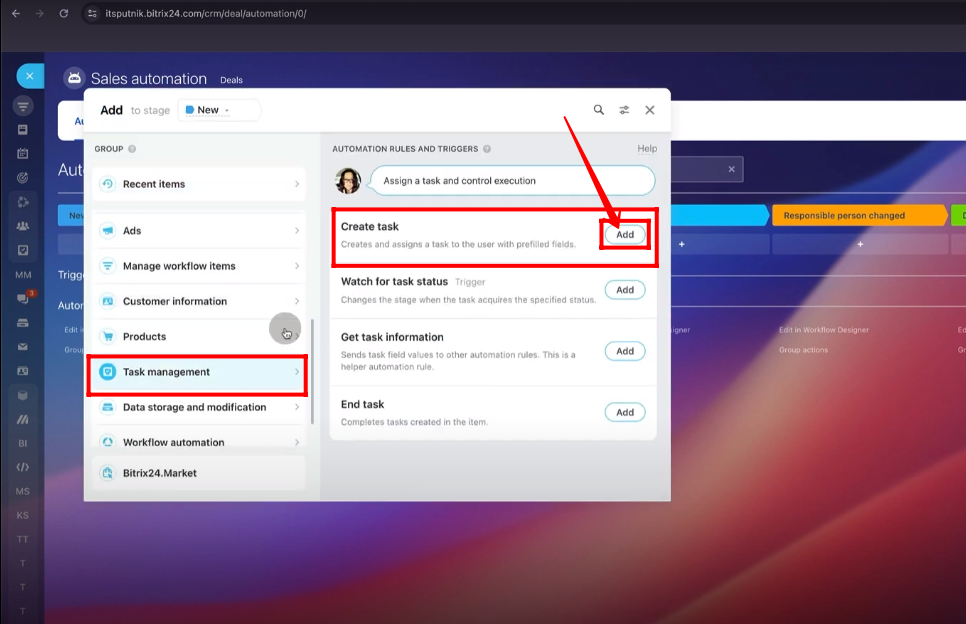
15. Name the task and add task description by selecting from three dots option. For now, just add “product name” and “price” for testing purposes. Add “Responsible person”, “Deadline”, “Cost” and “Sector as well, if required. Click “Save”.
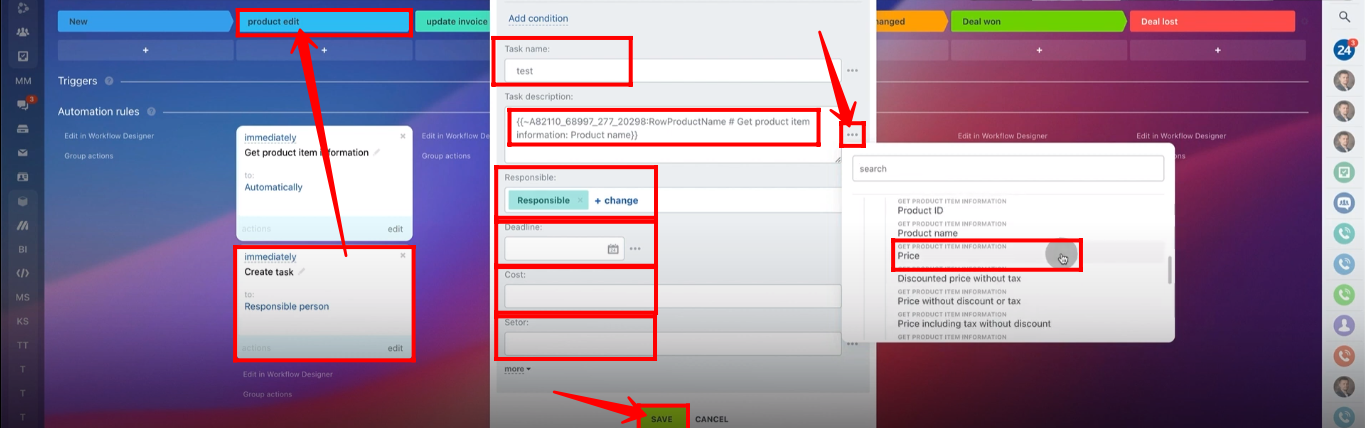
16. Open the deal. Go to “Products” tab and click “Select Product”.
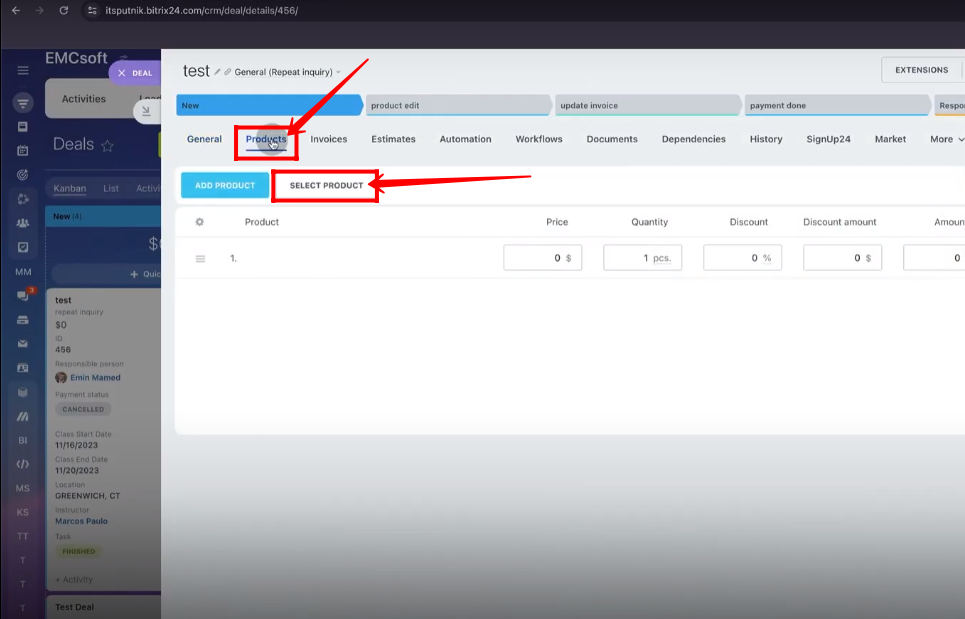
17. Select a different or new product.
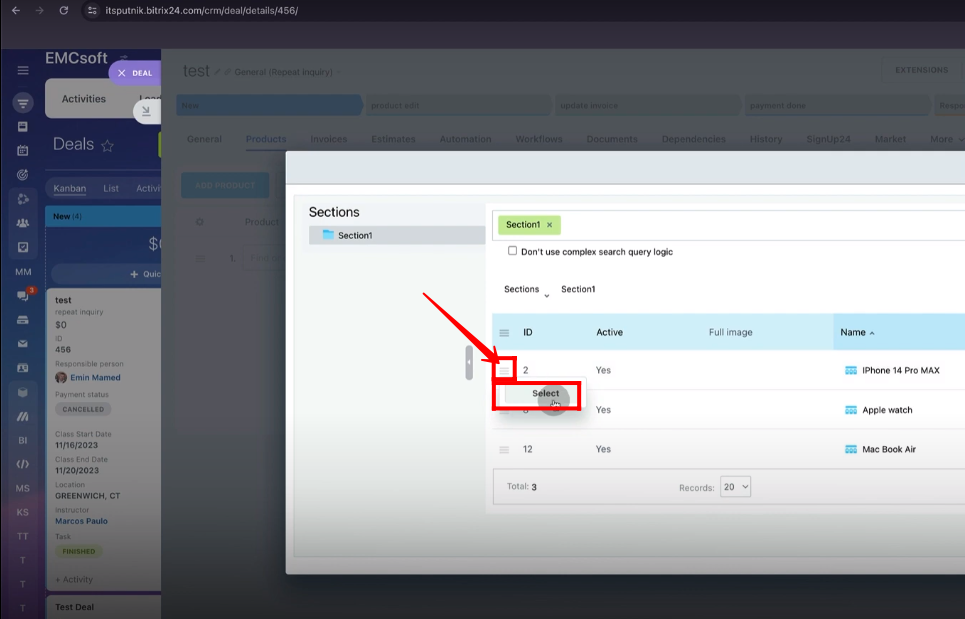
18. New product has been added within the “Products” tab.
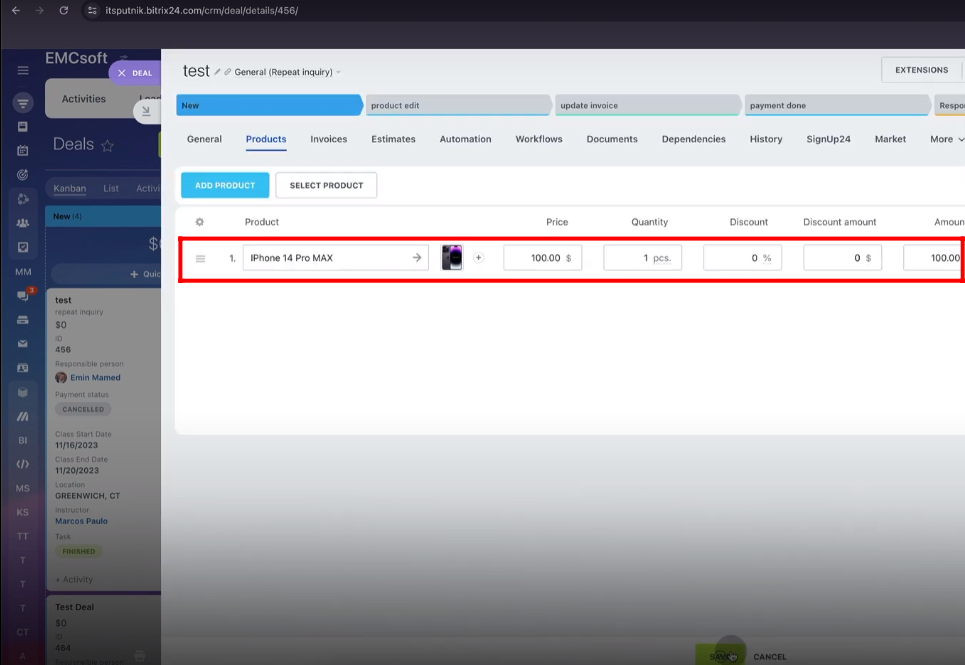
19. Move the deal to “product edit” stage. Open it.
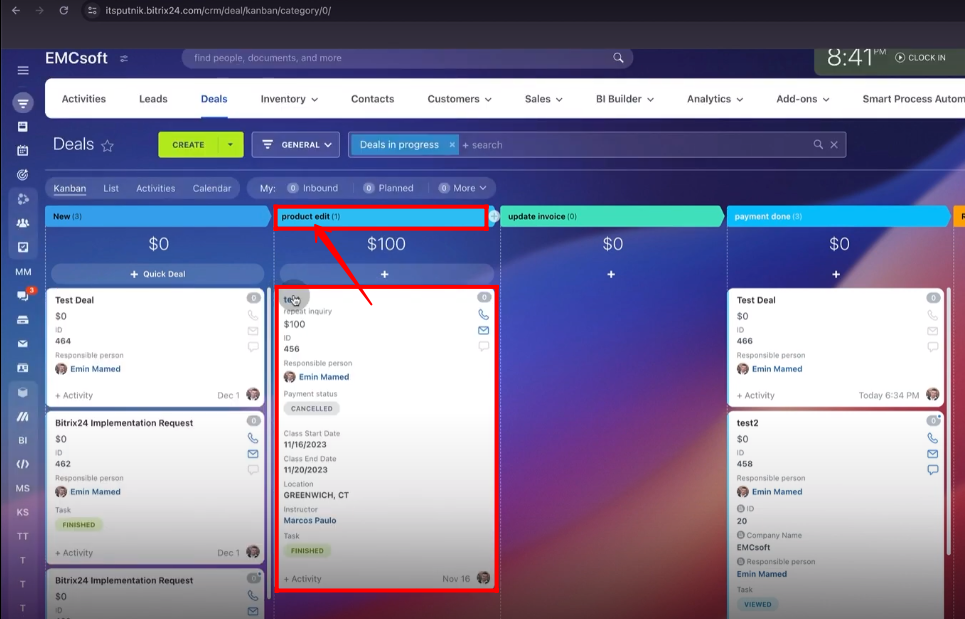
20. New task has been added within the deal. Open the task.
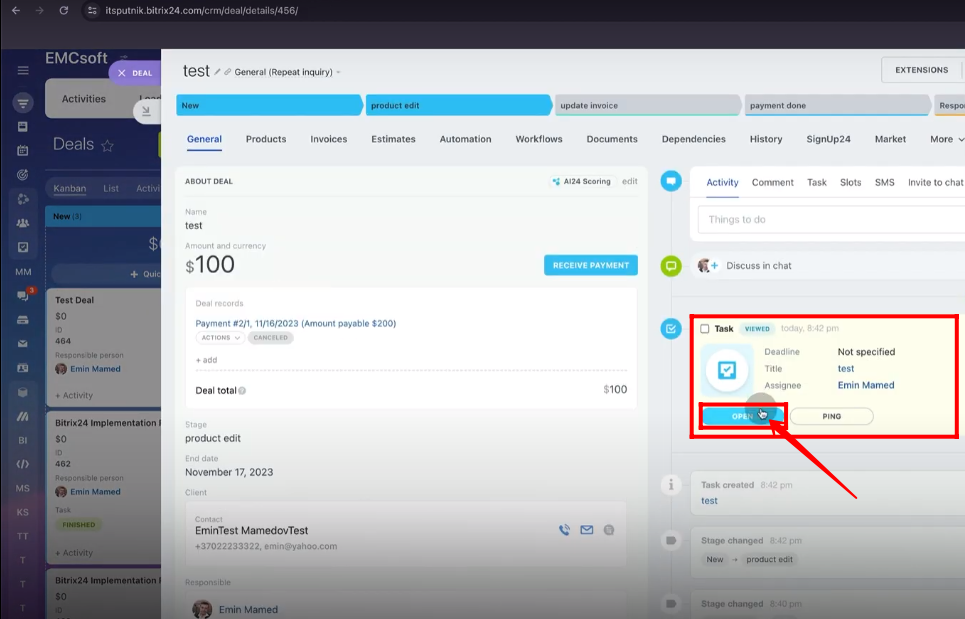
21. In task description, the product name and price has been added as in the robot. Click “Finish”.
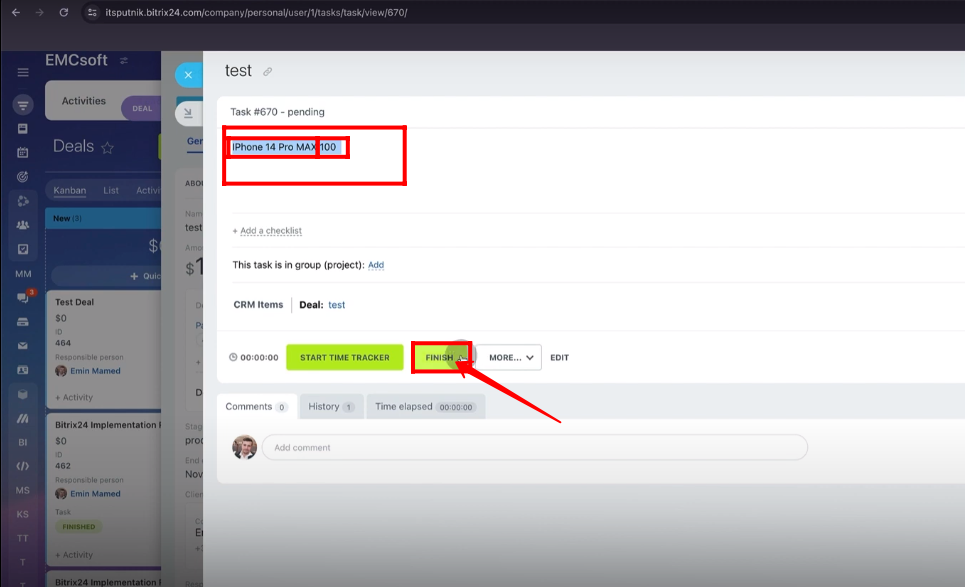
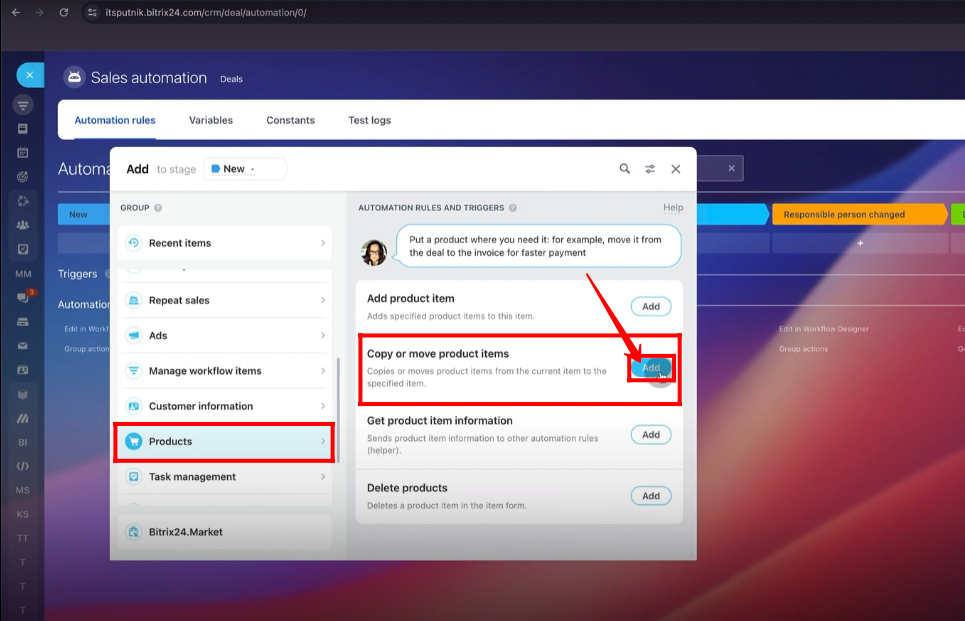
22. Go to “Products” and add “Copy or move product items” robot.
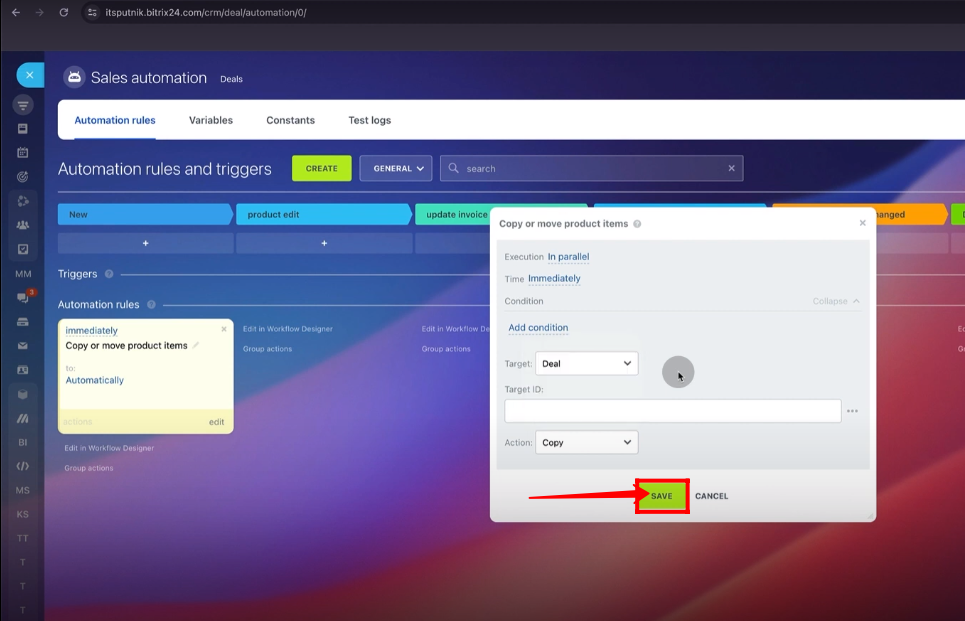
23. Click “Save” for a while.
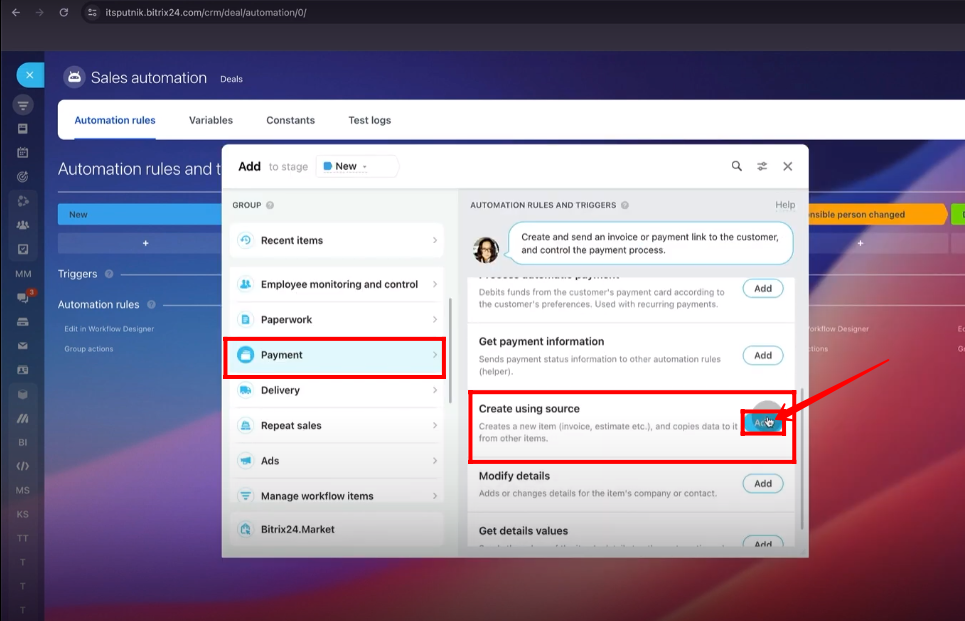
24. Go to “Payment” and add “Create using source” robot.
25. Check box the “invoice” option and click “Save”.
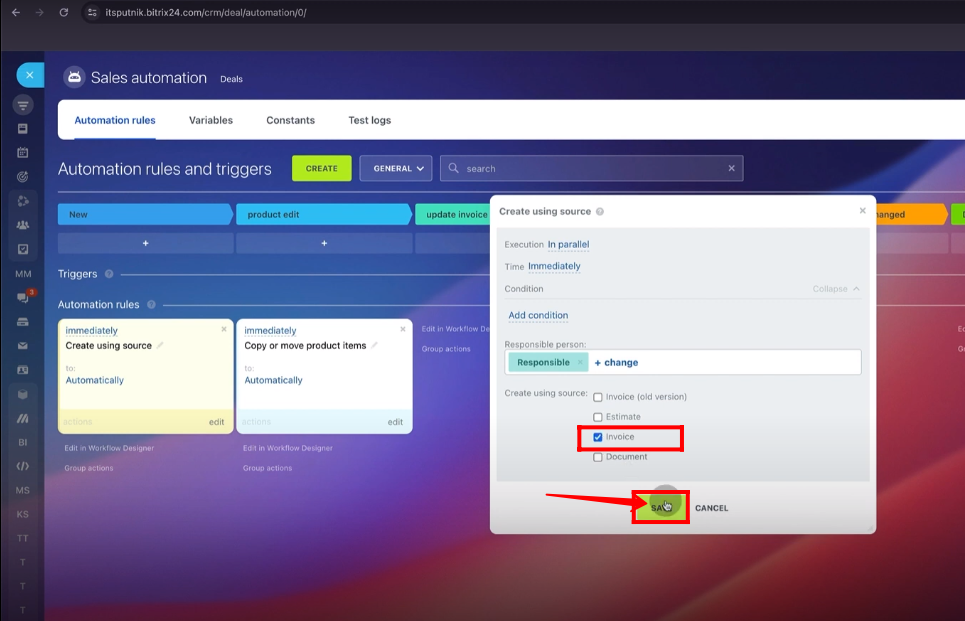
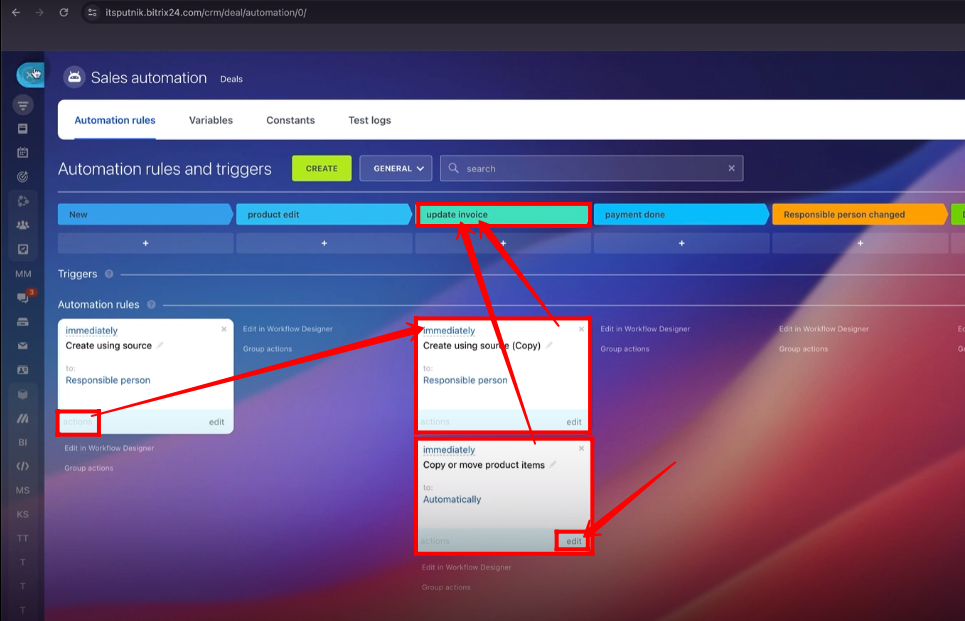
26. Move “Create using source” and “Copy or move product items” robots to “update invoice” stage. Now edit “Copy or move product items” robot.
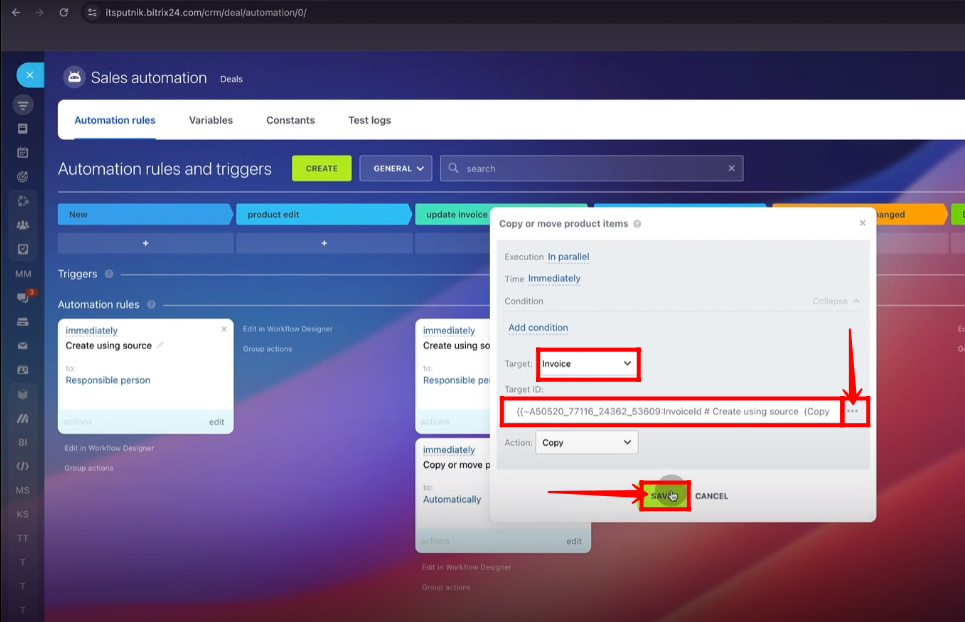
27. Select “Invoice” in “Target” attribute. In “Target ID” attribute, select dynamic “invoiceid” from three dots options. Click “Save”.
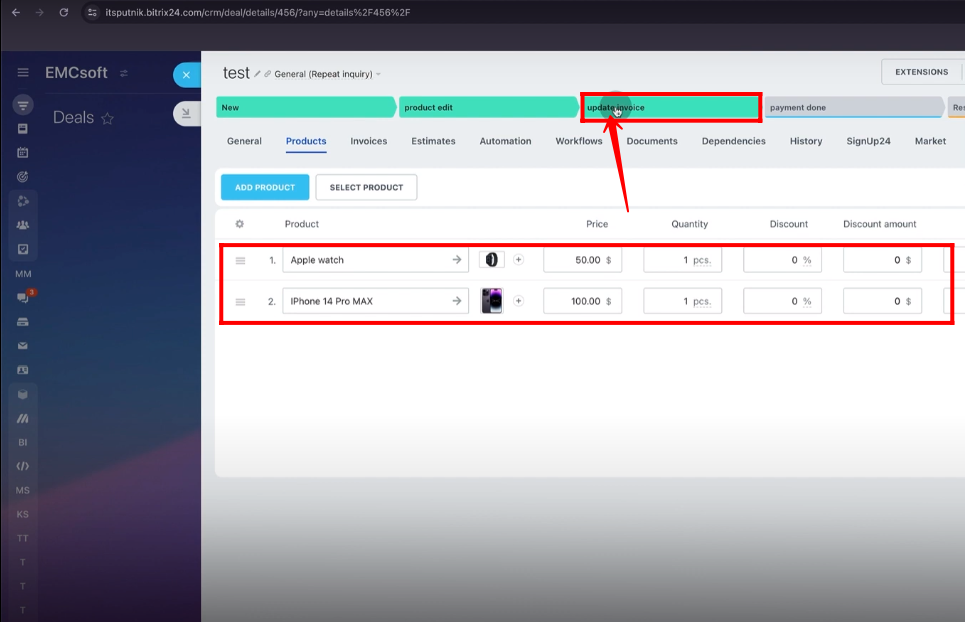
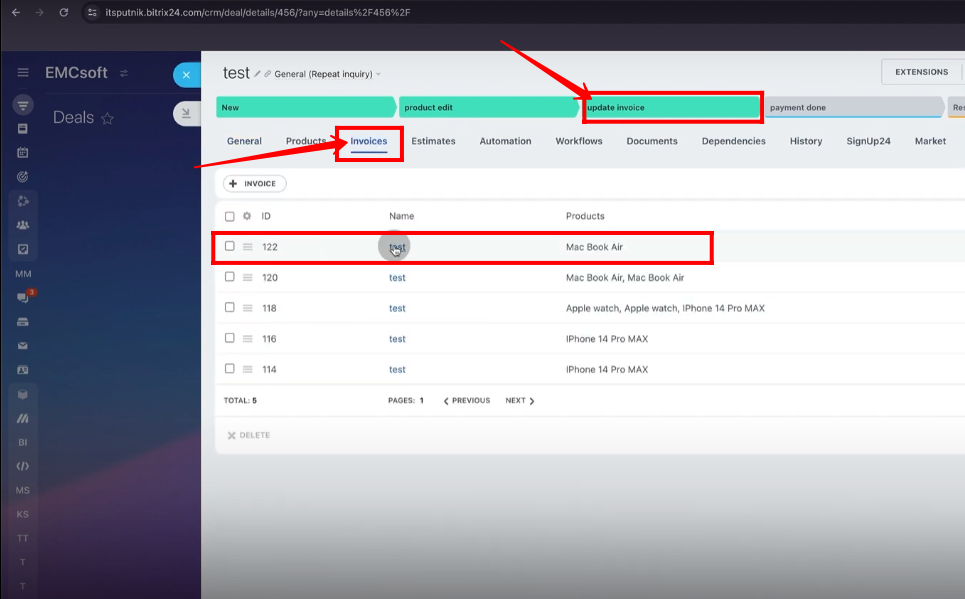
28. Open the deal and change the stage to “update invoice”.
29. Go to “invoices” tab and you can see, a new invoice with an “ID” against the products has been created with the deal name.
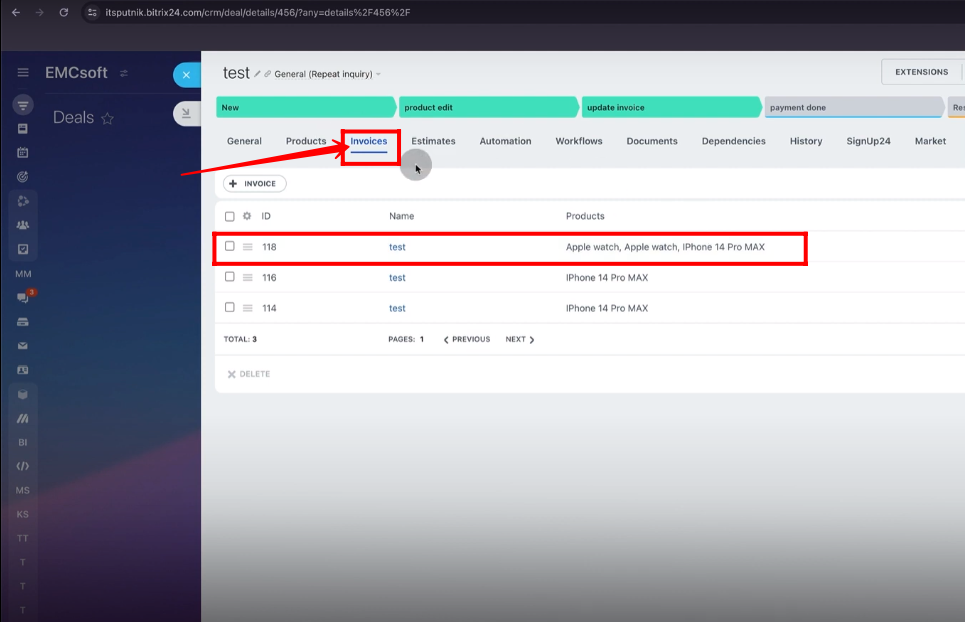
30. Change the stage of the deal to “product edit” again. Go to “Products” tab and delete all products.
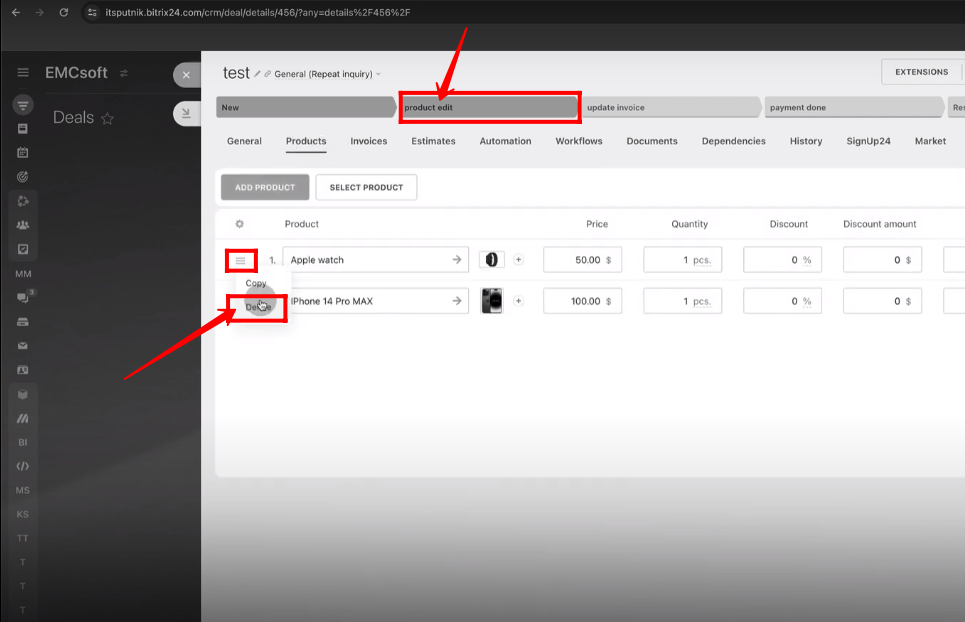
31. Click “Select Products” and select/add a new product.
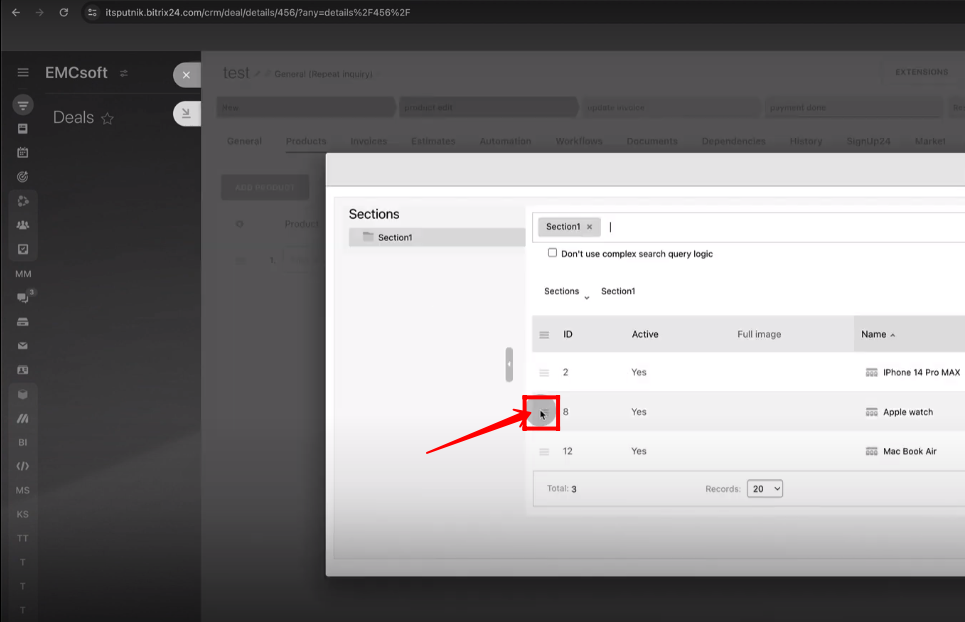
32. A new product has been added within the deal now.
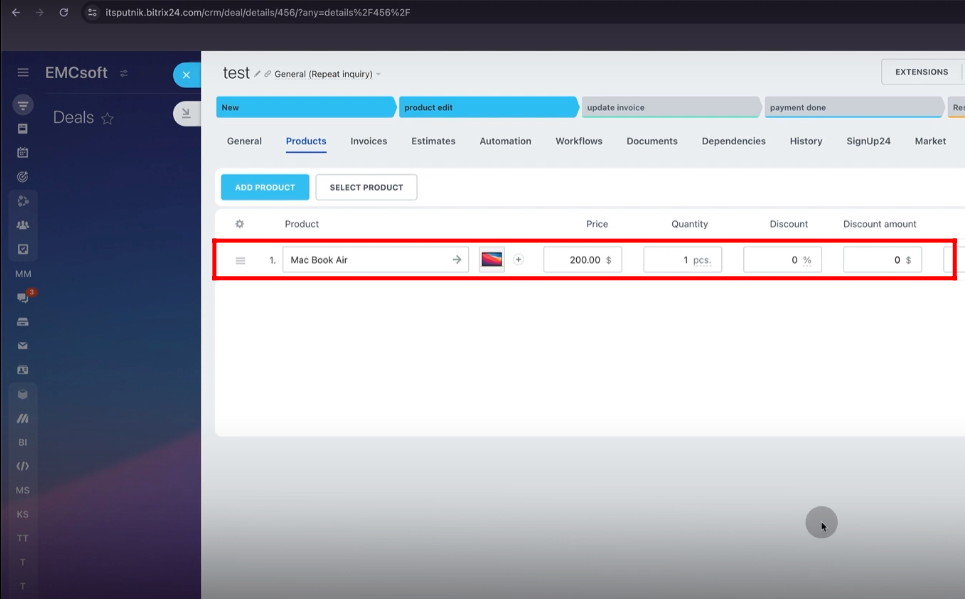
33. Change the stage to “update invoice” and go to “invoices” tab. A new invoice for a new product has been created with an “ID”.
“You can also watch this video on Youtube”
Play video