
Bitrix24 Training Course 3. CRM Robots: Employee monitoring and control

Robotic process automation has transformed how companies operate, optimizing numerous processes and functions. In this article, we will delve into a practical example of using robots for administrative tasks.
1. Robot Creation for Employee Monitoring and Control:
The core discussion revolves around the creation of robots that aid in:
Notifying supervisors in particular situations, understanding the organizational structure.
● Automating tasks such as sending alerts, monitoring employee activities, and logging certain conditions.
● For instance, in a company setting, if an employee does something noteworthy, their supervisor – identified by the system – can be instantly notified.
2. Practical Scenario – Contract Alerts:
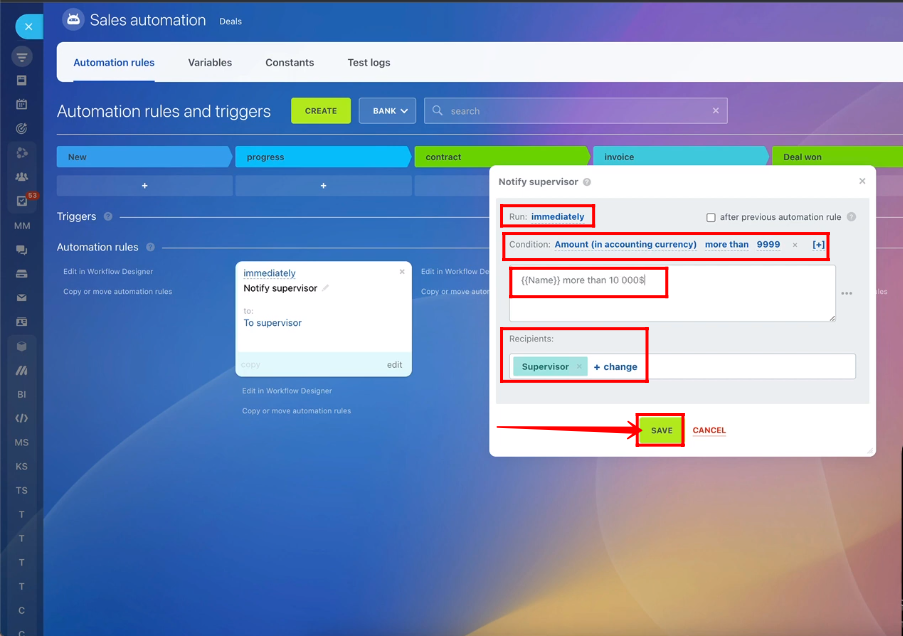
A common use-case presented is having the system notify a supervisor when a contract surpasses a certain value. In this demonstration, a notification is triggered when a contract exceeds $10,000. This is achieved by setting up automation rules within the system that examines the deal amount and sends an alert accordingly.
3. Automation for History Logging:
Another advantageous feature of this system is the ability to add history events to deals, thereby keeping a clear record of critical milestones. This ensures that any relevant party reviewing the deal in the future will have a comprehensive understanding of its history.
4. Task Management and Creation:
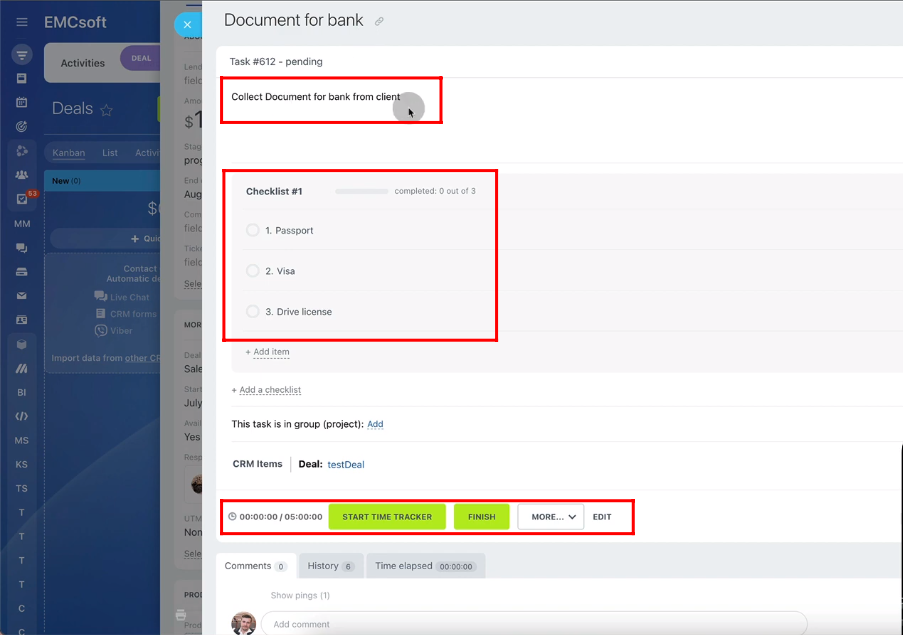
With the system's automation rules, it's straightforward to create tasks based on deal stages. We demonstrate here how a task like "collecting documents from a client" can be created, assigned, and even given a deadline. The beauty of this feature lies in its adaptability – tasks can be as simple or as intricate as required.
5. Task Status Monitoring and Transition:
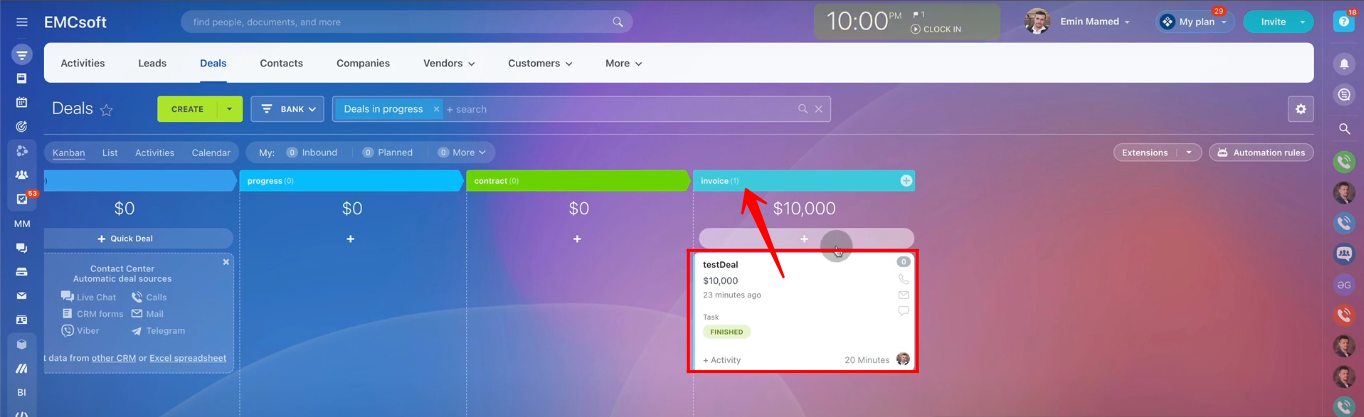
Once a task is marked as completed, the robot can be set to automatically transition a deal to the next stage. This seamless transition ensures that no time is wasted waiting for manual interventions.
6. Activity Planning:
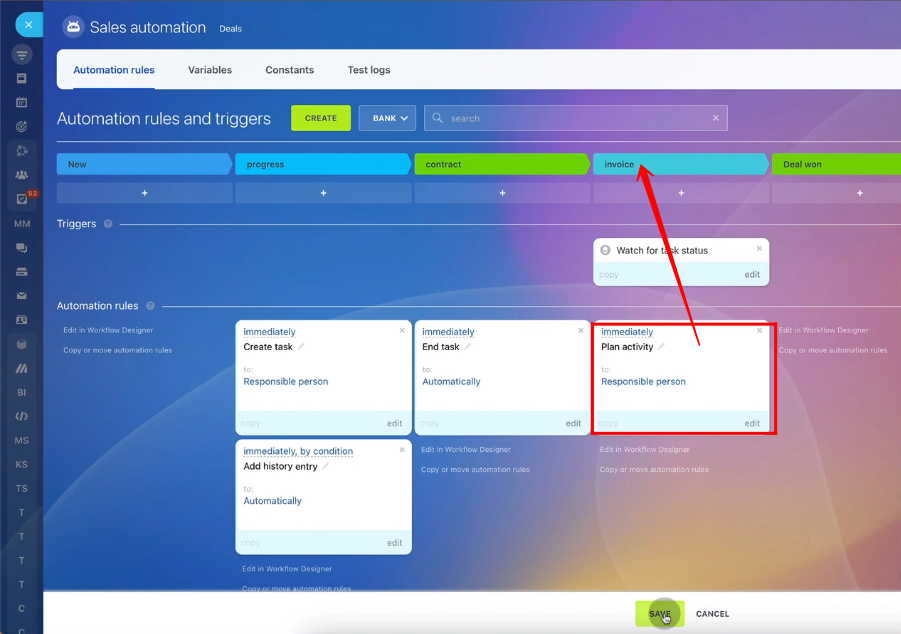
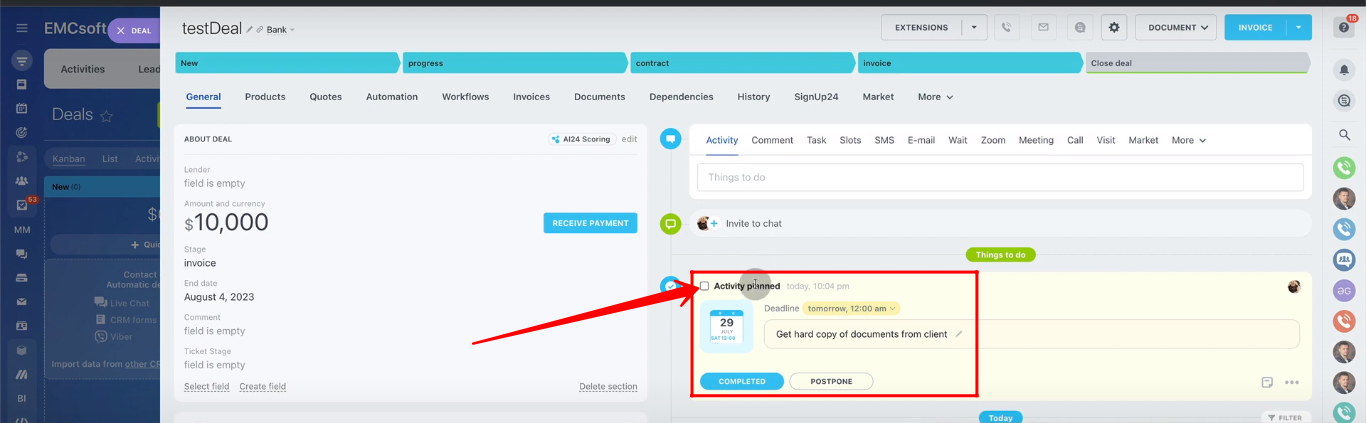
Beyond tasks, the robot can also assist with planning activities like meetings, calls, or emails. For instance, upon reaching the invoice stage in the demonstration, a call is scheduled to collect hard copies of certain documents.
7. Conclusion:
We emphasizes the transformative power of automation in streamlining processes and ensuring efficient business management. With robots like the ones showcased, businesses can free up manpower, minimize human errors, and ensure timely execution of tasks.
As with any tool, the key to unlocking its full potential lies in understanding its capabilities and tailoring them to suit specific business needs
So, for businesses looking to optimize and automate their processes, taking inspiration from such demonstrations can be the first step towards a more efficient operational model.
Detailed instructions on how to do this can be found below:
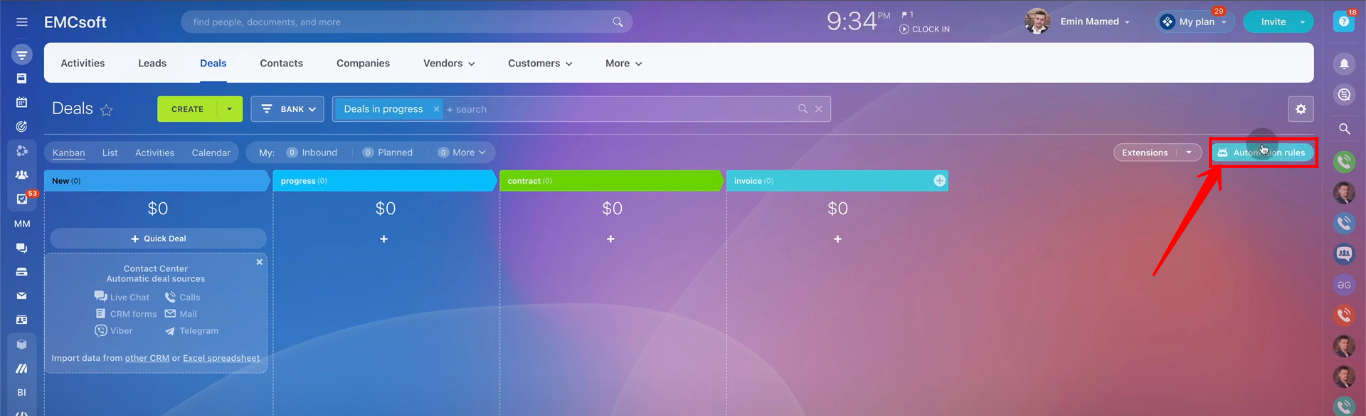
1. Go to “Automation Rules”.
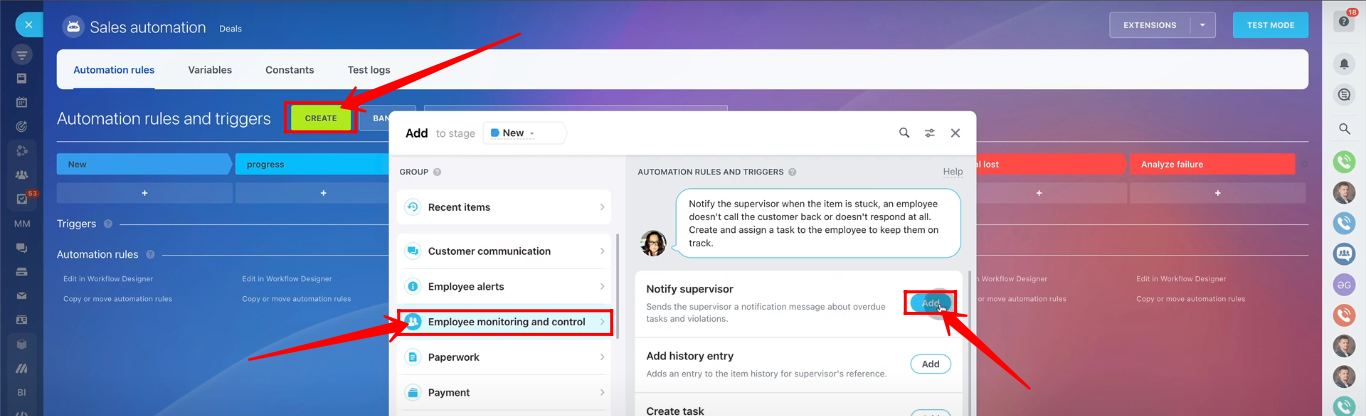
2. Click “Create”. Go to “Employee monitoring and control” and add “Notify Supervisor” robot.
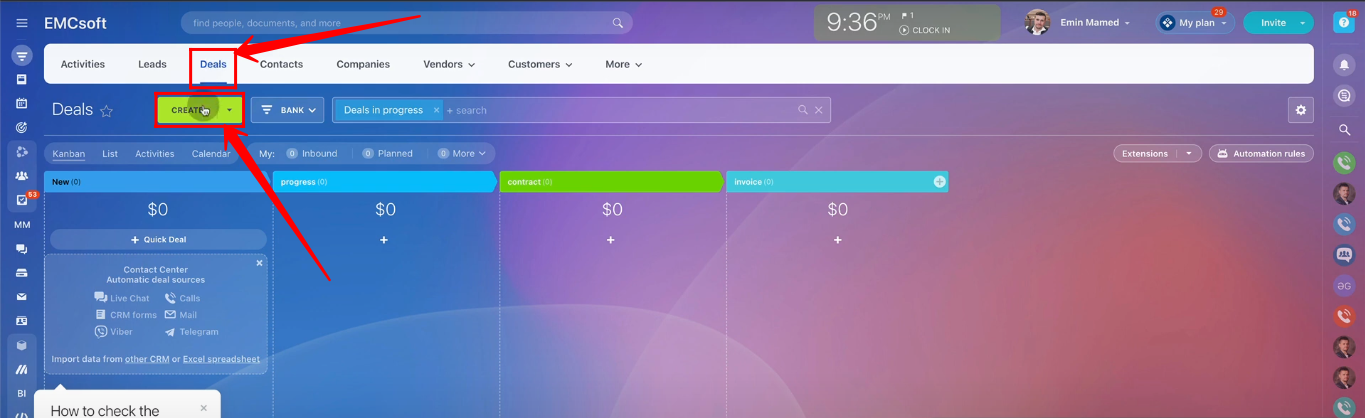
3. For testing purposes, go to “Deals” tab and click “Create”.
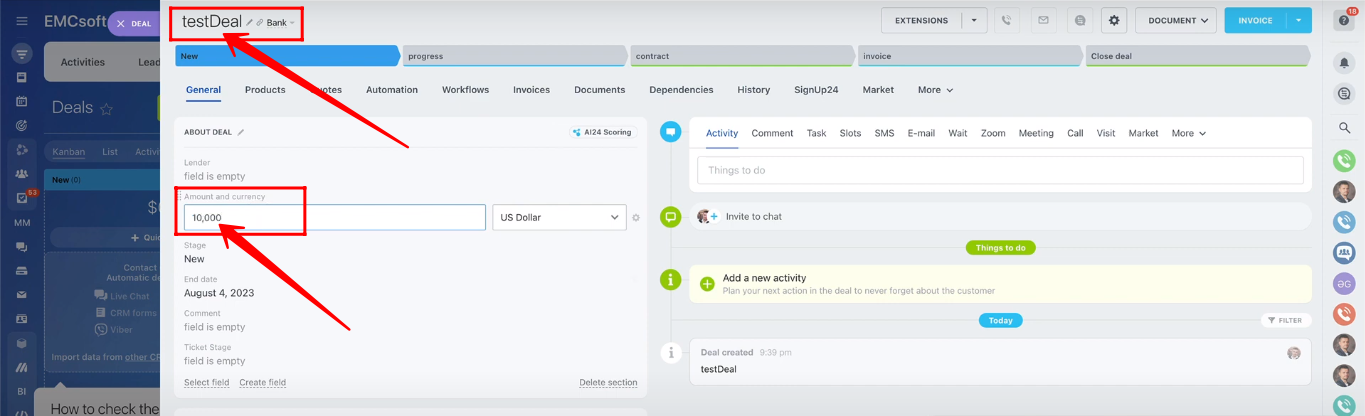
4. Name your Deal and enter amount of deal. In this case, the amount is 10,000 USD.
5. Click your configured deal. In this case, named as “testDeal”. Assign the deal to a responsible person of any department.
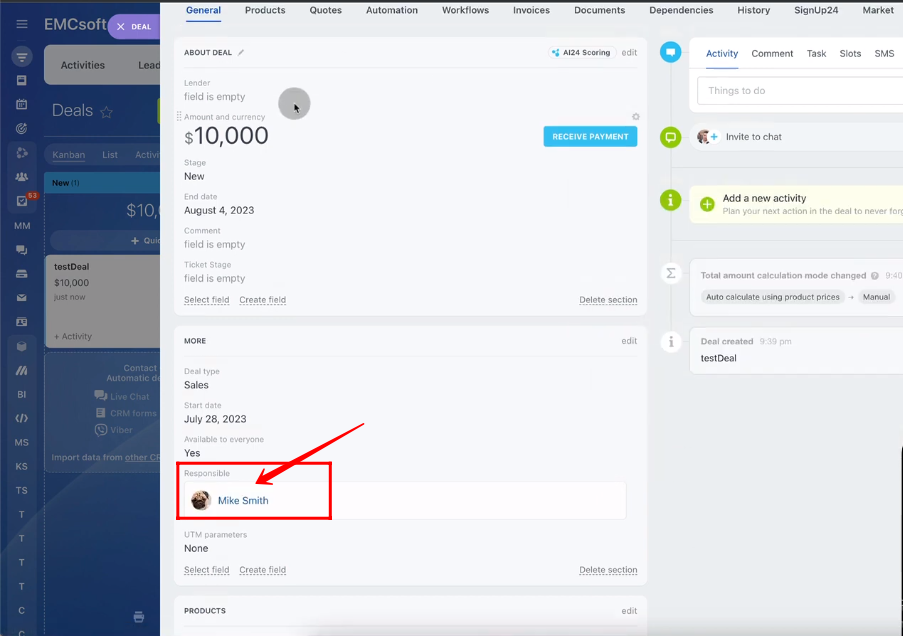
6. Open your configured “Notify Supervisor” robot. In conditions attribute, apply that if amount is more than 9,999. Write a description, fix the recipient and click “Save”.
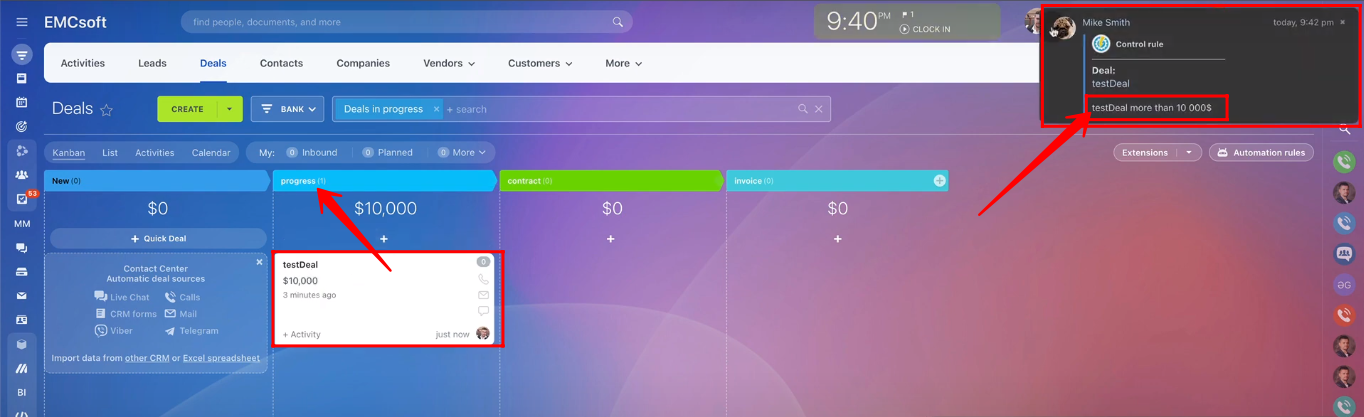
7. Move your deal to “Progress” stage and you will get a notification from the employee of your department.
8. Now go to “Employee monitoring and control” and add “Add history entry”.
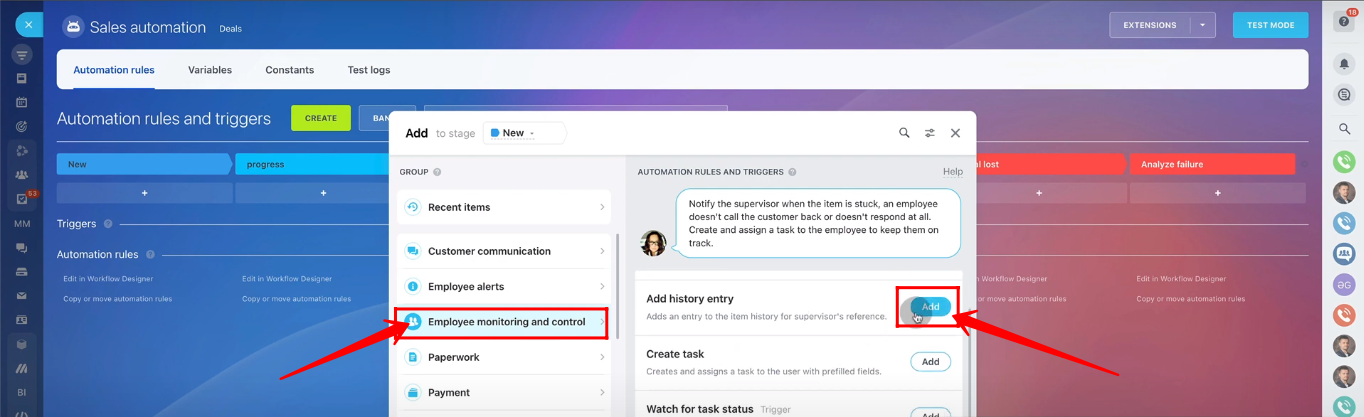
9. Open “Add history entry” robot. Configure your automation rule by applying conditions, add description and click “Save”.
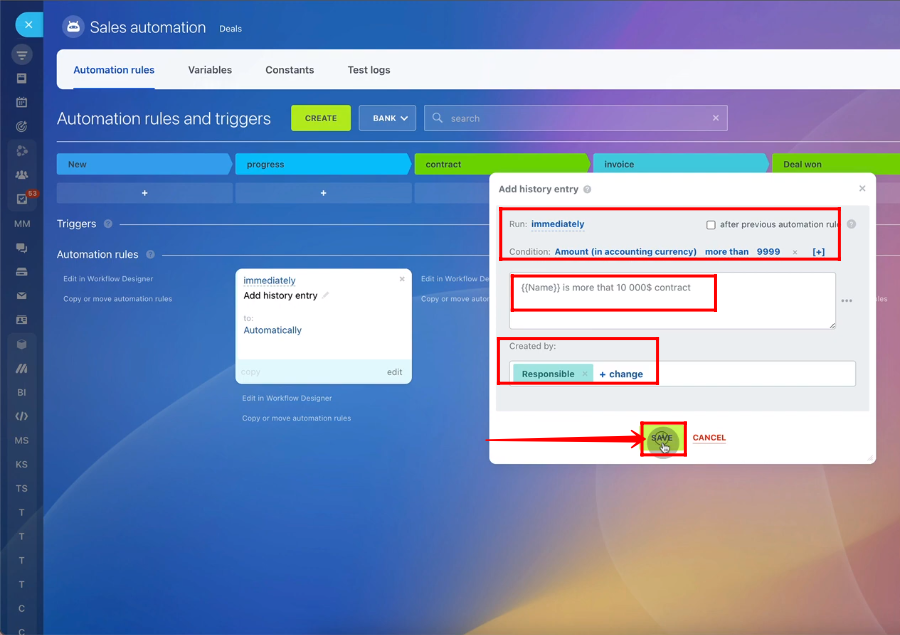
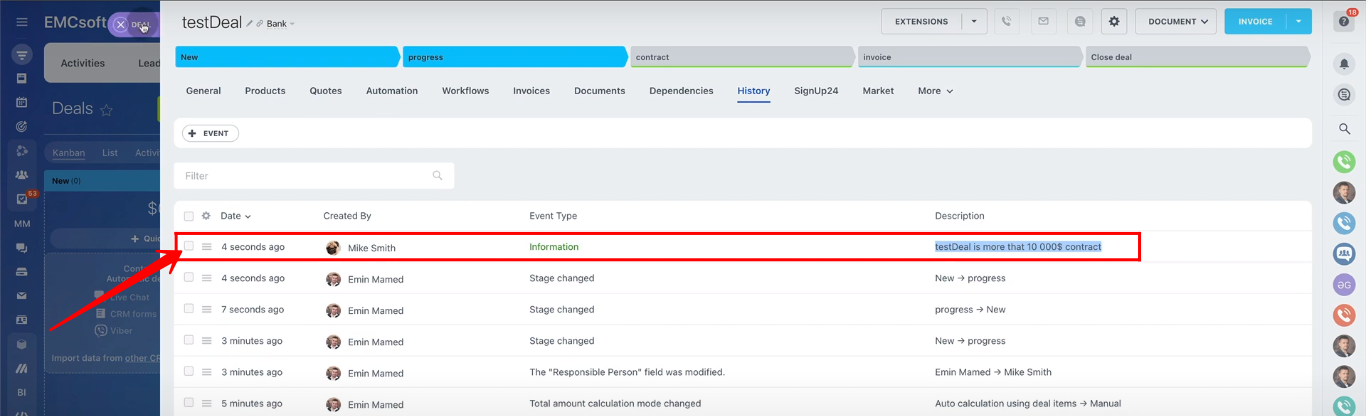
10. Now open your deal, go to “History” tab and you will find a tracked history of your deal with event type and description.
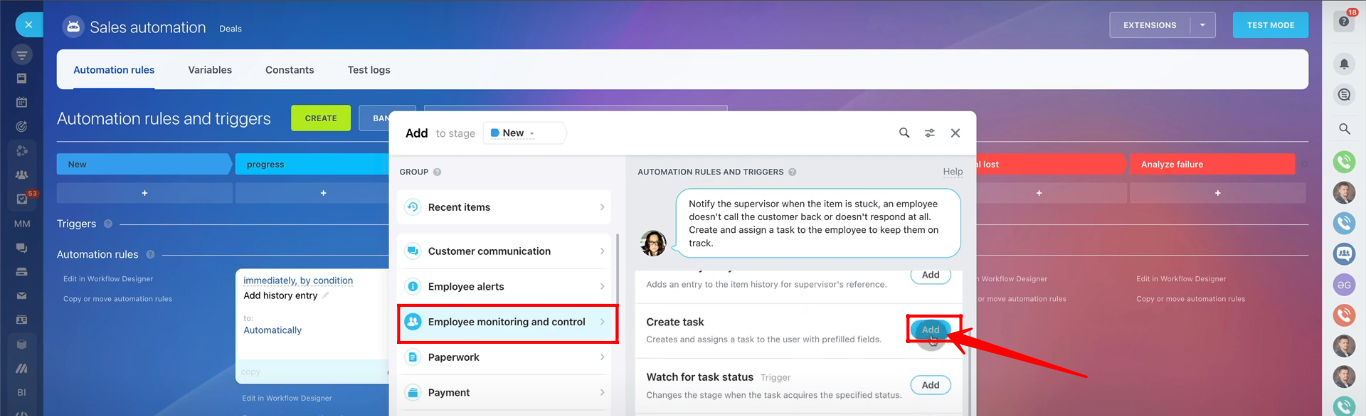
11. Go to “Employee monitoring and control” and add “Create task”.
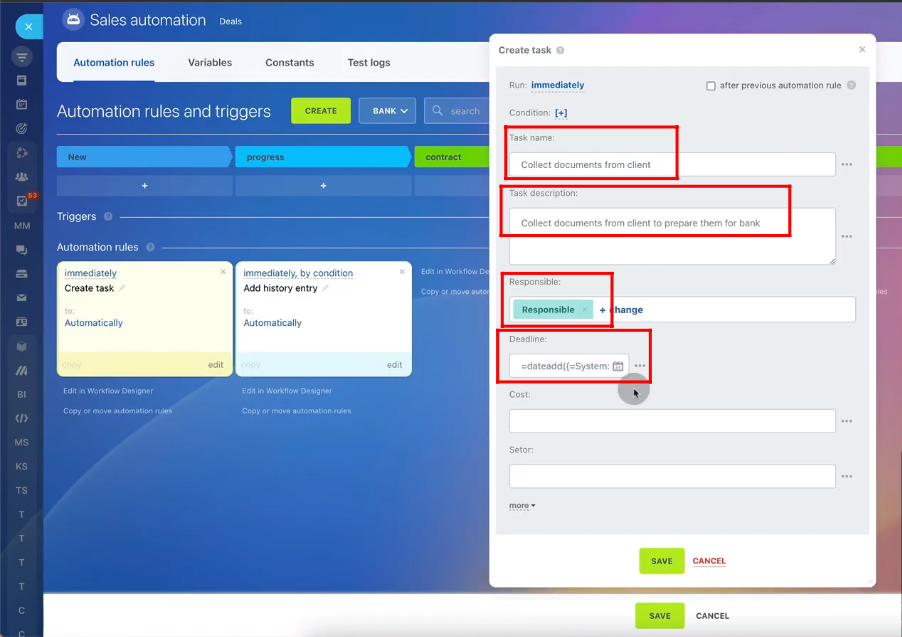
12. Open the “Create task” robot. Add the run time, condition, task name, description, recipient, deadline and cost according to your requirements.
13. Add the participants, start date, end date and social network group if you want.

14. Add tags, checklist of task, planned time and click “Save”.
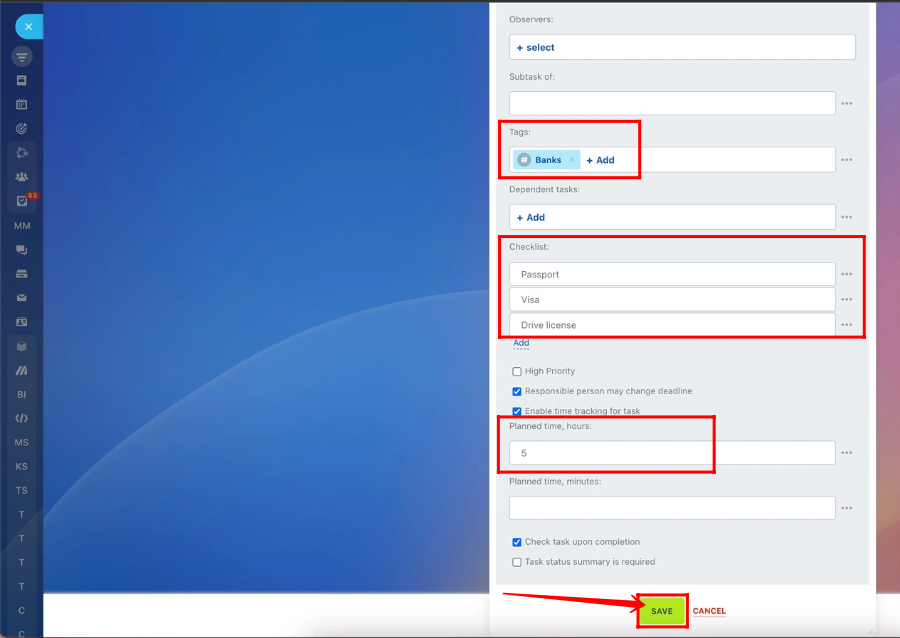
15. Move your “Create task” automation rule to “Progress” stage.
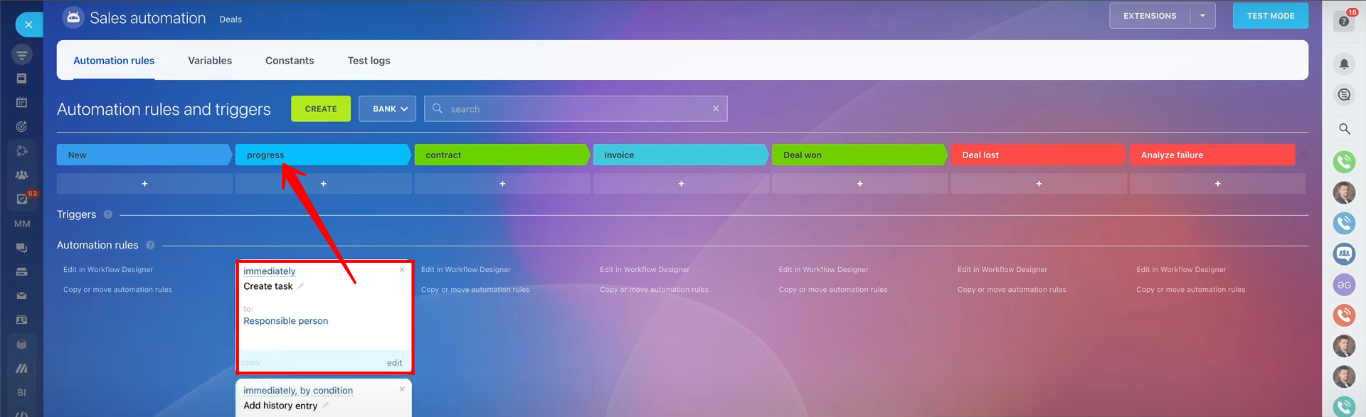
16. Now the task has been created in the configured deal. Open the task.
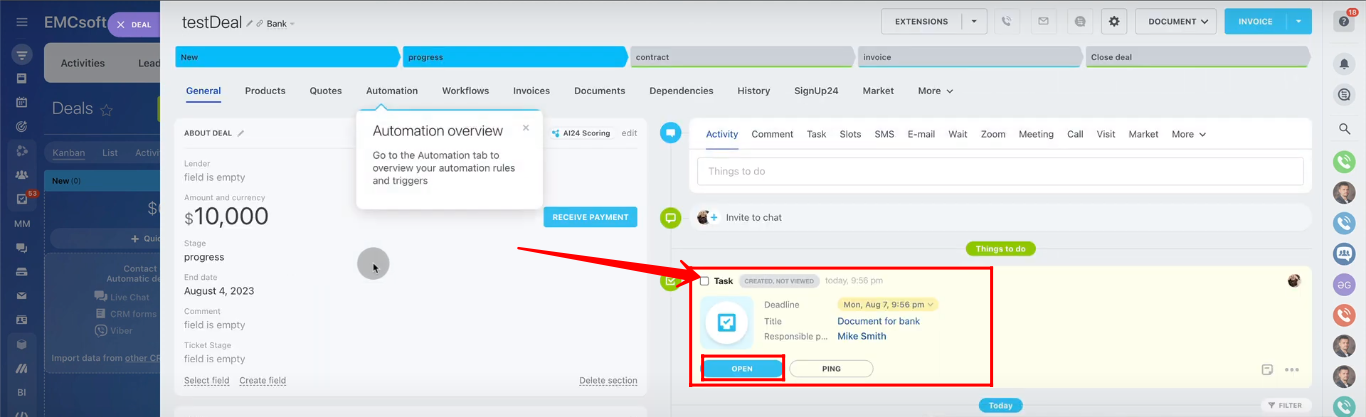
17. You can see the name of task, checklist and the duration of the task.
18. Go to “Employee monitoring and control” and add “End task”.
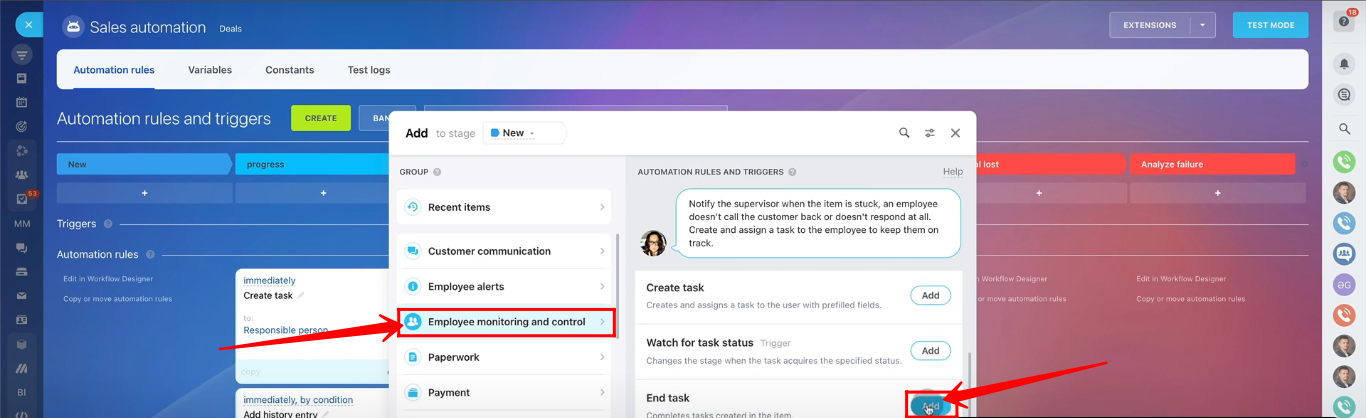
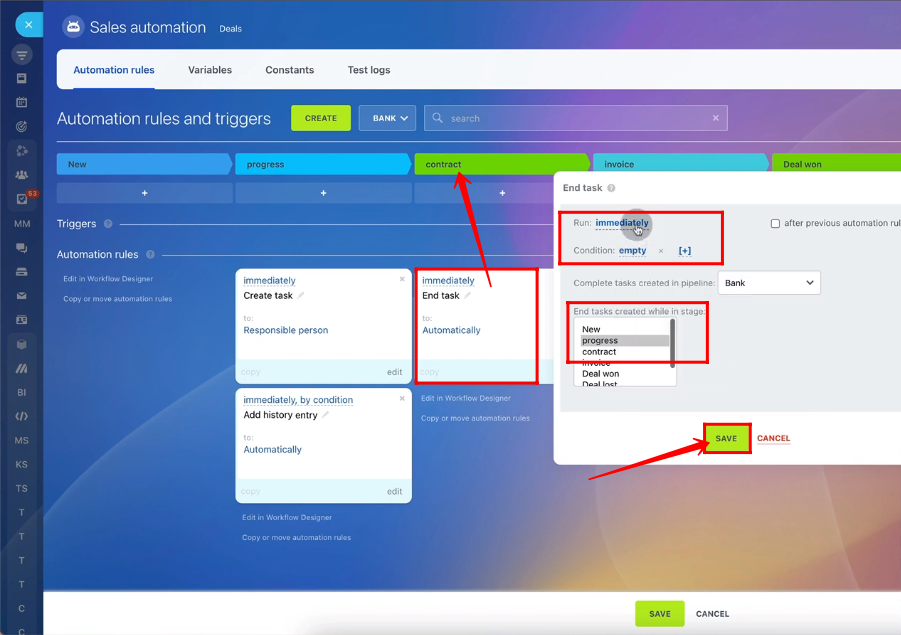
19. Open the “End task” robot. Add conditions, the stage of the tasks which you want to end and click “Save”. Move your “End task” automation rule to the “Contract” stage.
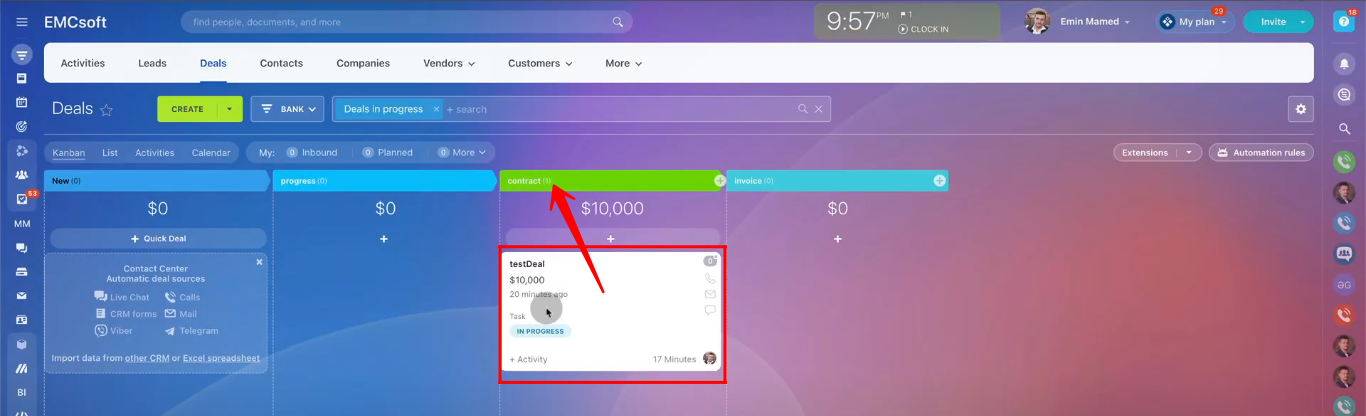
20. The configured deal has been moved to the “Contract” stage. Open it.
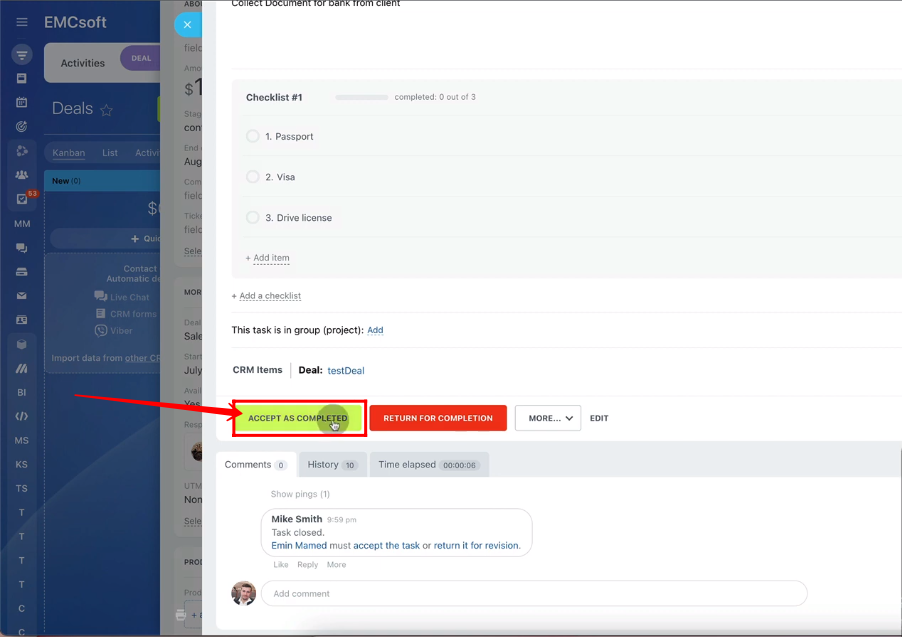
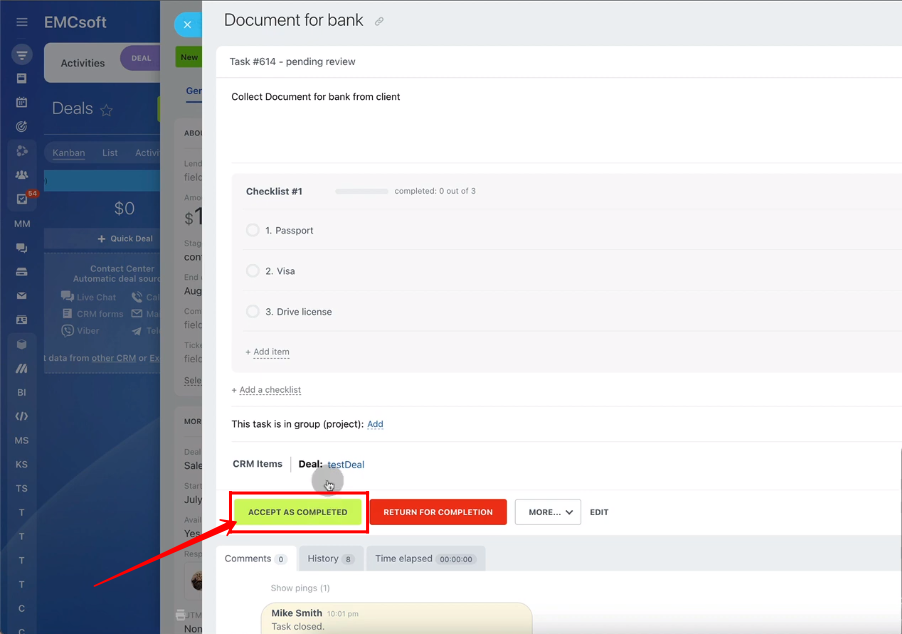
21. Open the task within the deal.
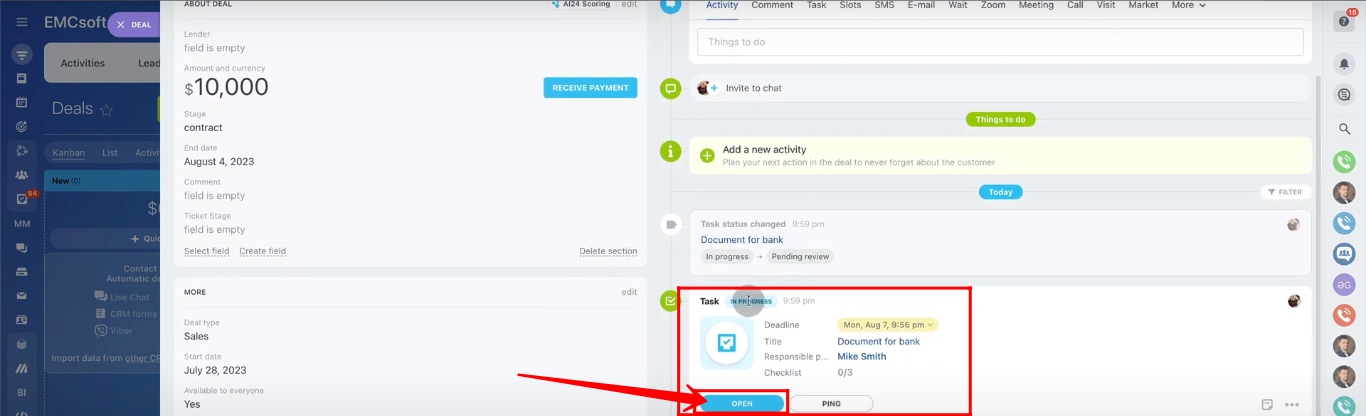
22. Accept the task as completed, because the task has been ended because of automation rule.
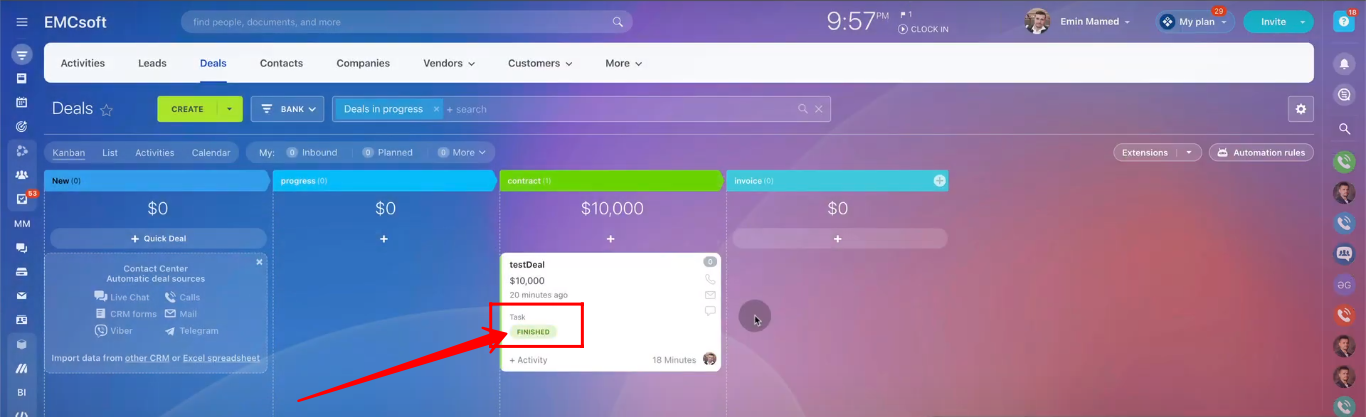
23. Now, you can see the task has been finished.
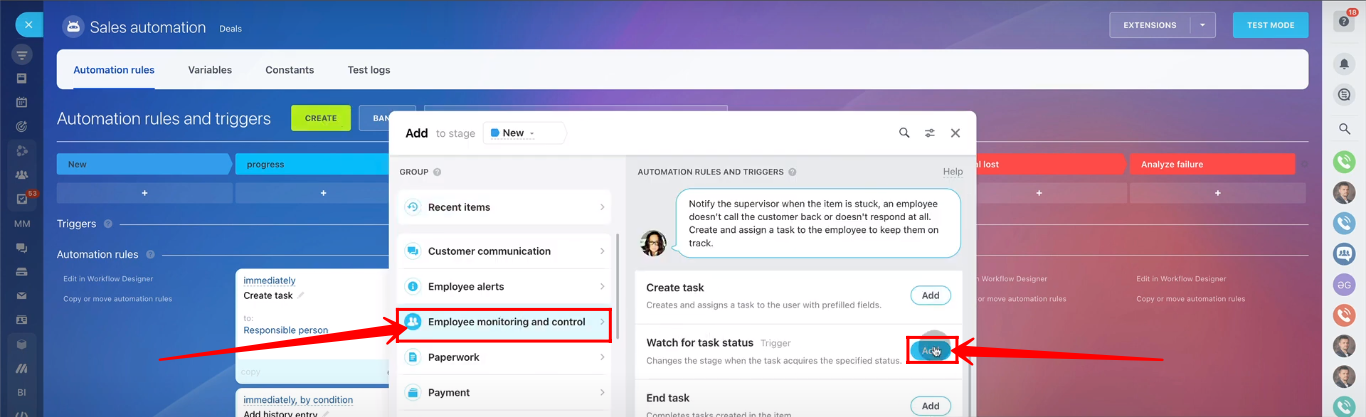
24. Go to “Employee monitoring and control” and add “Watch for task status”
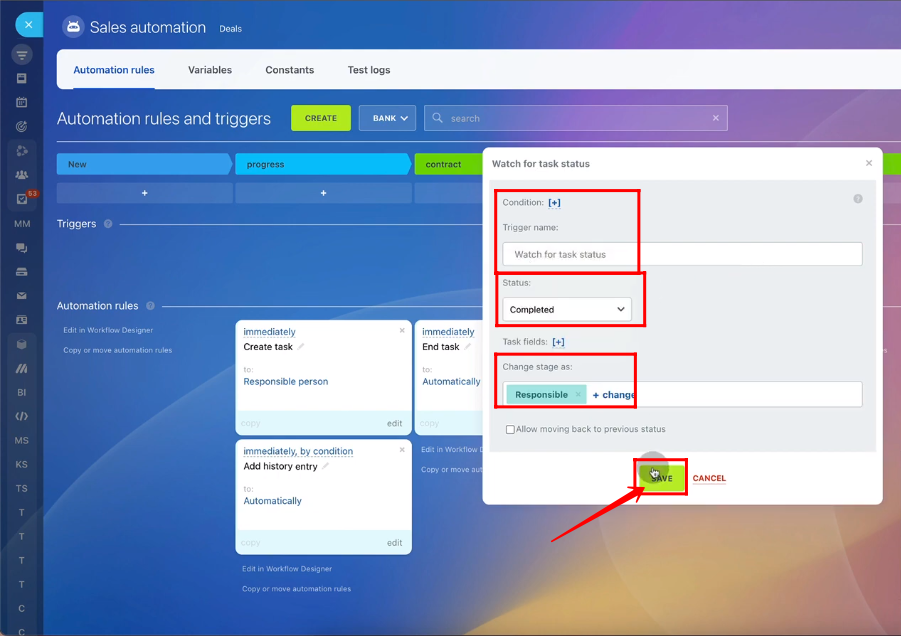
25. Add conditions, trigger name, status of tasks and click “Save”.
26. Move your configured automation rule “Watch for task status” to “invoice” stage.
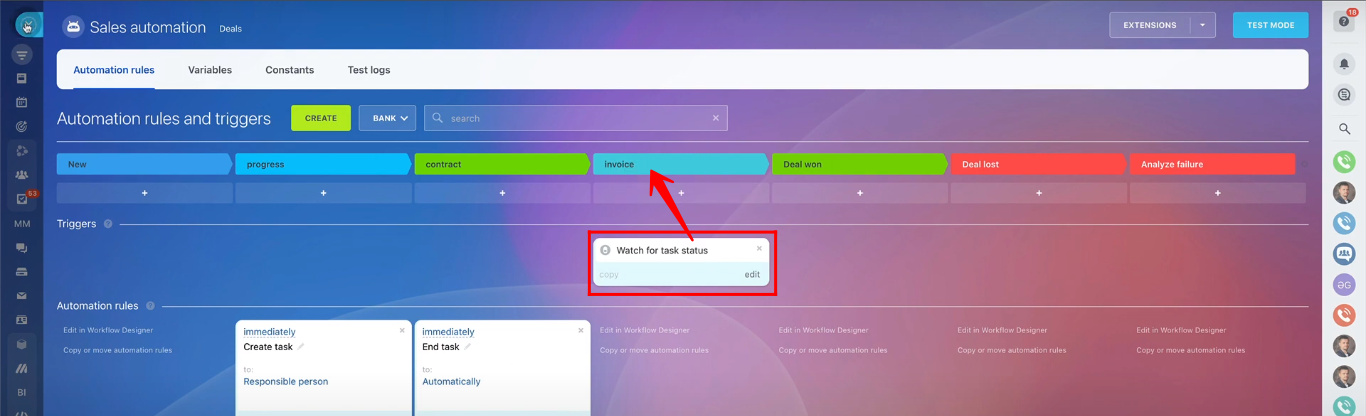
27. Accept the task as completed, by moving your deal to “progress” stage and then again to “contract” stage, open your deal and accept the task.
28. Now the deal has been moved to “invoice” stage.
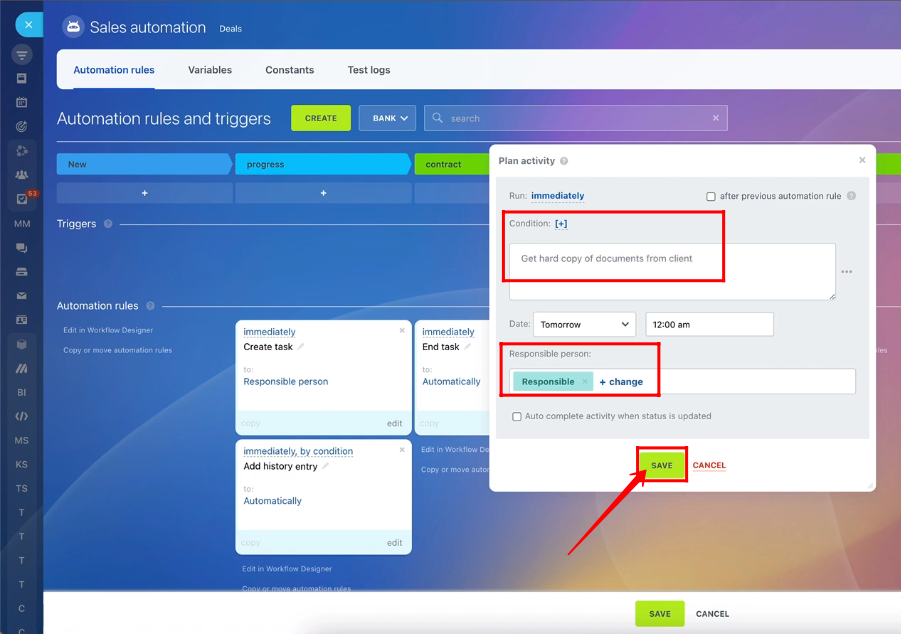
29. Go to “Employee monitoring and control” and add “Plan activity”.
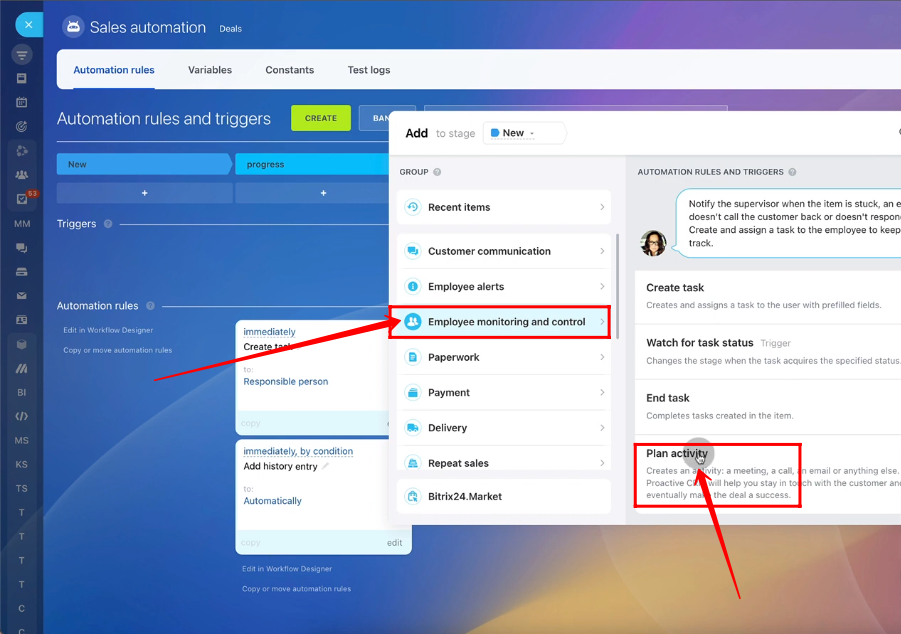
30. Add conditions, description, recipient person and click “Save”.
31. Move the “Plan Activity” automation rule to “invoice” stage.
32. Open your deal and you can see the activity planned.
“You can also watch this video on Youtube”
Play video