
Bitrix24 Training Course: 5. CRM Leads – Activities, Comments, Tasks, Emails, and More
In this session, we’ll learn how to use different tools in Bitrix24 CRM to keep track of leads and communicate better. These tools help you stay organized, work well with your team, and keep in touch with leads easily. We’ll go through simple examples to show how you can use these features in your daily work.
Keep Track of Leads with Activities
Bitrix24 has tools like tasks, meeting schedules, and call logs to help you stay on top of things. We’ll show you how to use these tools to keep a record of all your interactions with leads. You’ll learn how to set reminders, plan meetings, and make sure you don’t miss anything important.
Work Together Using Comments
Teamwork is easier when everyone knows what’s going on. Bitrix24 lets you add comments directly to lead records so your team can share updates, give feedback, and stay on the same page. We’ll show you how to use comments to keep your team connected and informed.
Use Tasks to Get Things Done
Tasks help you organize your work and make sure everyone knows what to do. You can create tasks for follow-ups, calls, or preparing documents. We’ll teach you how to assign tasks, set deadlines, and track progress to make sure nothing gets forgotten.
Communicate Through Email, SMS, WhatsApp, and More
Talking to leads is easy with Bitrix24. You can send emails, SMS, or WhatsApp messages and even plan Zoom meetings—all from one place. We’ll show you how to use these tools to stay in touch with leads and keep your communication smooth and professional.
Explore More Tools for Better Engagement
Bitrix24 has extra tools like wait timers, chat invites, and visit logs to help you manage leads better. You can also schedule meetings or track visits to make sure everything is recorded. We’ll guide you through these advanced features to make your work easier and more effective.
By learning to use these tools, you’ll improve how you work with leads, stay organized, and keep your team working together smoothly. Each tool is designed to help you give the best possible attention to your leads and keep your CRM running smoothly.
Detailed instructions are described below:
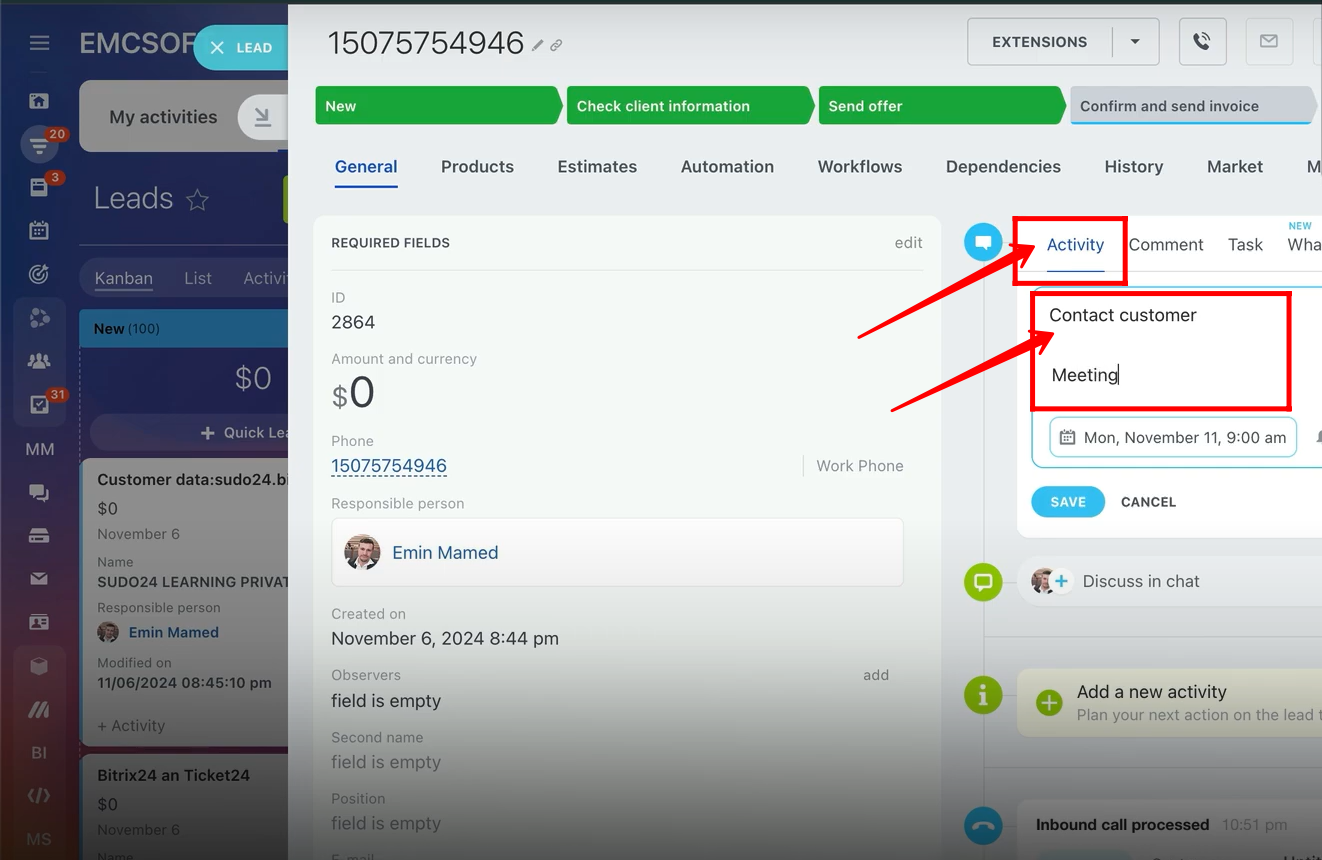
1. Now, a new feature “Activity” has been integrated in the lead management. Within the lead, go to “Activity”. Add “Title” and “Description” of the activity.
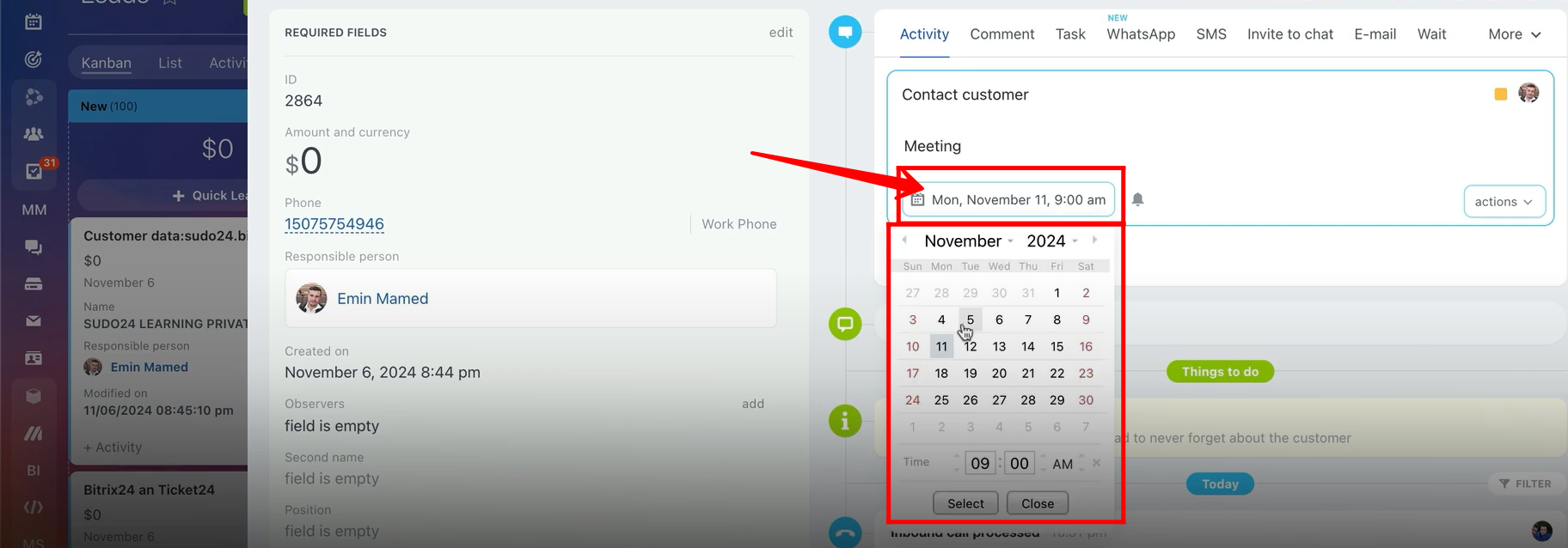
2. Schedule the activity to be executed on a specific date and time.
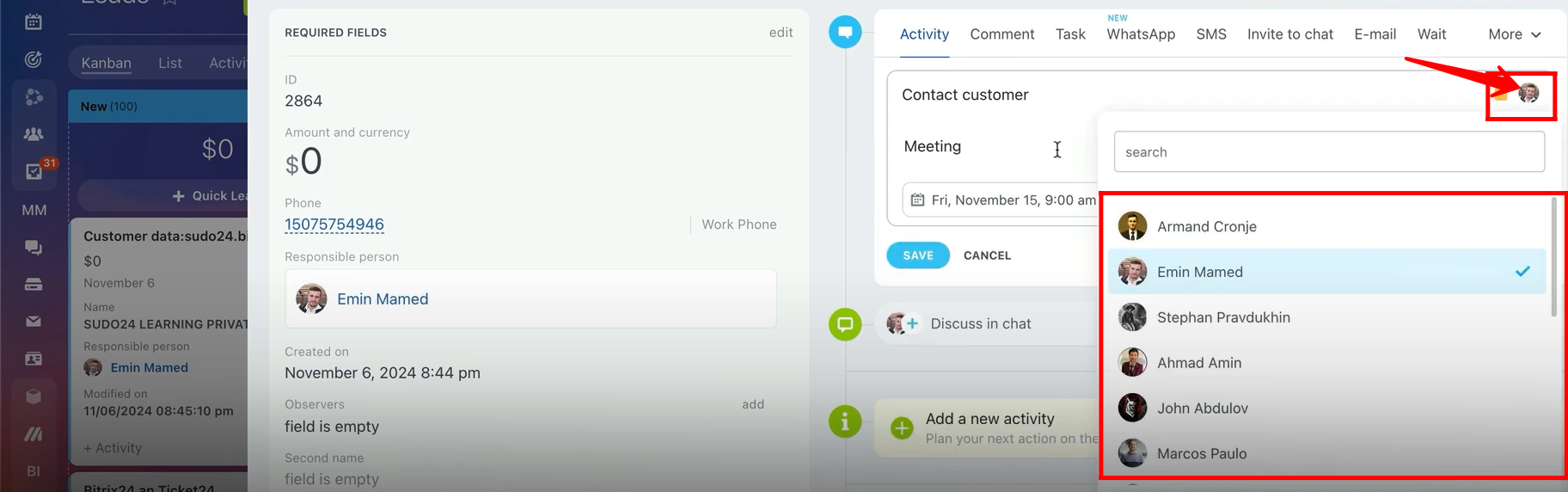
3. Add a “Responsible Person” to an activity of a lead. One activity can also be assigned to more than one responsible person.
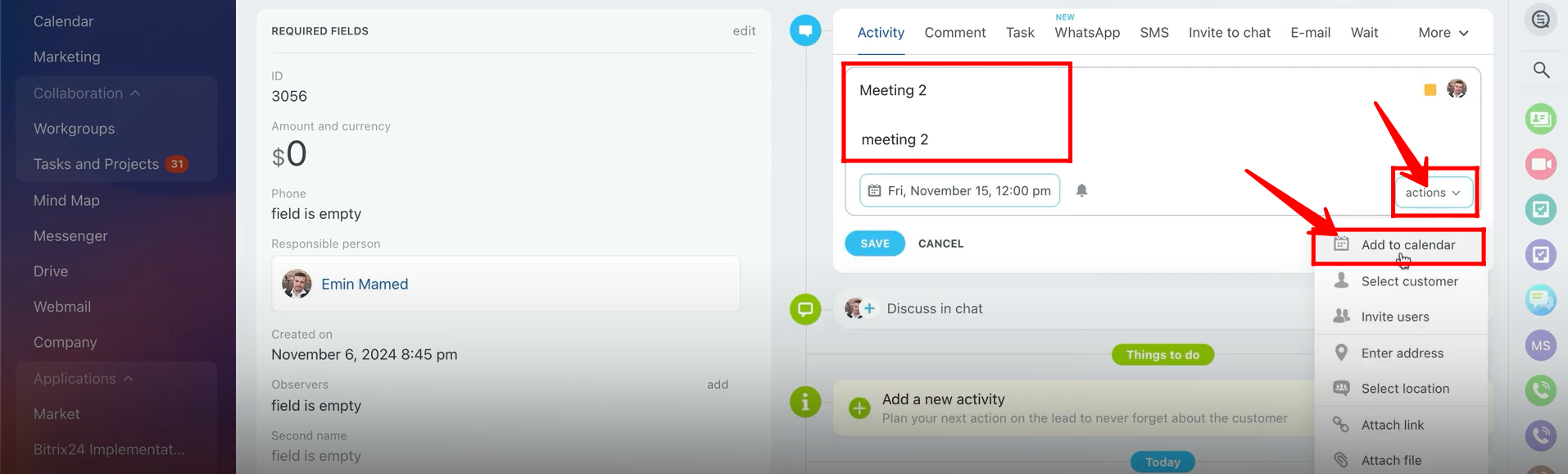
4. Go to “actions”. For now, click “Add to calendar”.
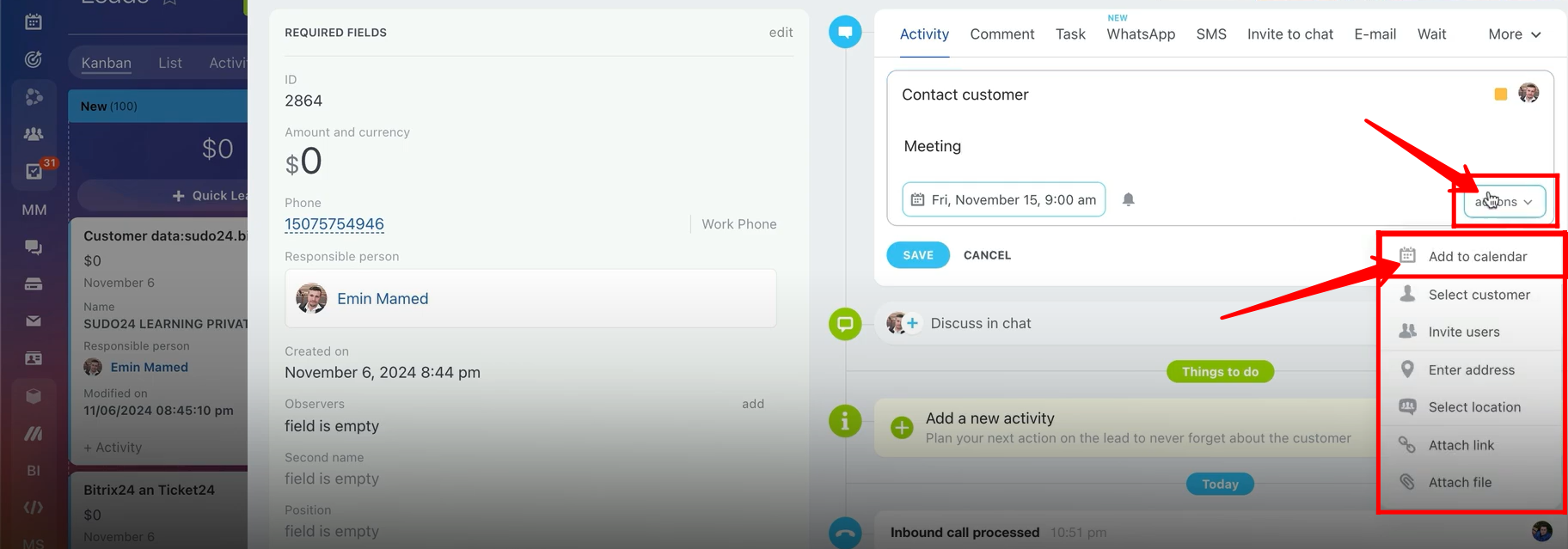
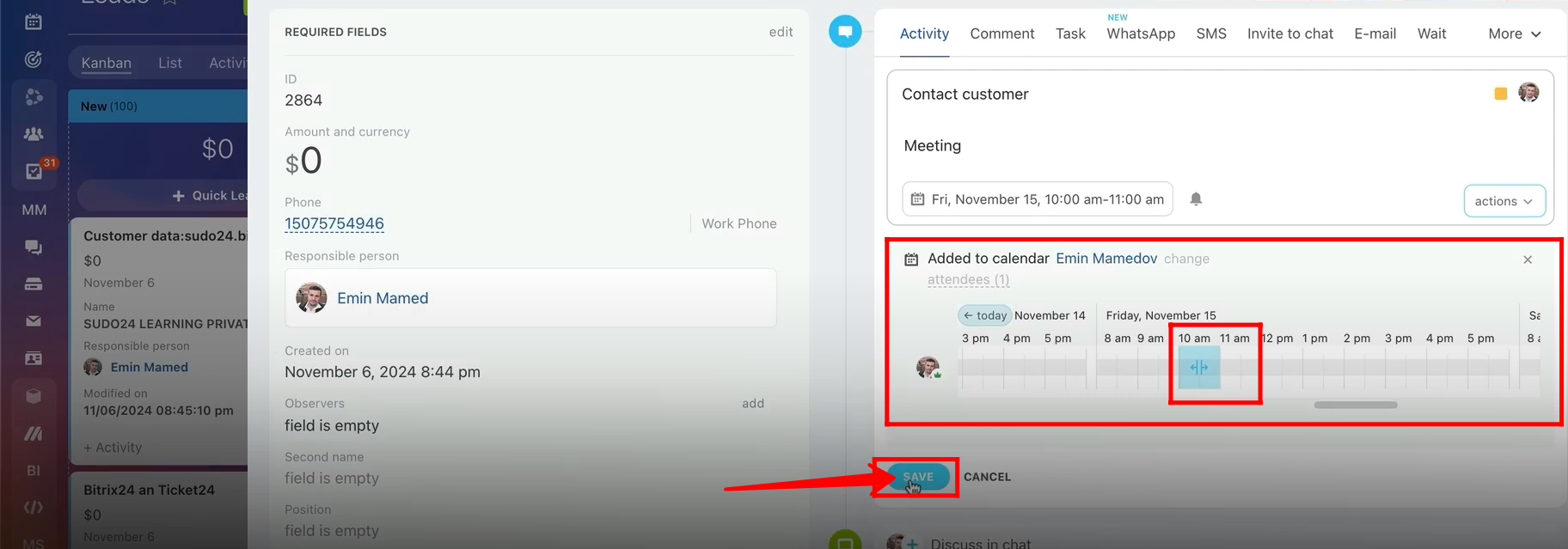
5. Choose the specific time when you want to execute that activity, depends upon whether the responsible person is not busy within that time.
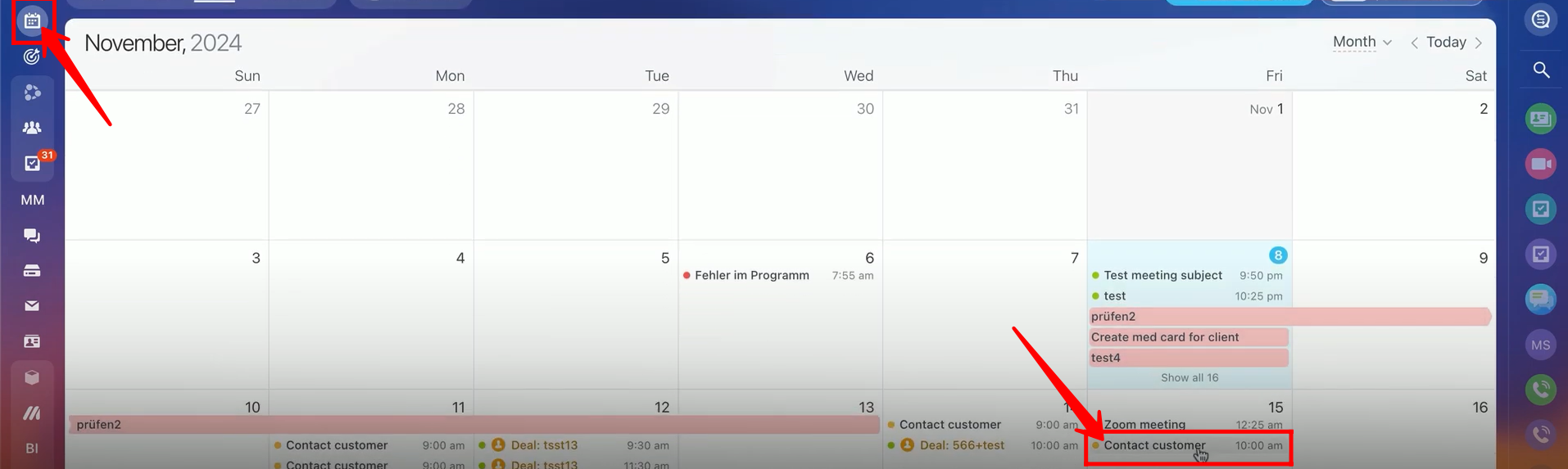
6. Open “Calendar” by clicking the icon mentioned below. Open the activity of your own choice.
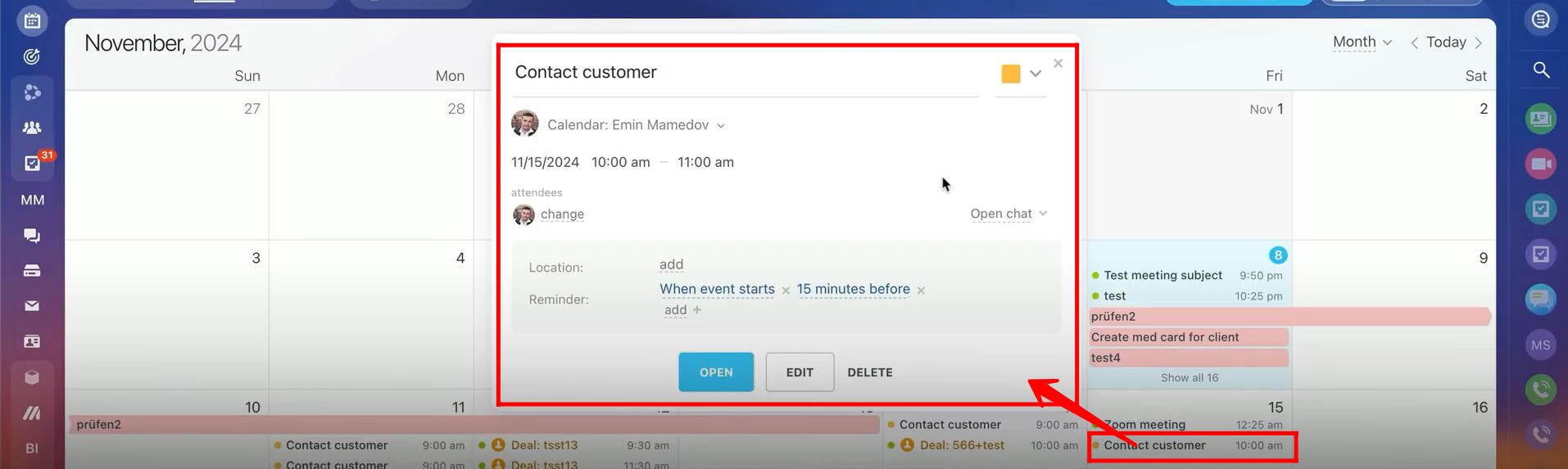
7. Here’s the overview of the activity that we just scheduled.
8. For testing purposes, create a new stage named “Meetings”. Create a new lead or modify the previous one to test further activity features and move that lead to the “Meetings” stage.
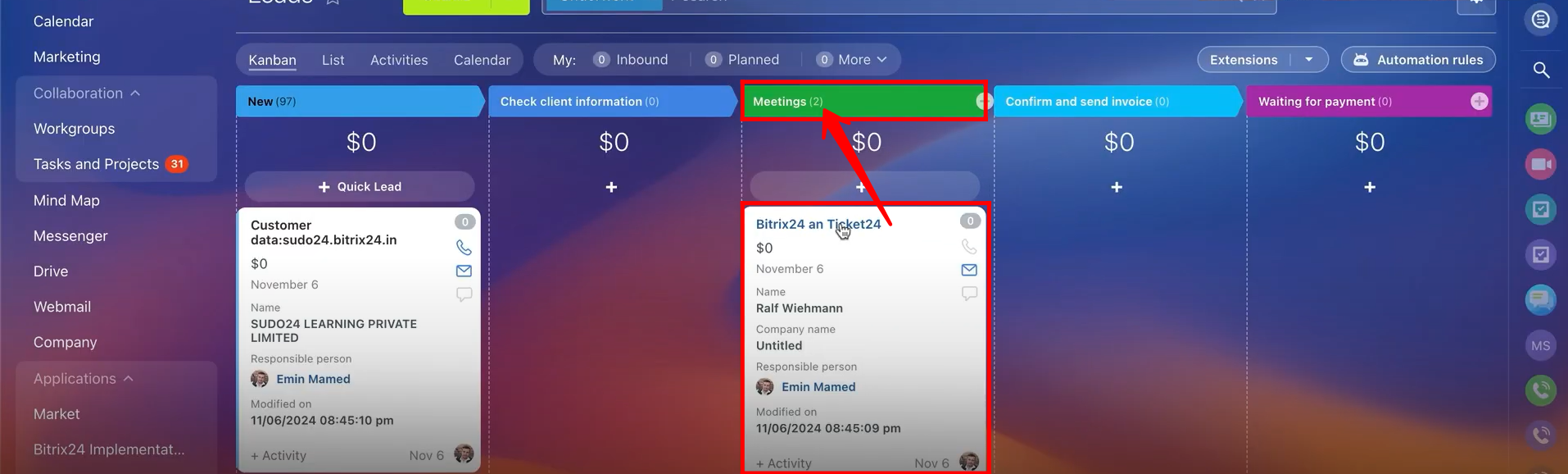
9. Create a new activity within the lead. Add “Title” and “Description”. Choose the same responsible person for this activity also. Go to “actions” and click “Add to Calendar”.
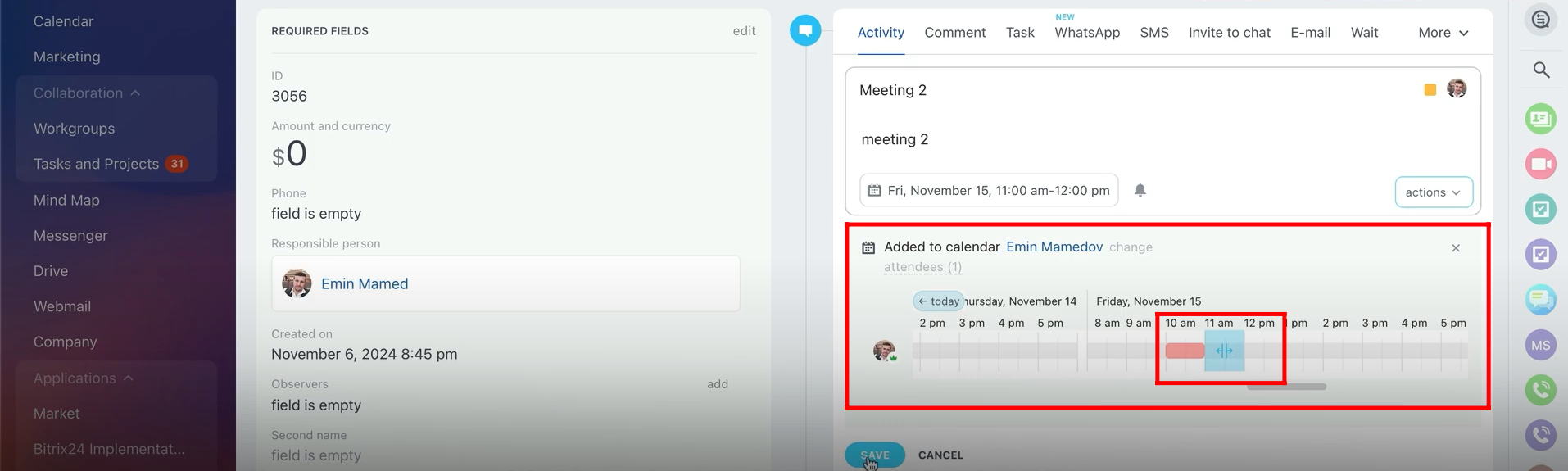
10. You can view that responsible person has been assigned to the previous activity between 10am to 11am. We cannot choose that time for this activity.
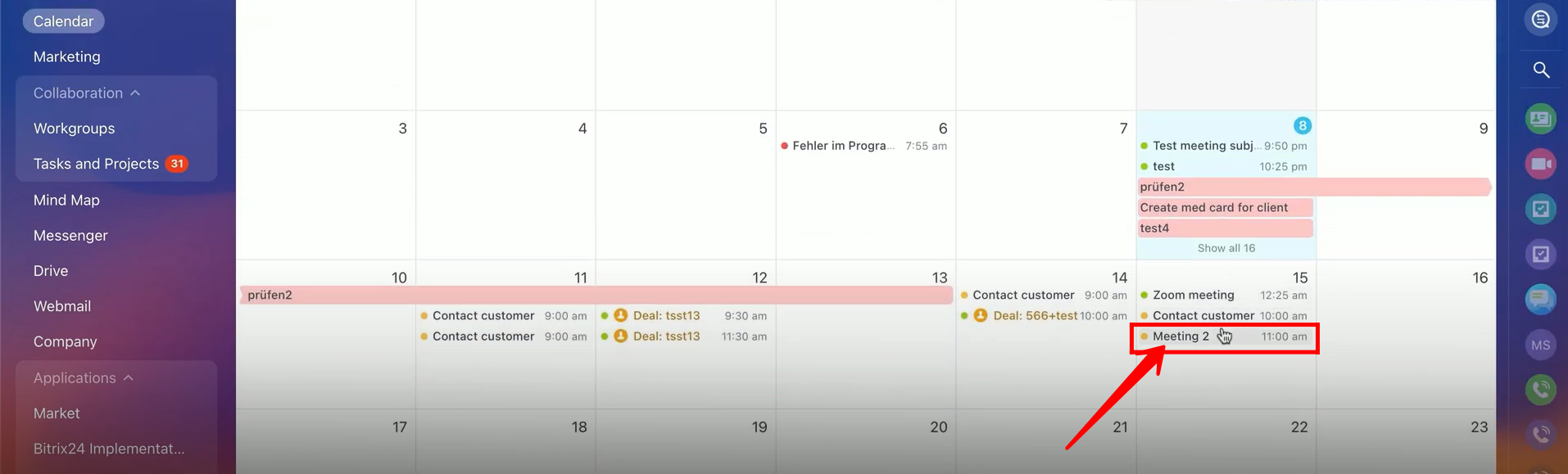
11. You can view the details of the new activity named “Meeting 2” in the calendar.
12. “Things to do” section within the lead mentions those tasks that are a part of the lead. Those tasks have to be done in the future. “Today” section indicates the tasks or activities that are scheduled on the same date when you are viewing that lead OR the activities that you performed within the lead.
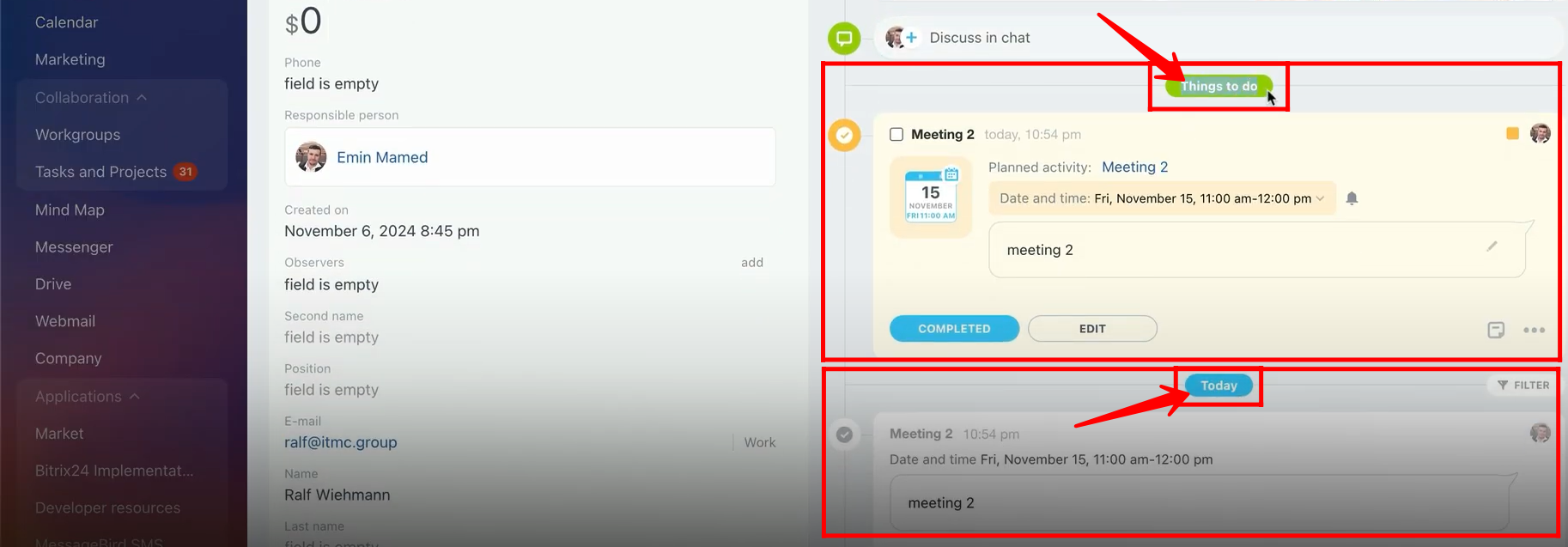
13. Let’s change the scheduled date of the activity to the current date.
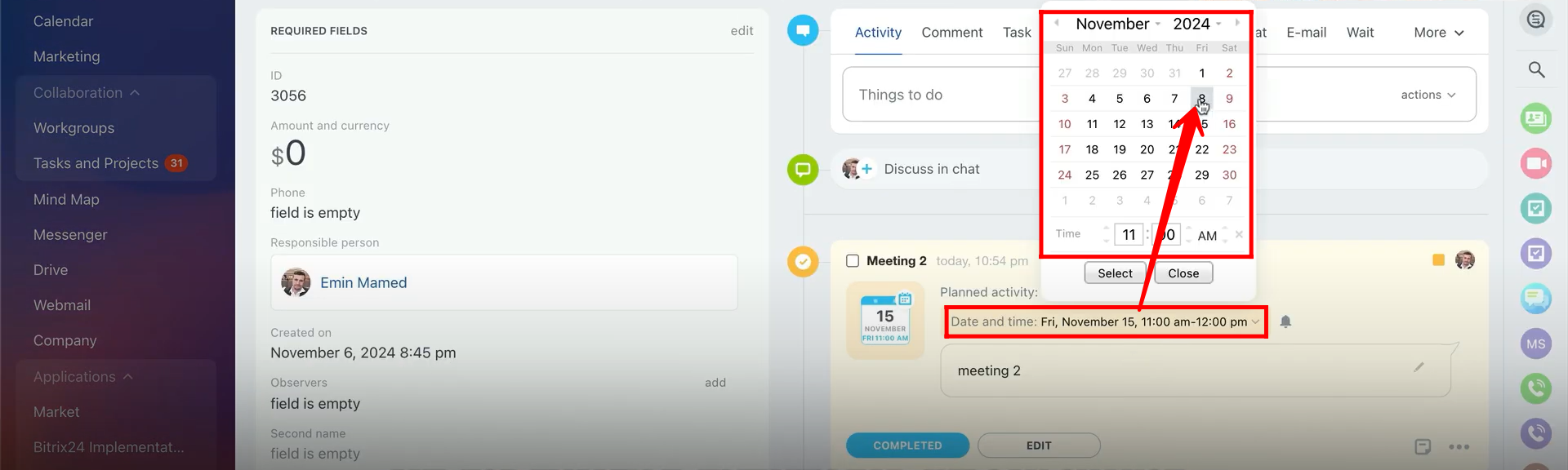
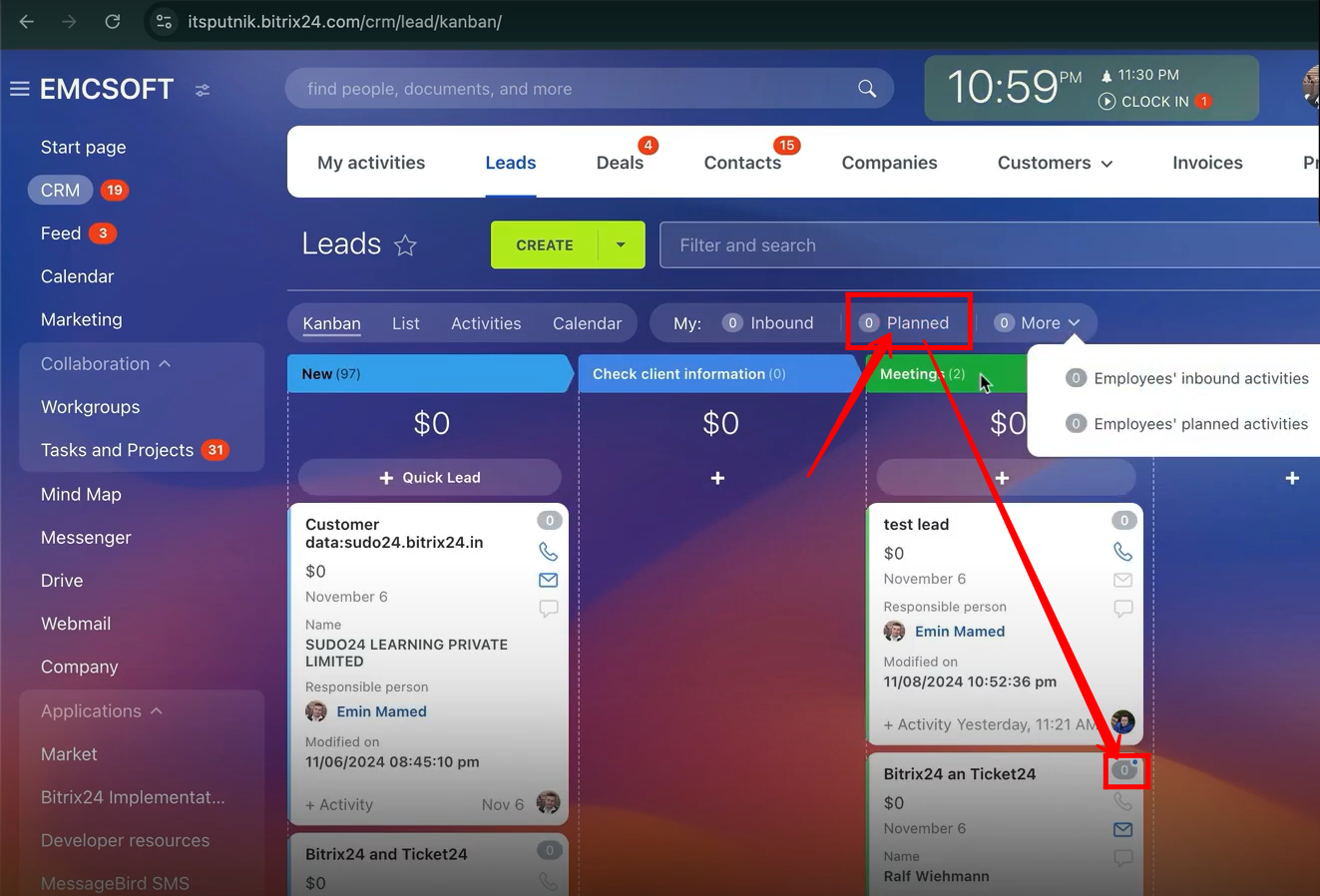
14. You can view that the alert message has been shown on the top right side of the lead card and just beside the “Planned” filter.
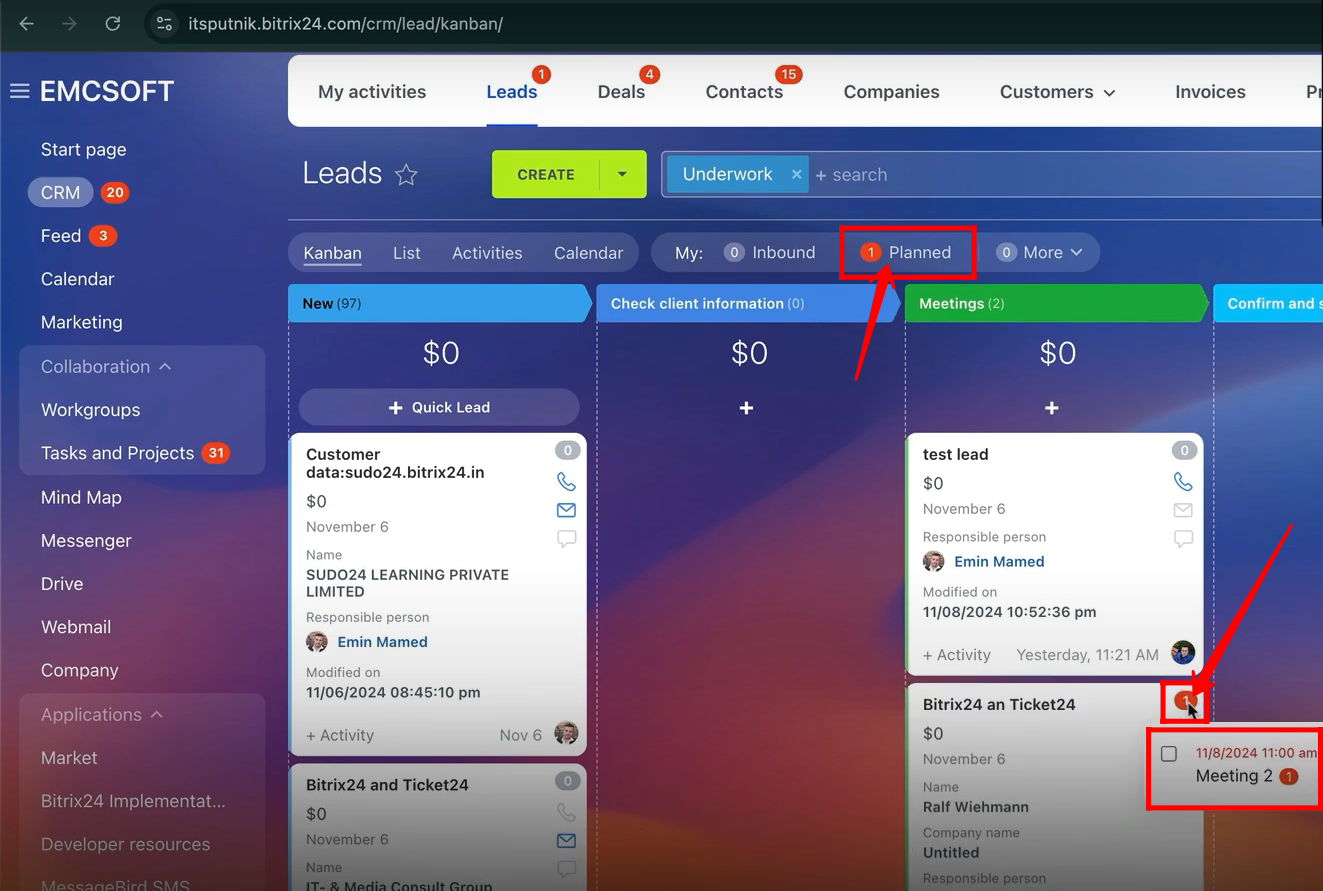
15. You can view only the leads on the current date with the “Planned” filter.
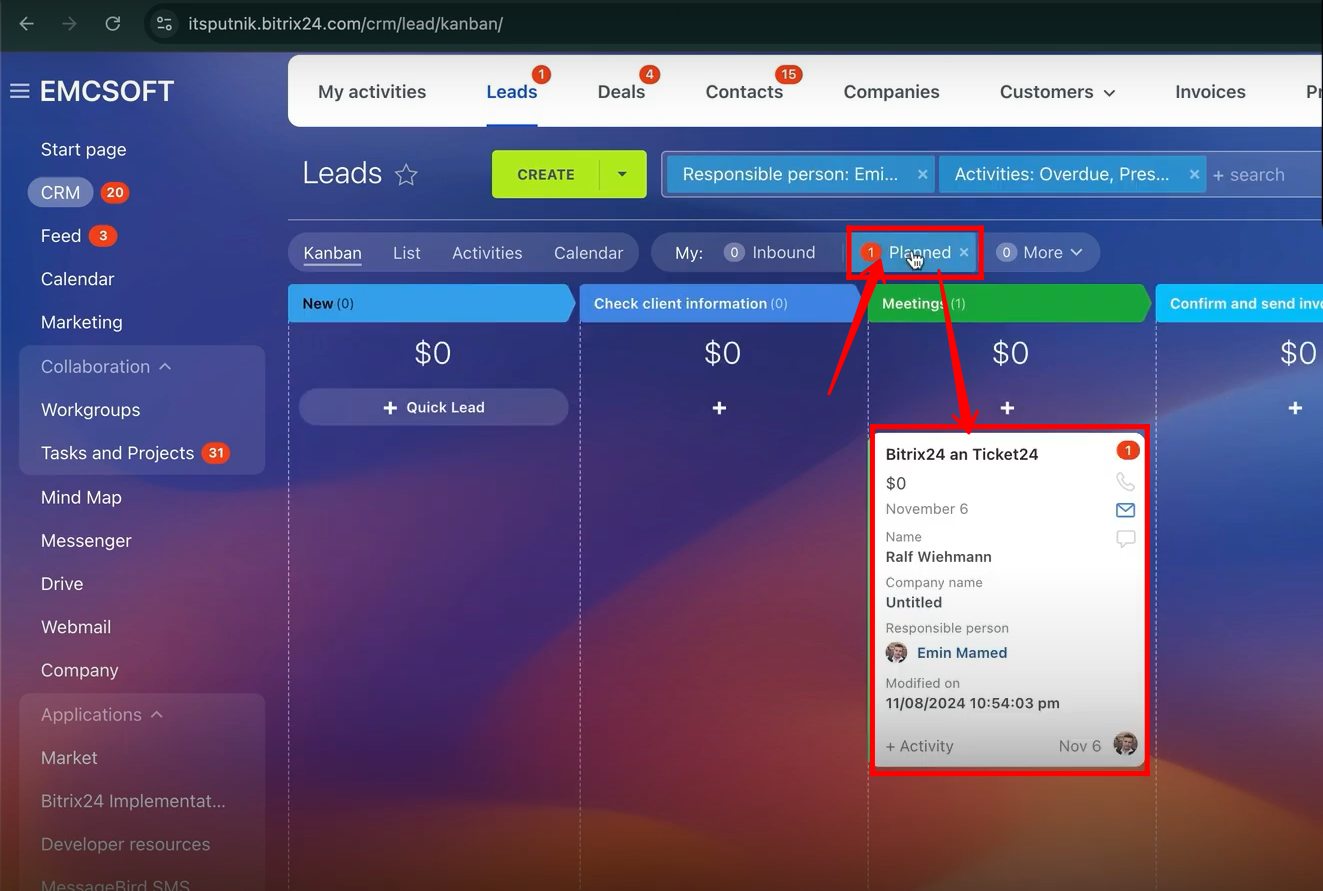
16. If the activity is scheduled on the current date, it will also have an alert within the lead.
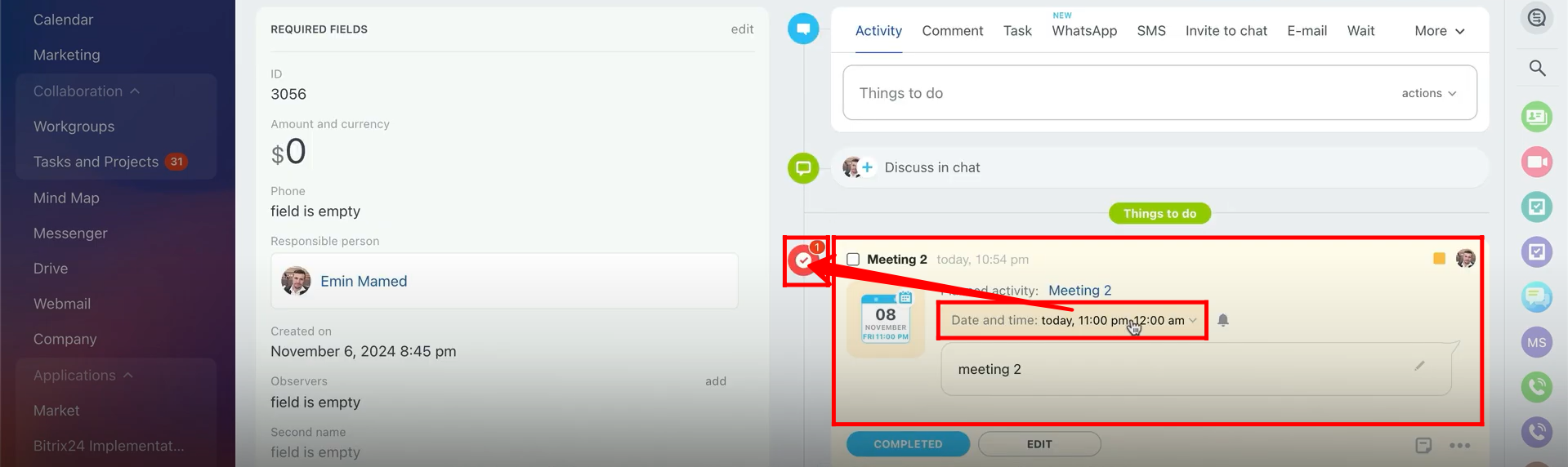
17. Now, the time for the activity has been changed. The scheduled expands to the next day so the red alert is converted into yellow.
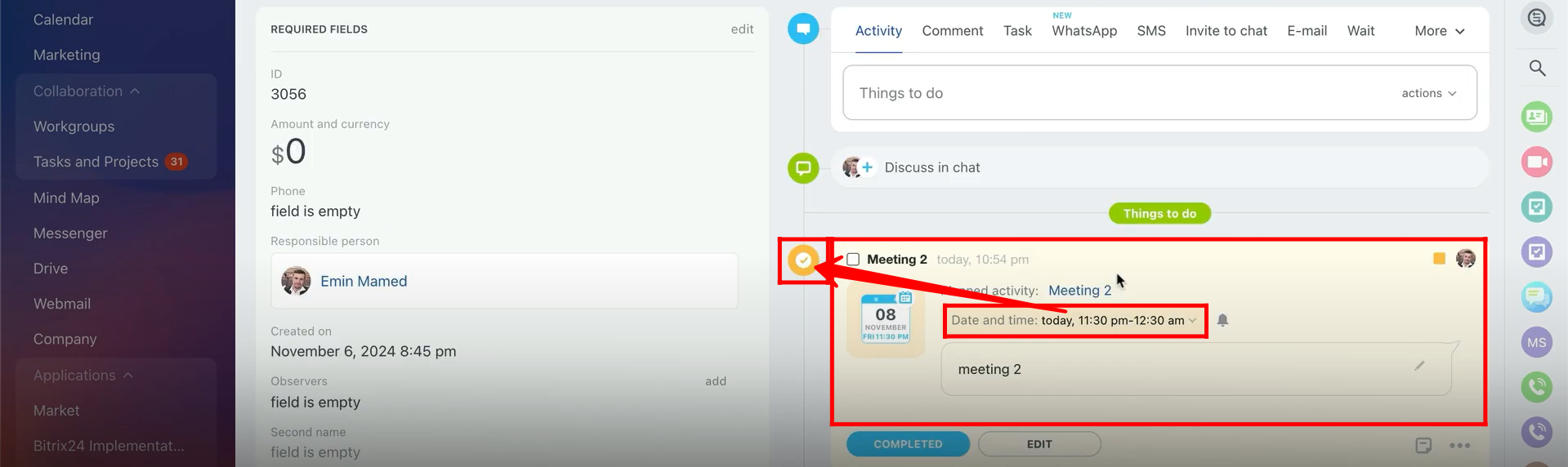
18. Resultantly, there is no any alert on the “Planned” filter and top right corner of the lead card.
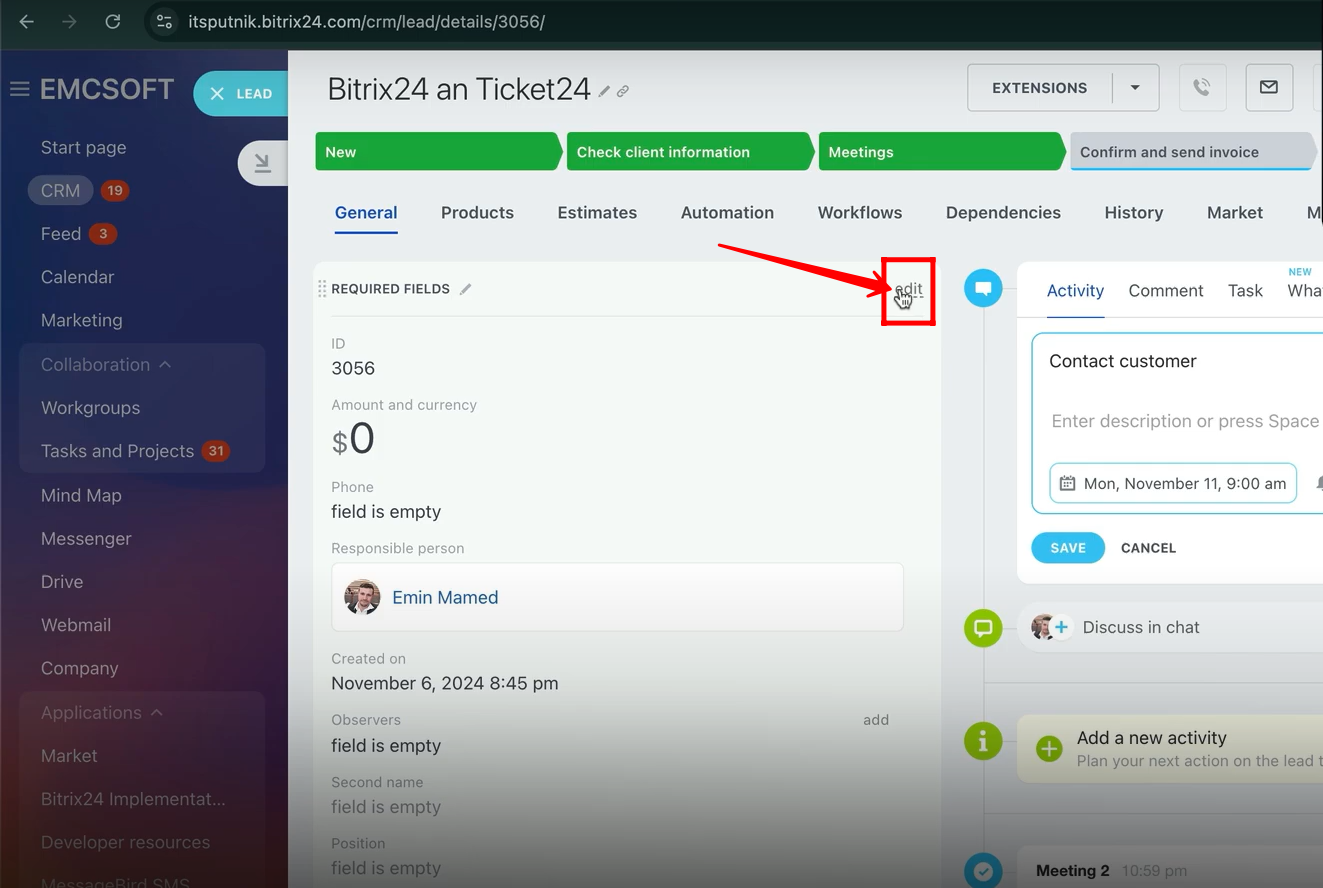
19. Click “edit” within the lead to modify the fields.
20. Click “Select fields” to add within the lead if the required field is not available.
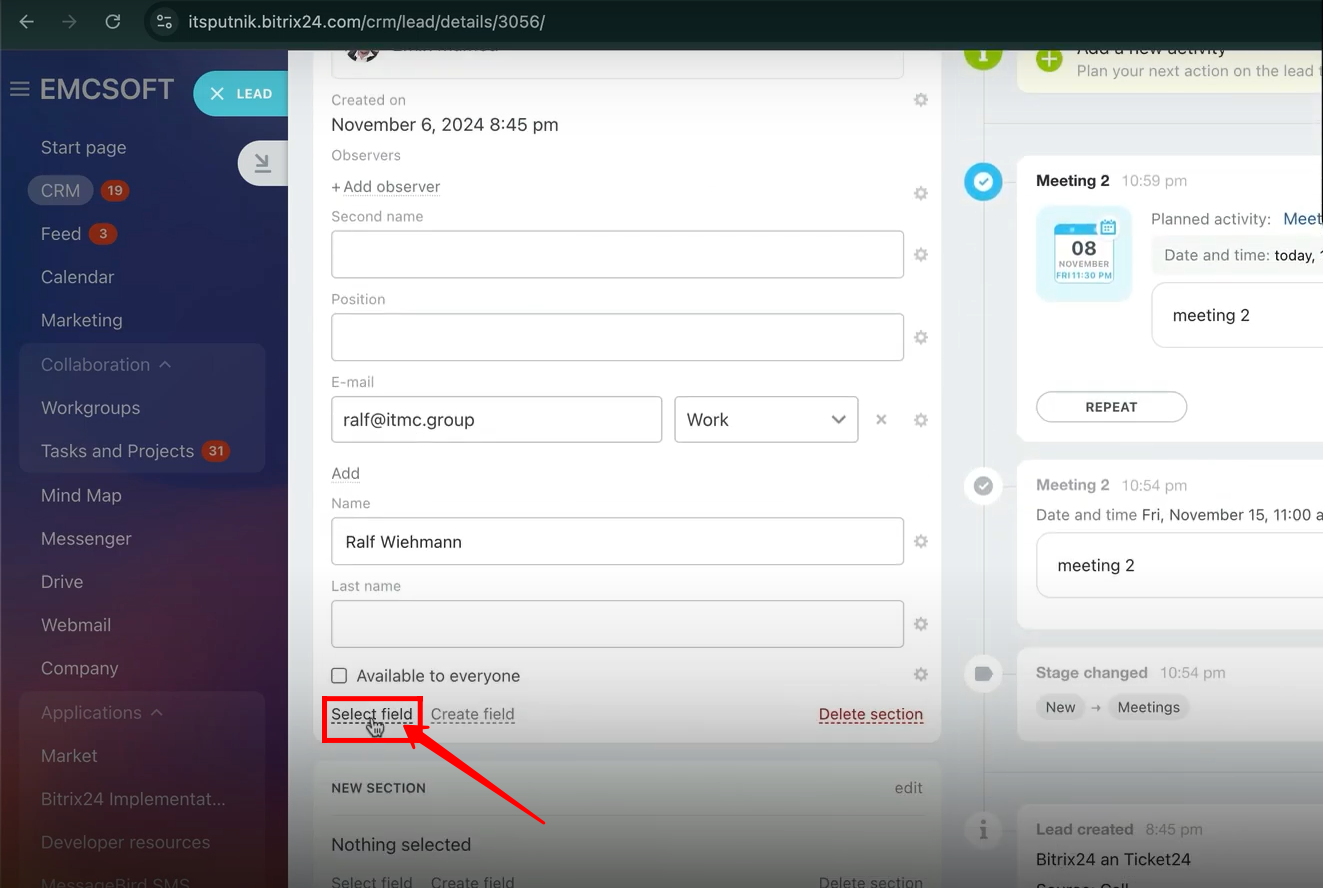
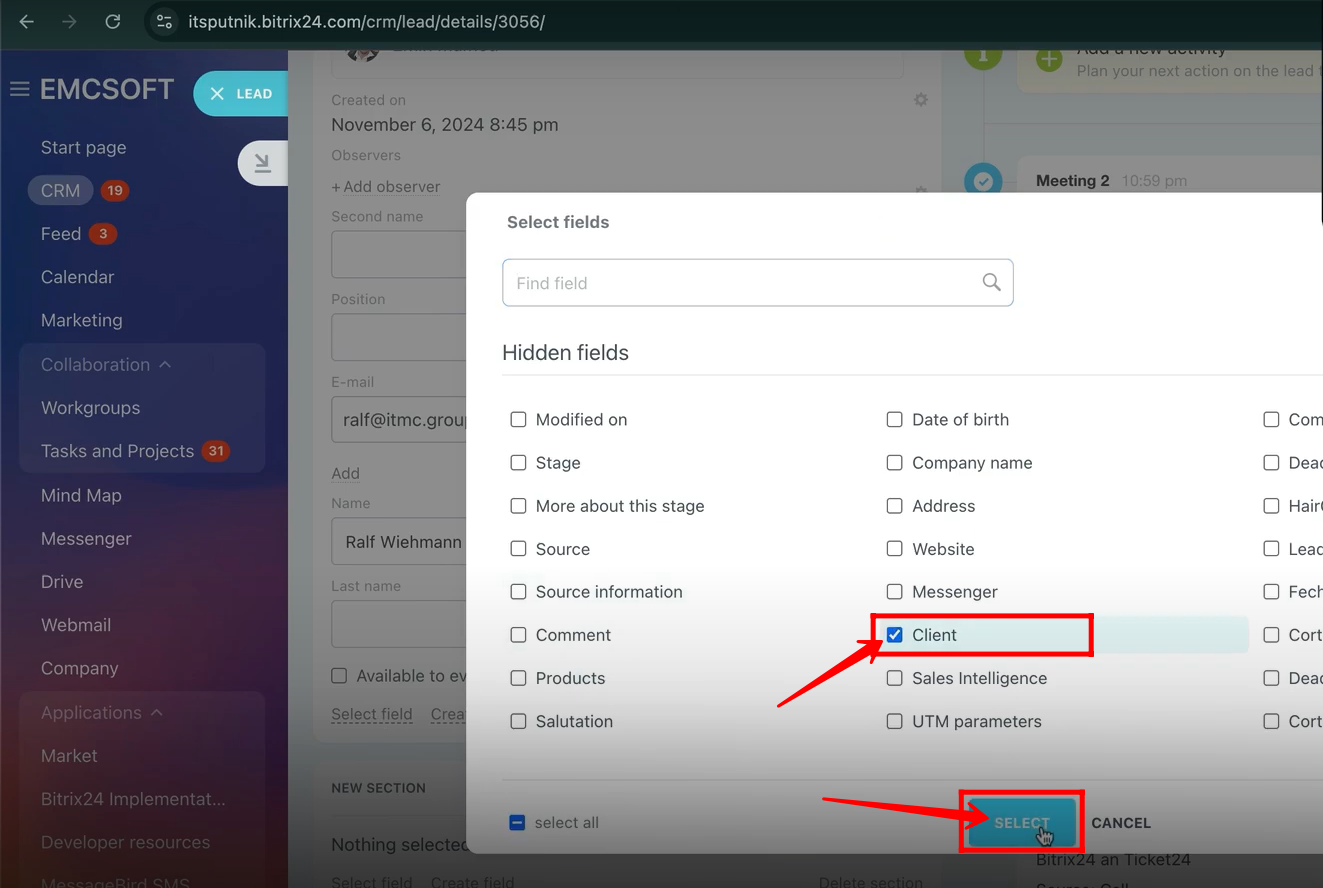
21. Click “Client” and then “Select”.
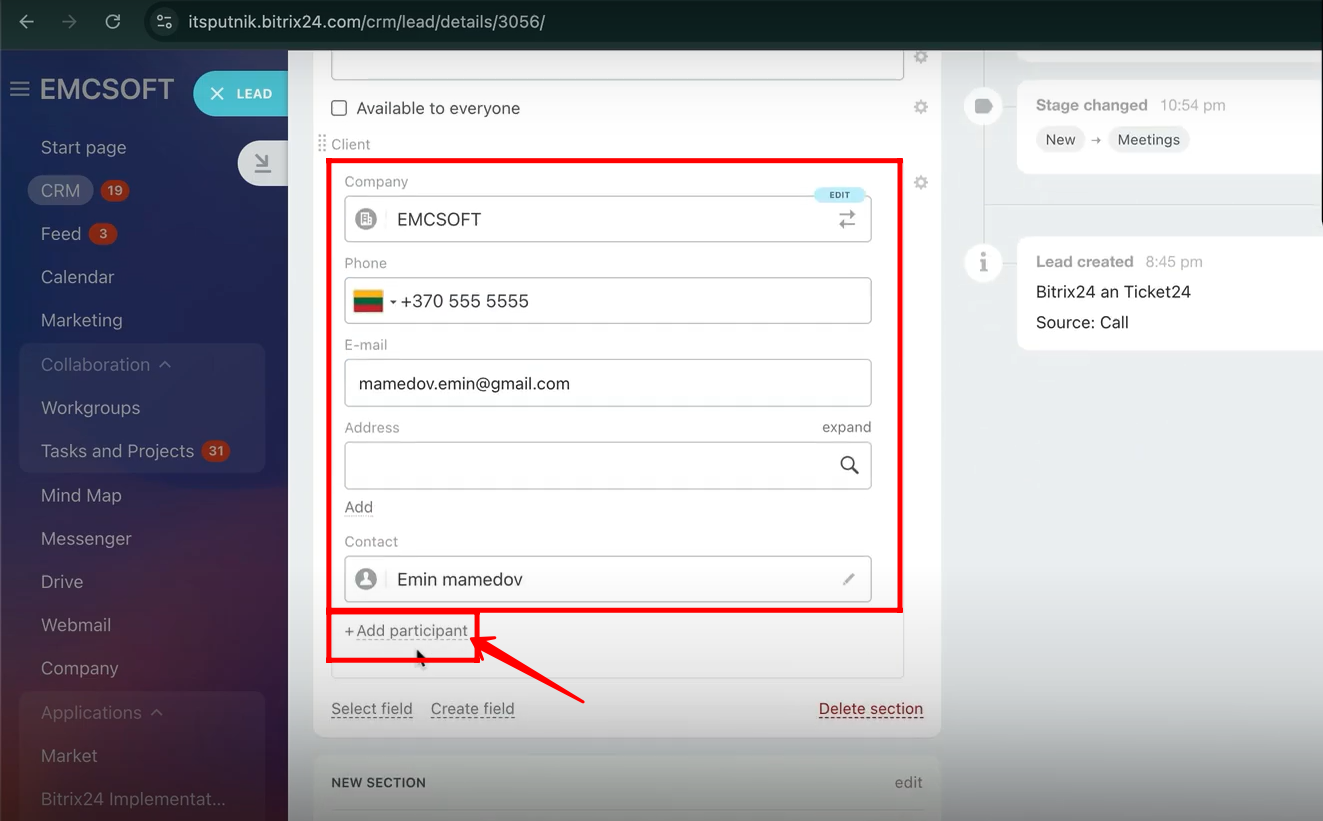
22. Add the details(Company, Phone, Email, Address) of the client. Now, click “Add Participant”.
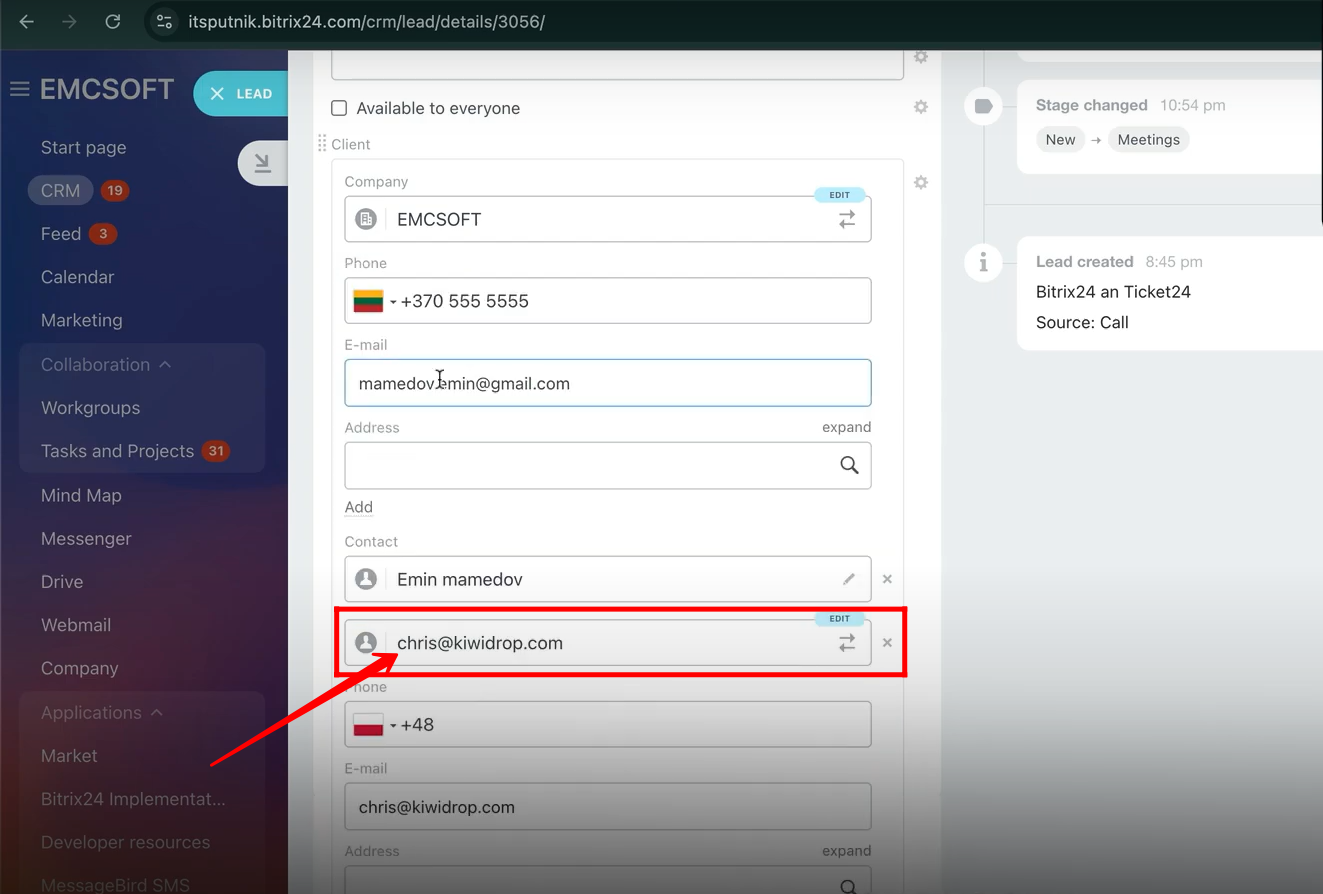
23. Add the details(Name, Email, Phone, Address) of the participant within the lead. For now, the details are dummy for testing.
24. Now, create a new activity. Add “Title” and “Description” of the activity. Choose the “Responsible Person” and schedule the activity. Go to “actions” and “Select customer”.
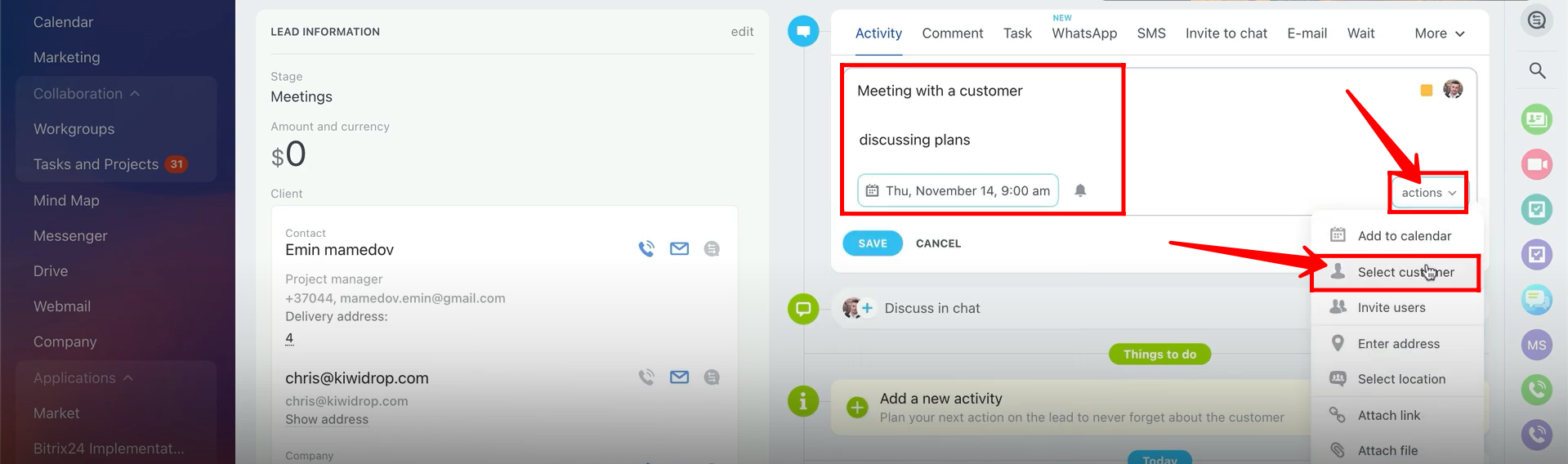
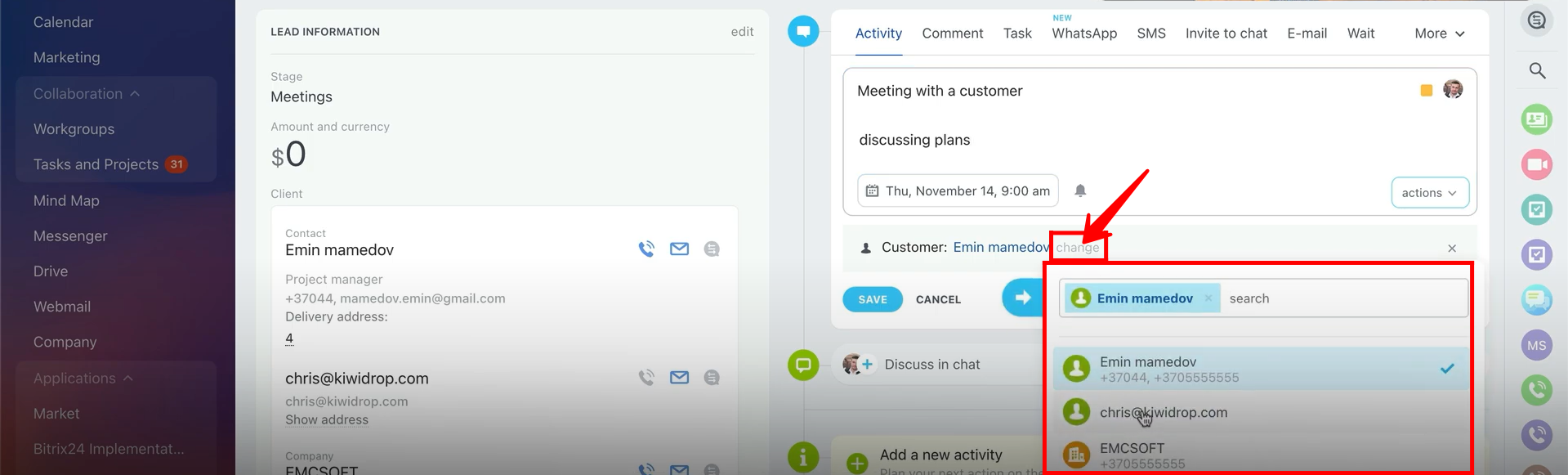
25. You can change the customer also. Multiple customers(participants and companies) can be added.
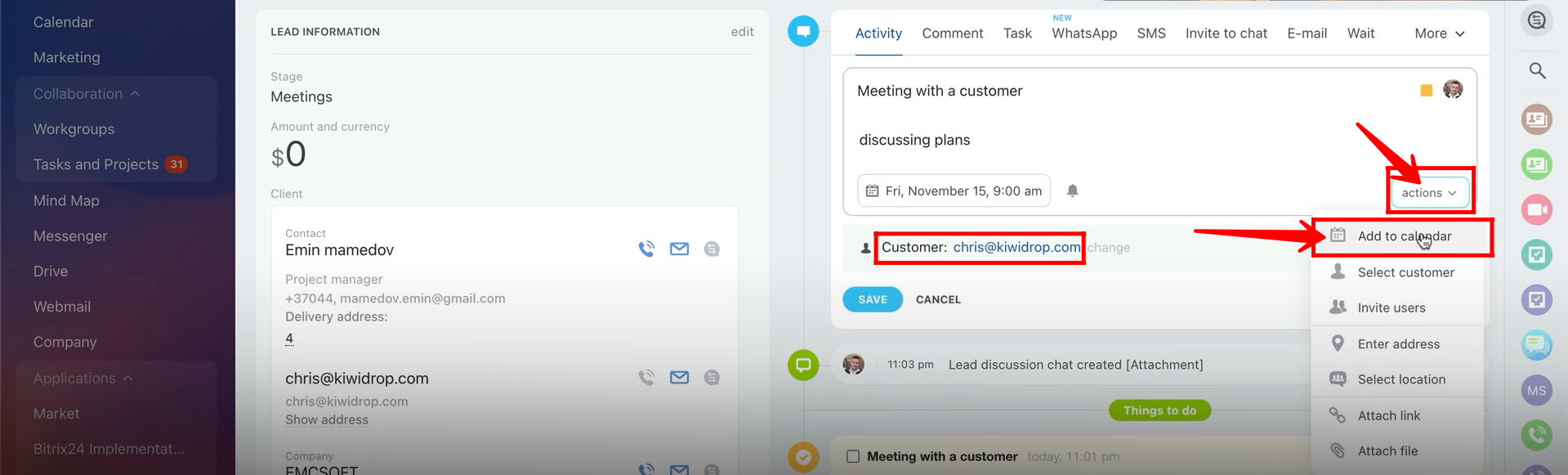
26. Now, add the activity to the calendar through the actions.
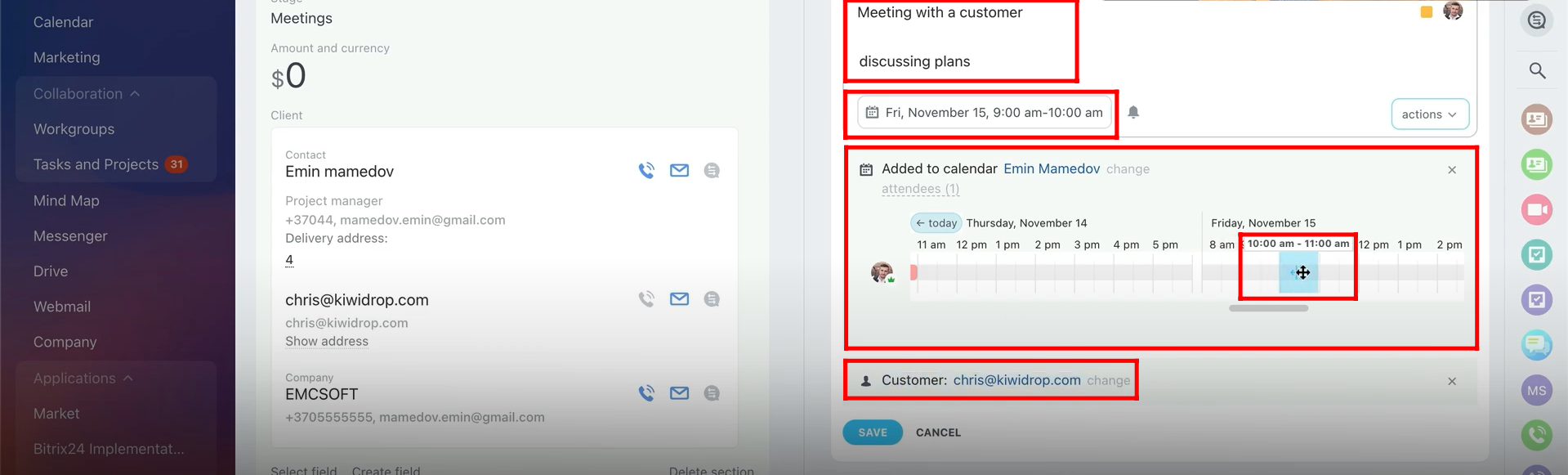
27. Choose the time on a specific day to execute the activity.
28. Go to “actions” and “Invite users”.
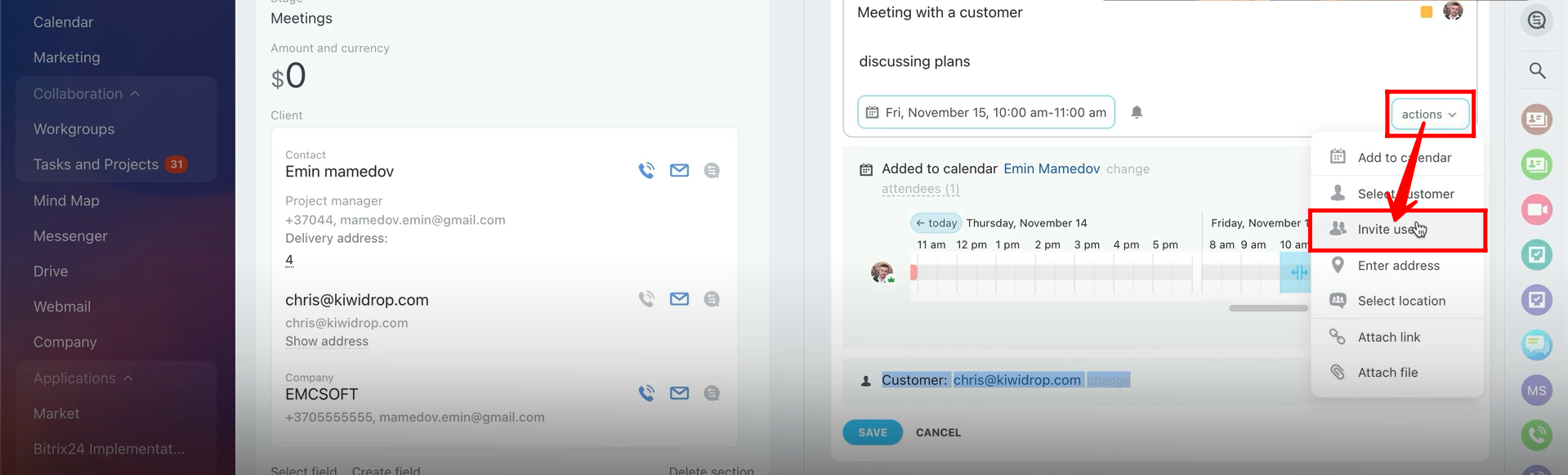
29. Add a new user to this activity.
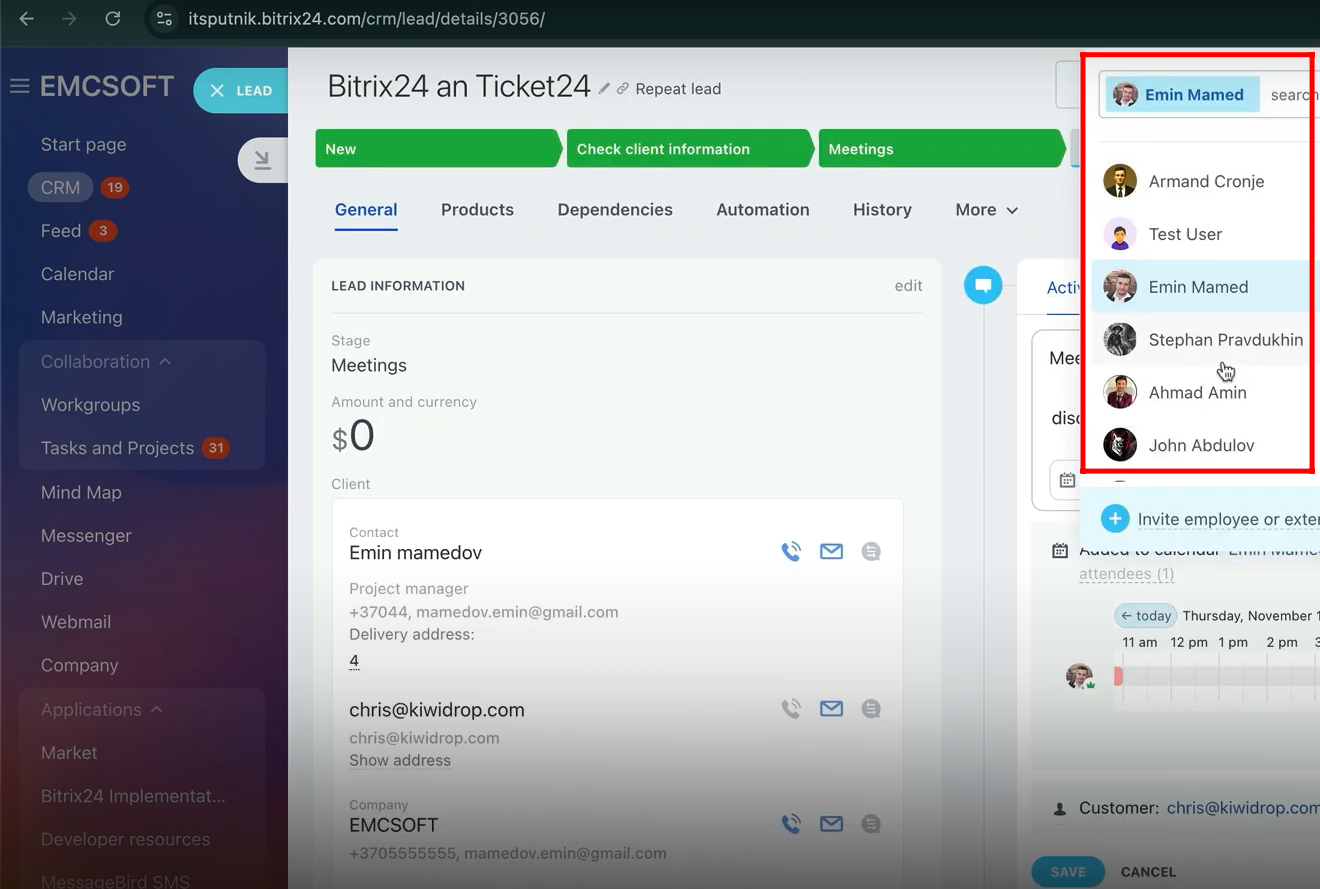
30. You can view that two users are responsible for this activity now. Choose the time when both users are available.
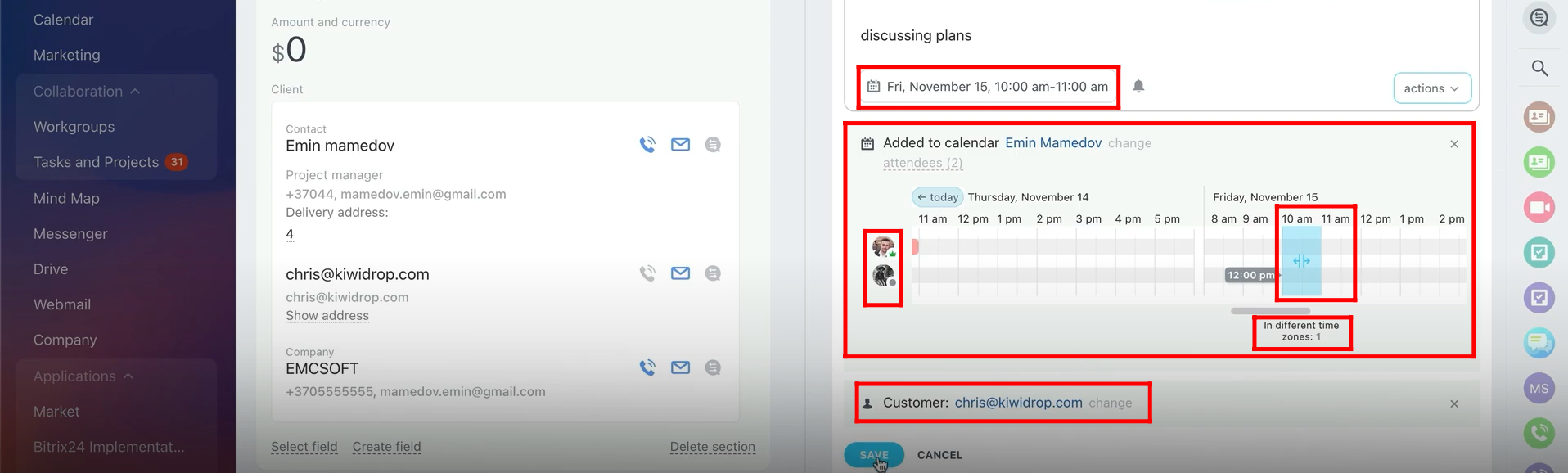
31. Open the details of the activity from the calendar.
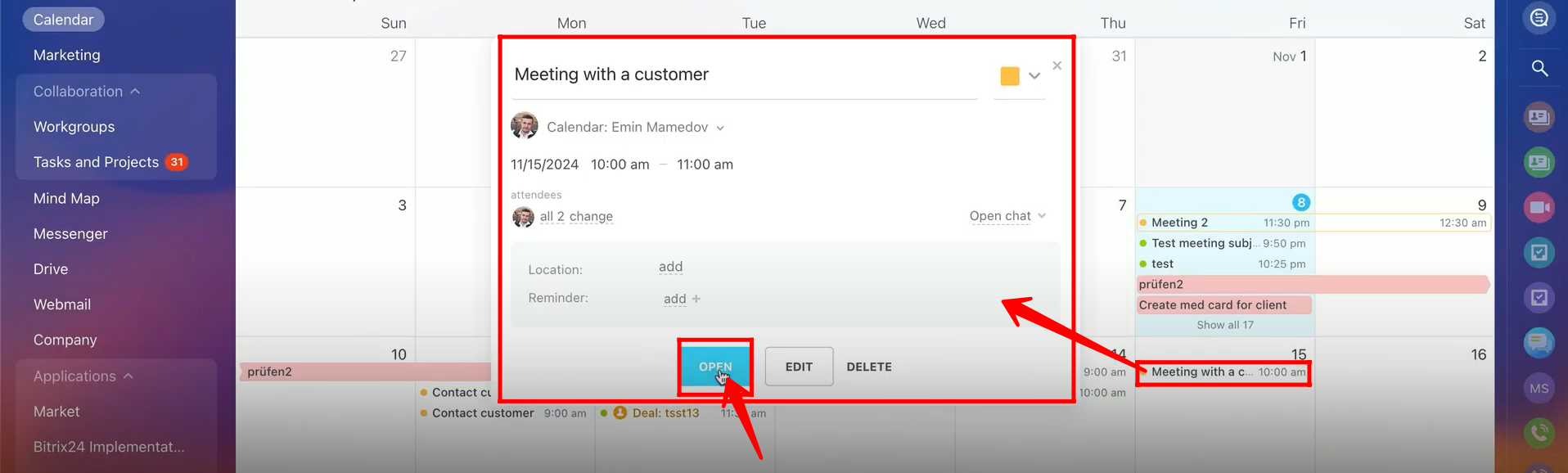
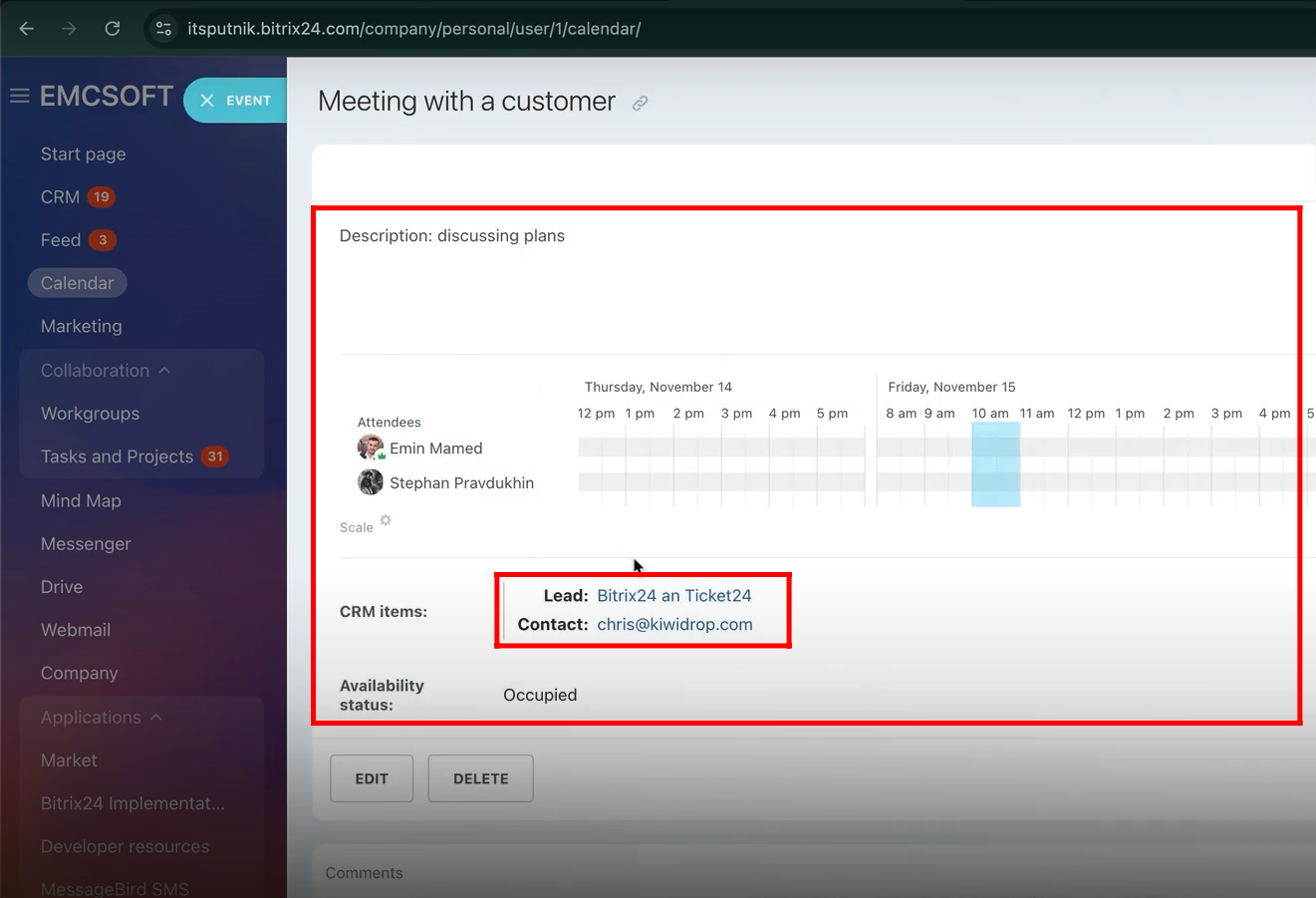
32. You can view the lead or contact details from the event or activity details also.
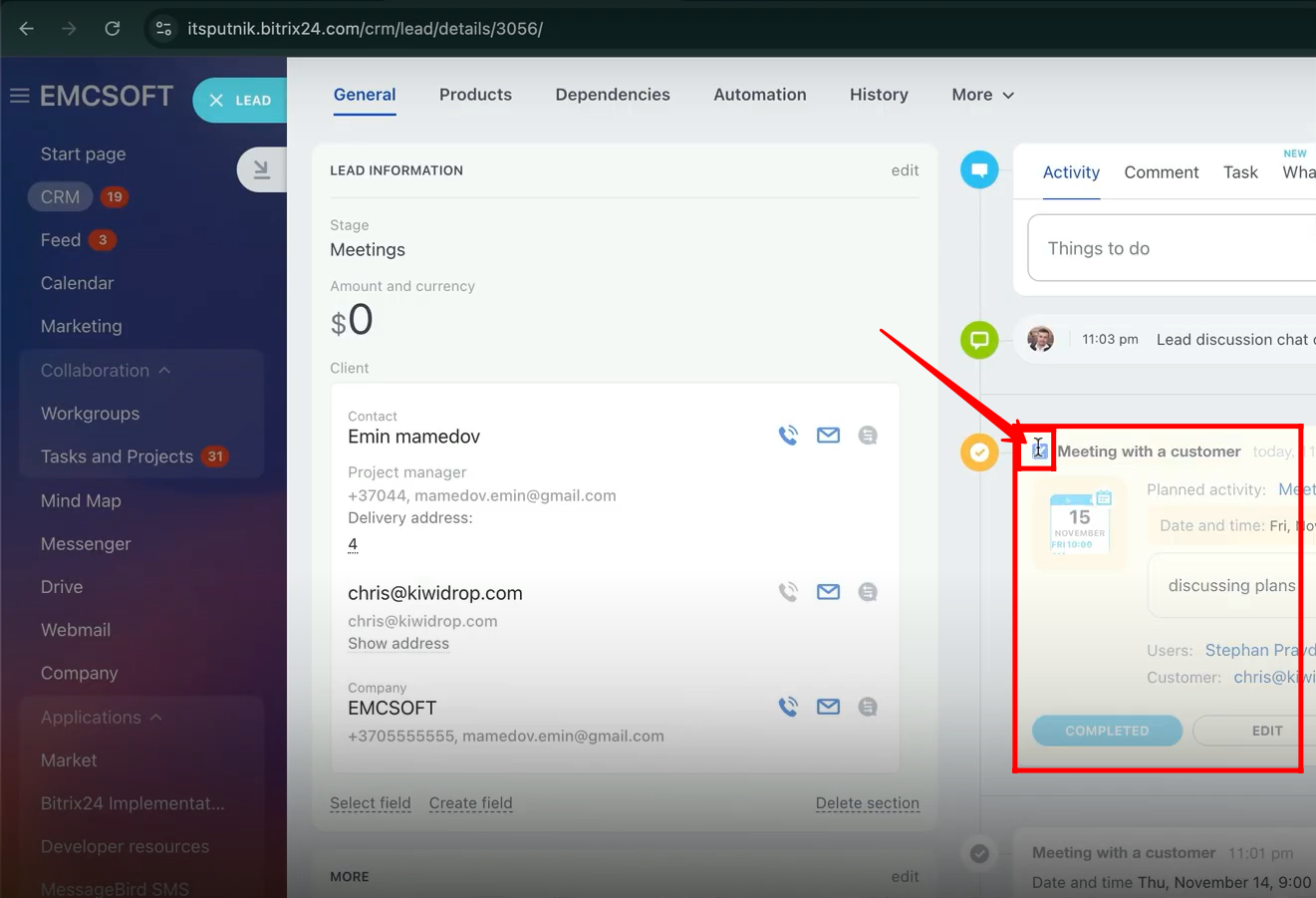
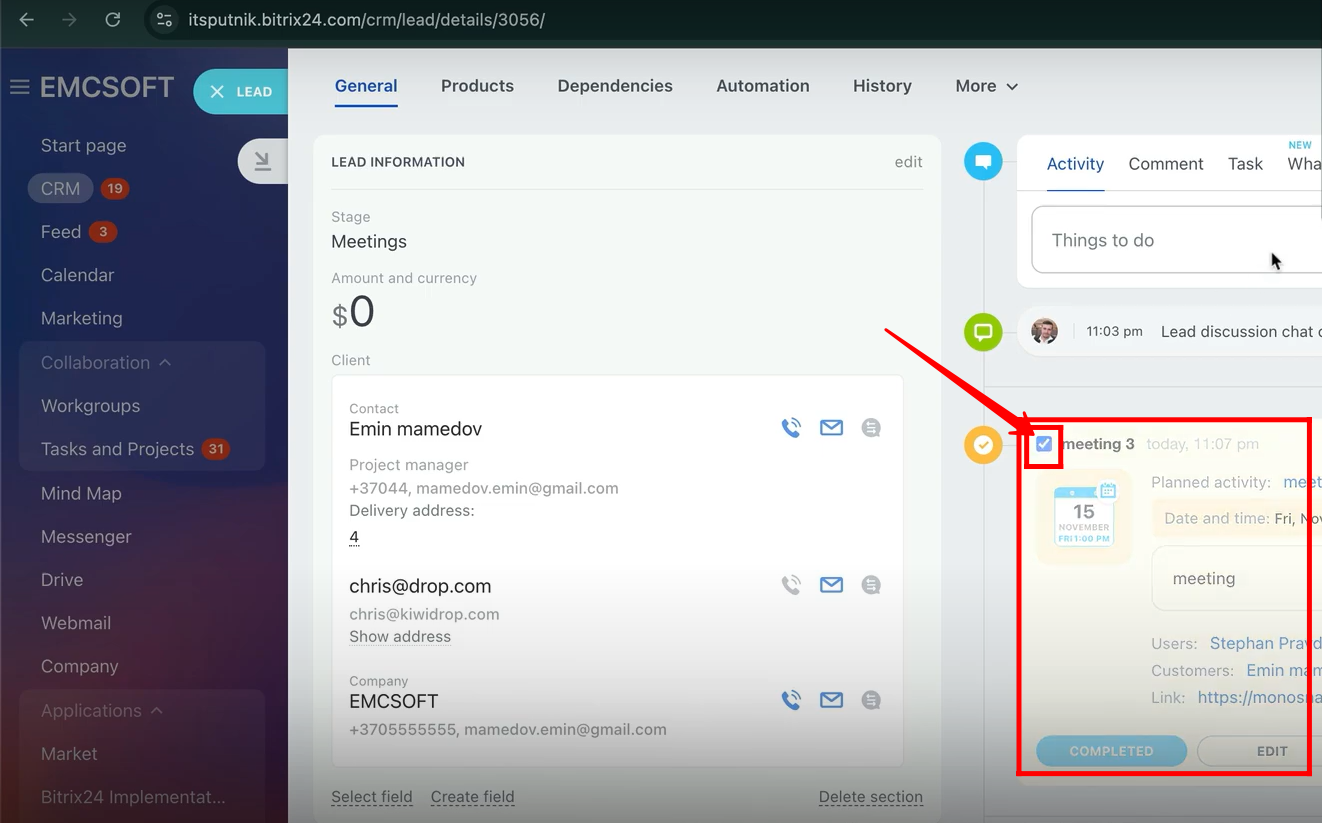
33. Check the box beside the activity details within the lead to mark it as completed.
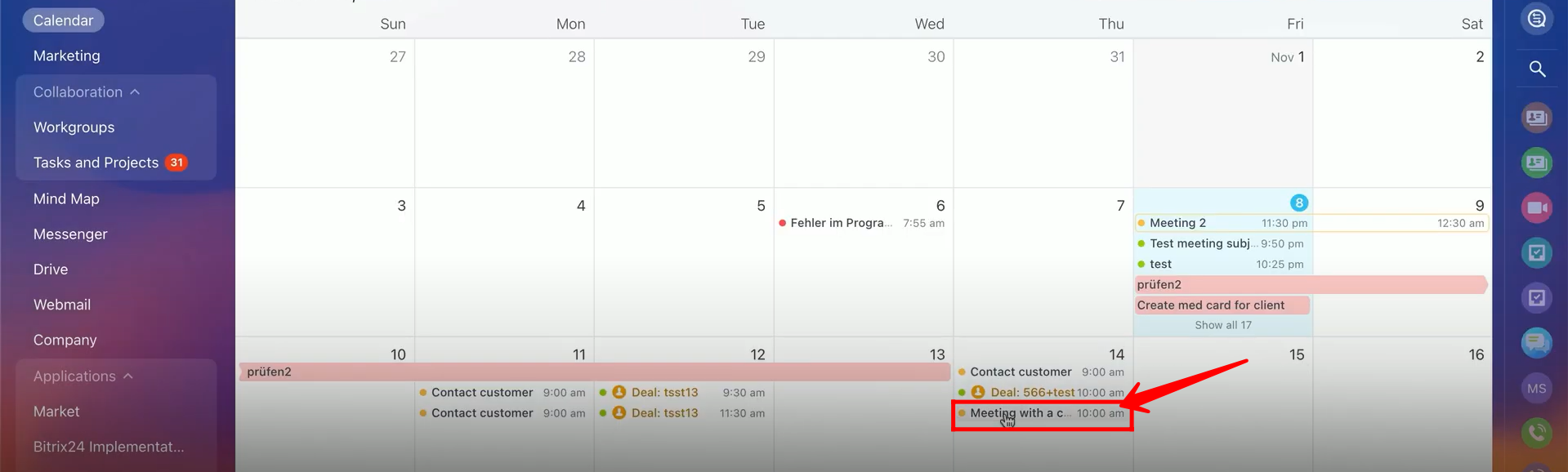
34. You can move the activity to another date also from the calendar panel.
35. A company and a client both have been added as customers in this activity. There are three users at a time(but in different time zones) responsible for this activity.
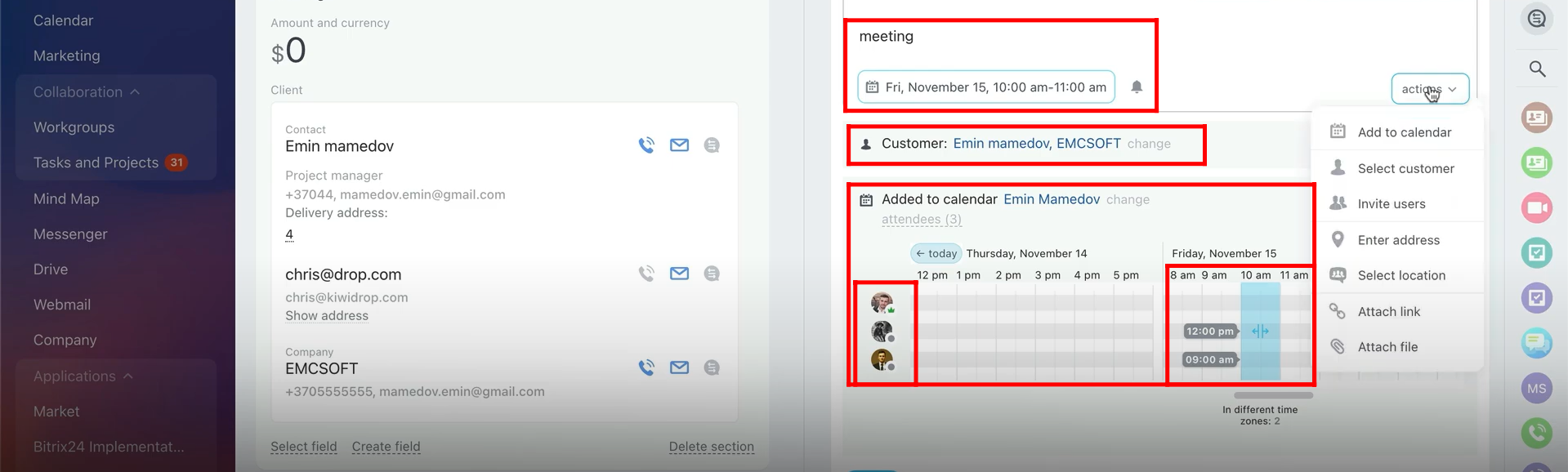
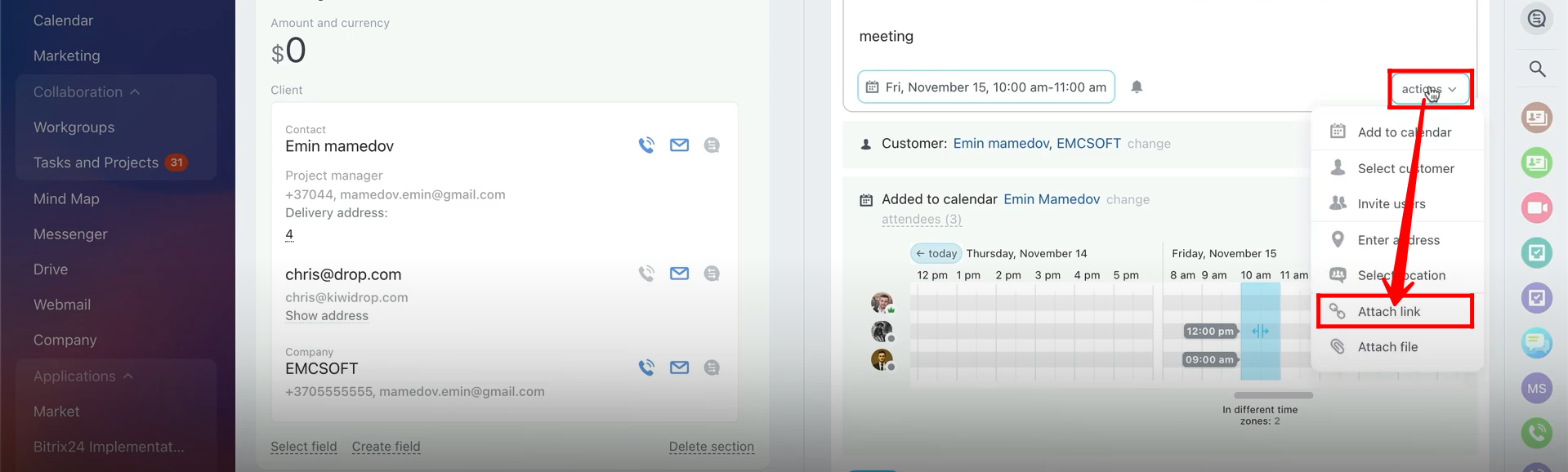
36. Go to “actions” and click “Attach link”.
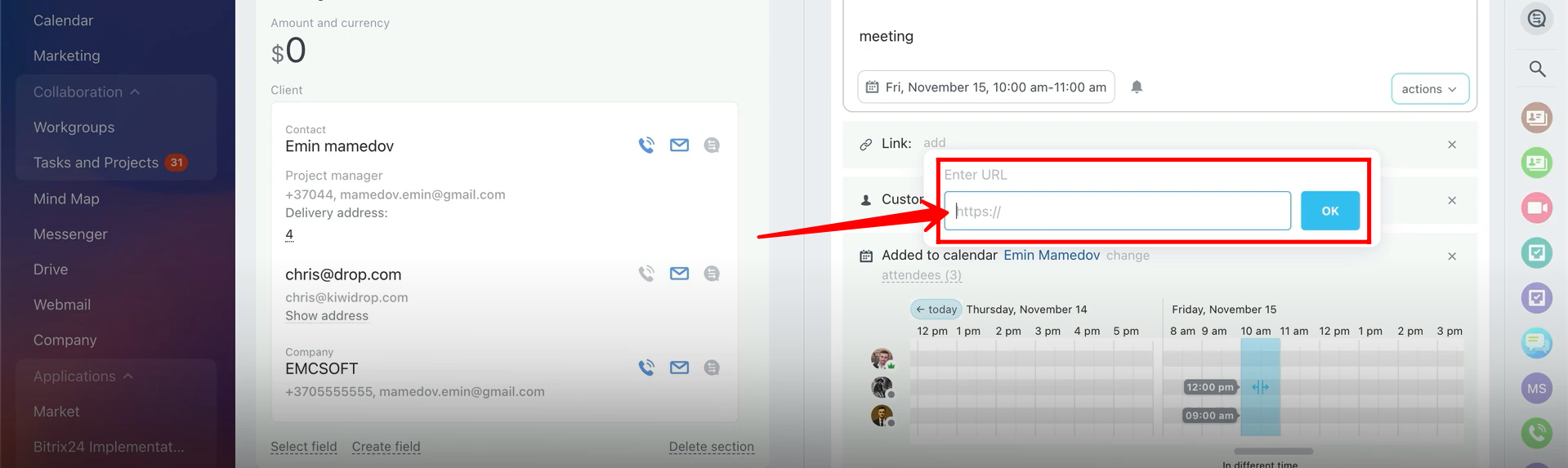
37. Add any useful link specific to the activity or link to the meeting in the box.
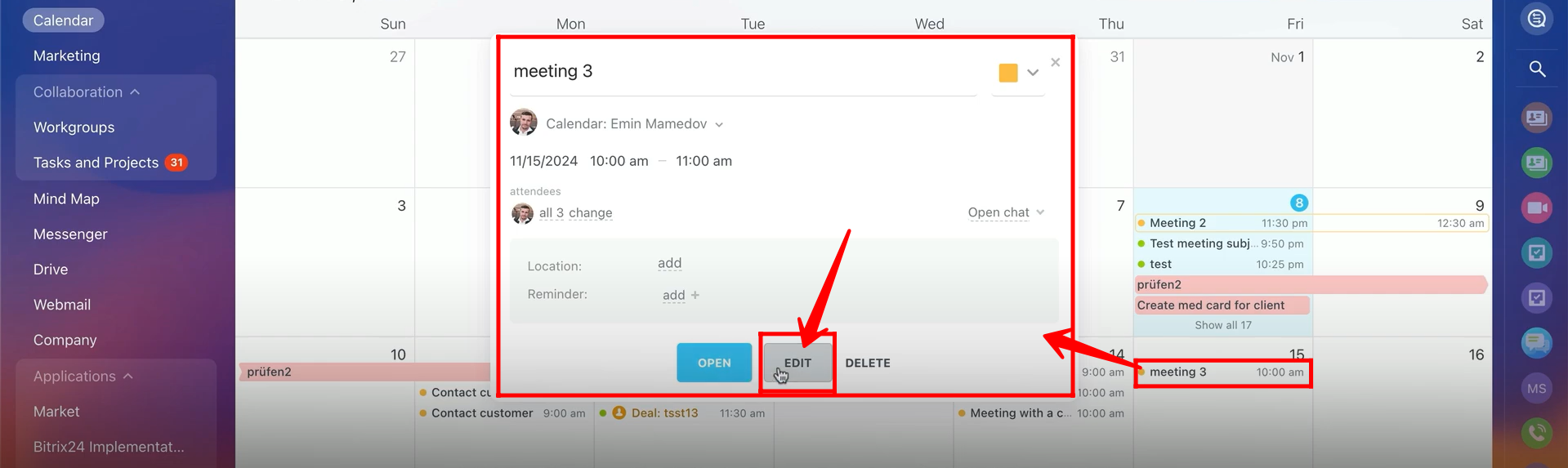
38. You can “Edit” the activity details from the overview.
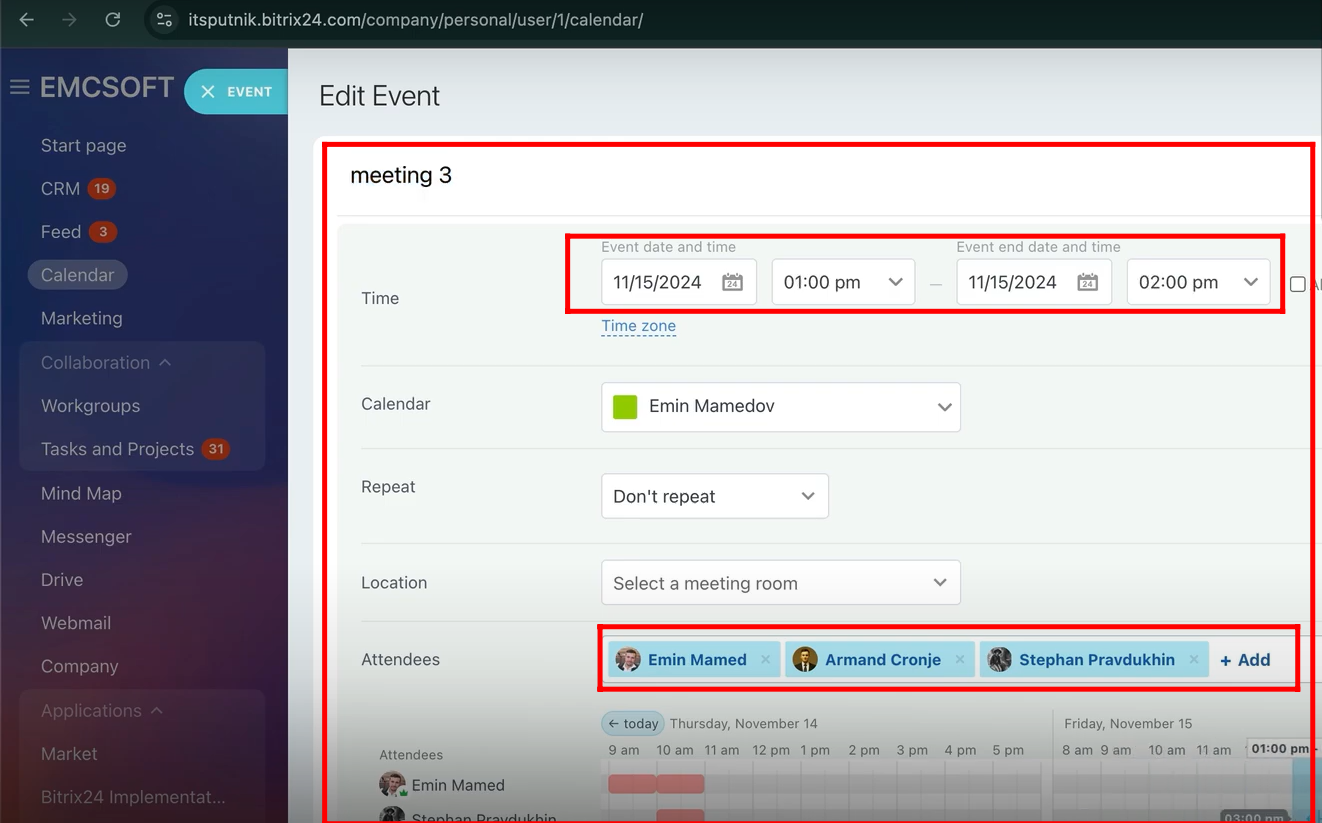
39. Change the details or scheduling time for the event and save it.
40. Open the lead from the event details.
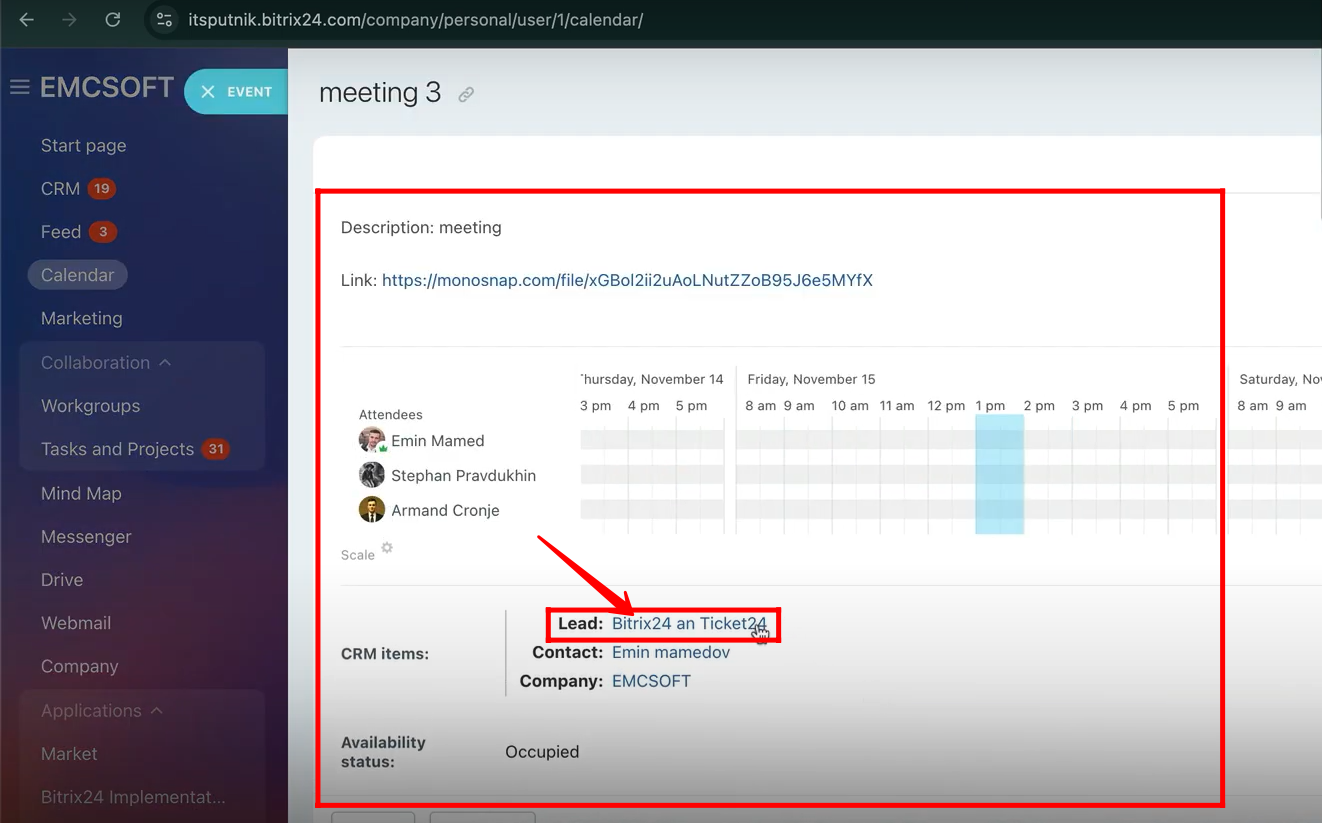
41. Mark the activity as completed or executed.
42. Create a new activity or modify the previous one. Go to “actions” and “Enter address”.
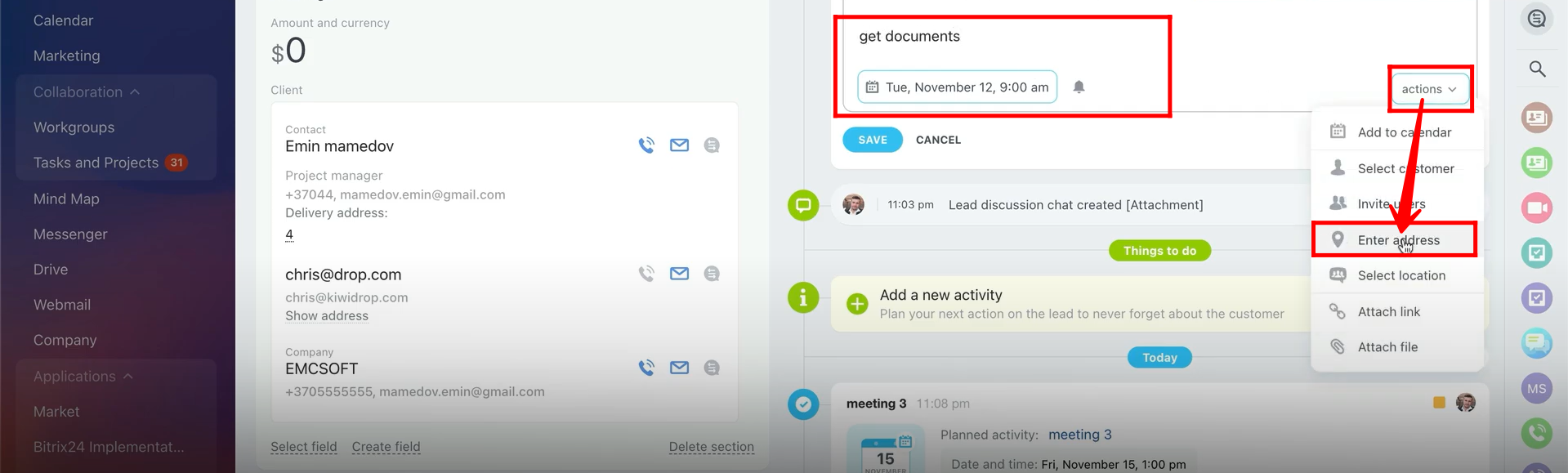
43. You can pin the address by a map or enter manually.
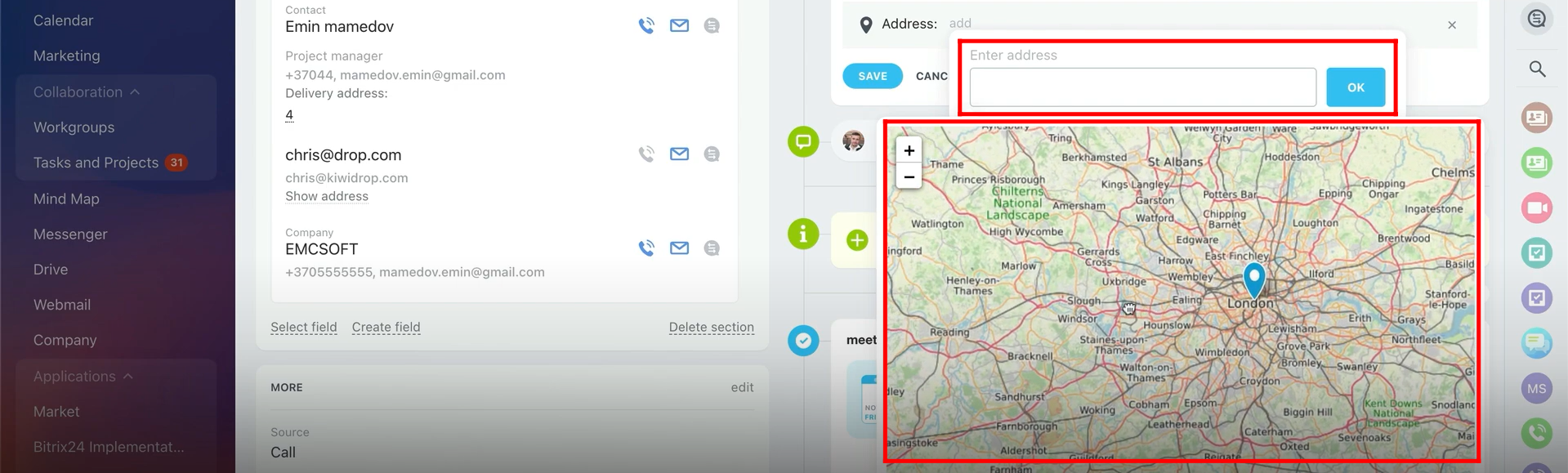
44. Schedule the activity in a free time of the responsible person on the calendar. Click “Save”.
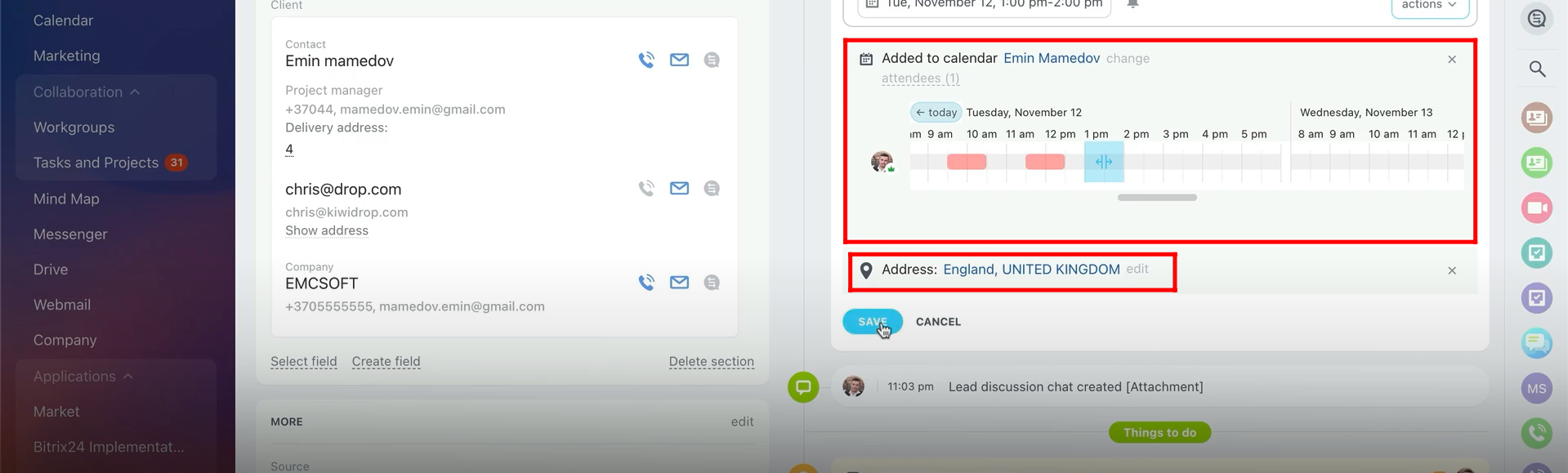
45. You can see that the activity with address has been added in the calendar.
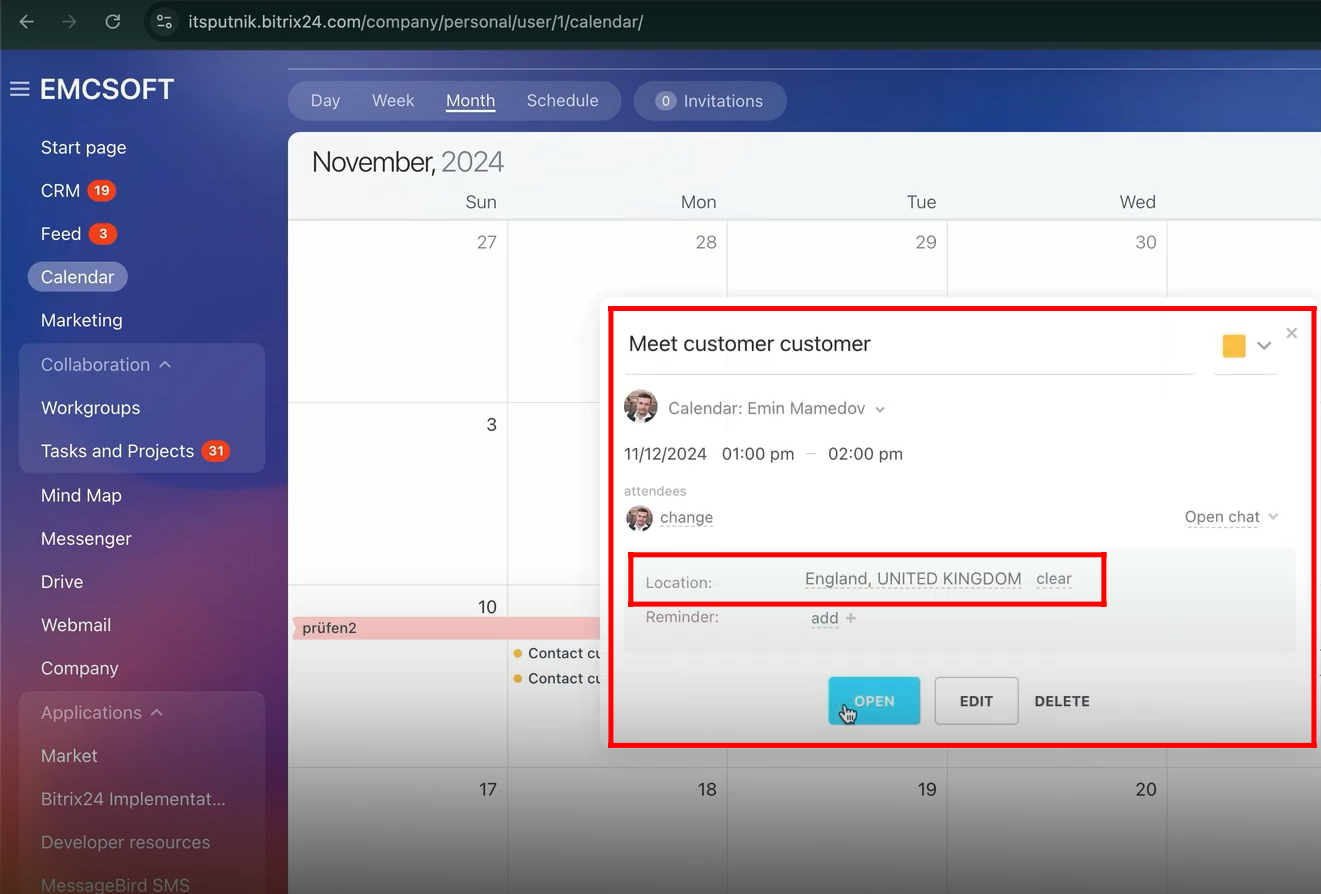
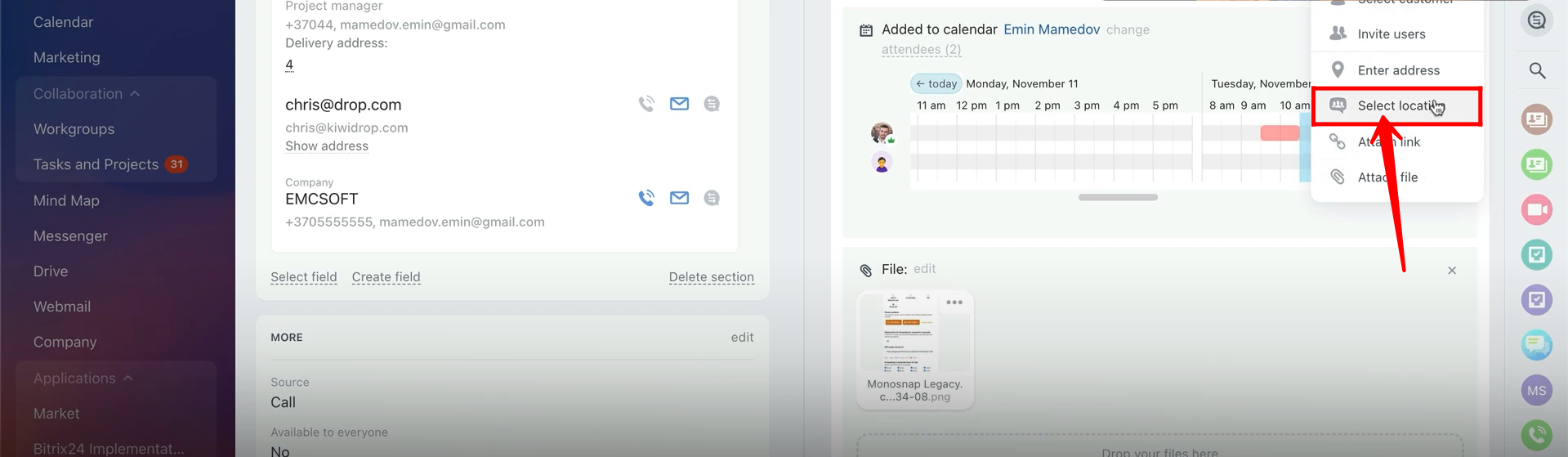
46. Go to “actions” and “Select location”.
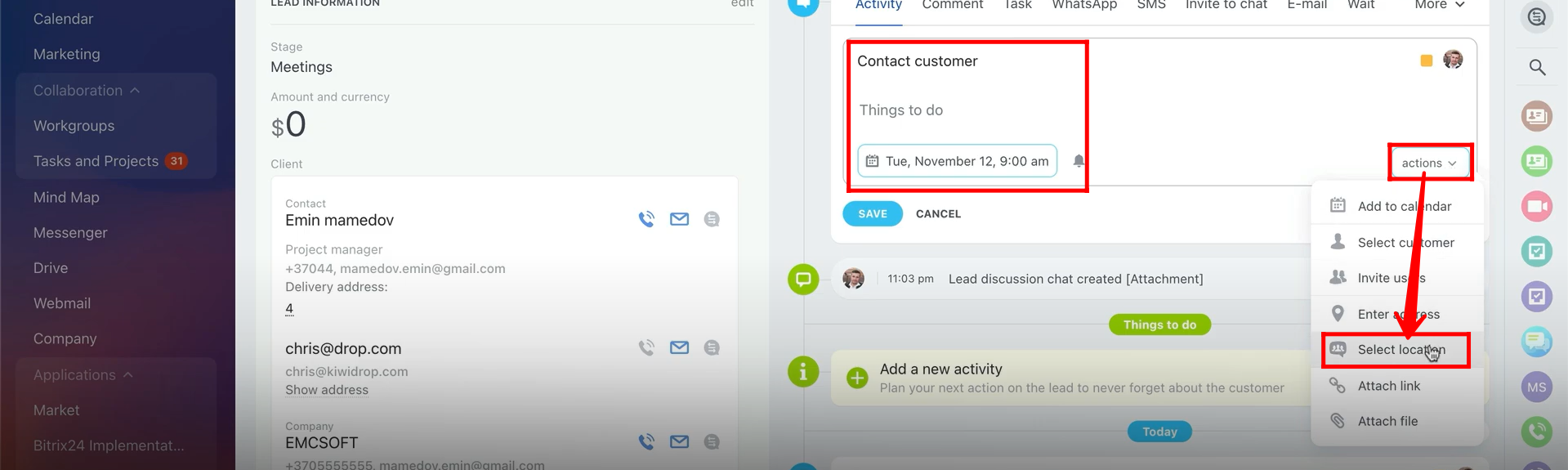
47. The selection will be only within the office building, if the meeting rooms have been declared during the Company details and structure configuration. Select the suitable room for the meeting activity.
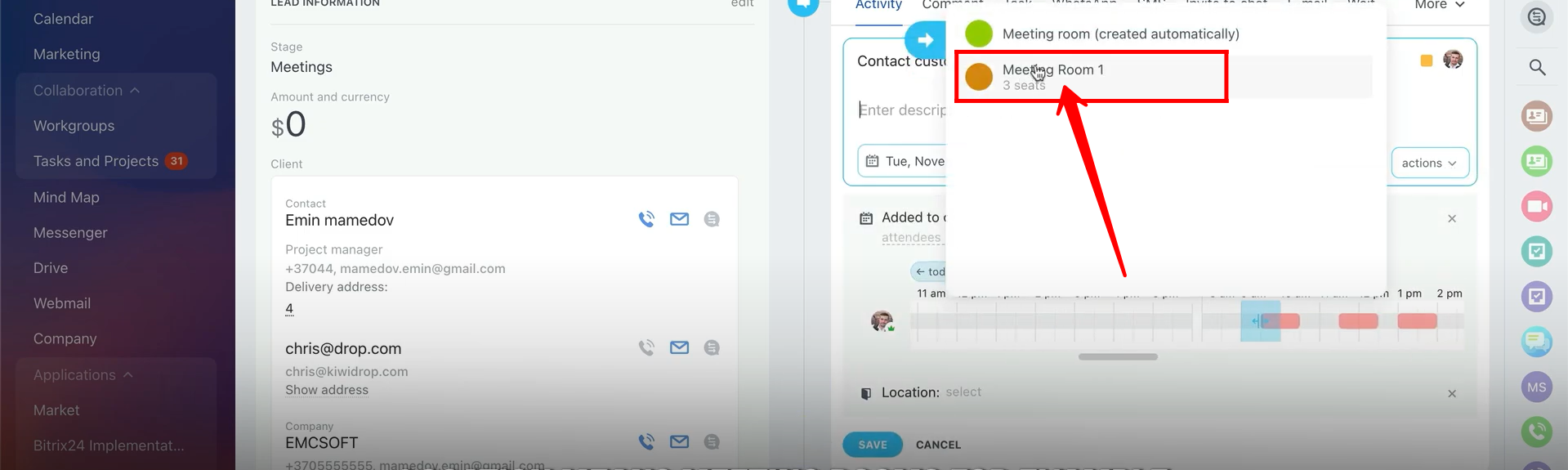
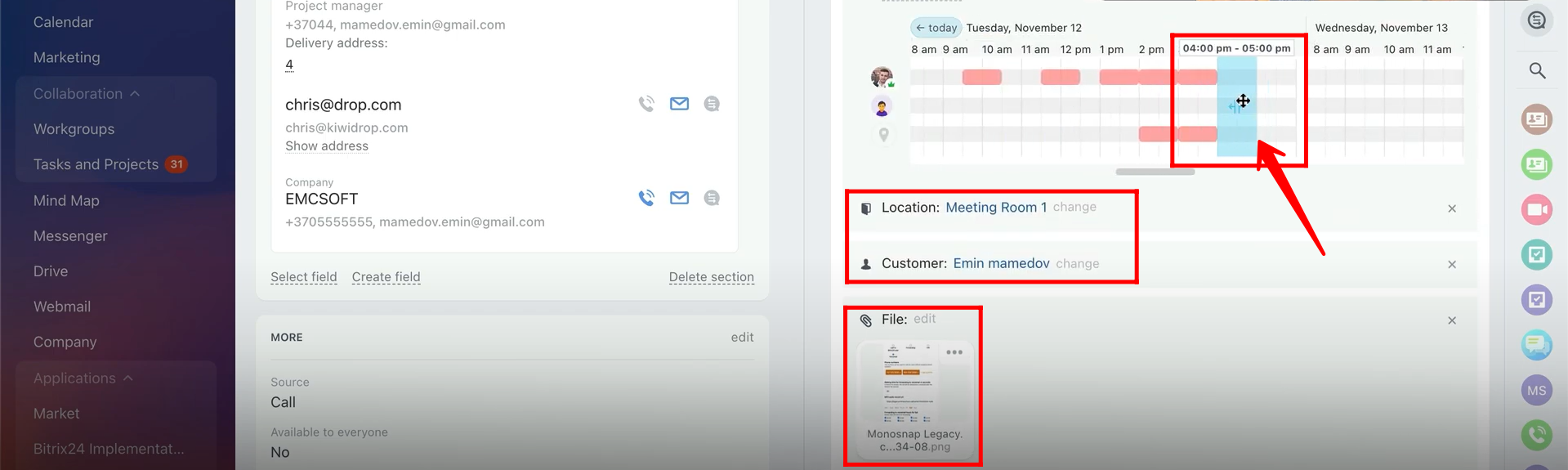
48. The busy hours of the responsible person and the desired location for meeting can overlap with each other. Select the suitable time when both user and location(may be booked for another activity) have leisure time.
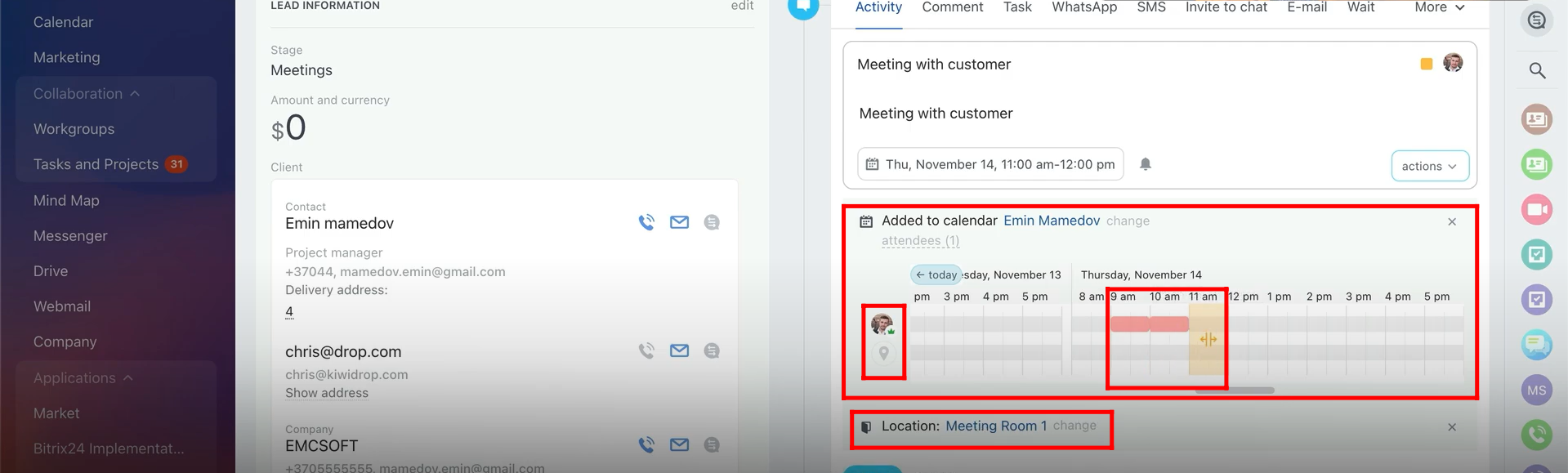
49. You can view that the responsible person and location are booked for another activity already at 2pm. We have to choose a different time for the current activity.
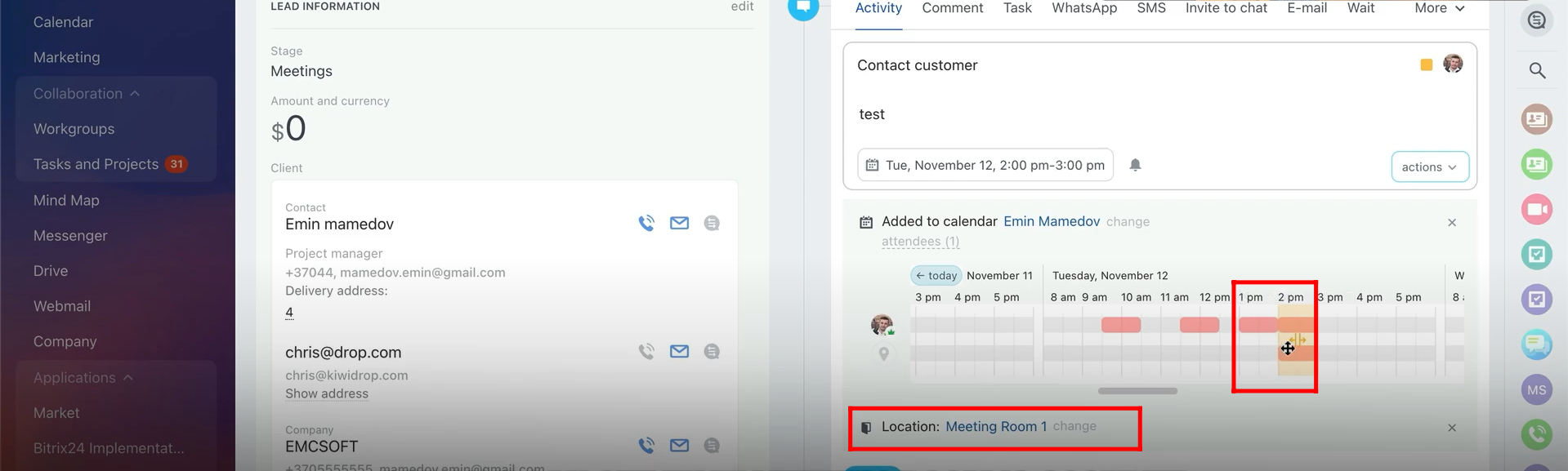
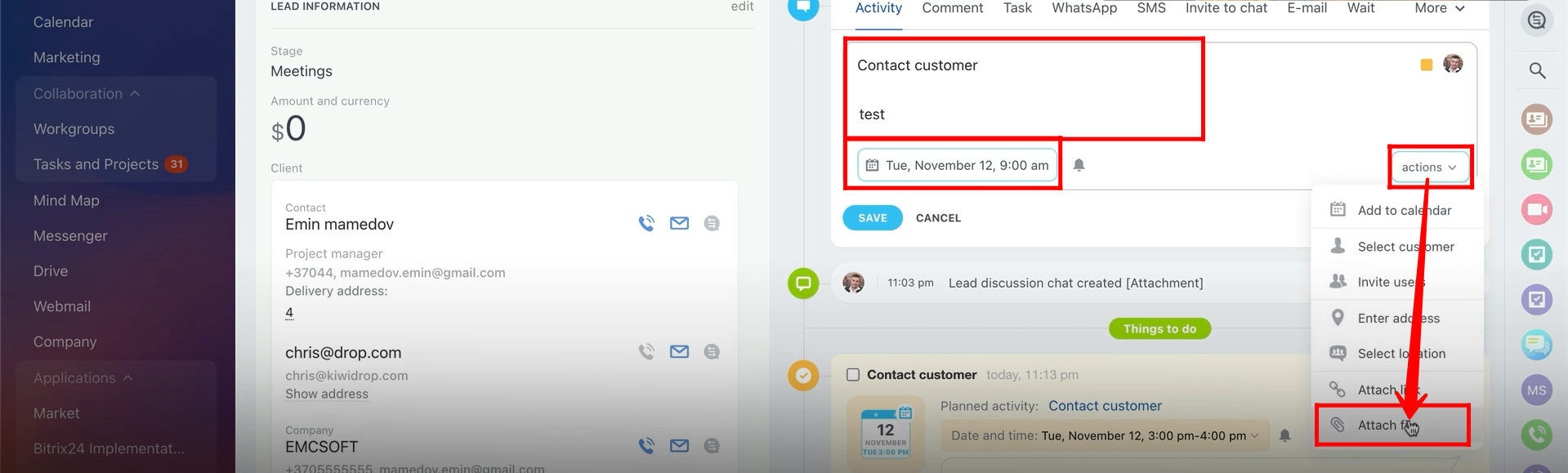
50. Create a new activity or modify the previous activity. Go to “actions” and “Attach file”.
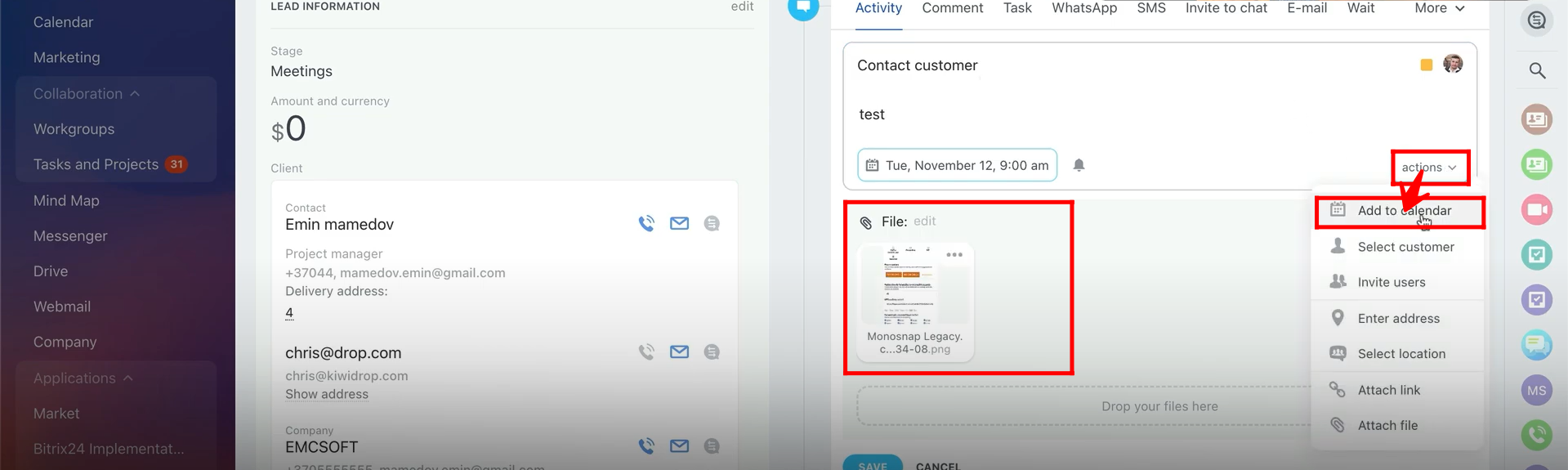
51. Attach a file and go to “actions”. Schedule the activity in the calendar.
52. The second user is “Test User” in this tutorial. Select the time when both are free on a specific day.
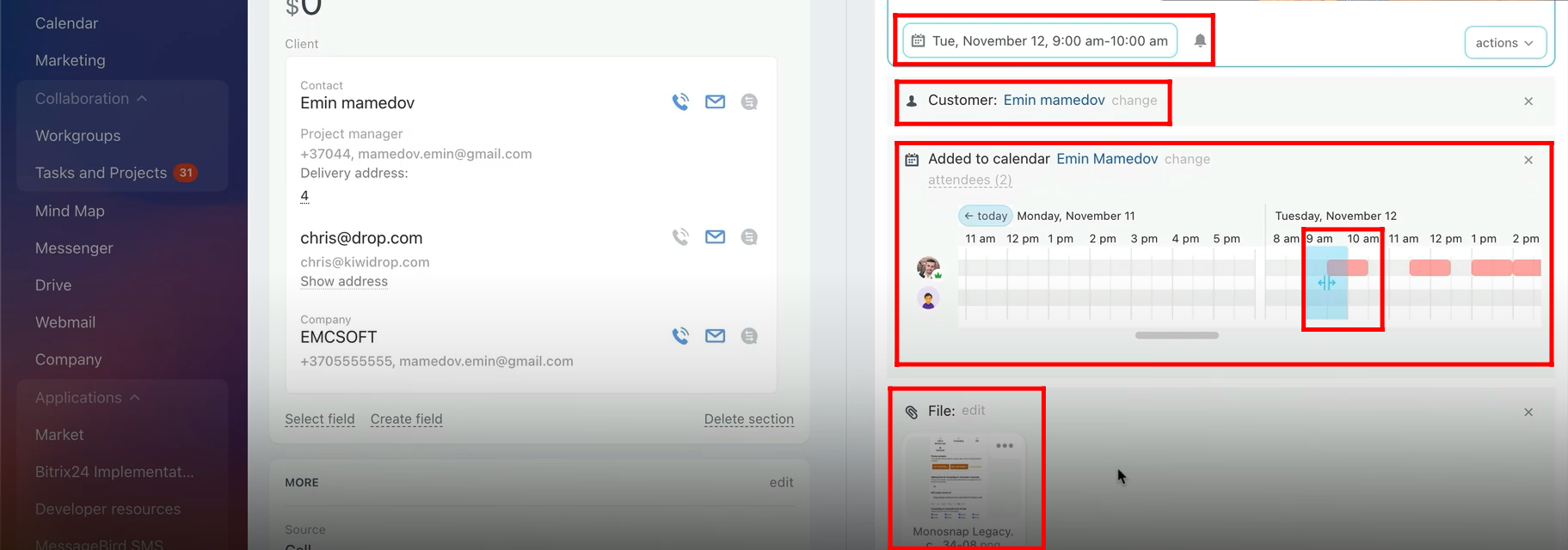
53. Select a desired location for the activity.
54. Now, the selection of time will overlap among both users and the location. Select the time when all entities have free time.
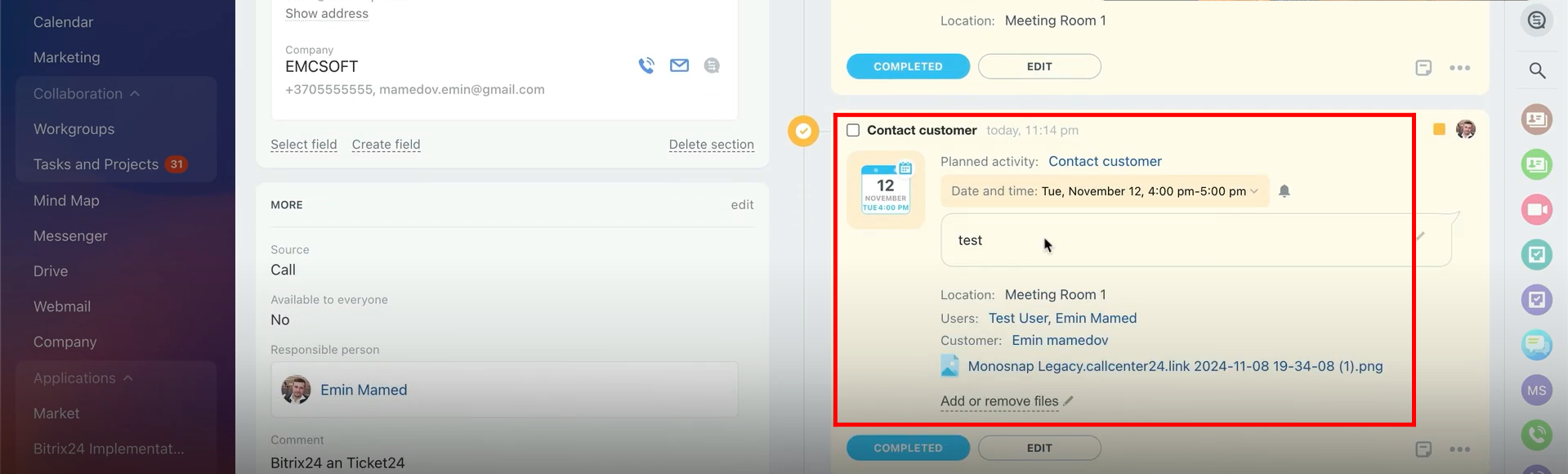
55. You can view all the configurations that have been done in the activity within the lead.
56. Go to “Comment” and write whatever you want for your easiness within the lead.
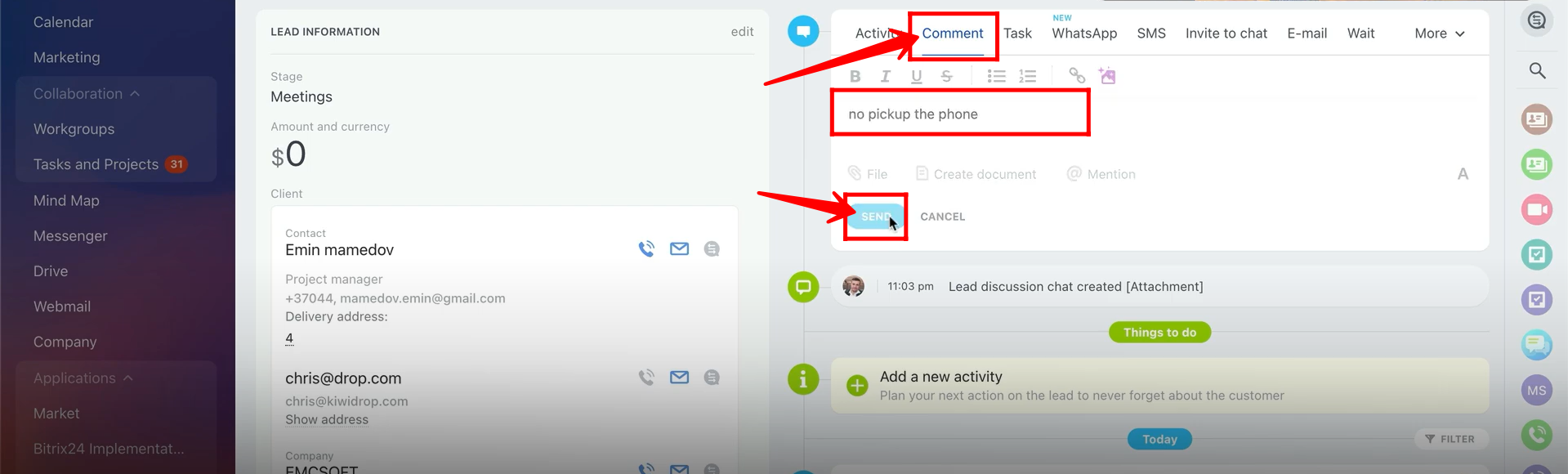
57. You can “Pin” and “Edit” the comment also.
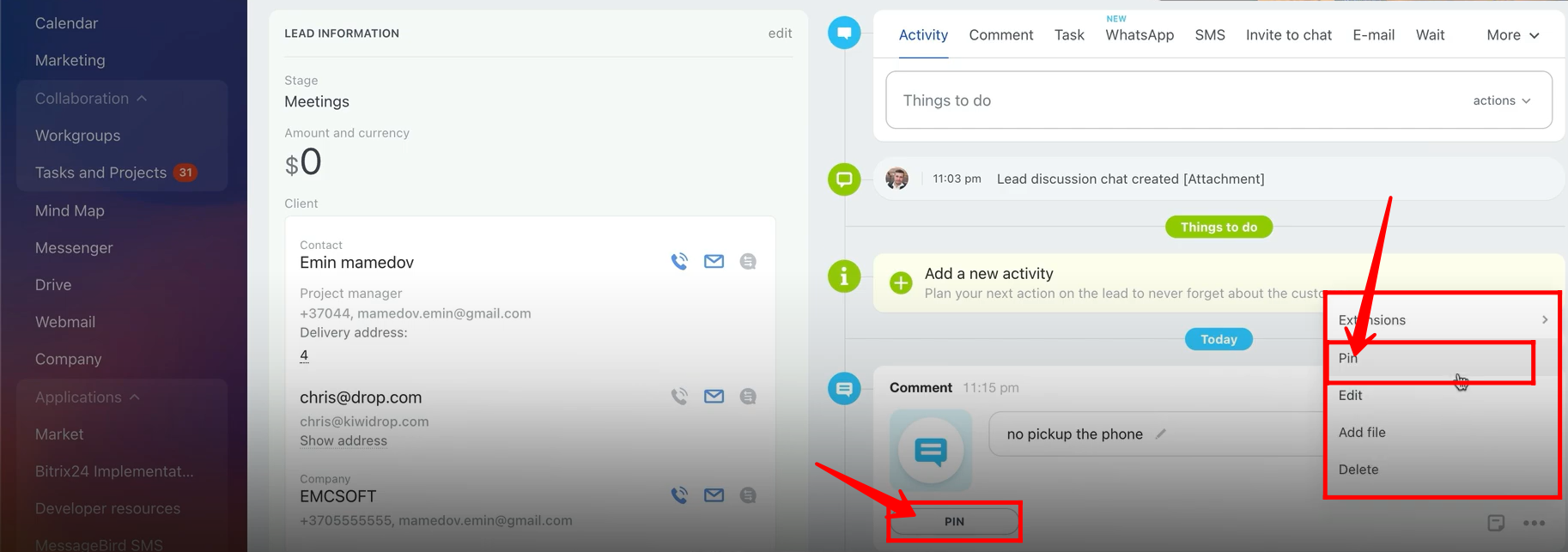
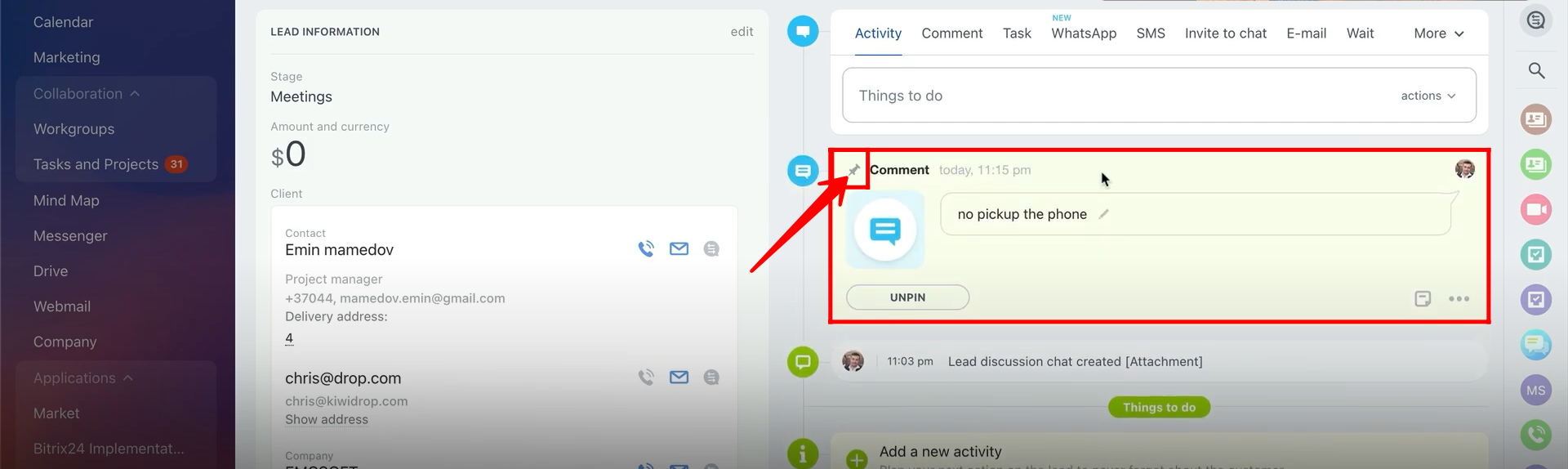
58. You can see the comment has been pinned.
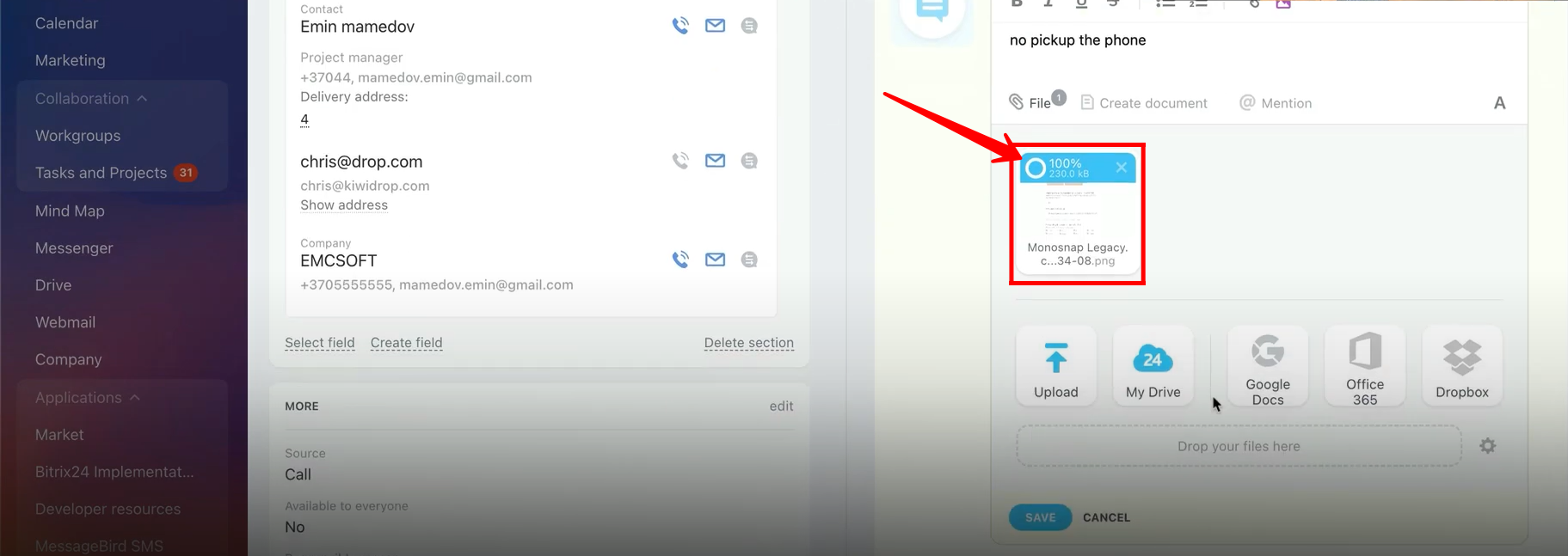
59. Also, you can attach a file with a comment section.
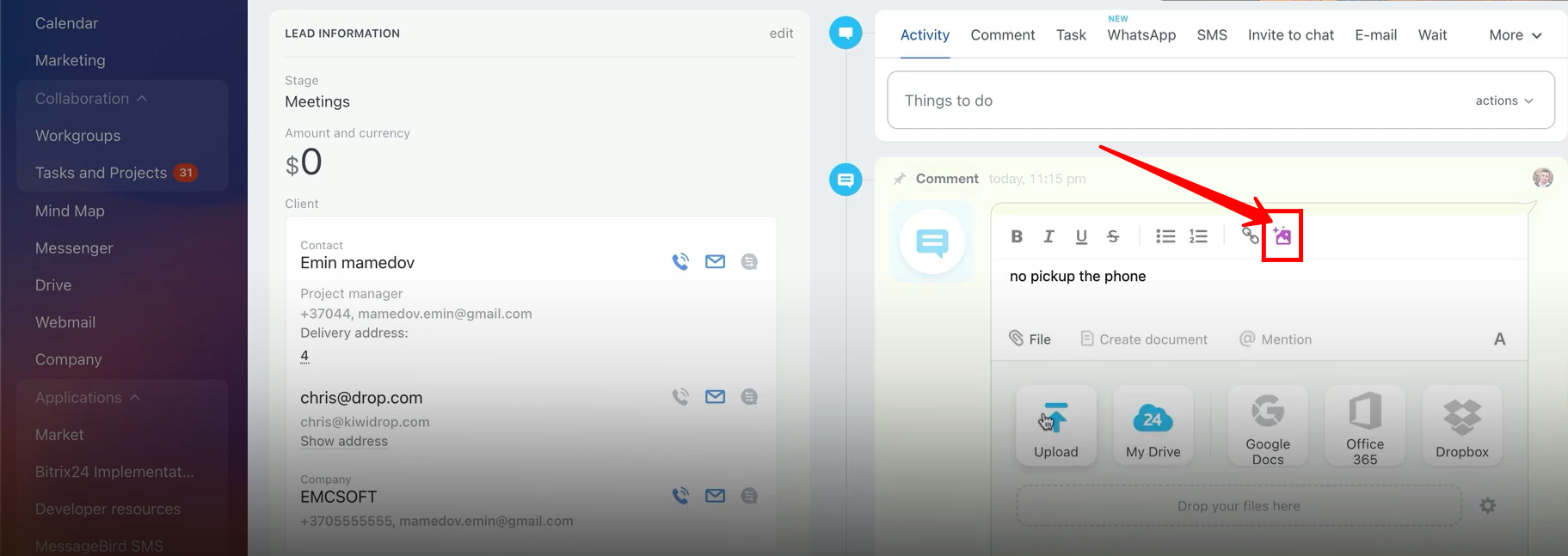
60. Furthermore, there is a option to generate an AI Image with a specific keyword and then attach in a comment section.
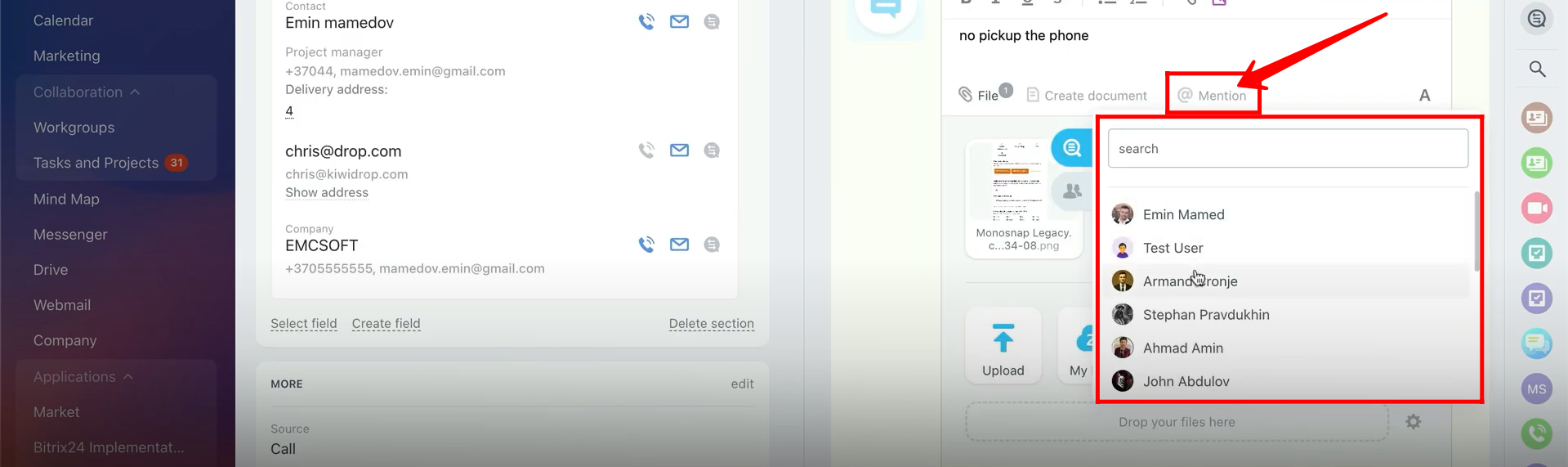
61. Moreover, we can mention any member of our team or company within a comment.
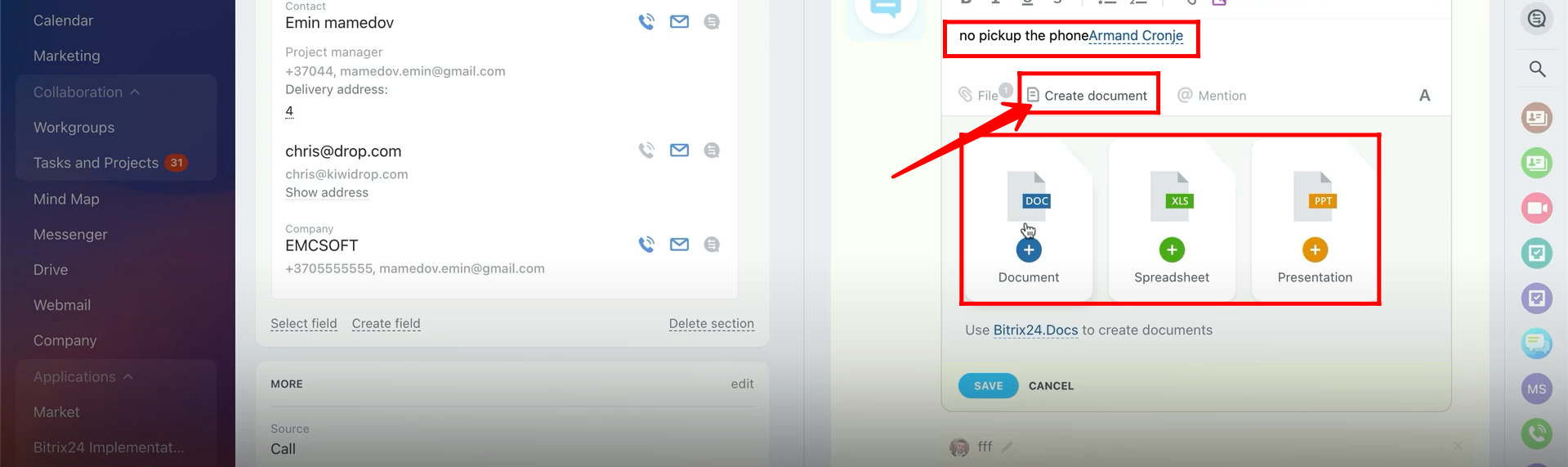
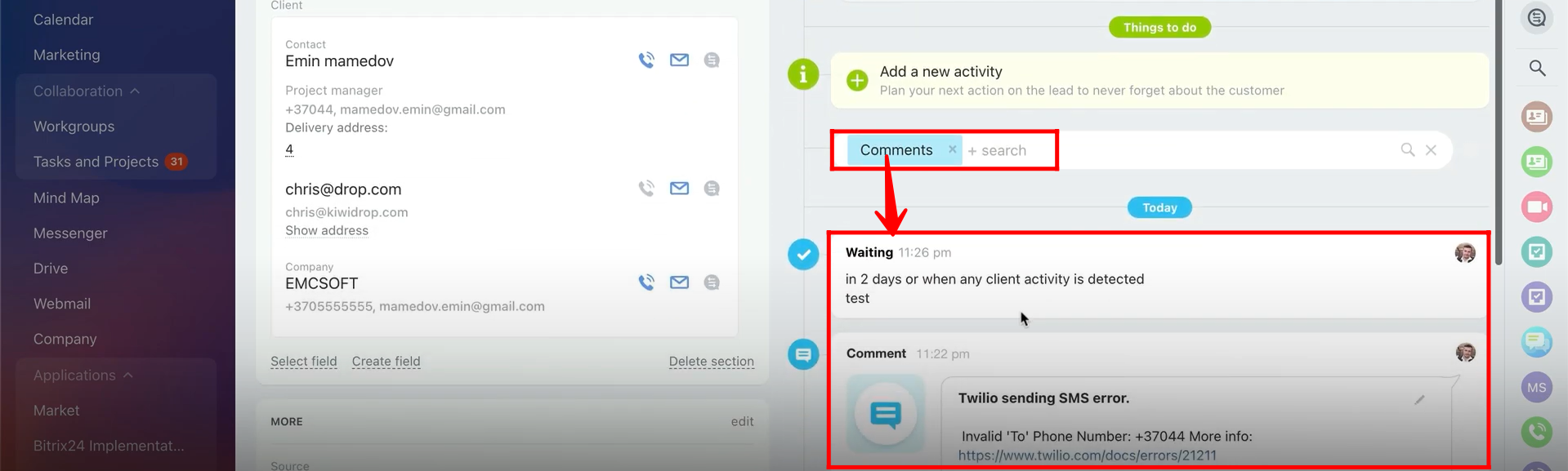
62. There is a option to generate a document (Doc, SpreadSheet, Presentation) along with the comment.
63. Go to “Task” within the lead.
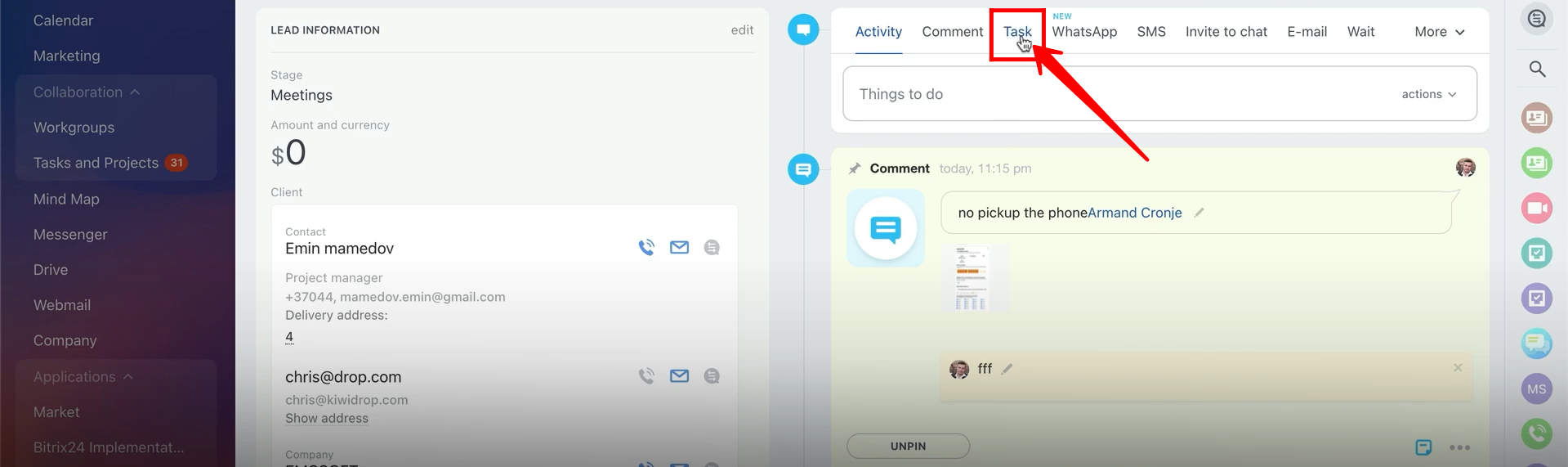
64. Add the task details. Assign to a specific member and add a project with further details.
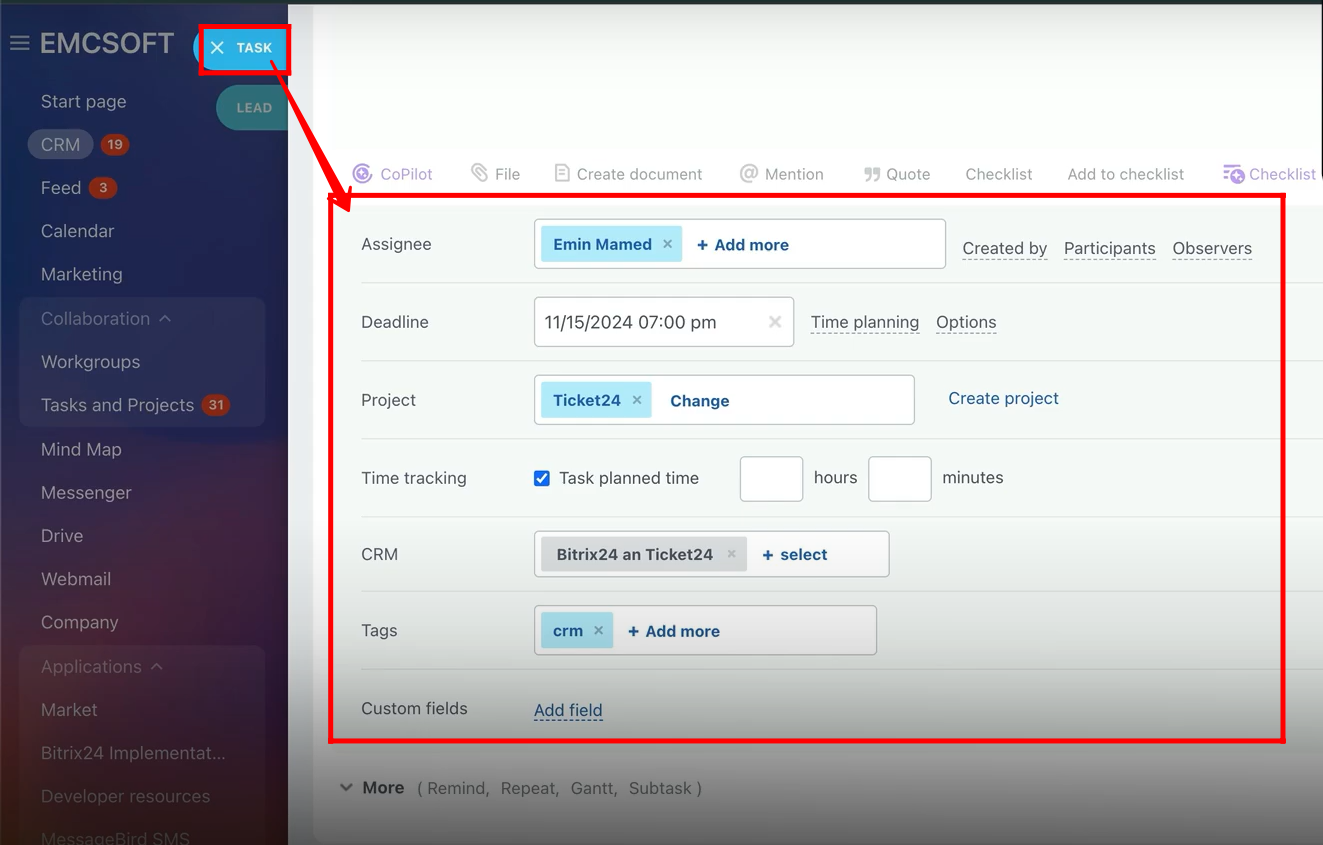
65. You can view the newly created task with Title, Assignee and Deadline.
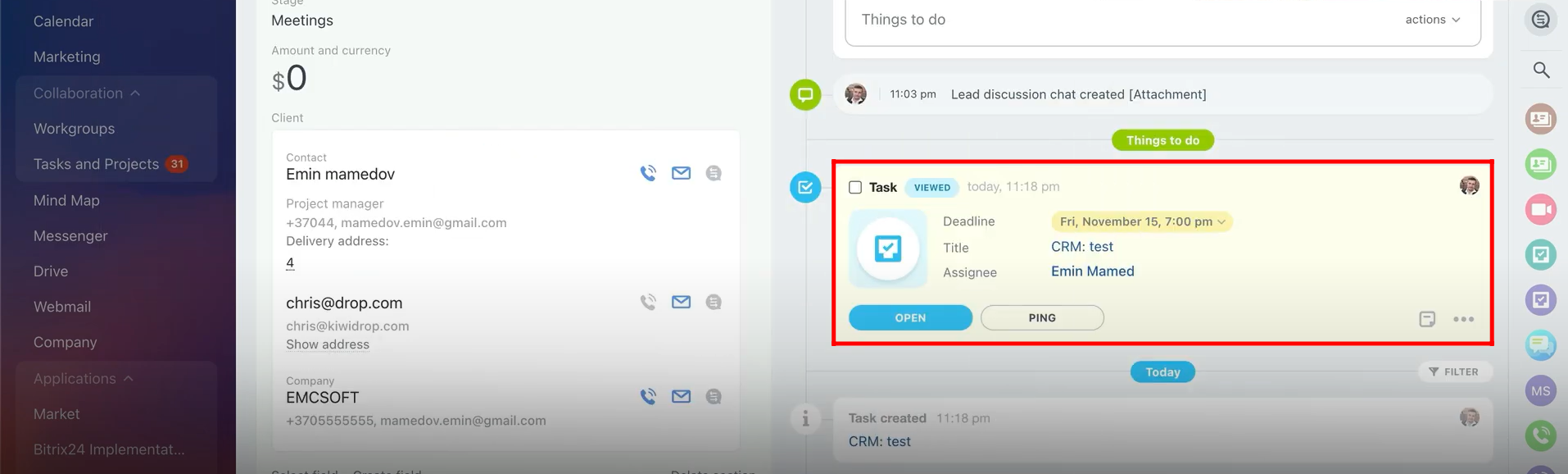
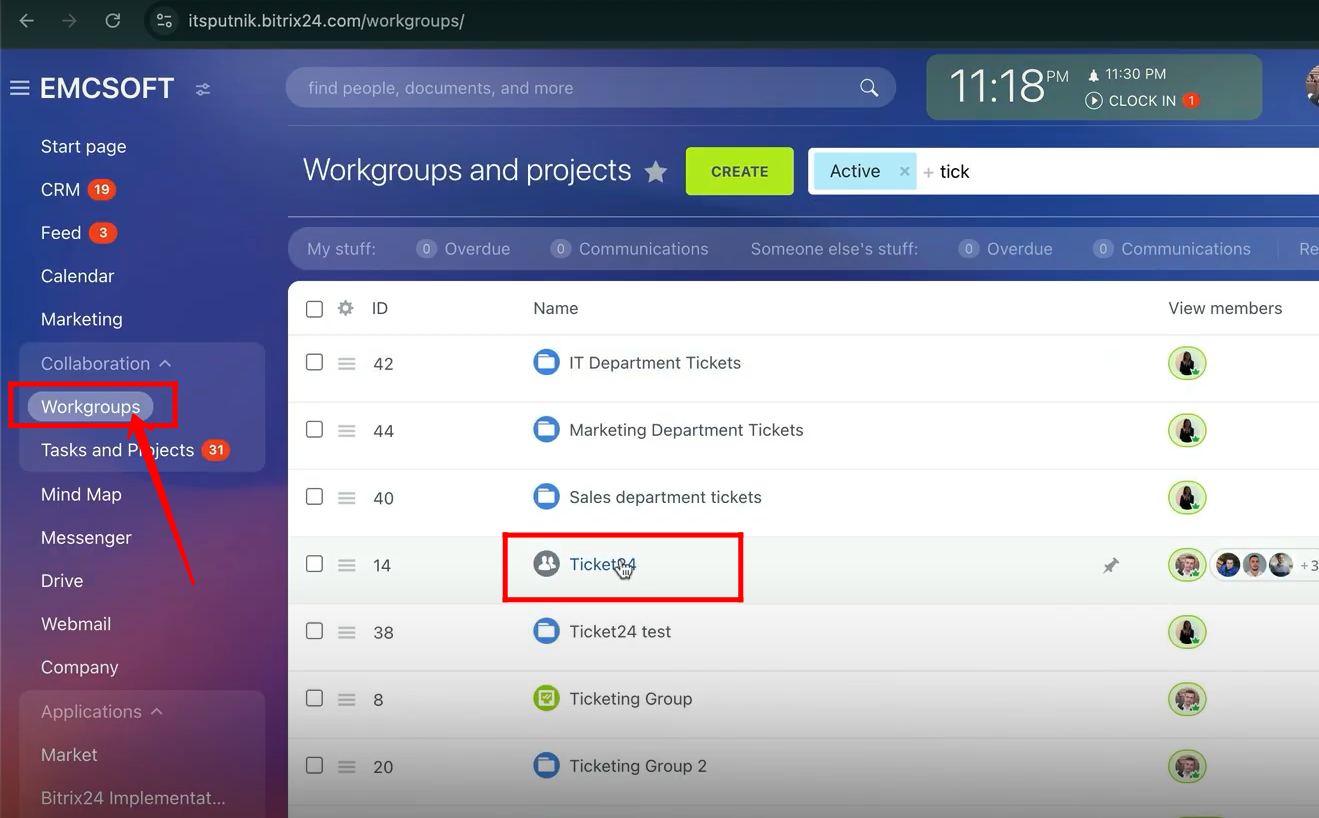
66. Go to “WorkGroups” and open the project that you added in the task previously.
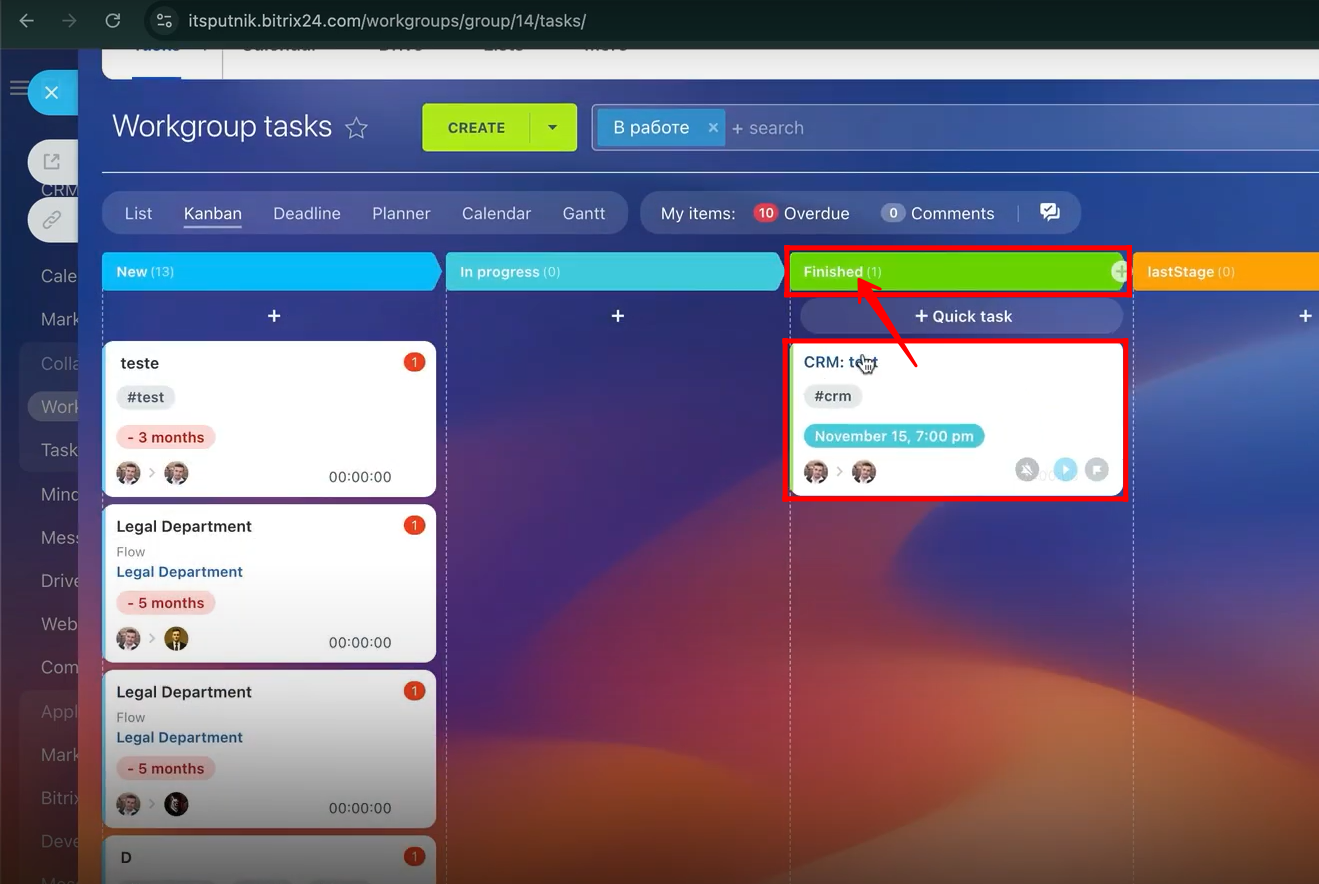
67. You can view all the tasks within that project. Create a new stage for testing. A new stage “Finished” has been created and the task moved to that stage. Open the task.
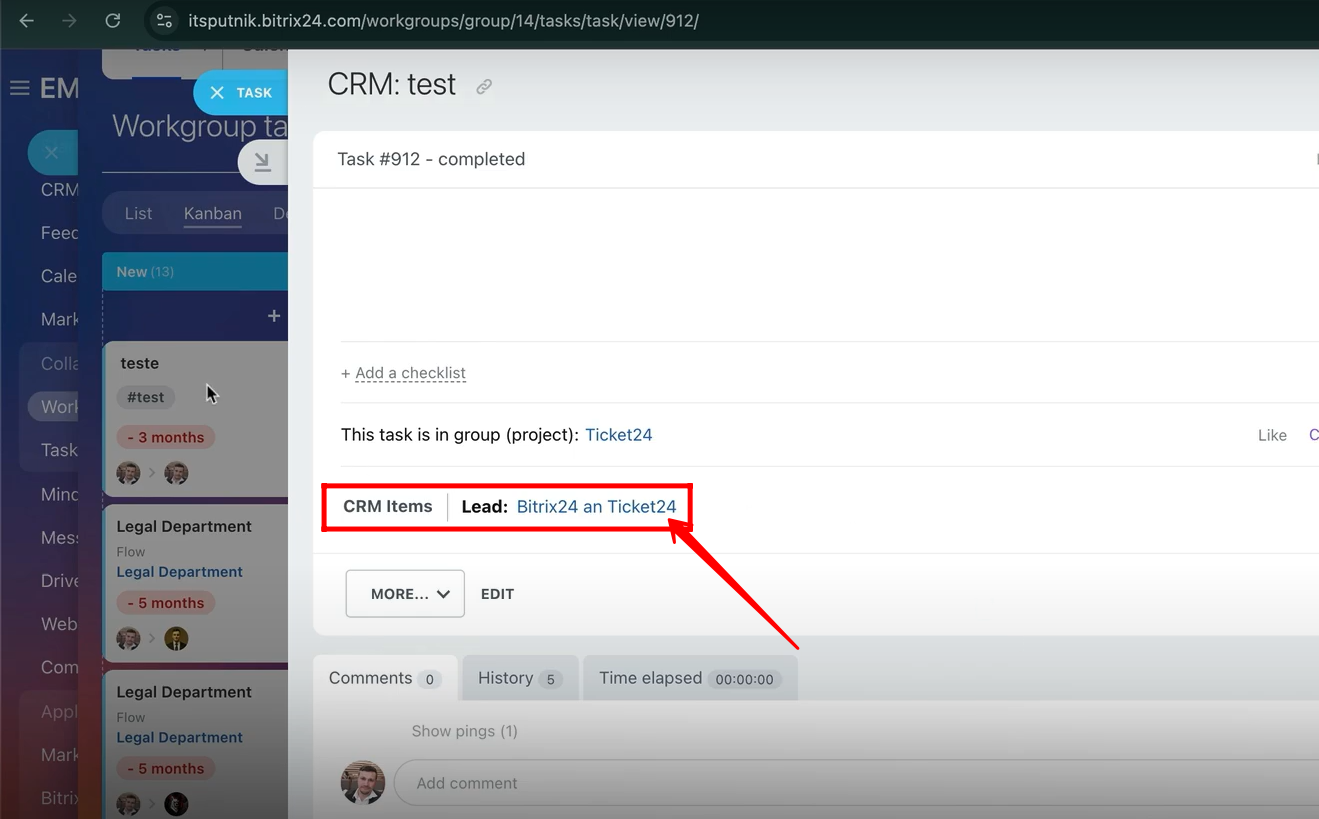
68. Here’s the information about which “CRM Item” is attached to this task. Open the Lead.
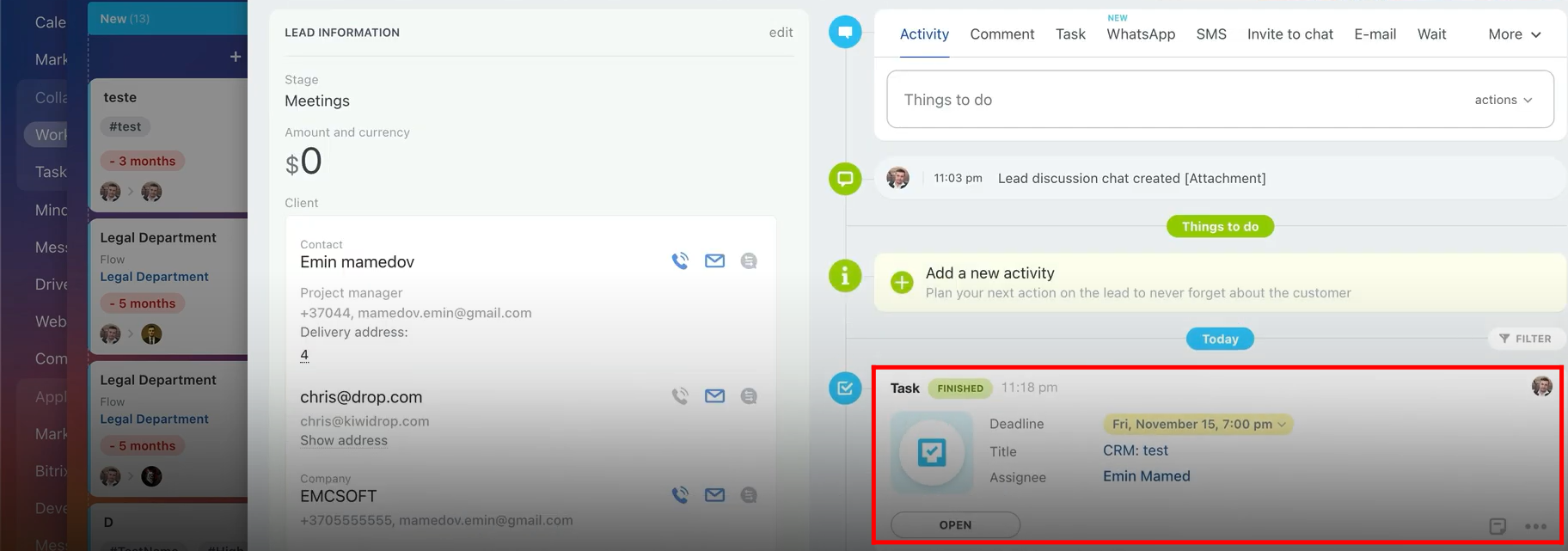
69. The status of the task is “Finished” now within the lead.
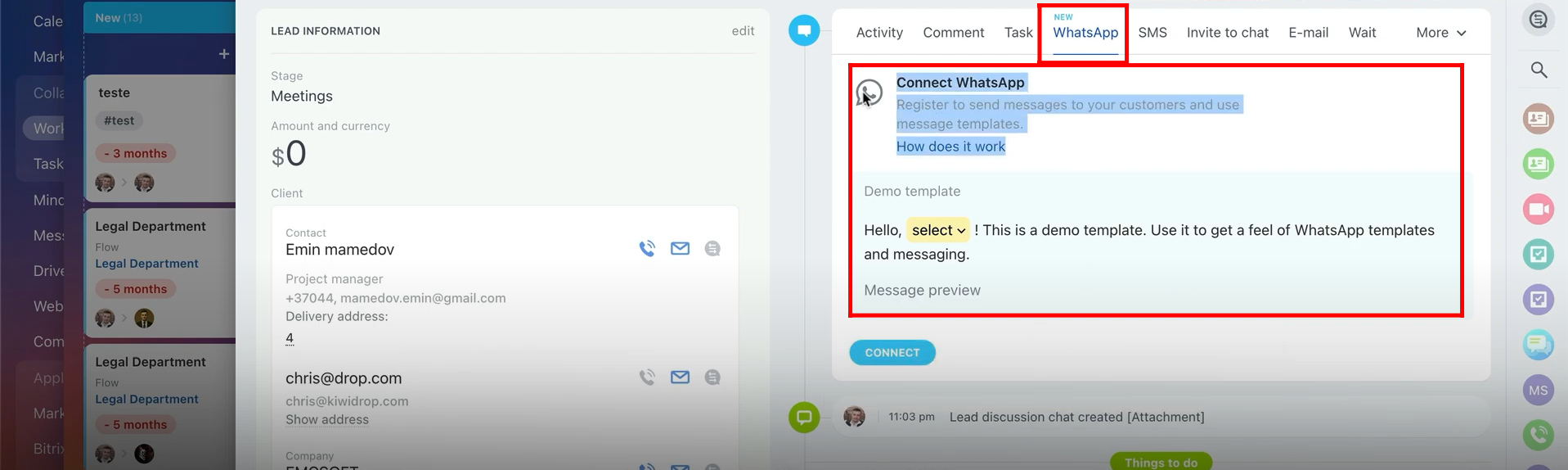
70. Go to “WhatsApp” and connect with WhatsApp. It’s a little bit lengthy process and will be explained in the upcoming tutorials.
71. Go to “SMS”. Here, you can send a message to a specific number within a lead. Make sure to use a service provider “[TwiSMS: Twilio SMS]” from sending and receiving SMS.
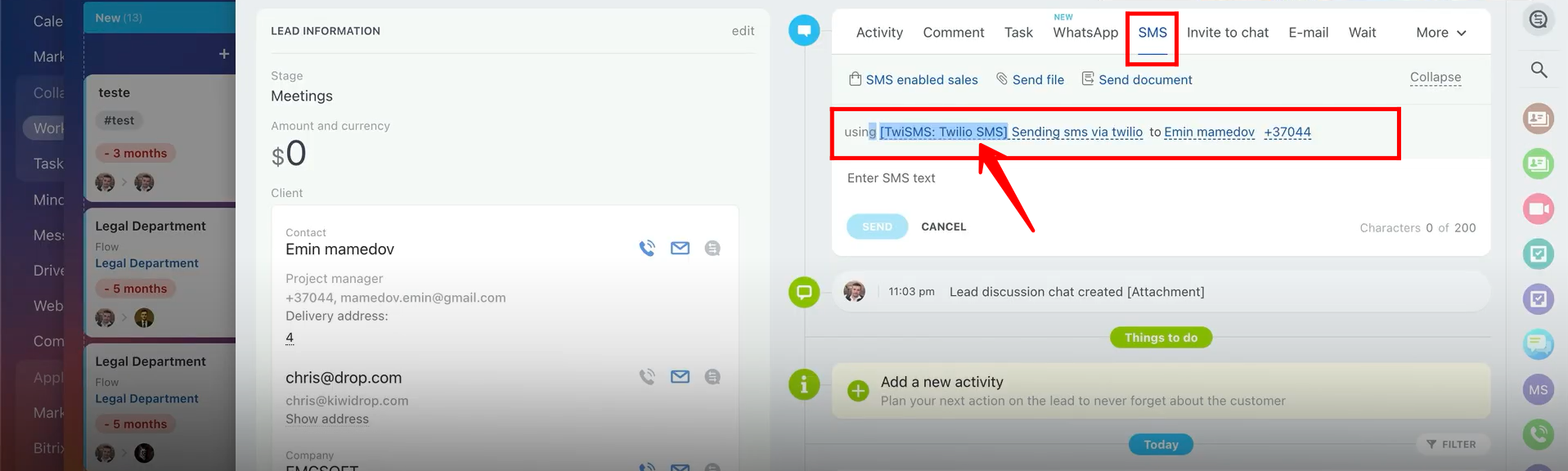
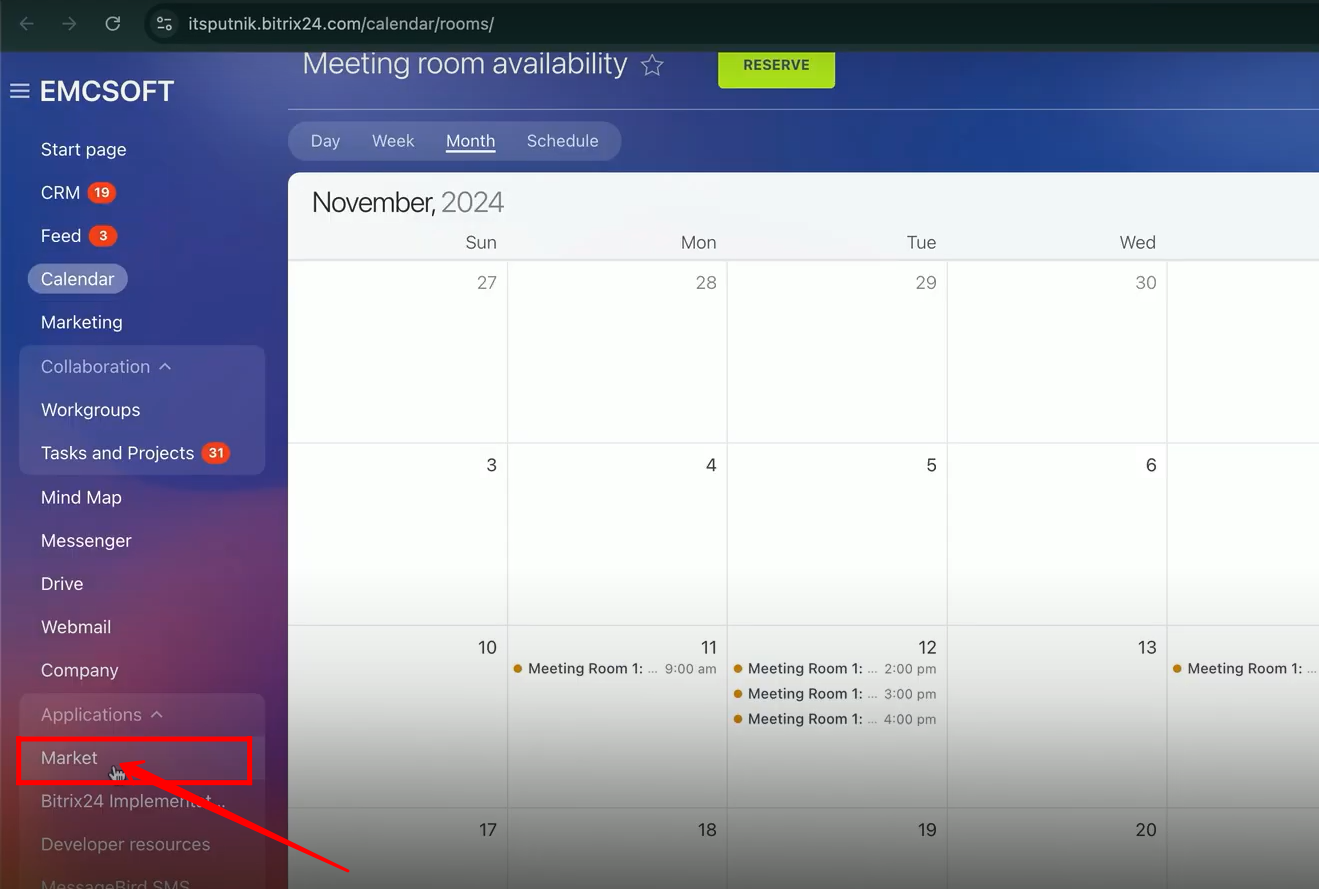
72. If you can’t see the option of “TwiSMS” in your lead. Then, go to “Market”.
73. Search for “TwiSMS” and install the mentioned application. The installation process has been explained in the previous guided tutorials.
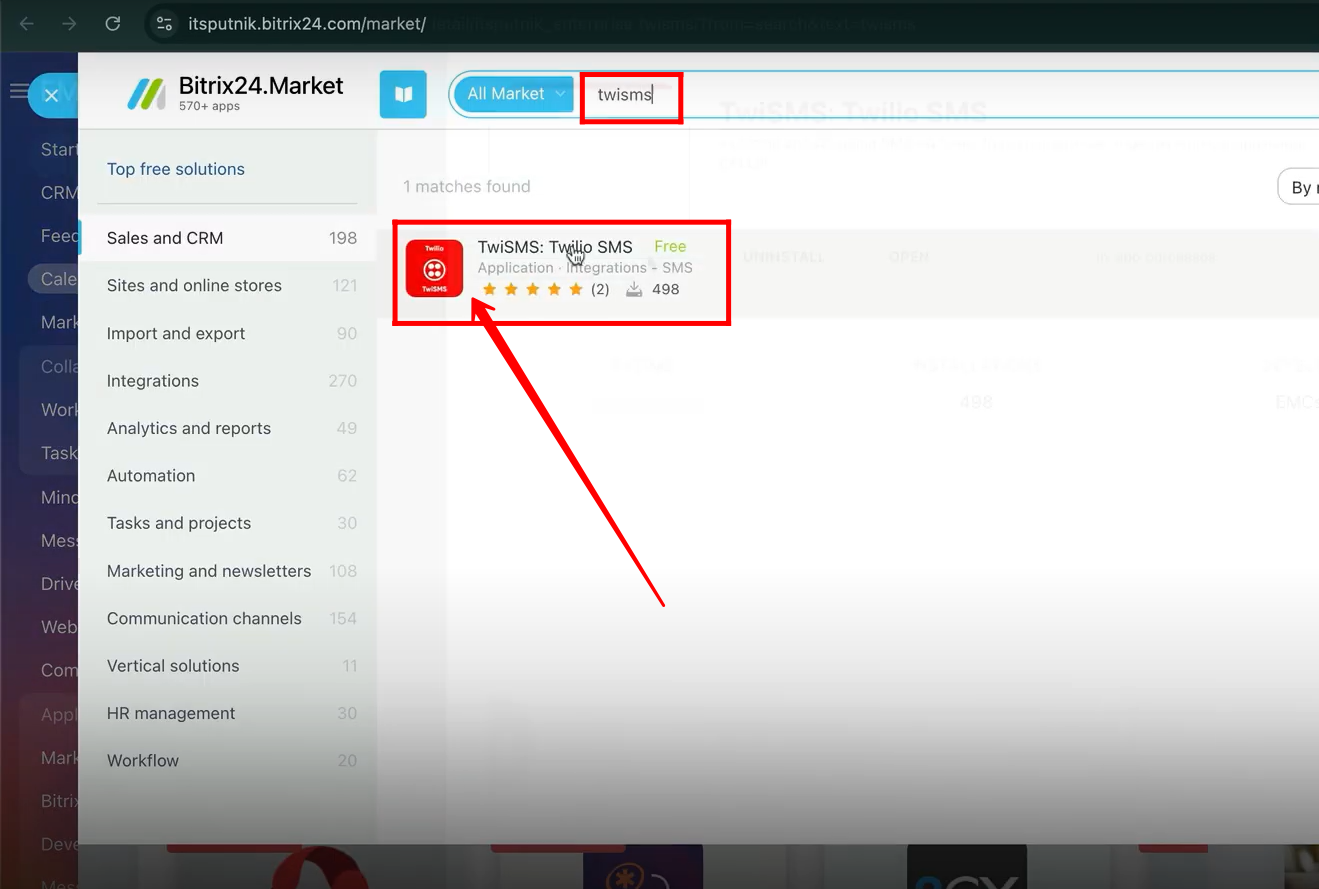
74. Select a specific number. Type your message and click “Send”.
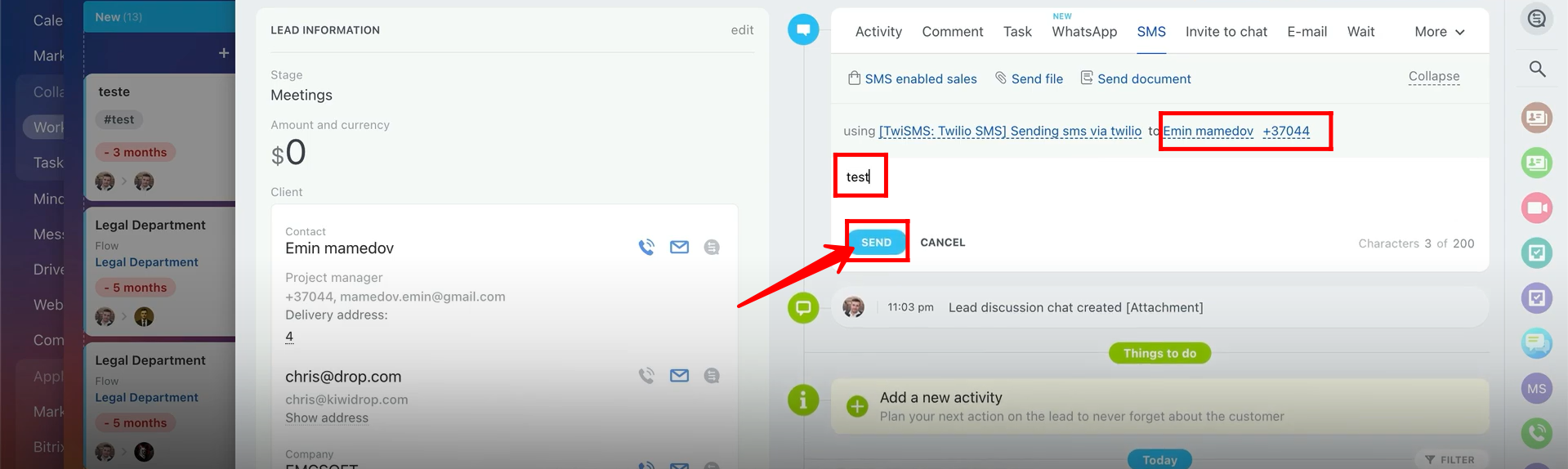
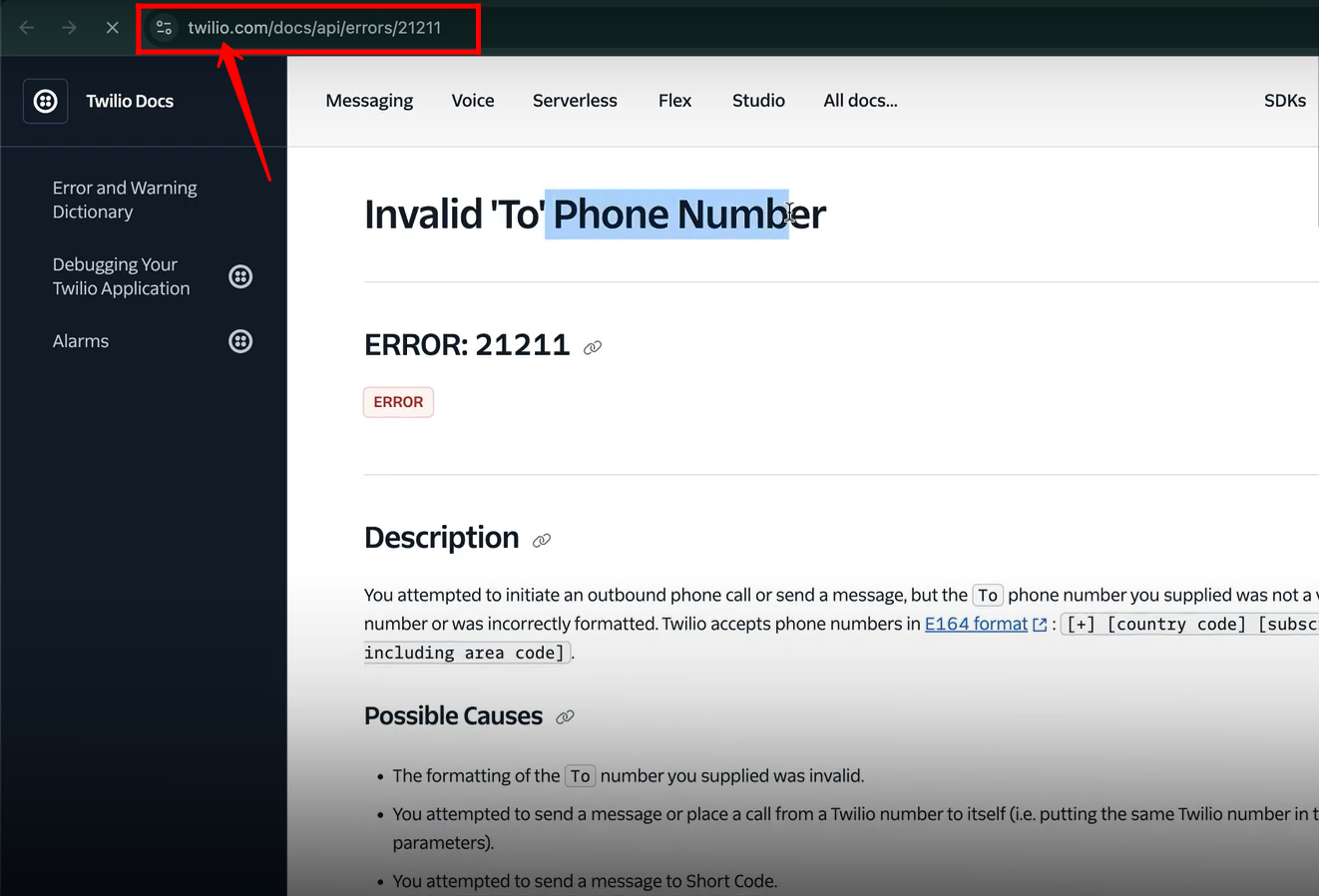
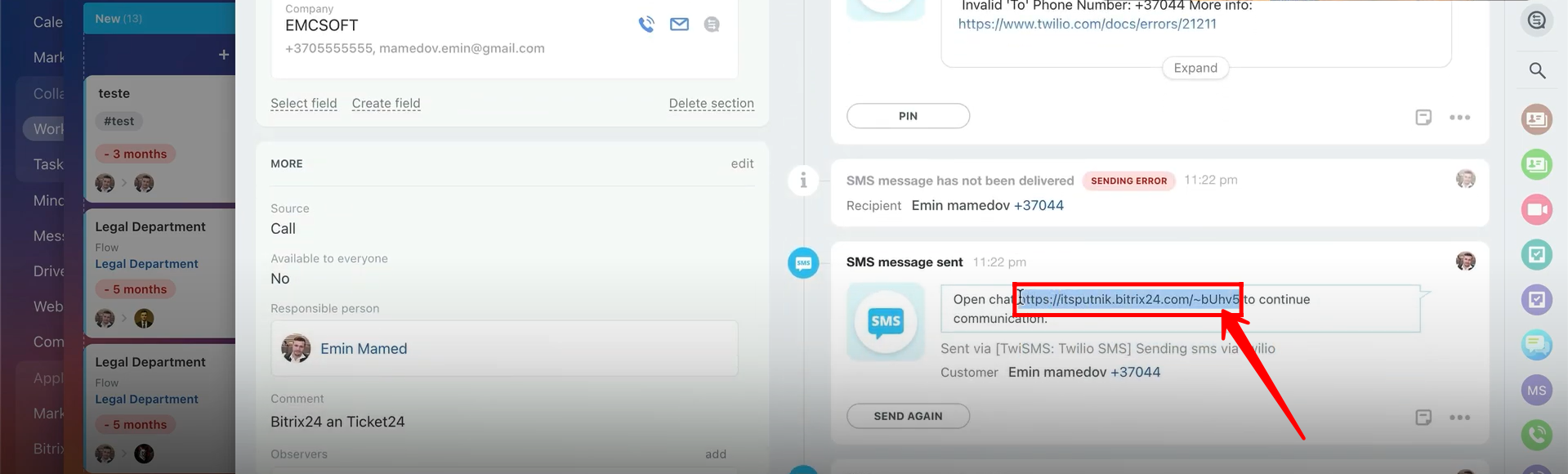
75. As we are testing now, the number was not correct according to a standard form. So, we got error in sending SMS. In the error box, there is a link mentioned explaining why the message has not delivered. Open the link.
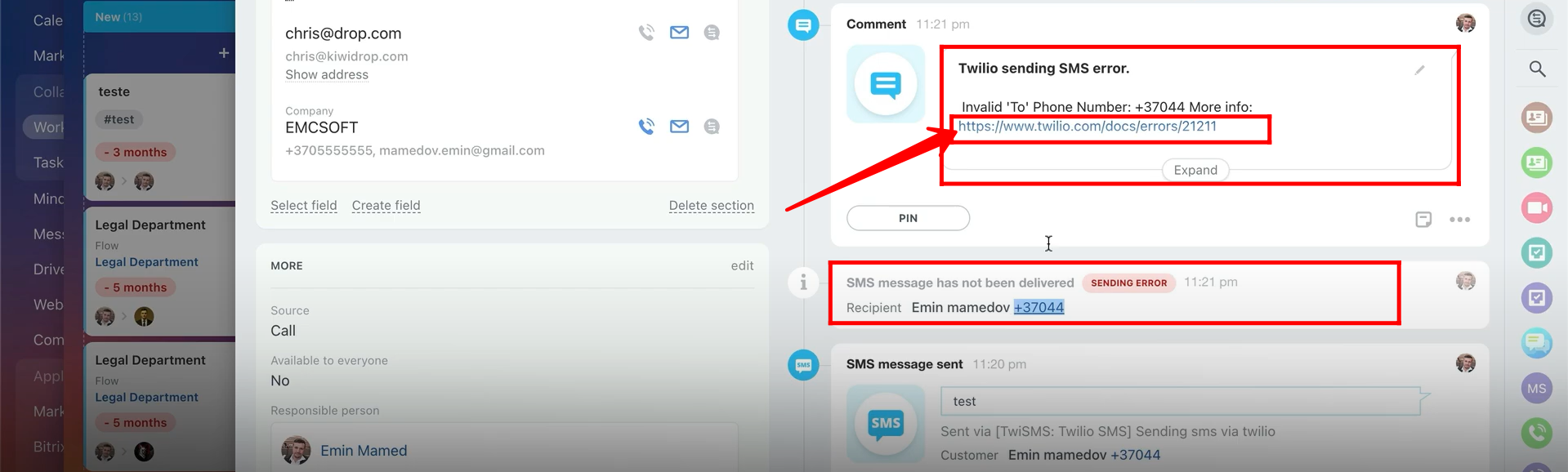
76. Here, you can find the specific reason about “Twilio sending SMS error” that you encountered.
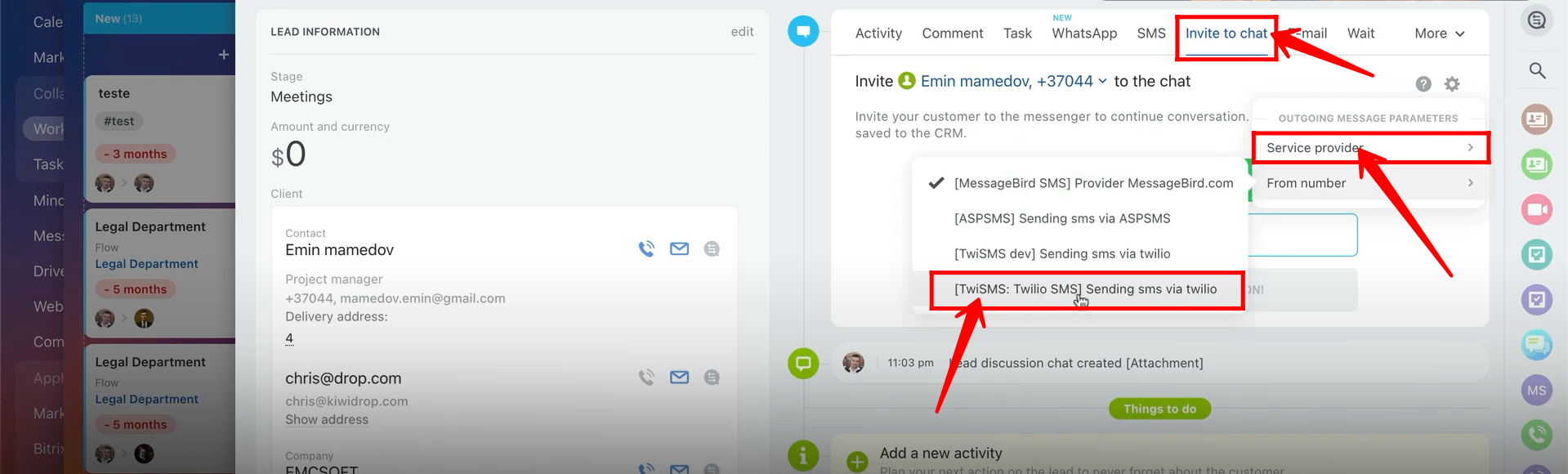
77. Go to “Invite to chat”. Make sure to choose a “Service Provider” as “[TwiSMS: Twilio SMS] Sending sms via twilio”.
78. Then invite a specific person with a correct number to chat with you.
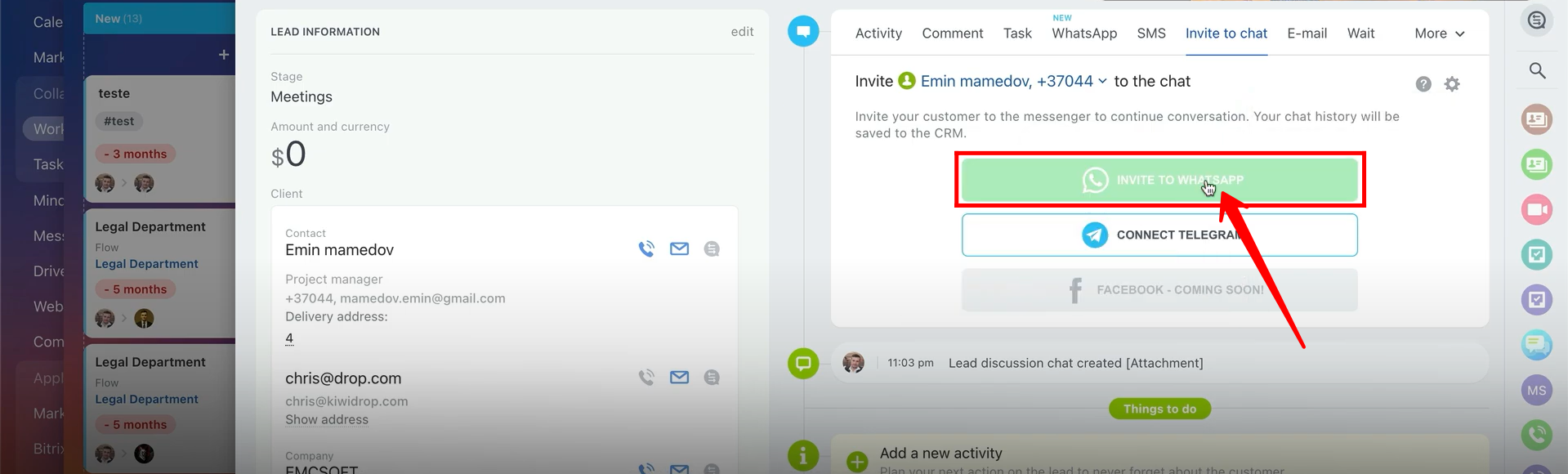
79. The chat link will be automatically delivered to his/her WhatsApp.
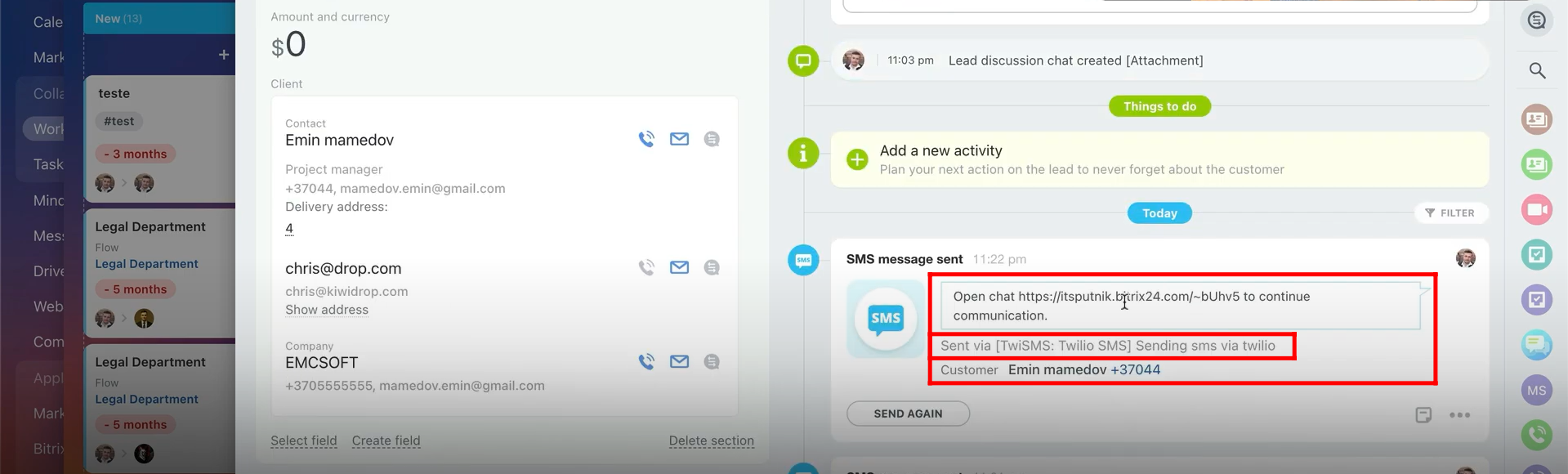
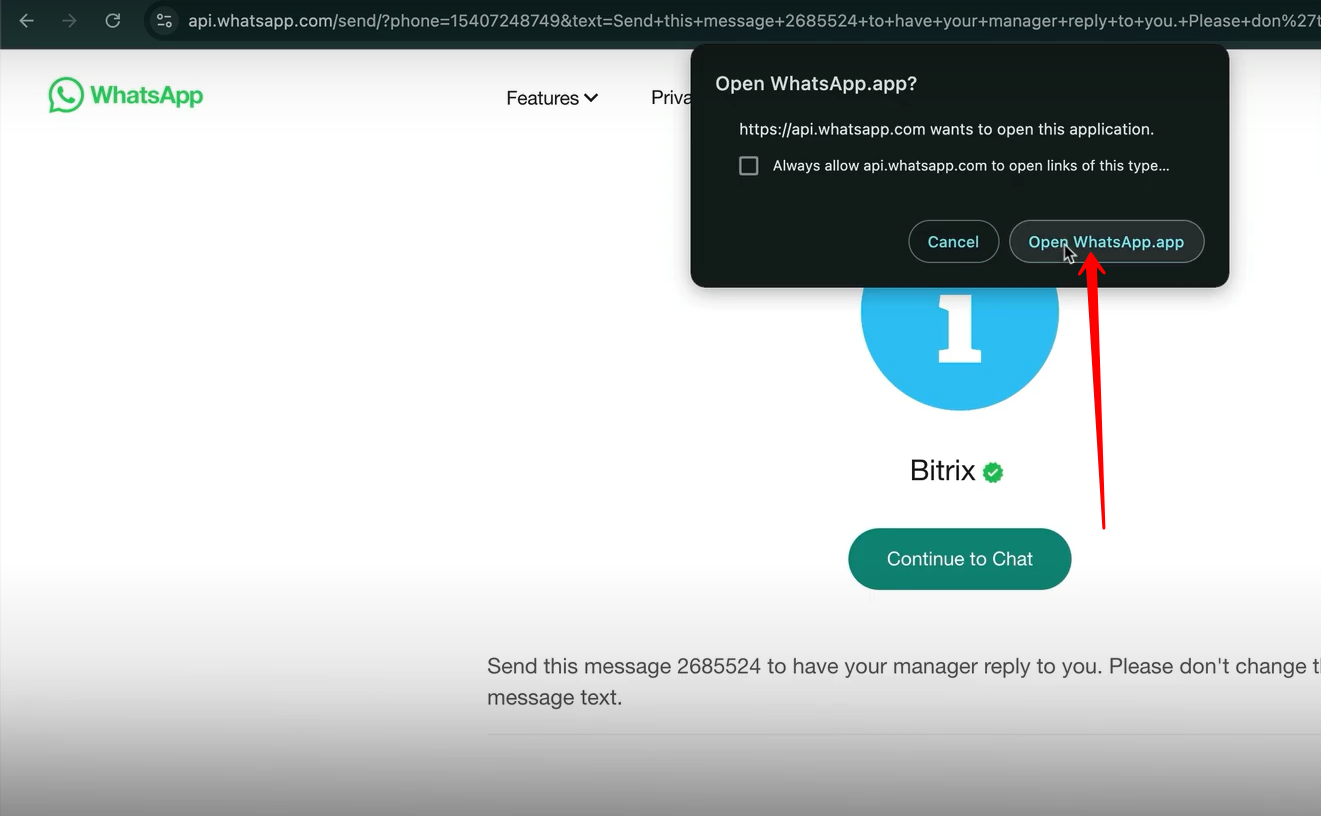
80. Open the chat link in your browser for testing purposes. As the customer or testing person are same in this tutorial.
81. Open the WhatsApp app in your PC.
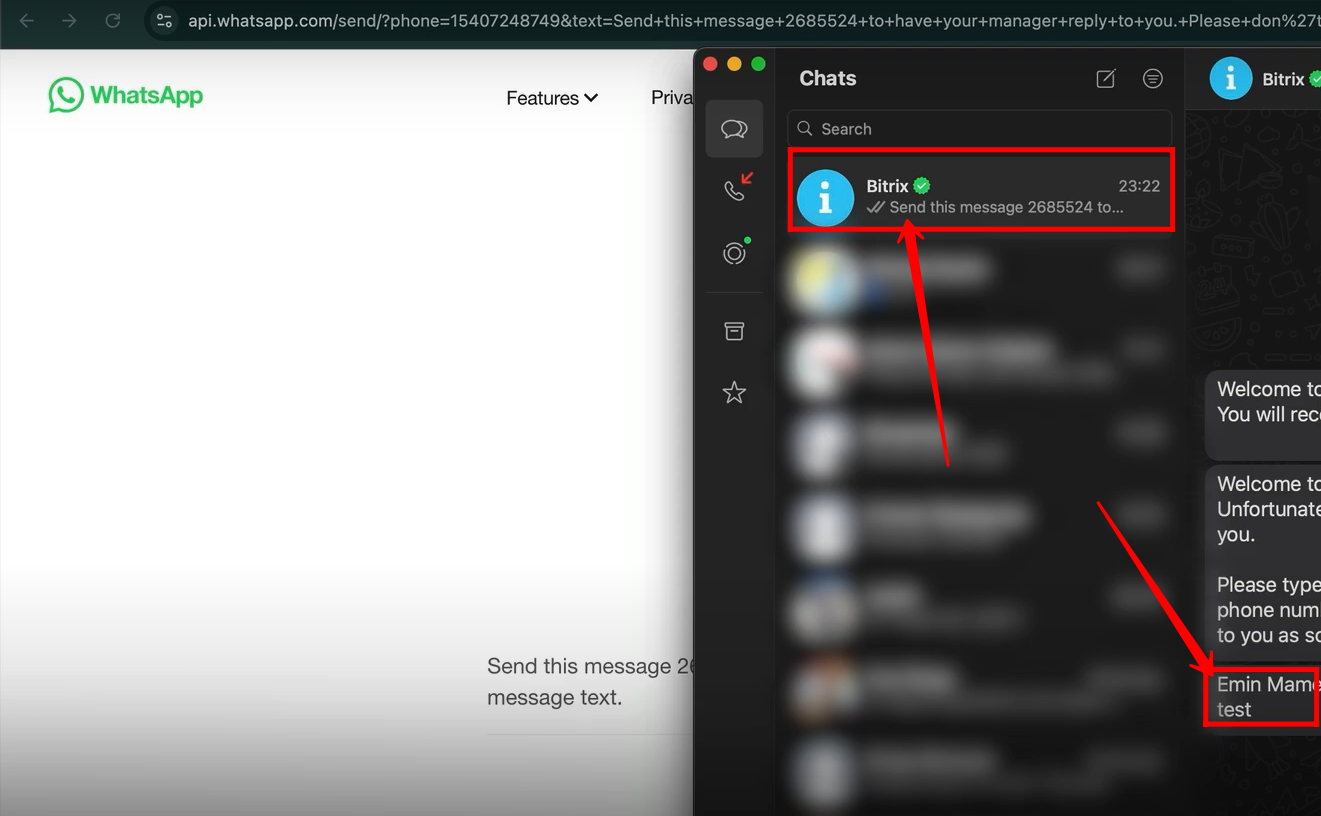
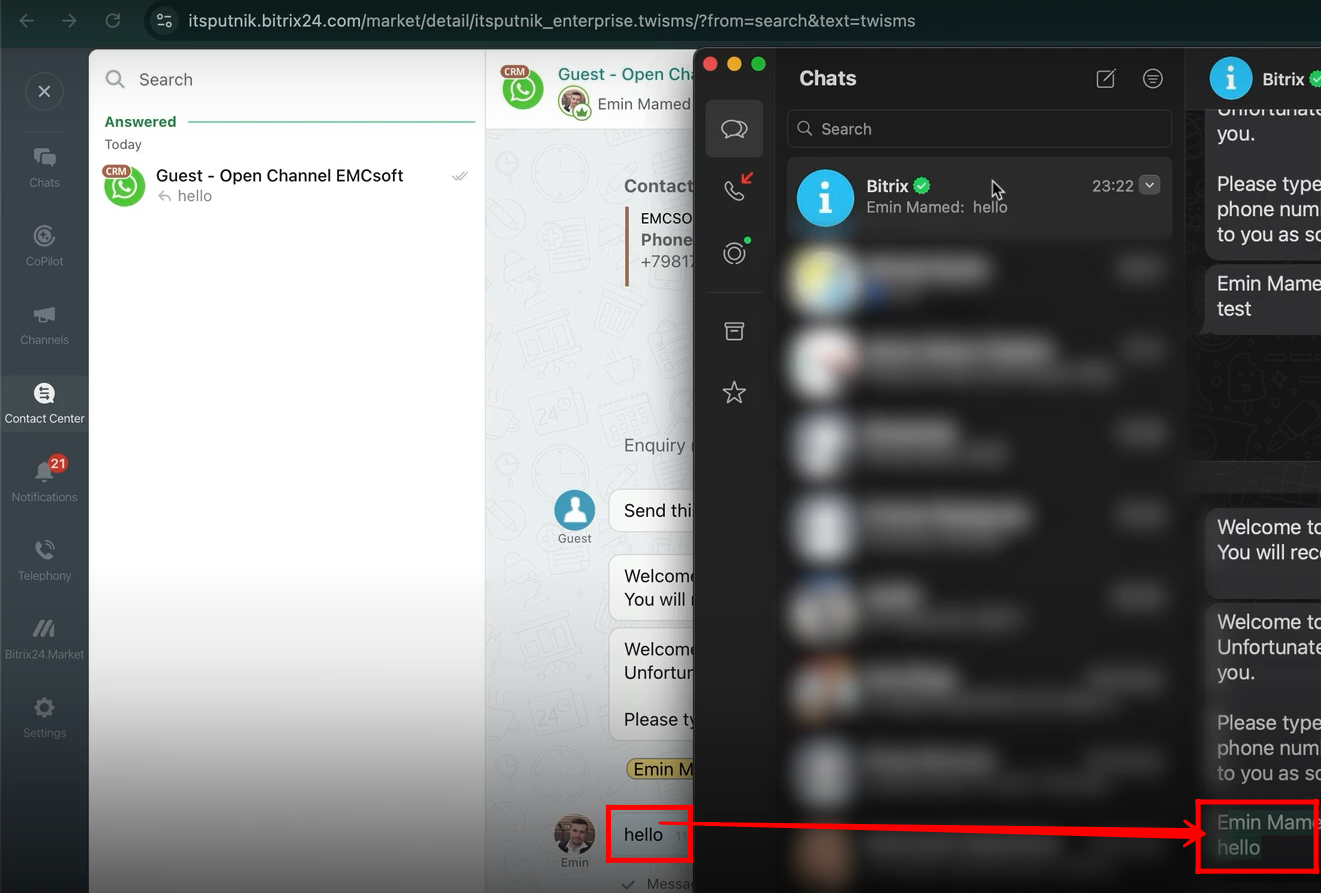
82. You can view the customer has received the message sent by a lead manager.
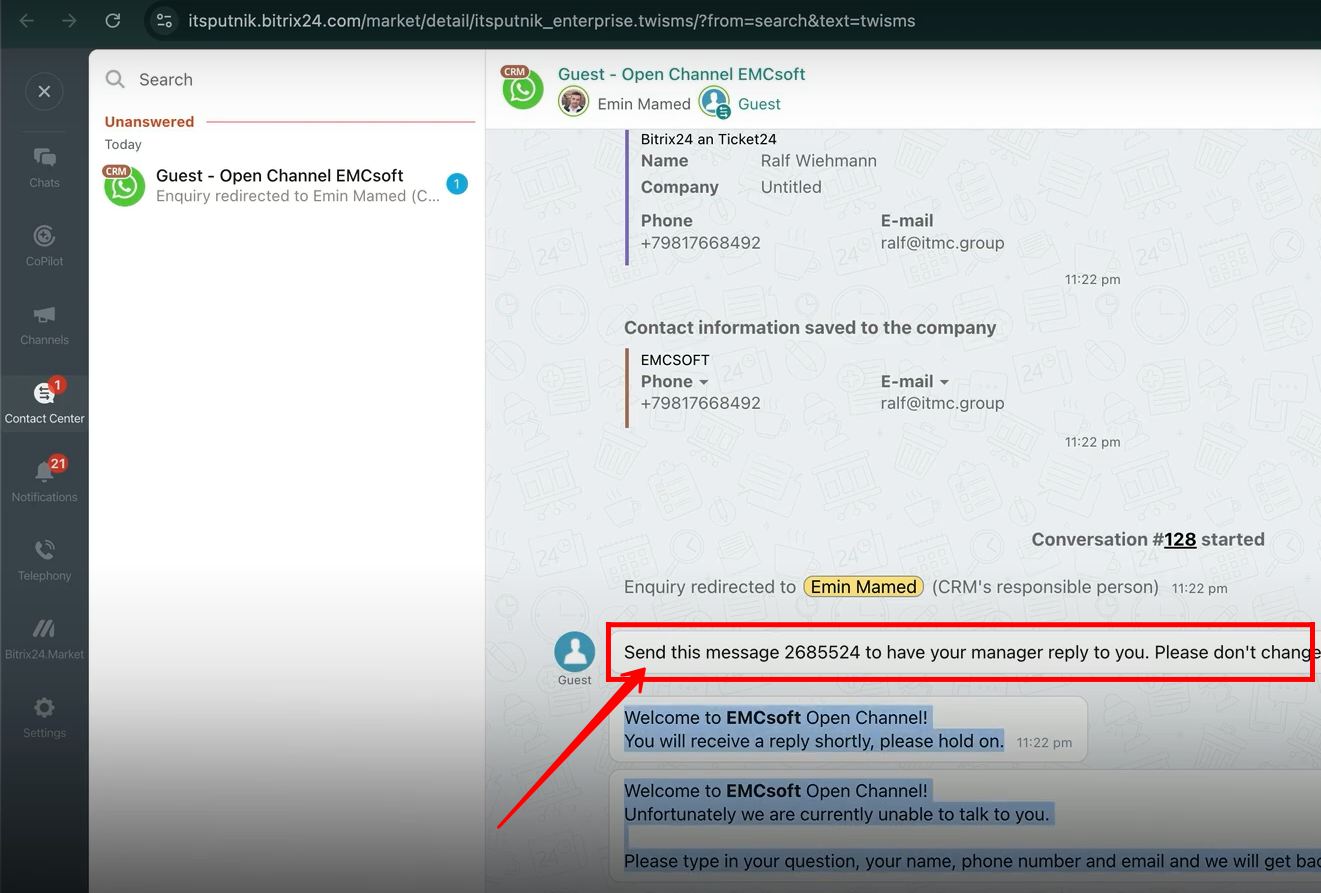
83. Here’s the reply that the customer sent to a lead manager from WhatsApp.
84. The Lead Manager replied “hello” for testing purposes and the customer received the message in no time.
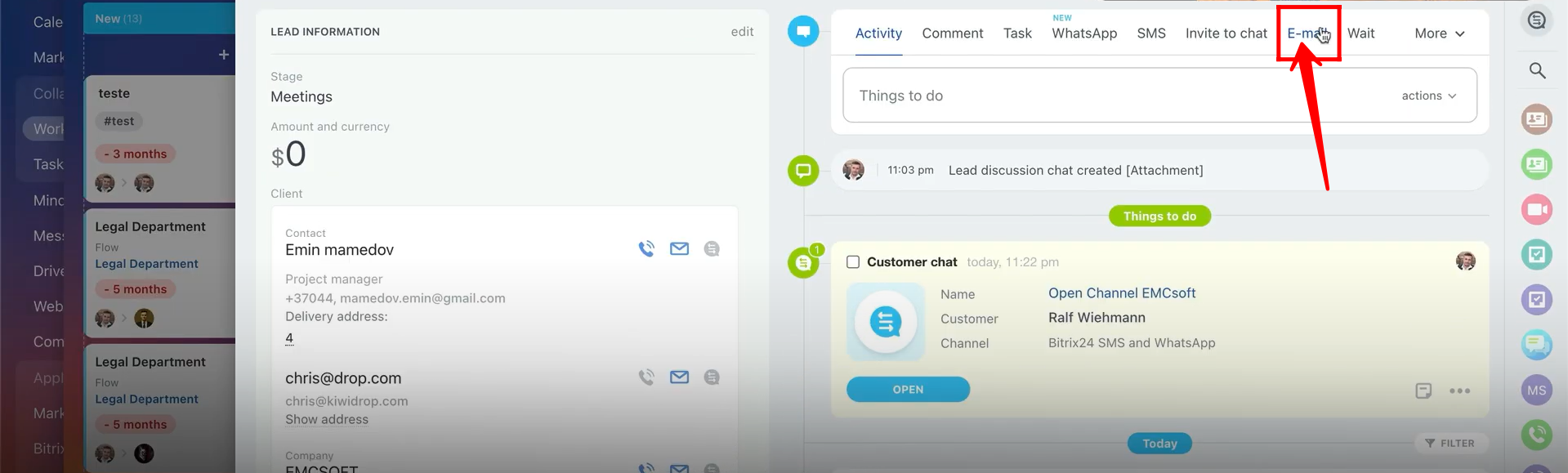
85. Go to “E-mail” within the lead.
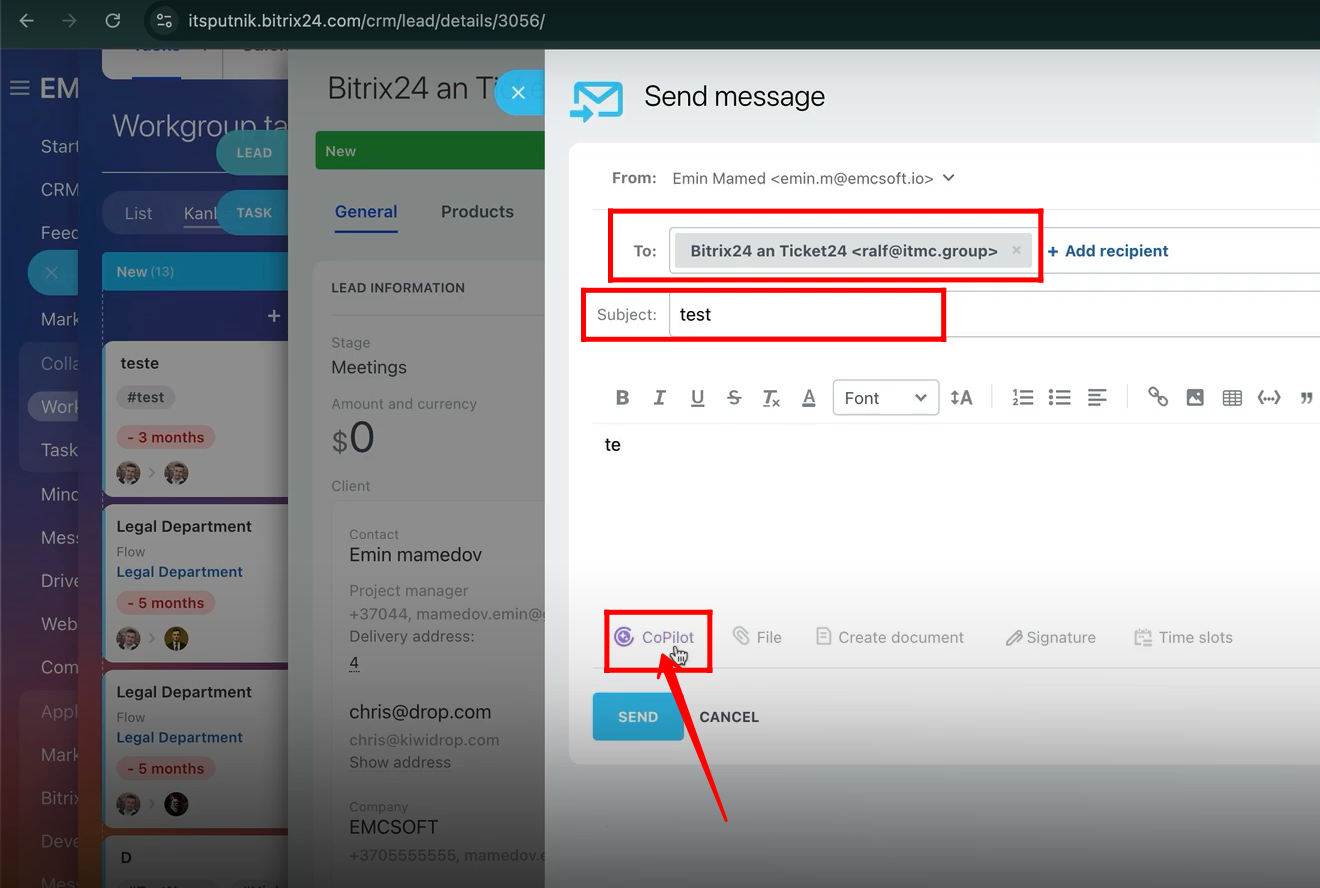
86. Add a receiver email and Subject of the email. You can type body of the email in your own words OR can take help from AI. Click “CoPilot”.
87. Type the required message in your own words and let the AI convert it into better structured message.
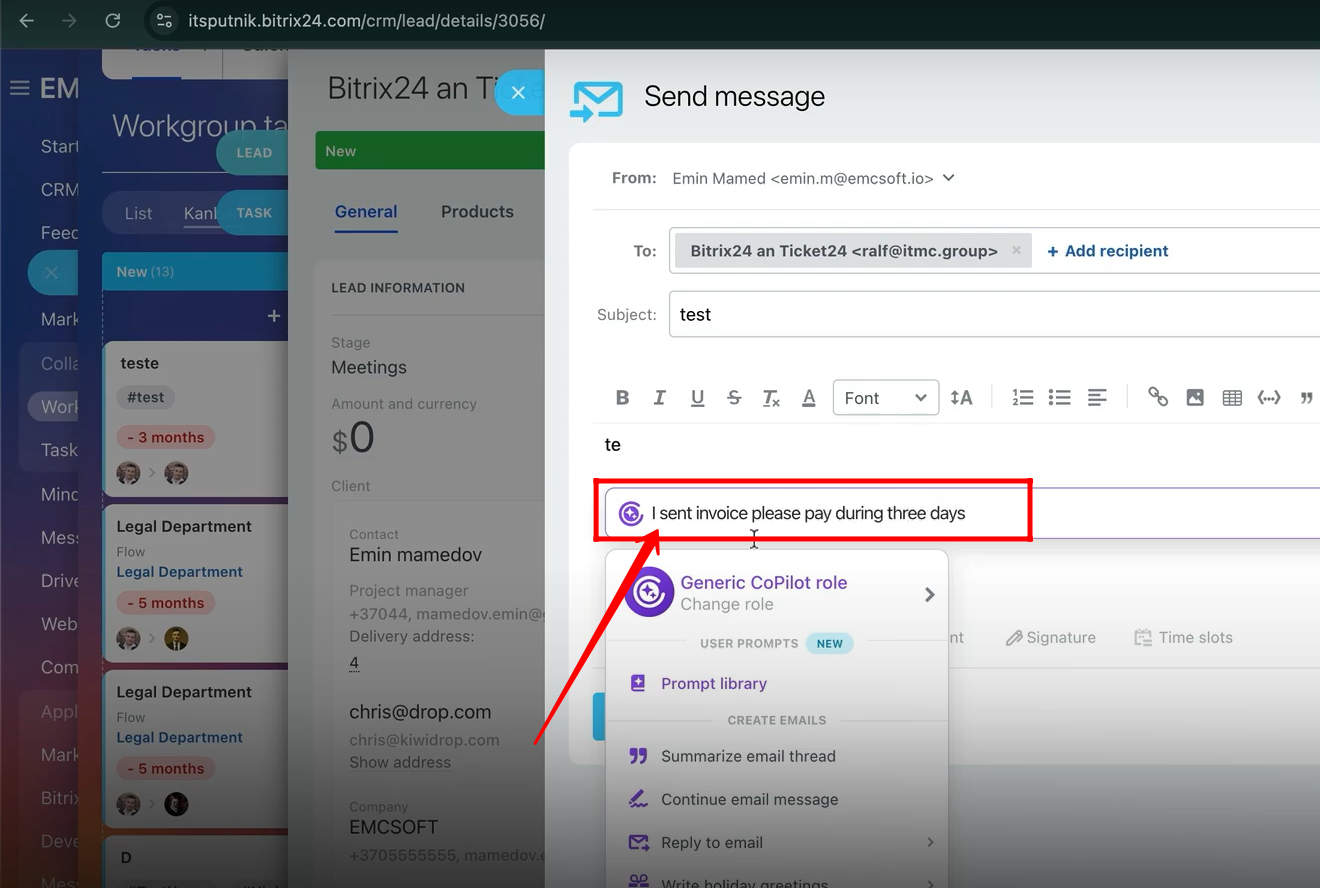
88. Here, you can see, the “CoPilot” optimized the message. Plus, you can convert the text into another language.
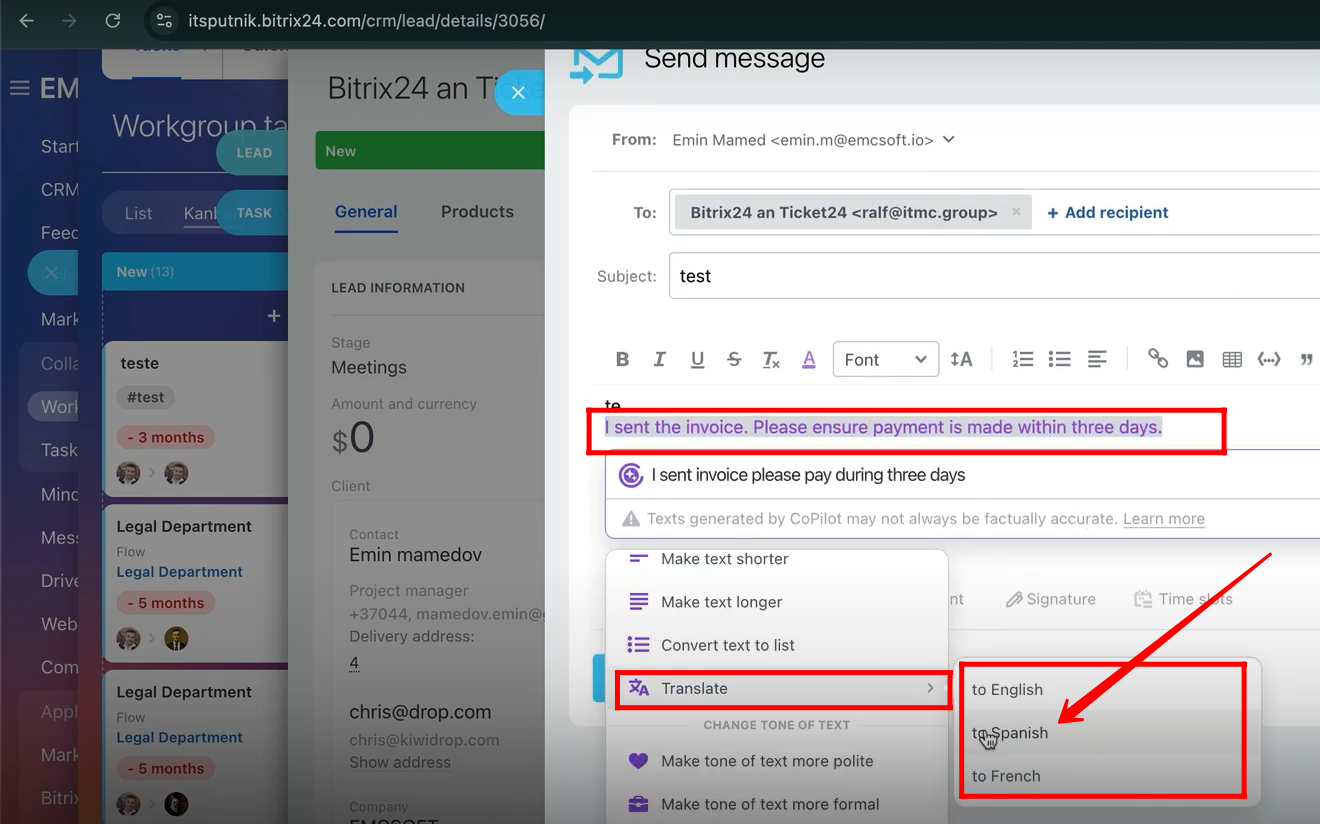
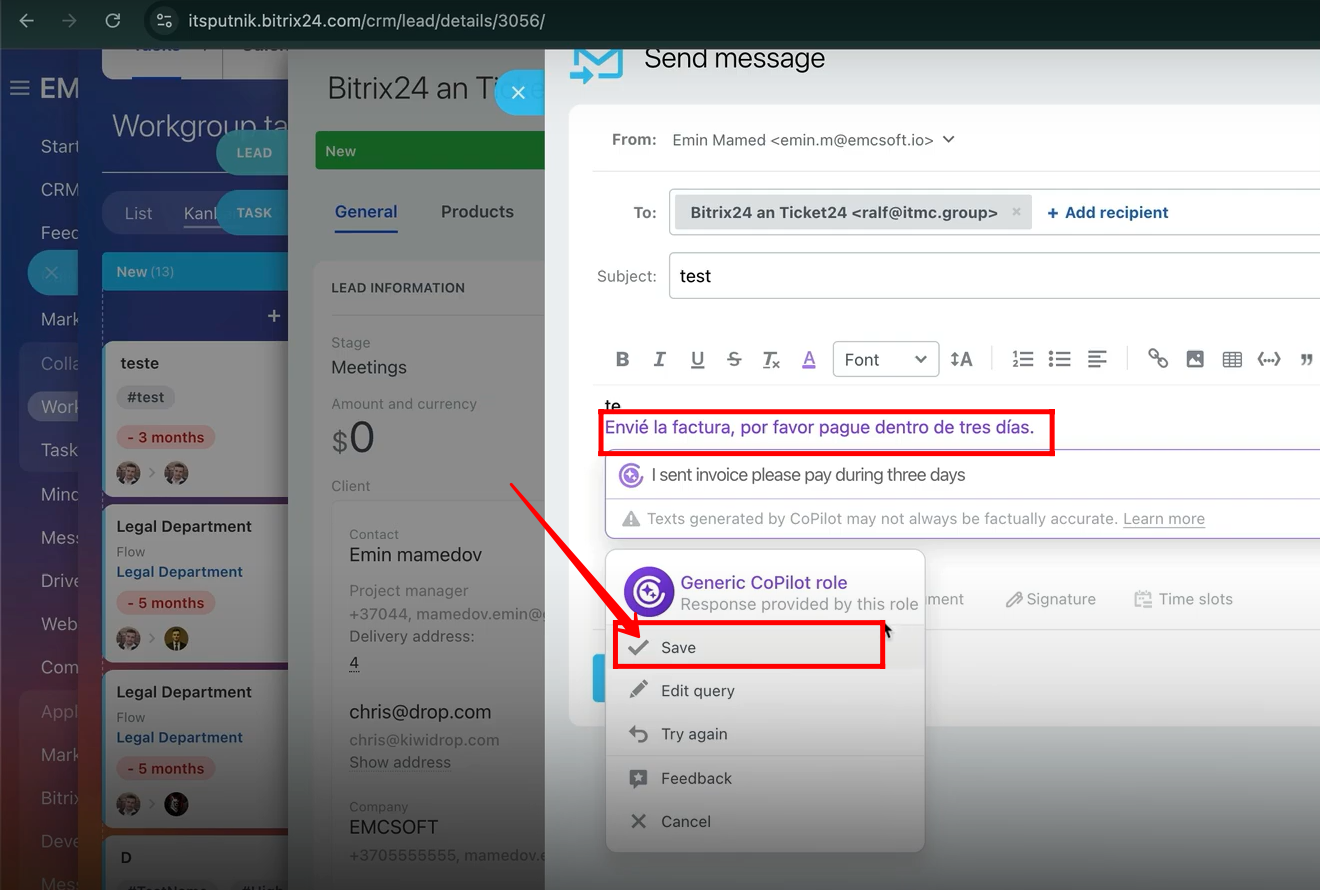
89. The email body has been converted into Spanish. Save it.
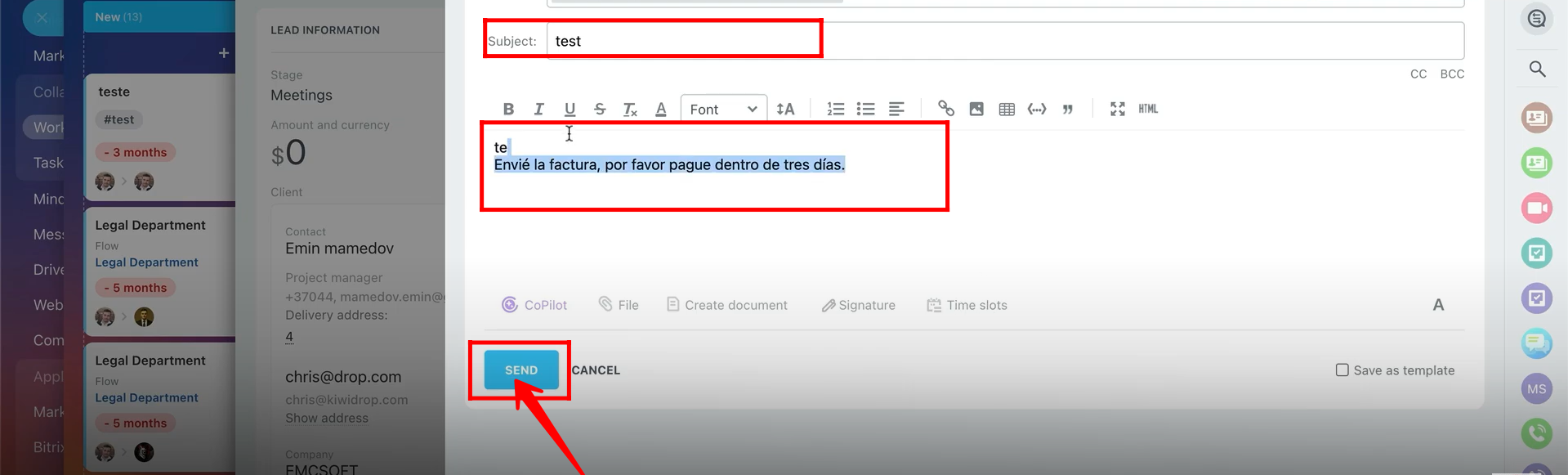
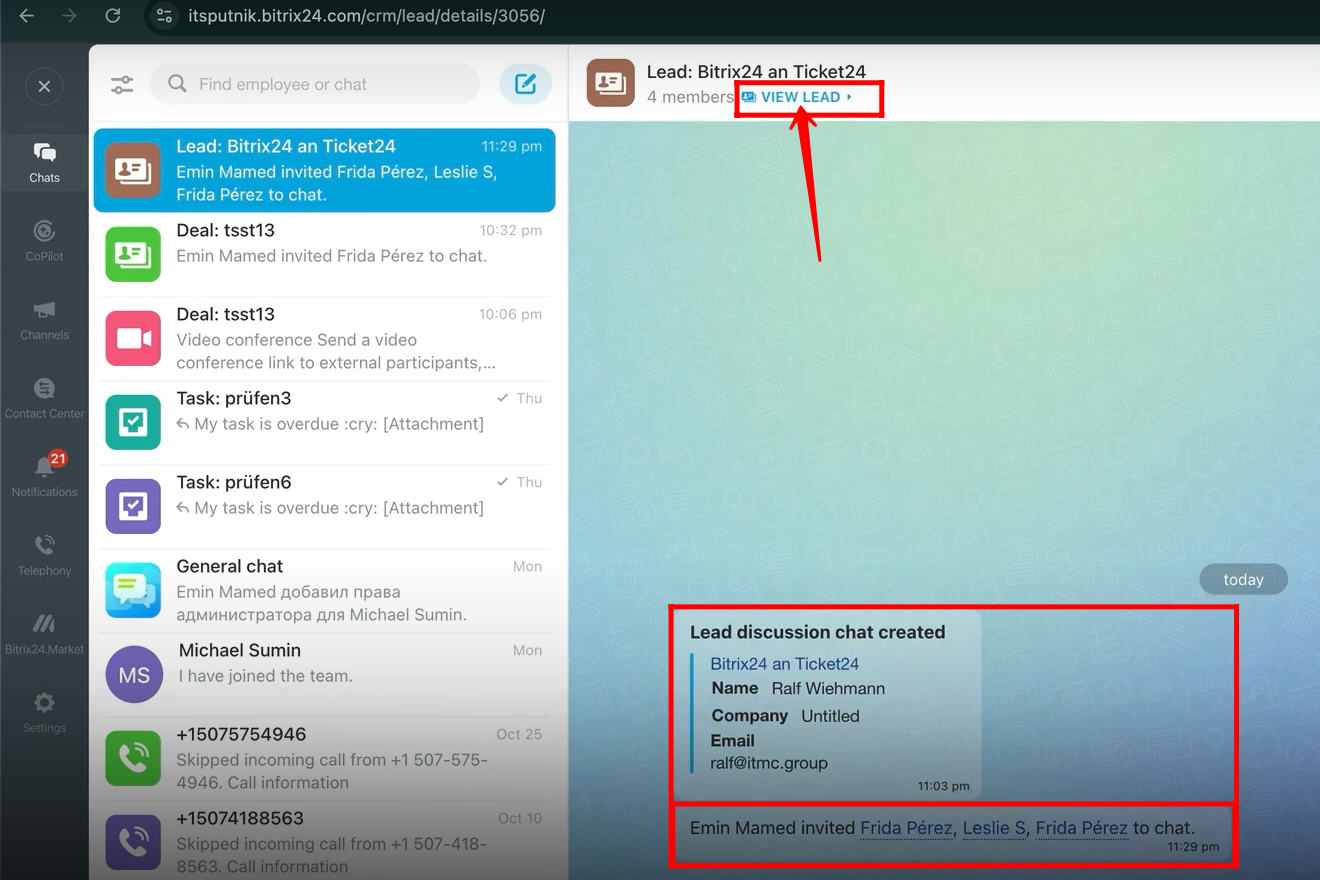
90. Click “Send”.
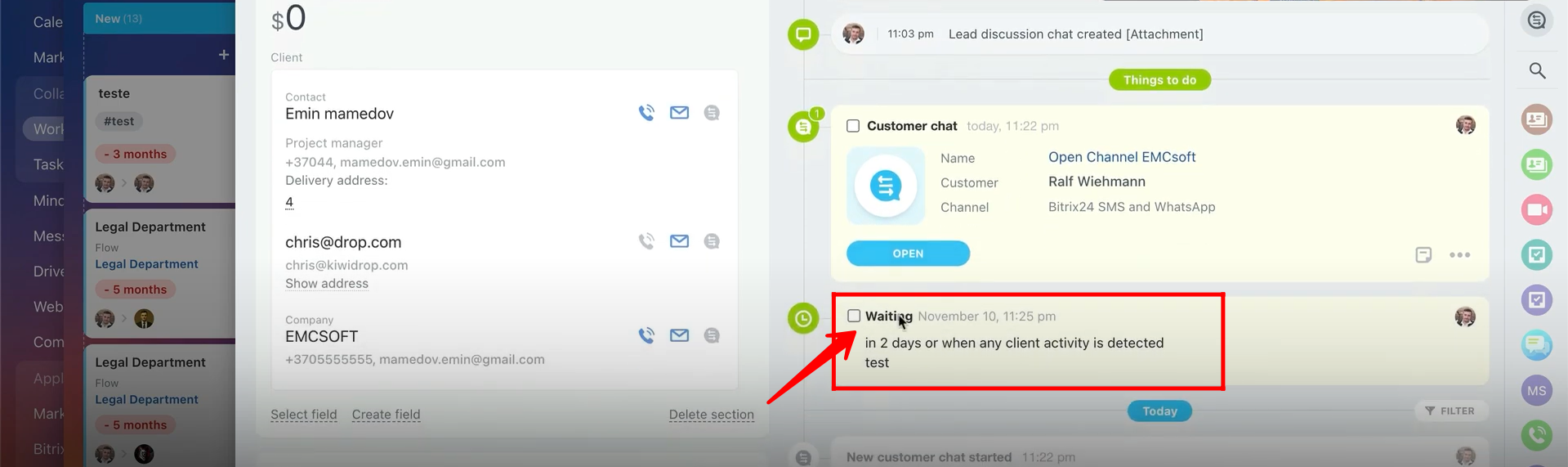
91. Go to “Wait”. You can specify the time period of waiting with a comment. Here, the waiting period is “2 days”. Click “SET”.
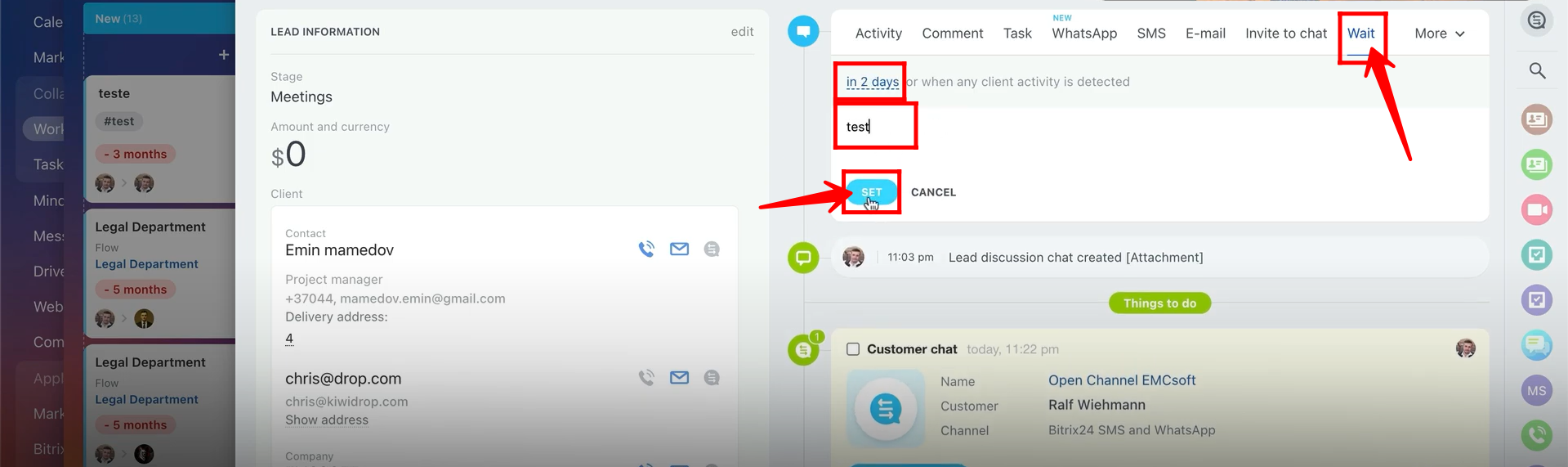
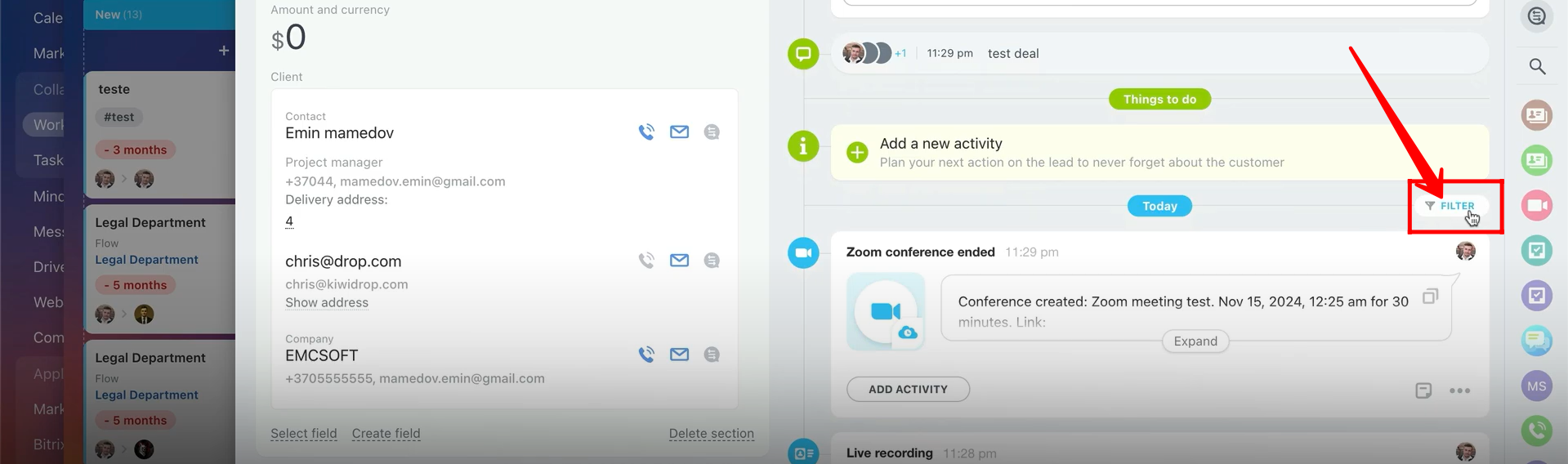
92. Here, the waiting activity is configured. This waiting activity will give you alert with your comment after 2 days or when any client activity is detected.
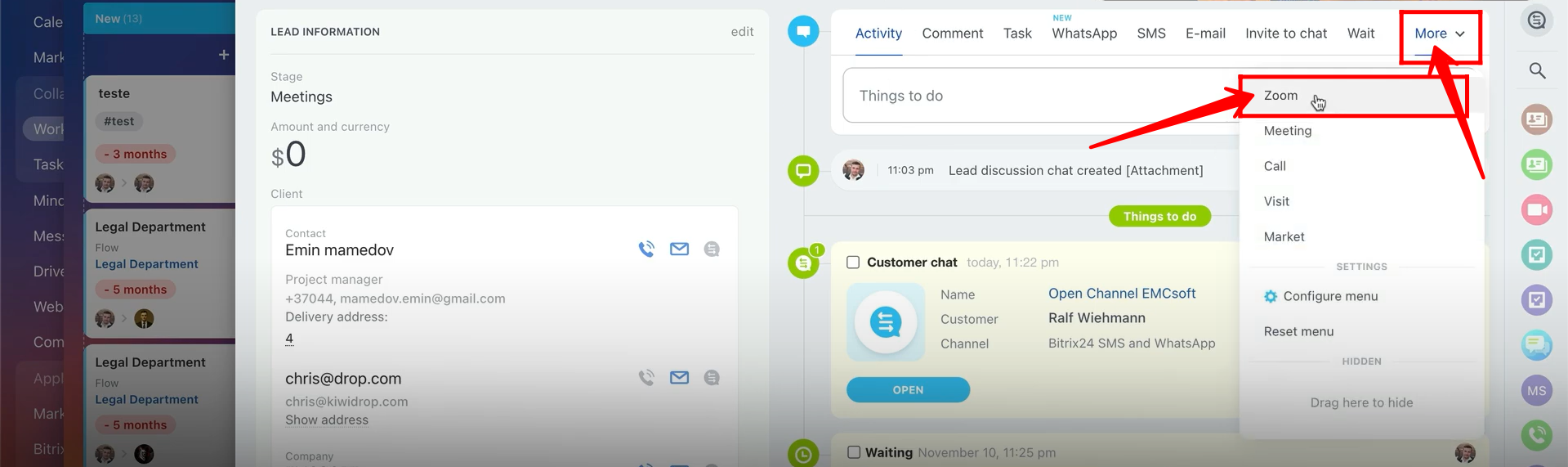
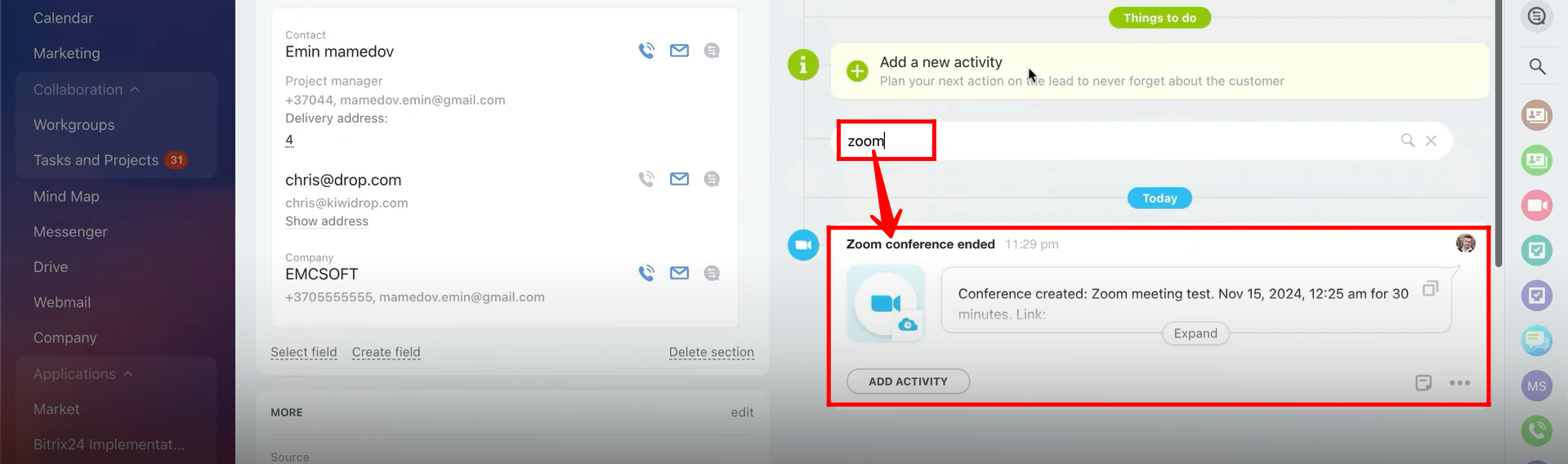
93. Go to “More” and click “Zoom” to schedule a meeting.
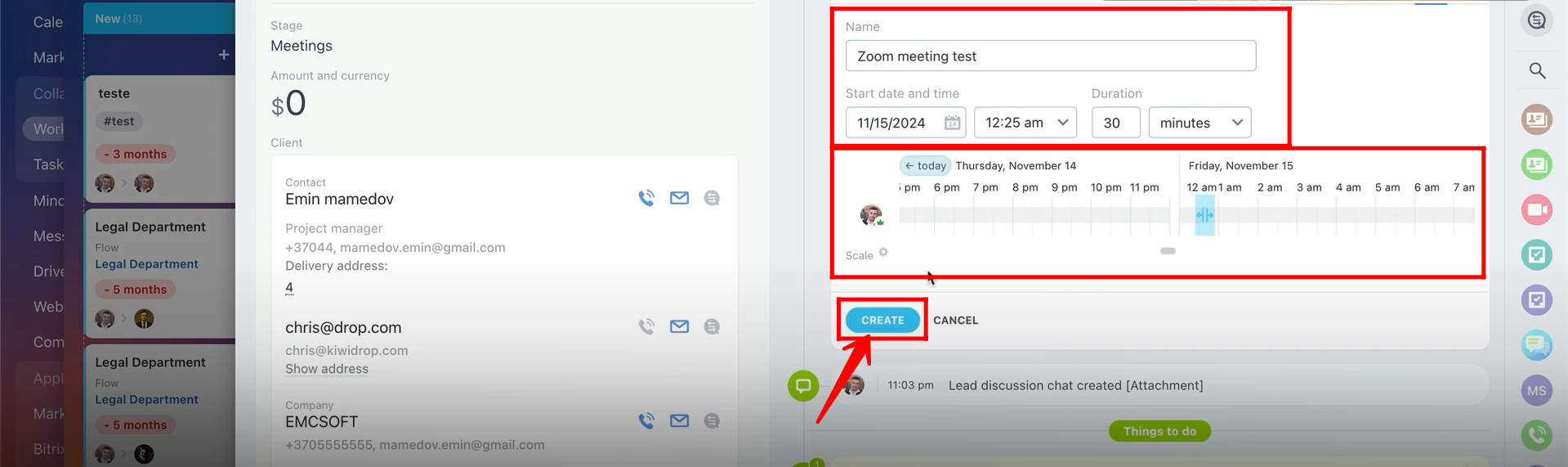
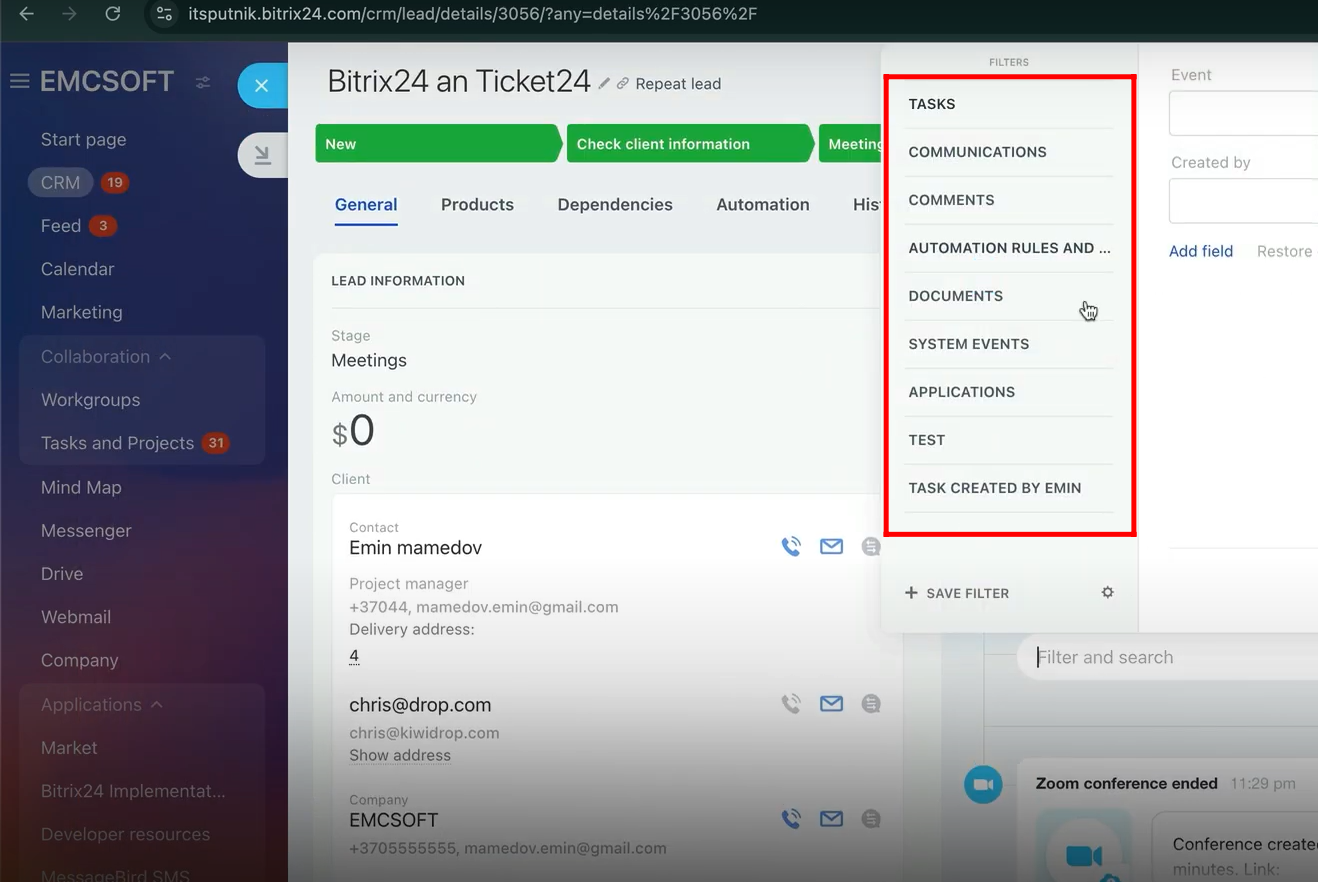
94. Add meeting name, date with time and set it on the calendar view. Click “Create”.
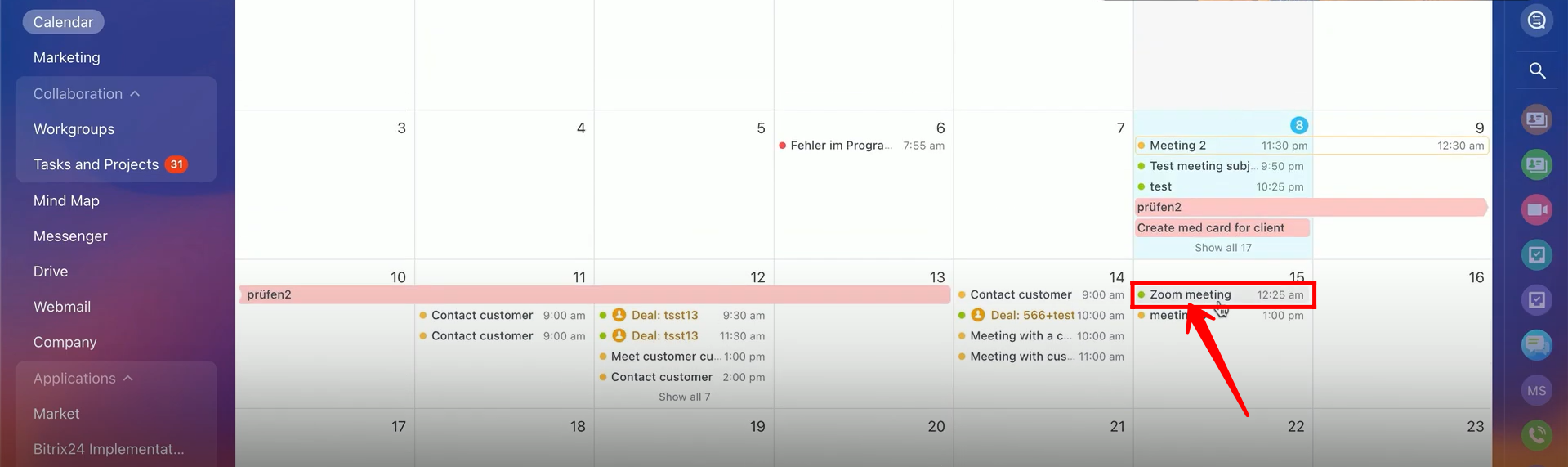
95. You can view the Zoom Meeting Scheduled on the calendar.
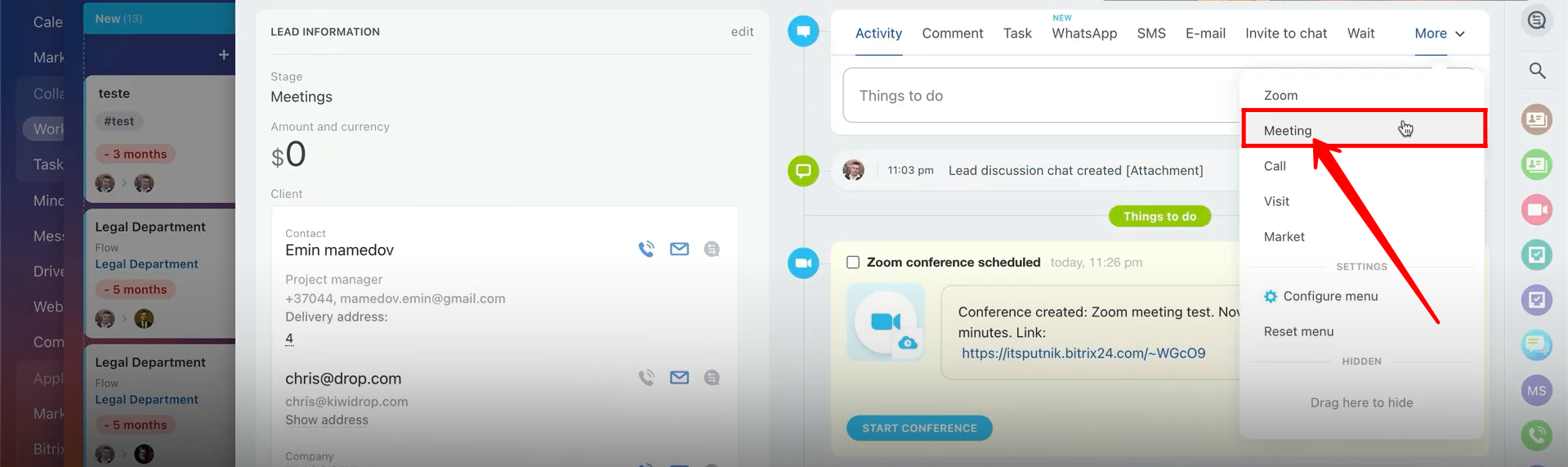
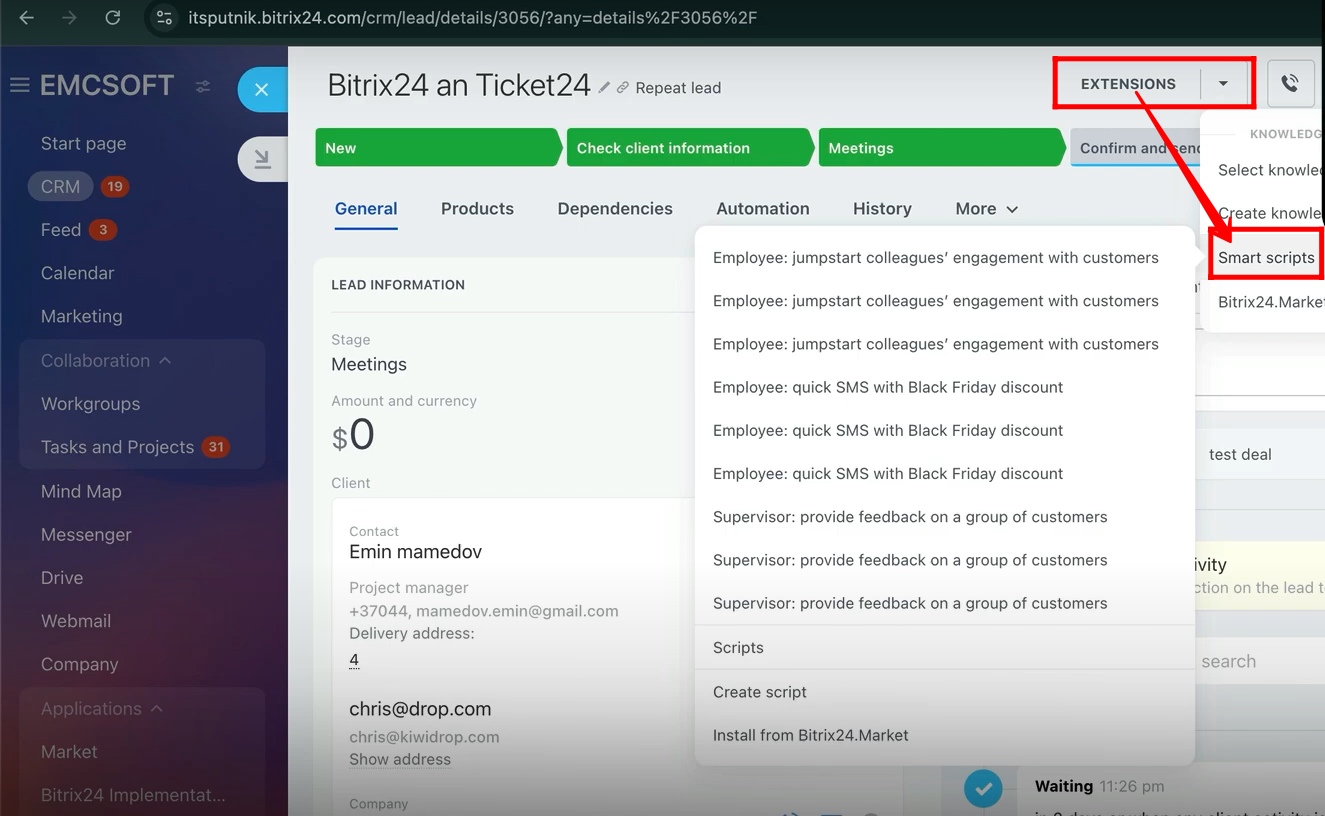
96. Now, go to “Meeting”.
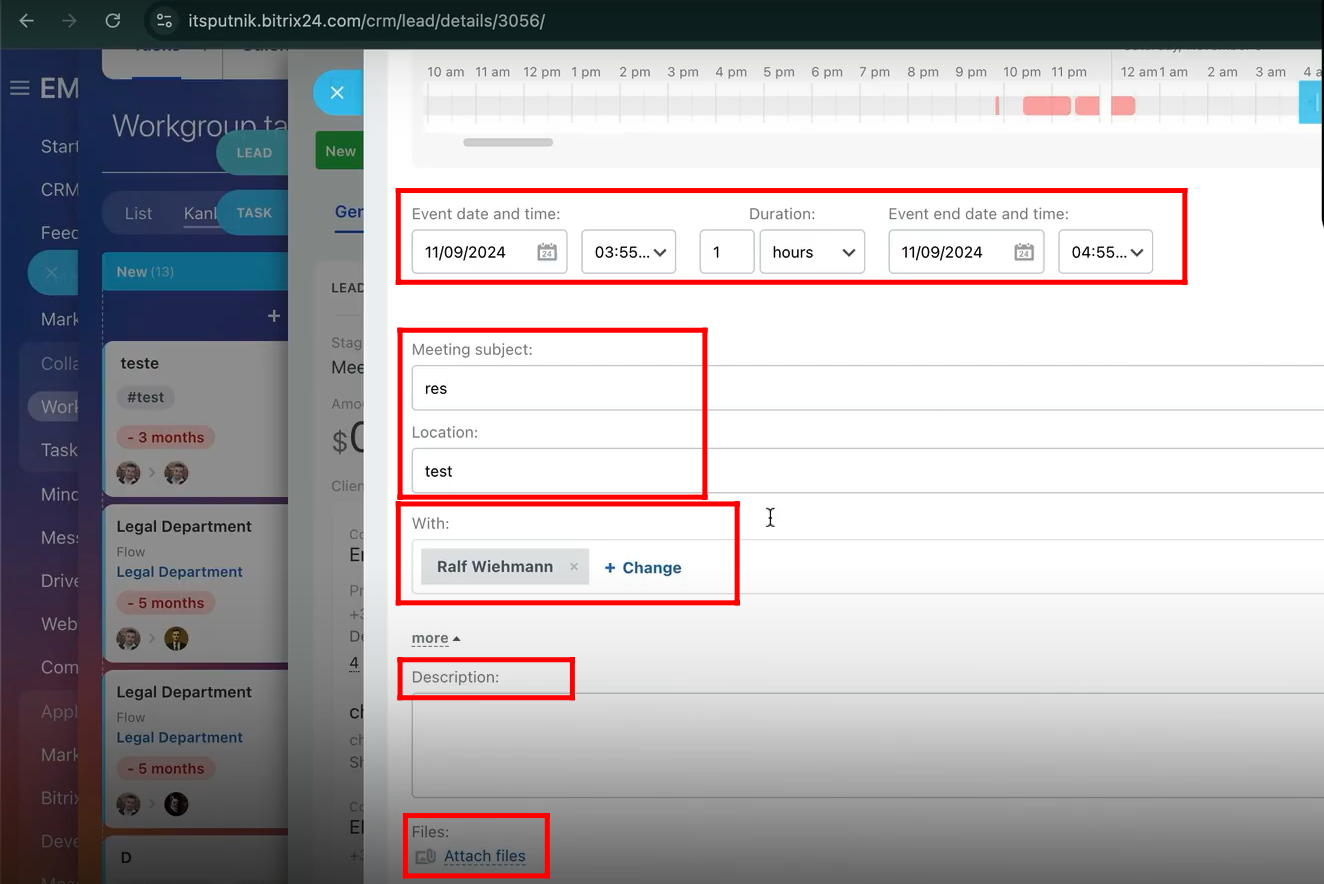
97. Add all the details including date with time, meeting subject, location, meeting person and description. Save it.
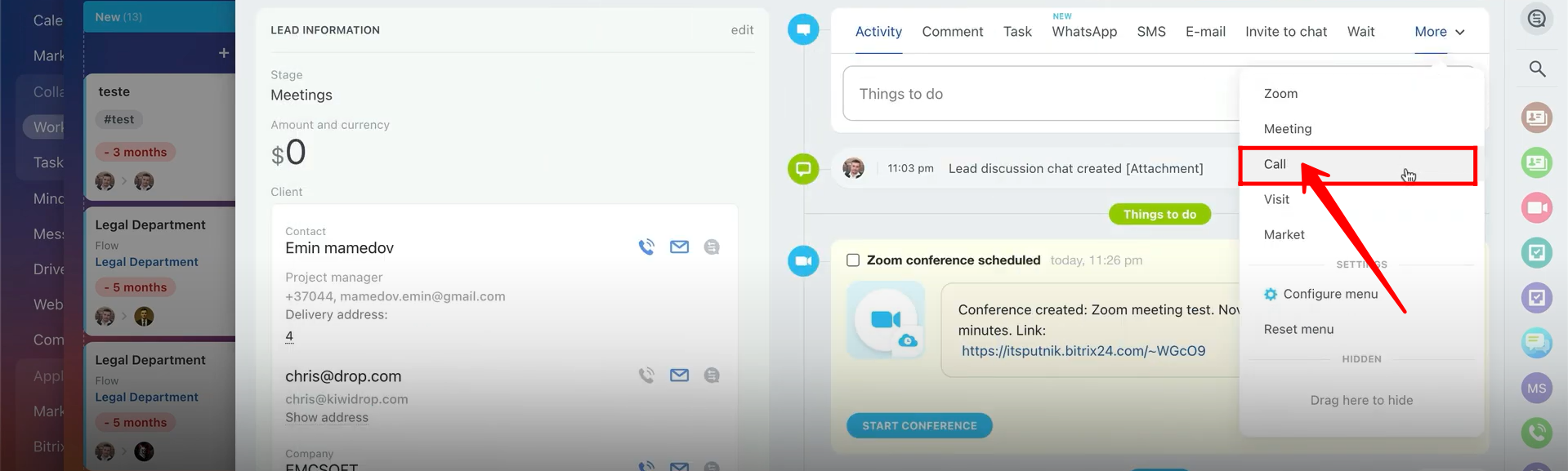
98. Go to “Call” to configure an outbound call.
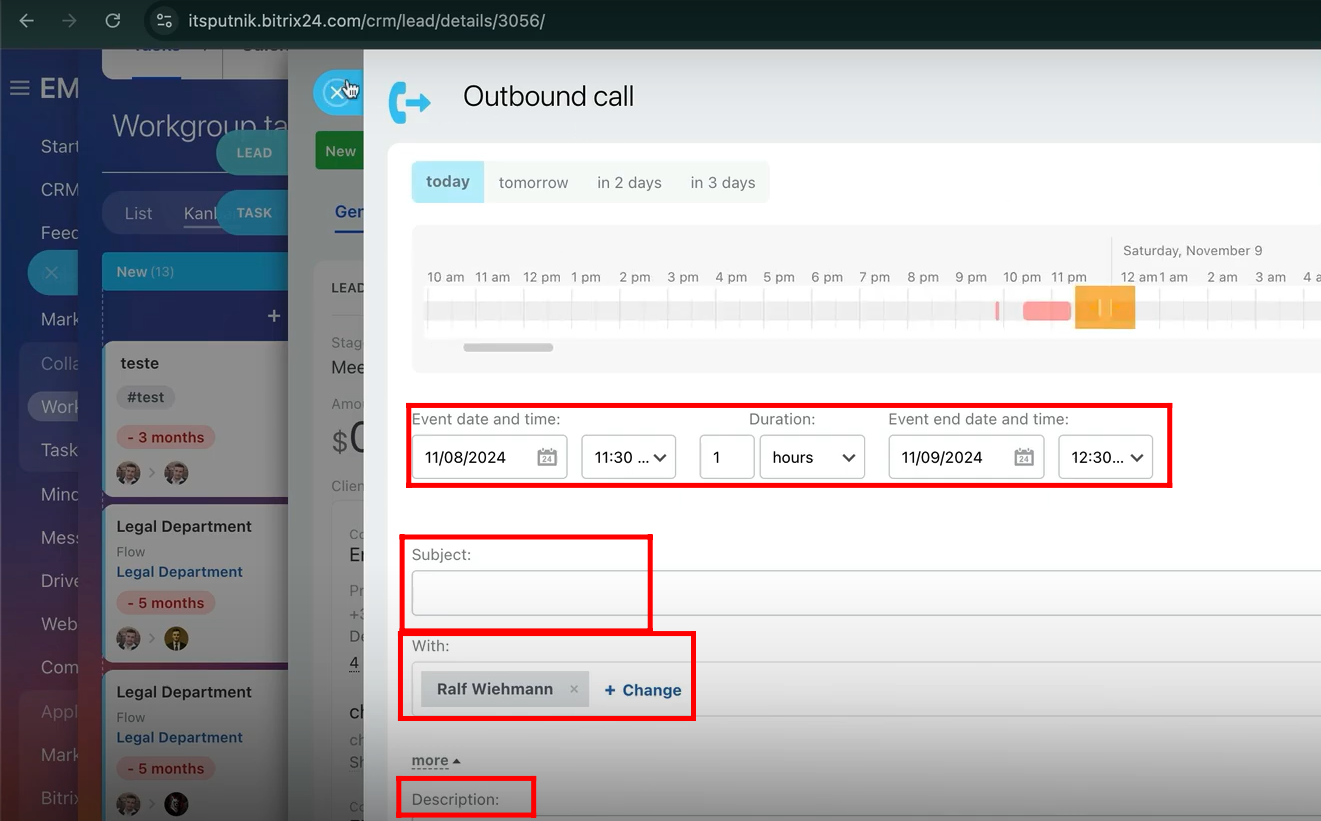
99. Schedule a call with customer by following the previous configurations.
100. Go to “Visit” to record a meeting discussion with your customer, if he/she visited you physically.
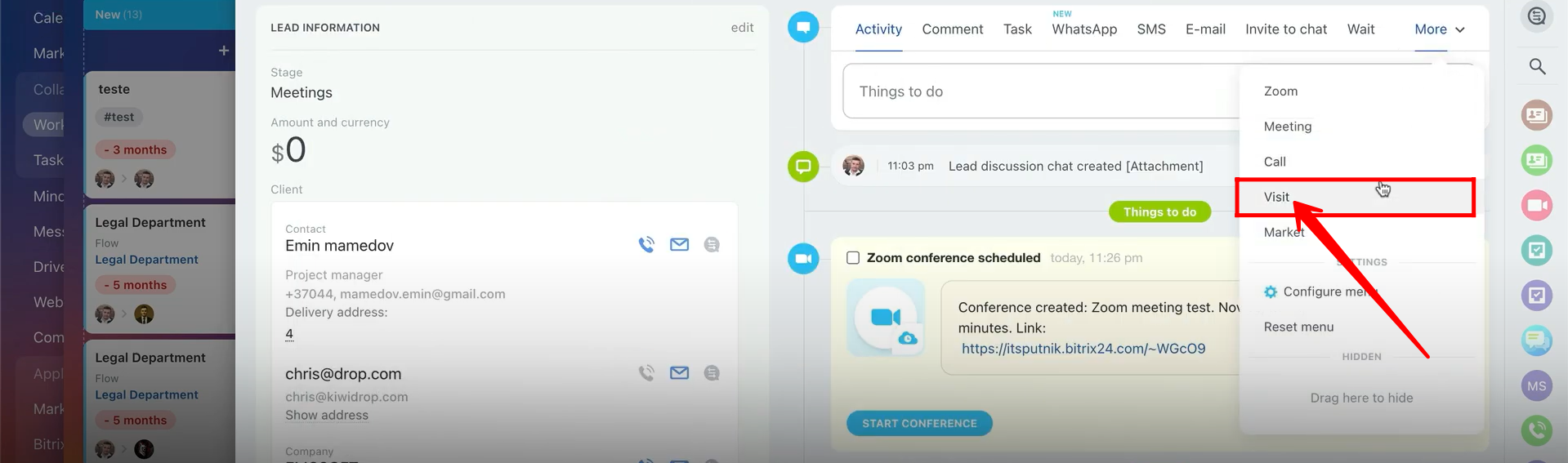
101. Here, the voice is being recorded by a responsible person of the lead.
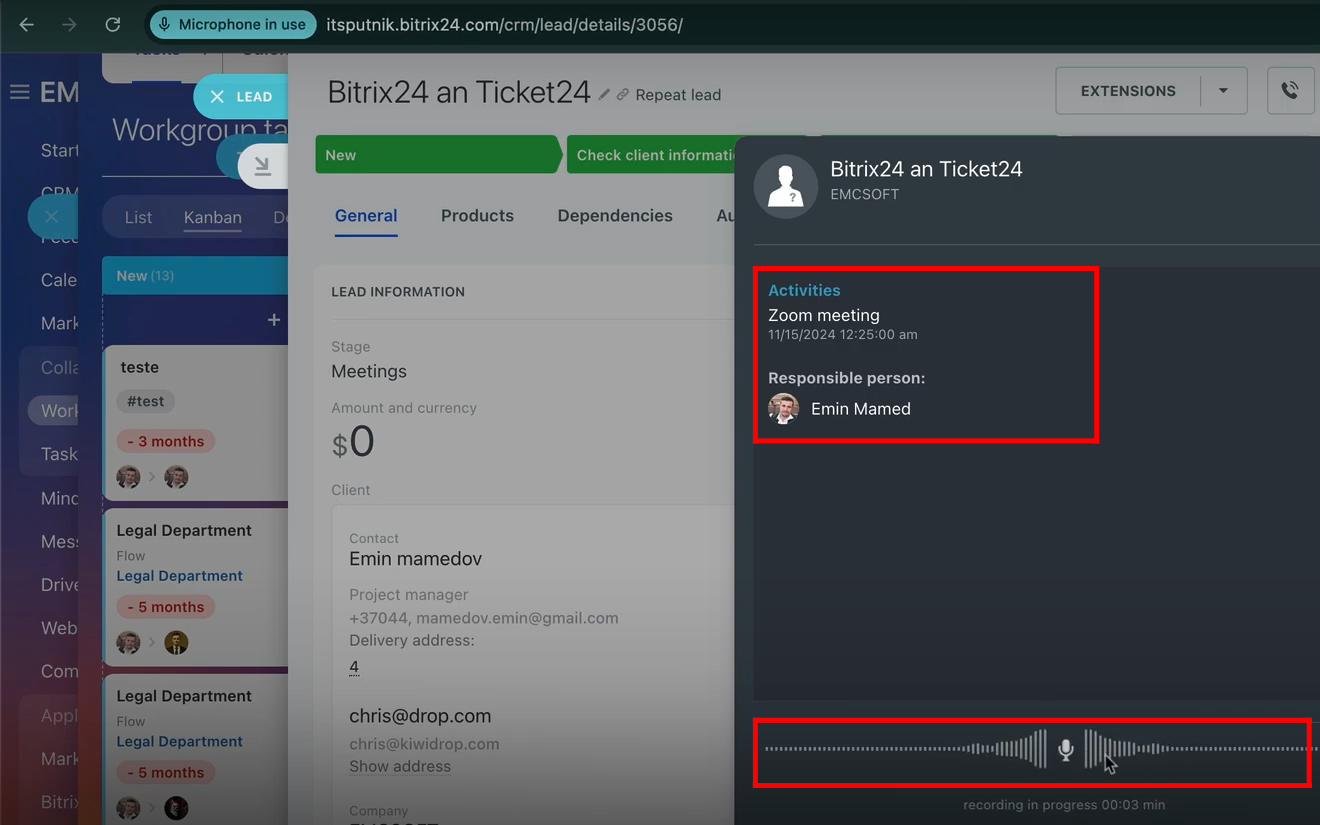
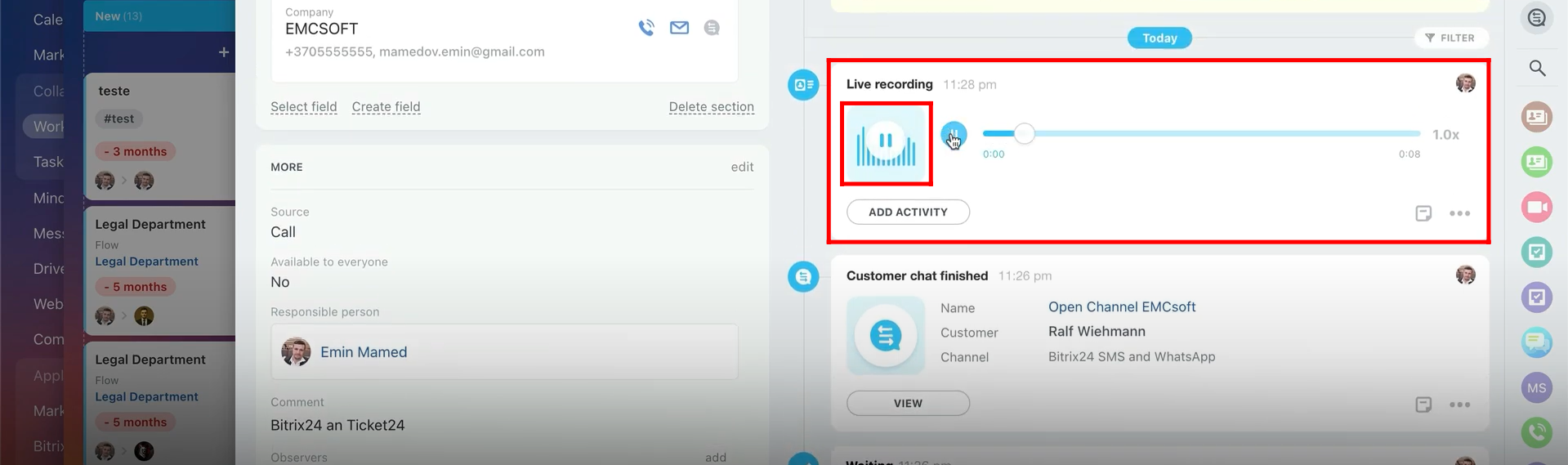
102. The recorded voice will be saved within the lead and you can listen to it in the future.
103. You have an easy option to open directly chat of the current lead instead of finding in a lot of messages.
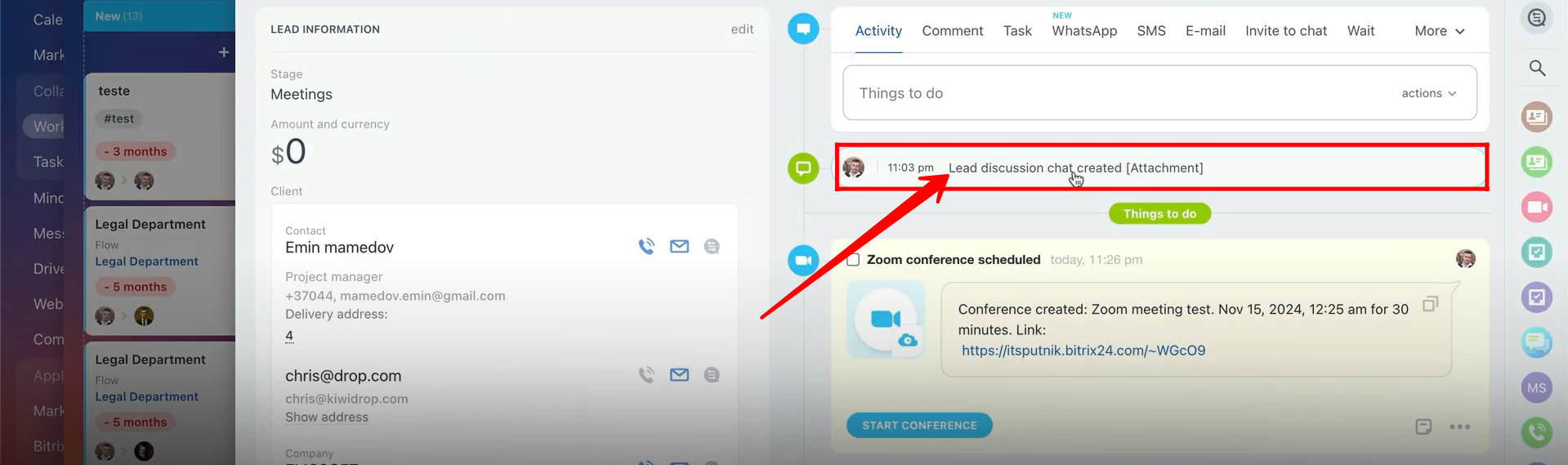
104. Here, you can invite multiple team members in the chat and can view the lead from the chat also. Go to “View Lead” now.
105. The “Filter” option lets you filter out specific type of activity within the lead.
106. Here, against the keyword “Zoom”, the zoom meeting is filtered out from multiple activities.
107. You can use the premade filters to search the specific activities.
108. The Comments have been filtered out here.
109. Within the lead, there is a option to use “Smart Scripts” for automation.
“You can also watch this video on Youtube”
Play video