
Bitrix24 Training Course 7. CRM Robots: Repeat sales

The Necessity of Automation in Sales
Automation in sales isn't just about efficiency; it's about creating a sustainable business model that nurtures long-term customer relationships. The focus is clear: employ automation to not only streamline operations but also ensure that clients remain engaged year after year.
Creating Repeat Leads
We begin with the “Create Repeat Lead” robot. This innovative feature is a game-changer for businesses with annual billing cycles. It automatically generates new leads when it’s time to renew a service, ensuring that no client falls through the cracks as their subscription comes to an end.
Upselling Through Stage Alteration
Upselling is made seamless with automation. By simply changing a deal stage from "Order Delivery" to "Subscription Finished," or to "Upsell," new sales opportunities are identified and actioned upon without manual intervention. This proactive approach not only saves time but also maximizes the potential for additional revenue.
Scheduling and Planning
You may schedule meetings and calls within your CRM system, effectively integrating these tasks into the natural workflow of a deal. Automation rules can set reminders for client feedback, ensuring that the sales team acts on customer inputs promptly.
Engagement and Feedback Loops
Maintaining client engagement is crucial for repeat sales. Whether it’s for a follow-up call or a service feedback request, the automation tools ensure that every client is attended to, fostering a positive and attentive relationship.
Efficient Process Management
Automation removes the guesswork from sales processes. From initiating new sales to managing follow-ups, each step is designed to move clients through the sales funnel effectively. This efficiency not only improves the customer experience but also frees up valuable resources.
Timely Customer Interactions
With automated scheduling, businesses can ensure they reach out to customers at the most opportune times. Whether it's an annual renewal or a scheduled call for feedback, automation ensures that no significant touchpoint is missed.
Customized Client Attention
Through the smart use of CRM tools, businesses can customize their interactions based on client needs and history. Automation ensures that each client feels valued and understood, which is paramount for repeat business.
Detailed instructions on how these robots can be used are described below.
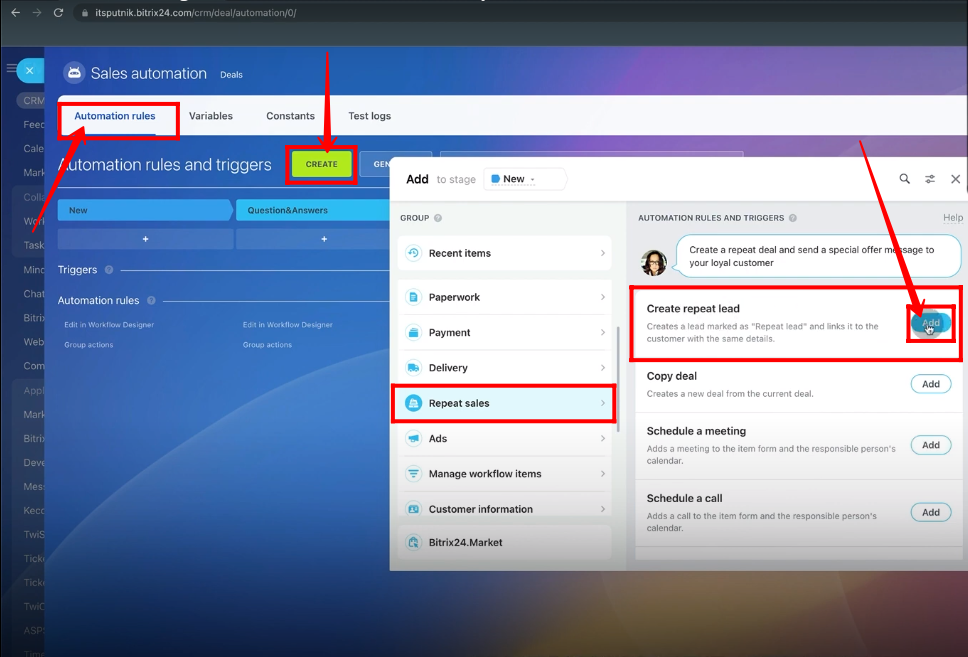
1. Go to “Automation Rules”. Click “Create”. Go to “Repeat Sales” and add “Create repeat lead” robot.
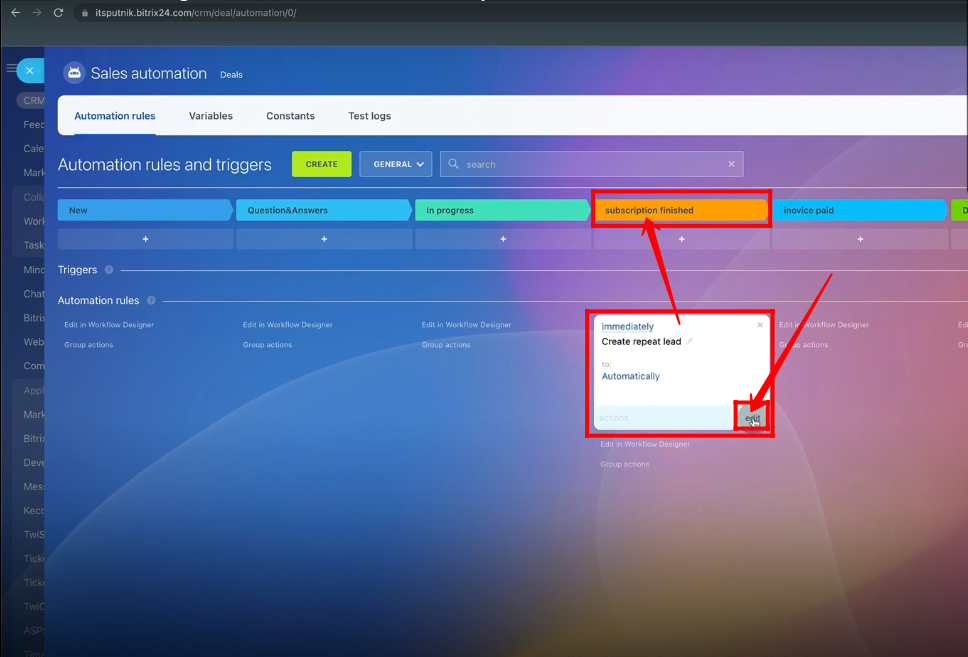
2. Drag “Create repeat lead” robot to “Subscription finished” stage. Click “Edit”.
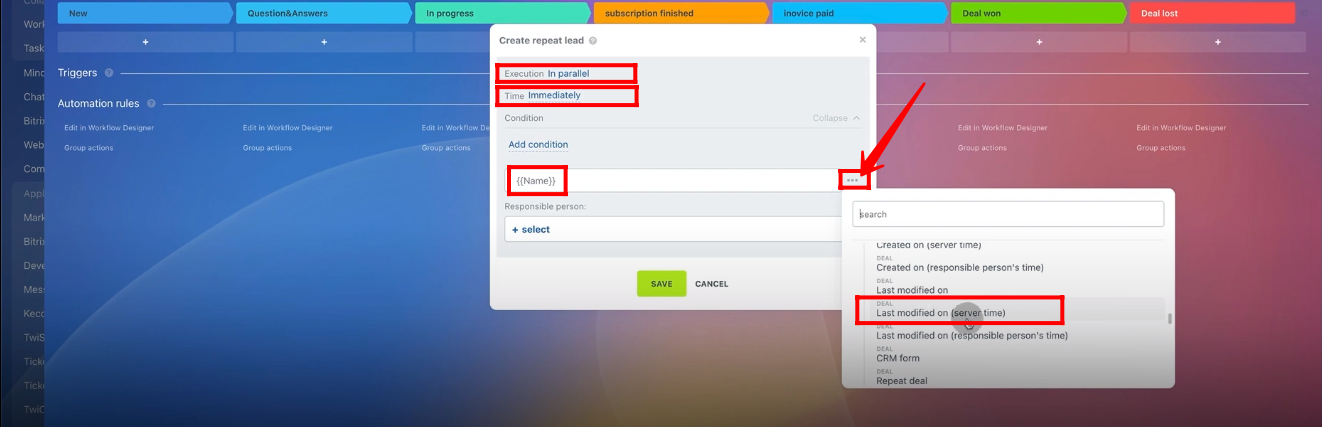
3. Fix “Execution” and “Time”. Add dynamic fields in description if required, by clicking on three dots option.
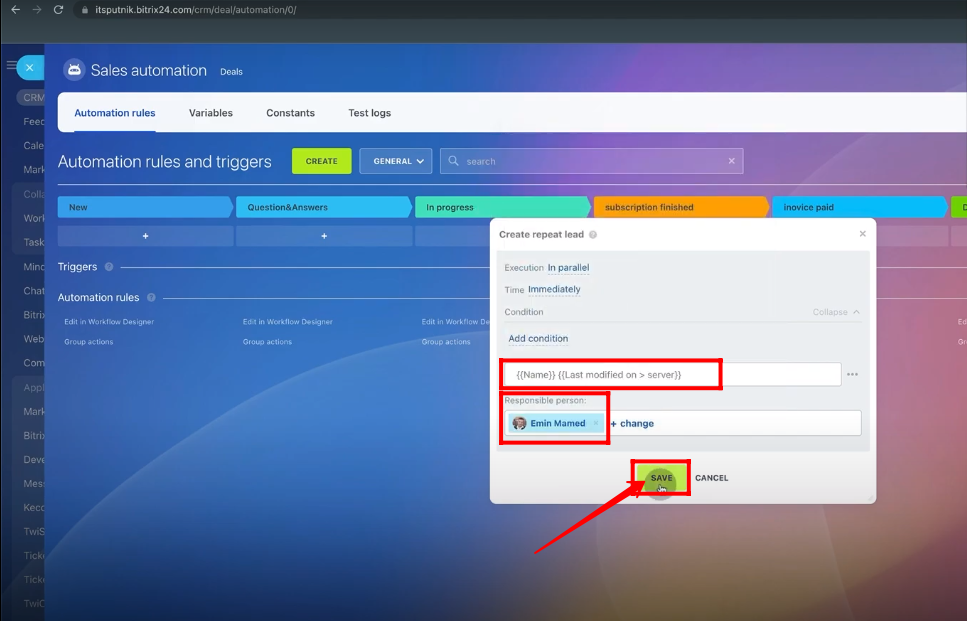
4. After adding dynamic fields in description, fix the responsible person. Click “Save”.
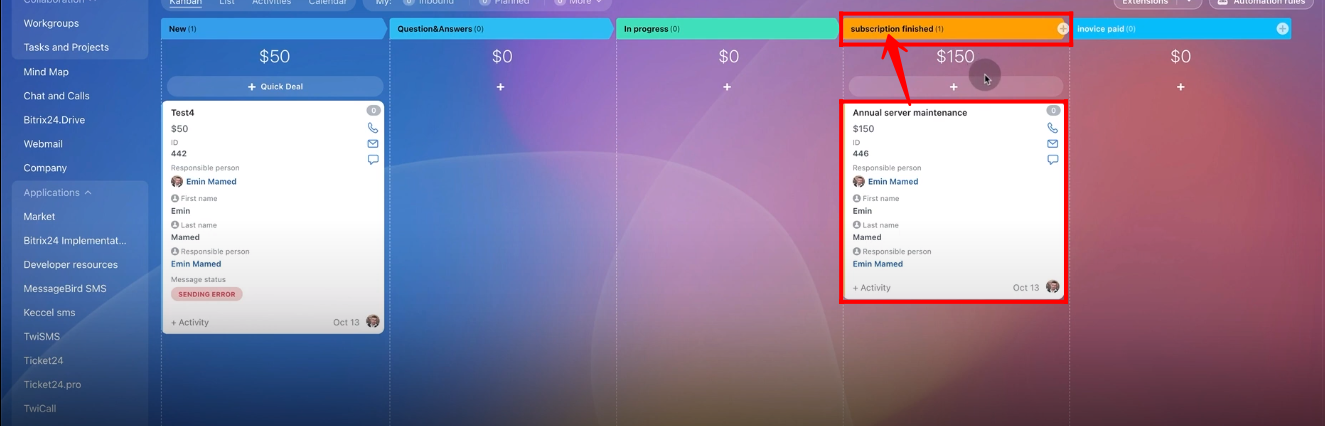
5. Move the deal to “Subscription finished” stage. In this case, the deal name is “Annual Server Maintenance”.
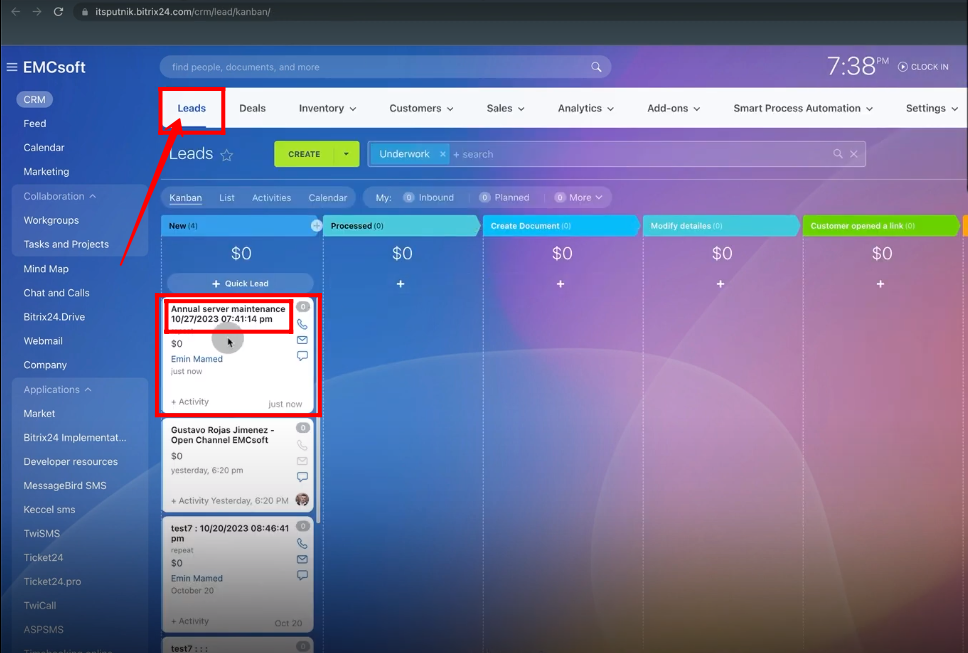
6. Go to “Leads” tab. Here, you can see that a new lead has been created with the same name as the deal name along with date and time.
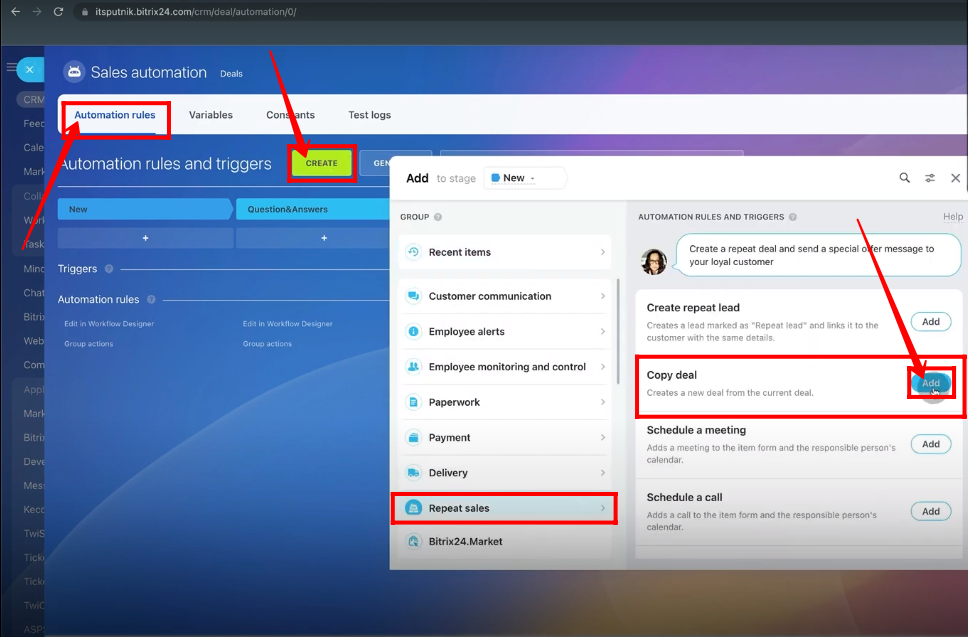
7. Go to “Automation Rules”. Click “Create”. Go to “Repeat Sales” and add “Copy deal” robot.
8. Drag “Copy deal” robot to “UpSale” stage. Edit it.
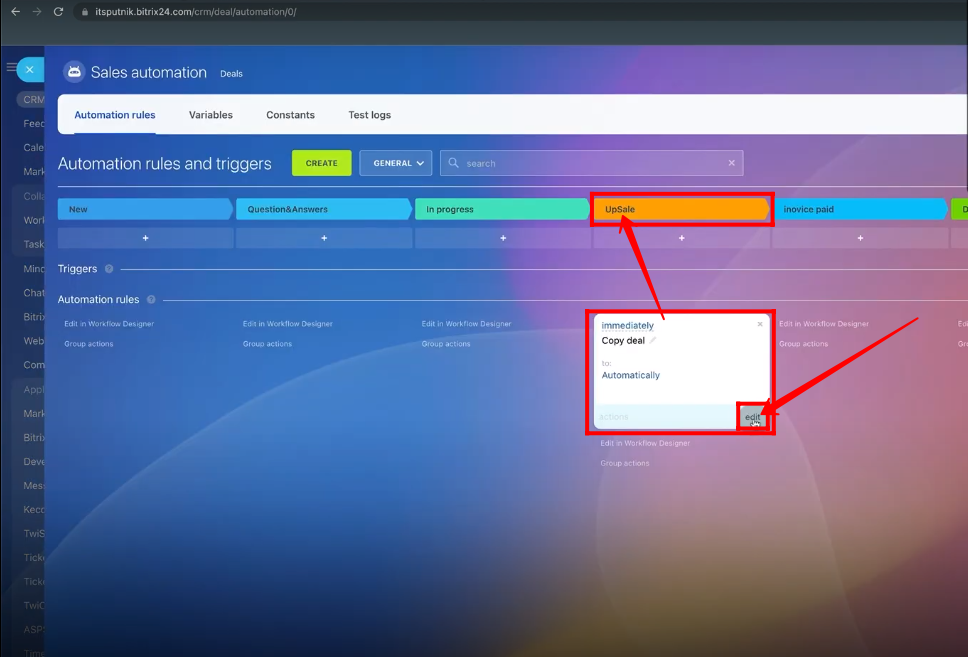
9. Fix “Execution” and “Time”. Name the deal with dynamic fields, if required. Select “Move to pipeline” as “Bank”, “Initial Stage” as “Bank/Payment link” and “Responsible Person”. Click “Save”.
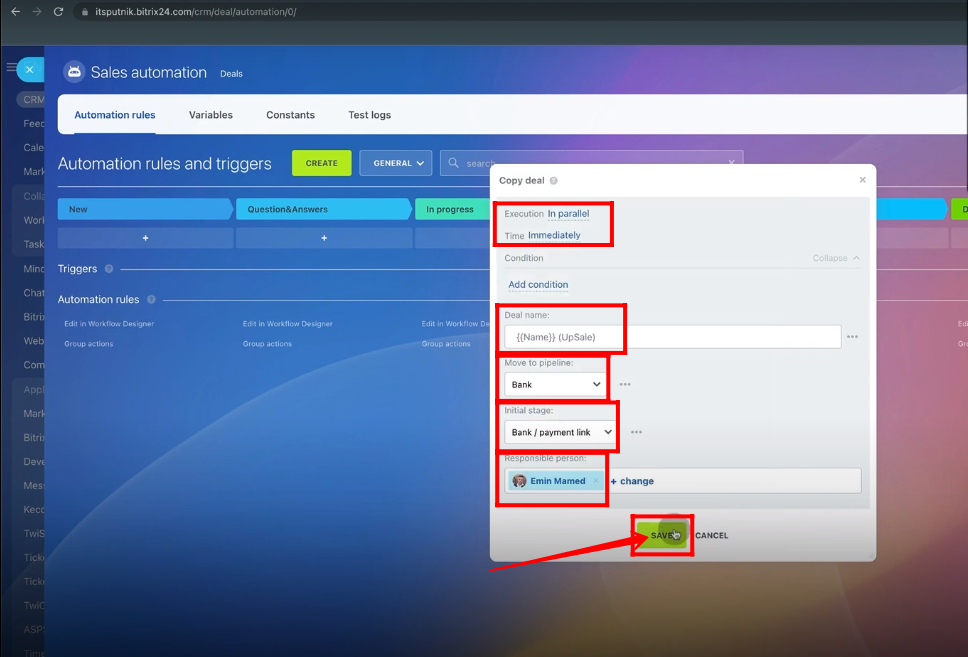
10. Move back the deal to “In Progress” stage and again drag to “UpSale” stage.
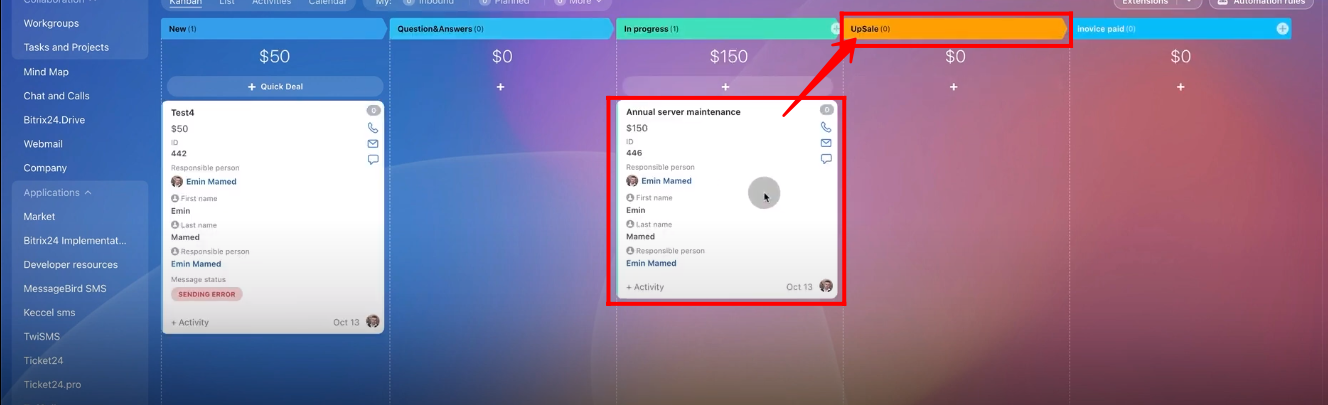
11. Refresh the tab and you can see under “payment link”, a new deal is created. Open it.
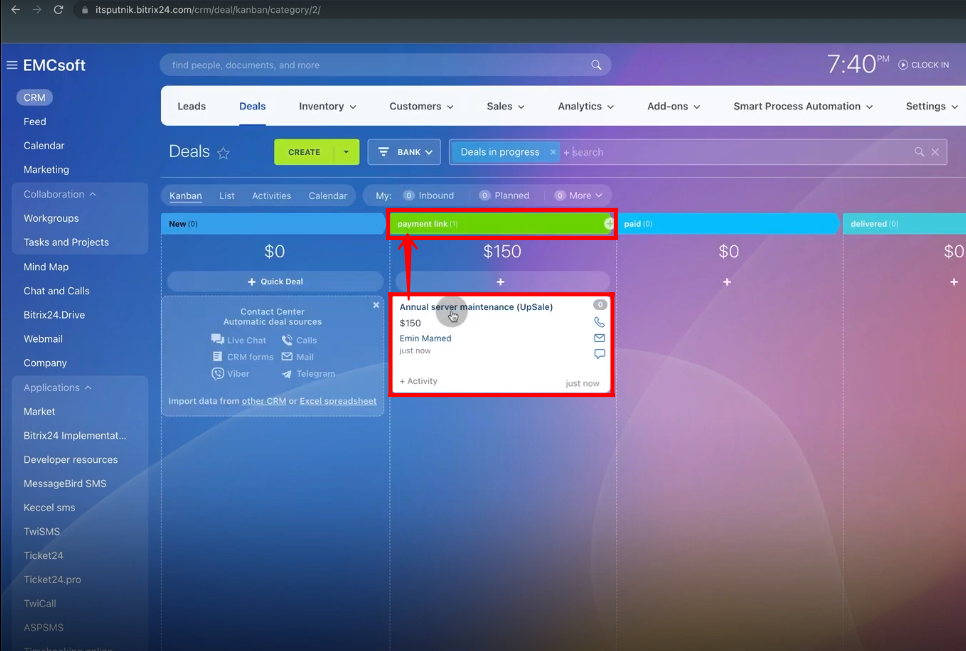
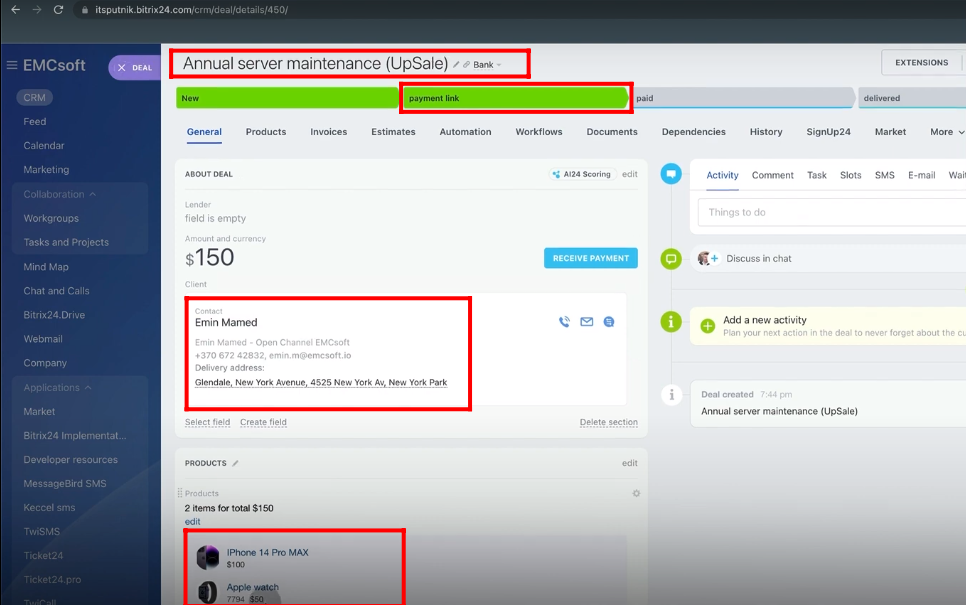
12. All the contact and product details from the previous deal will be copied in this deal.
13. Go to “Automation Rules”. Click “Create”. Go to “Repeat Sales” and add “Schedule a meeting” robot.
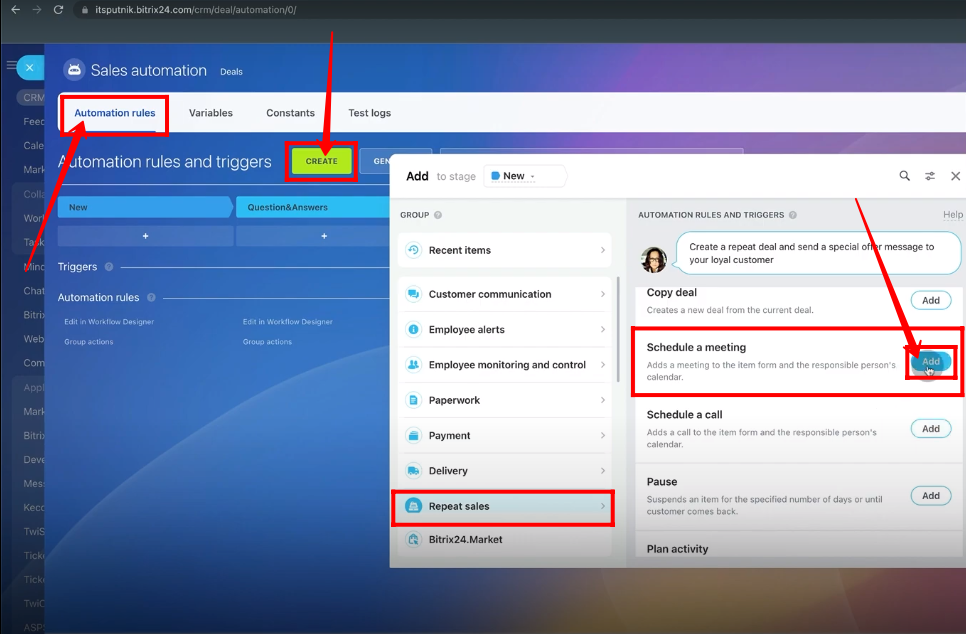
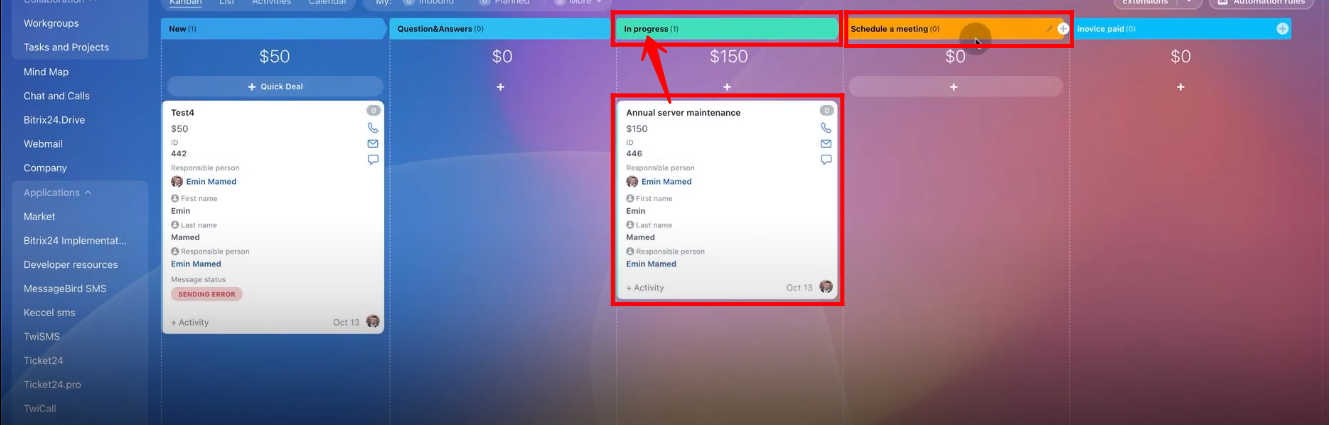
14. Move back the deal to “In Progress” stage. Edit or Create a new stage named “Schedule a meeting”.
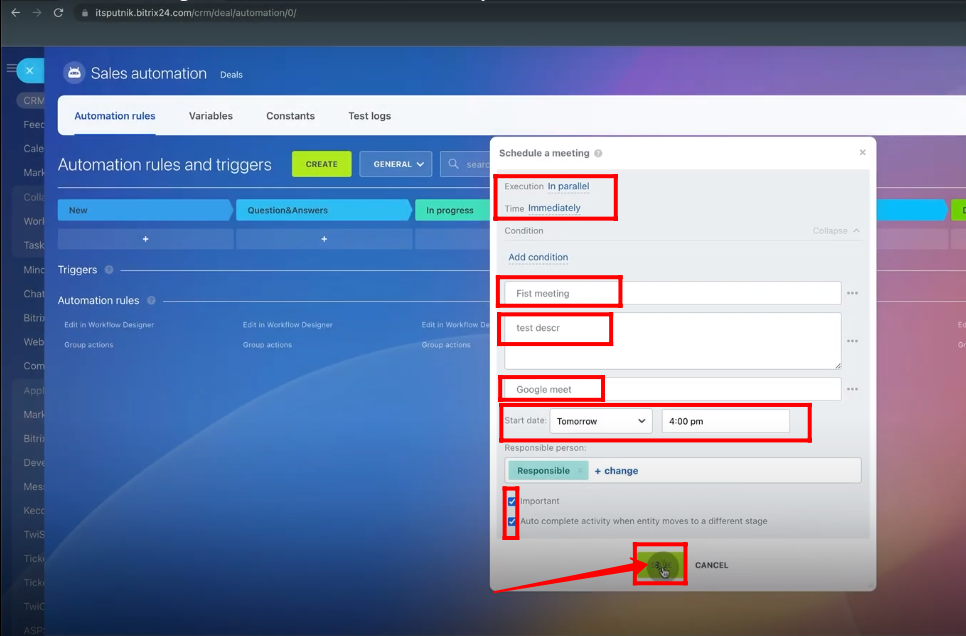
15. Fix “Execution” and “Time”. Name the “Title” and “Description”. Add “Location” and fix the start date. Check the boxes and click “Save”.
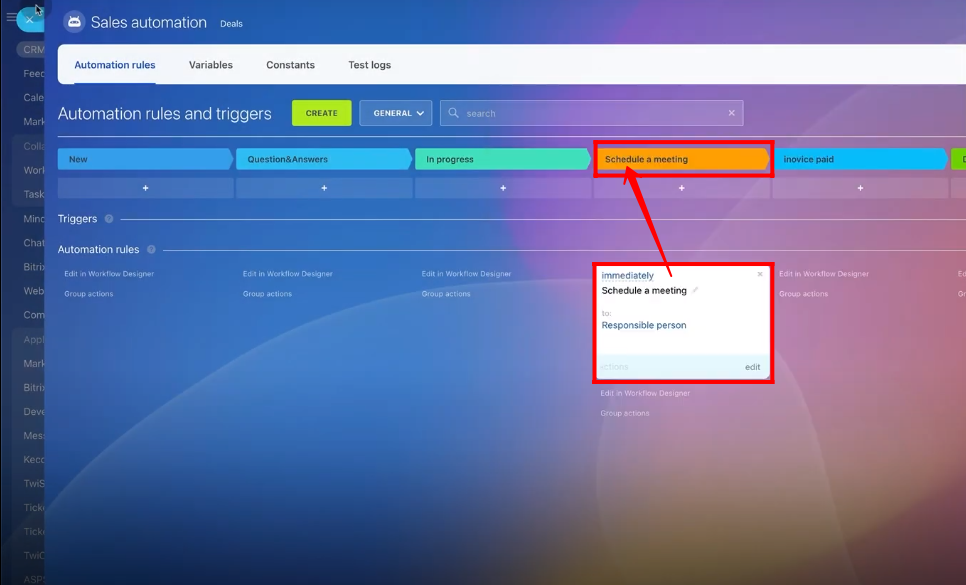
16. Move “Schedule a meeting” robot to “Schedule a meeting” stage.
17. Move the deal to “Schedule a meeting” stage. Open it.
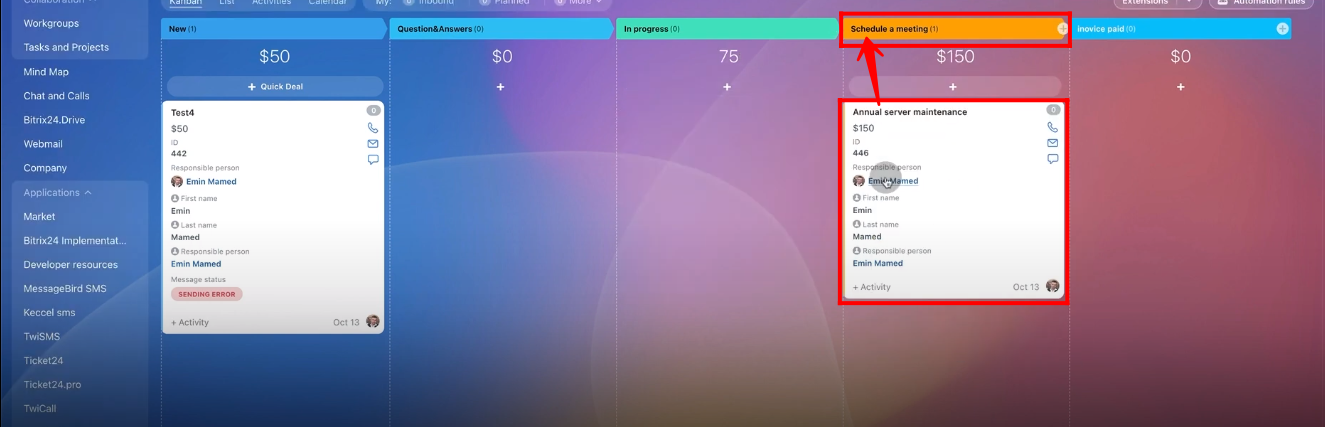
18. Meeting Schedule has been created within the deal. Open it.
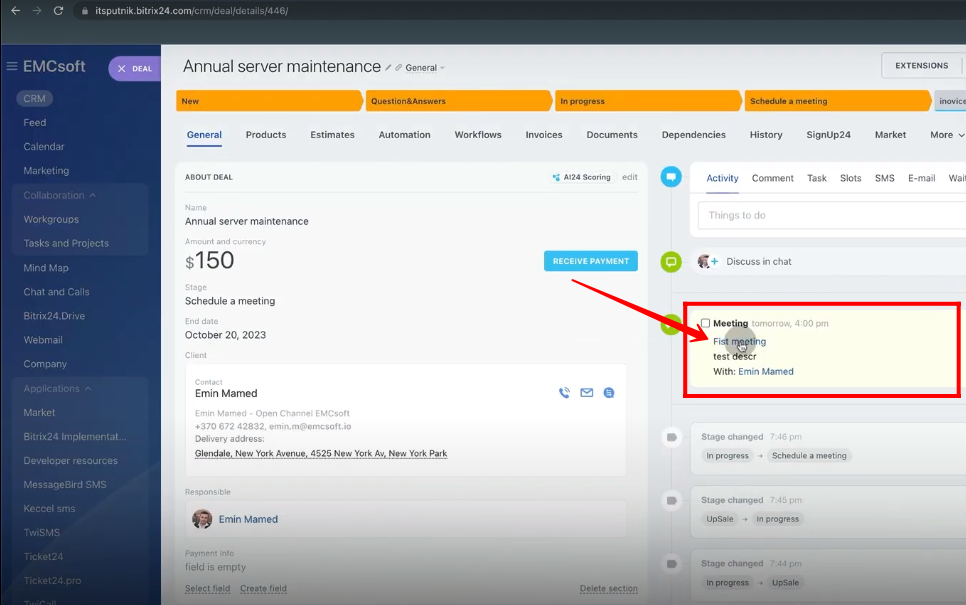
19. All the details including Date and Time, Meeting Subject, Description and Location are written.
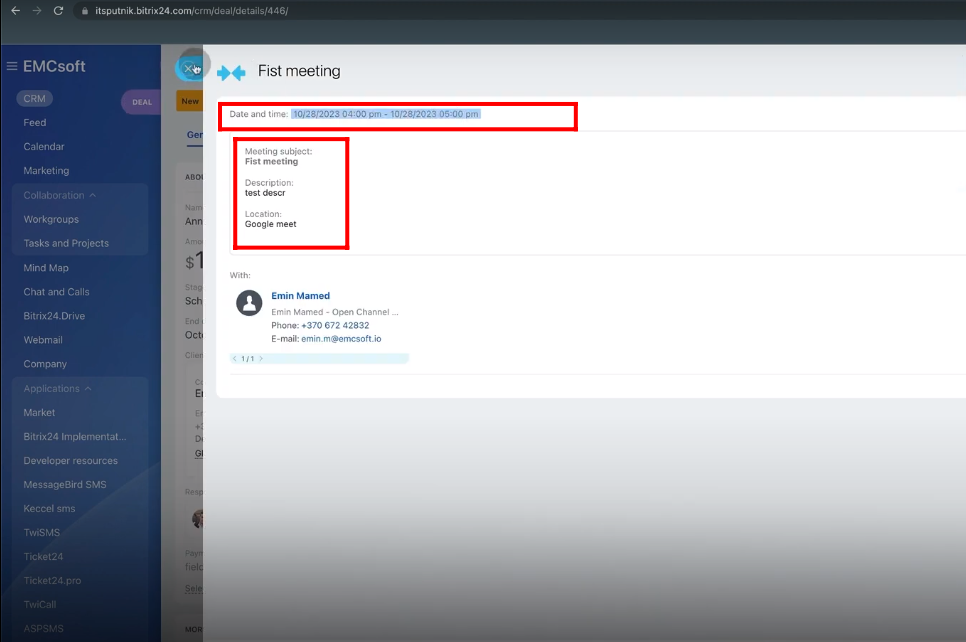
20. Go to “Calendar”.
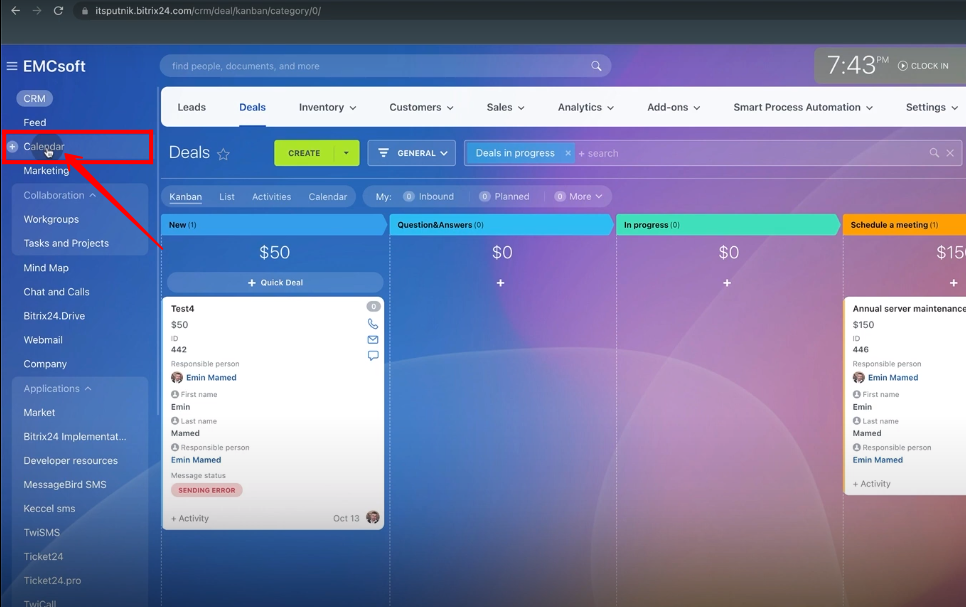
21. You can see all the meetings scheduled here. Click on any meeting and you will see all the details.
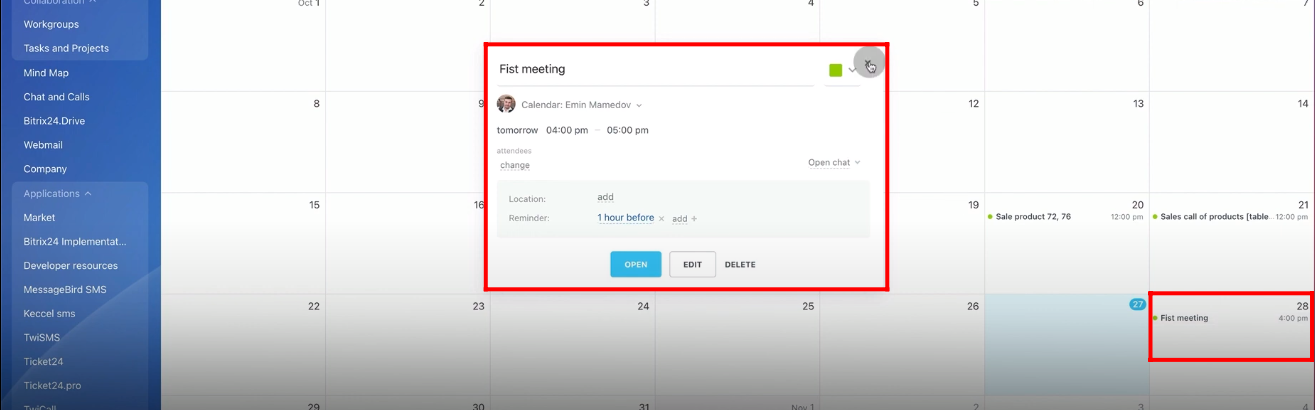
22. Move back the deal named “Annual Server Maintenance” to “In Progress” stage.
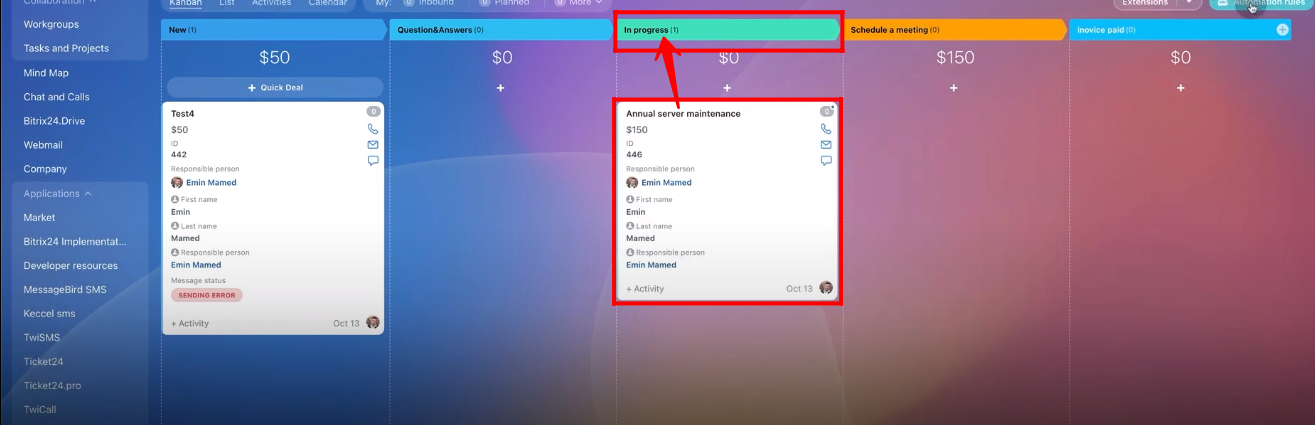
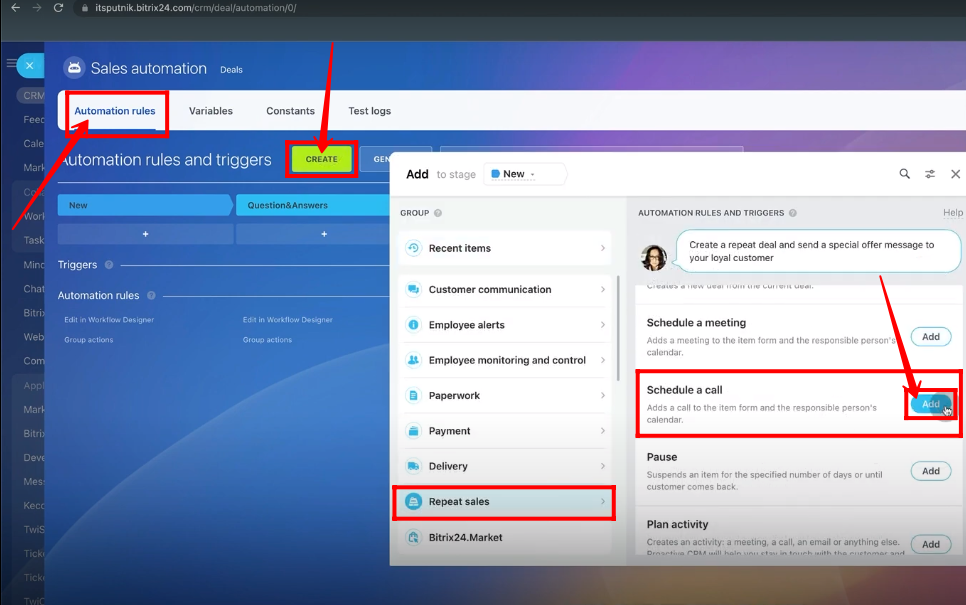
23. Go to “Automation Rules”. Click “Create”. Go to “Repeat Sales” and add “Schedule a call” robot.
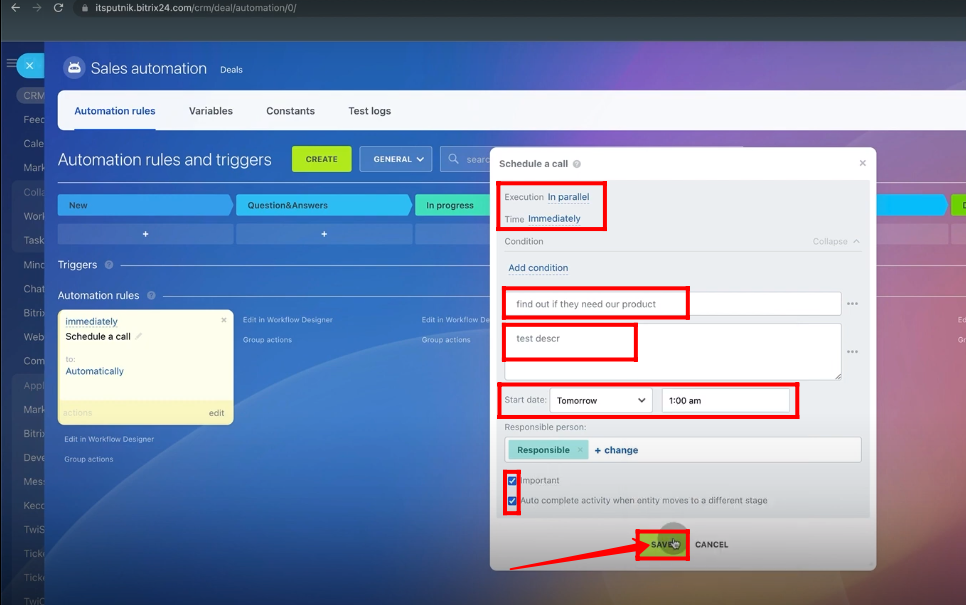
24. Fix “Execution” and “Time”. Write “Title”, “Description” and fix the “Start Date”. Check the boxes and click “Save”.
25. Move the robot “Schedule a call” to “Schedule a call” stage.
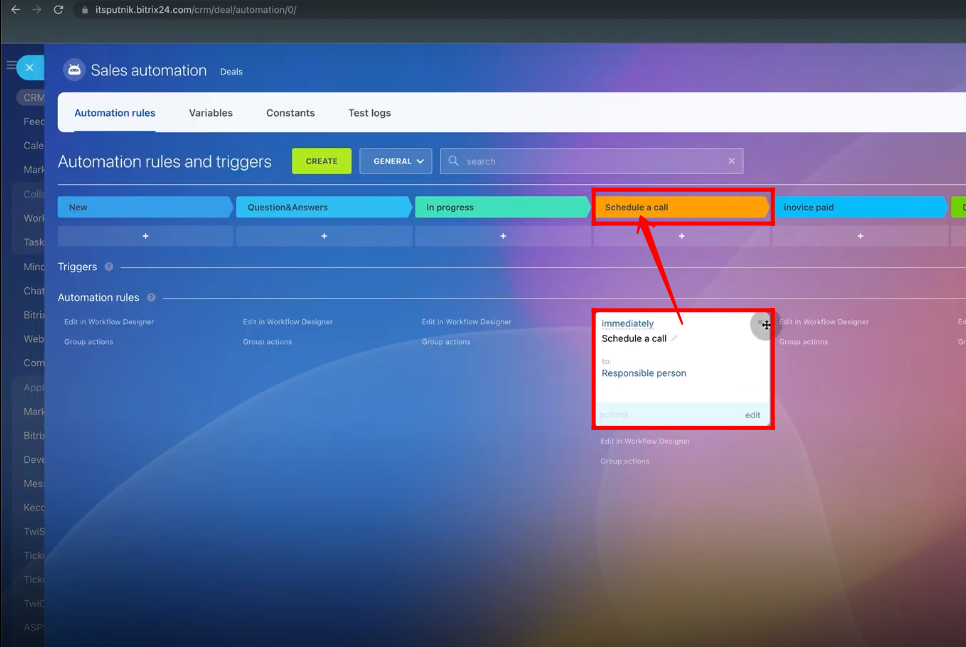
26. Move the deal named “Annual Server Maintenance” to “Schedule a call” stage. Open it.
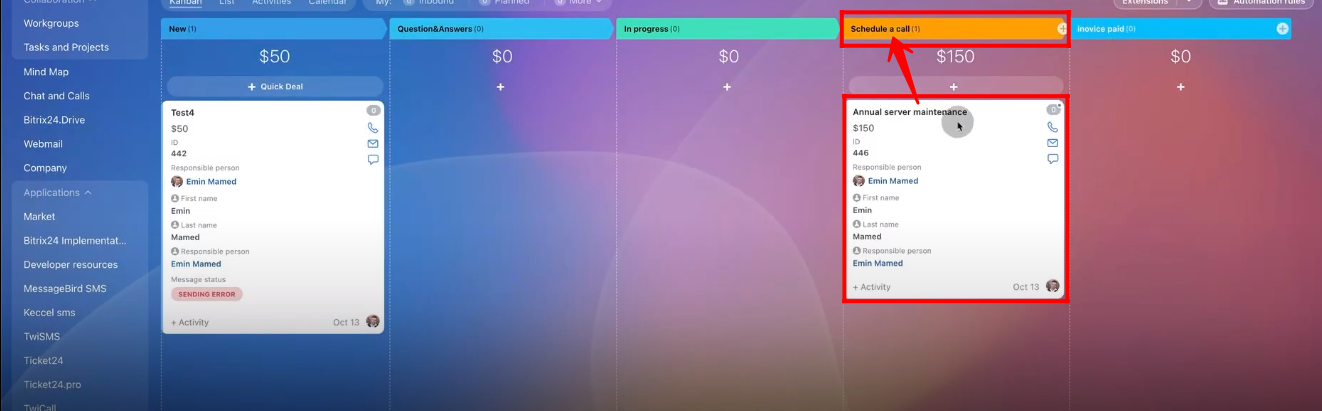
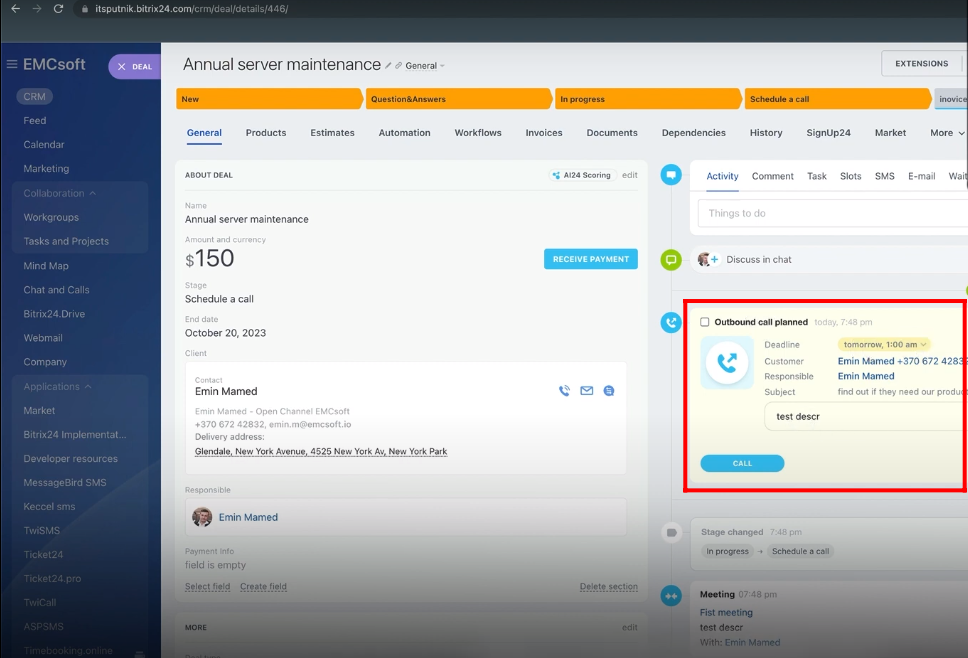
27. The “Outbound call planned” has been created within the deal.
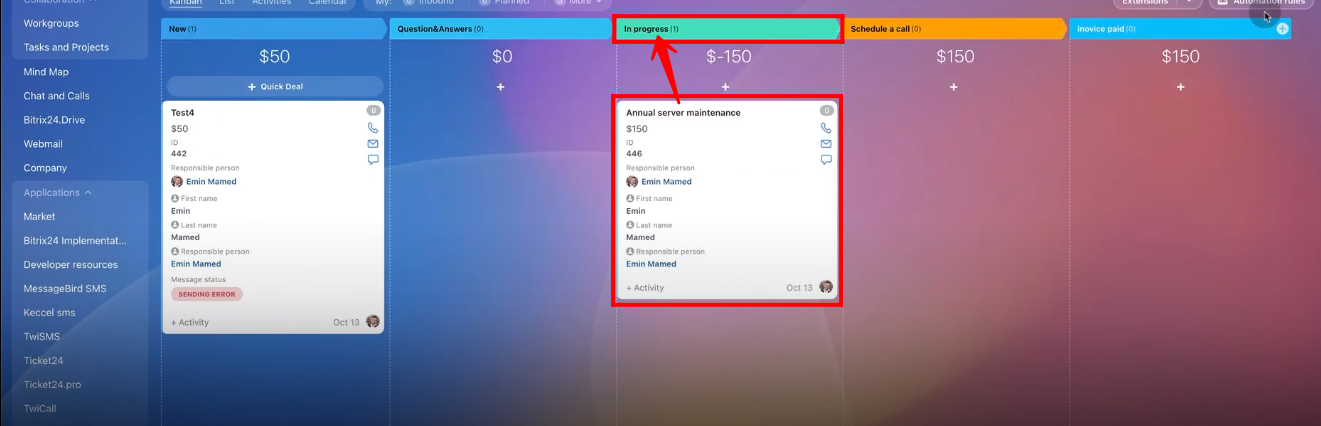
28. Move back the deal to “In Progress” stage.
29. Go to “Automation Rules”. Click “Create”. Go to “Repeat Sales” and add “Pause” robot.
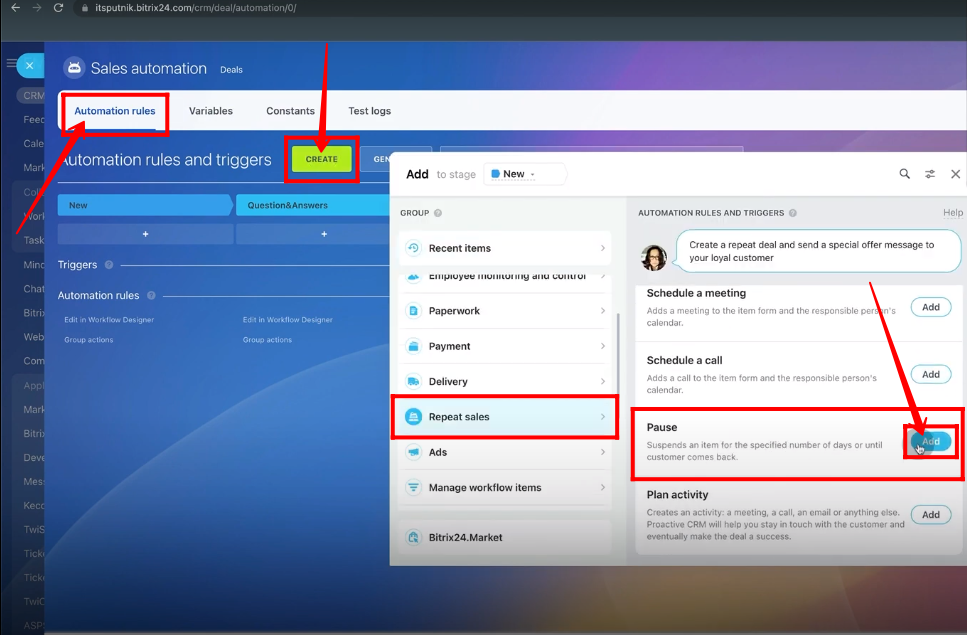
30. Edit or Create a new stage named “Waiting feedback from client”.
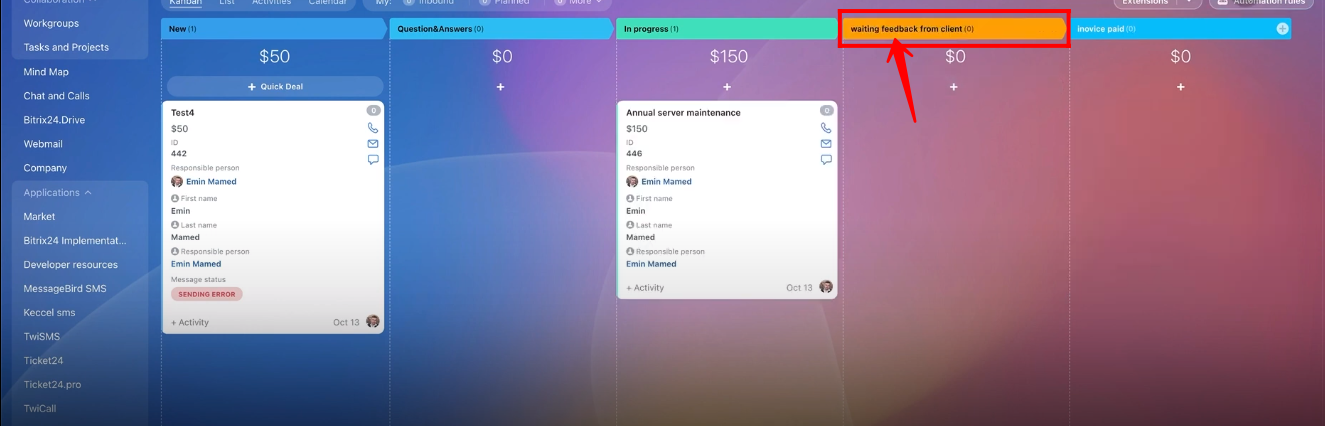
31. Drag the robot “Pause” to “Waiting feedback from client” stage. Edit it.
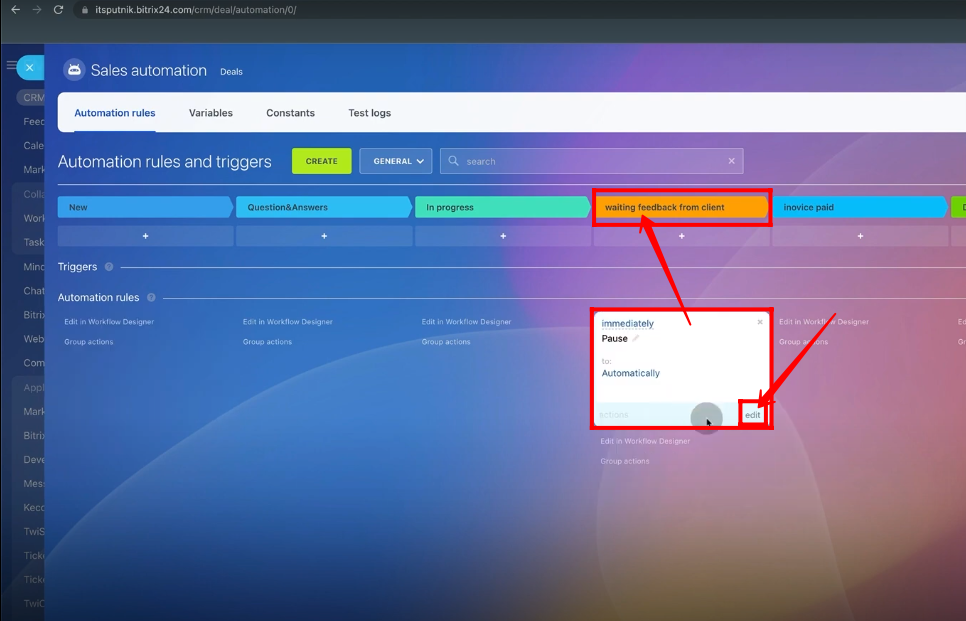
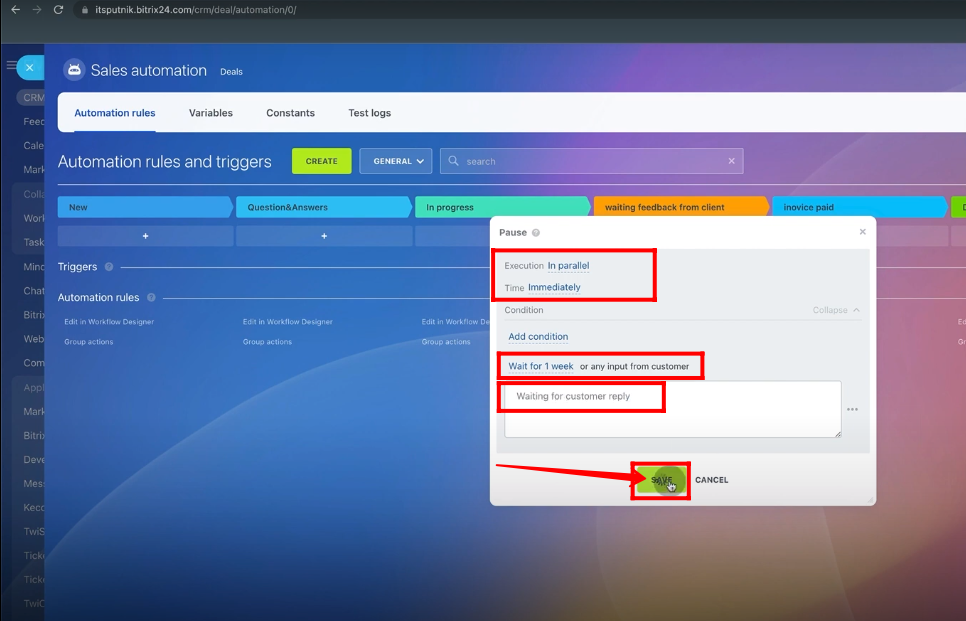
32. Fix “Execution” and “Time”. Fix the waiting time and write description. Click “Save”.
33. Drag the deal to “Waiting feedback from client” stage. Open it.
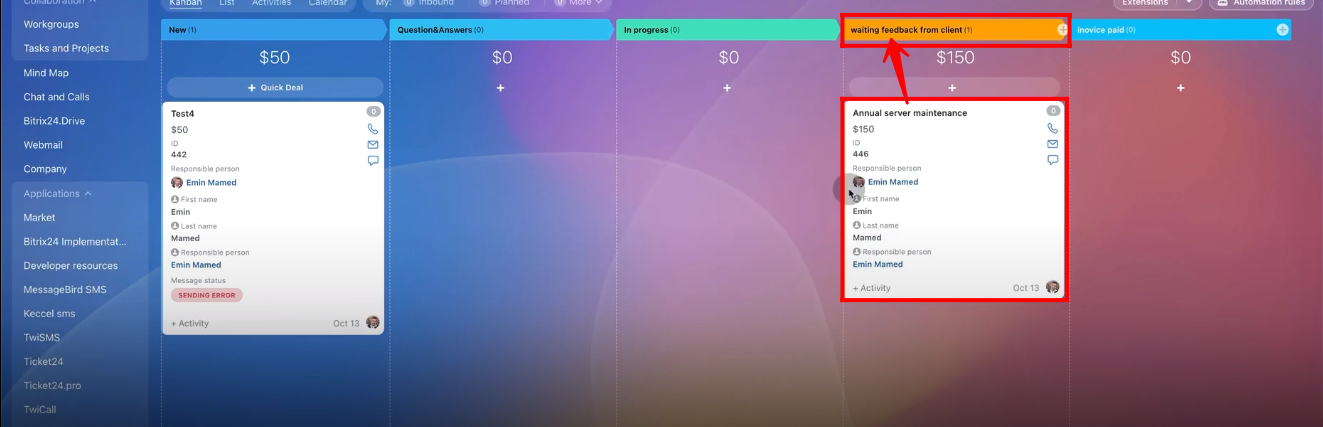
34. The waiting activity has been created within the deal along with description.
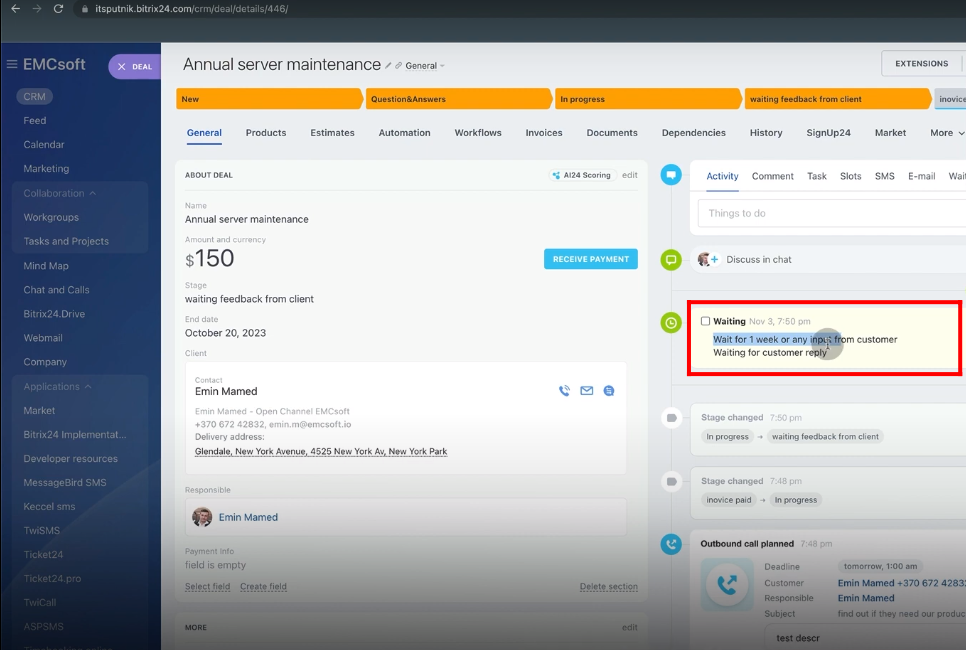
35. Move the deal to “In Progress” stage.
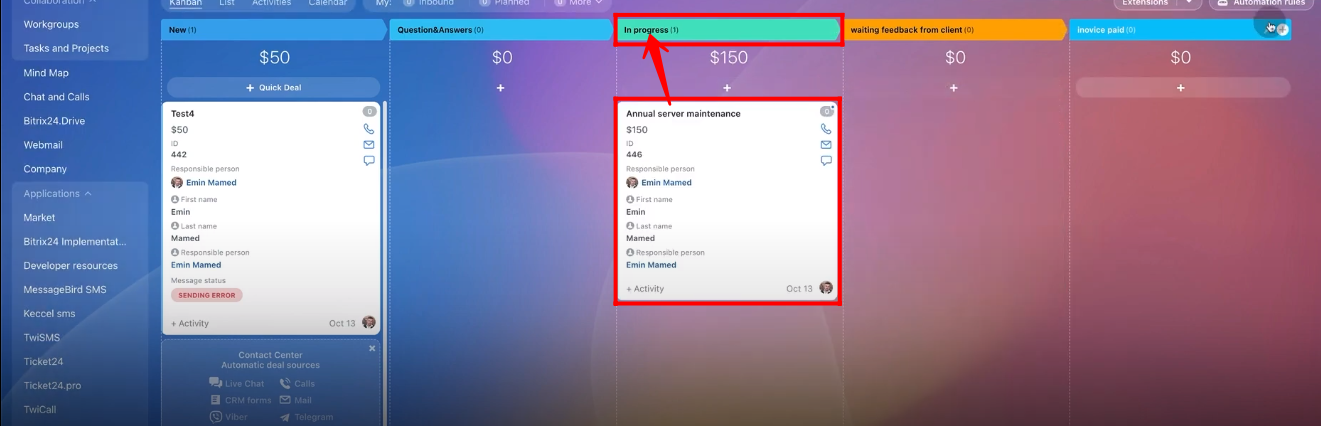
36. Go to “Automation Rules”. Click “Create”. Go to “Repeat Sales” and add “Plan activity” robot.
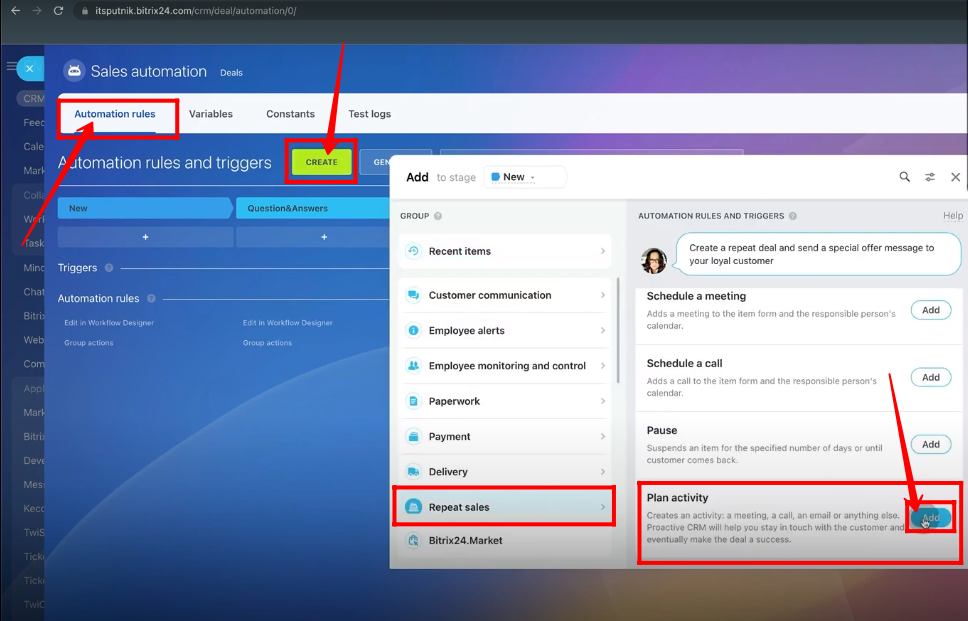
37. Edit or Create a new stage named “Prepare an offer to client”.
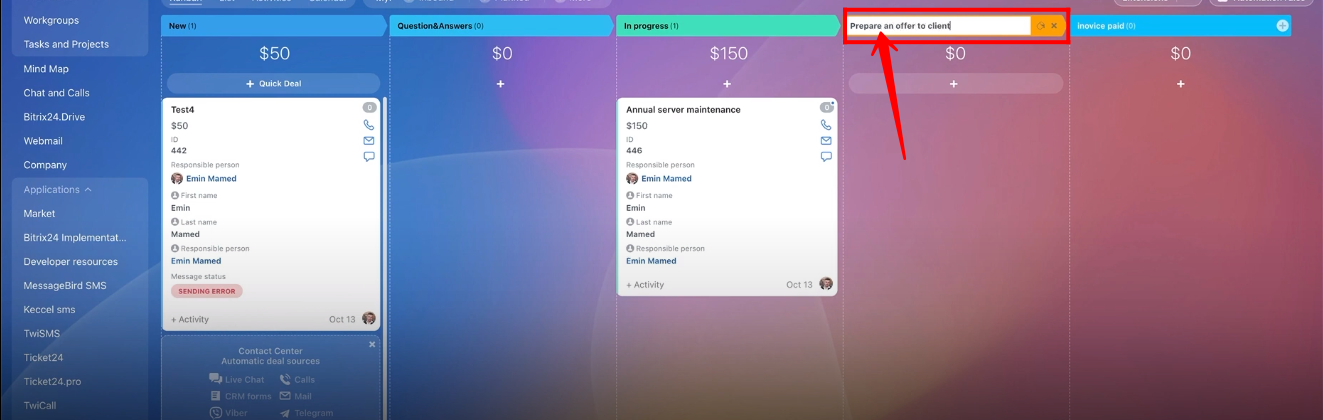
38. Move “Plan activity” robot to “Prepare an offer to client” stage. Edit it.
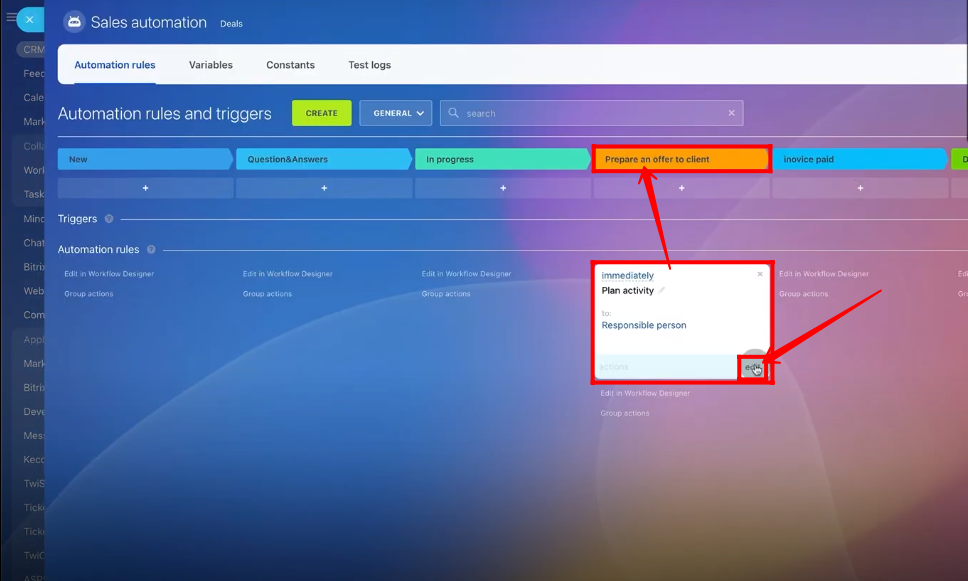
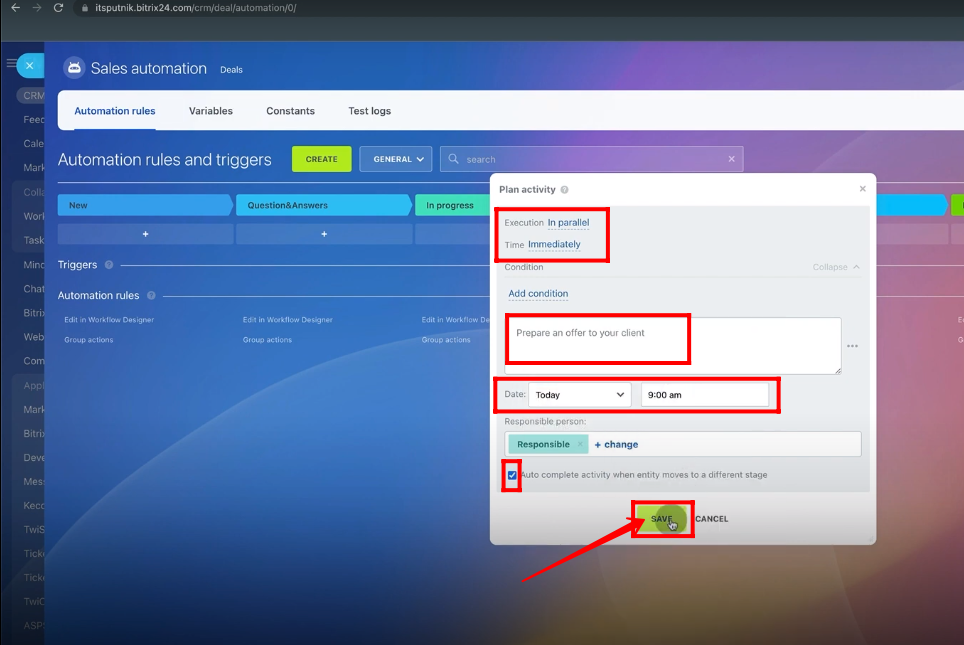
39. Fix “Execution” and “Time”. Write “Description” and fix the “Date”. Check the box and click “Save”.
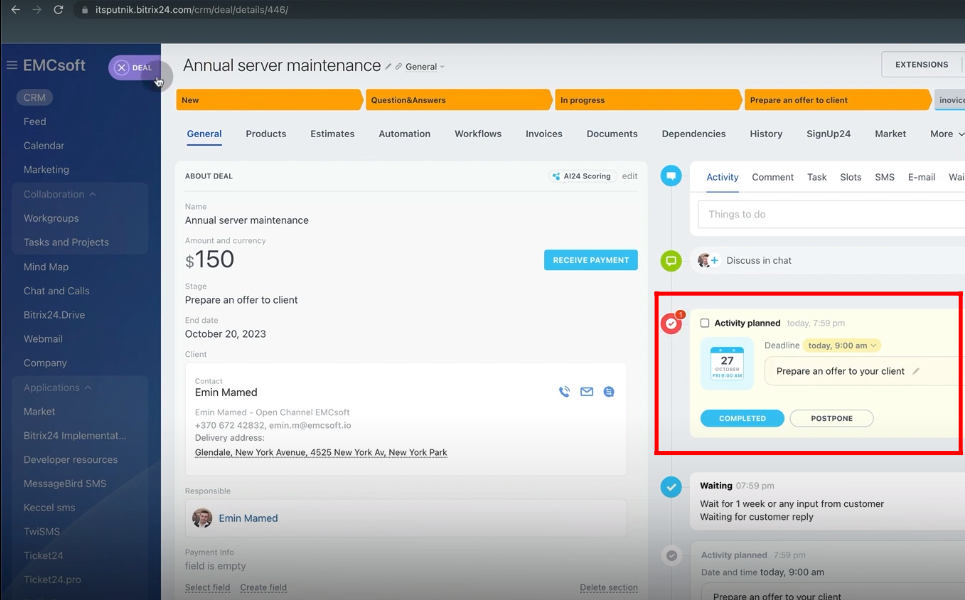
40. Move the deal to “Prepare an offer to client” stage. A notification will appear at the top of the deal box. Open the deal.
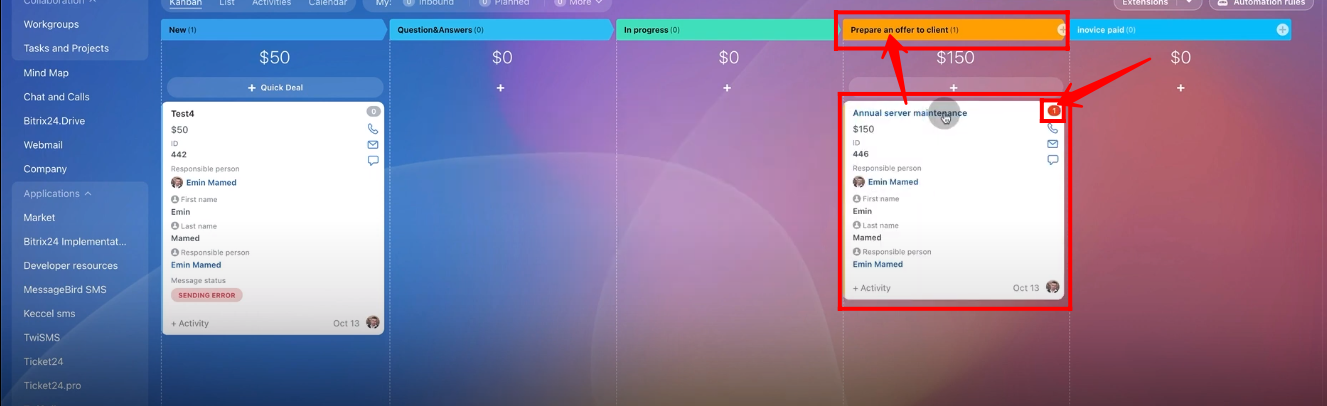
41. An activity planned has been created within the deal along with deadline and description.
“You can also watch this video on Youtube”
Play video