
Bitrix24 Training Course. Appendix 6. Permissions: Move To Stage

Users Stage Movement Restrictions
This permission determines whether a user can change the stage of items in the CRM. It applies specifically to Deals, Leads, Estimates, and Invoices. You can also customize it to allow users to move items only to specific stages, giving you more granular control over how items progress through your pipelines. This helps enforce internal processes and maintain consistency across teams.
To set up Stage Movement Permissions follow these steps:
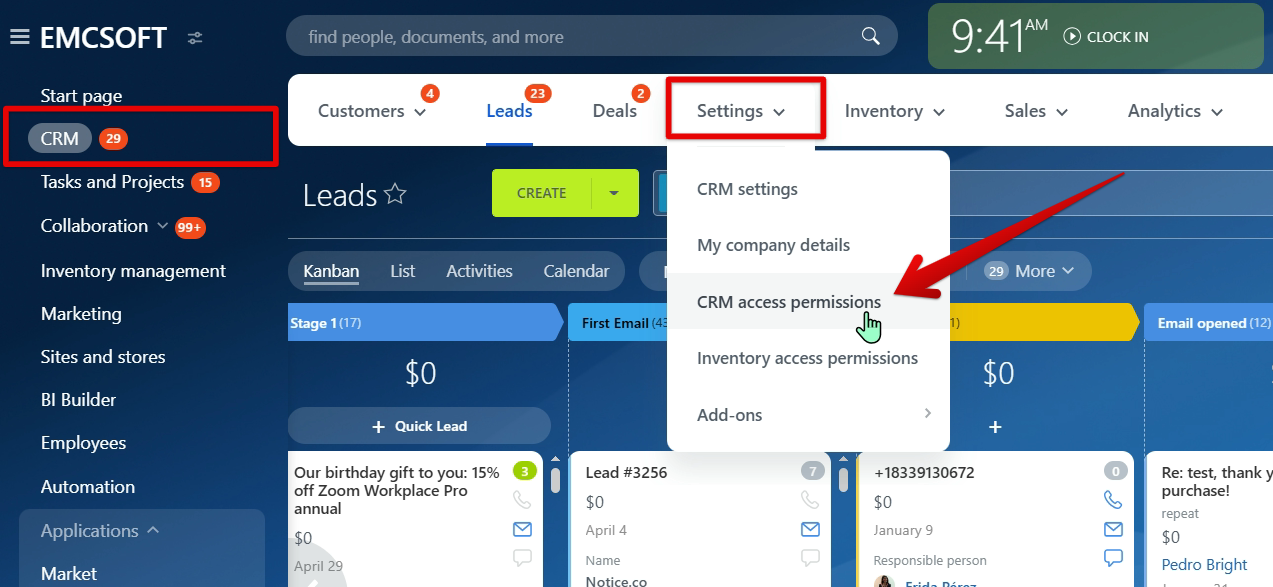
1. Go to your Bitrix24 portal and select the CRM option on the left side menu, Then, look for Settings and click on CRM access permissions.
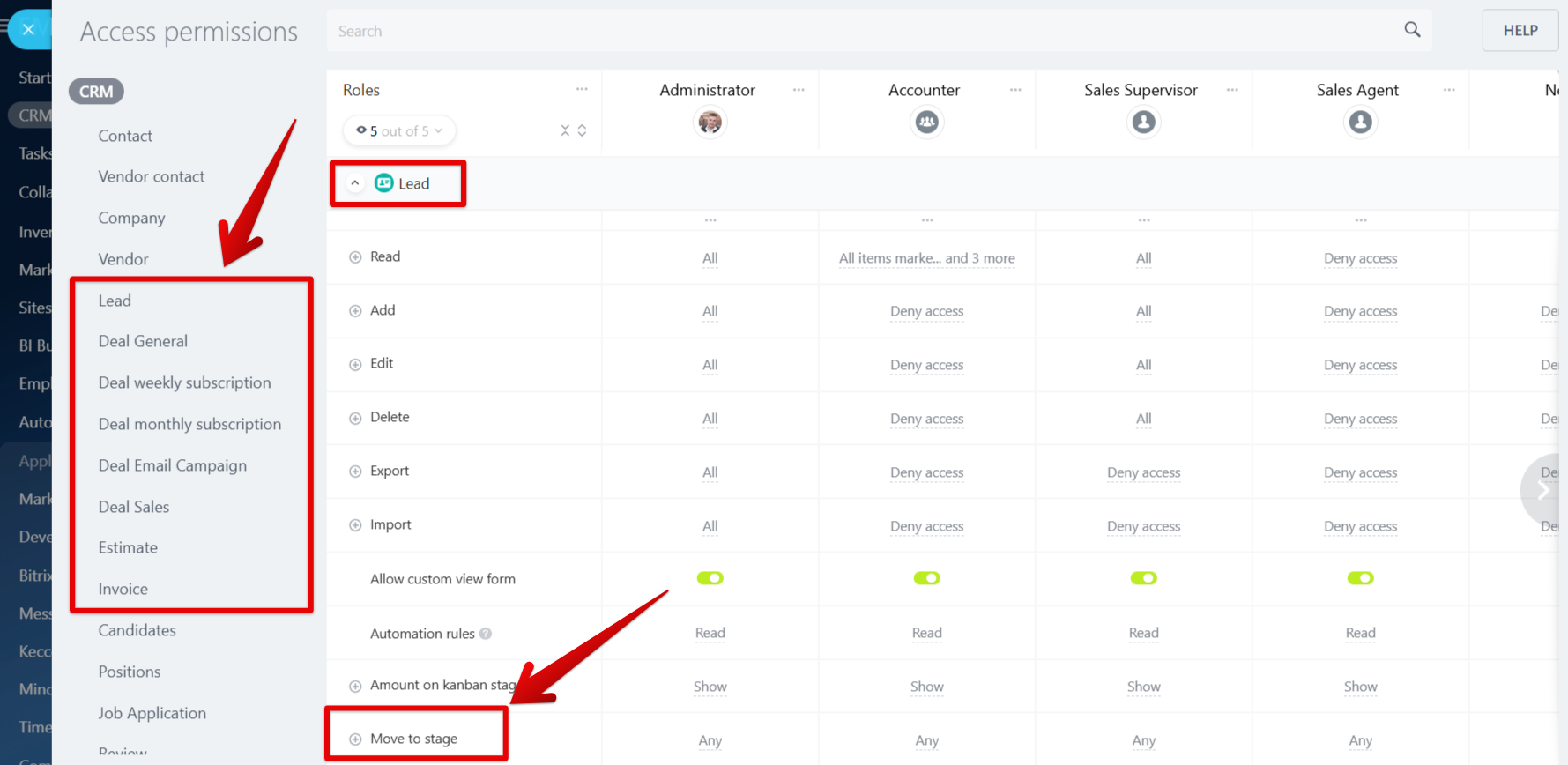
2. Once you open the CRM access permissions, choose the CRM Item you want to modify permissions for, in this example we will choose Leads. Then scroll down until you find the Move to stage section and click the plus sign on the left side.
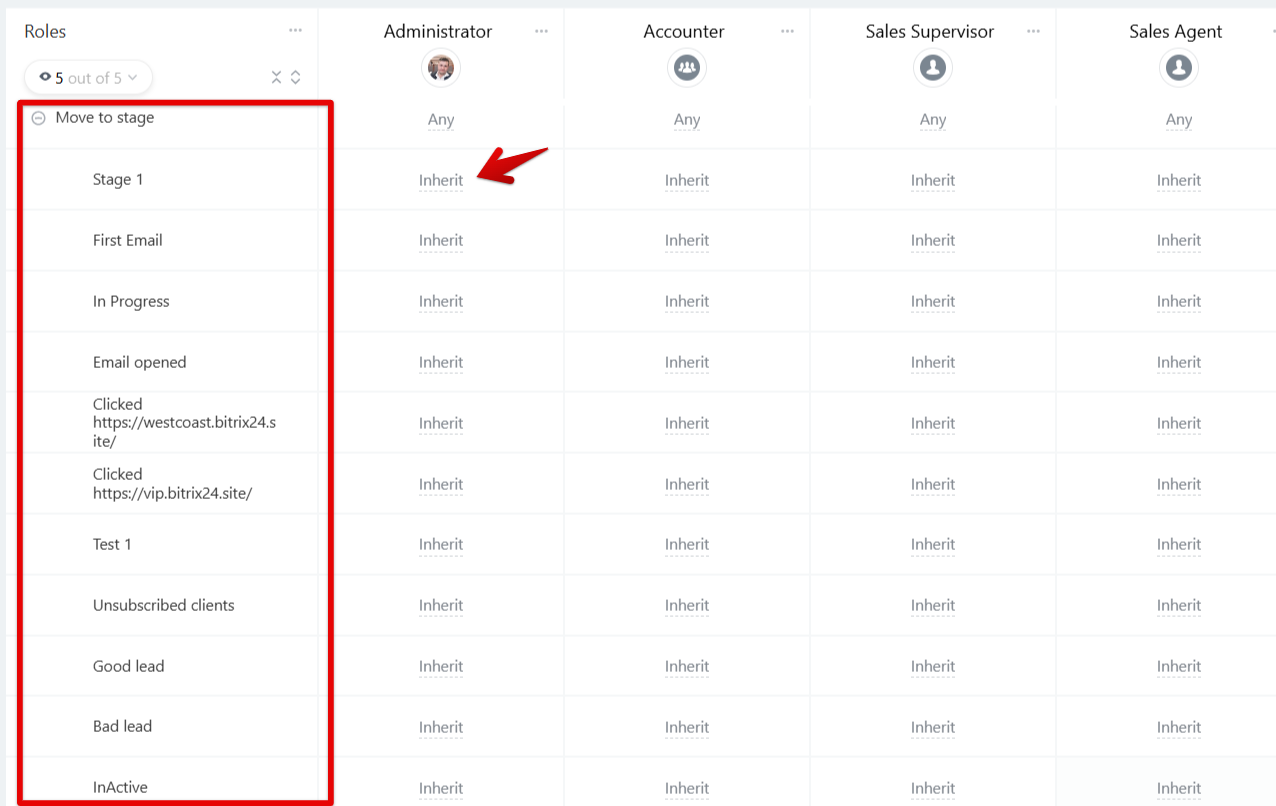
3. After clicking the plus sign, you’ll see a list of all stages for the selected CRM item. On the right side, you’ll find the roles you’ve configured for your users. To adjust permissions, locate the column for the role you want to modify, then click the field labeled “Inherit” next to the stage where you’d like to set specific access rights.
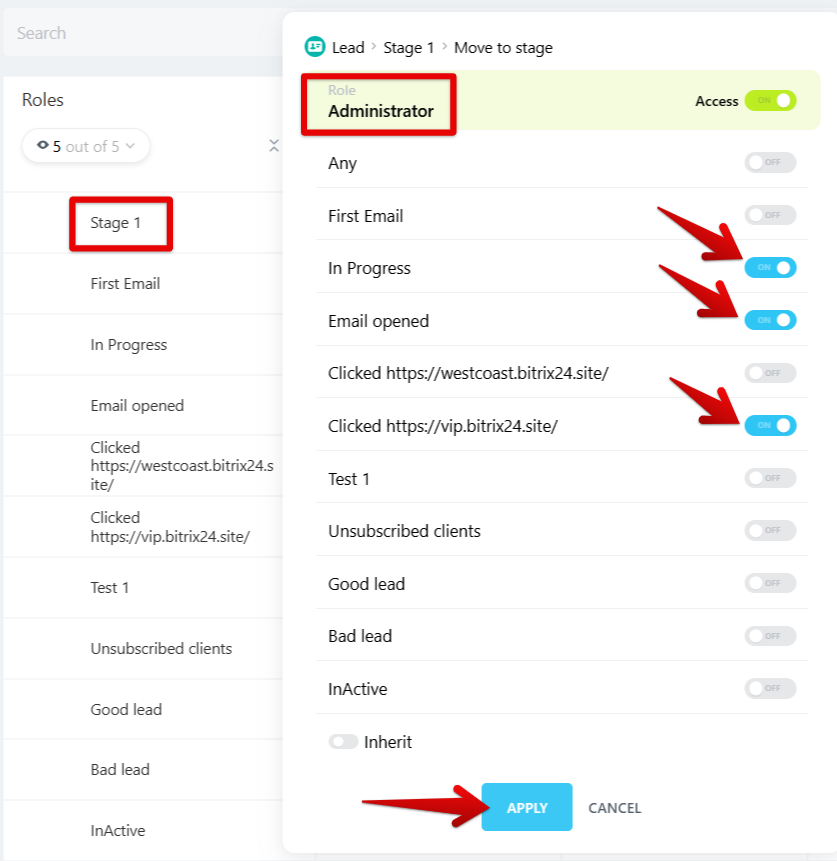
4. Once opened, you’ll be able to choose which specific stages users in the selected role are allowed to move the lead (or other CRM item) to.
In this example, users assigned to the Administrator role are permitted to move leads from Stage 1 to the In Progress, Email Opened, and Clicked stages. However, they will be restricted from moving leads from Stage 1 to any of the other remaining stages.
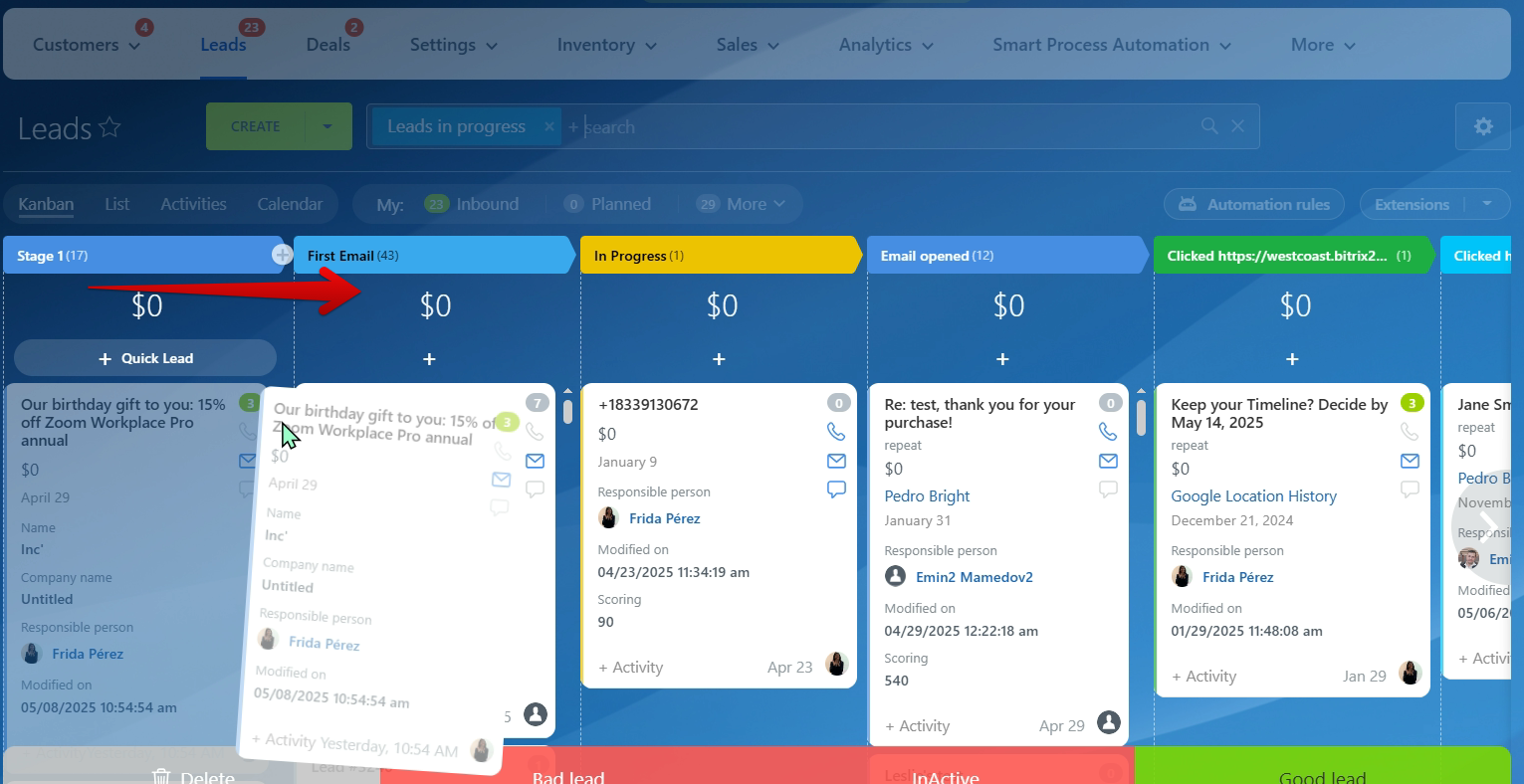
5. Now, when an Administrator user tries to move a lead to an unauthorized stage (for example Stage 1 to First Email), they will be denied access, and the lead will go back to the original Stage.
6. Repeat these steps for any other stages where you want to set specific move permissions. Select the roles you want the rules to apply to, and don’t forget to save your changes.
Important note: keep in mind that if a user is assigned to multiple roles, the system will apply the permissions from the role that grants them the highest level of access.
“You can also watch this video on Youtube”
Play video