
How to Integrate Google Docs to Bitrix24

Google Docs as a part of Google Workspace
Google Docs is a productivity tool and part of Google Workspace (formerly G Suite), productivity software and apps. Google competes with Microsoft and its Office365 on the productivity suites market.
One of the main features allowing users to prefer Google Docs (and also Google Sheets, Slides etc.) is super easy online collaboration. Ability for multiple users to edit and collaborate in real-time is crucial for remote work, vastly expanded in recent times.
Google Docs and CRM integrations
In corporate sales, collaboration can be helpful when decision making requires involvement of different departments.
Let’s imagine a business selling grinding mills and raw crushers. Usually, such companies have a checklist where client points out what size of the crusher he needs, which materials it need to grind and so forth. For example, client sends an email with filled checklist. Email automatically appears as a Lead and sales manager can download it to the Drive and create a task where he will ask his colleagues from production department to reply. Technical manager clicks the link provided and write his answers right in that checklist.
This is how sales process can be organized seamlessly using integrations with CRM, particularly Google Docs. We also have an overview of Office365 integration with Bitrix24 “in this article”.
Anyway, integrations like this make life easier, reducing time spent on switching between apps and saving documents over and over again.
Google Docs + Bitrix24 in corporate system
Somebody can state that CRM extended features are useless and not applicable in routine work. Let’s see how Google Docs integration can help in common corporate situation.
For example, your company has a knowledge base, which is constantly updated by employees. Imagine your sales have a sample document explaining how to prepare price quote which they keep in cloud drive. Thanks to Google Docs integration any sales manager or newcomer can open that file simultaneously in CRM system window.
Moreover, imagine that company’s corporate design has changed. A member of marketing team can change above mentioned price quote document according to a new brand book.
In Bitrix24, he will just find that file in drive, make changes and save it. Also, he will notice sales department about changes via “Bitrix24 Feed”, staying in the same program.
This is a real-world example of how Bitrix24 extent functions, including Feed, sales and tasks management can increase collaboration and efficiency in most companies.
Integrations in Bitrix24
We have a review of another Google productivity tool – Google Calendar integration in Bitrix24 ““in this article”.
Despite enabling these integrations requires a number of iterations, still you do not need to have a coding skill to succeed. Tutorial below requires some patience but that’s worth the effort.
Let’s see what actions should be taken in order to enable Google Docs in Bitrix24.
1. Firstly, log in to your Google account. Then go to Google Cloud Platform at the following URL: https://console.cloud.google.com/getting-started
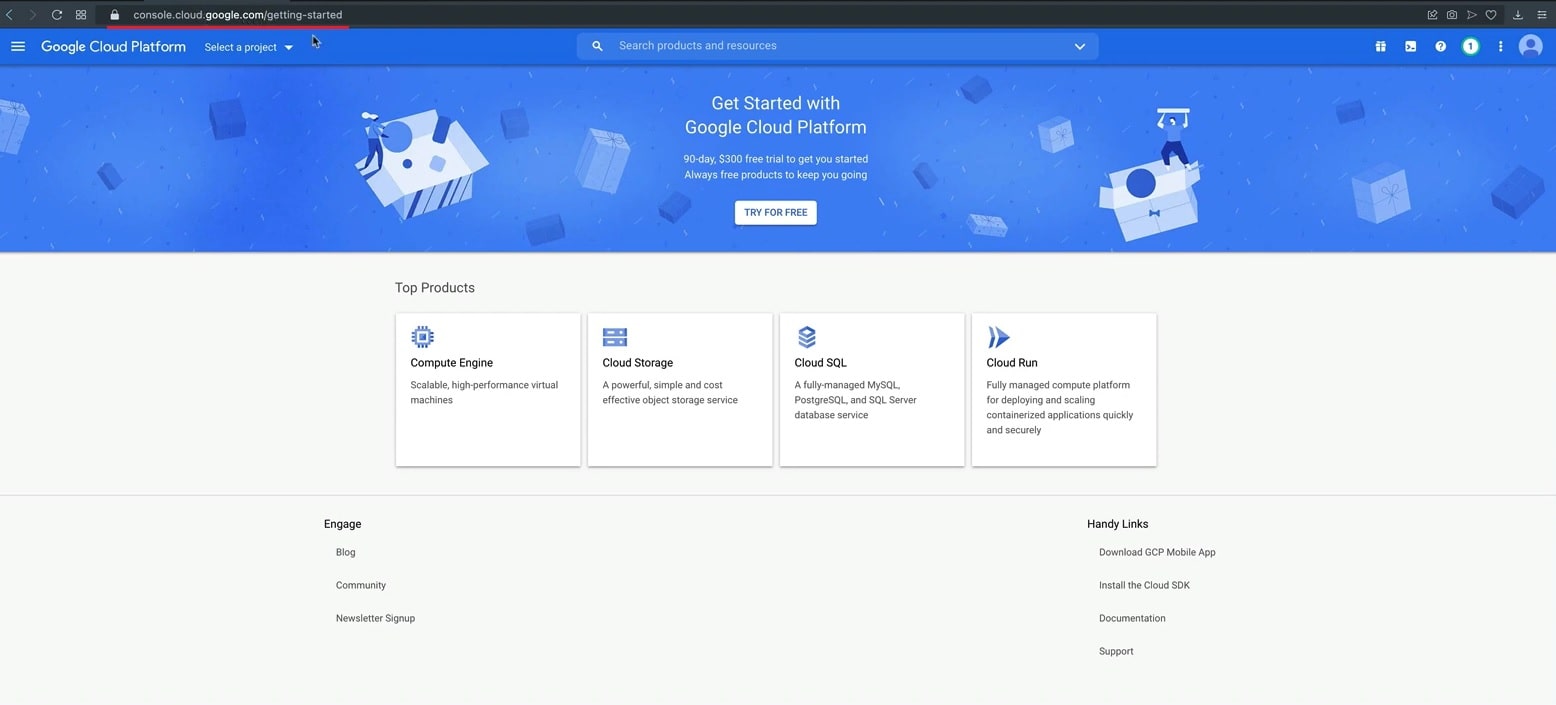
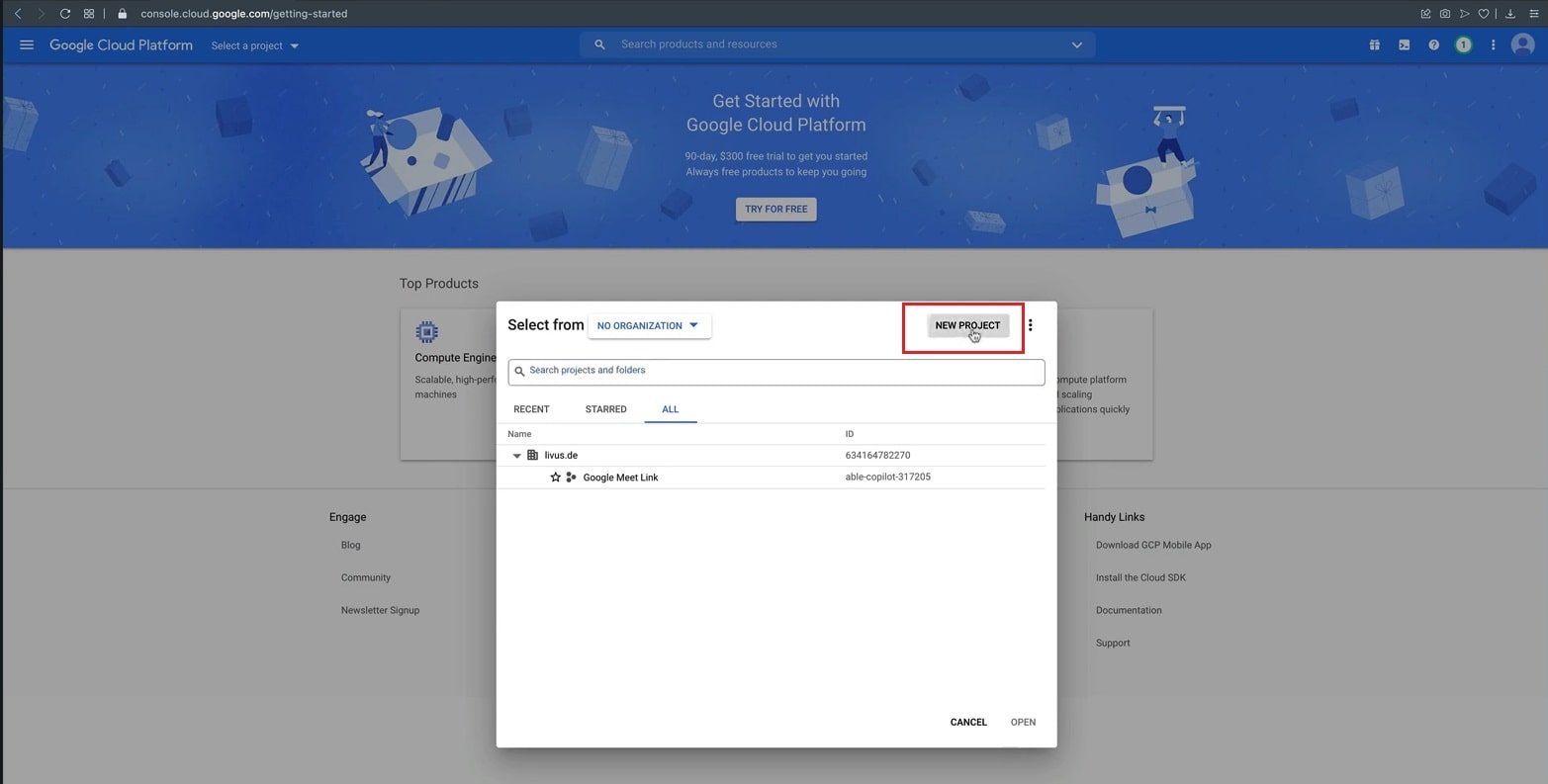
2. Then click Select a project in upper panel. Create New project.
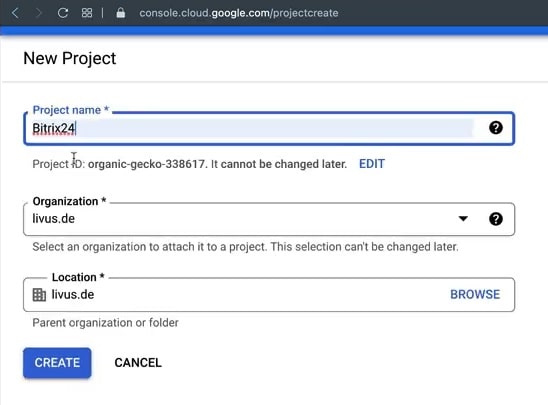
3. Type project name and click Create.
4. Wait until new project is created. Then Select project.
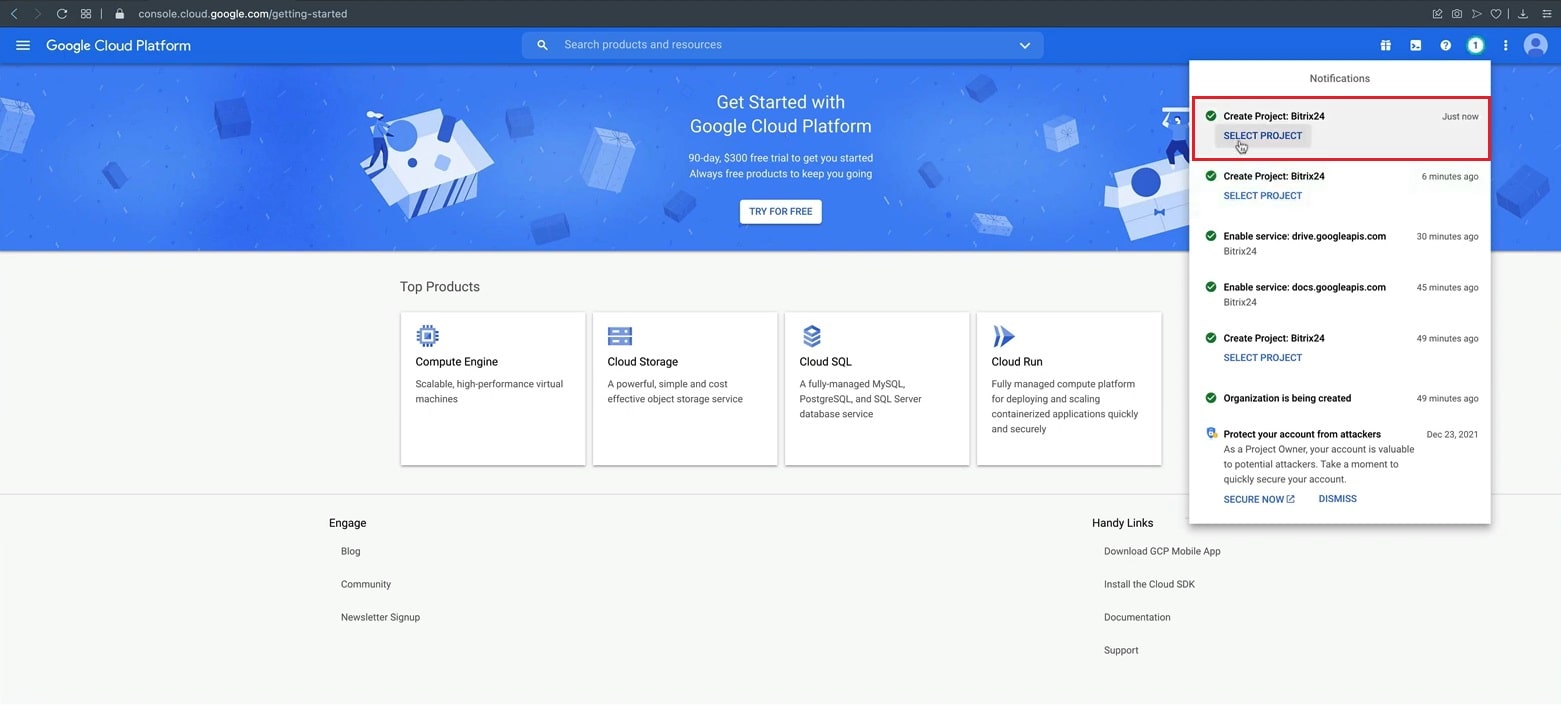
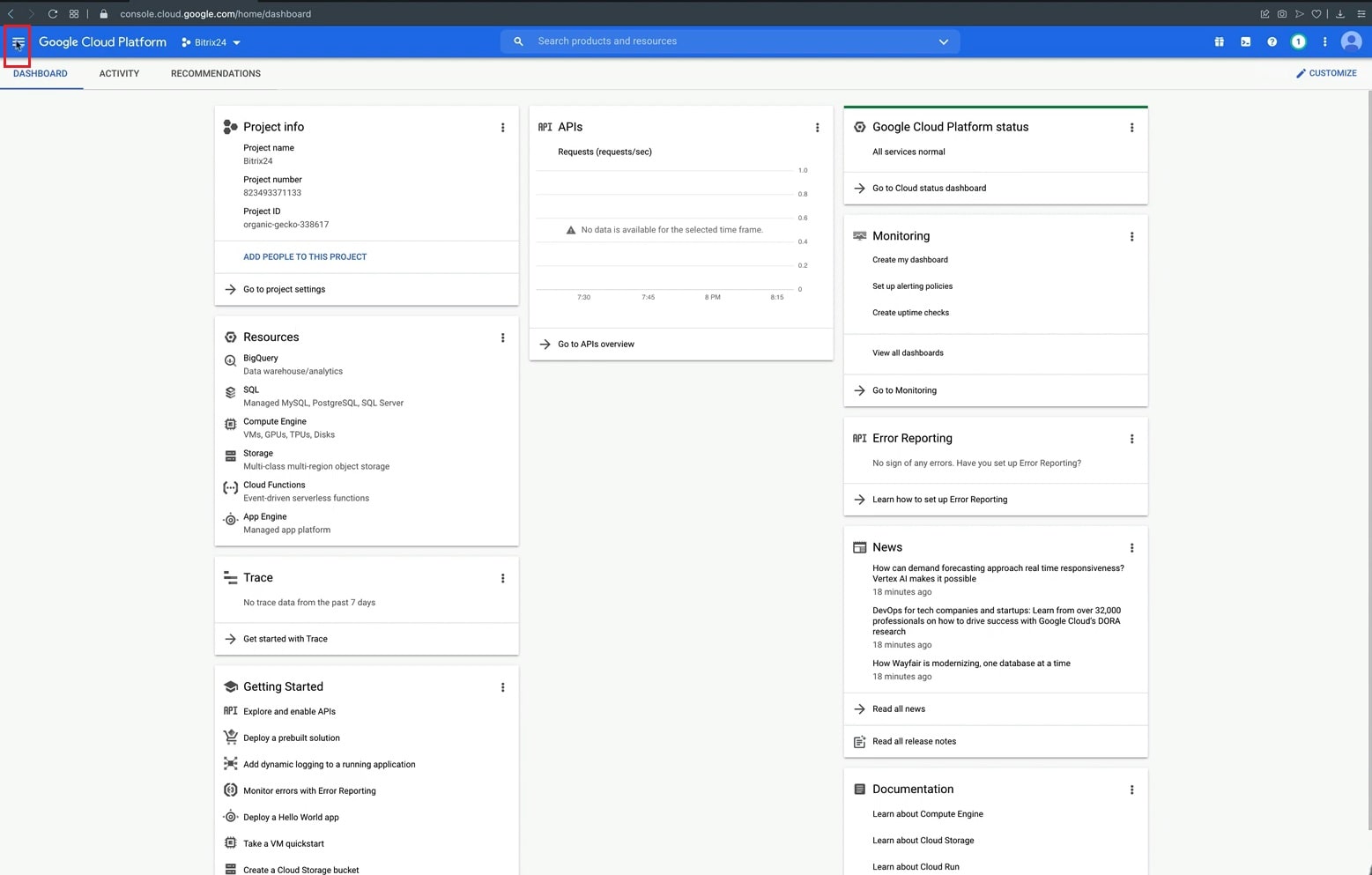
5. In new window emerged go to Settings in upper left corner.
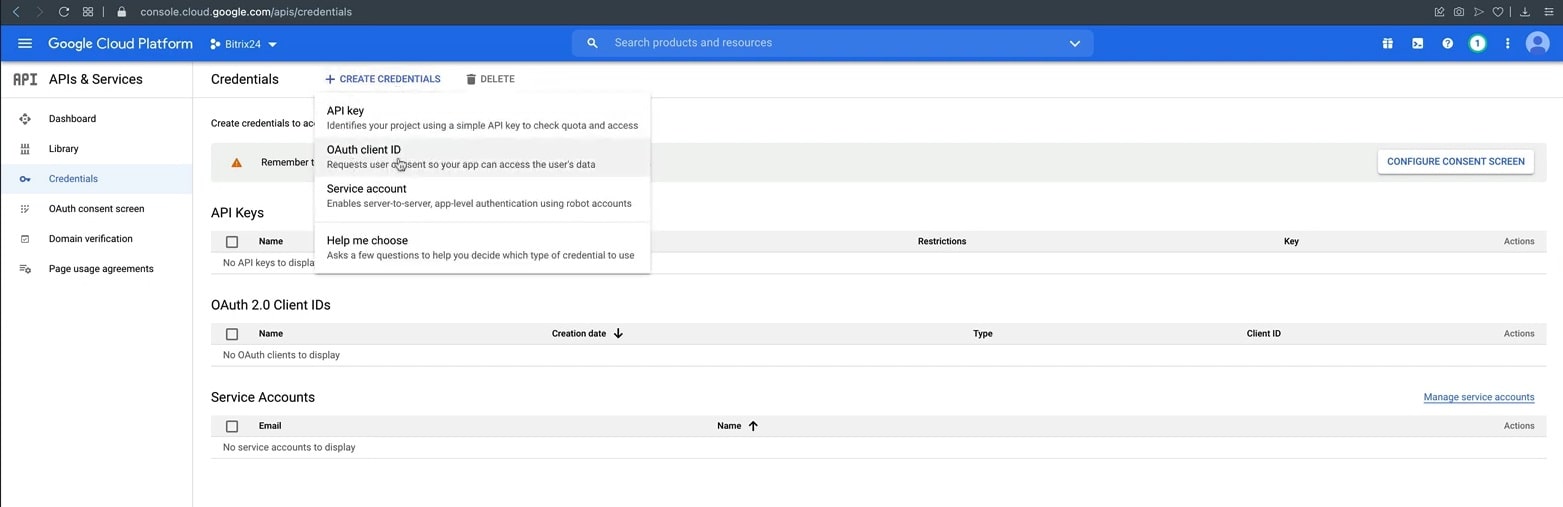
6. Go to Credentials – click Create credentials – choose OAuth client ID.
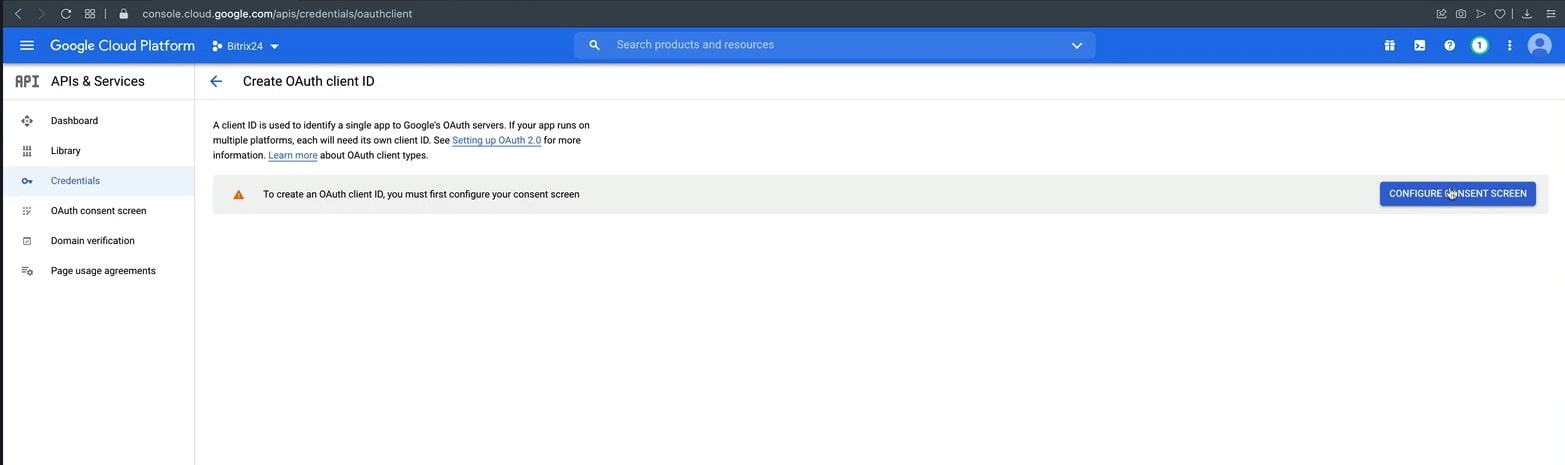
7. Click Configure consent screen.
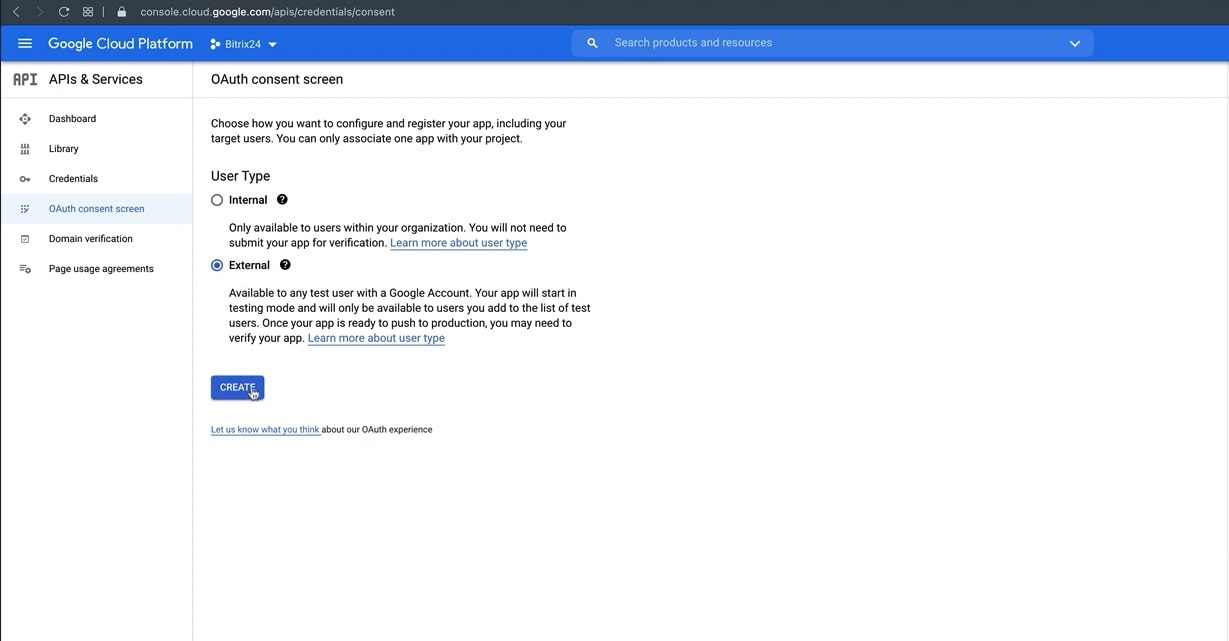
8. Choose External user type and click Create.
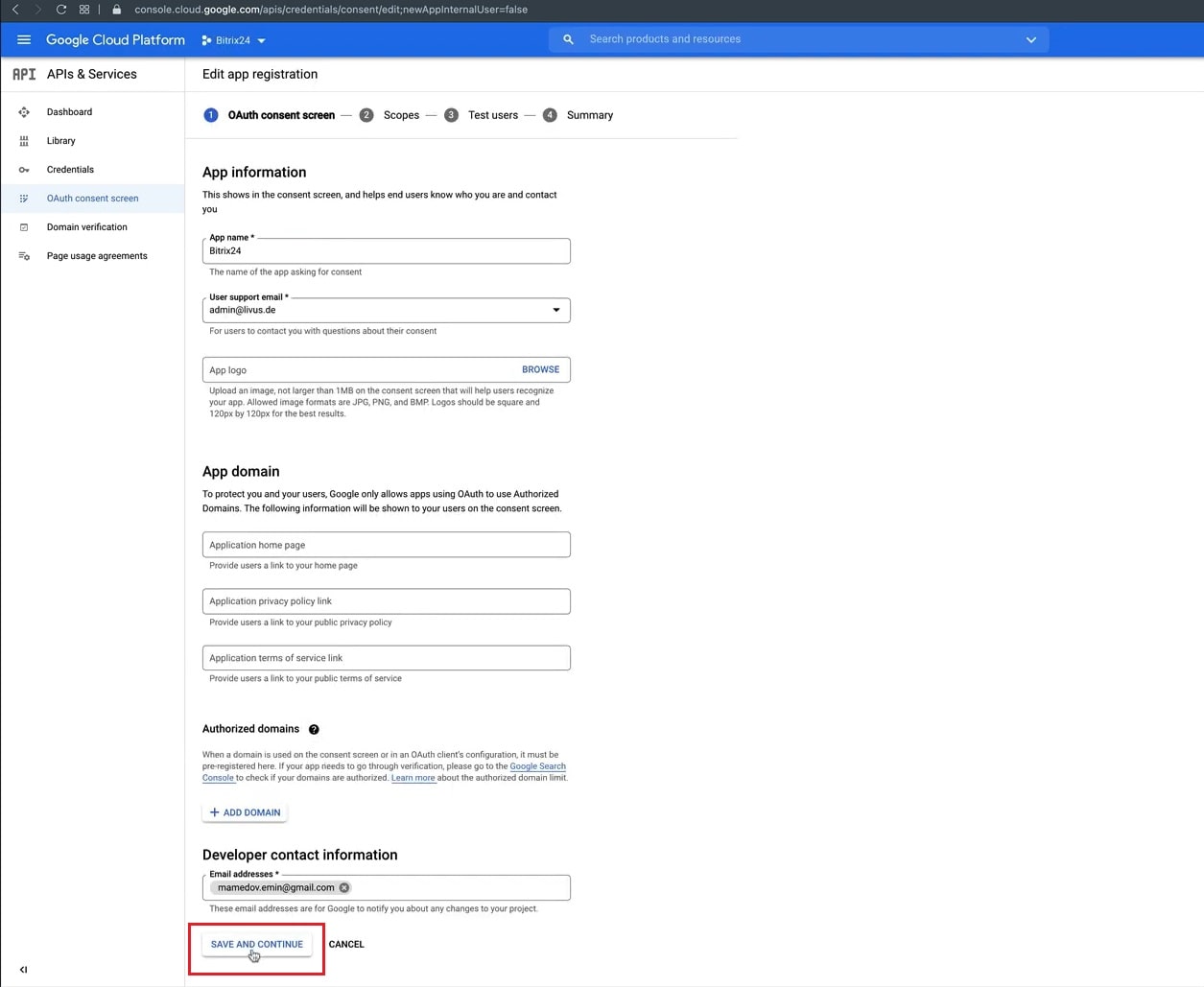
9. Give a name in App name field. Then put your email in User support email and also in Developer contact information. Click Save and continue.
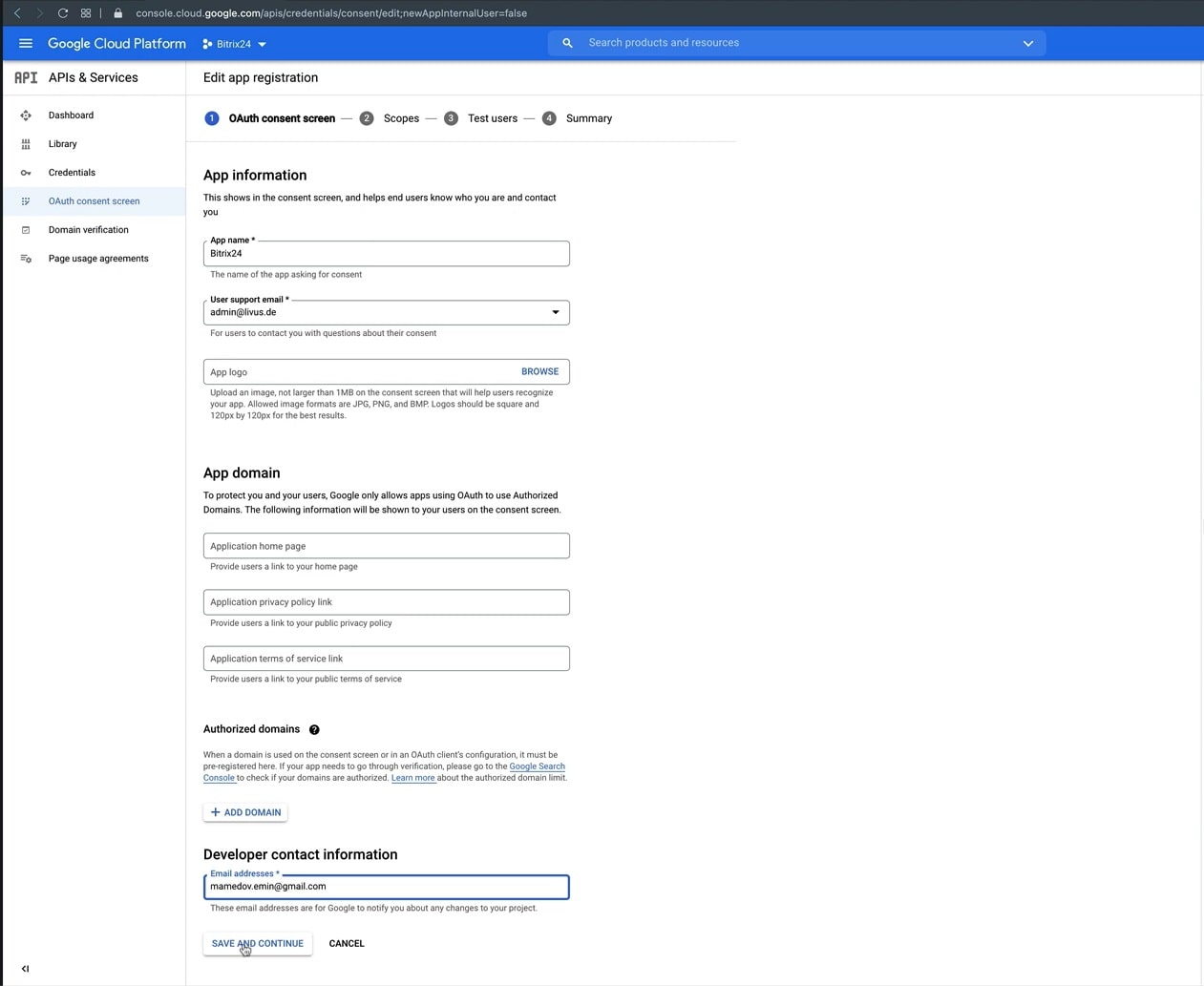
10. Then goes a very important steps - click Add or remove scopes.
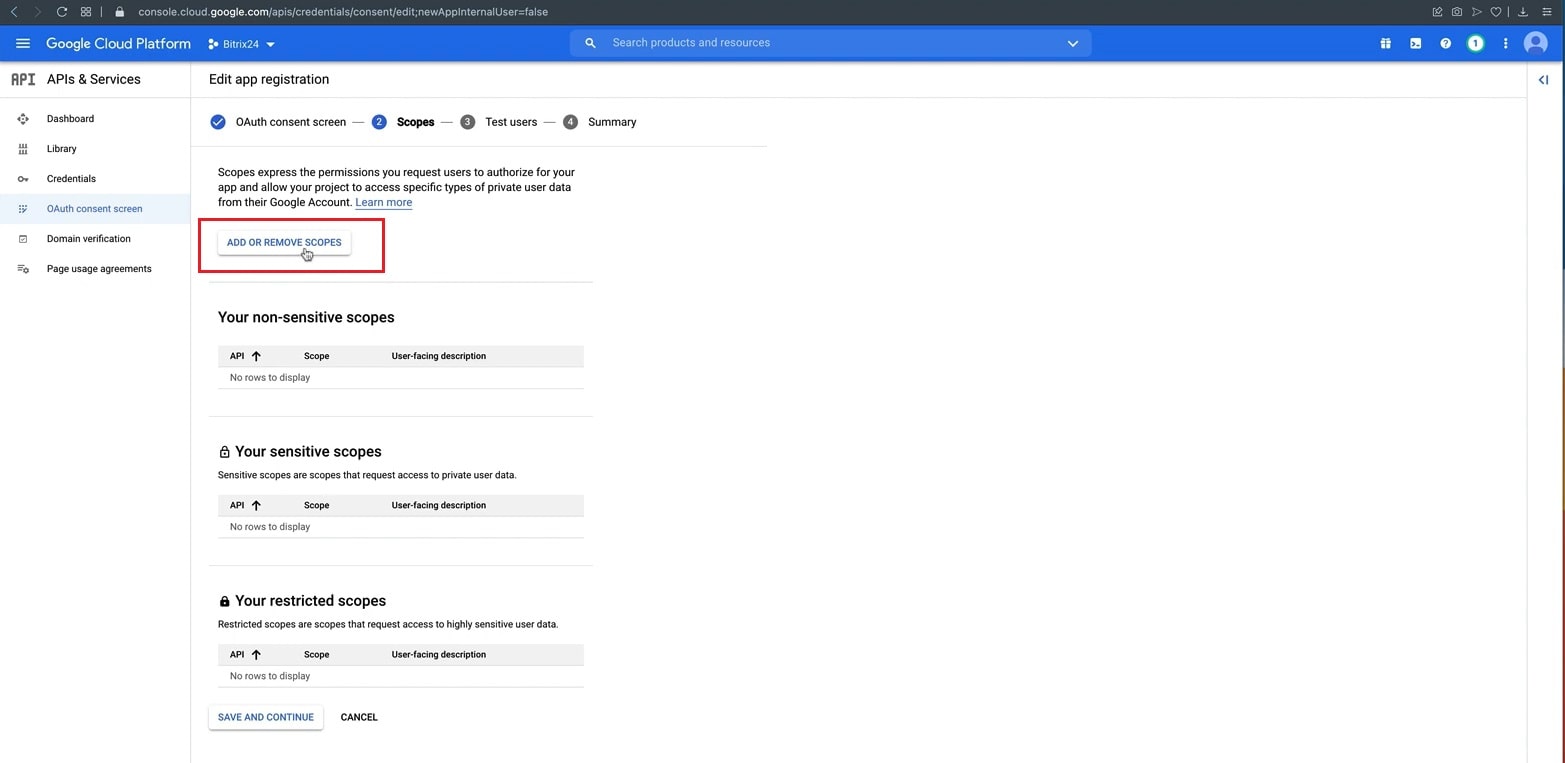
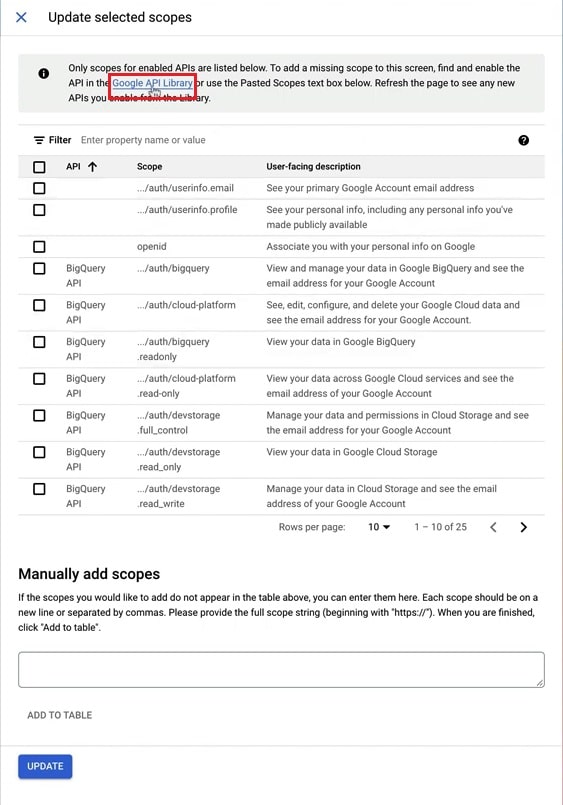
11. A list of scopes will emerge. And because Google Docs is not available here, we have to find and enable it. Go to Google API Library.
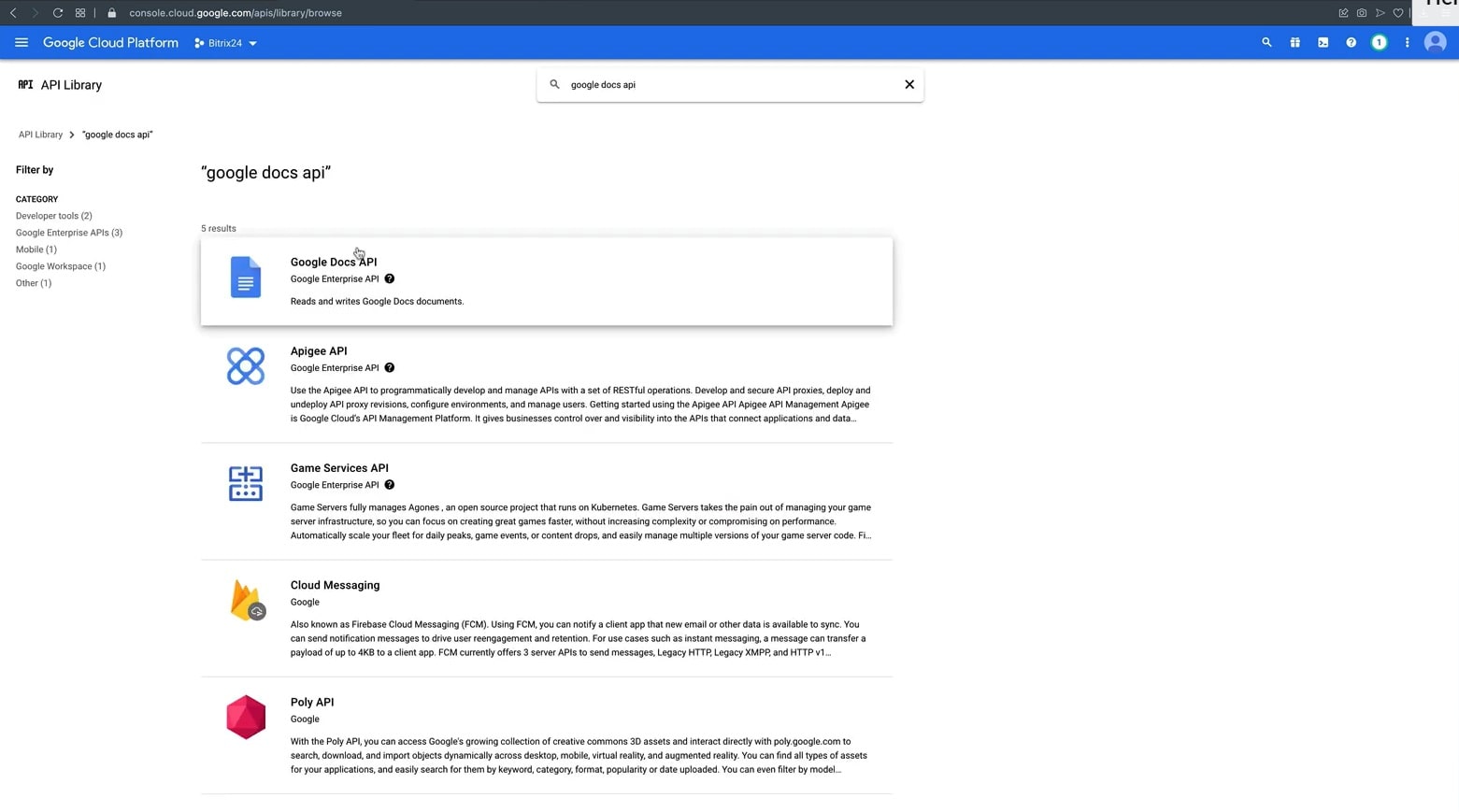
12. In search field type Google Docs API.
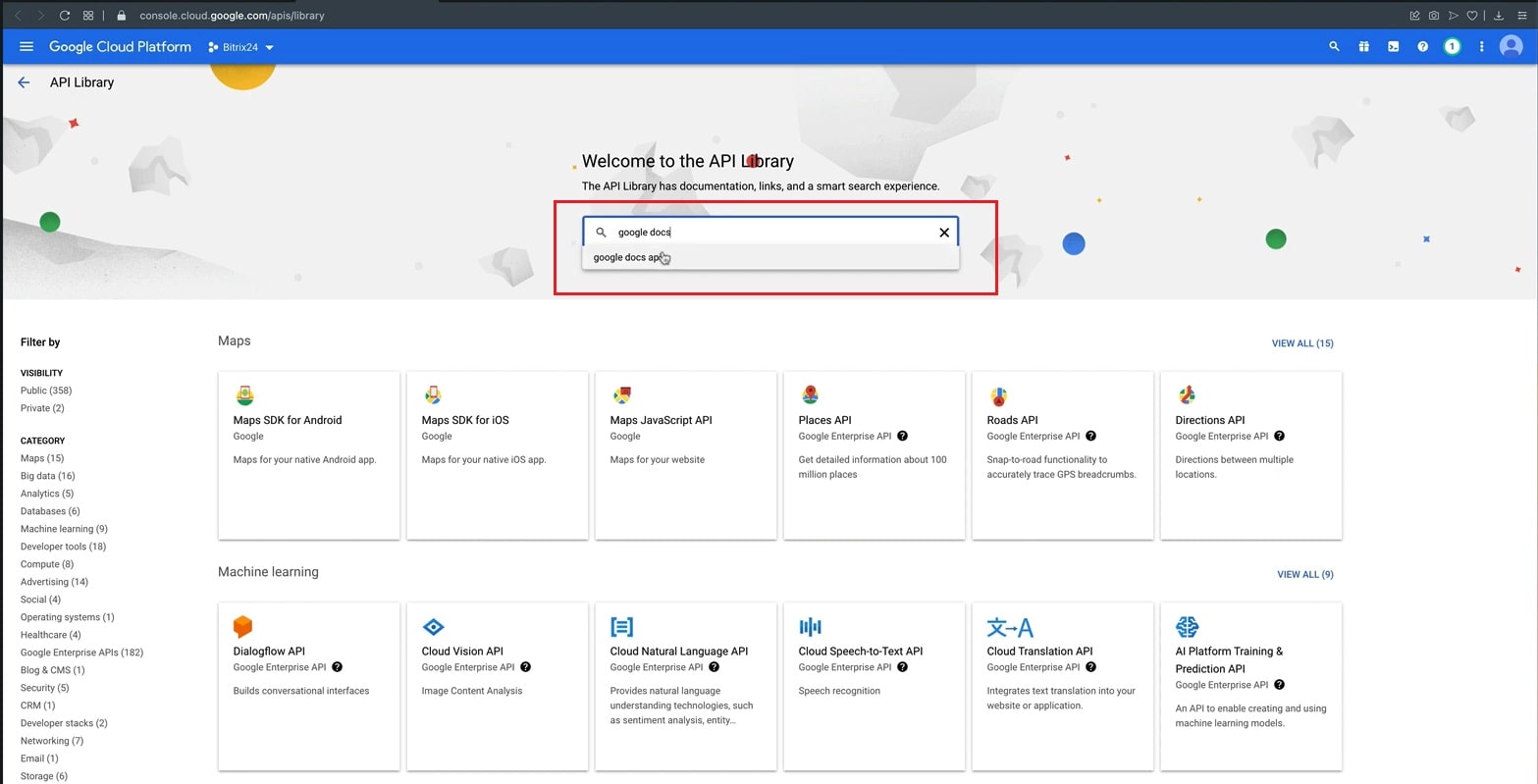
13. Choose Google Docs API as shown below.
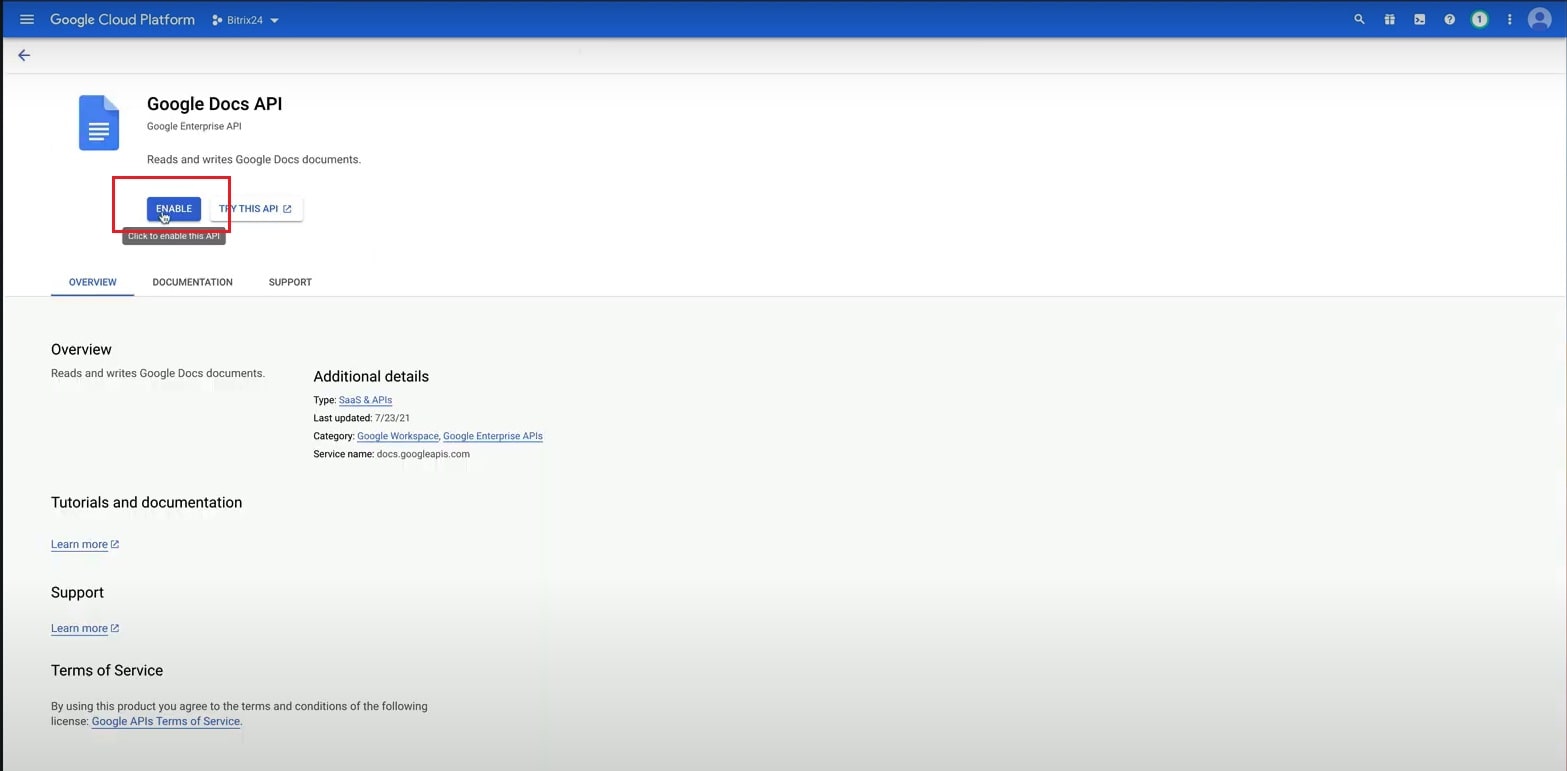
14. Click Enable.
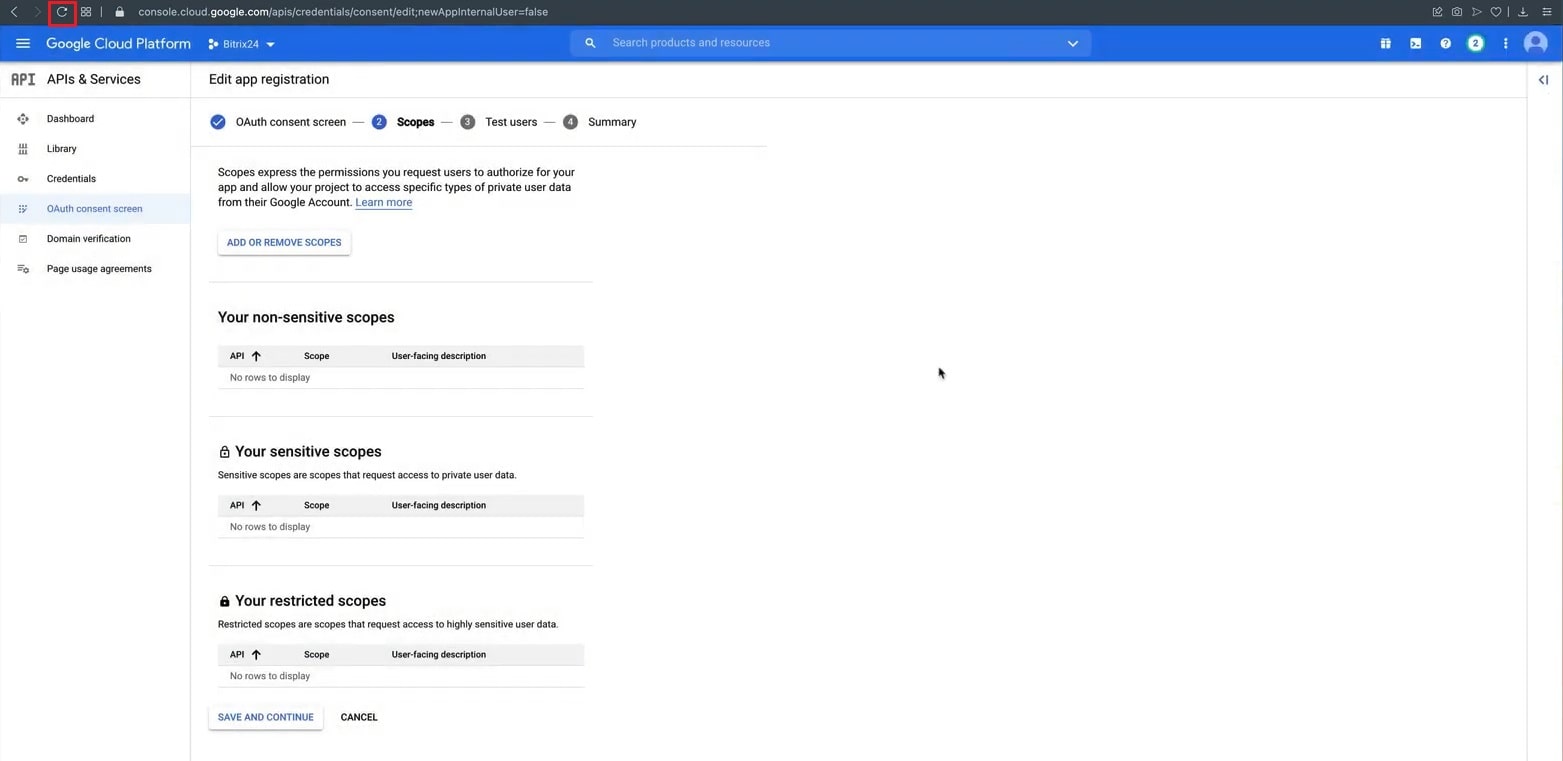
15. Then go back to Edit app registration page and refresh it.
16. Click Save and continue again.
17. Choose Add or remove scopes again.
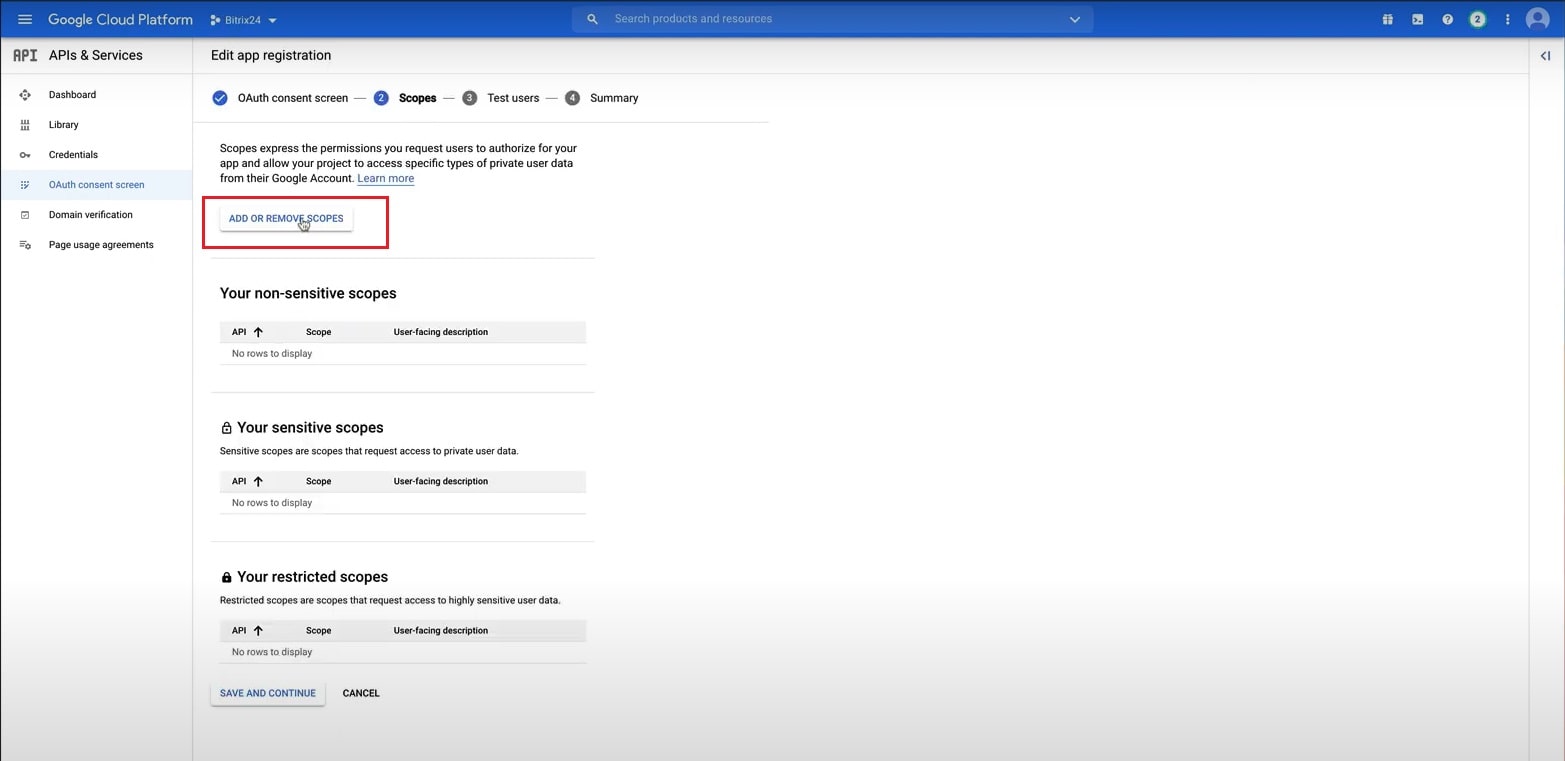
18. In list of APIs emerged, type “Docs” in search field. In dropped down list choose Google Docs API.
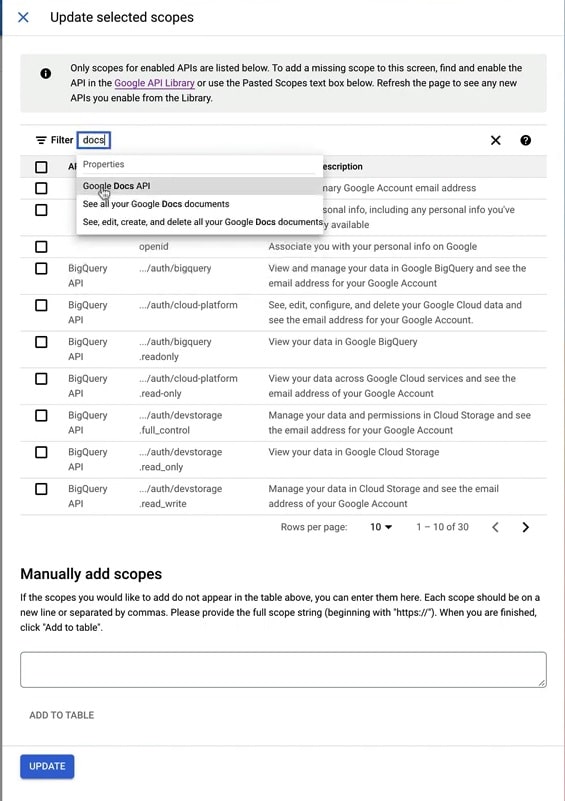
19. Then you need to tick all APIs scopes as shown below.
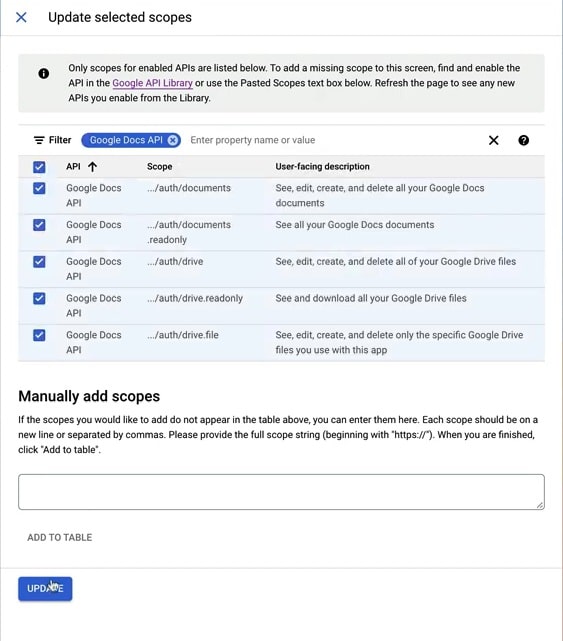
20. Then we click Save and continue.
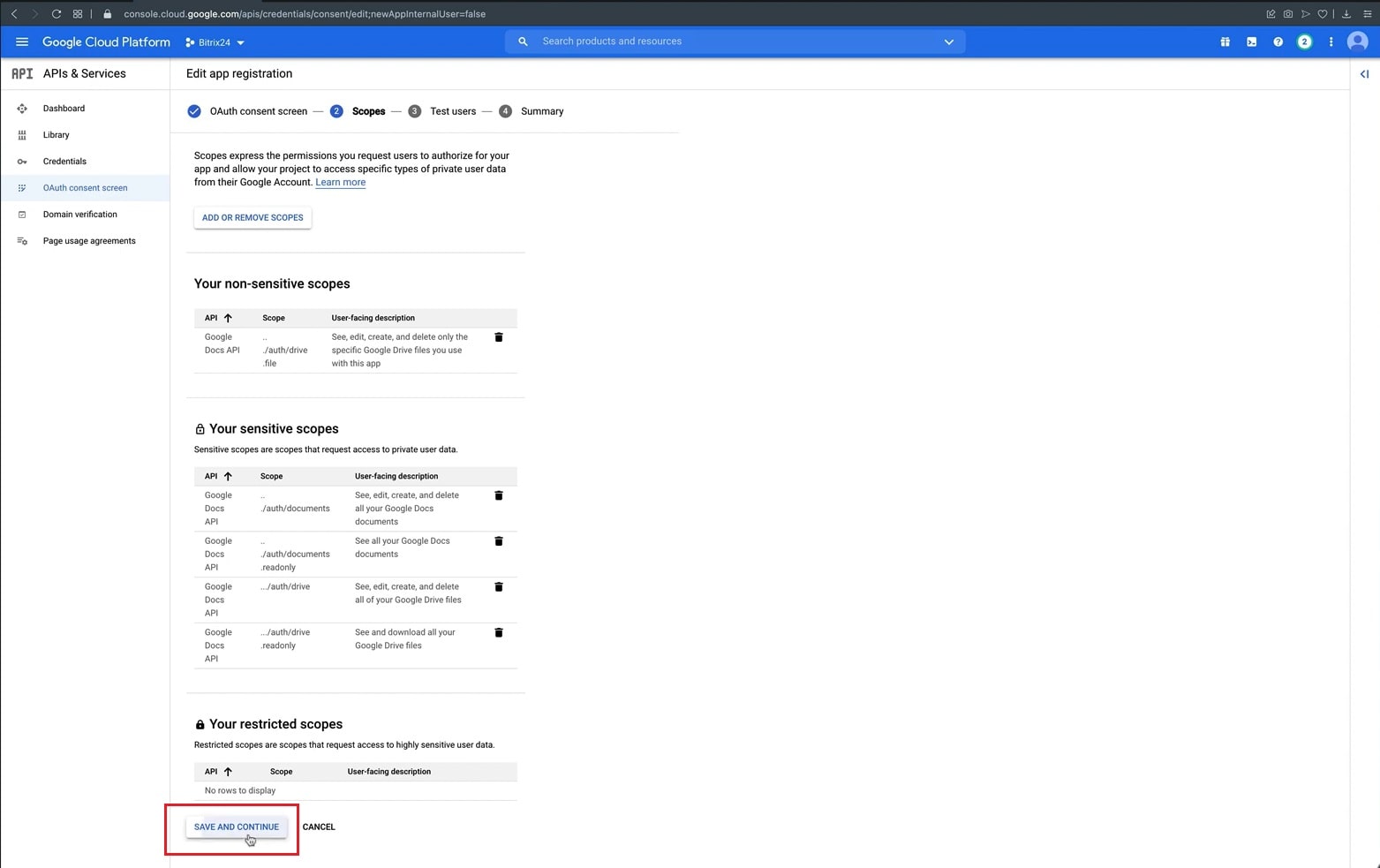
21. In Test users click Save and continue with no changes.
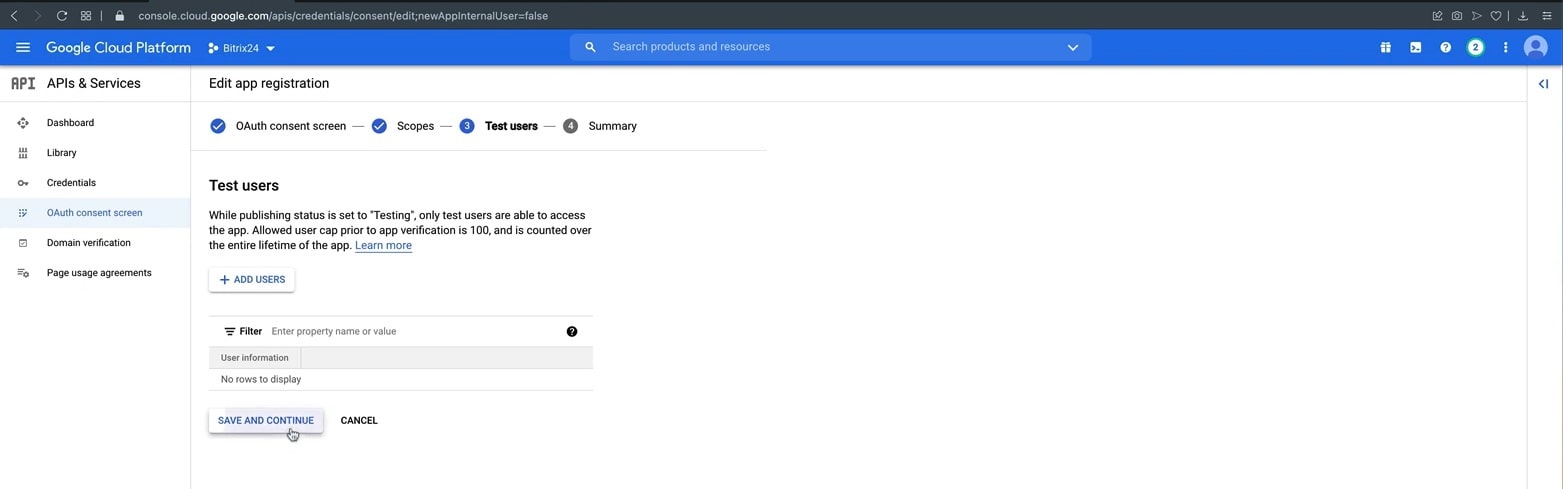
22. Click Back to Dashboard.
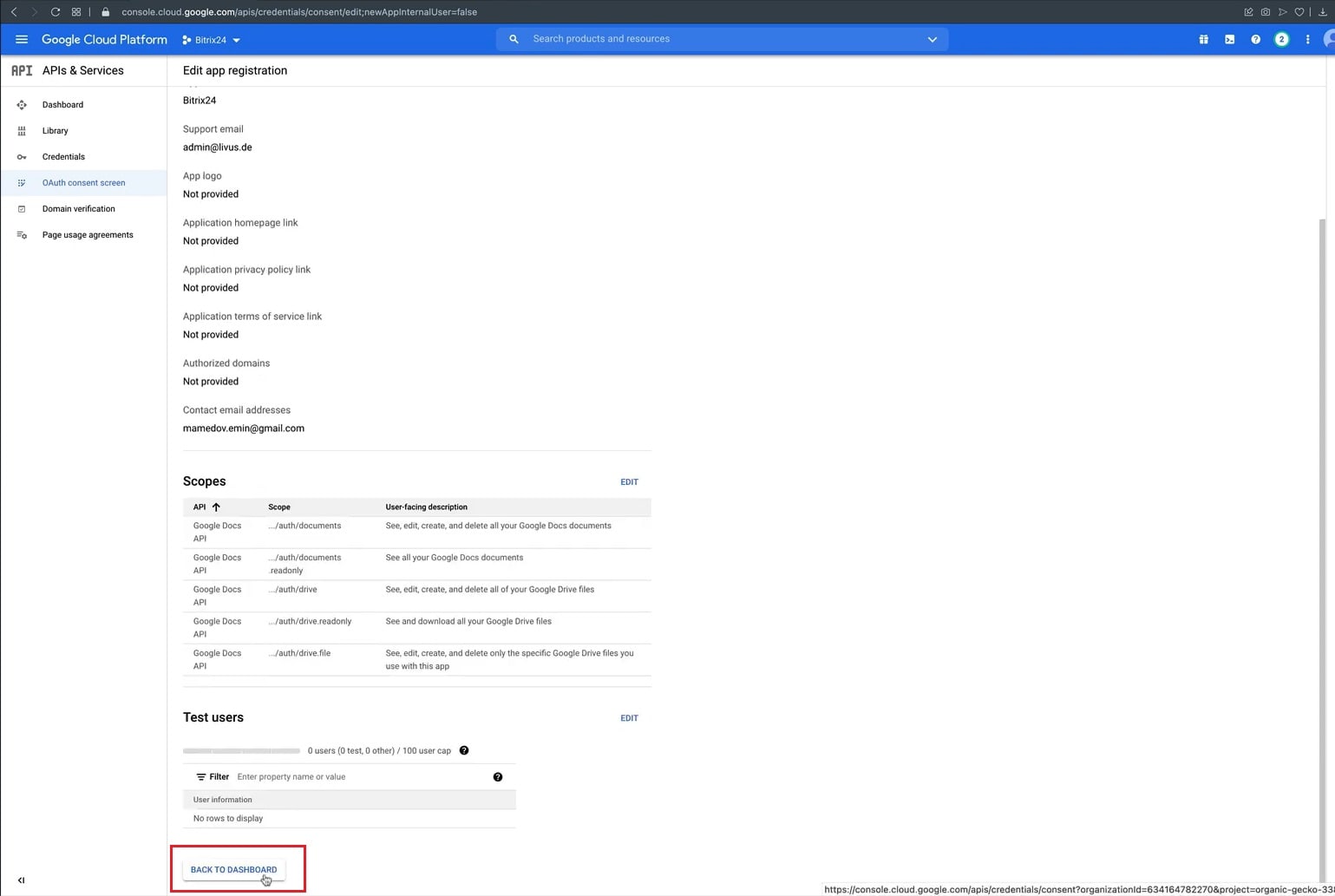
23. In Dashboard go to Credentials – click Create credentials – choose OAuth client ID again.
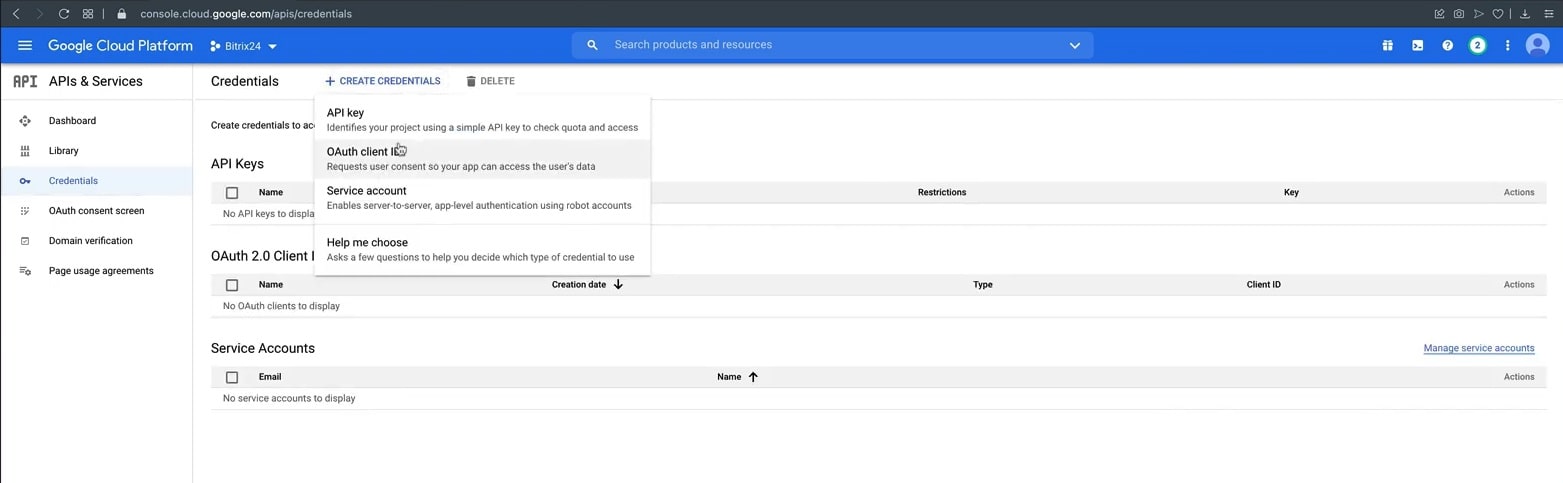
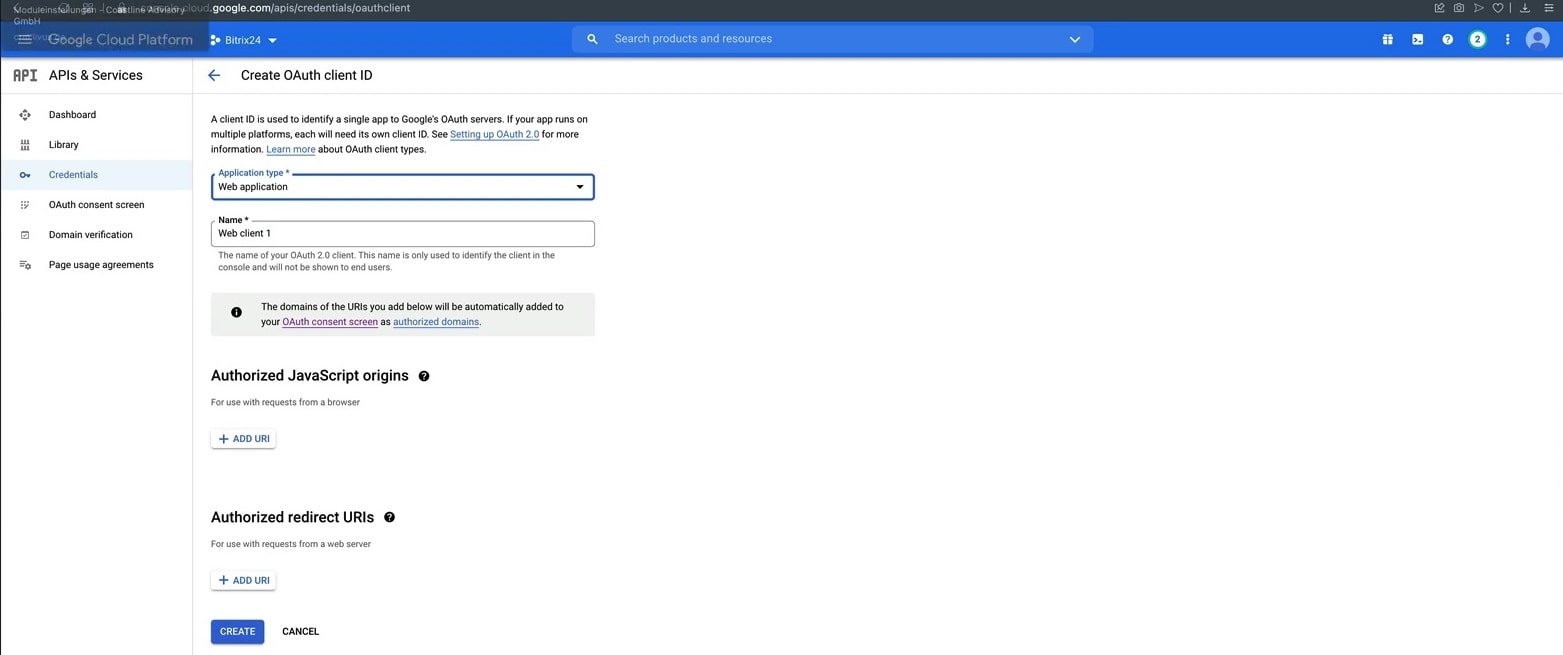
24. In Application type choose Web application.
25. Then we need to go to Bitrix24 admin panel. Go to Settings – Module settings.
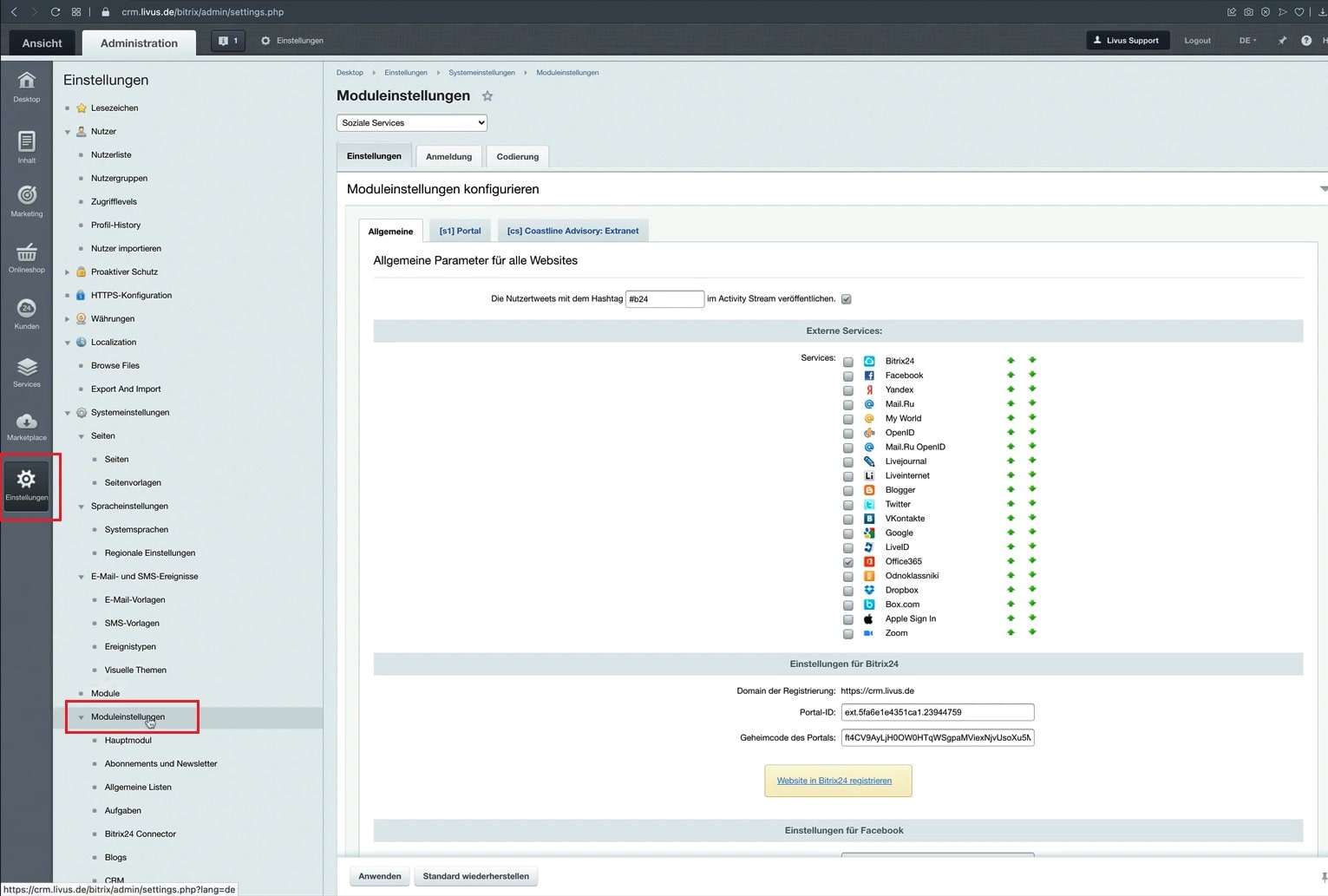
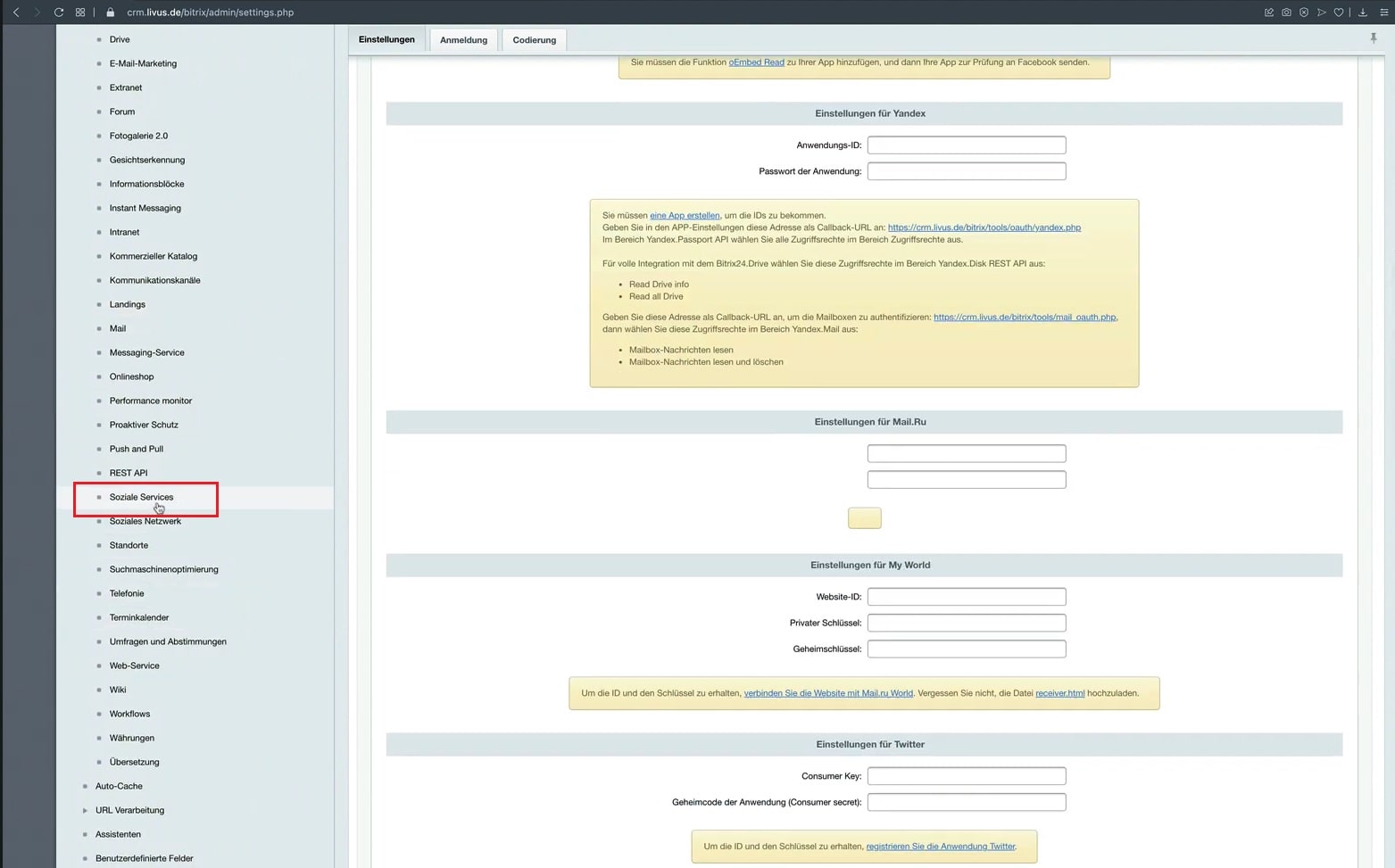
26. In Module settings find Social service integration.
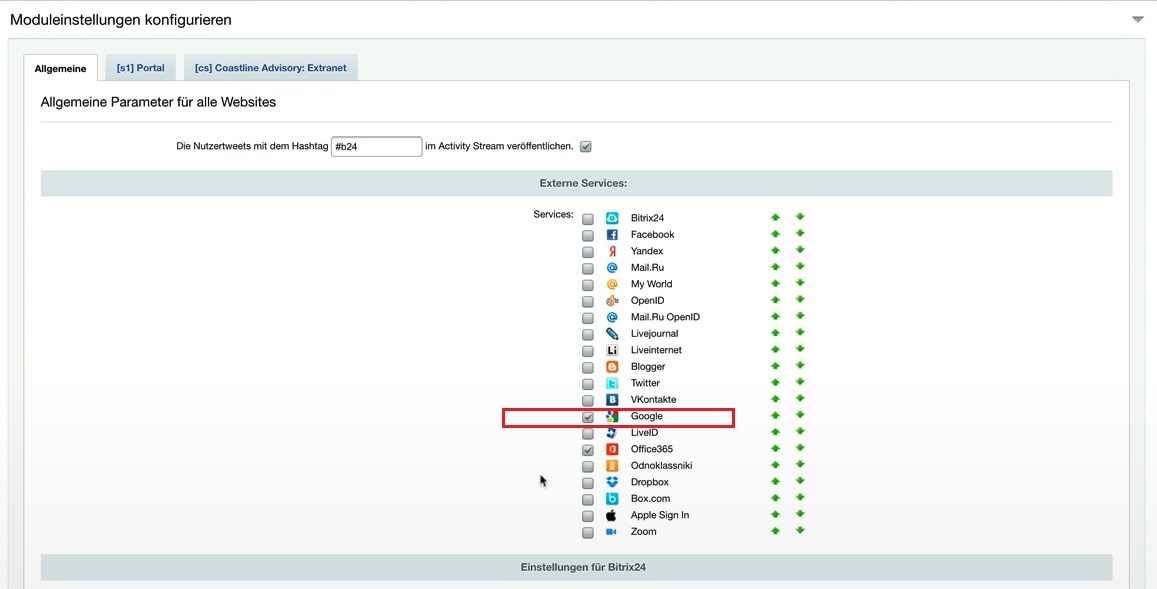
27. Activate Google services in the list shown below.
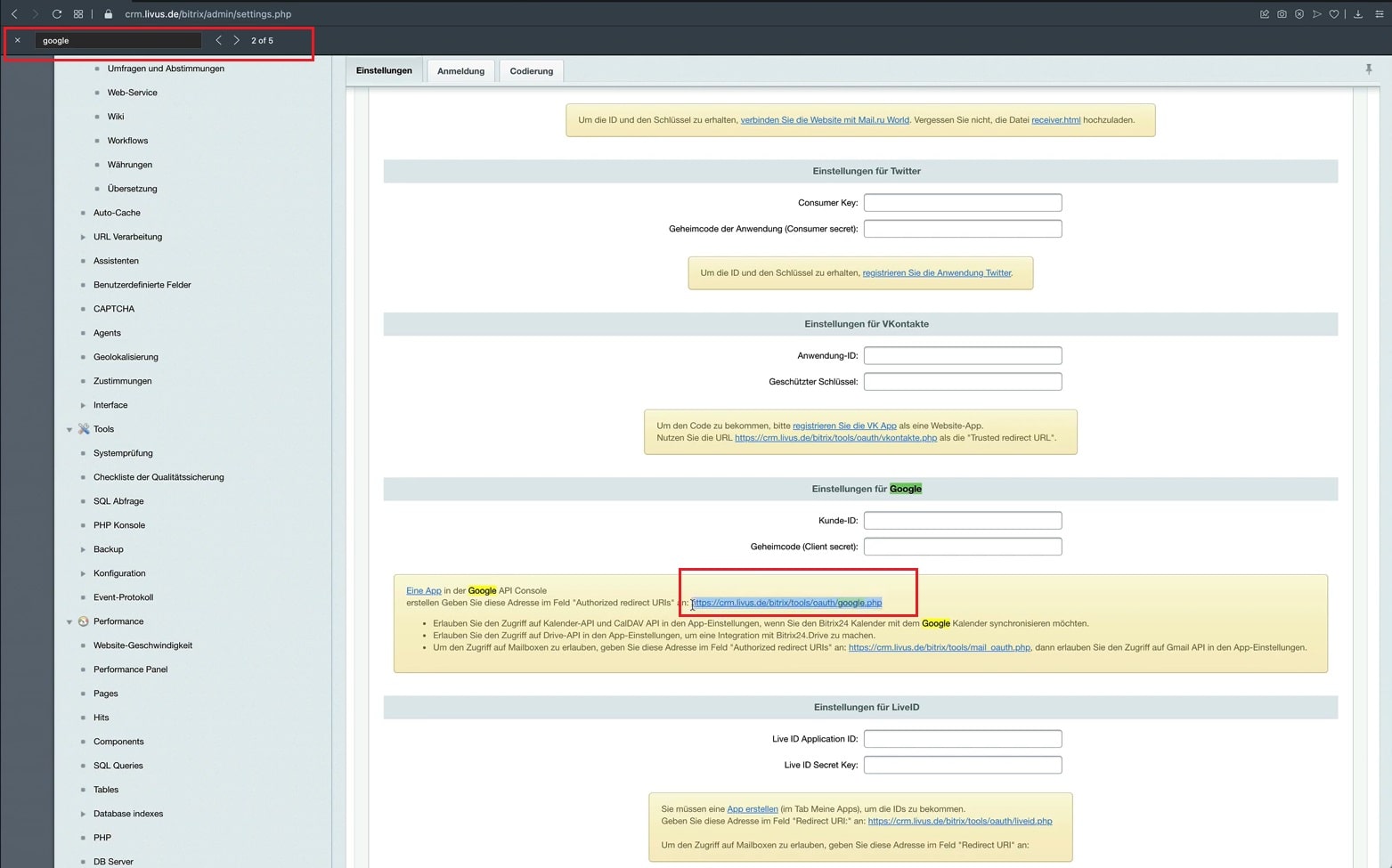
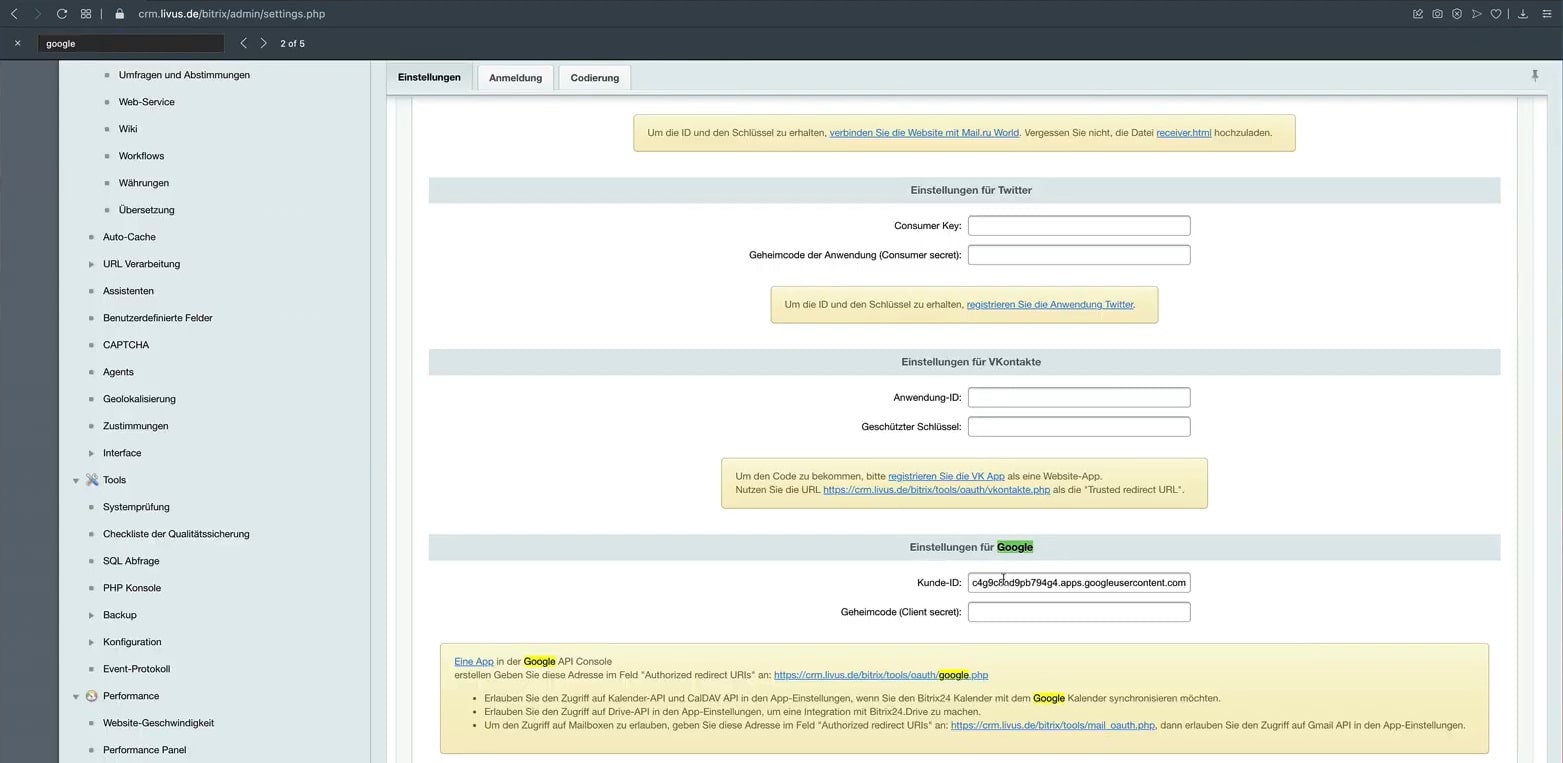
28. In search panel type Google to find relevant block. Copy the link provided.
29. Go back to Google Cloud platform and paste that link in URLs field. Click Create.
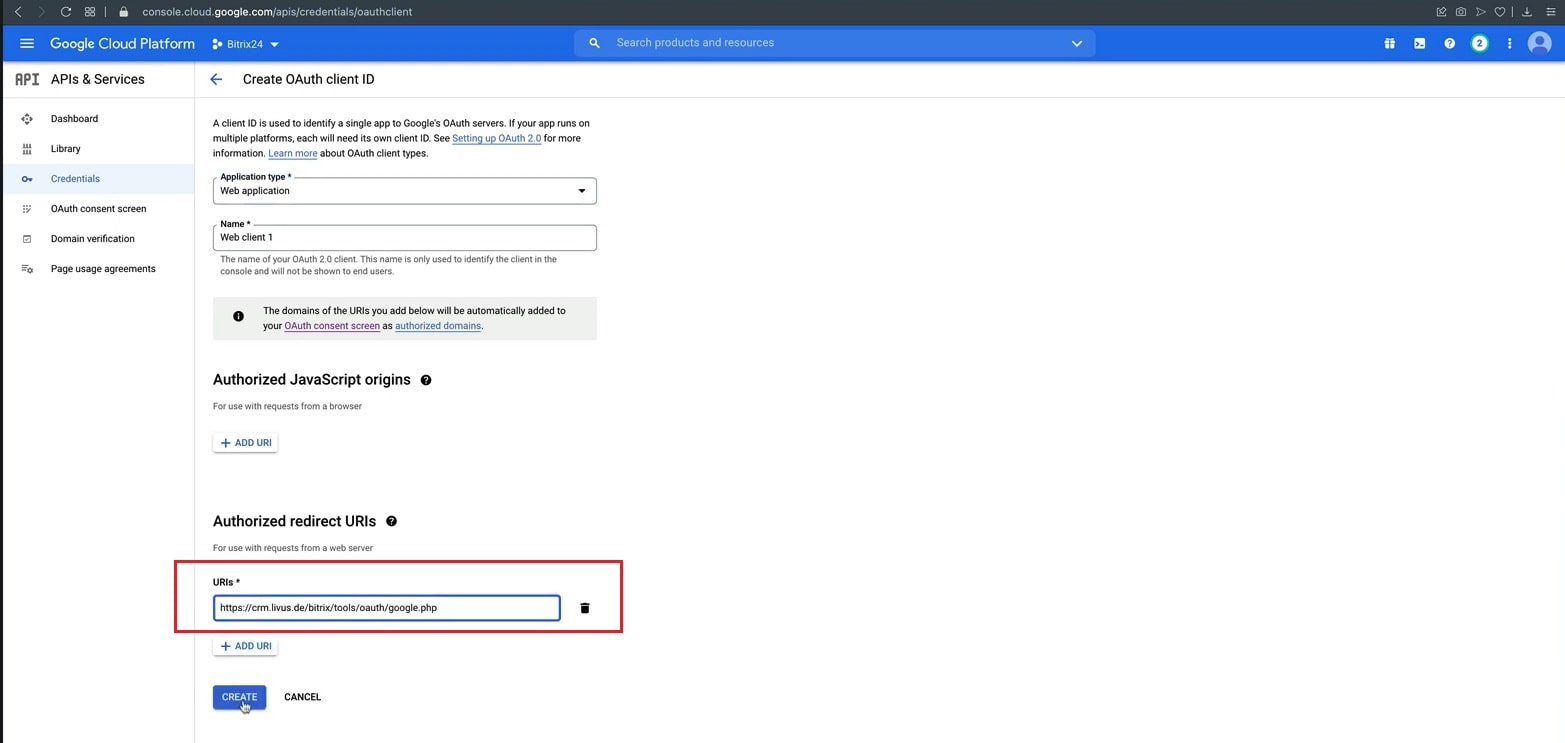
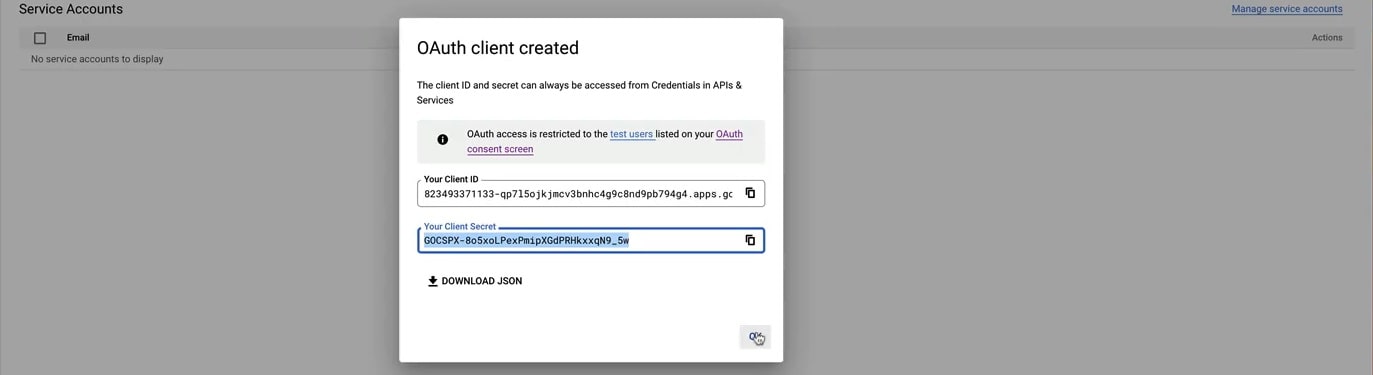
30. A new window will emerge. Here we need to copy Your Client ID.
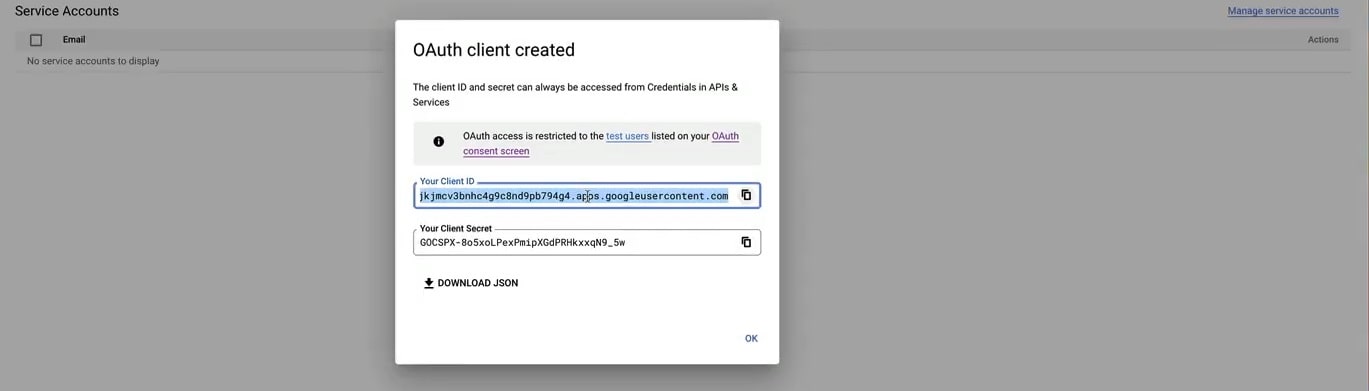
31. In Bitrix24 admin panel paste that ID in Client ID field.
32. Then go back to Google cloud page and copy Your Client Secret.
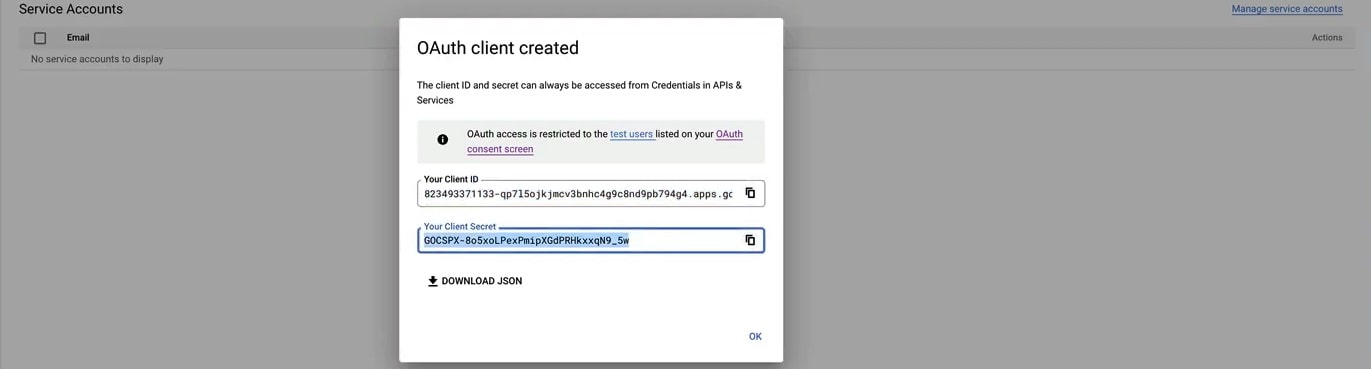
33. Paste that in Secret Code field. Click Apply.
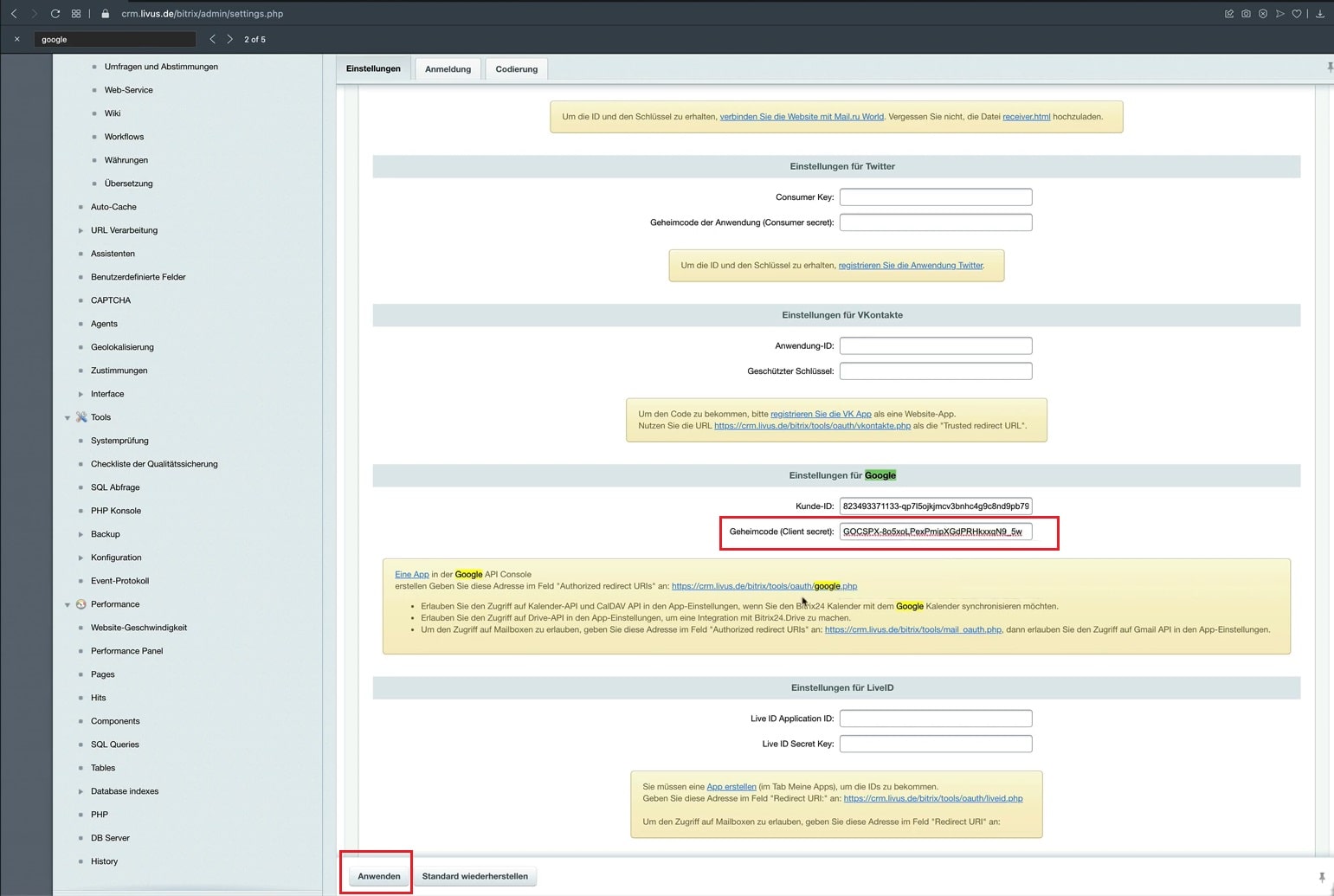
34. That’s it! Close window in Google cloud.
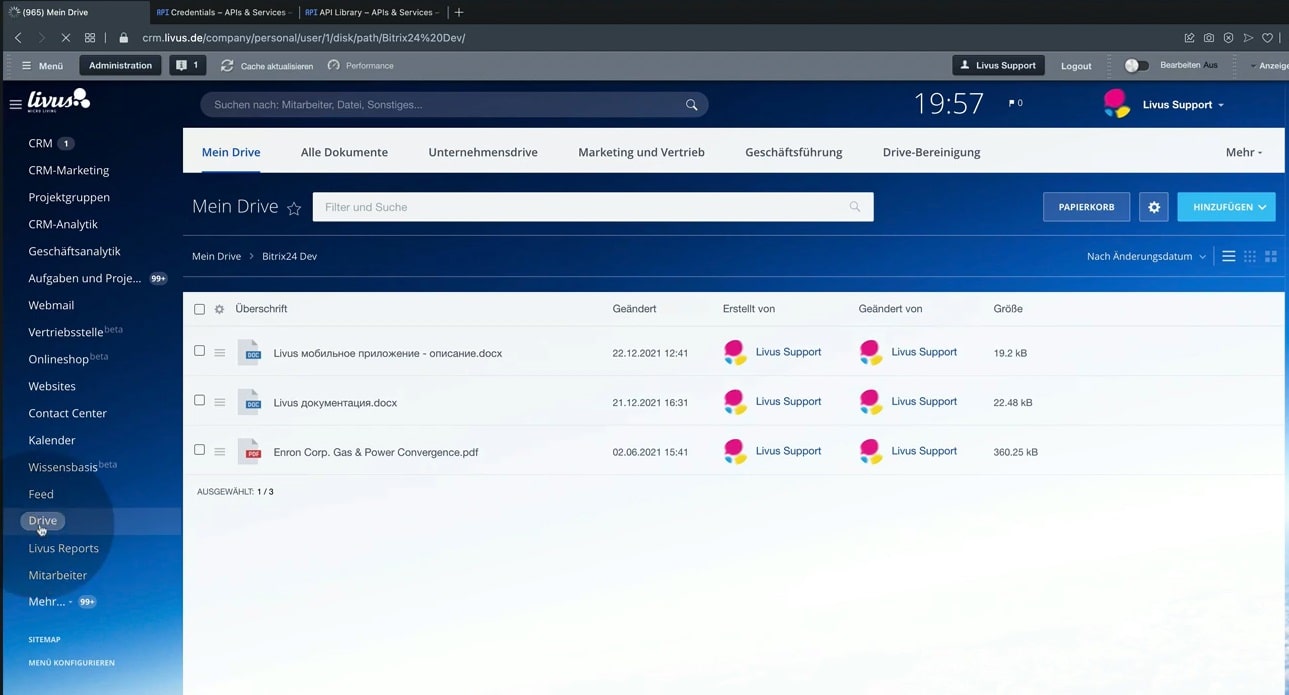
35. To check results, we go to Bitrix24 board and choose Drive in side panel.
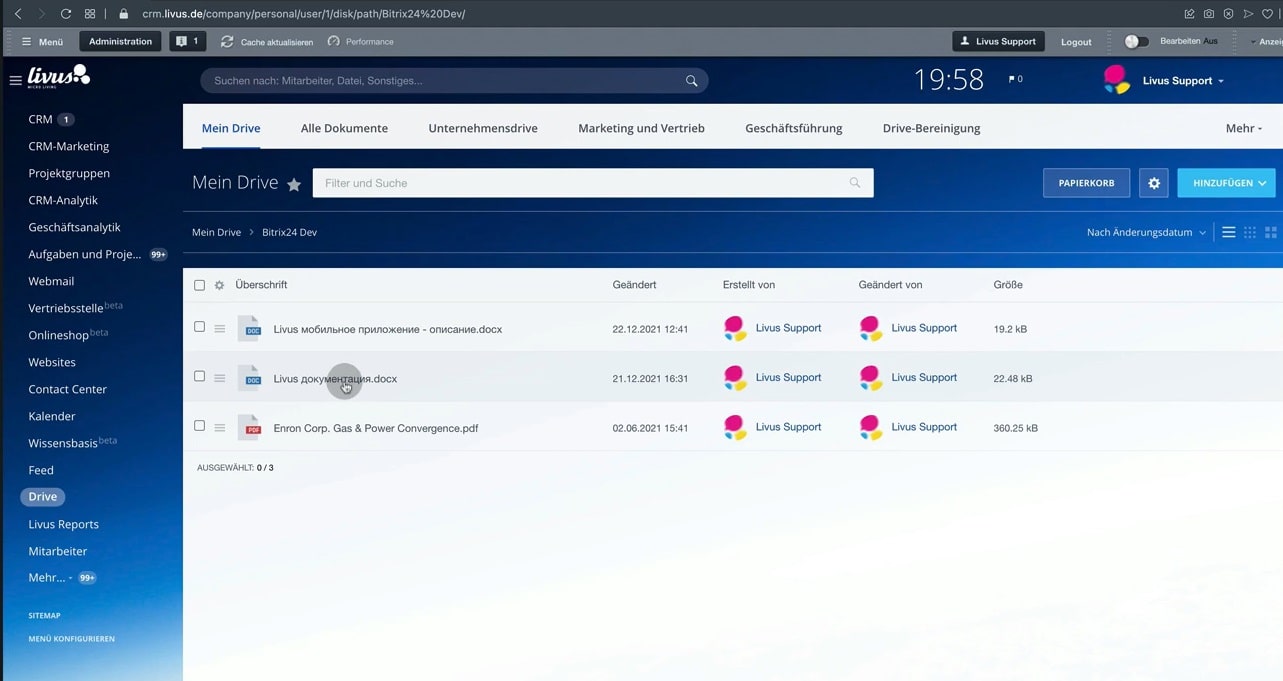
36. Choose any document you wish to open. Double click on it.
37. In opened window click Edit below and choose Google Docs.
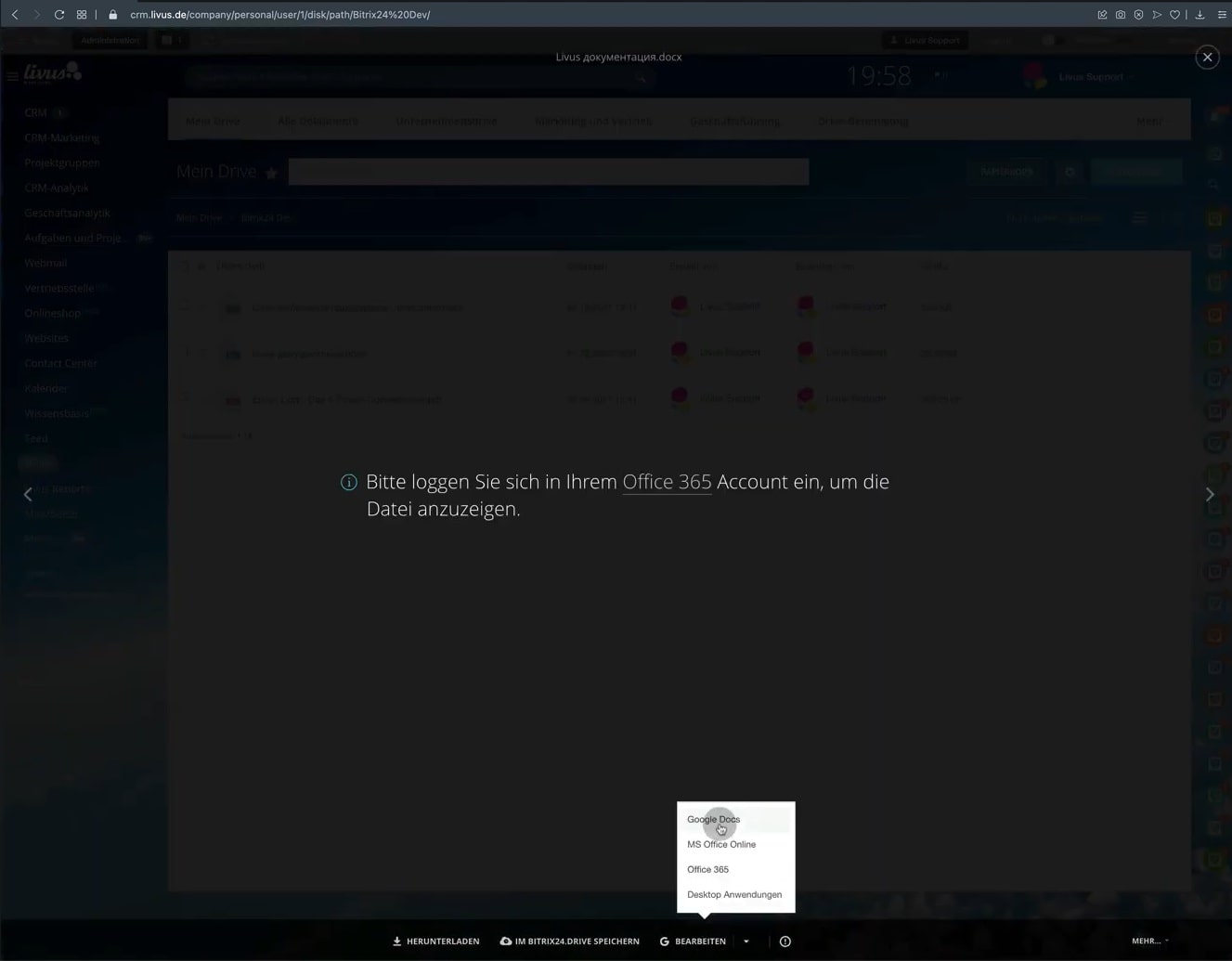
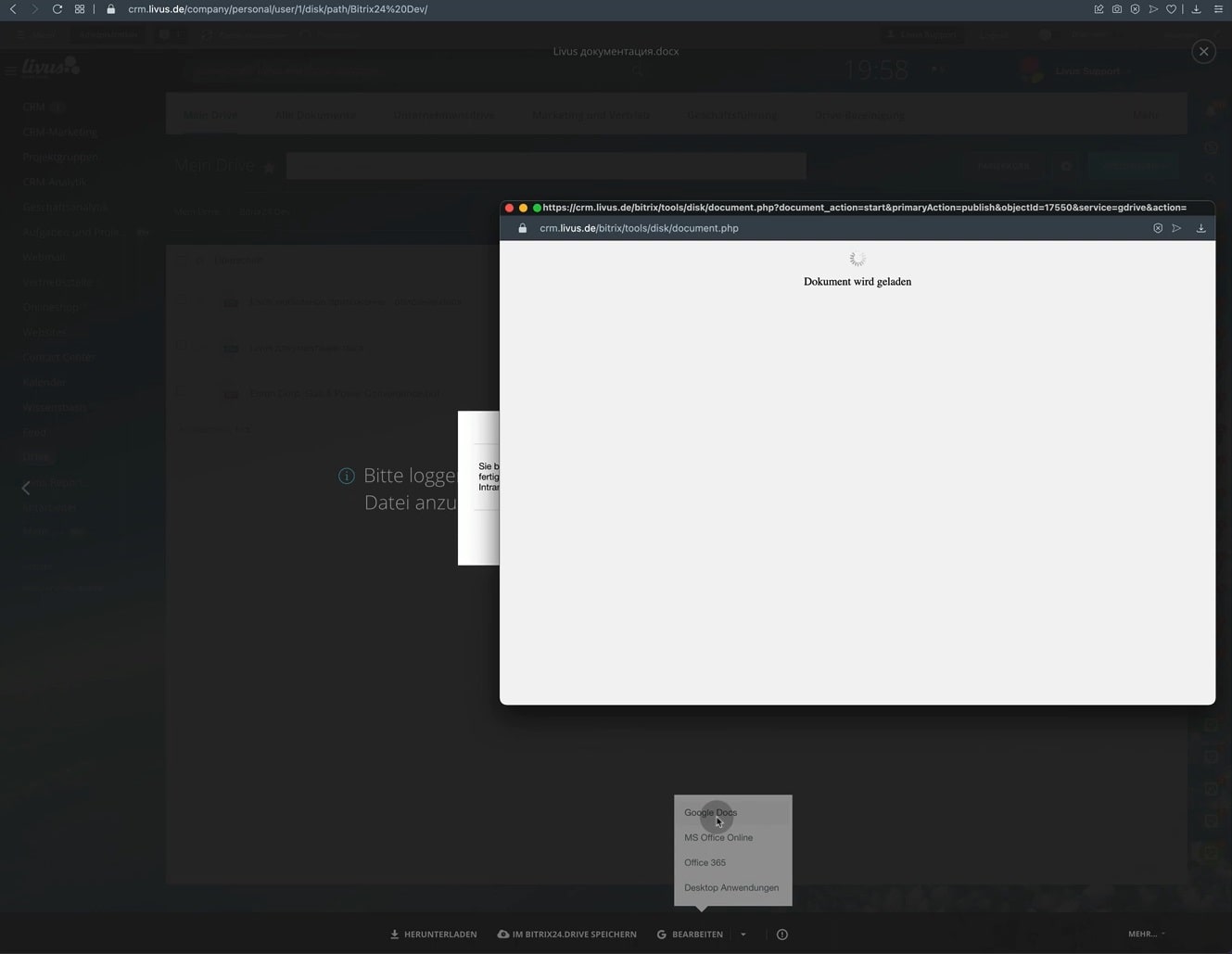
38. Wait until document is connected. This can take time.
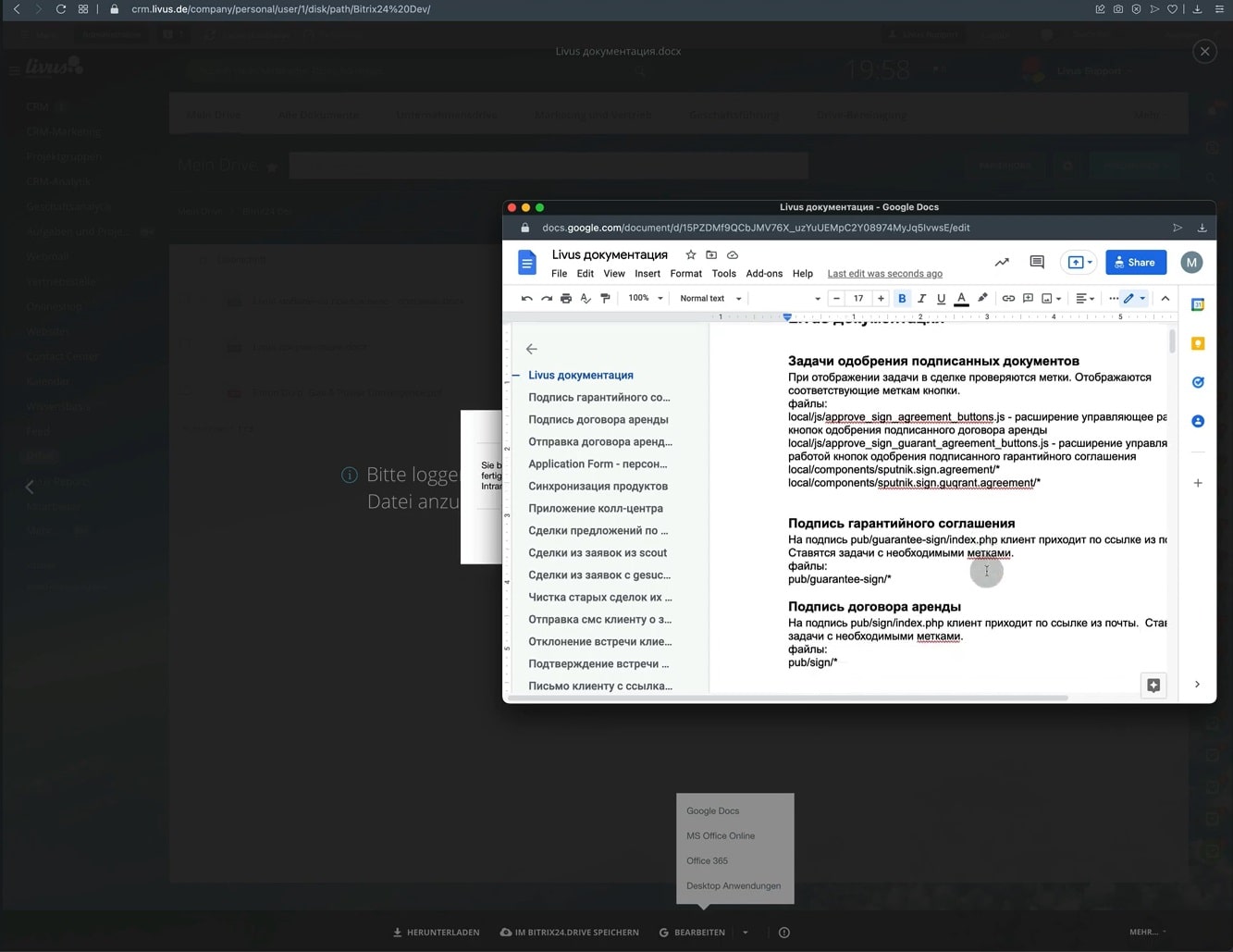
39. Here it is! In the opened window you can edit document and save changes by clicking Save.
That was an explanation of how to enable Google Docs into the Bitrix24 system.
Bitrix24 is a multiple-in-one tool allowing to enjoy internal communication, sales and task management for companies with any size, especially small and medium enterprises. Want to get a consultation? “Provide your details here“ and we will get back to you soon.
“You can also watch the video of this tutorial below on Youtube”
Play video