
Installation of the SSL certificate for Bitrix24
What is SSL certificate
An SSL certificate is a digital certificate that authenticates a website's identity and enables an encrypted connection. SSL stands for Secure Sockets Layer, a security protocol that creates an encrypted link between a web server and a web browser.
SSL certificates can be used by online enterprises wishing to encrypt credit card transactions, make data transfers, process logins and host secure social media websites. CRM cloud solutions are usually provided with SSL certificates by default, as they often deal with telephony or email marketing and process personal data of company’s clients.
Based on the Secure Sockets Layer protocol developed by Netscape, SSL certificates use a cryptographic key to provide validation for a Web server, detailing its domain name, server name, hostname, company name and location. Most SSL certificates today also support the Transport Layer Security (TLS) protocol, which is considered to be more secure than SSL.
Secure connection of your website
SSL certificates are issued from a trusted certificate authority. There are three types of certificates: Extended Validation (EV) SSL certificates, Organization Validation (OV) SSL certificates and Domain Validation (DV) SSL certificates. When an SSL certificate is installed on a Web server, it activates the HTTPS protocol over port 443. The use of an SSL certificate on a website is usually indicated by a padlock icon and a URL that begins with https://.
Bitrix24 portal and SSL certificates
All Bitrix24 portals works with secure https:// connection by default. Additional certificates are required in the following situations:
1. When you connect your domain to Bitrix24 self-hosted;
2. When you use your domain and have Professional subscription.
BitrixVM versions higher than 7.2.0 offer a new feature of connecting both free Let's Encrypt, as well as own SSL certificates, issued by any certification authority.
Let’s Encrypt certification authority issues DV certificates free of charge and with 90-day validity period. Let’s Encrypt SSL certificates in BitrixVM are issued within several minutes and are automatically extended approximately one month prior to validity expiration.
Secure connection of self-hosted Bitrix24
Theoretically, Bitrix24 on-premise can work with no SSL certificate to your domain portal. But additional modules can require SSL certificate. For example, telephony, open channels, audio and video calls, connection to external services and so on.
That’s why it is recommended to use SSL certificates when rolling up a self-hosted Bitrix24 on your domain.
As a rule, SSL certificate is valid for 1 year, then it should be renewed or extended.
Common errors with SSL certificates
There are three main categories of issues with SSL certificates: server configuration, certificate files and those connected with client that tries to connect to your site.
Issues with server configuration appear when the server sends the certificate for the wrong domain, doesn’t have the certificate or tries to use a legacy encryption method that’s not supported by the client’s browser. It is better to contact your hosting provider to fix the configuration. In case of missing certificate, you can also ask your provider or do it by yourself using our How to: Installation of the SSL certificate for Bitrix24 below.
Secondly, there can be an issue with certificate itself – be it broken files that didn’t transfer properly or the certificate wasn’t generated properly by the issuer. Expired certificates are quite common and even if you have an automatic renewal, errors still can happen.
Issues with client are rare, but still happen and being able to identify them can save you a lot of time troubleshooting. The two biggest causes for these issues are wrong computer clock and using a very old browser version.
Starts Bitrix24 troubleshooting from SSL certificates
If you have self-hosted Bitrix24 and see that some functionalities are not working properly and reason is not obvious, then the first thing to check and test is SSL certificate. You should check whether SSL certificate is connected to your server on your domain.
Let’s see how you can install SSL certificate and perform your Bitrix24 system check.
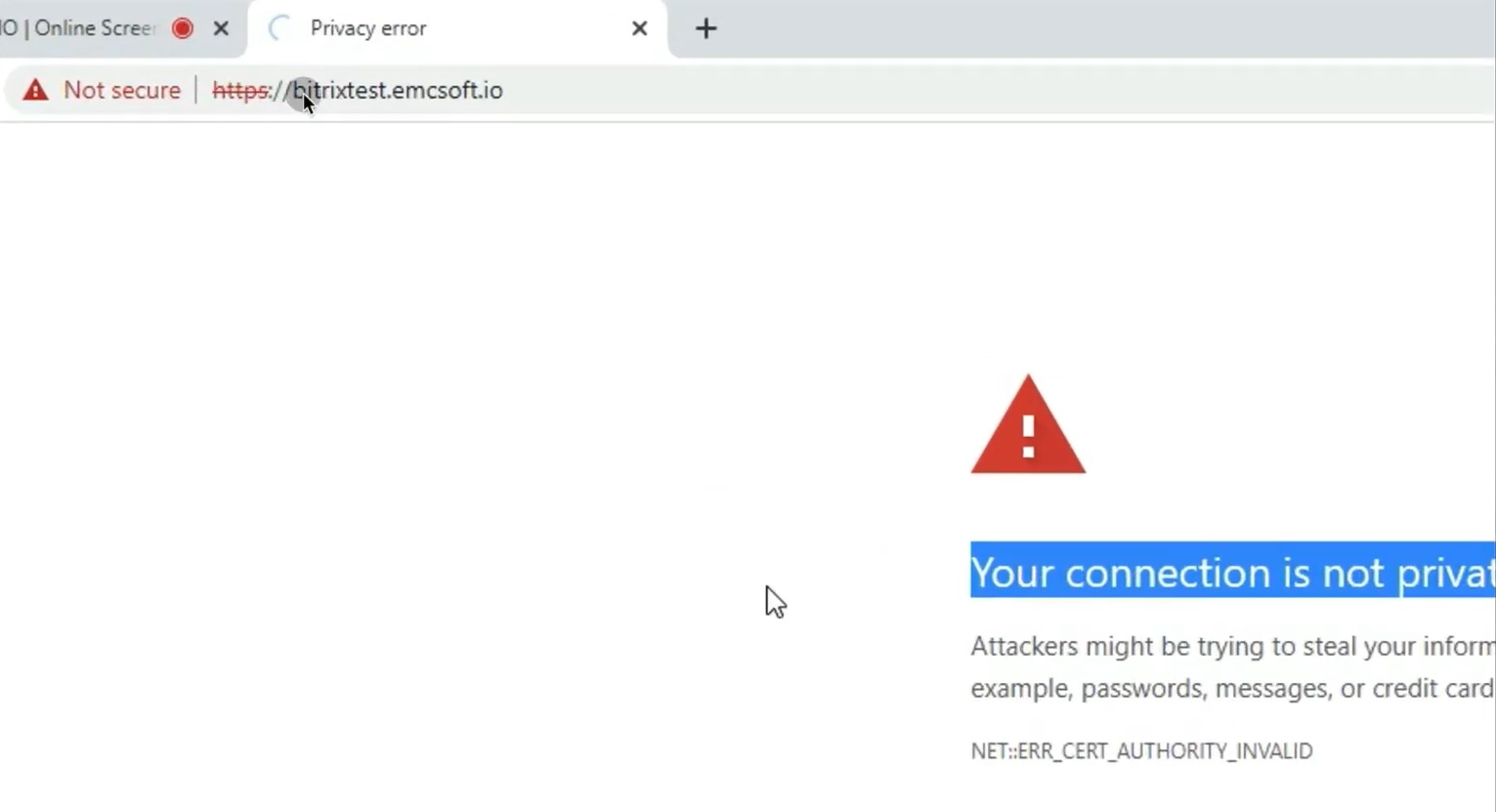
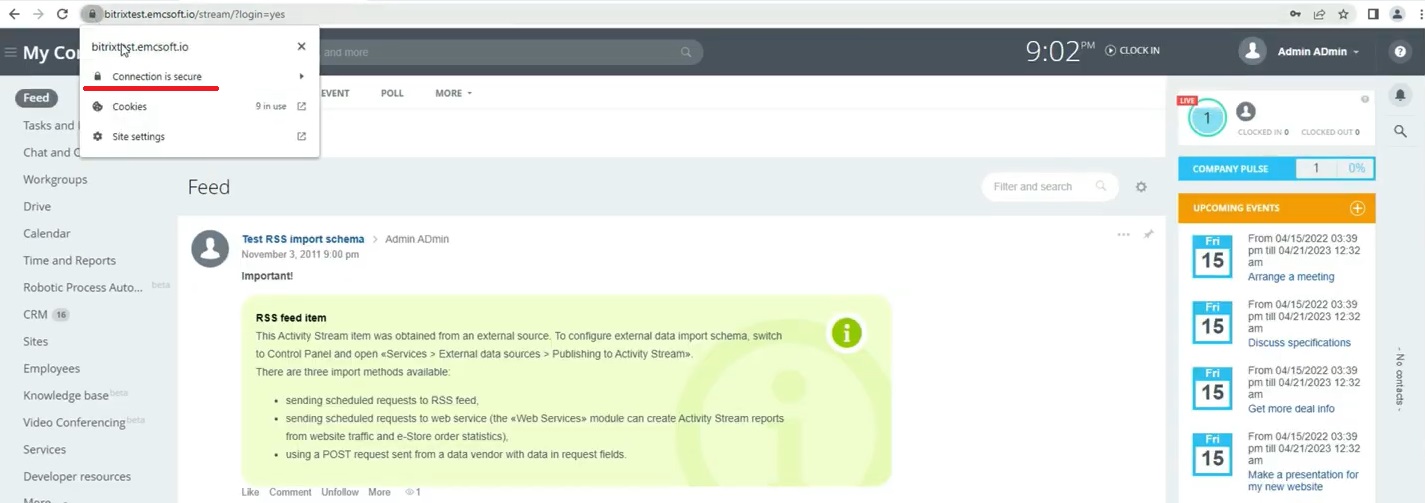
1. Here Google chrome recognize that this subdomain website has no SSL certificate, that’s why HTTPS is not available and connection is not secure.
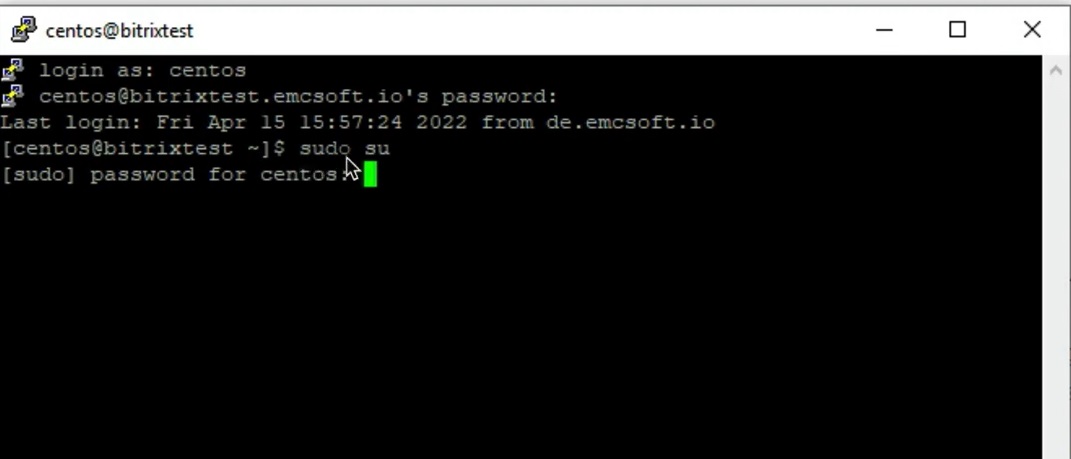
2. Then you should log in to the server, in our case it’s a CentOS. Be sure that you are logged in as a super user.
3. In text editor open file: /etc/nginx/bx/site_enabled/sl.conf
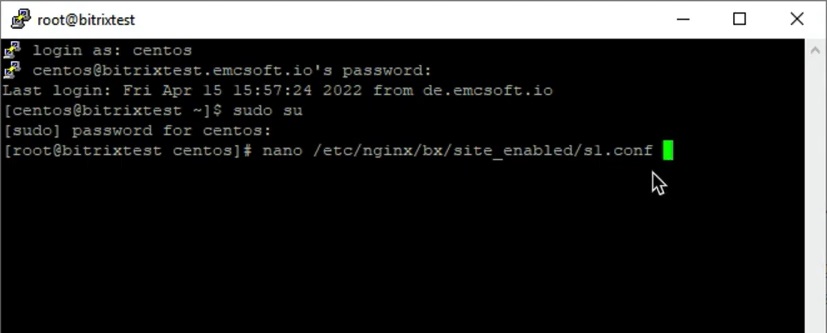
4. Put your server name.
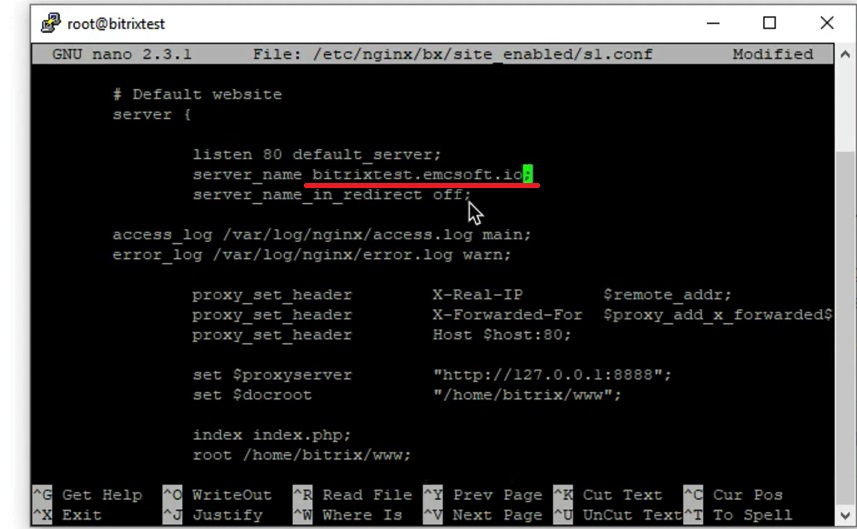
5. Run this command to reload nginx web server: systemctl reload nginx
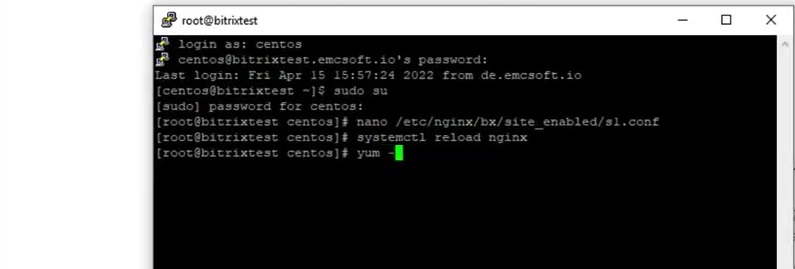
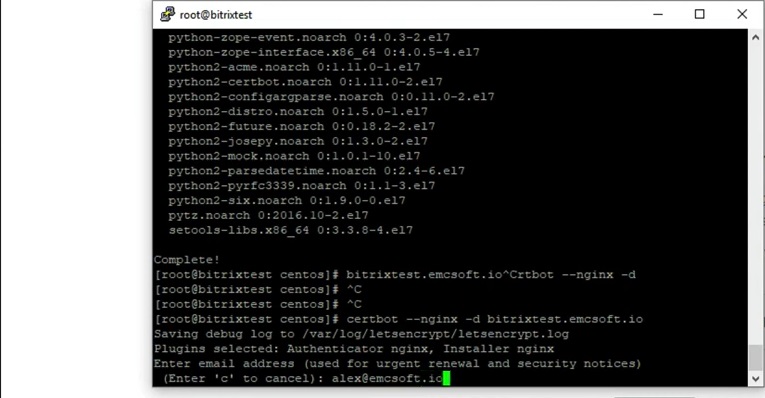
6. Then you need to install a certification bot.
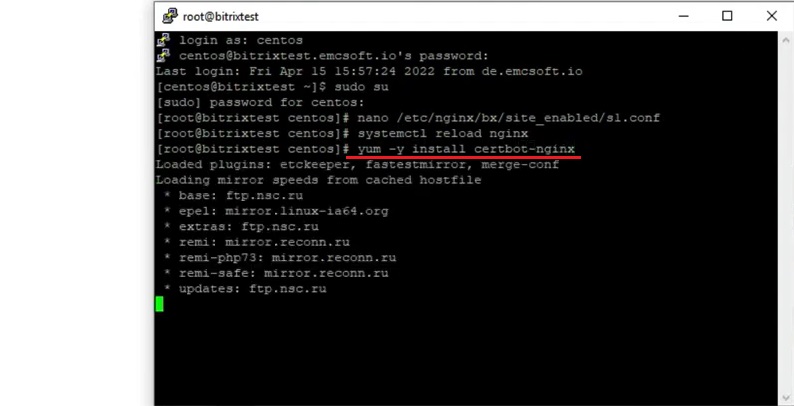
7. This plugin automatically edits a settings file for that certificate.
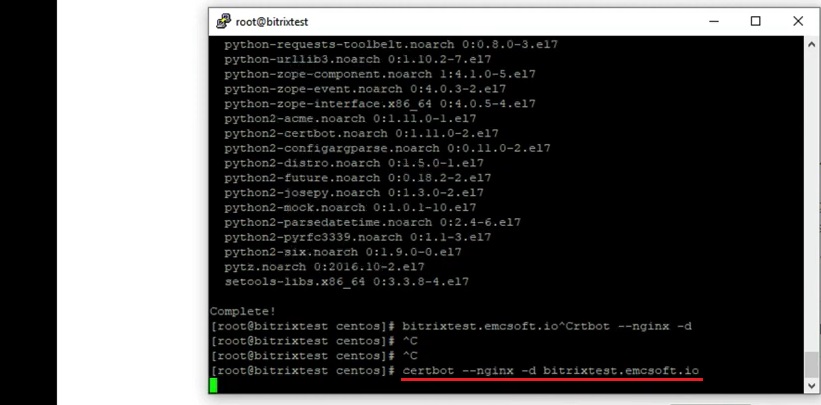
8. Then you should enter an e-mail where you will receive notifications regarding certificate problems or extension.
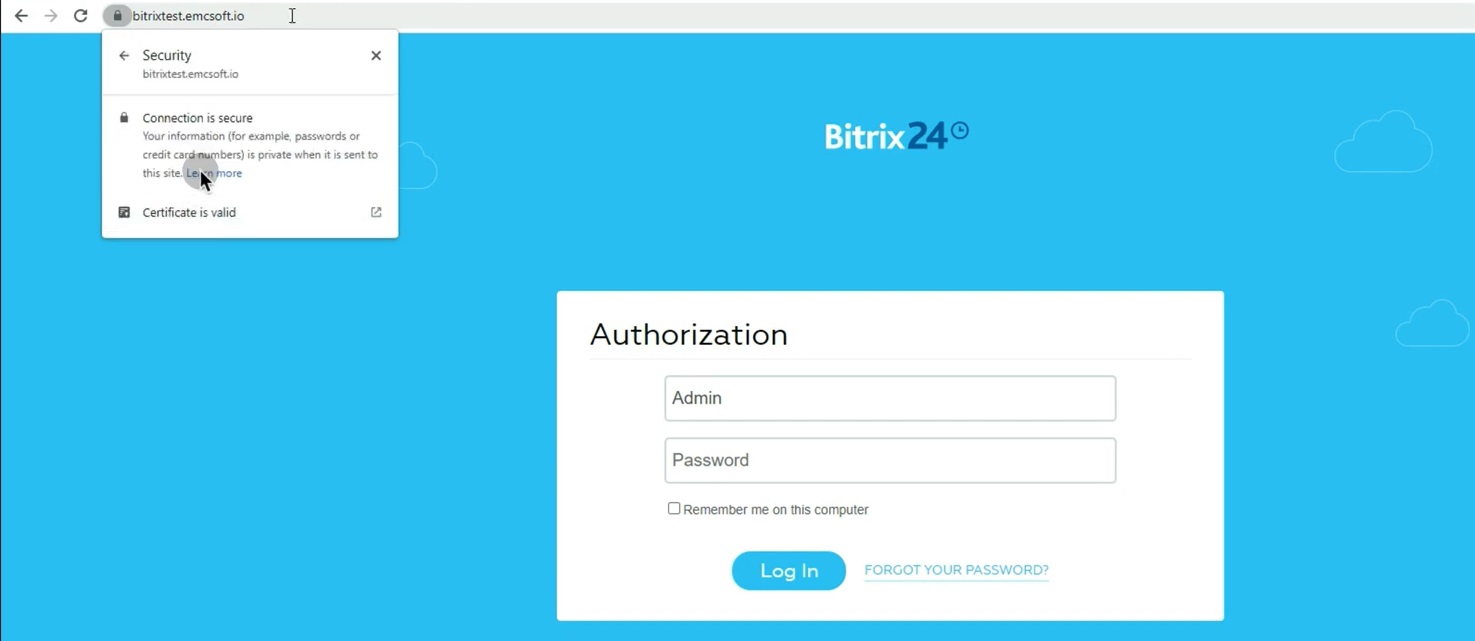
9. After that you can renew the page and see that connection is now secure.
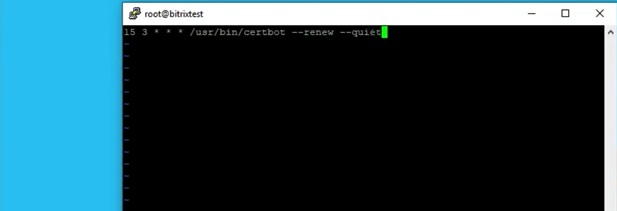
10. After we created a crown task which will extend our certificate after a year.
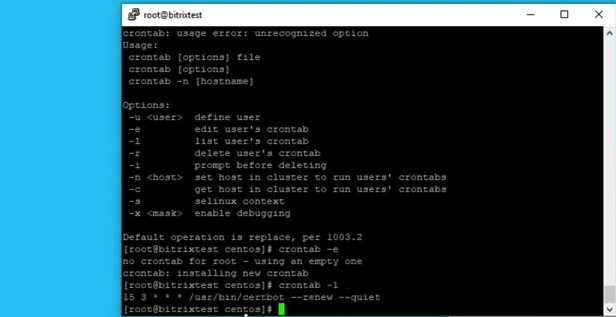
11. Checking that task workability.
12. After that we log in to the Bitrix24 panel and check again that connection is secure.
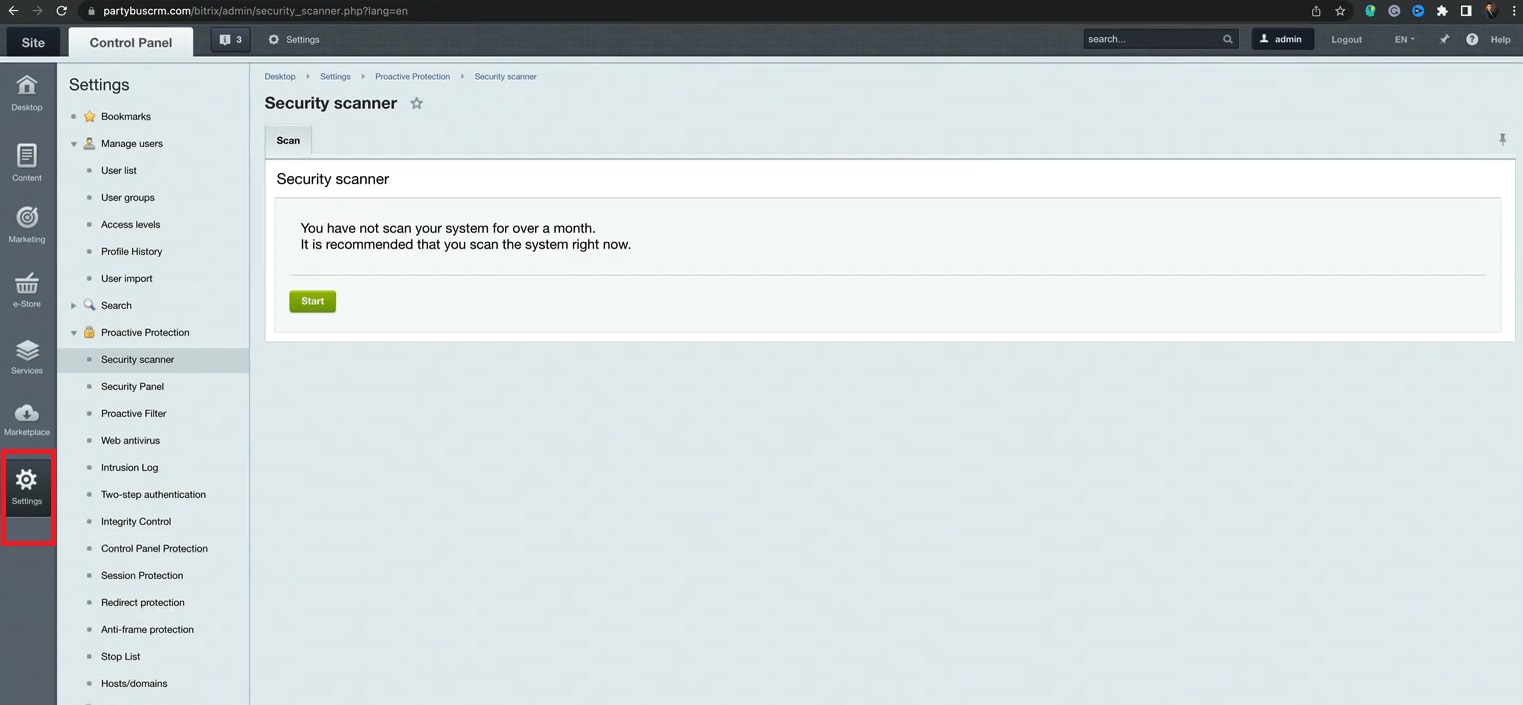
13. However, if you still face problems with your portal, go to the backend of Bitrix panel. Go to the settings in side panel.
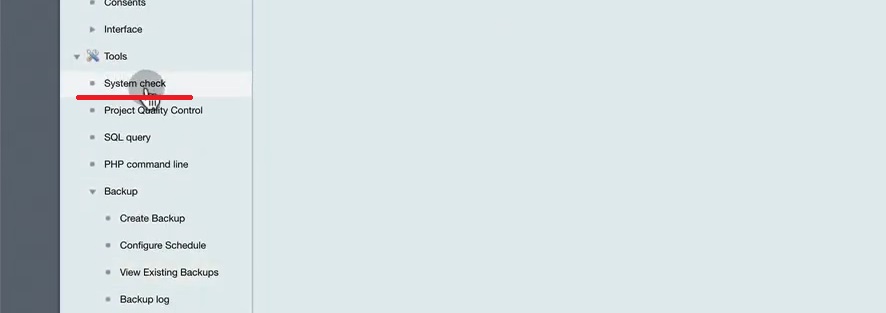
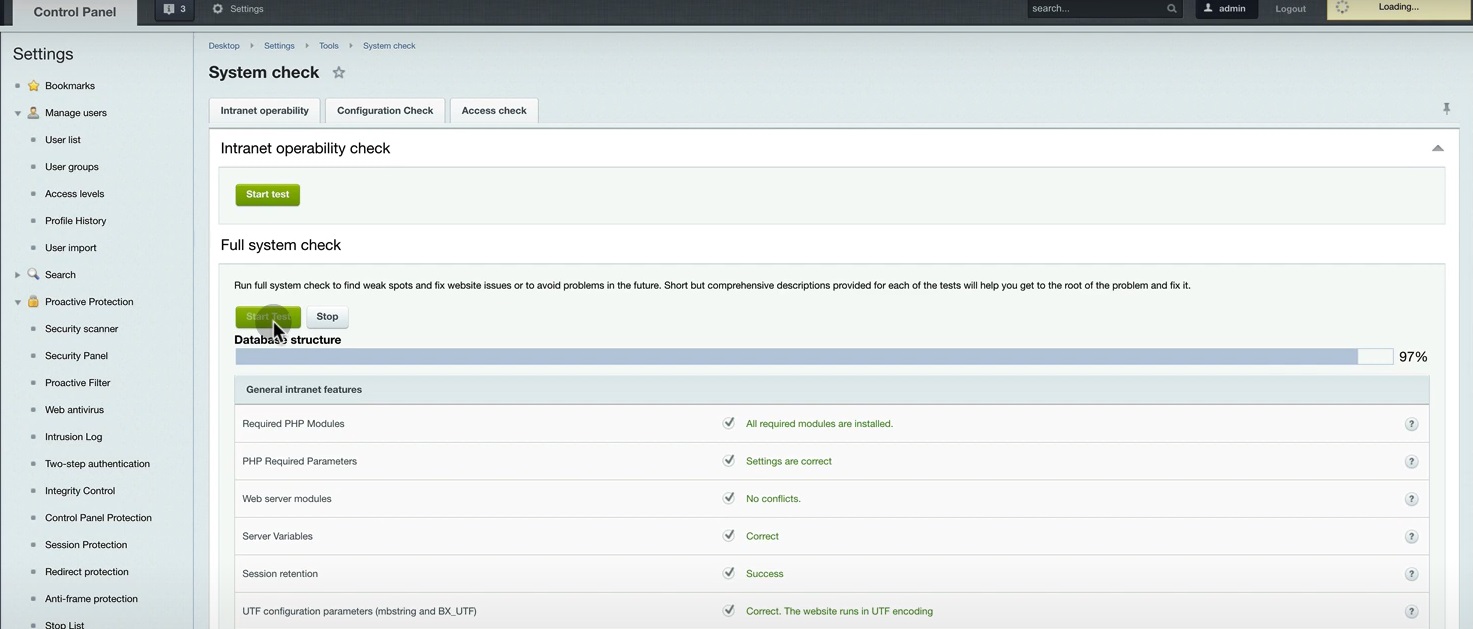
14. Scroll down to the Tools – System check.
15. Here you can run a Full system check.
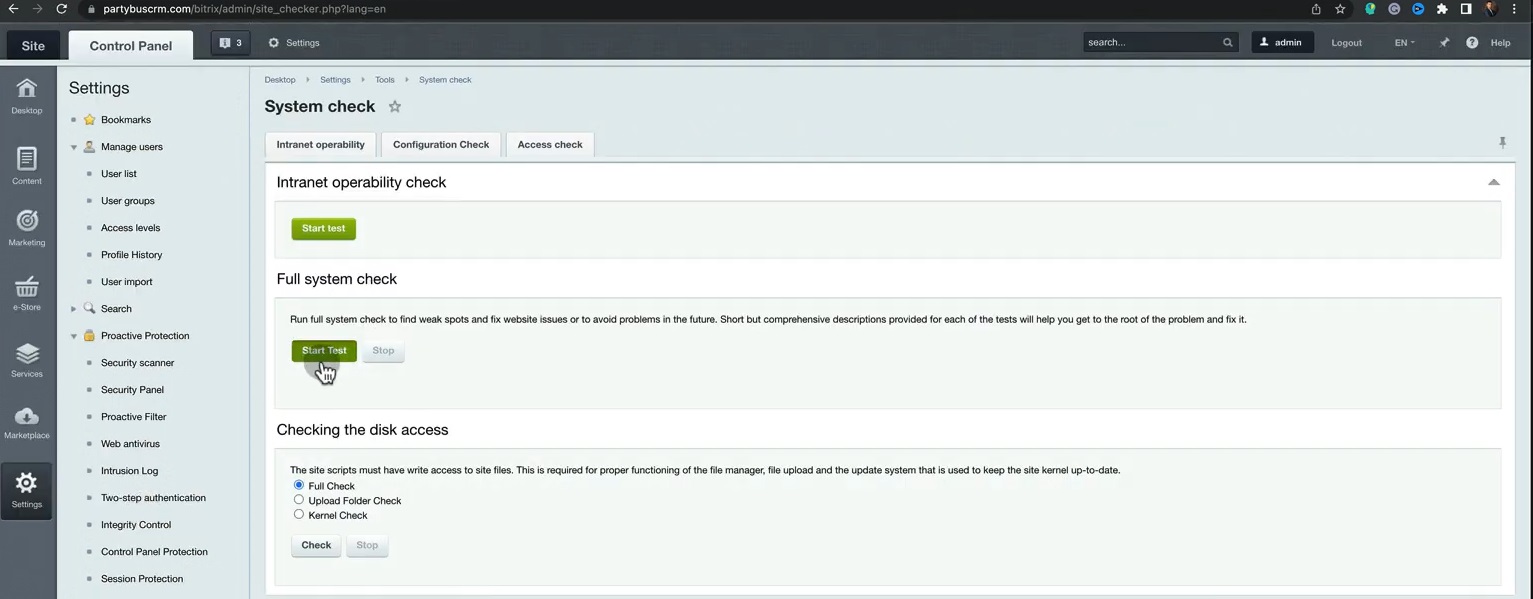
16. This type of check will be more than enough to understand whether you have problems with Bitrix or not.
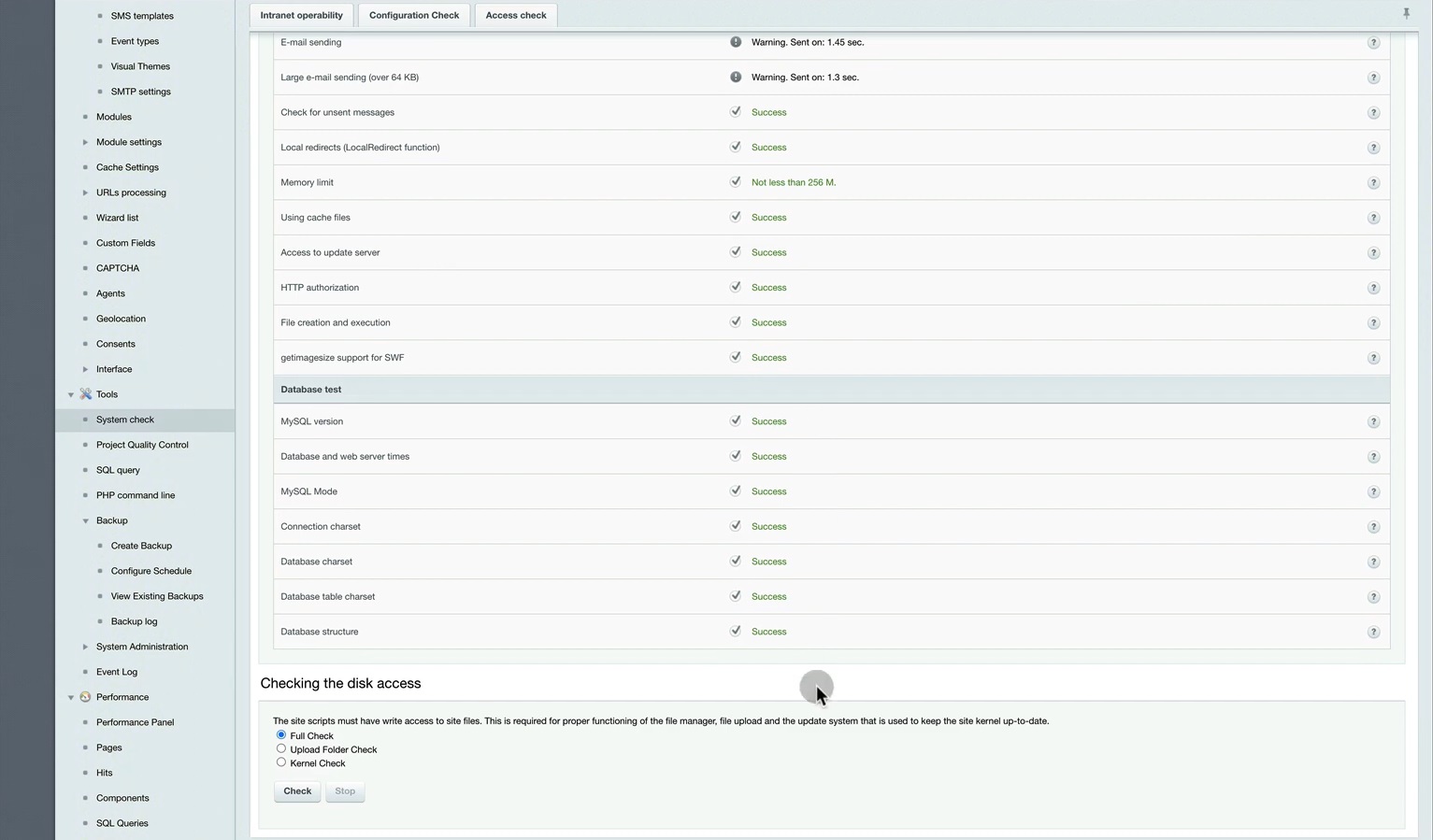
17. Grey e-mail sending parameters refers to the speed, its not about problems so ignore it. And if all features are green, it means that your portal is OK and ready for using.
That was an overview of how to: Installation of the SSL certificate for Bitrix24. Such inquiries are frequently asked in search engines and there are a lot of offers for various sum of payment. However, now you know that SSL certificate installation doesn’t require any specific skills and can be done easily and for free.
If you like our cases and would like to work together, feel free to contact us via website.
You can also watch this video on Youtube.
Play video