
Streamlining Communication with CallCenter24: A Comprehensive Call Center Solution for Bitrix24

Introduction:
CallCenter24 is a robust call center solution designed specifically for Bitrix24 users. This powerful application offers a wide range of features aimed at enhancing communication processes and maximizing efficiency within organizations. In this article, we will explore the key functionalities and benefits of CallCenter24, demonstrating how it can revolutionize the way businesses handle their communication needs.
Installation and Setup:
Getting started with CallCenter24 is a breeze. Users can easily install the application from the Bitrix24 marketplace. Once installed, the application seamlessly integrates with Bitrix24, allowing for a smooth and effortless setup process. Users are guided through the necessary steps to configure CallCenter24, ensuring optimal performance and functionality.
Efficient Call Handling:
CallCenter24 simplifies the process of making and managing calls within Bitrix24. Users can initiate calls directly from the system, leveraging features such as caller identification and call recording. The intuitive interface provides options to add participants, enabling conference calls and collaborative discussions. Users can manage active calls, transfer them seamlessly to other Bitrix24 users, and even pause or mute their own audio as needed.
Intelligent Call Routing:
With CallCenter24, businesses can optimize call routing and ensure calls are directed to the right individuals or departments. The application allows users to create customized call flows, enabling efficient call distribution based on specific criteria, such as time of day, caller ID, or department. This ensures that incoming calls are directed to the most appropriate recipients, minimizing wait times and improving overall customer experience.
Enhanced Collaboration:
CallCenter24 promotes collaboration by enabling users to add participants from their Bitrix24 user list to ongoing calls. This feature is particularly useful for team discussions or involving subject matter experts in customer calls. By seamlessly incorporating additional participants, CallCenter24 fosters effective teamwork and enhances problem-solving capabilities, resulting in improved customer satisfaction.
SMS Integration:
In addition to its call center capabilities, CallCenter24 offers seamless SMS integration with TwiSMS application. Users can send and receive SMS messages directly from Bitrix24, utilizing the same phone number associated with their call center. This feature enables businesses to communicate efficiently with customers and contacts, enhancing engagement and facilitating timely responses.
Conclusion:
CallCenter24 is a comprehensive call center solution designed to empower businesses using Bitrix24. By seamlessly integrating with the Bitrix24 platform, CallCenter24 enhances communication efficiency, enables collaborative workflows, and provides powerful call management capabilities. With its intuitive interface, advanced features, and seamless SMS integration, CallCenter24 is a valuable asset for organizations looking to optimize their communication processes and deliver exceptional customer experiences.
Please check below instruction how to use Call Center 24:
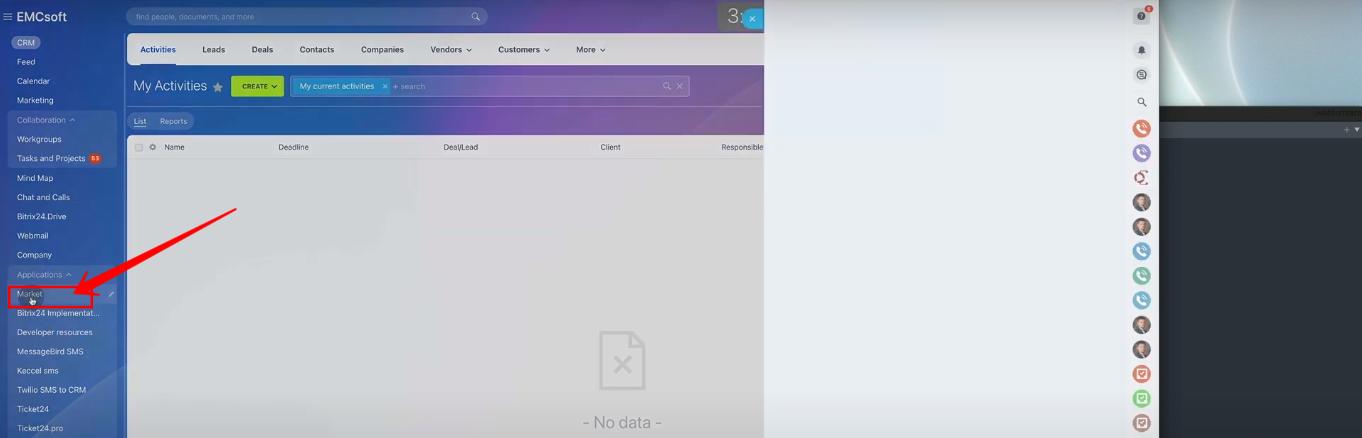
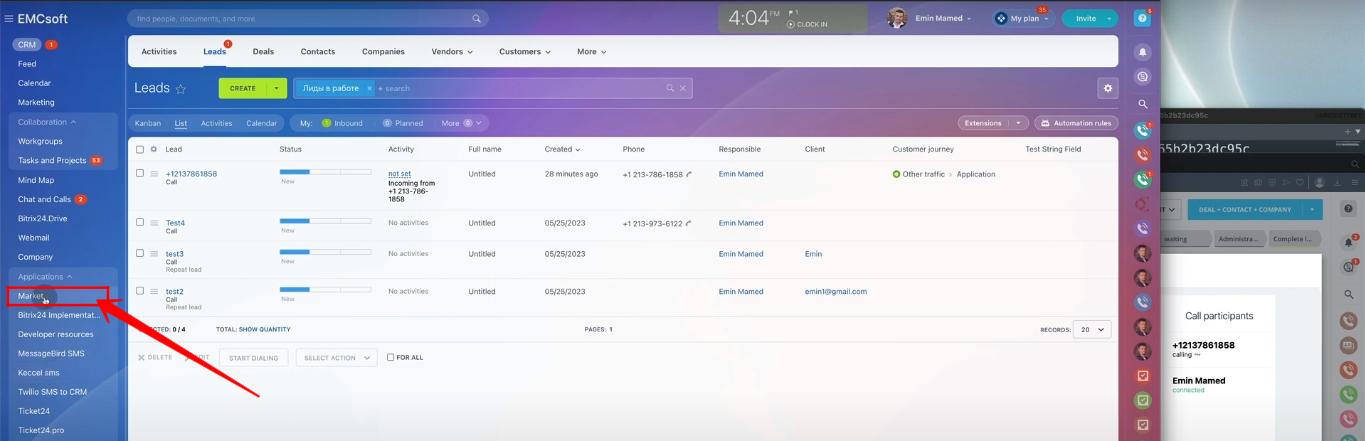
1. Click “Market”
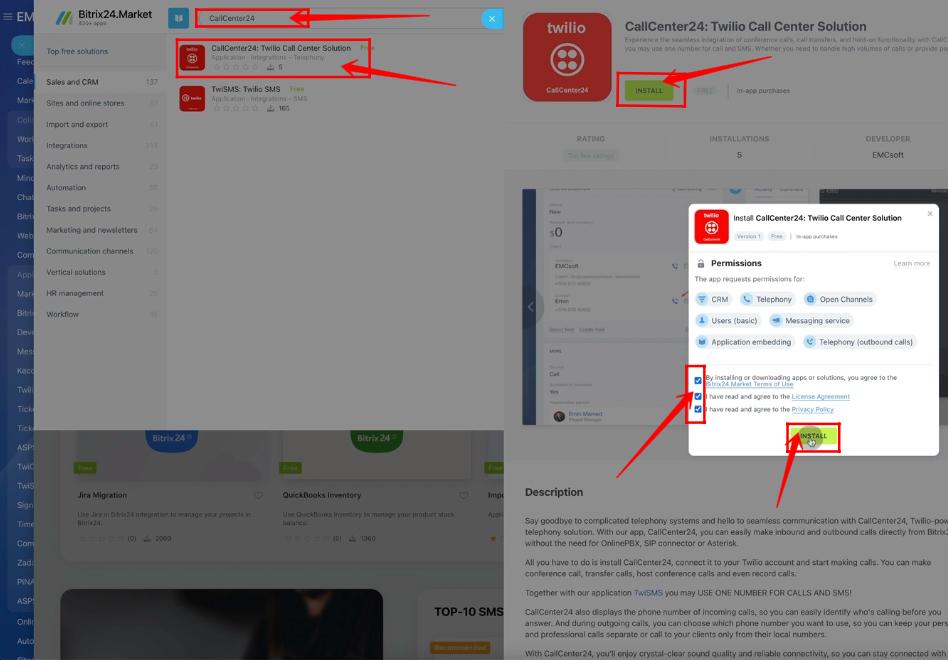
2. Search “CallCenter24” in the searchbar and click “callcenter24” application. Then click “install”, check all the boxes, and click “install”.
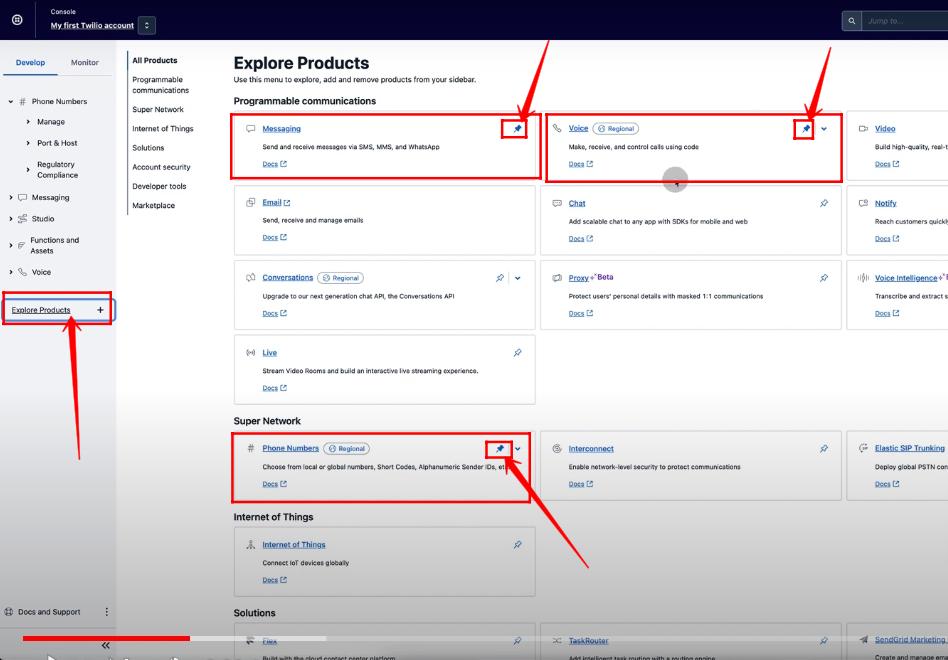
3. Go to your twilio account and click “Explore Products”. Here, you can pin your desired services to have shortcuts in the left side bar.
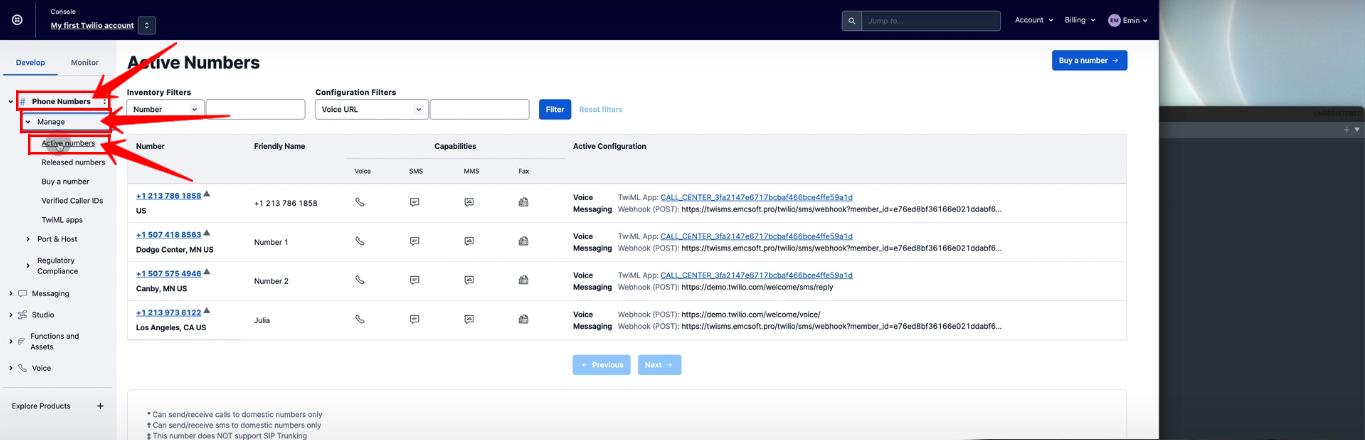
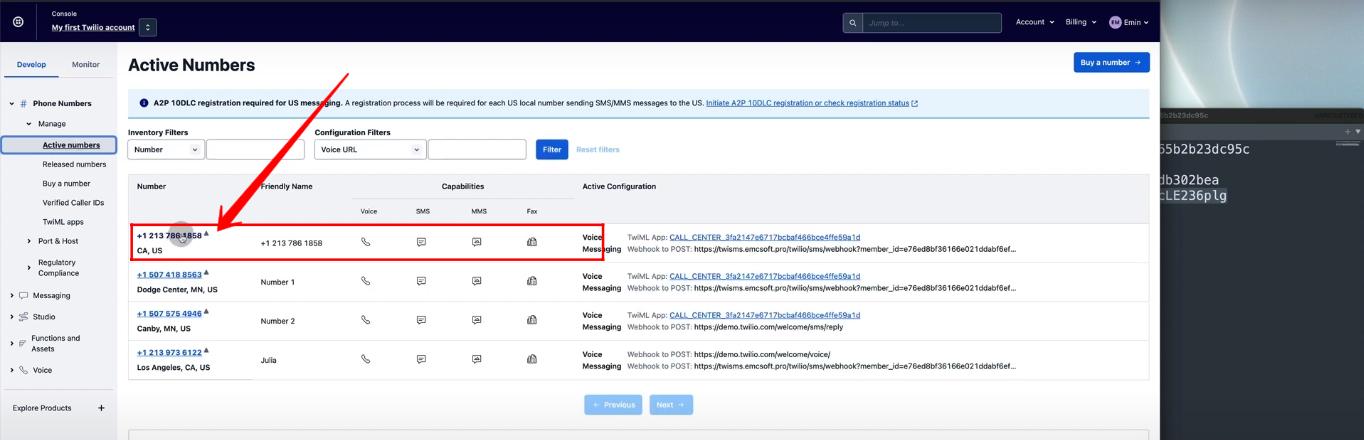
4. Click “Phone Numbers”, select “Manage” and click “Active Numbers” to view all your active numbers.
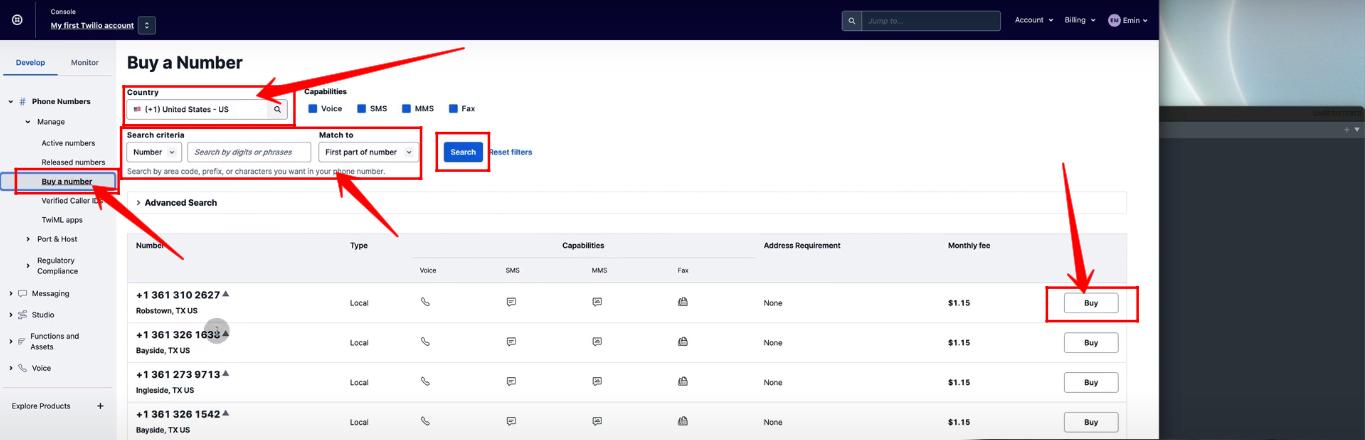
5. If you want to buy a number, click “Buy Number”. Entry “Country”, select your appropriate filters of your own choice and click “Search”. Now simply click “Buy”.
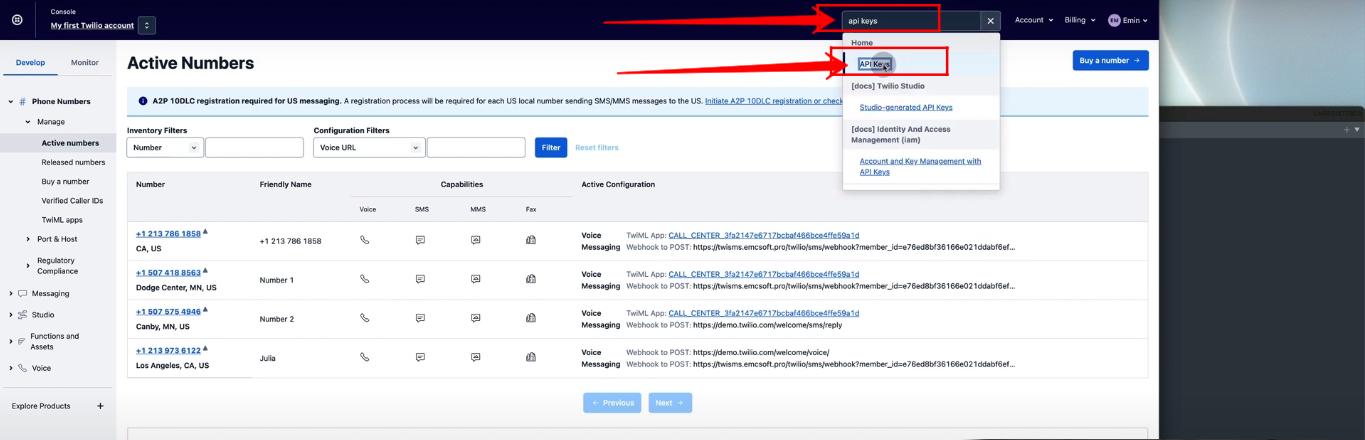
6. Search “API key” in the searchbar and click “API Key” in the suggestions.
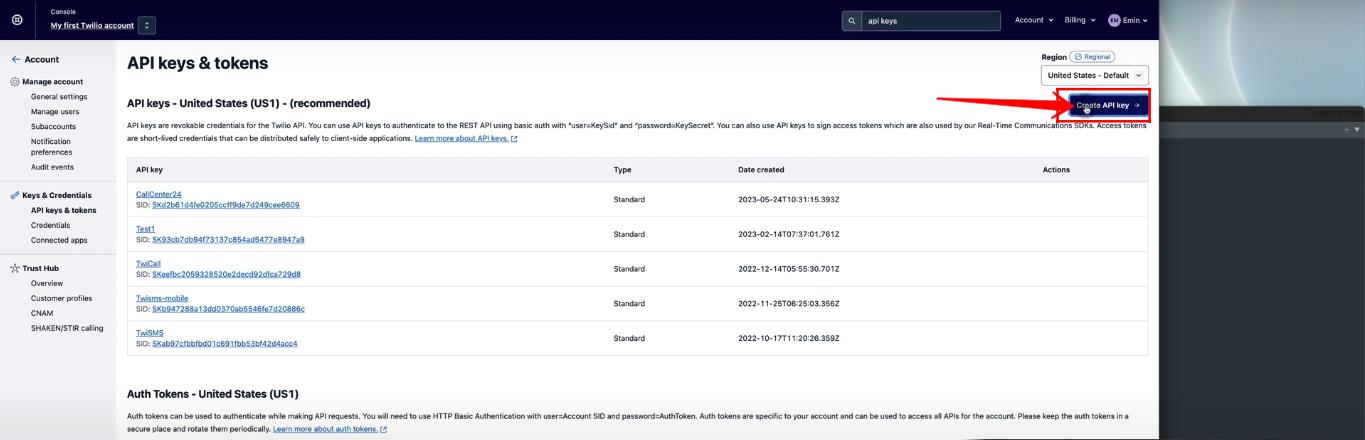
7. Click “Create API Key”
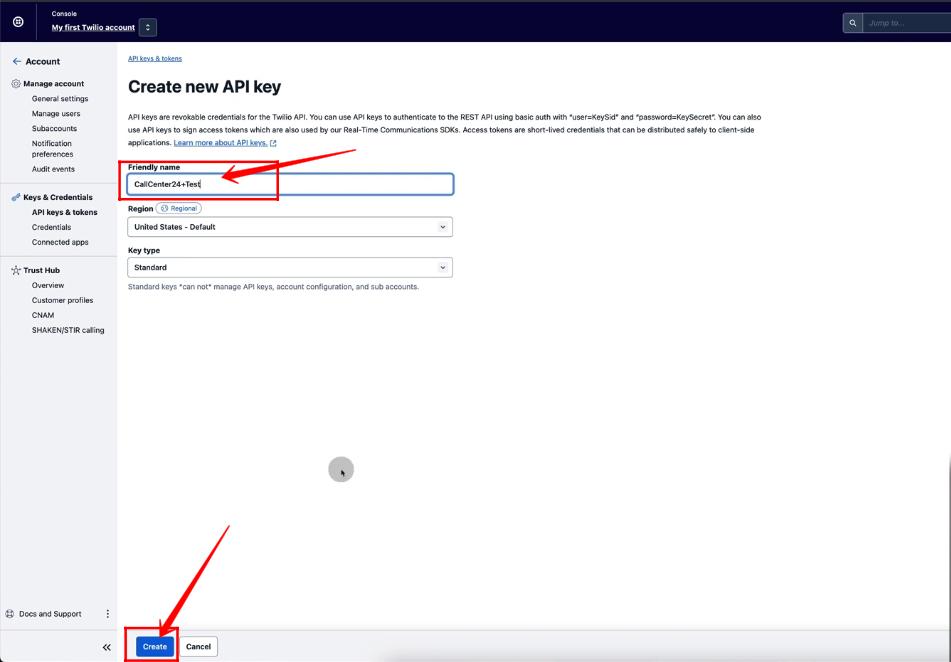
8. Enter your “Friendly Name” and click “Create”.
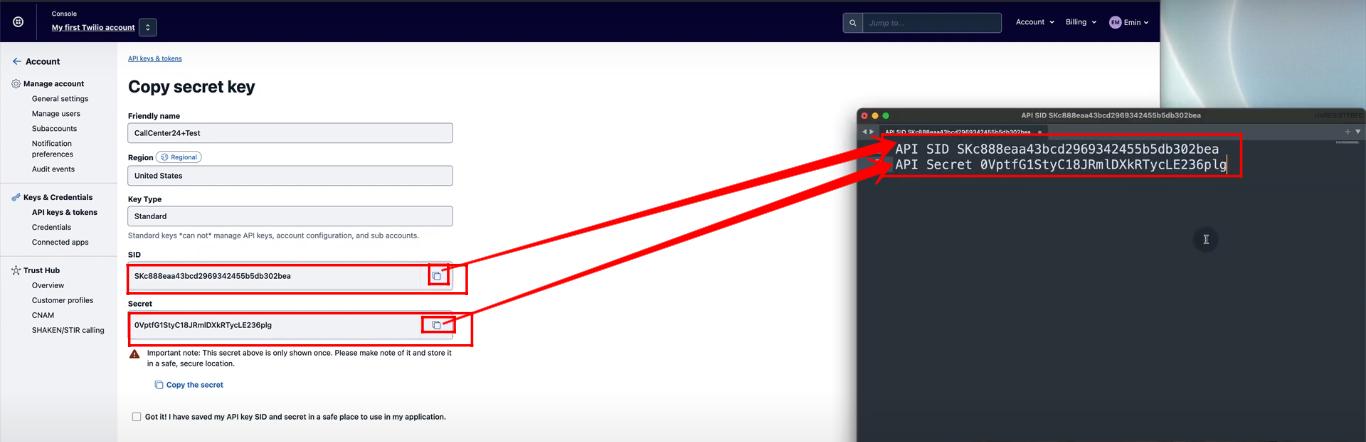
9. Copy your “SID” and “Secret”. Paste in a notepad file.
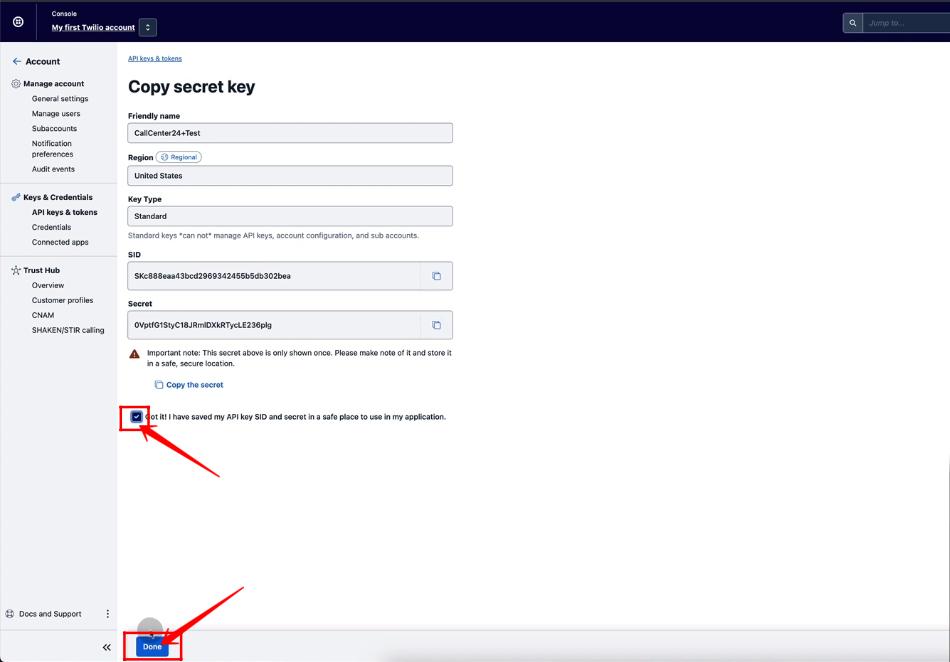
10. Check the box and click “Done”
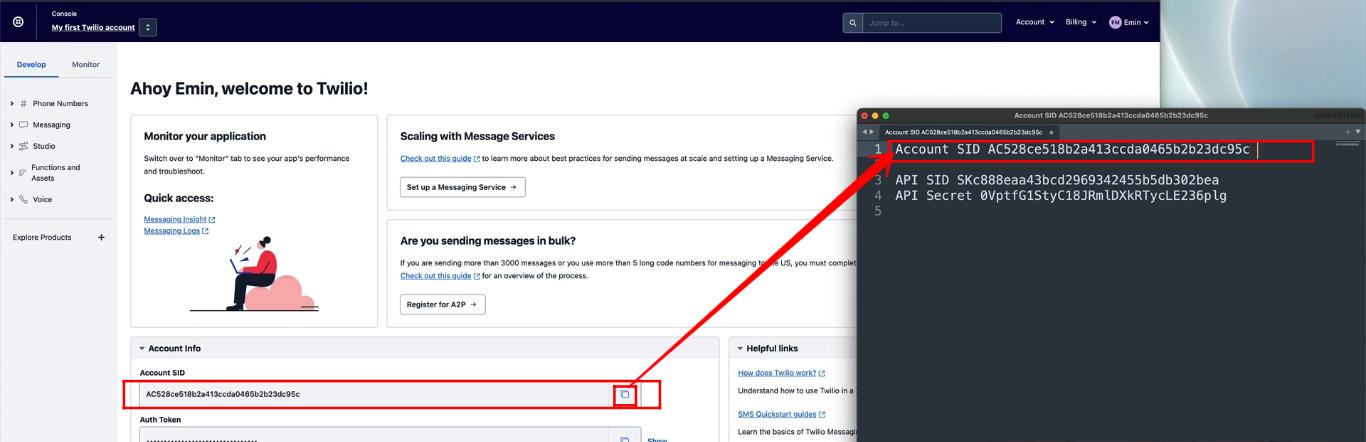
11. Copy your twilio Account SID and paste in the notepad file.
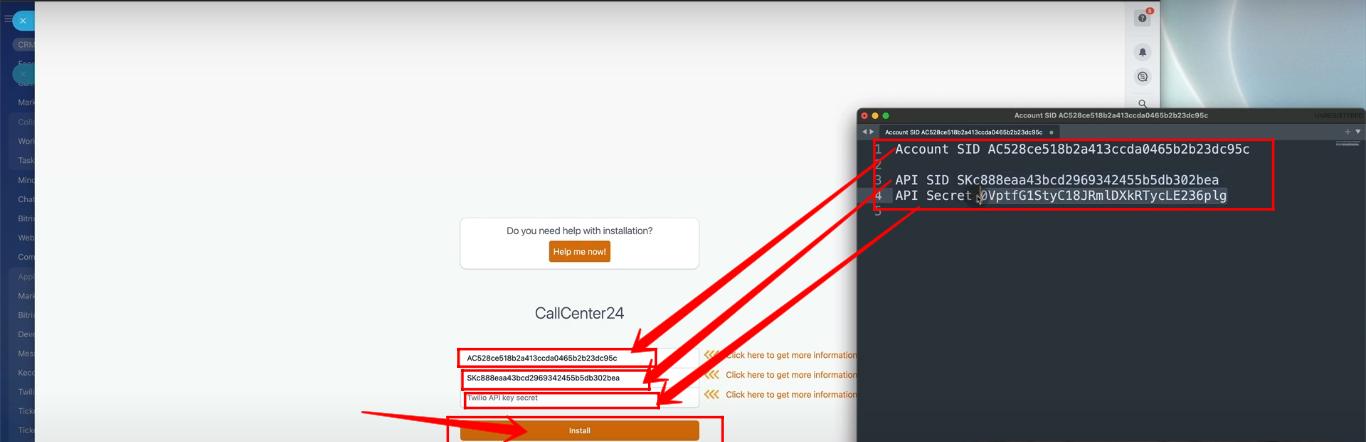
12. Copy your “Account SID”, “SID” and “Secret. Paste in the respective fields and click “Install”.
13. Assign the numbers to a responsible person for calls.
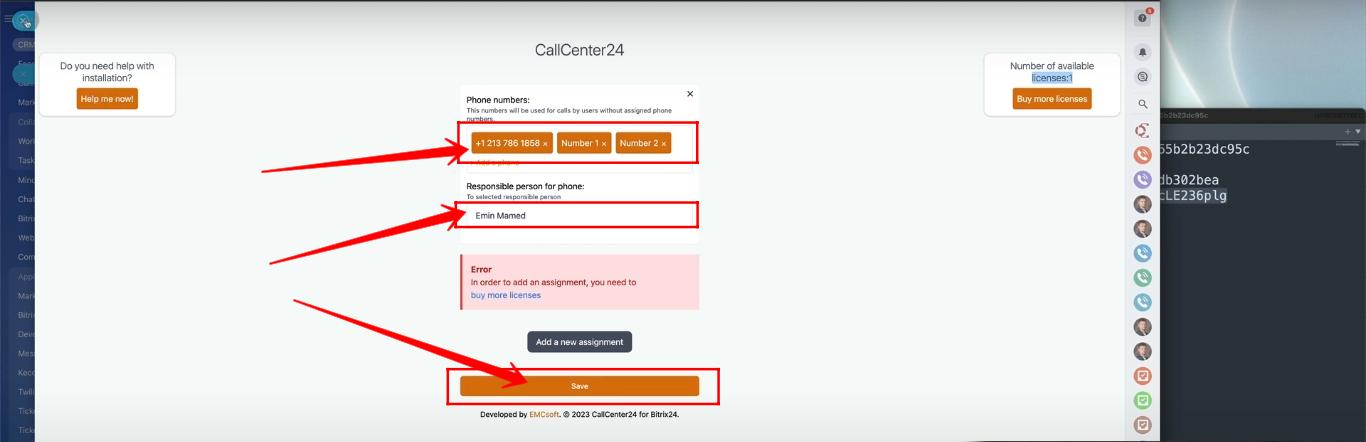
14. Click “CRM”, select “More”, click “Add-ons” and finally select “Telephony”.
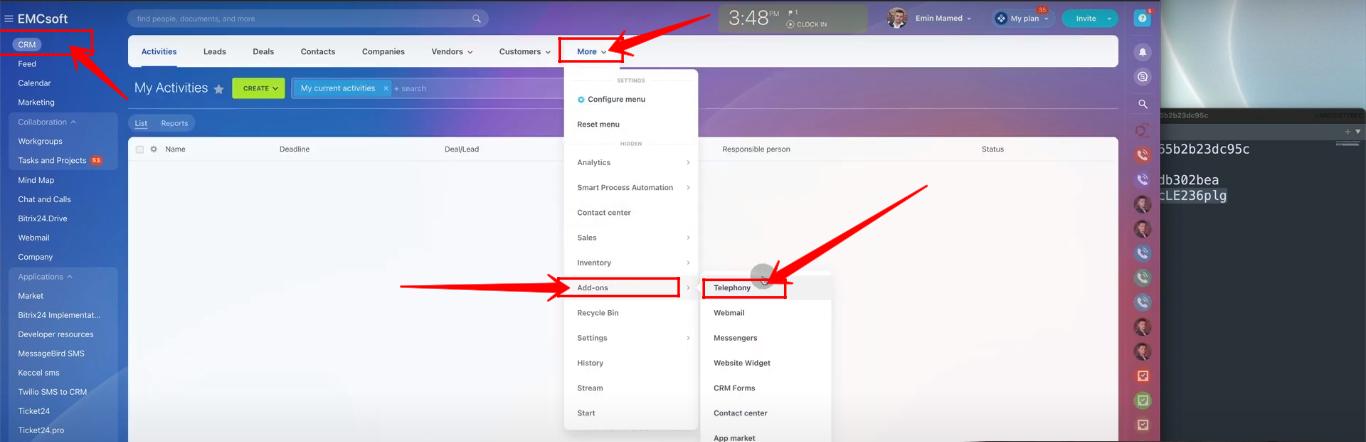
15. Click “Configure Telephony” and select “Telephony Settings”.
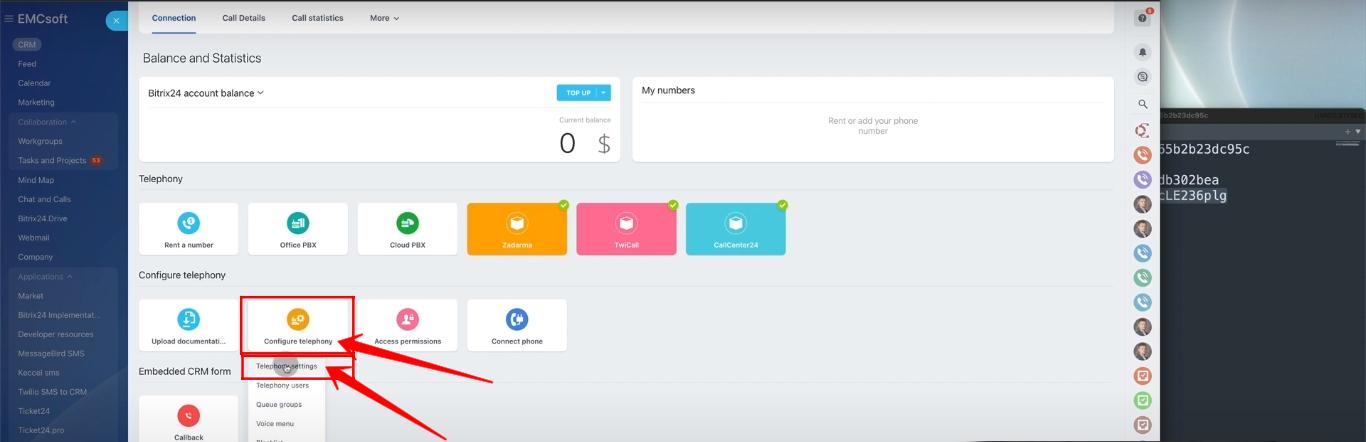
16. Select “Application: CallCenter24” and click “Save”.
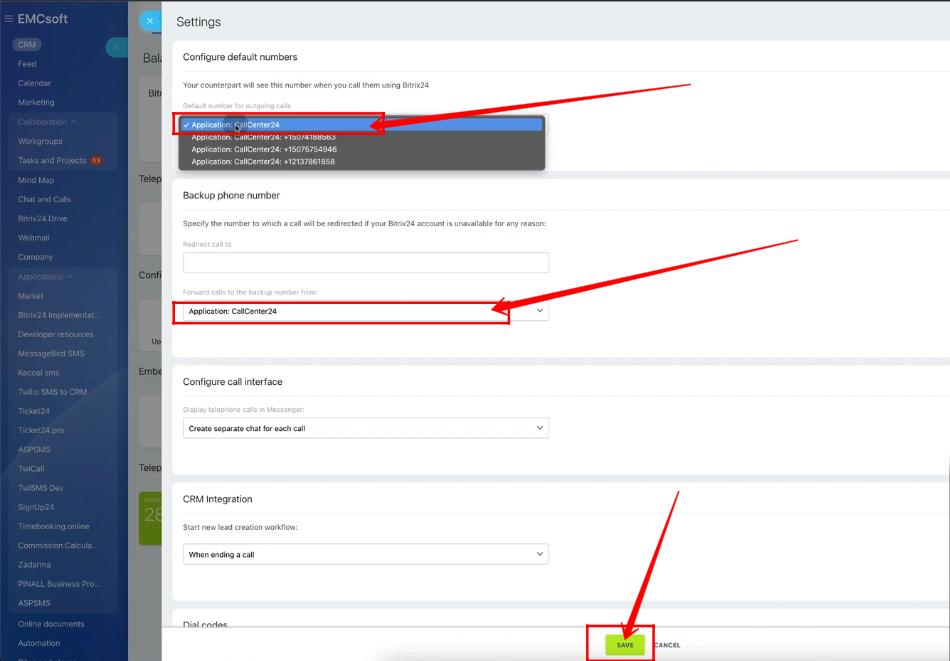
17. Select your newly created configuration.
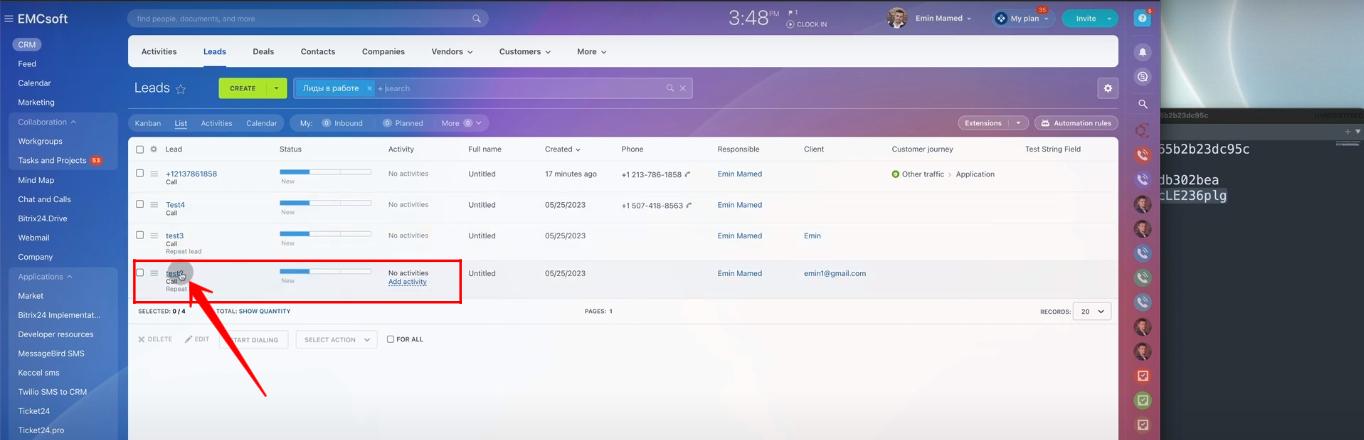
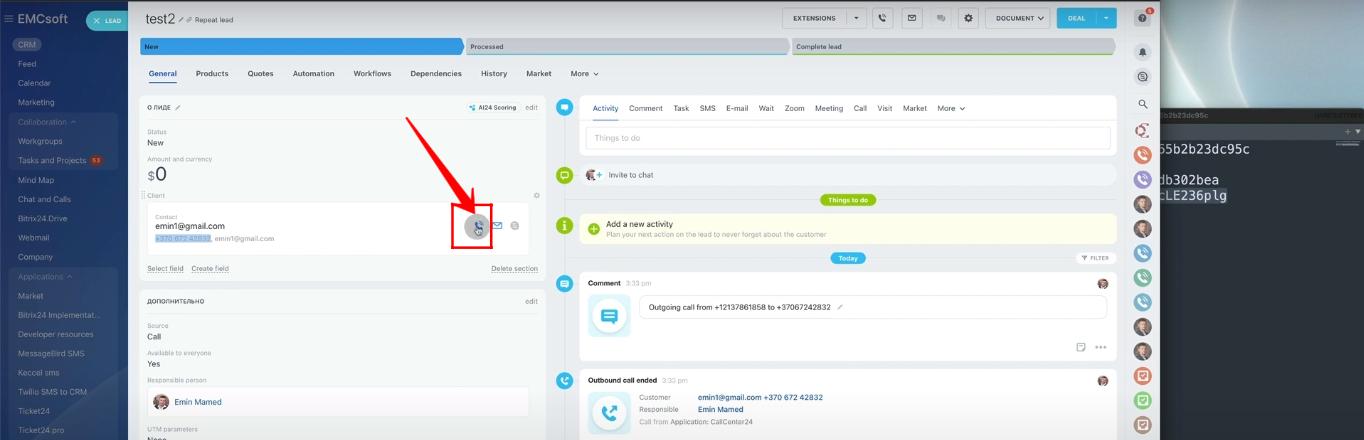
18. Click on “Call” icon.
19. If you want assign a friendly name to a selected number, just go to your twilio account, select active numbers and click the number.
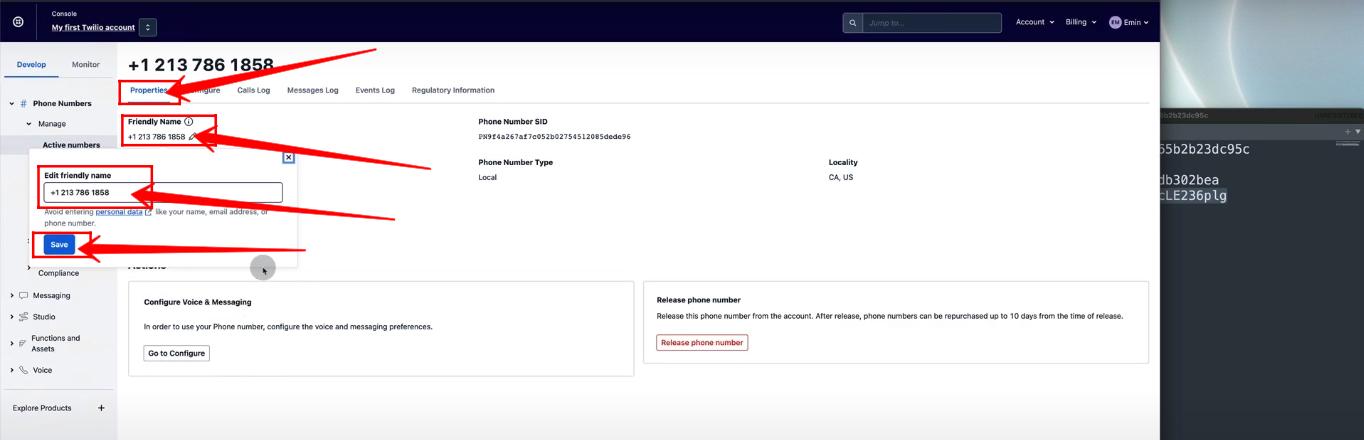
20. Click “Properties”, edit friendly name for phone number and click “Save”.
21. As you clicked call icon. Here, you can select a phone number from which you want to call, and click on “call” button.
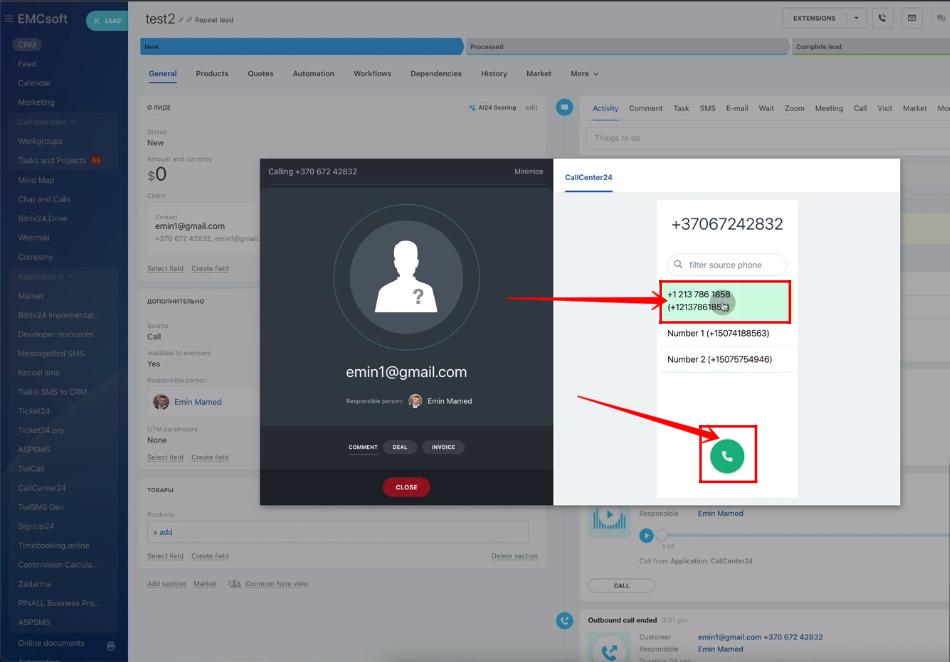
22. If you click this green colored icon, you can add more members from your company in the call.
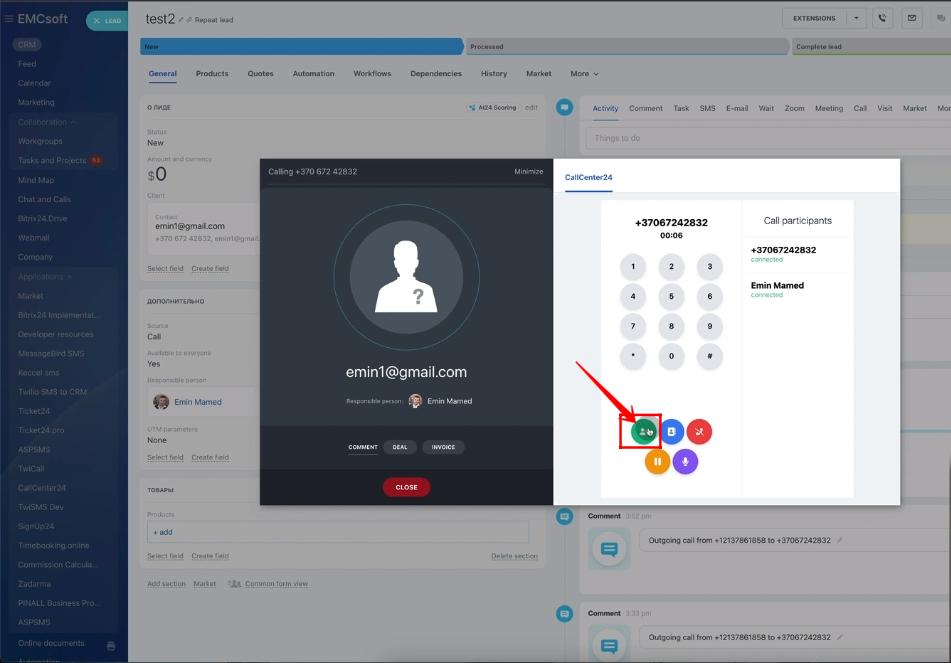
23. Select a member to add in the call.
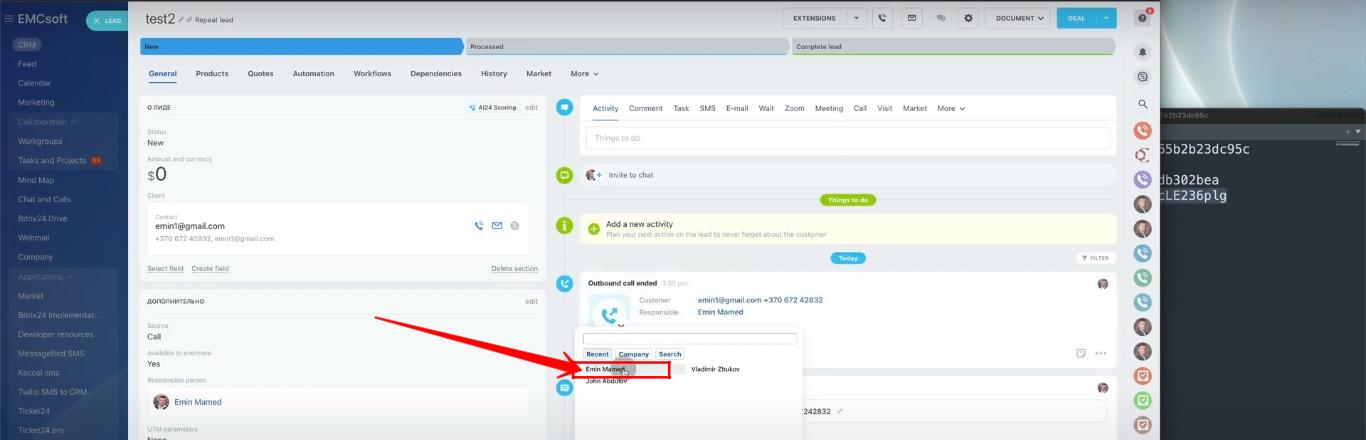
24. If you click blue colored icon, you can add members in the call from outside of the company also. Select a phone number from your contacts and add in the call.
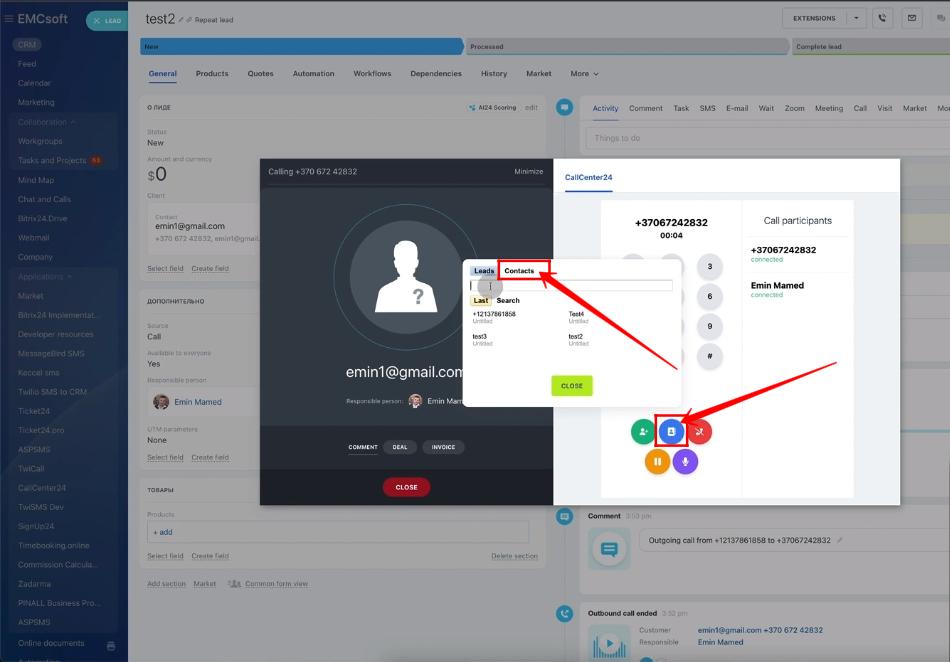
25. When you’ve finished your arguments in the call, just click yellow icon. And you can mute yourself by clicking purple icon.
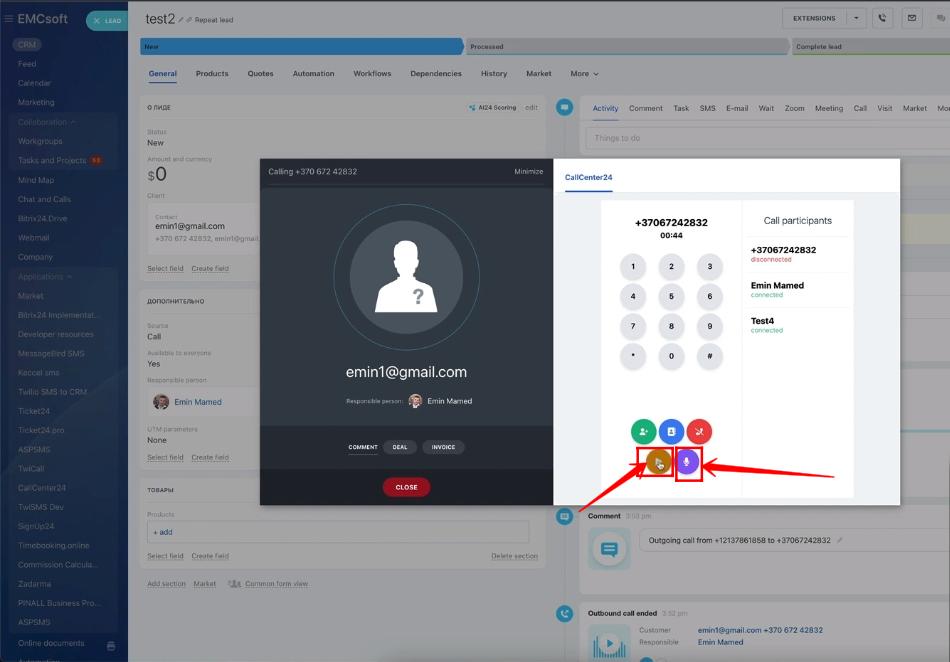
26. Interface of Incoming calls look like this.
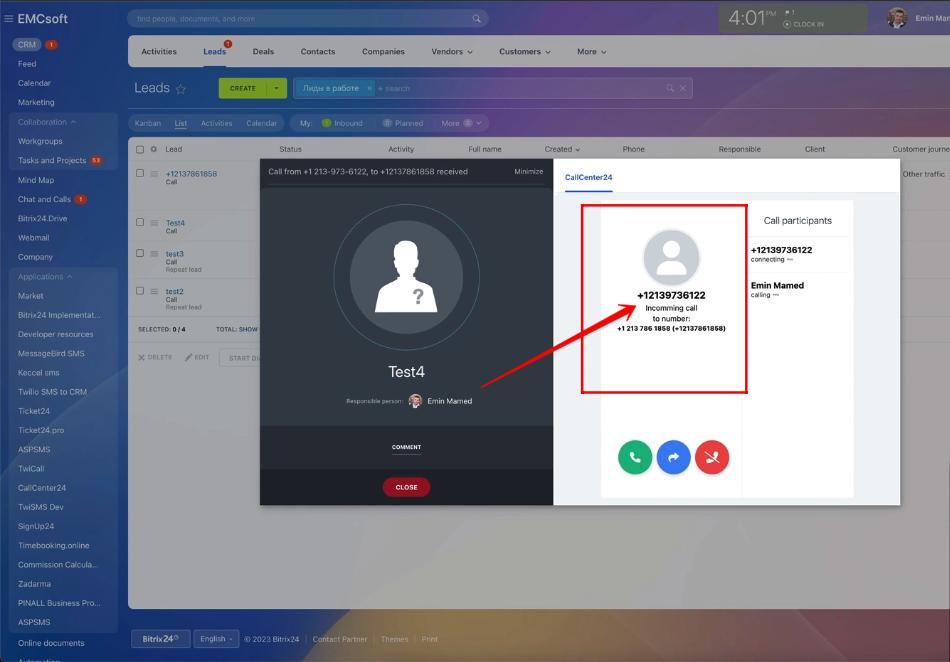
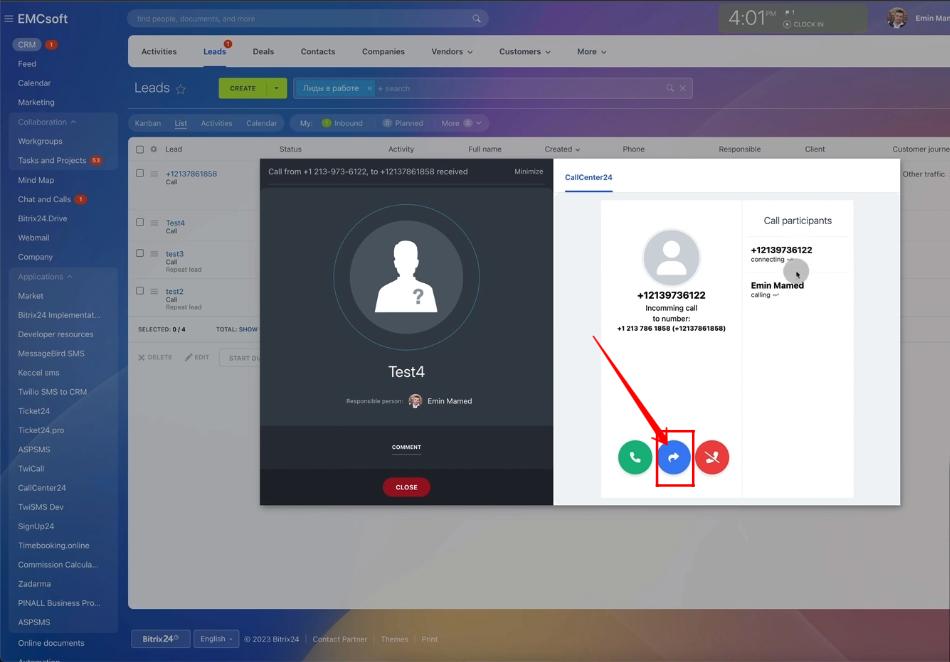
27. You can transfer the incoming the call to any lead within your company by clicking blue icon.
28. To configure same number for SMS also, again click “Market”.
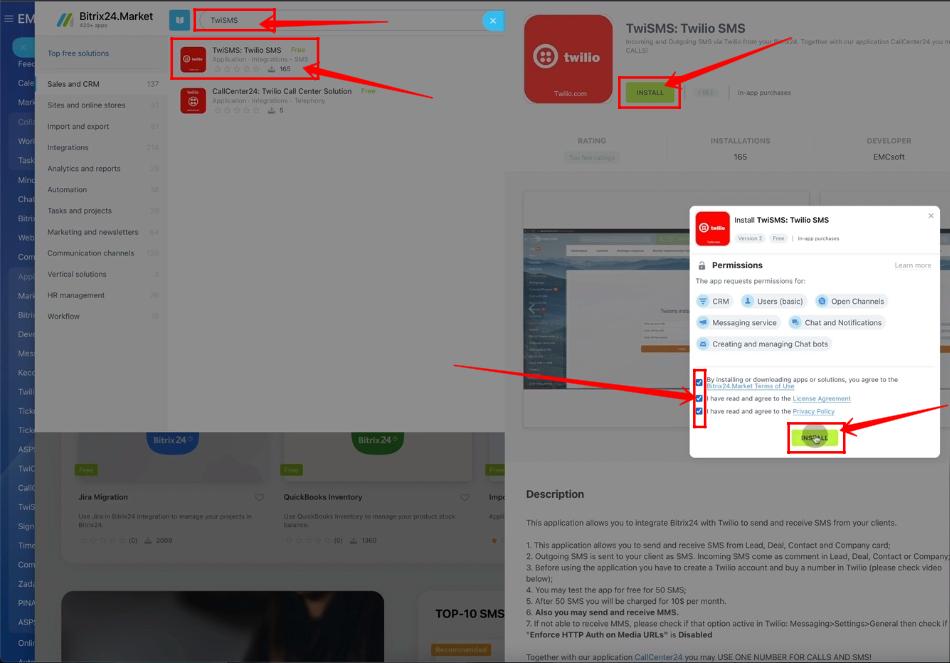
29. Search for “TwiSMS” in the searchbar, select “TwiSMS” application. Click “Install, check all the boxes and again click “install”.
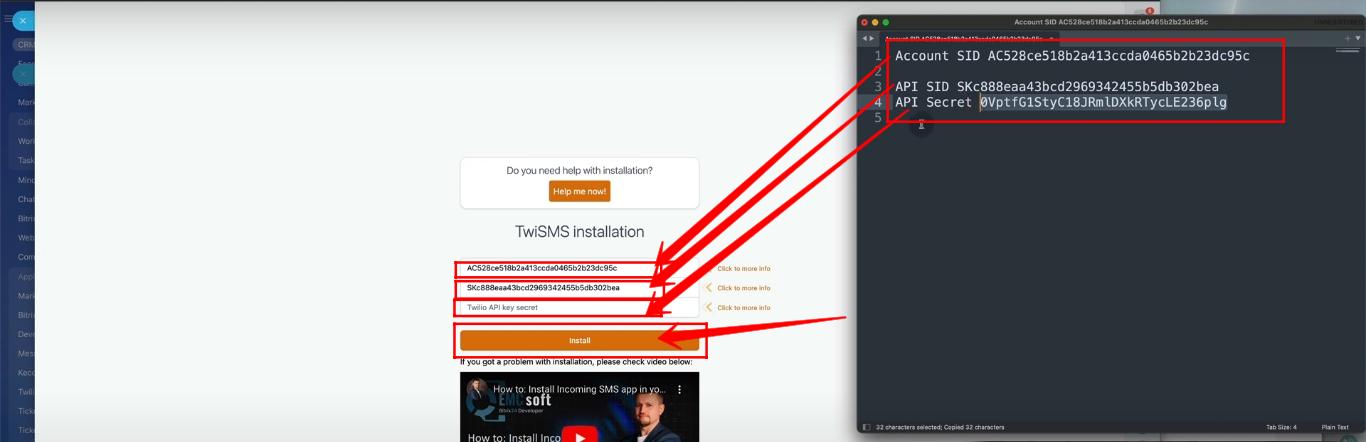
30. Copy your “Account SID”, “SID” and “Secret”. Paste all the credentials in the respective fields from notepad file and click “Install”.
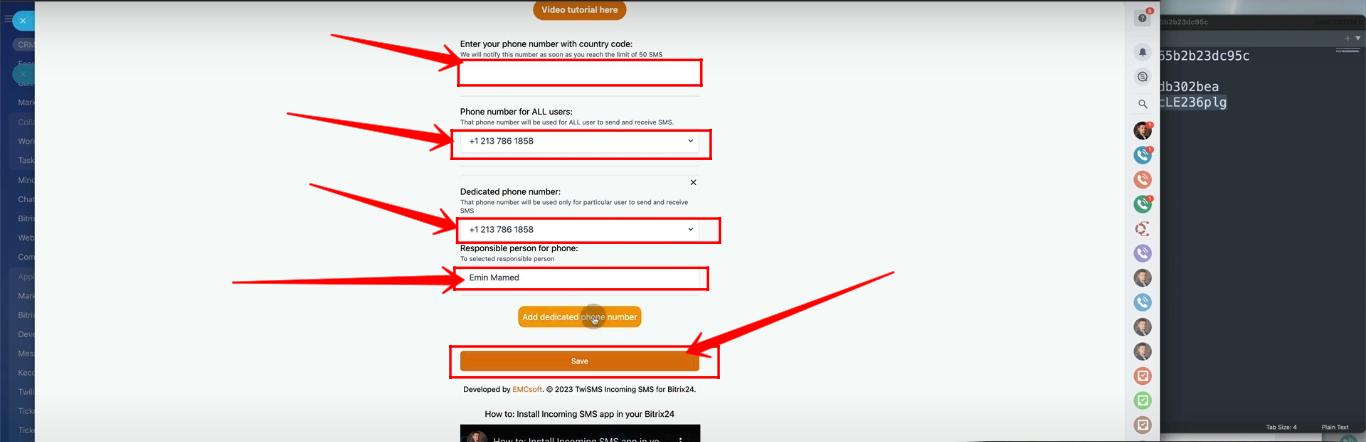
31. First Textinput is for your personal number, If you don’t want to give your number, just leave it blank. Then assign a phone number to all users to send and receive SMS. Now finally dedicate a selective number(will be the same you assigned in the call center) to appropriate user, and click “Save”.
32. Select your configuration.
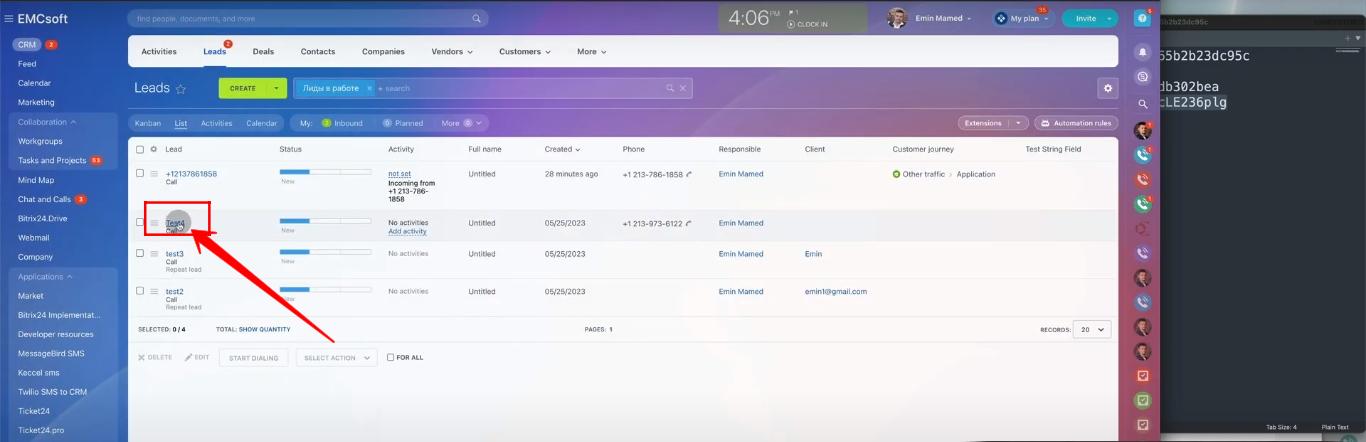
33. Click “SMS” and then click “More”.
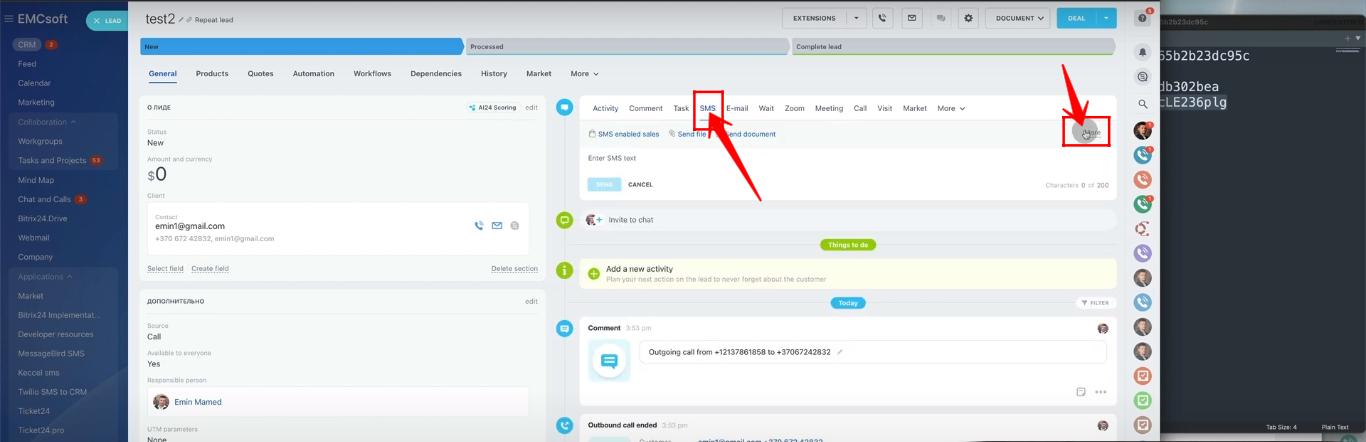
34. Select “TwiSMS”.
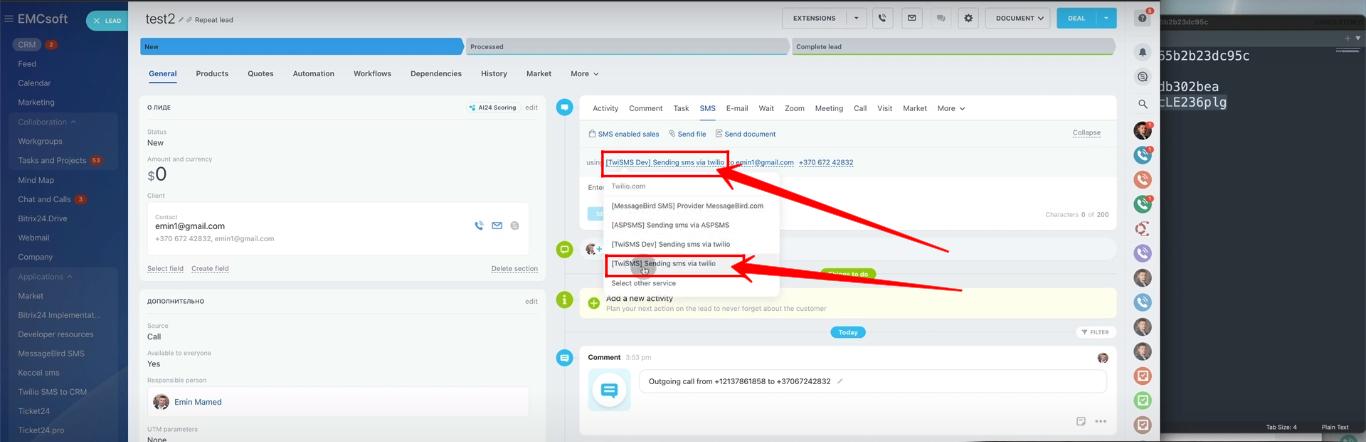
35. Type a message and click “Send”.
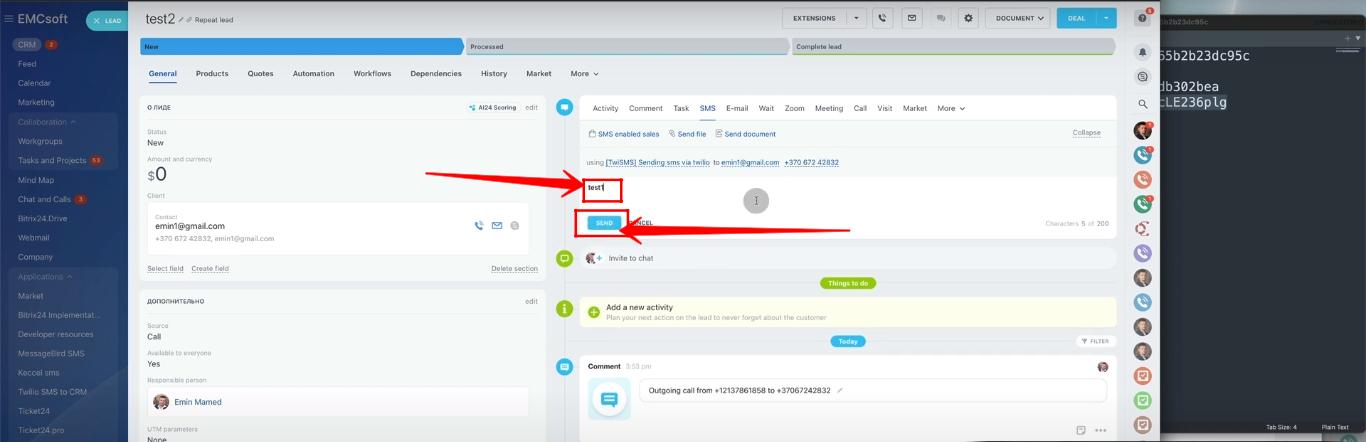
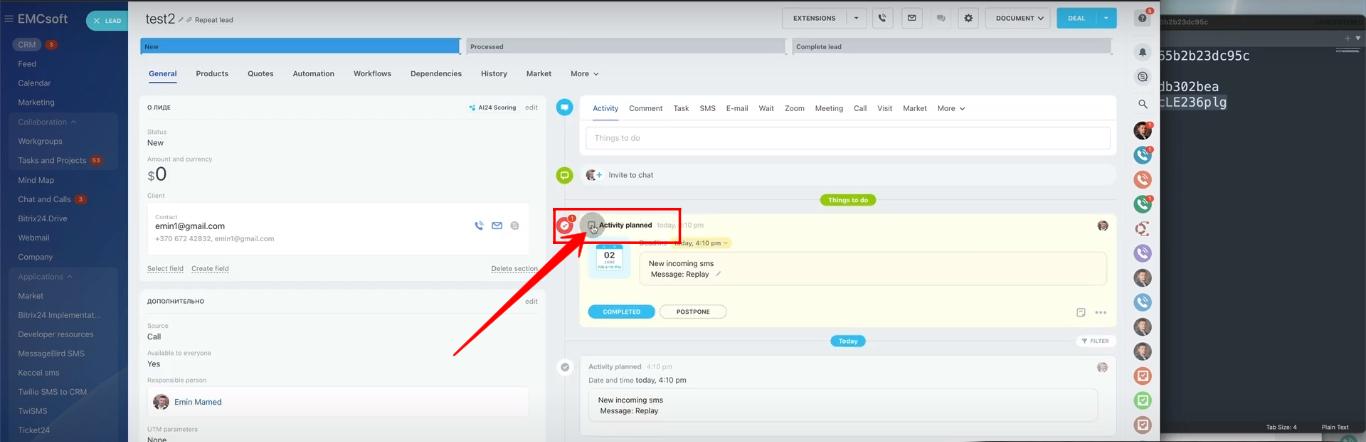
36. When a user replies to your message, the incoming message will look like this.
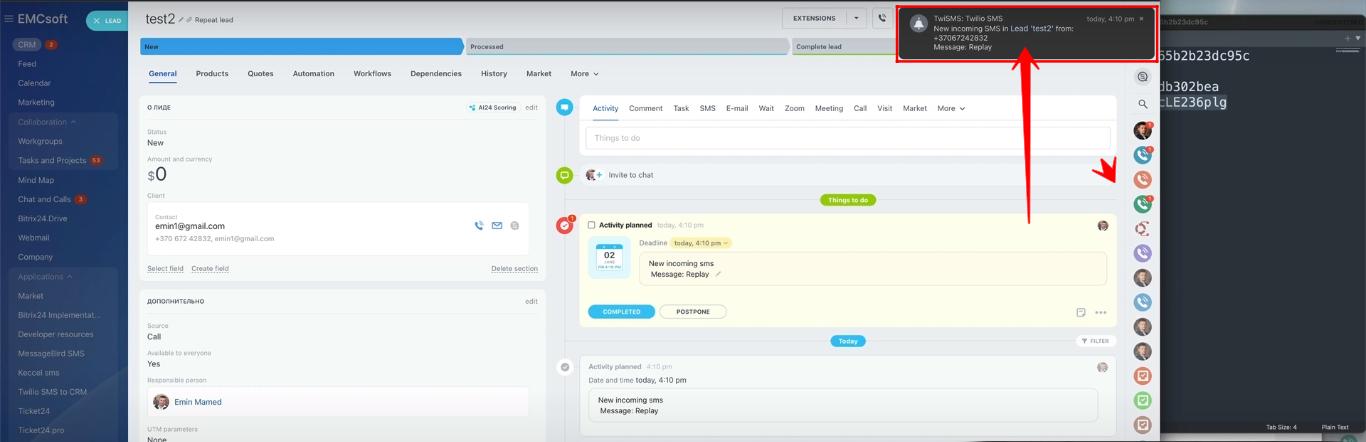
37. When you have some activity (incoming messages) in your configuration, the notifications will appear like this
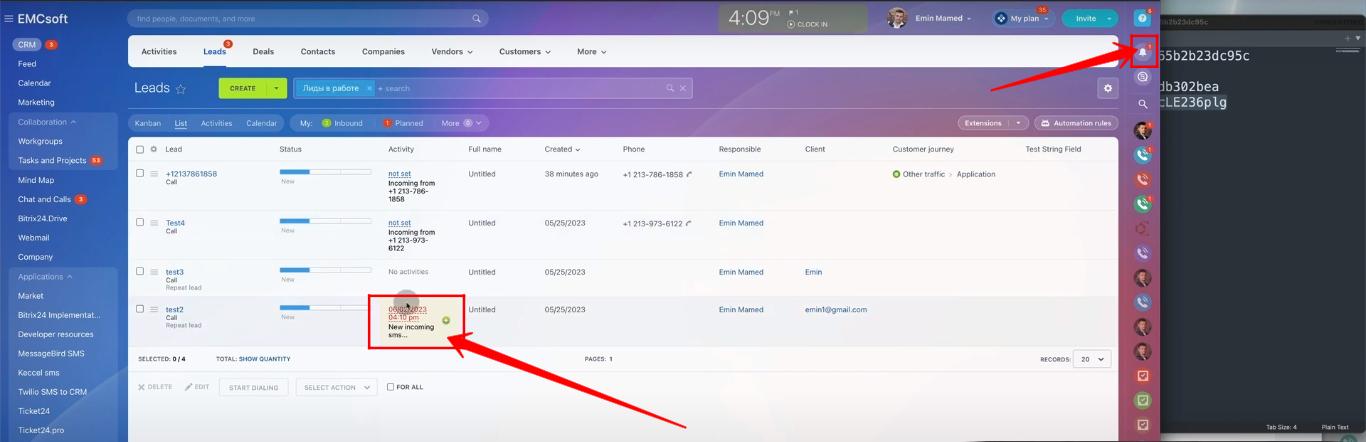
38. Check the box and the notifications will disappear.
“You can also watch this video on Youtube”
Play video