
Unleashing the Power of Custom Fields in Bitrix24

The ever-evolving landscape of Customer Relationship Management (CRM) systems calls for a more personalized approach to managing your business operations. One of the tools at the forefront of this evolution is Bitrix24, a robust CRM platform with a multitude of customization options. One of the most powerful and versatile customization features of Bitrix24 is the ability to create custom fields. A recent YouTube tutorial highlights this feature, offering a step-by-step guide on how to harness the power of custom fields in Bitrix24.
The video begins by defining what custom fields are and how they can significantly improve your business operations. Custom fields in a CRM like Bitrix24 allow you to tailor the system to fit your unique business needs, recording and tracking data that are pertinent to your specific operations. By understanding and utilizing this feature, businesses can extract more value from their CRM system and make it align more closely with their unique needs.
Next, the tutorial breaks down the process of creating a custom field from scratch. The video creator walks viewers through each step of the process, making it easy for Bitrix24 users of all experience levels to follow along. The guide covers the selection of field types, naming the custom field, and how to effectively implement them in your CRM system.
What sets this tutorial apart is its inclusion of advanced tips and tricks for those wanting to get the most out of their Bitrix24 experience. It provides insights into how to leverage custom fields to optimize your workflow and make your business operations more efficient.
The video, which acts as a comprehensive guide, is incredibly beneficial for both beginners to Bitrix24 and experienced users looking to expand their understanding of the platform's customization capabilities. The step-by-step, easy-to-follow approach of the video makes it a fantastic resource for anyone aiming to maximize the effectiveness of their Bitrix24 CRM system.
In summary, this YouTube tutorial offers a valuable look into one of the most powerful customization features of Bitrix24 - custom fields. By watching this video, users can understand and implement this feature to tailor their Bitrix24 experience to their unique business needs, improving efficiency and productivity in the process.
The ongoing evolution of CRM systems continues to offer businesses more options for customization and optimization. As platforms like Bitrix24 continue to enhance their features, tutorials like these become an essential resource for businesses wanting to stay ahead of the curve. Whether you are a beginner or an experienced Bitrix24 user, this video guide on creating custom fields is a must-watch.
Step-by-step guide from the video provided below.
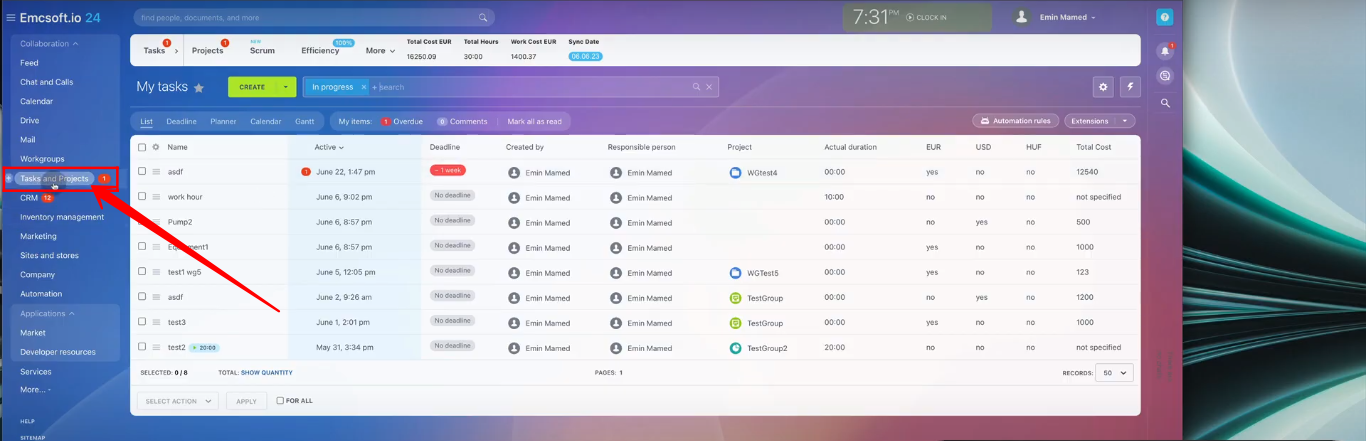
1. Click “Tasks and Projects”.
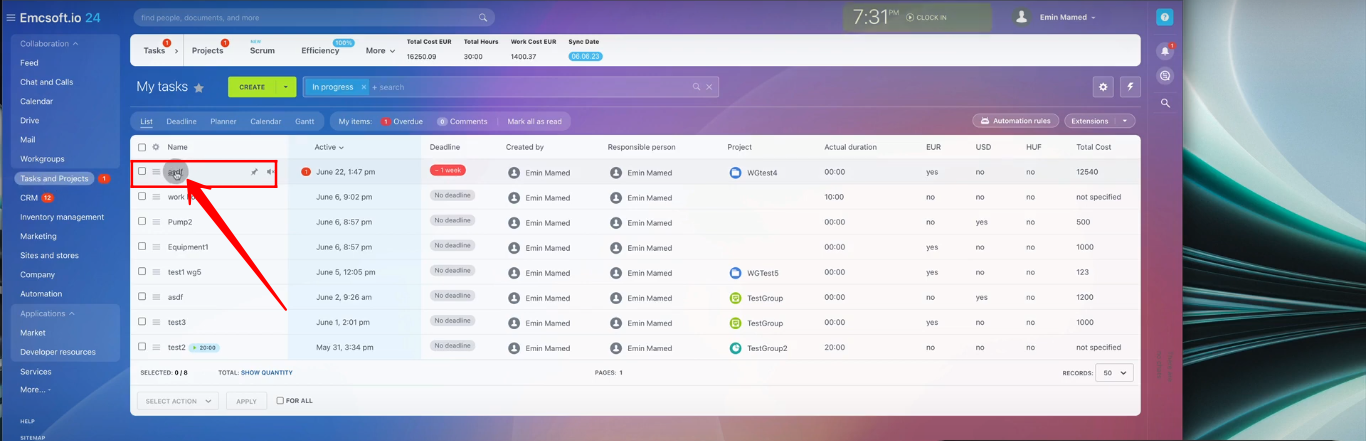
2. Click any task of your choice.
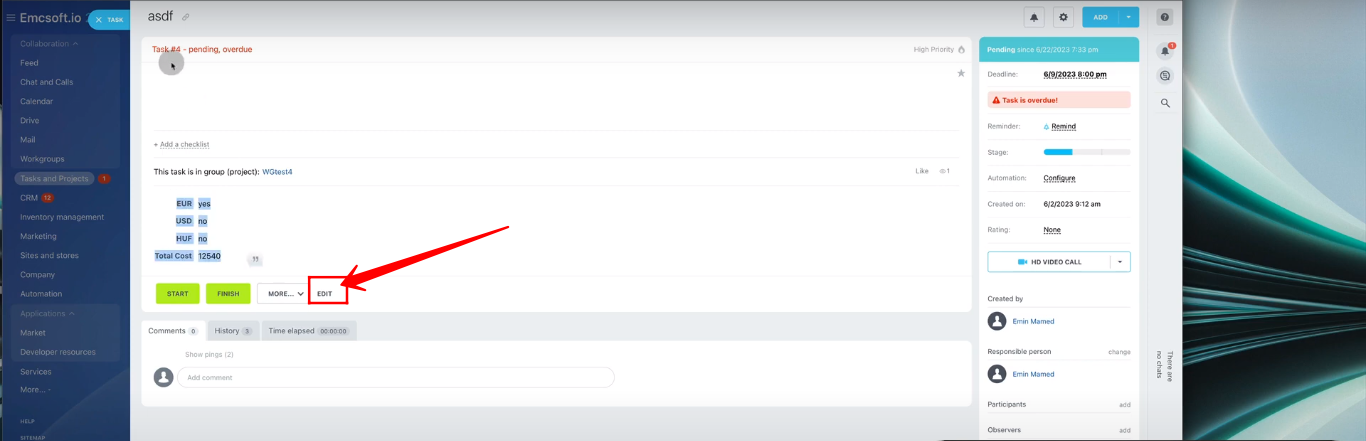
3. Click “Edit”.
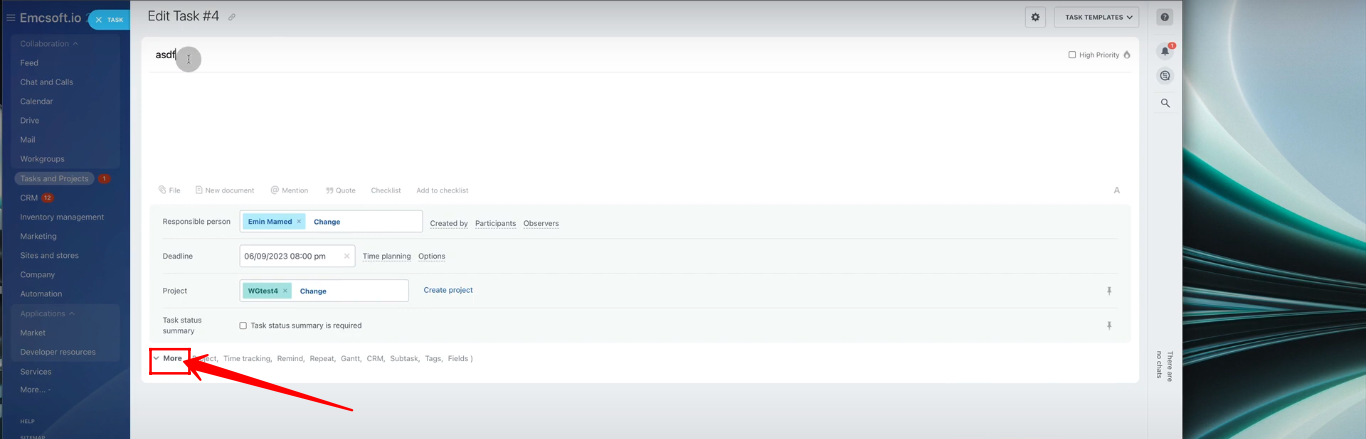
4. Click “More”.
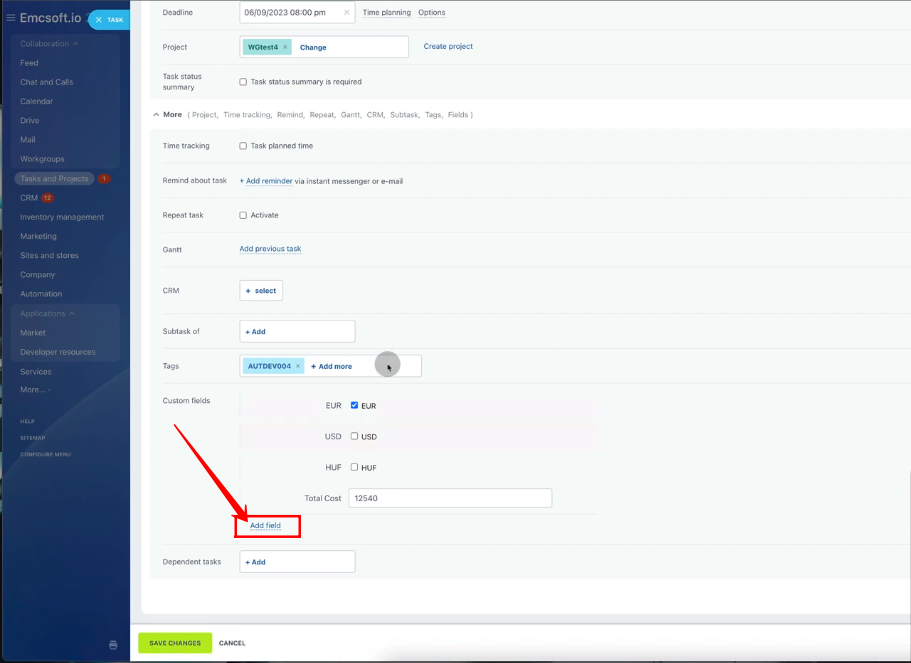
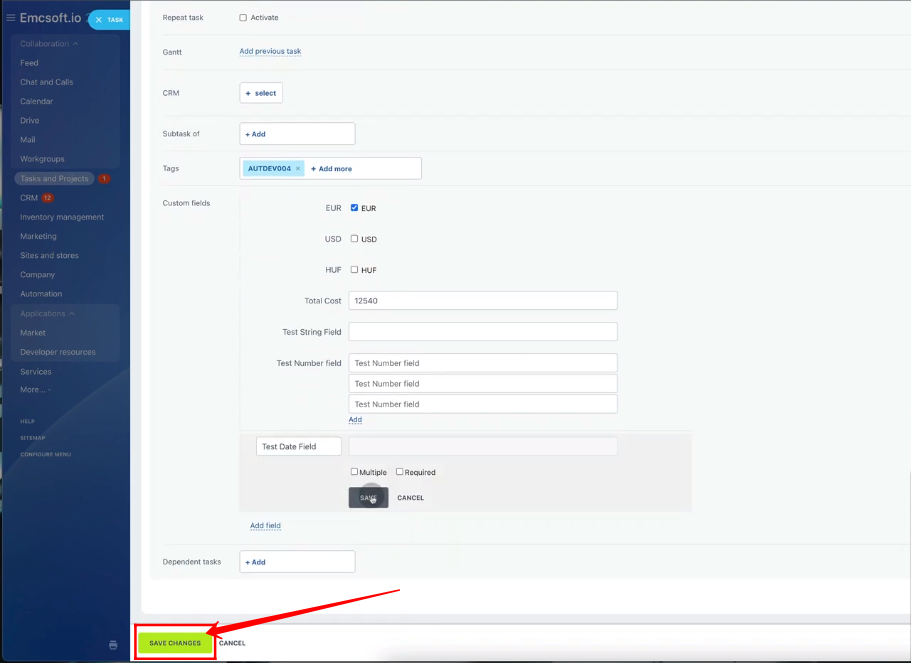
5. Click “Add Field”.
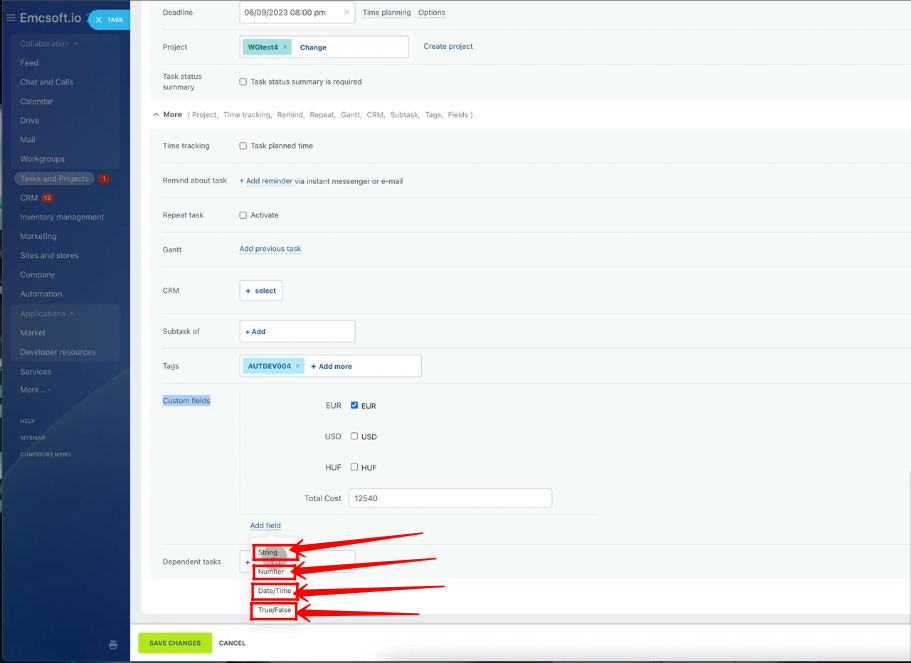
6. Select type of field, whether it should be “String”, “Number”, “Date/Time”, or “True/False”
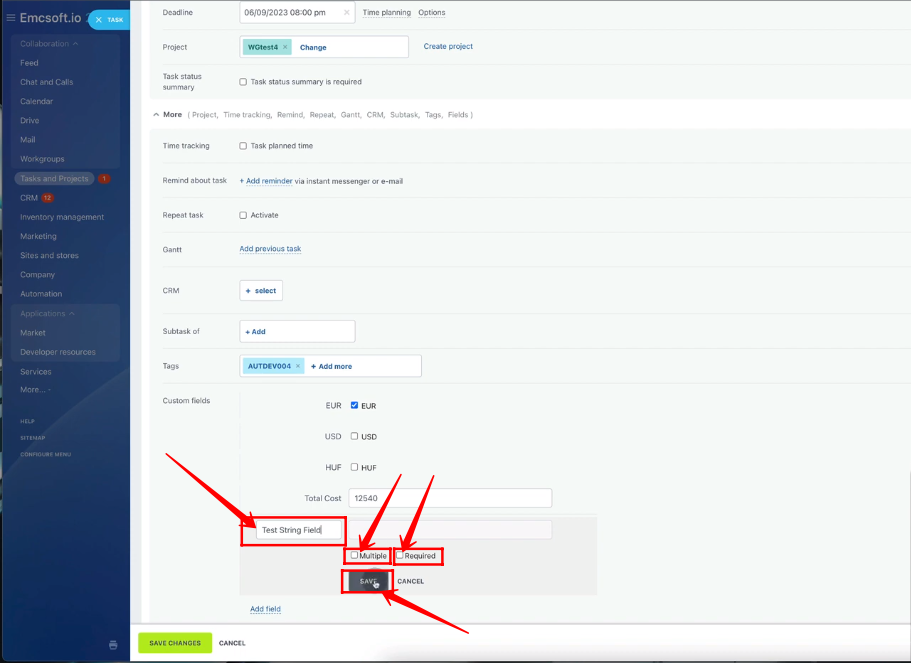
7. Type the name of your custom field. Check the boxes whether it should be “Multiple”, “Required” or “Both”, and Click “Save”.
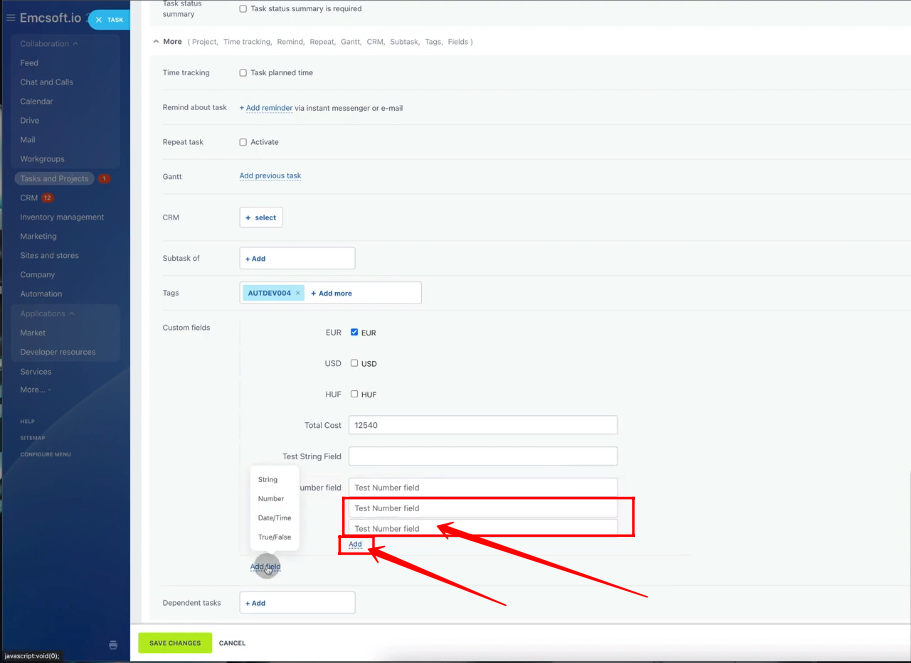
8. If you check the box as “Multiple”. You can add multiple inputs in the custom field.
9. Click “Save Changes”.
“You can also watch this video on Youtube”
Play video