
Bitrix24 Hacks: Calling and Texting from One Centralized Number

Introduction:
In today's fast-paced business environment, effective communication plays a vital role in achieving success. With numerous communication channels available, it can be challenging to manage them efficiently. However, Bitrix24, a powerful collaboration and communication platform, offers a solution by combining calling and SMS functionalities under one centralized number. In this article, we will guide you through the process of setting up and utilizing Bitrix24's calling and SMS features, allowing you to streamline your communication workflows and enhance collaboration within your organization.
Understanding Bitrix24's Unified Communication System:
Bitrix24 serves as an all-in-one platform that brings together various communication tools, including calling, into a single interface. By integrating Twilio telephony provider via our application CallCenter24, you can make and receive calls directly within Bitrix24, eliminating the need for external devices or phone systems. This unified communication system provides a seamless experience for both internal team communication and external interactions with clients and customers.
Configuring CallCenter24 in Bitrix24:
To leverage the calling functionality in Bitrix24, you'll need to configure your Twilio account settings and connect it with Bitrix24 using our application CallCenter24. We will guide you through the step-by-step process of setting up your Bitrix24 account, configuring phone number settings, and integrating Twilio. Once configured, you'll be able to initiate and receive calls conveniently from within the Bitrix24 platform, providing a unified communication experience for your team.
Leveraging SMS Capabilities in Bitrix24:
In addition to calling, using our appliaction TwiSMS you may also use Twilio SMS features that enable you to send text messages directly from the Bitrix24. We will explore the setup process for SMS functionality. With TwiSMS capabilities, you can efficiently communicate with clients, send important updates to team members, or even automate certain communication processes using workflows and triggers.
Practical Scenarios and Benefits:
Whether you're managing customer support, sales inquiries, or internal team communication, these features will enhance your ability to provide prompt and reliable communication. By streamlining your communication workflows, you can save time, improve efficiency, and deliver a better overall experience to your clients and team members.
Below you can find step by step instructions on how to make these settings in Bitrix24 yourself :
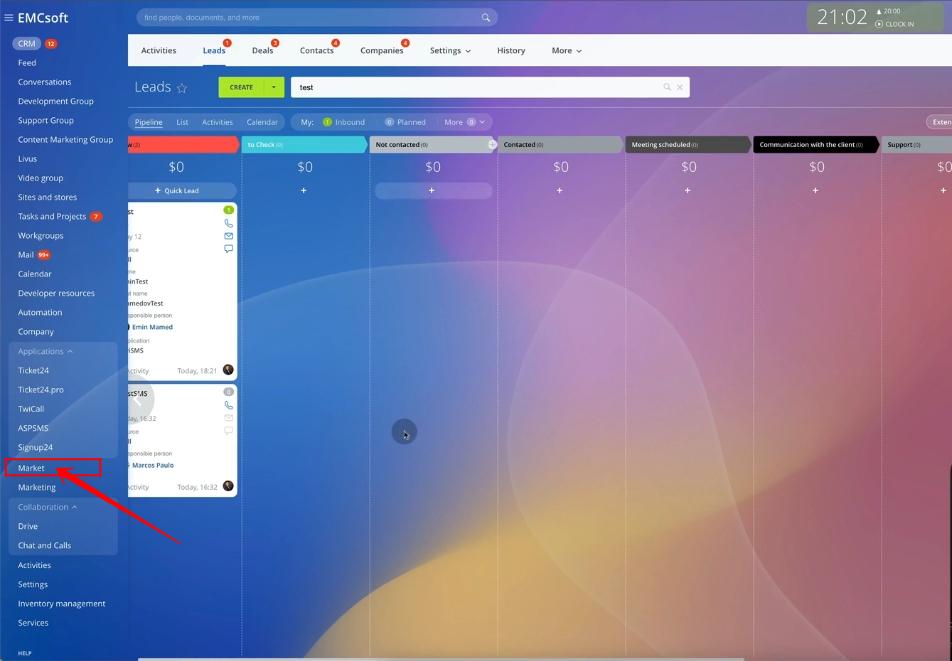
1. Click “Market”
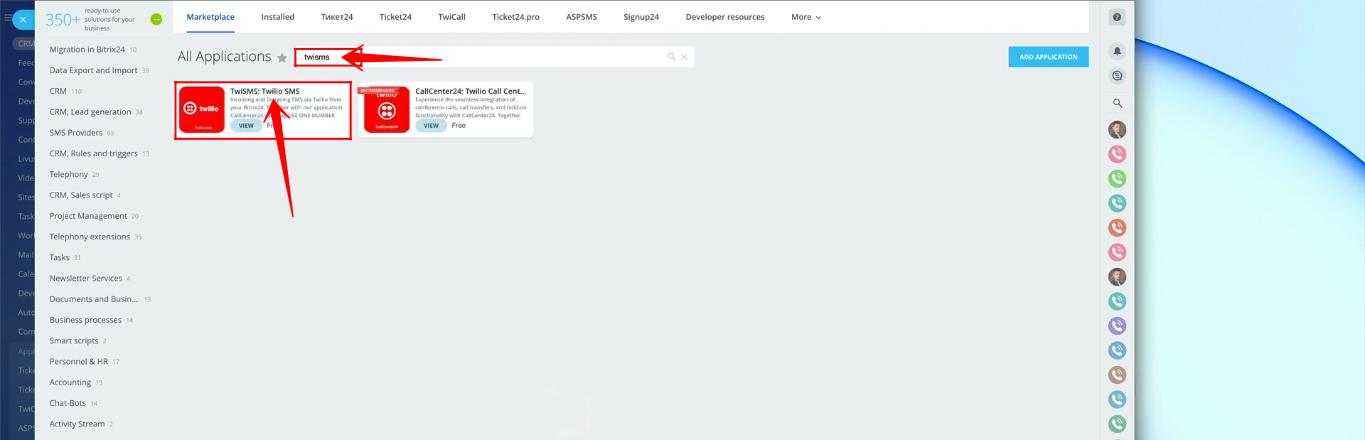
2. Search for “TwiSms” in the searchbar and Open “TwiSms” application.
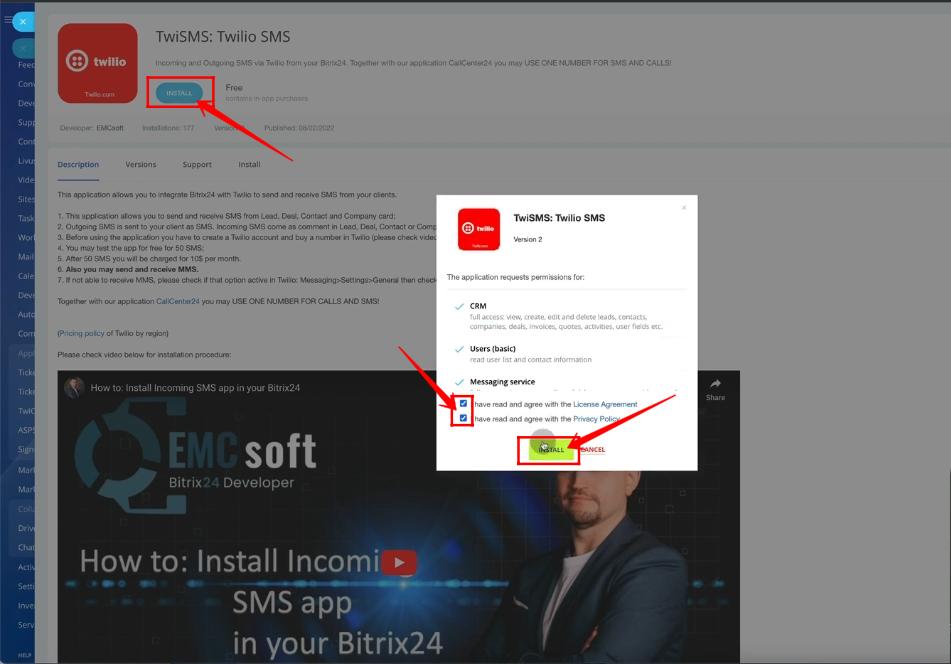
3. Click “Install”, check boxes and click again “install”
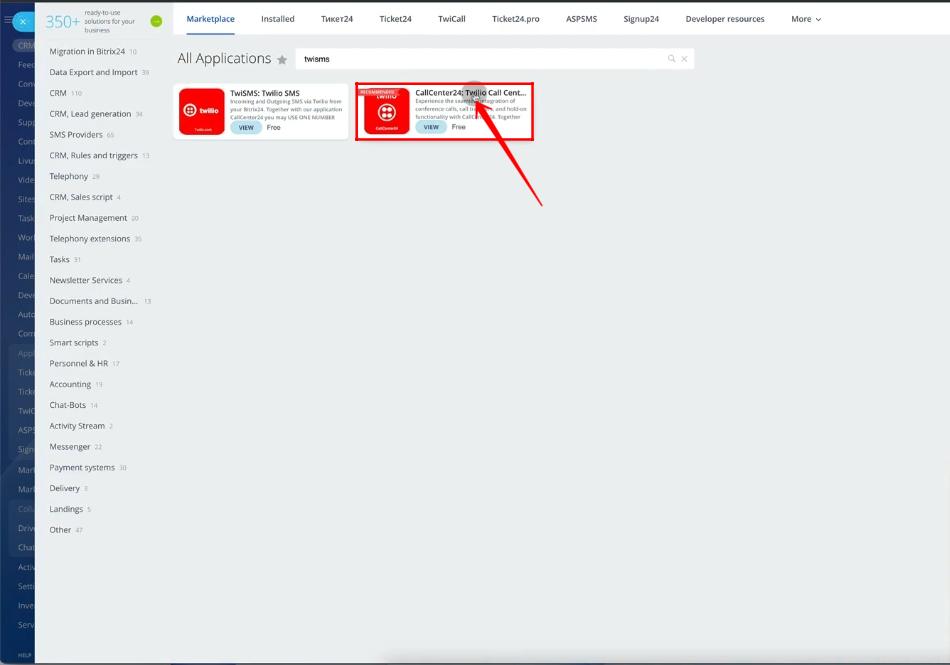
4. Click “CallCenter24” application.
5. Click “Install”, check boxes and click again “install”
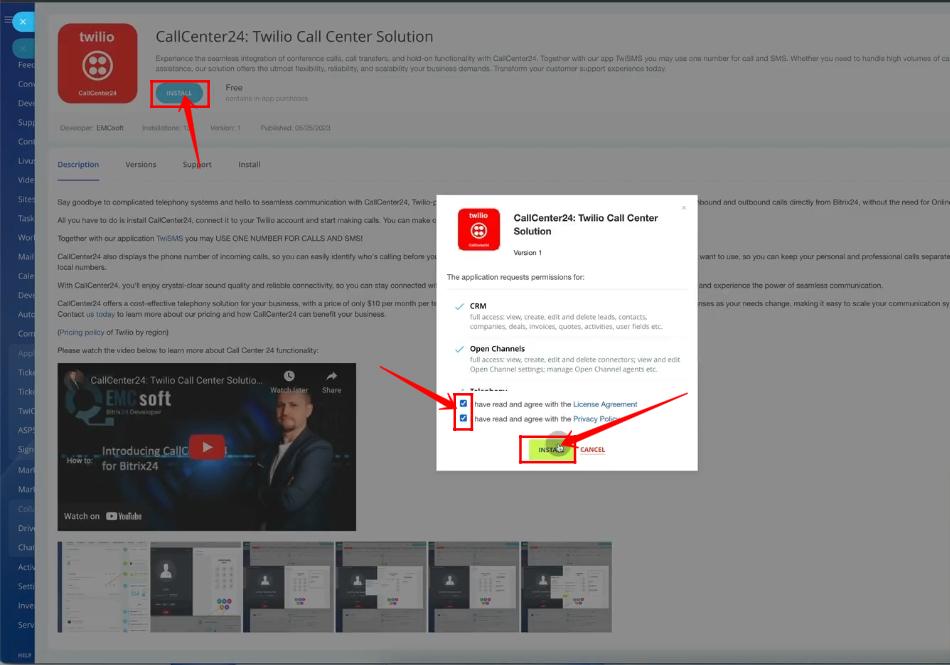
6. Now go to your twilio account and click “Explore Products”
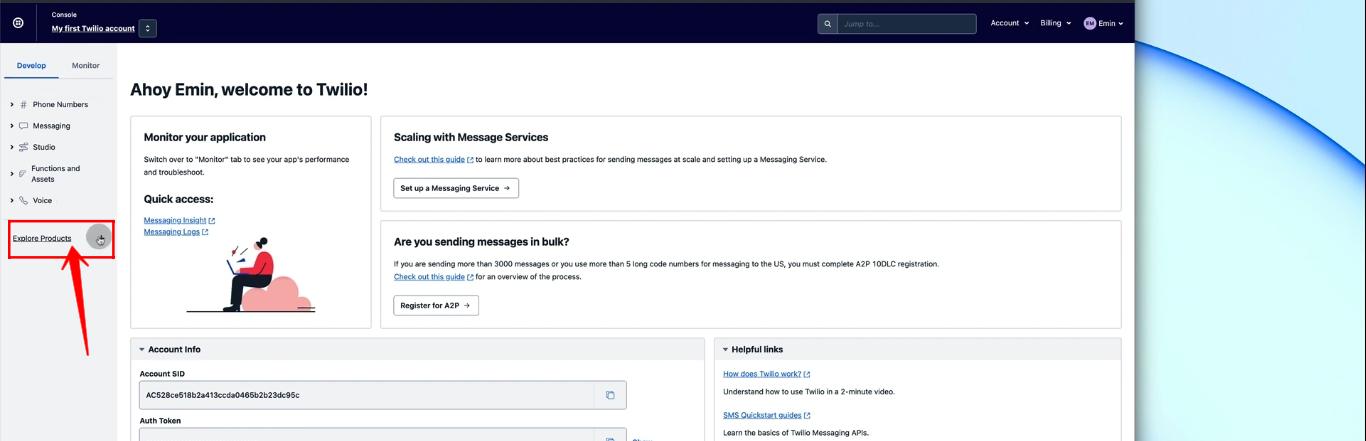
7. Pin Messages, Voice, and Phone Numbers, to have options in the side bar.
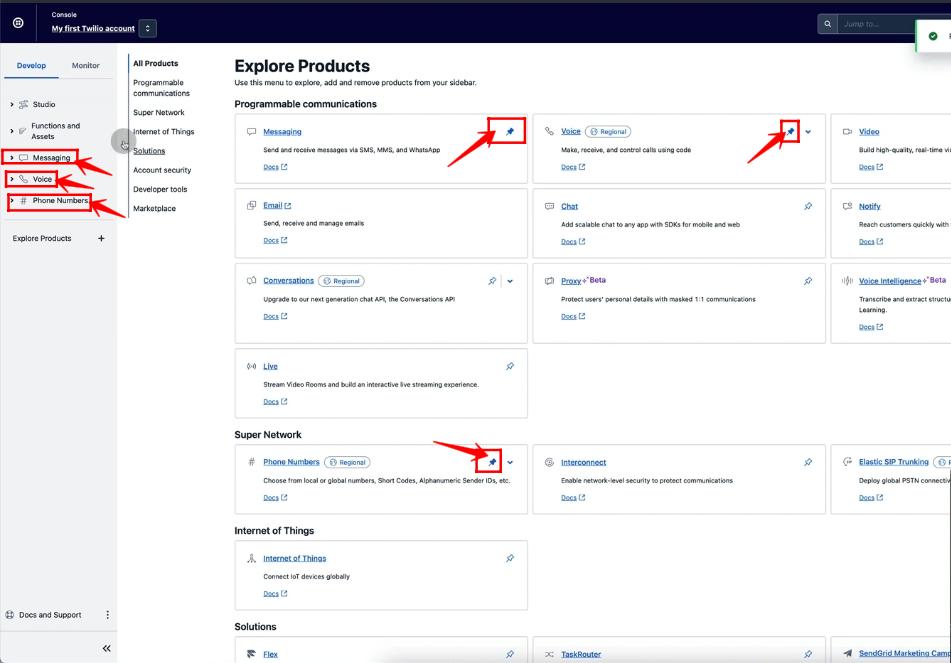
8. Click “Phone Numbers”, then click “Manage” and finally go to “Active Numbers” to view your active numbers.
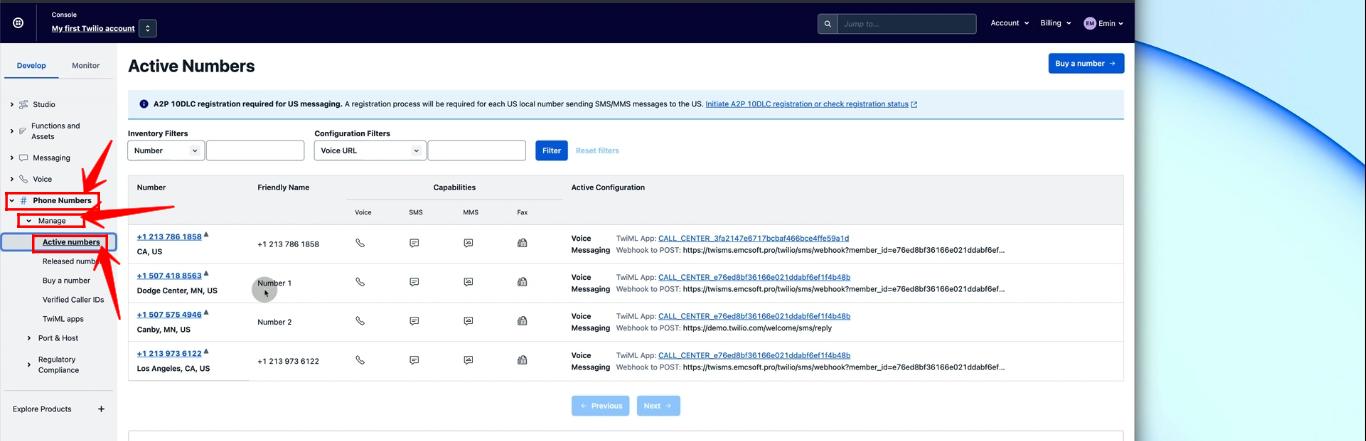
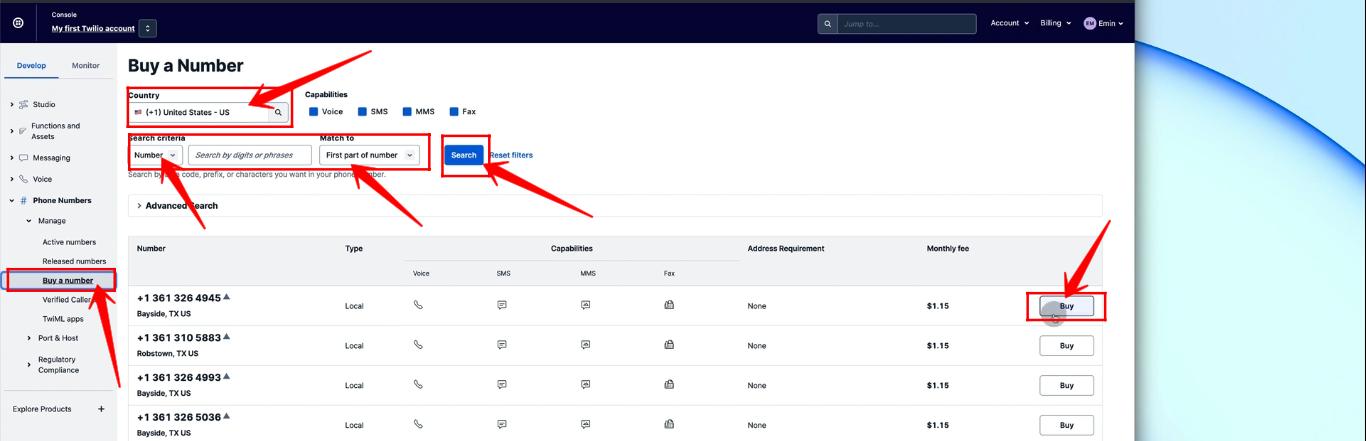
9. If you don’t have any number yet, click “Buy a Number”. Apply filters to get numbers of your own choice and simply click “Buy”.
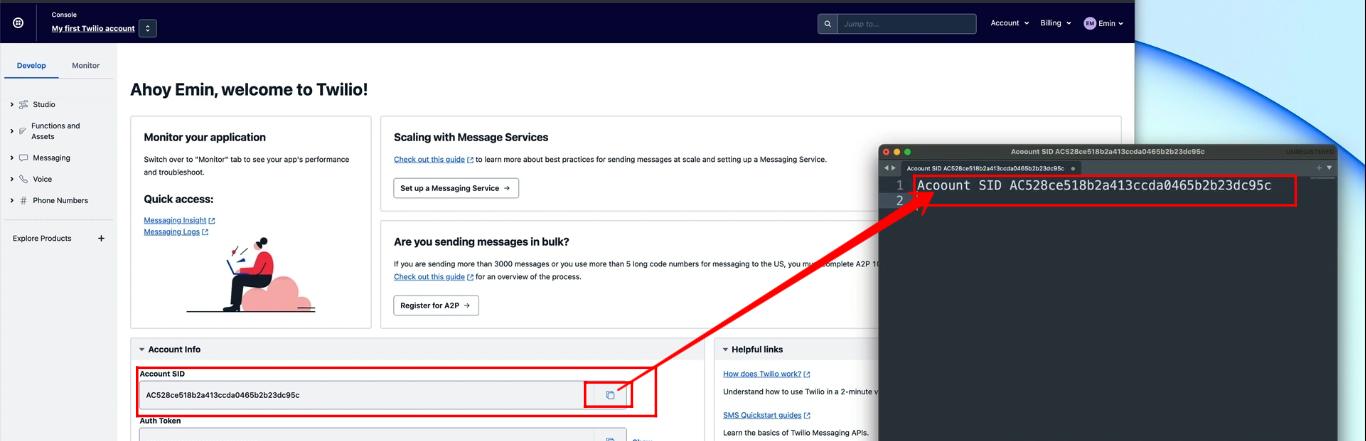
10. Go to Main Page and copy your “Account SID” in a notepad file.
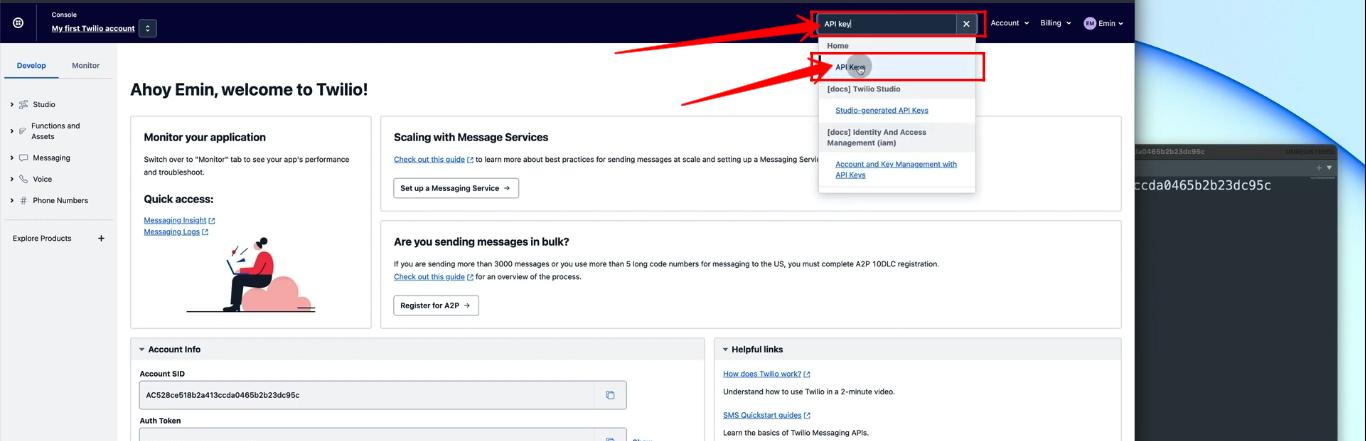
11. Search for “Api Key” in the searchbar, and click “API KEY” in the suggestion list.
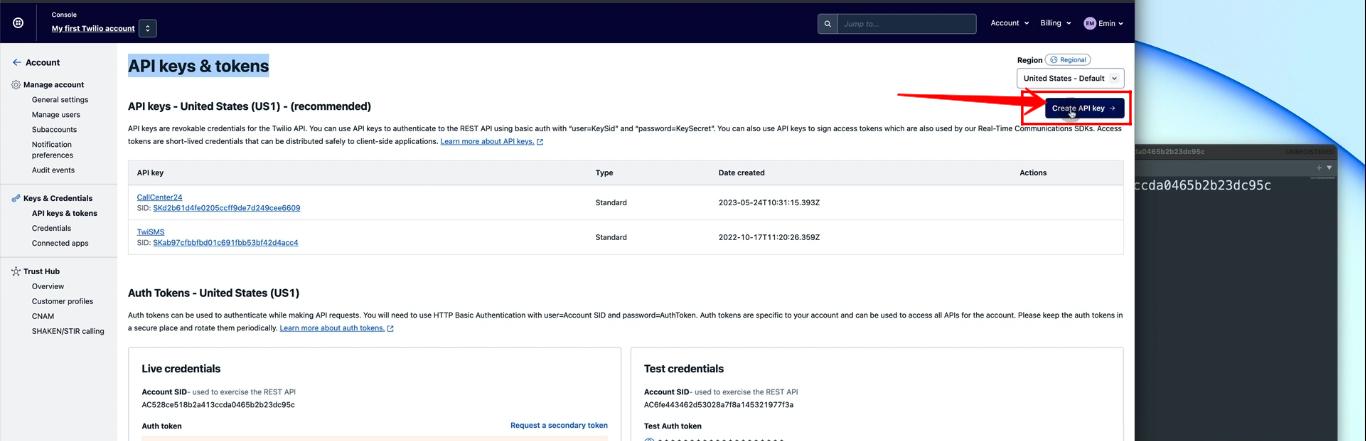
12. Click “Create API Key”
13. Type your “Friendly Name” and click “Create”
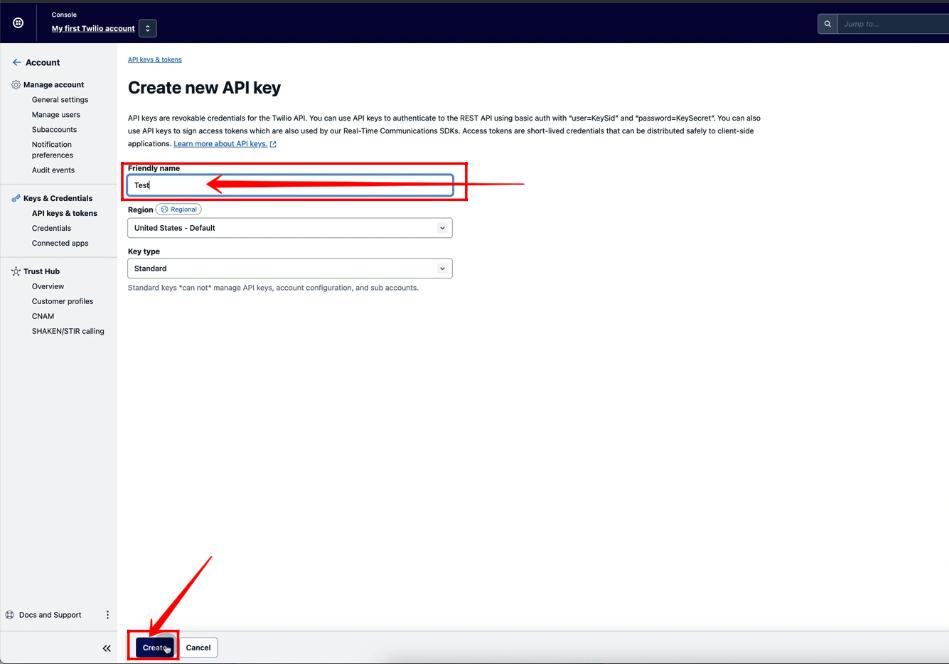
14. Copy your “SID” and “Secret” in the notepad file.
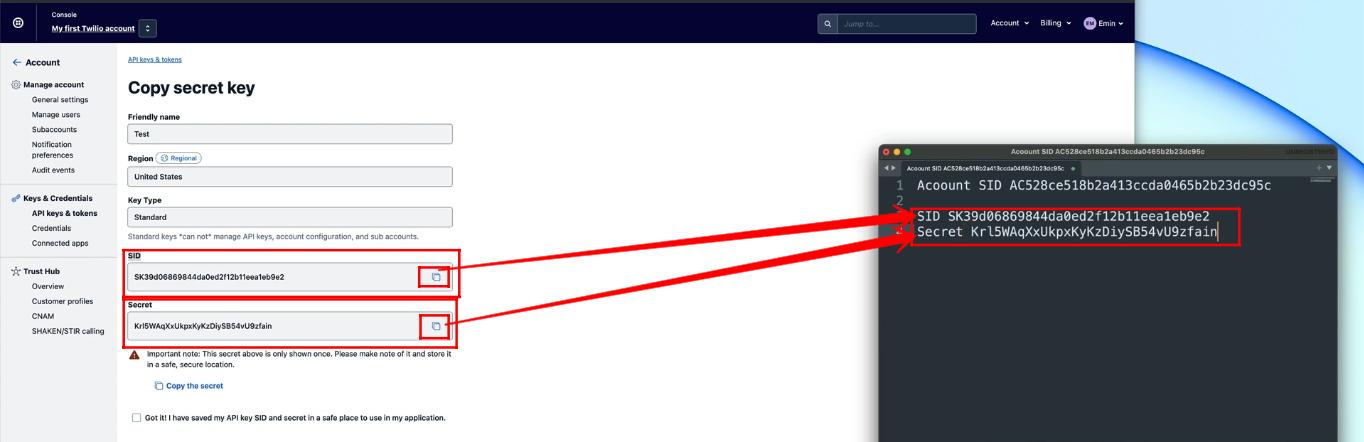
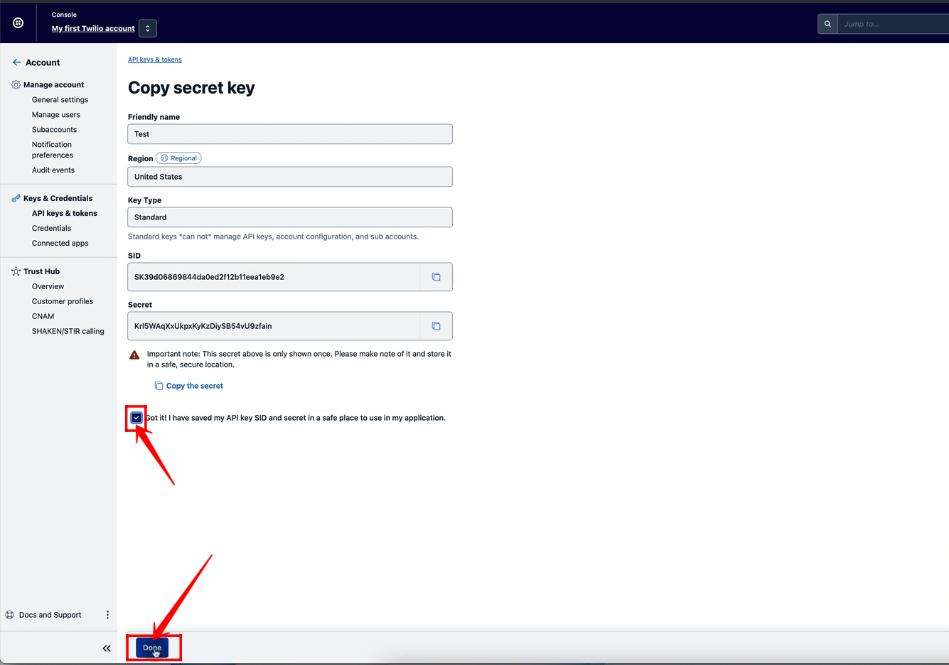
15. Check box and click “Done”
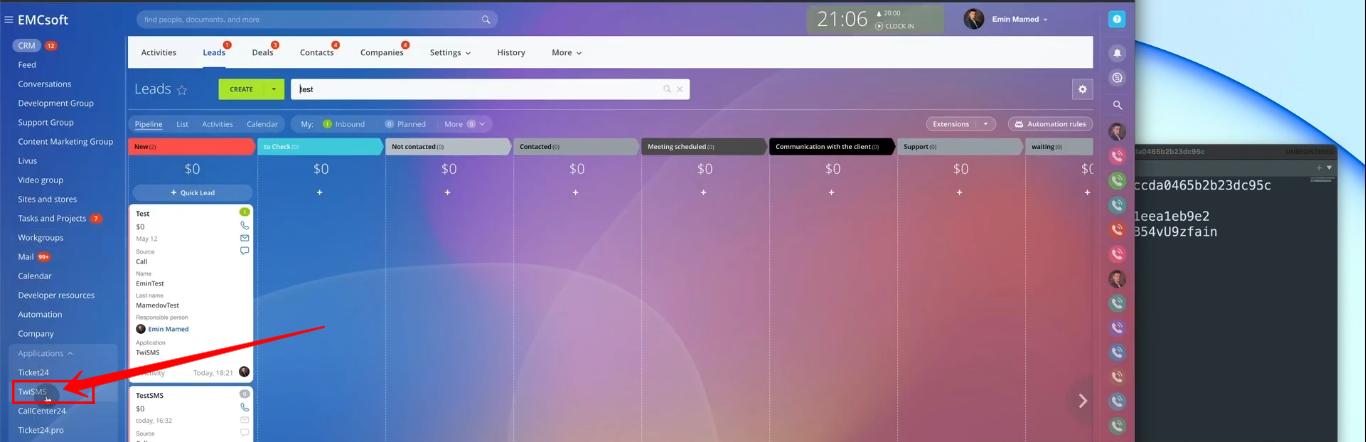
16. Go to “EMCsoft” Dashboard again and click “TwiSMS”
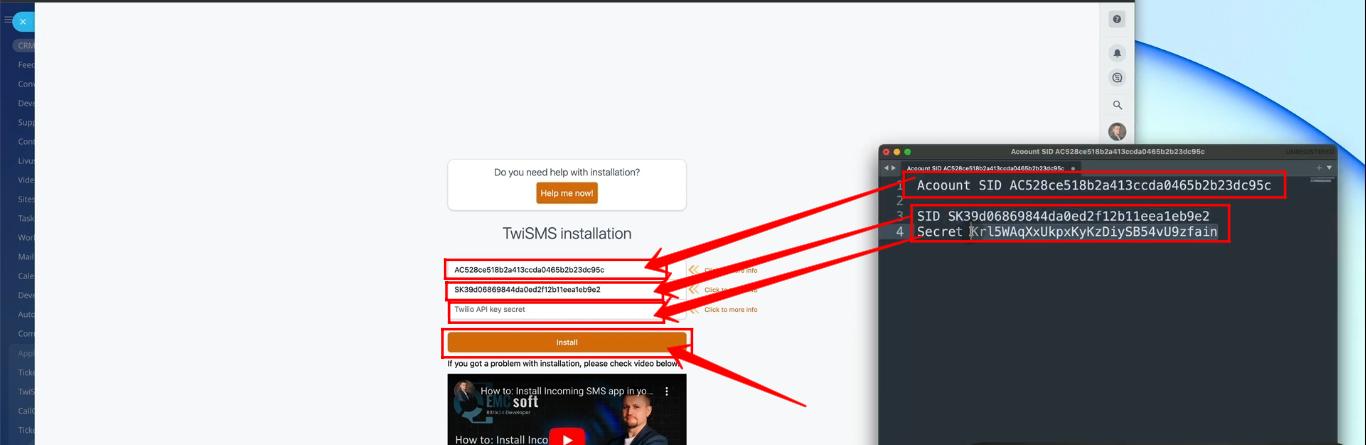
17. Paste your “Account SID”, “SID”, and “Secret” respectively in the fields and click “Install”
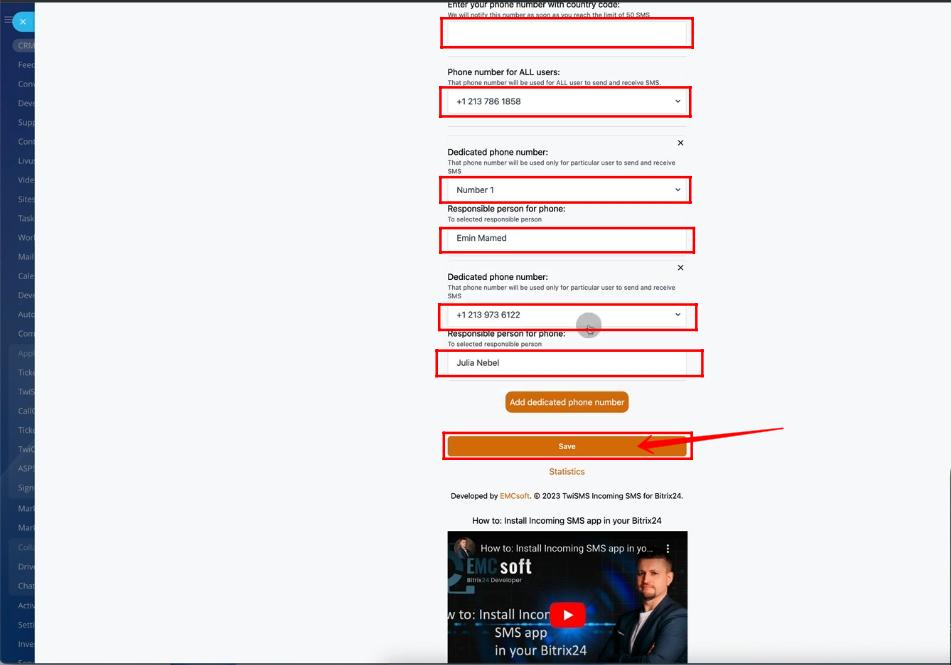
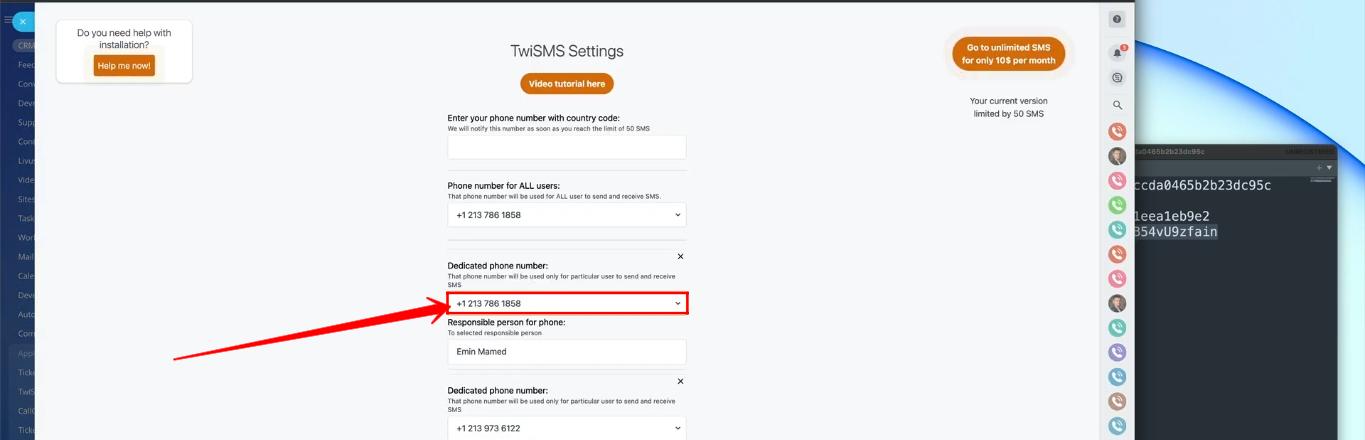
18. First Textinput is for your personal number, if don’t want to fill it, just leave it blank.Select a phone number for all users to send and receive SMS. Then you can assign each number to only a particular user to send and receive SMS, and click “Save”
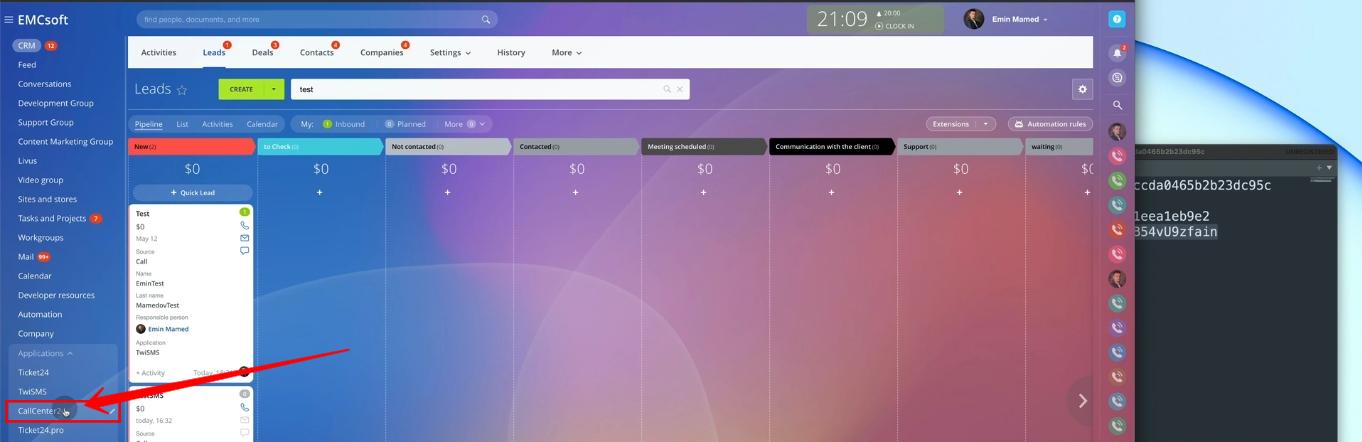
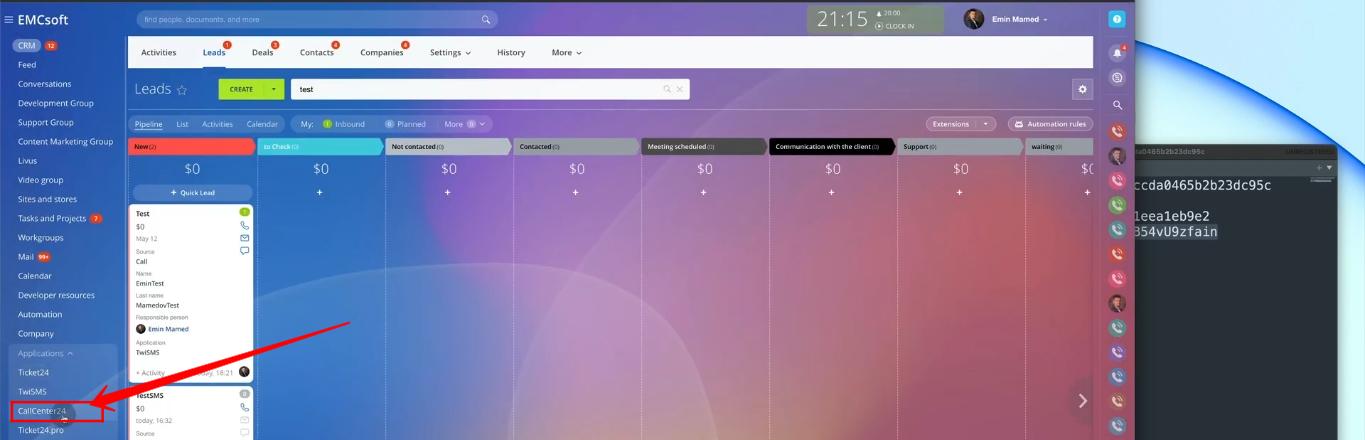
19. Click “CallCenter24”
20. Paste your “Account SID”, “SID”, and “Secret” in the respective fields and click “Install”
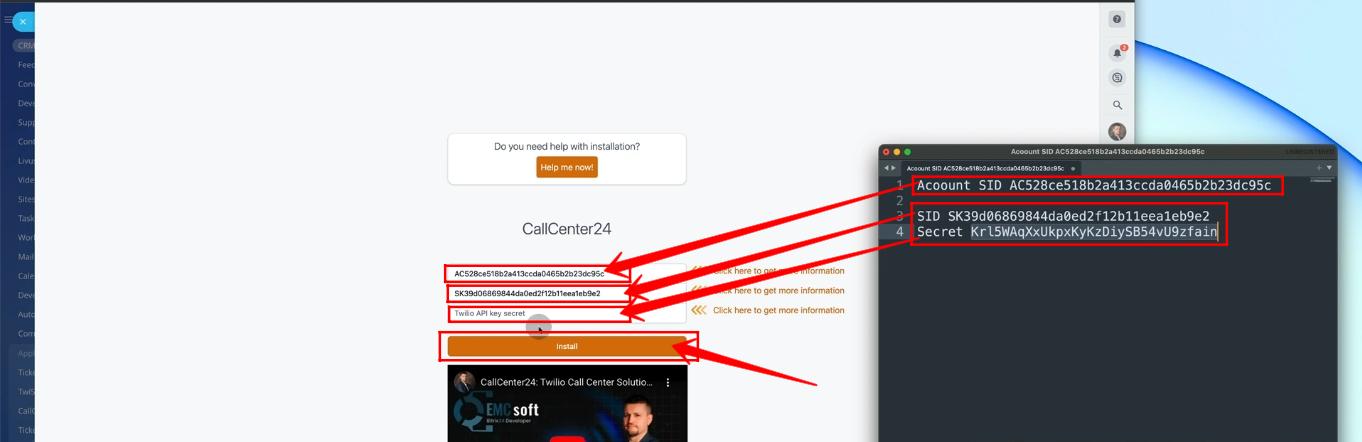
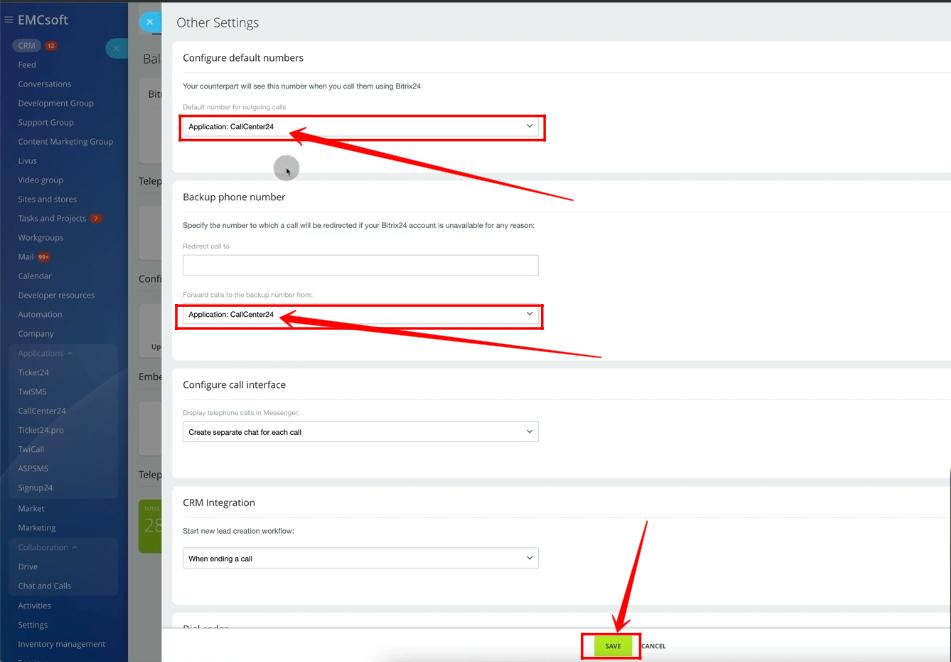
21. Now Assign phone numbers to each particular user to make calls.
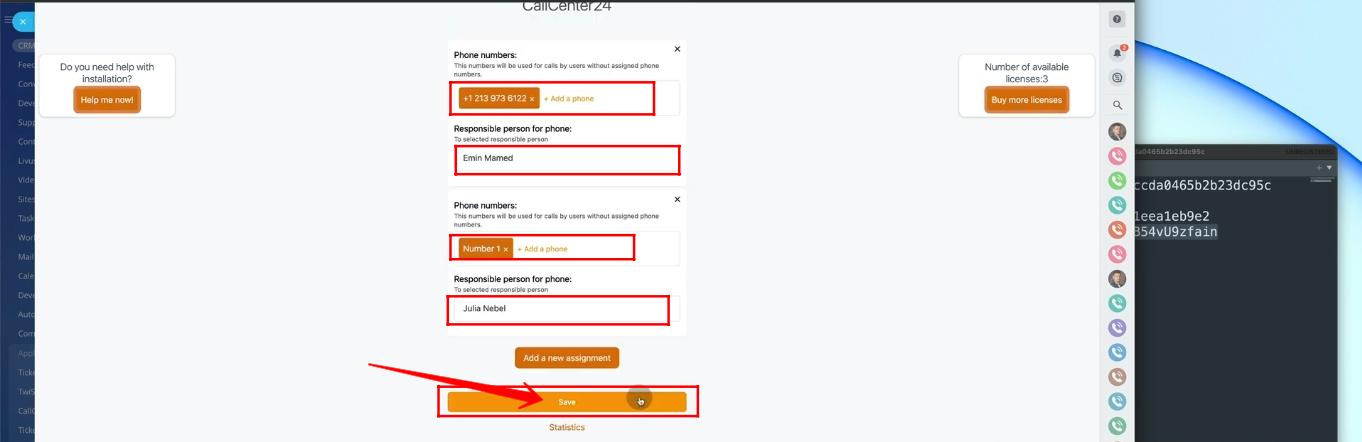
22. Click “CRM”, then go to “More”, select option “Add-ons” and then click “Telephony”
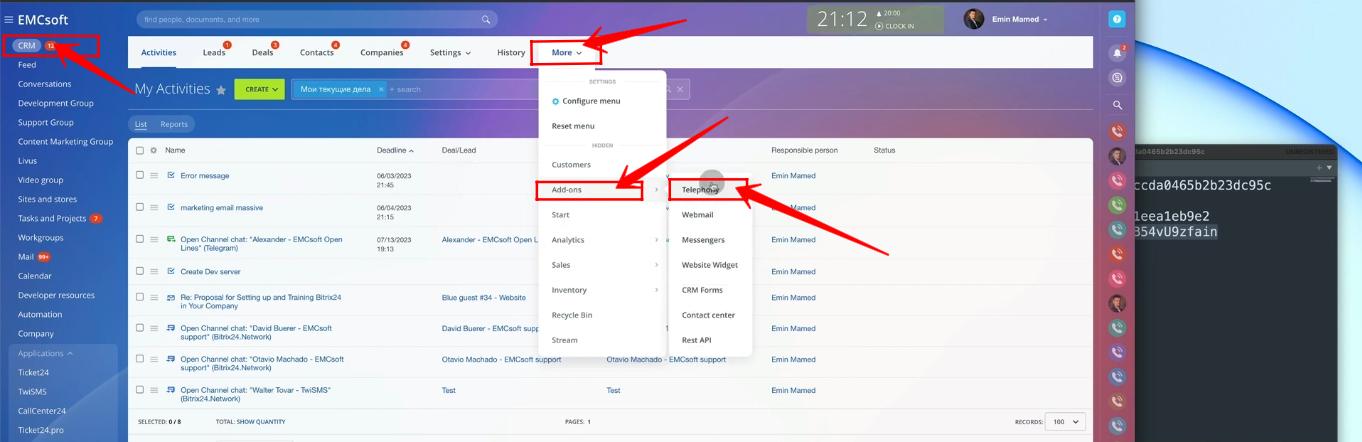
23. Click “Configure Telephony” and select “Telephony Settings”
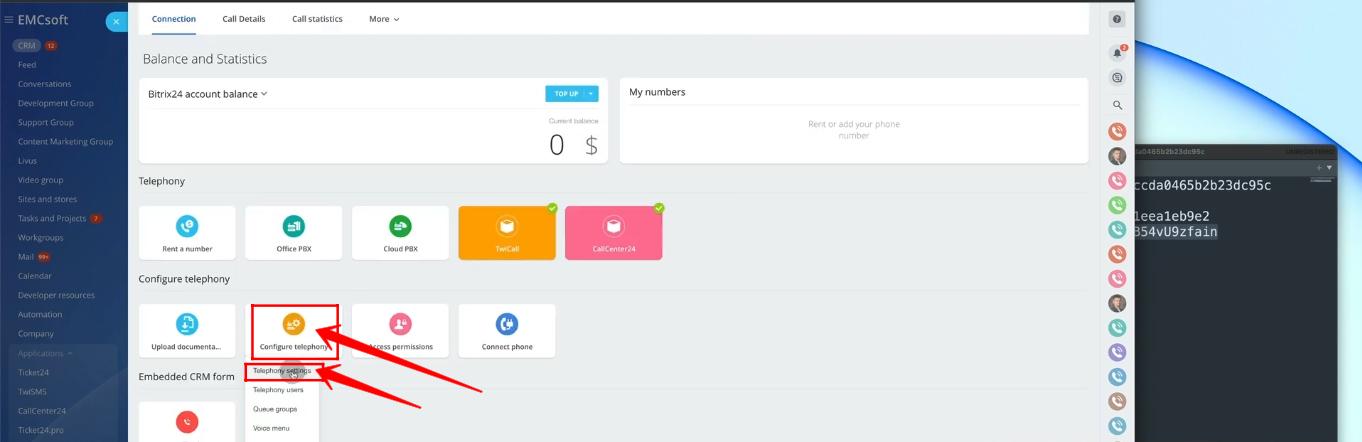
24. Select “Application: CallCenter24” in the options and click “Save”
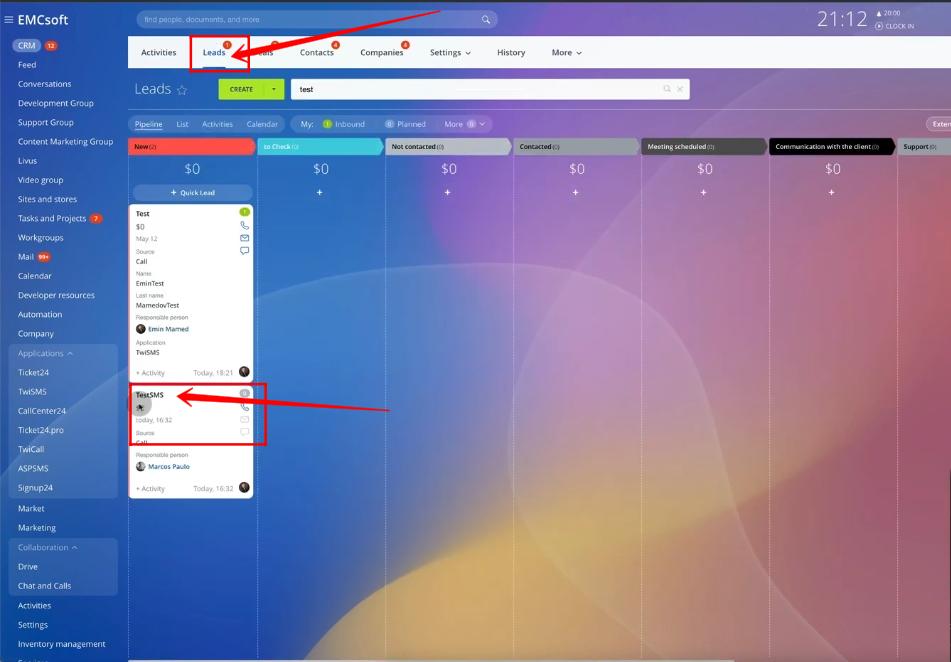
25. For testing purposes, go to “Leads” and click your newly made configuration
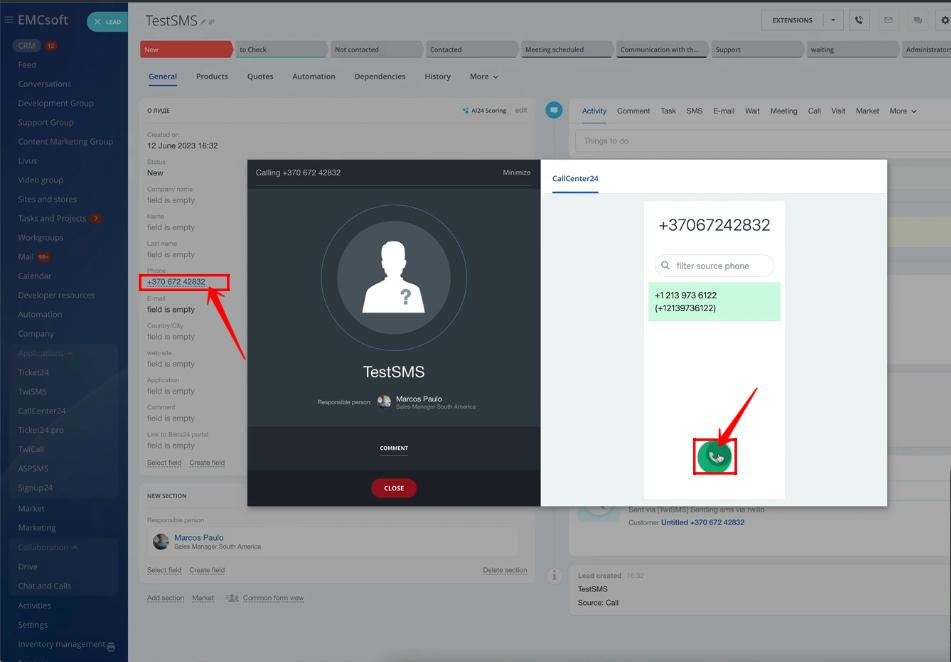
26. Click phone number and make a call. The number in the green colour is that number from which you want to call.
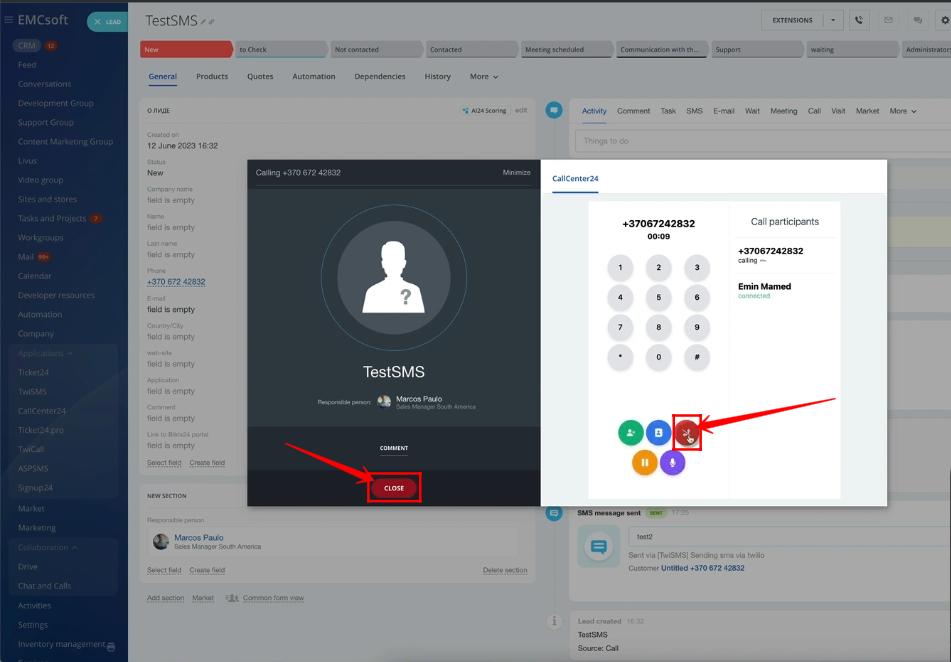
27. You have successfully established a call. Now cut the call and close the interface.
28. Now select “SMS” and click “More”
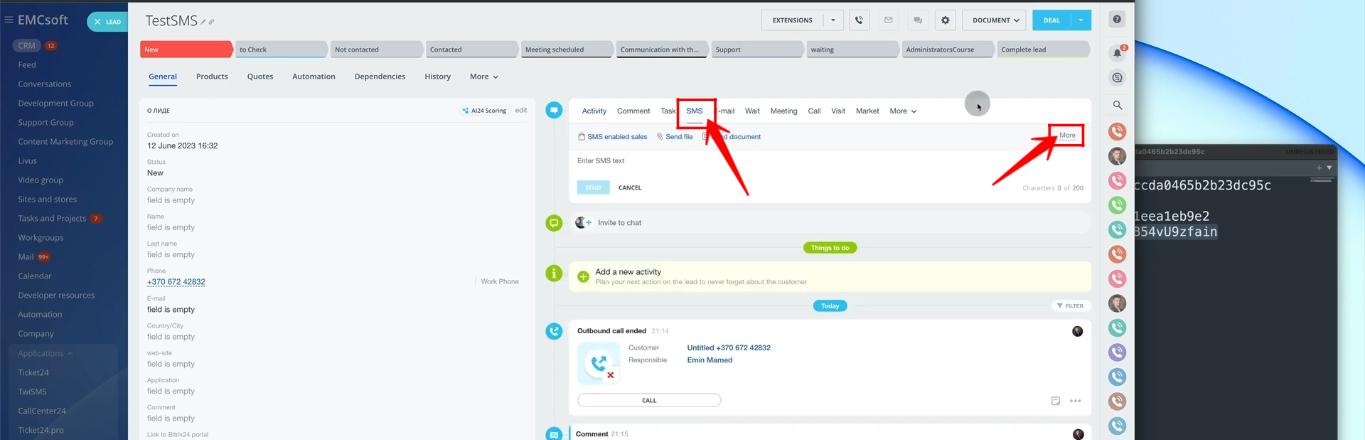
29. Select “TwiSMS”
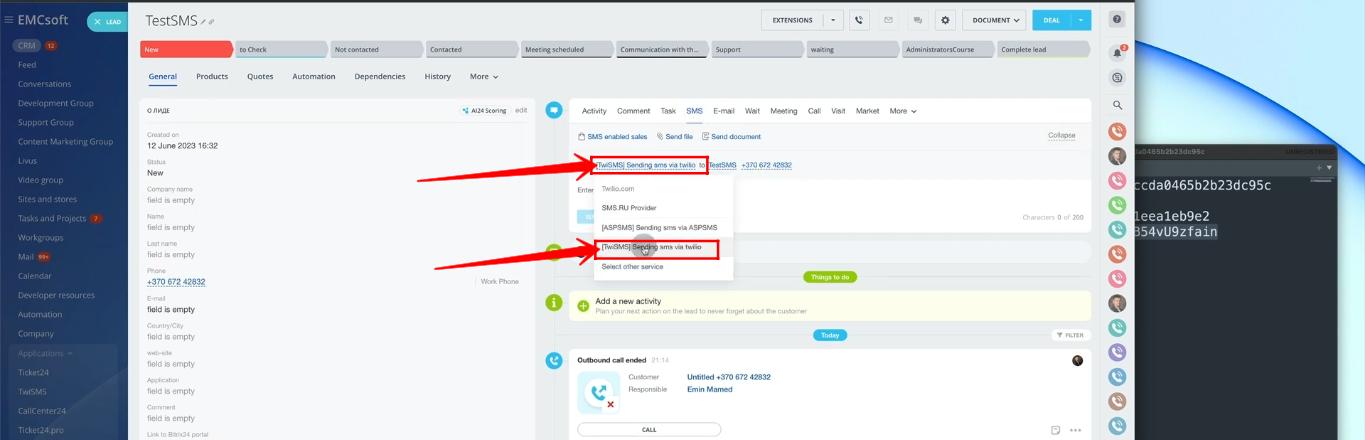
30. Type a dummy Sms and click “Send”. A number is written there to which you are sending sms.
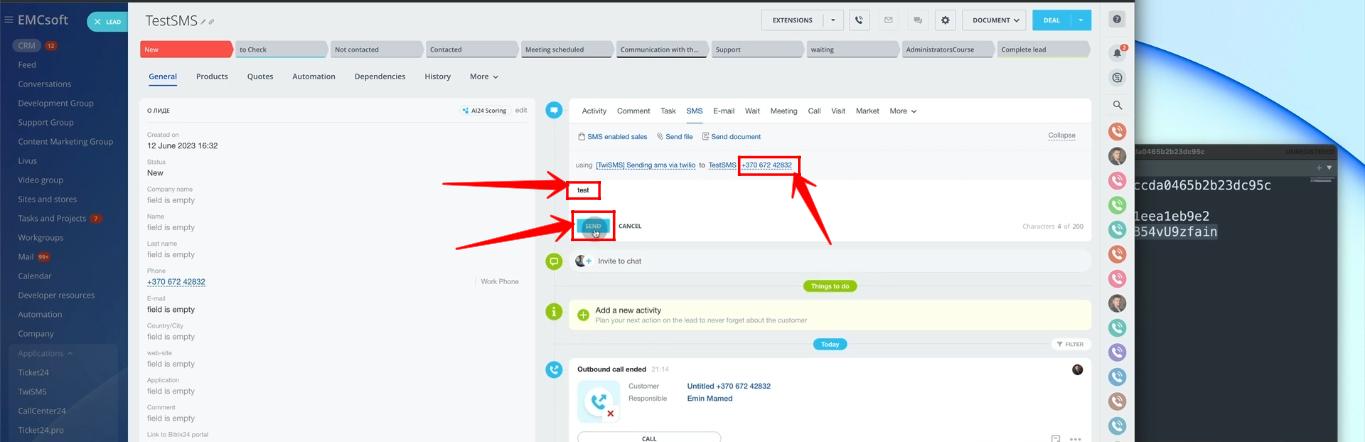
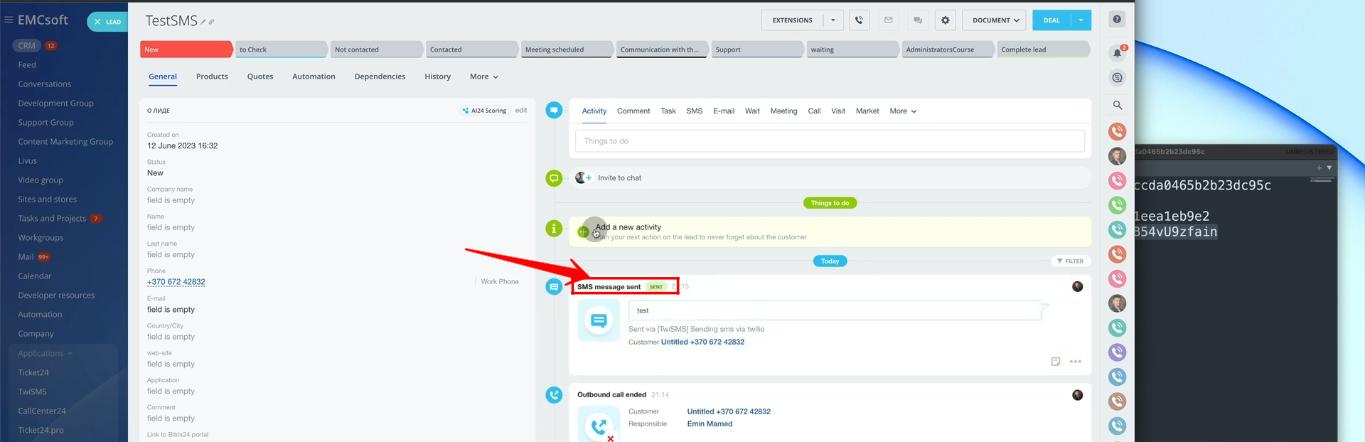
31. Message successfully sent.
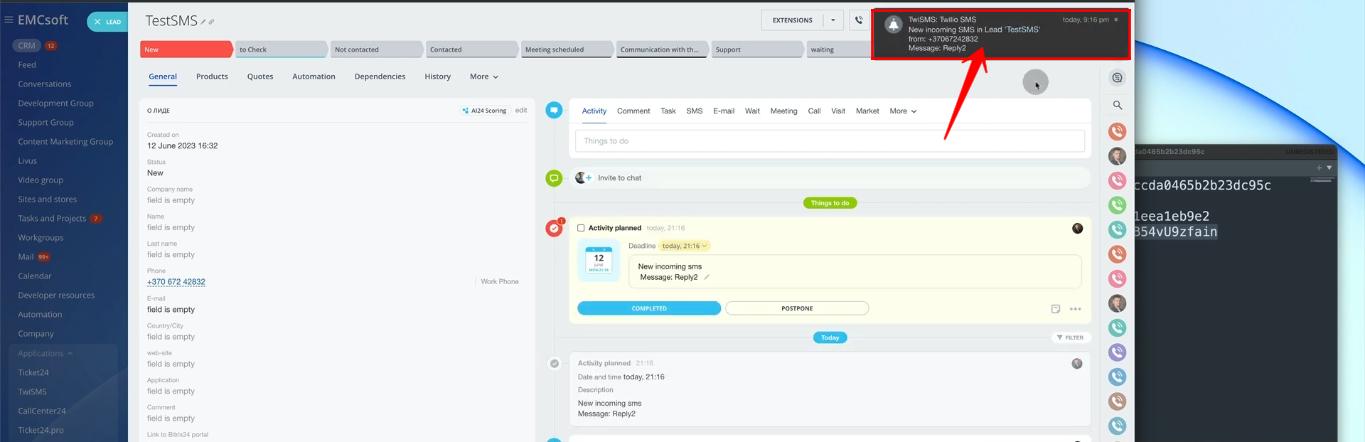
32. When a user replies to your sms, then you will receive reply like this
33. Click “TwiSms”
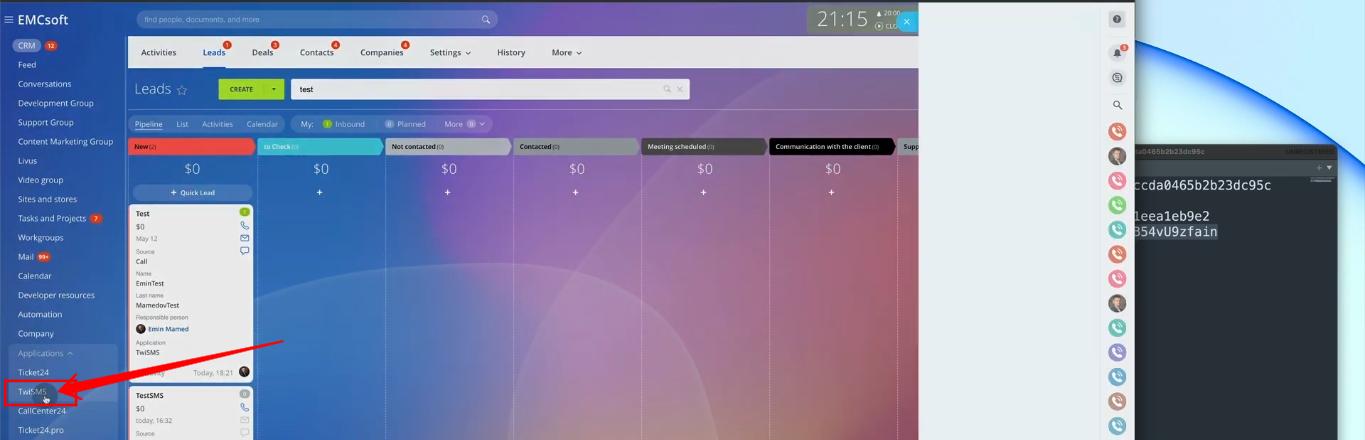
34. Note the phone number that was assigned to the appropriate user
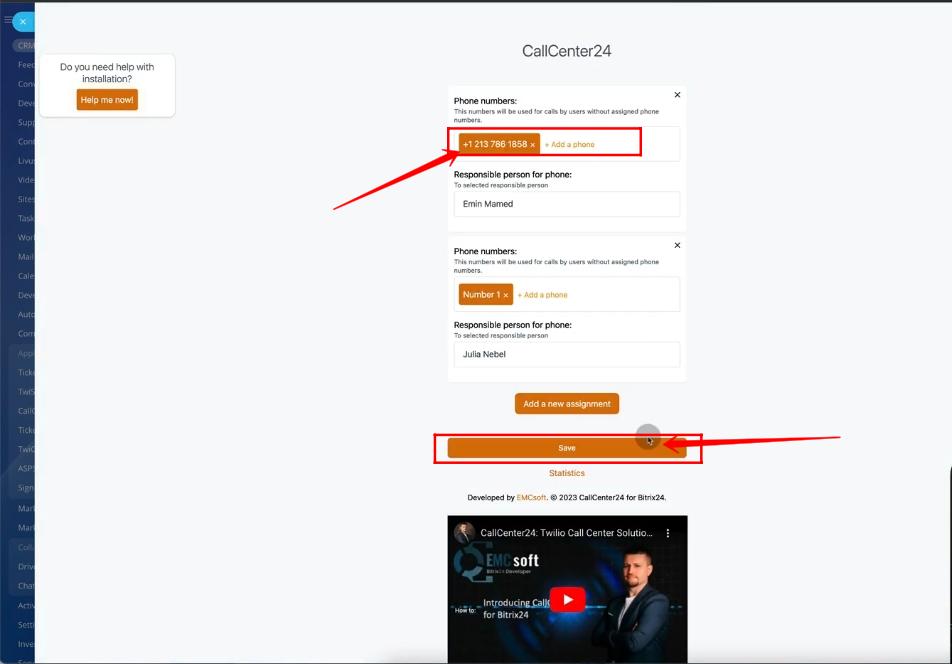
35. Click “CallCenter24”
36. If the phone number is different from the number that we noted in the sms section, then remove it, because we want to have the same number for sms and calls.
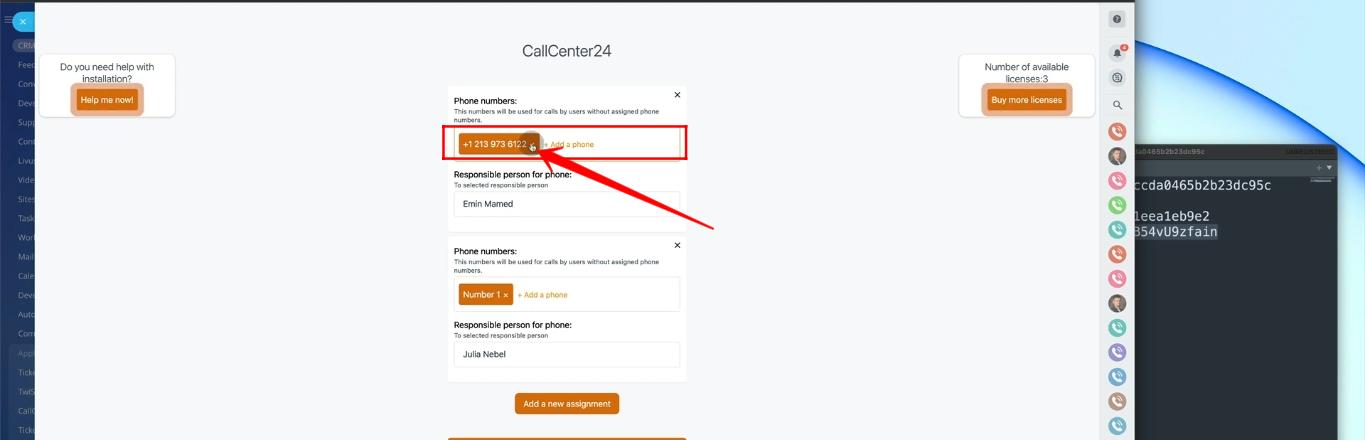
37. Add the same number that we noted in sms section for that appropriate user and click “Save”.
“You can also watch this video on Youtube”
Play video