
| 1112 Views | admin

Bitrix24 CRM Forms allow businesses to create interactive forms that can be embedded directly into Bitrix24 websites or external websites such as WordPress. These forms help organizations collect customer information efficiently, including names, email addresses, phone numbers, feedback, inquiries, and other CRM-related data. Once submitted, the captured information can automatically create or update CRM records inside Bitrix24.
This article explains how to create and configure CRM Website Forms inside Bitrix24, customize form fields and settings, and embed forms into Bitrix24 website pages. You will also learn how to manage existing forms, assign responsible users, configure languages, and organize forms according to your business requirements.
Additionally, this guide demonstrates how to integrate CRM forms into external websites outside of Bitrix24 by using the generated embed code. This allows businesses to continue using Bitrix24 CRM functionality even when their websites are hosted on third-party platforms such as WordPress or other website builders.
By properly configuring CRM forms, organizations can collect leads, improve customer communication, automate CRM data entry, and ensure website inquiries are captured directly within the Bitrix24 CRM environment.
“Detailed Instructions are given below”
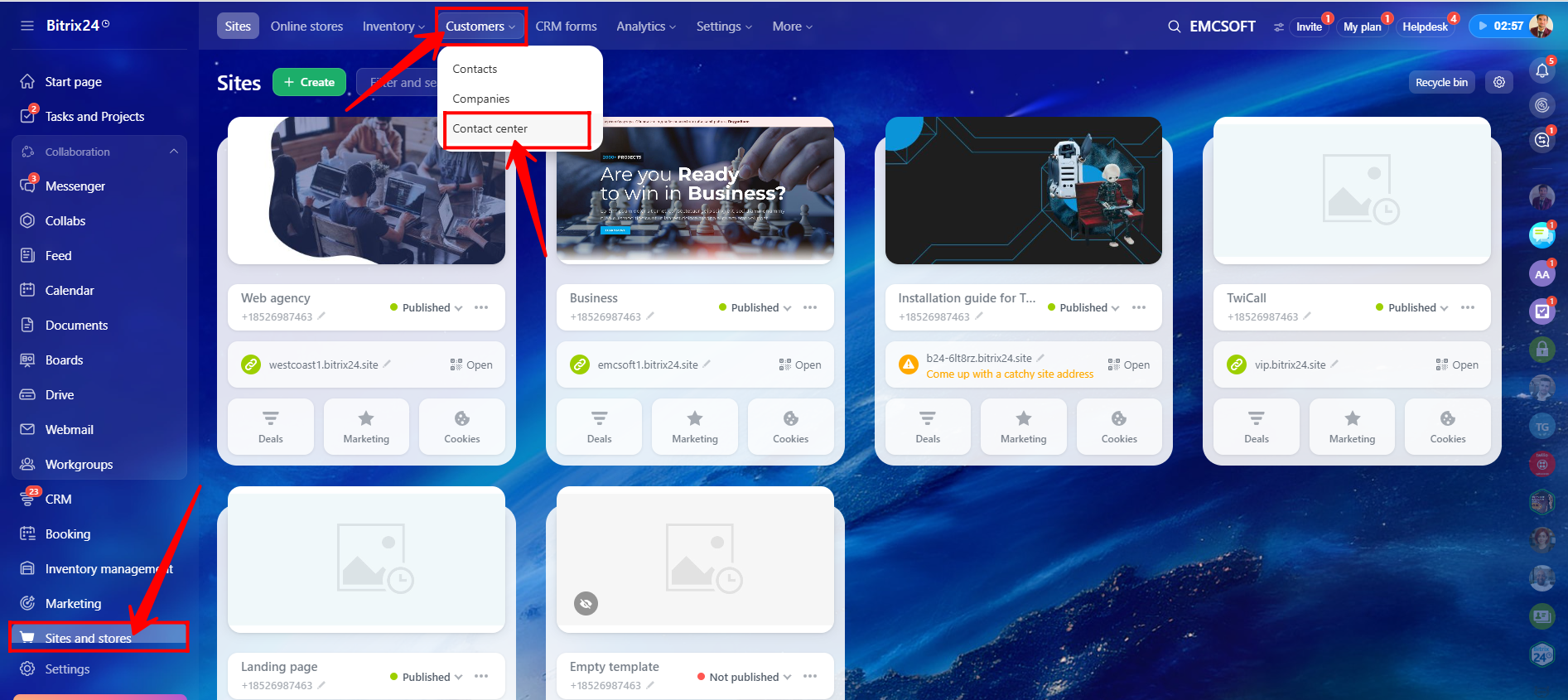
1. Navigate to Sites and Stores. Then move to Customers and open Contact Center.
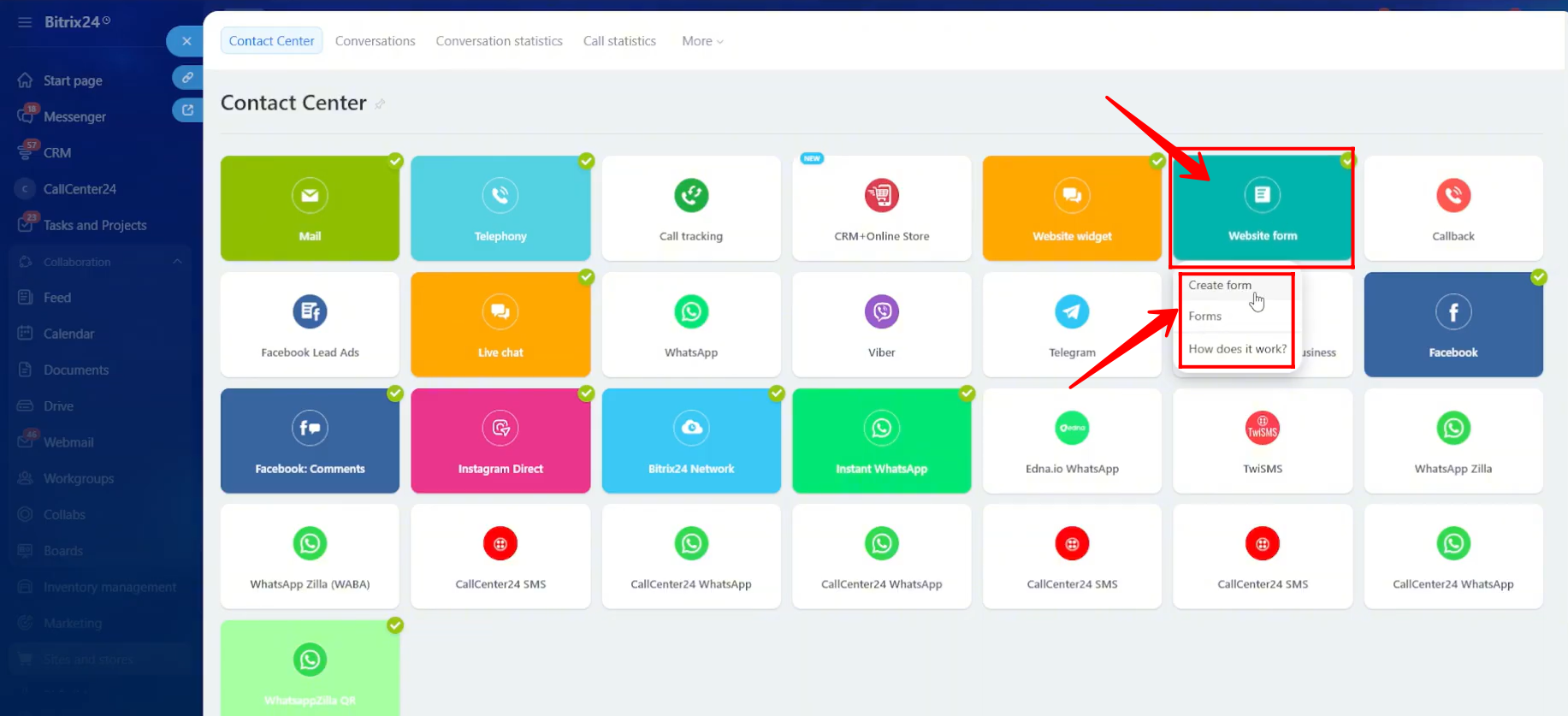
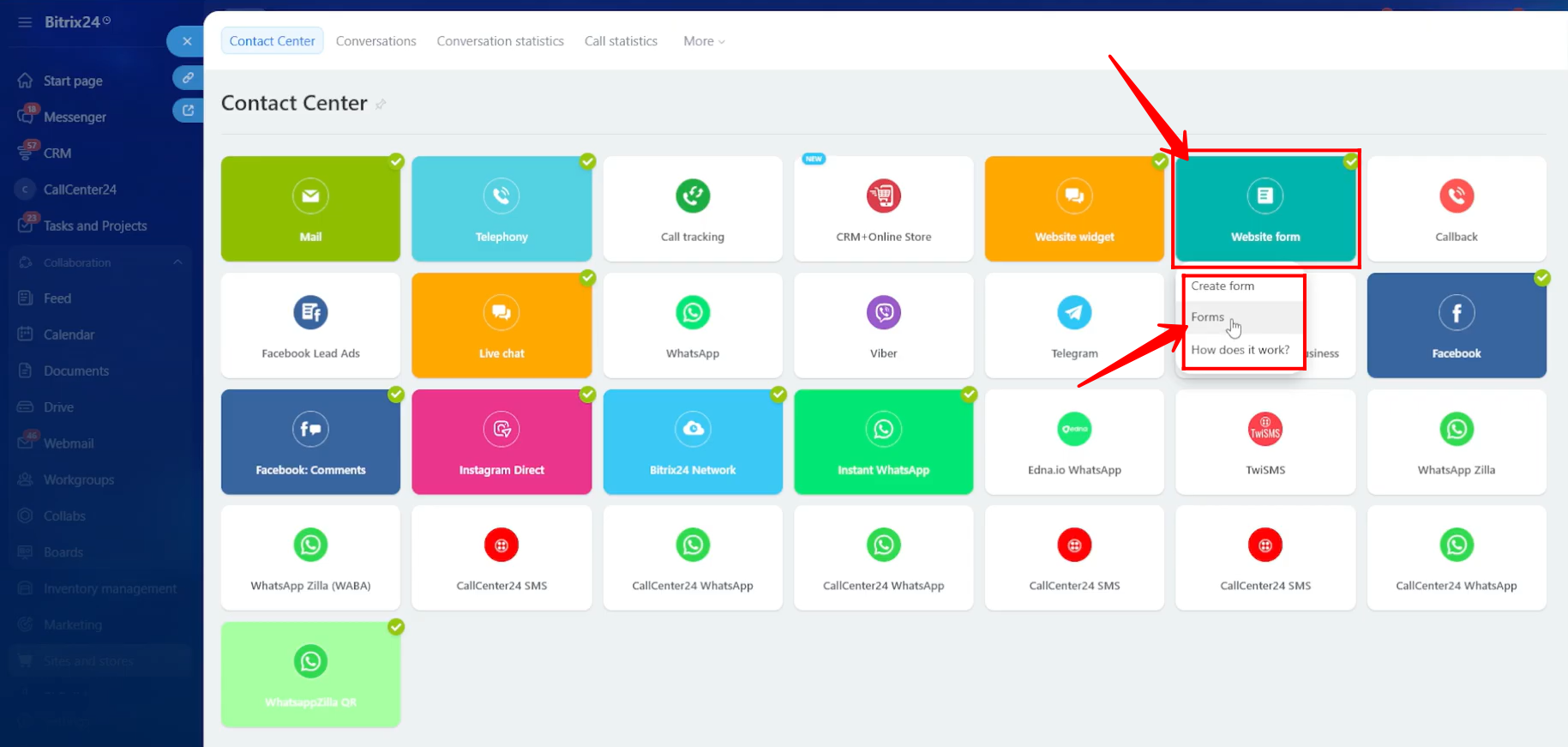
2. Click the Website Form open line. From here, you will be able to create new CRM forms and manage already configured forms. Click Forms to view the existing forms.
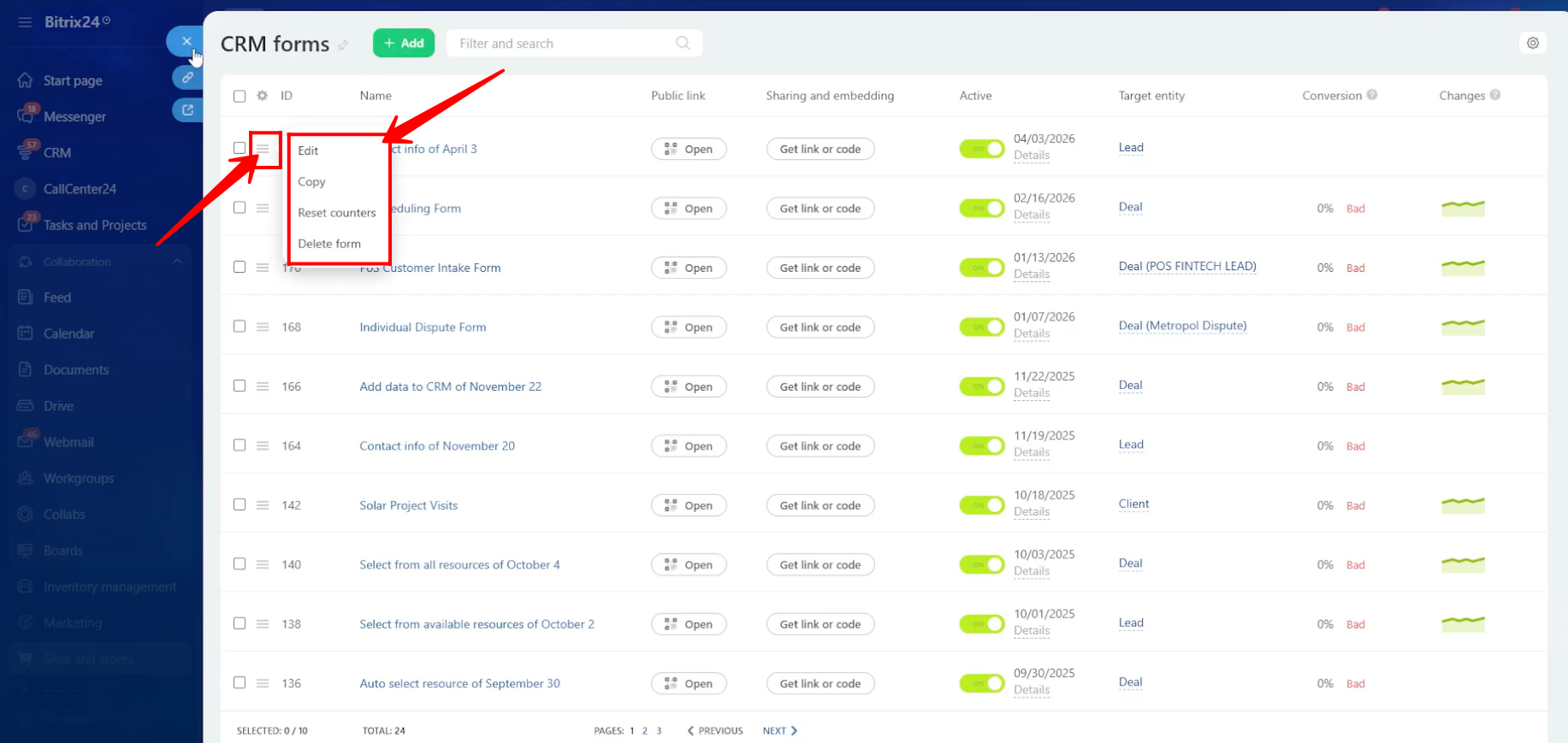
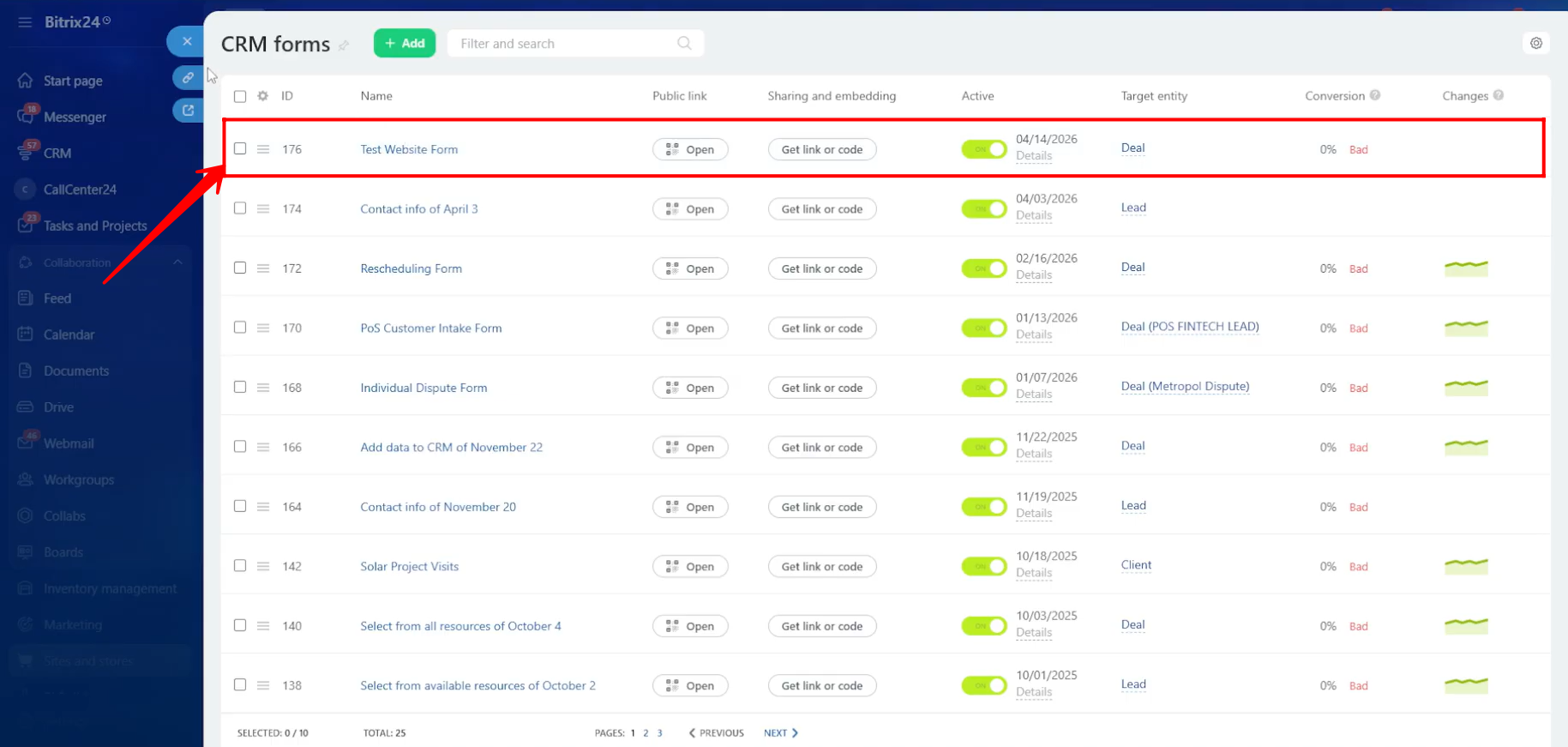
3. In the Forms section, you will be able to view all configured forms. You can edit a form, duplicate/copy it, reset counters, or delete it as required.
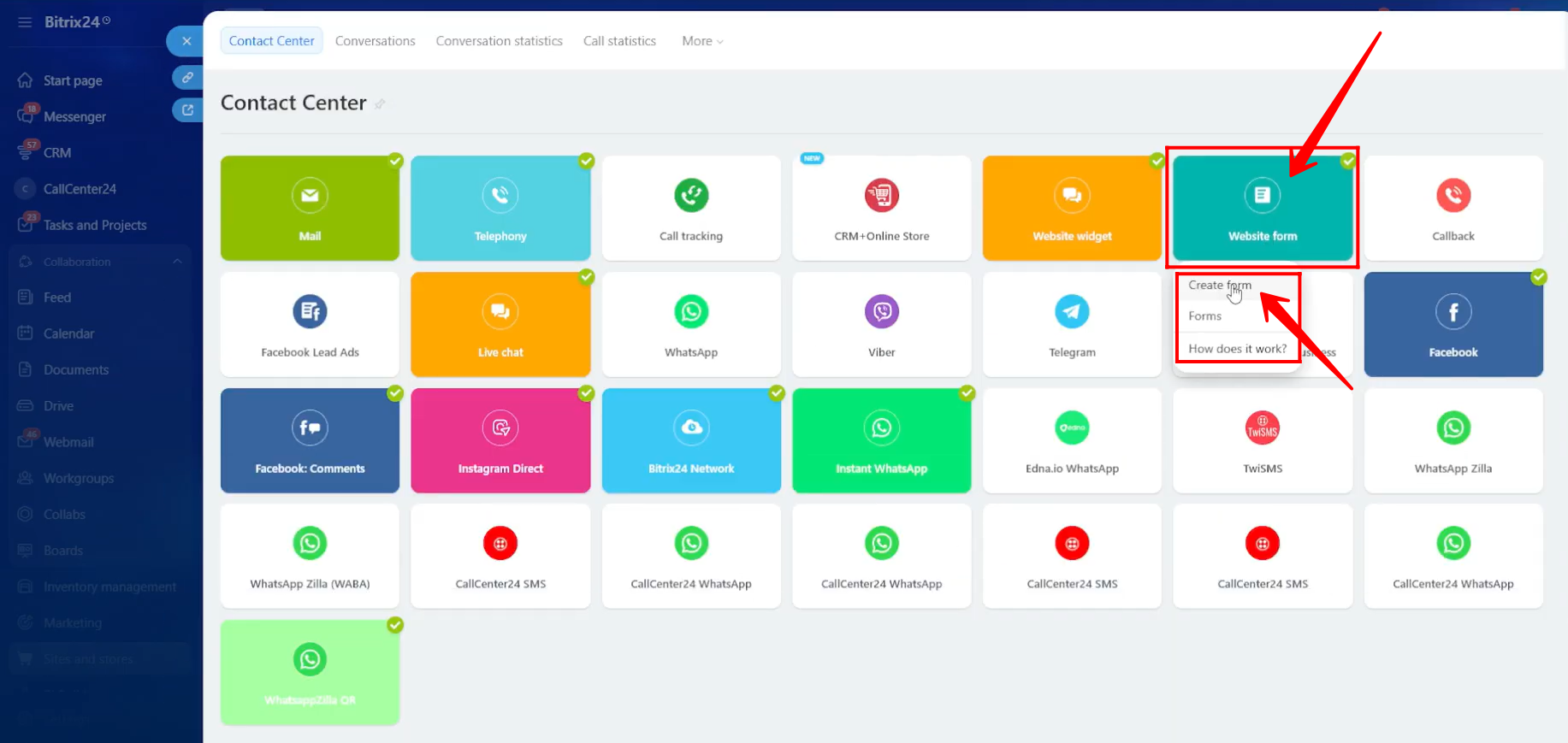
4. Return to the Website Form open line section and click Create Form to configure a new CRM form.
5. For this example, we will create a form of type Feedback.
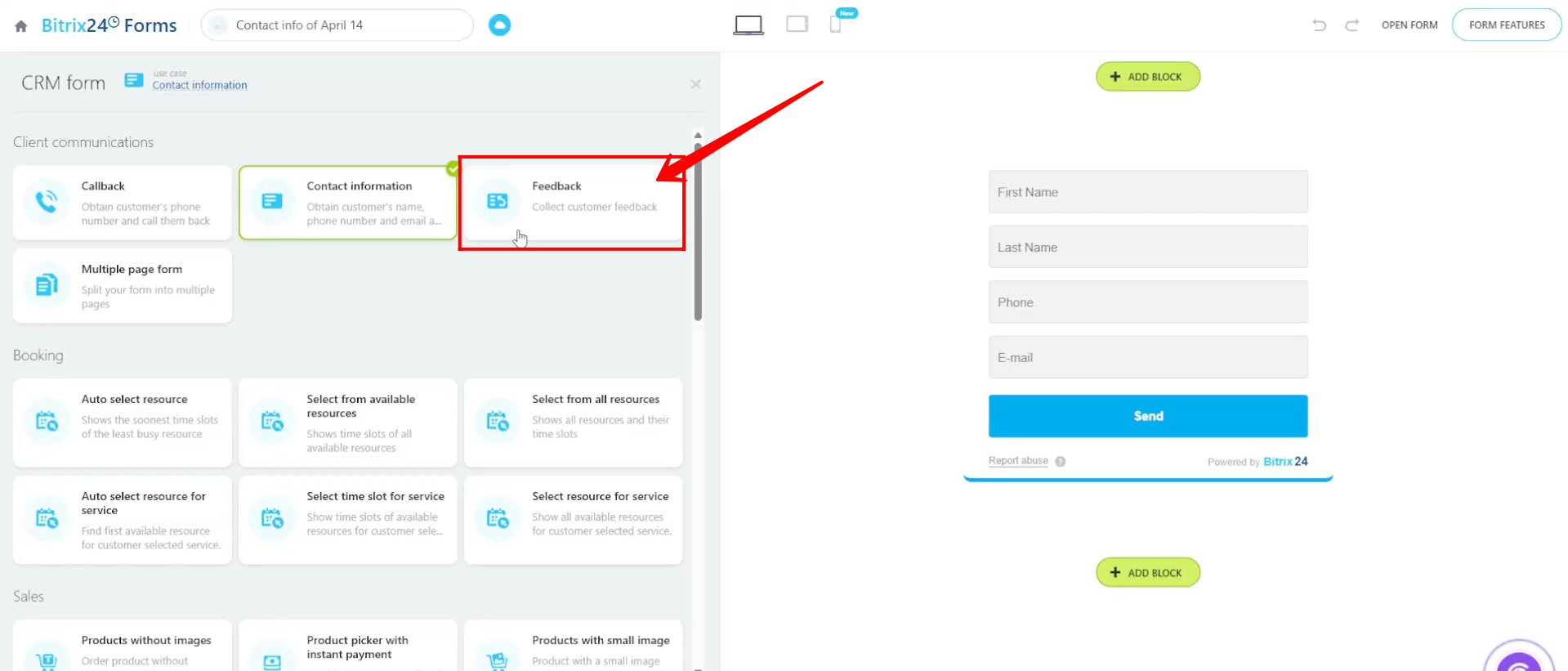
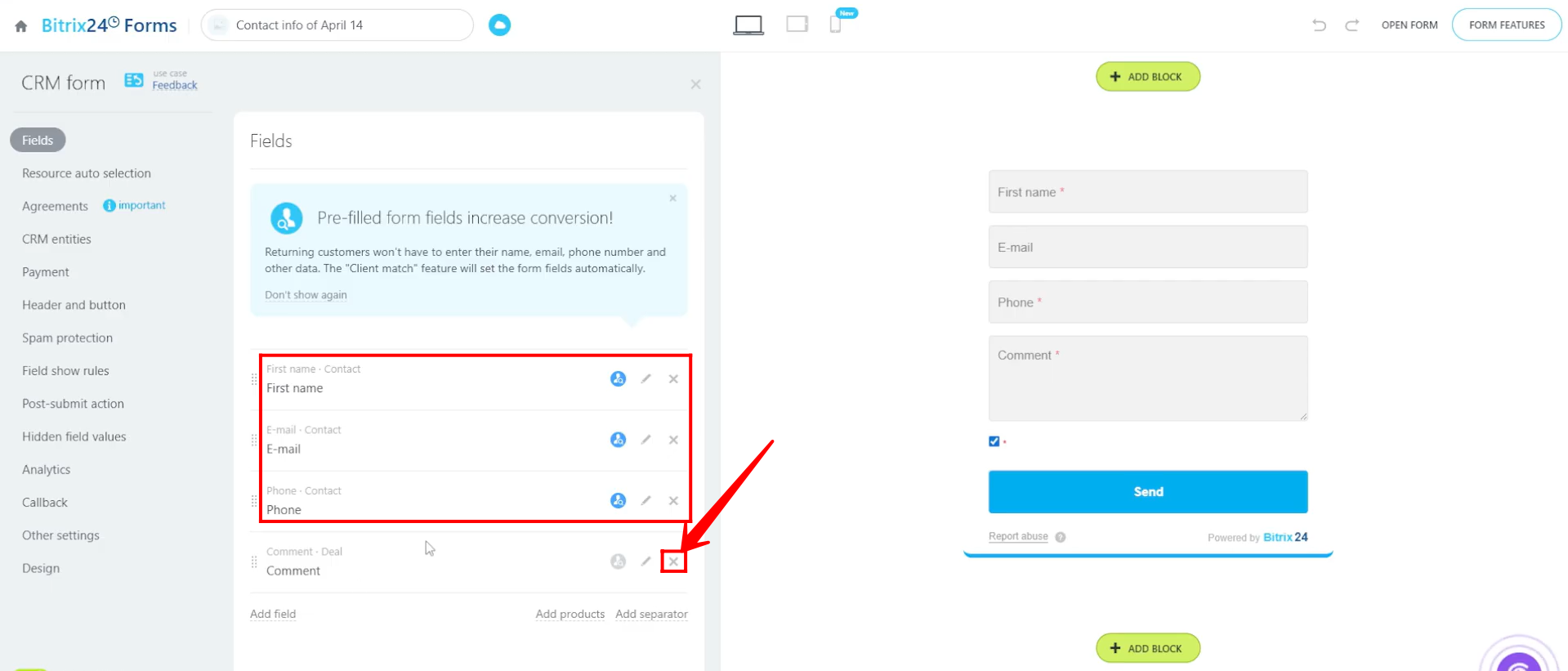
6. For testing purposes, we will keep the form simple by removing the Comment field and keeping only the Name, Email, and Phone Number fields.
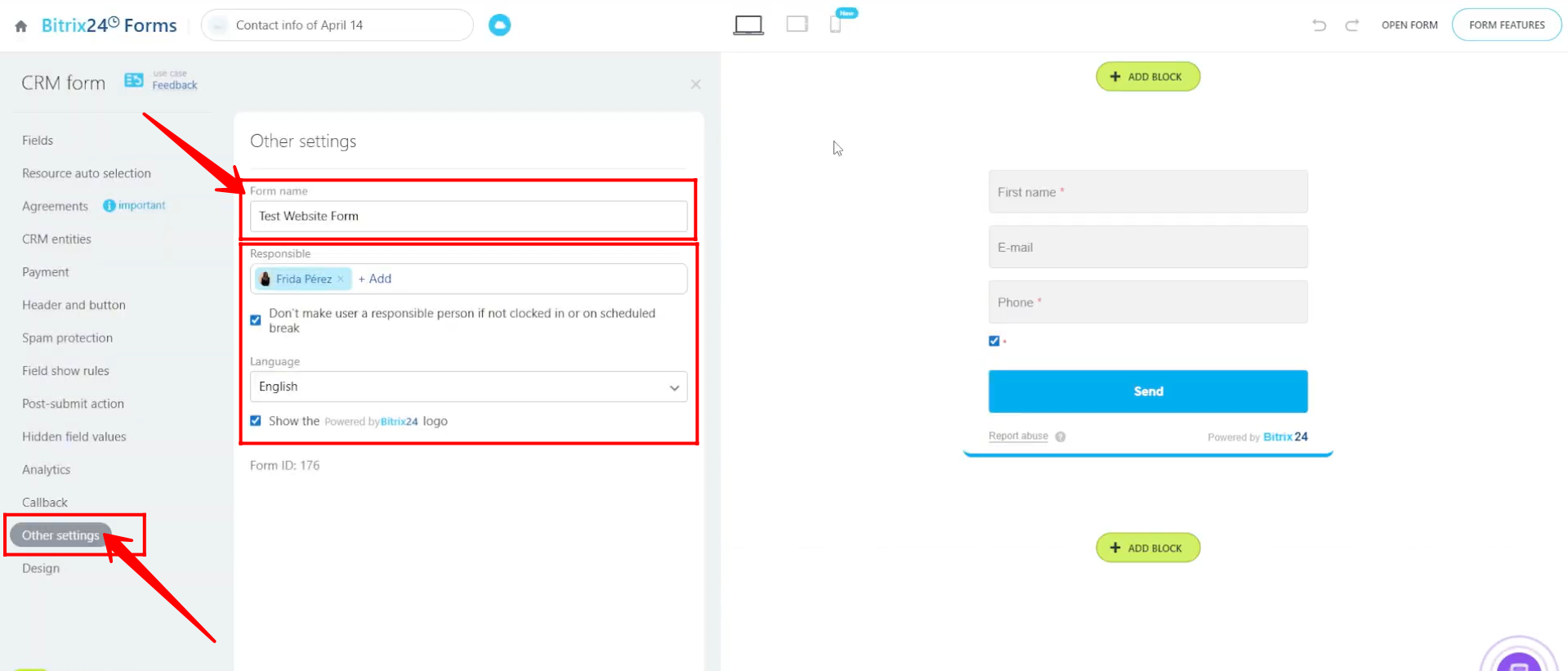
7. In the Other Settings tab, you can configure additional settings such as:
- Changing the form name
- Assigning a responsible person
- Selecting the language
- Configuring additional CRM form settings
To learn more about advanced CRM Form configurations and settings, you can review the following guided video:
Bitrix24 Training Course 9. CRM Forms: Fields and CRM entities
8. Return again to the Contact Center section, open Website Form, and click Forms.
9. Here, you will now be able to see the newly configured CRM form that we created earlier.
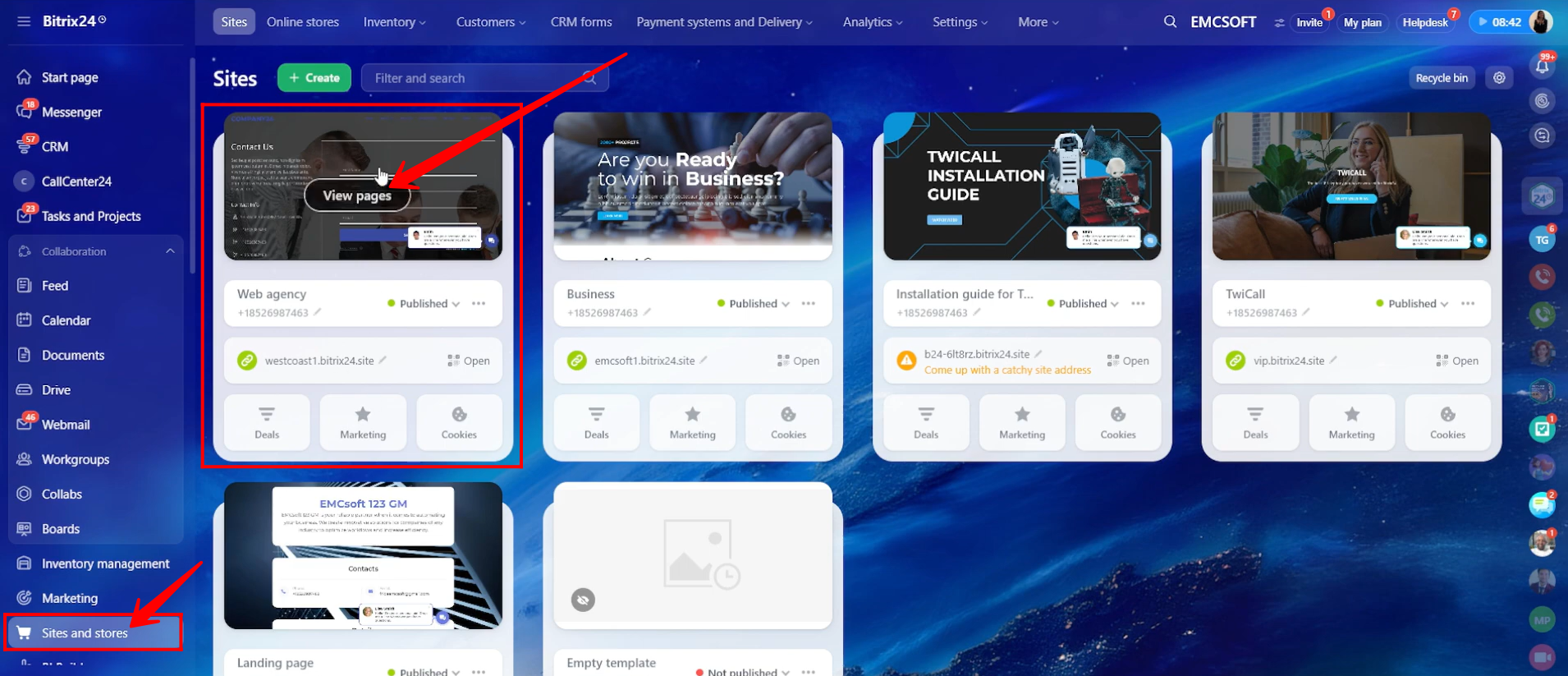
10. Navigate again to Sites and Stores and open the View Pages section of the website where you want to embed the CRM form.
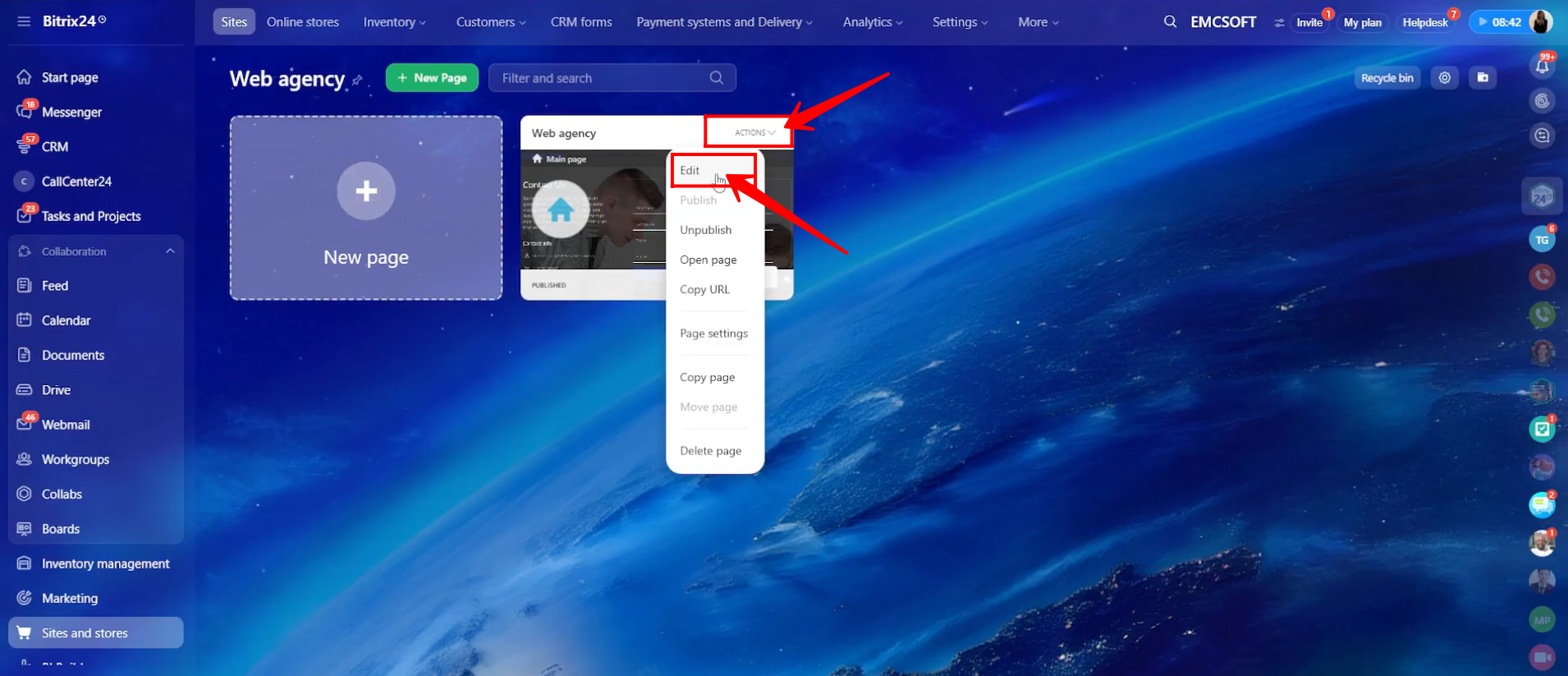
11. Under the Actions option of the relevant website page where the form should appear, click Edit.
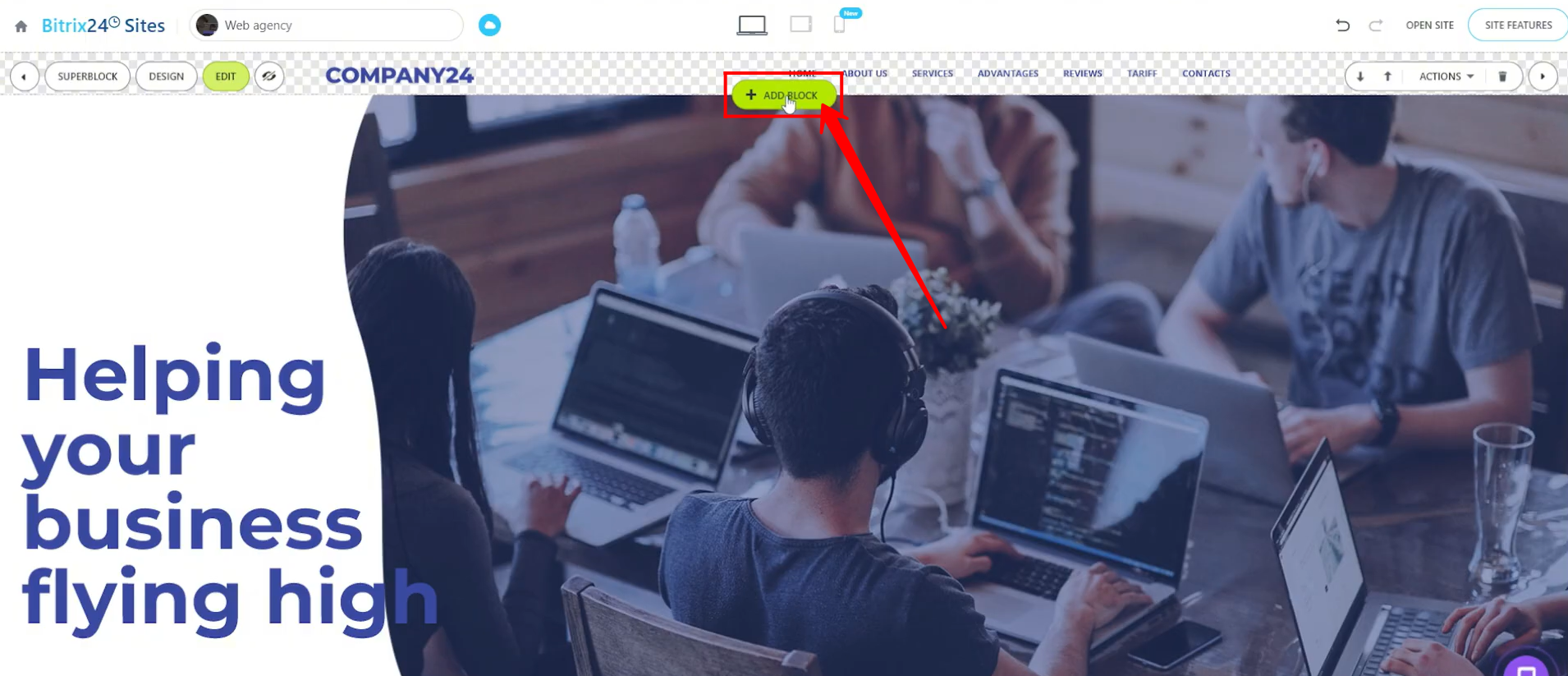
12. Click + Add Block to add a new section/block to the page where the CRM form will be placed.
13. Open the CRM Form section and select the design/template layout of your choice.
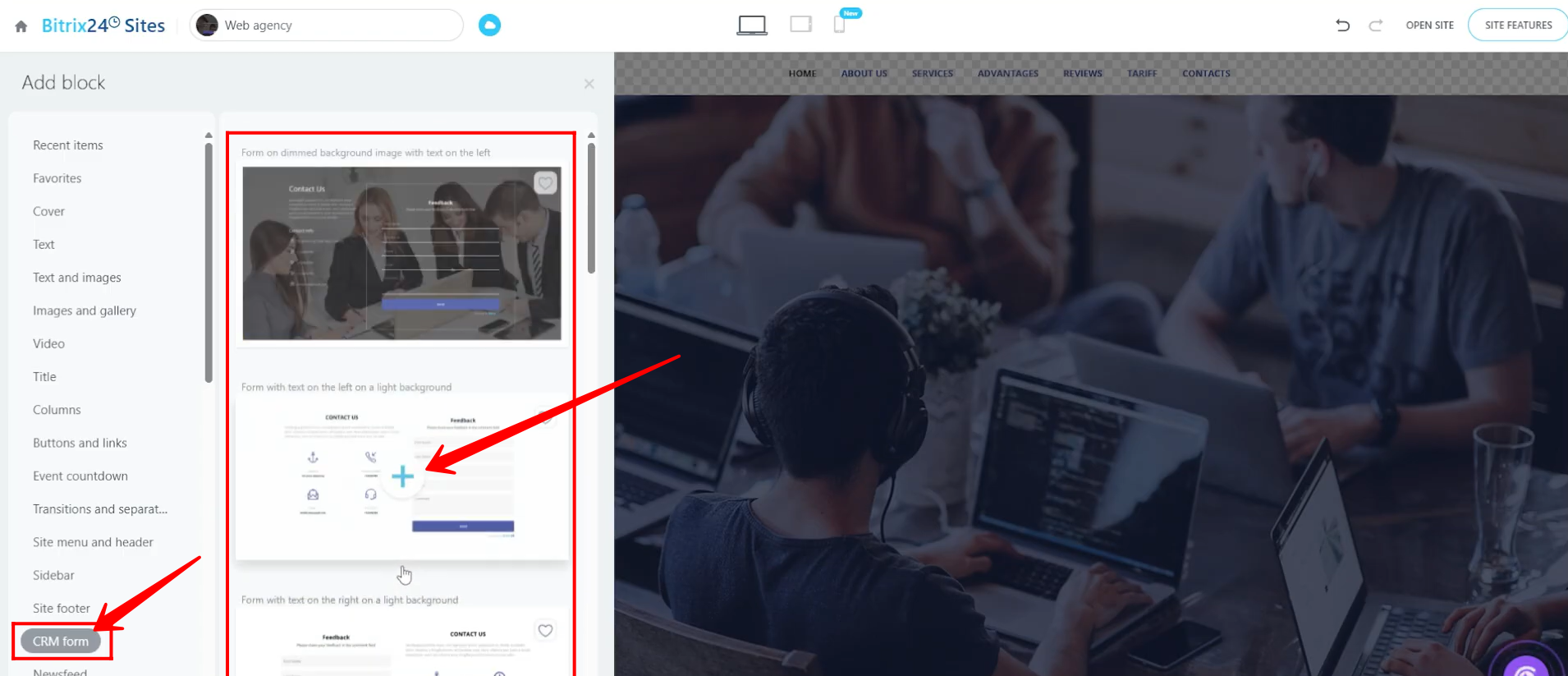
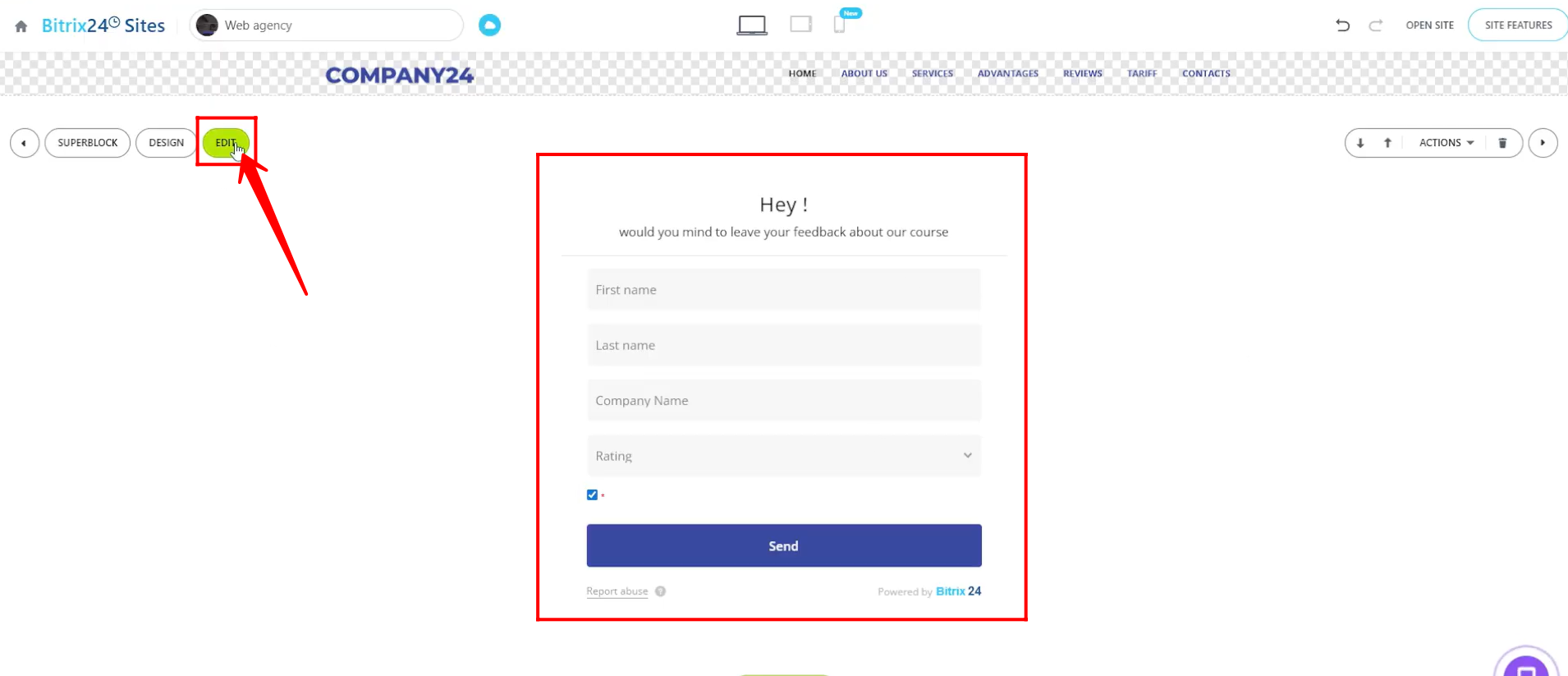
14. A default/template CRM form block will be added automatically. We now need to replace this test form with the CRM form configured earlier. Click Edit on the section containing the default form.
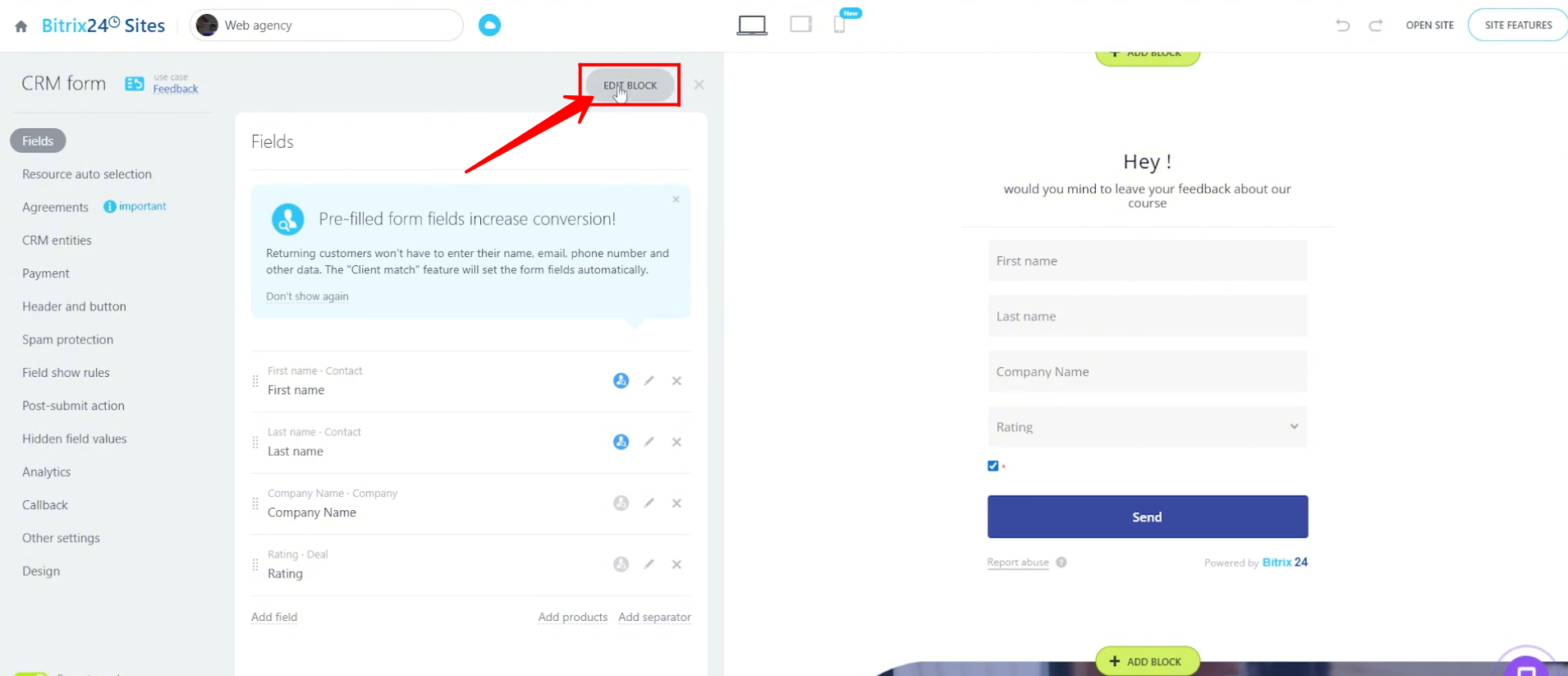
15. Click Edit Block.
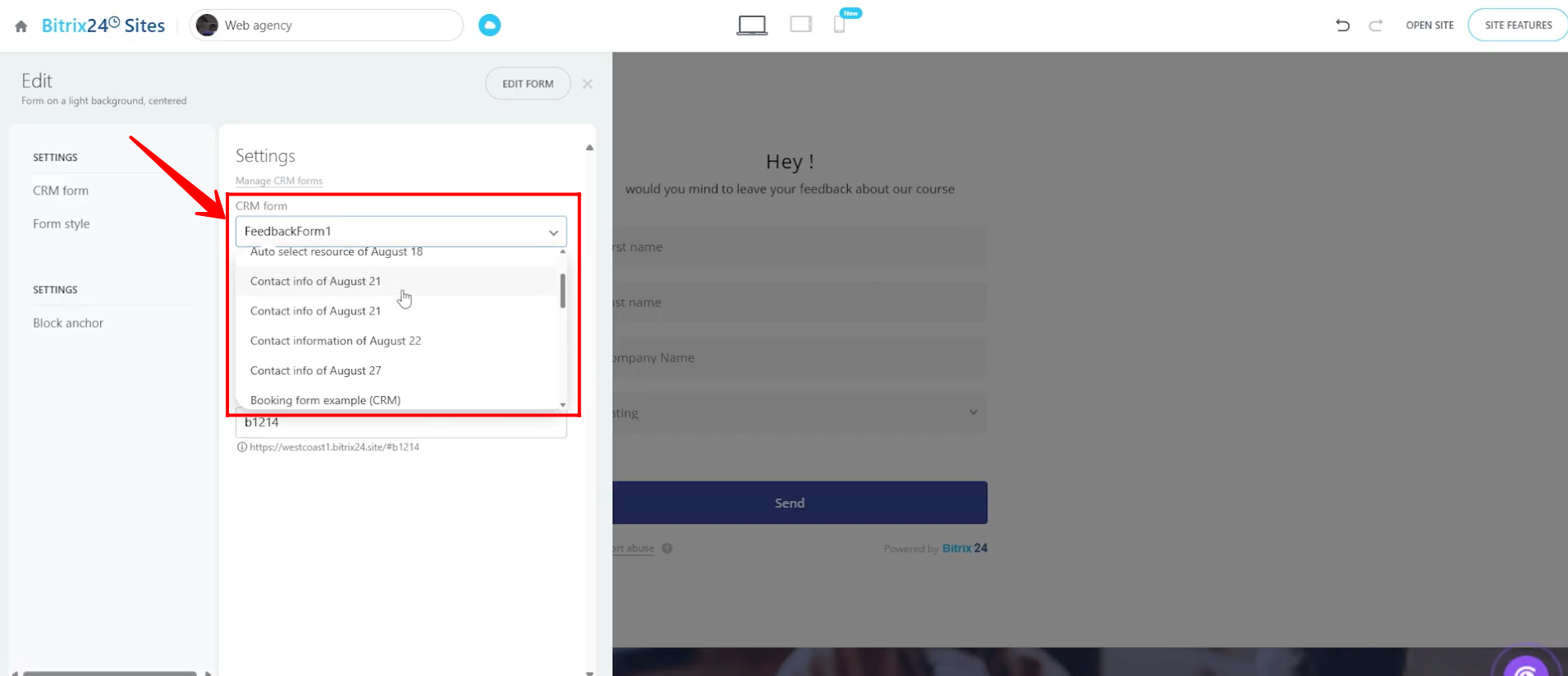
16. Select the CRM form you want to embed into the website page block and save the settings.
17. The selected CRM form has now been embedded into the website page in editor mode. Click Open Site and then select Open in New Tab to view the actual public version of the website page.
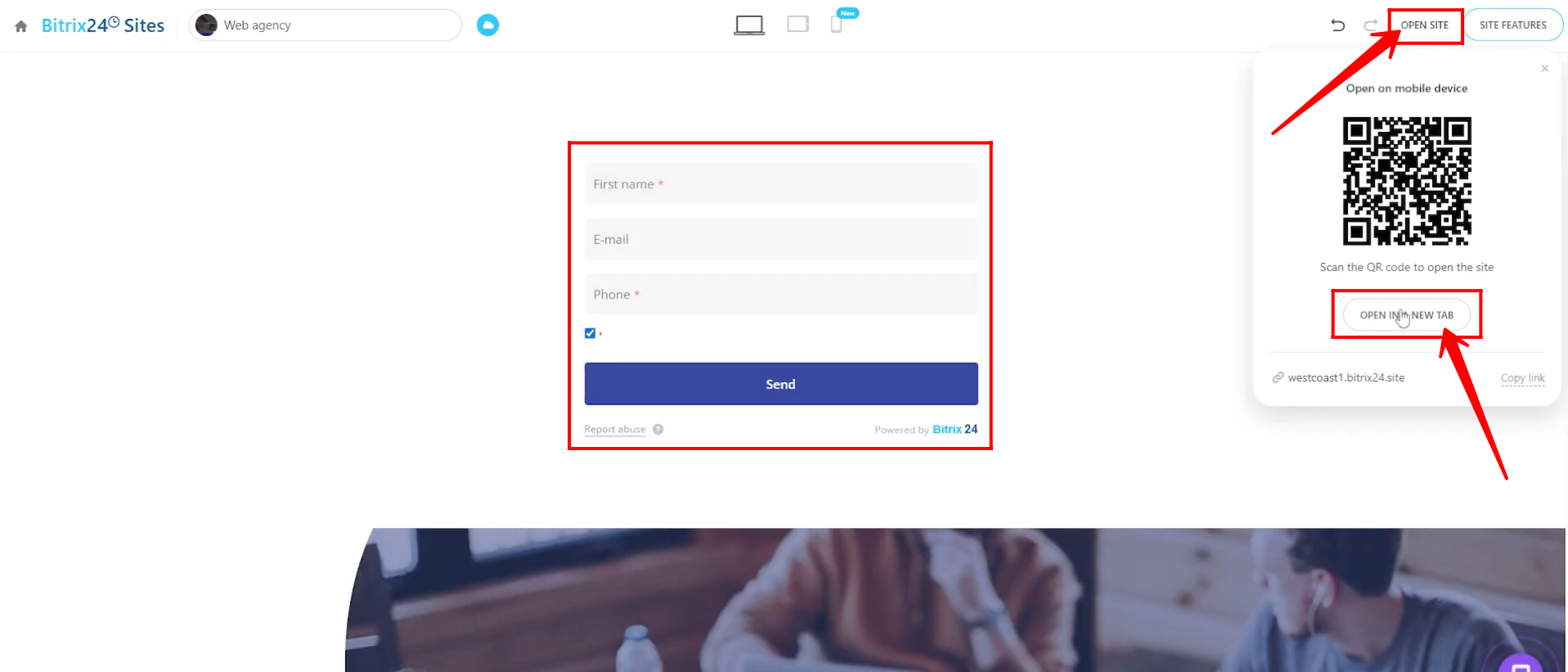
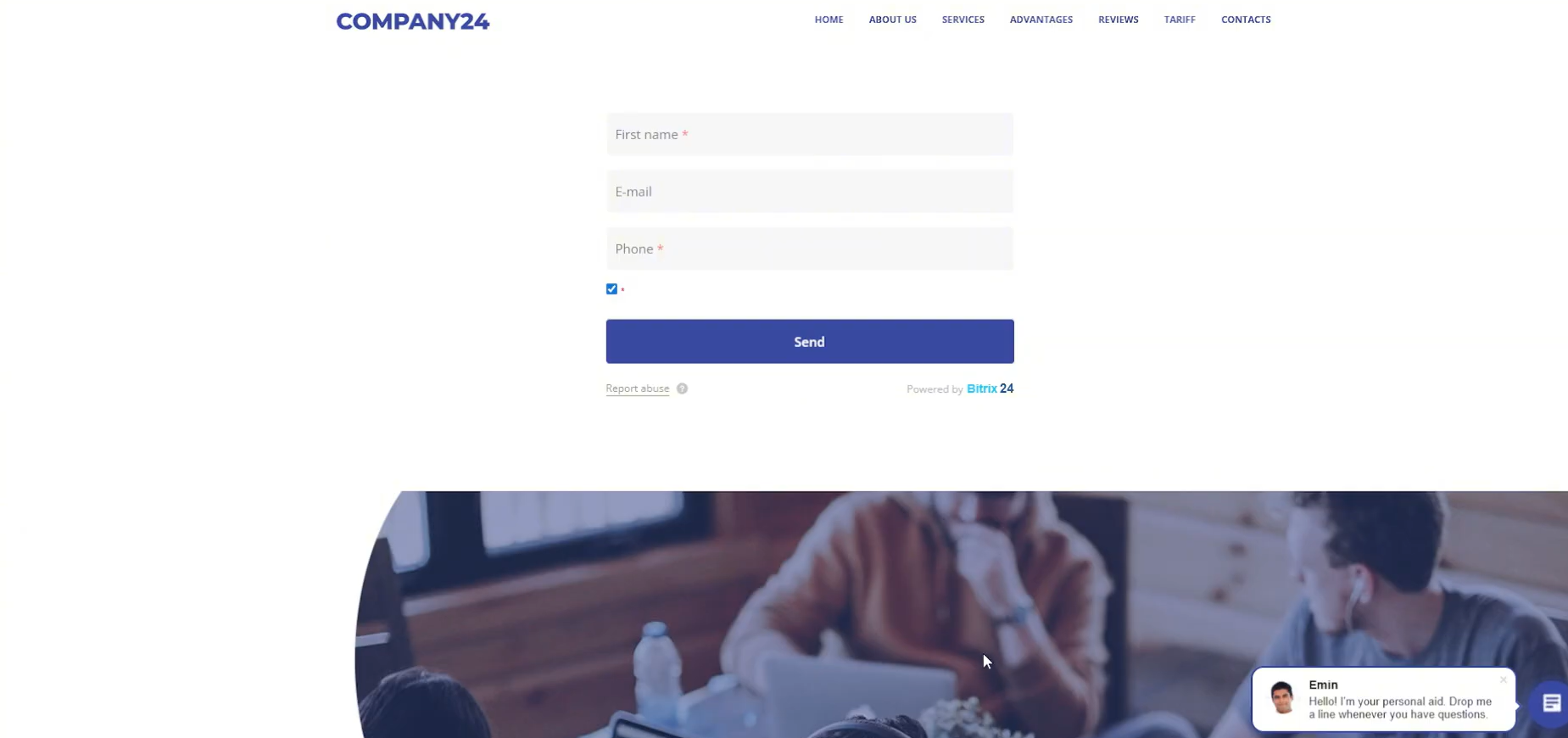
18. This is how the website page appears with the CRM form embedded from Bitrix24.
19. In case your website was not created inside Bitrix24 ; for example, if your website was created in WordPress or another external platform , you can still embed the Bitrix24 CRM form externally.
To do this, go to the list of all CRM forms and click Get Link or Code for the form you want to embed.
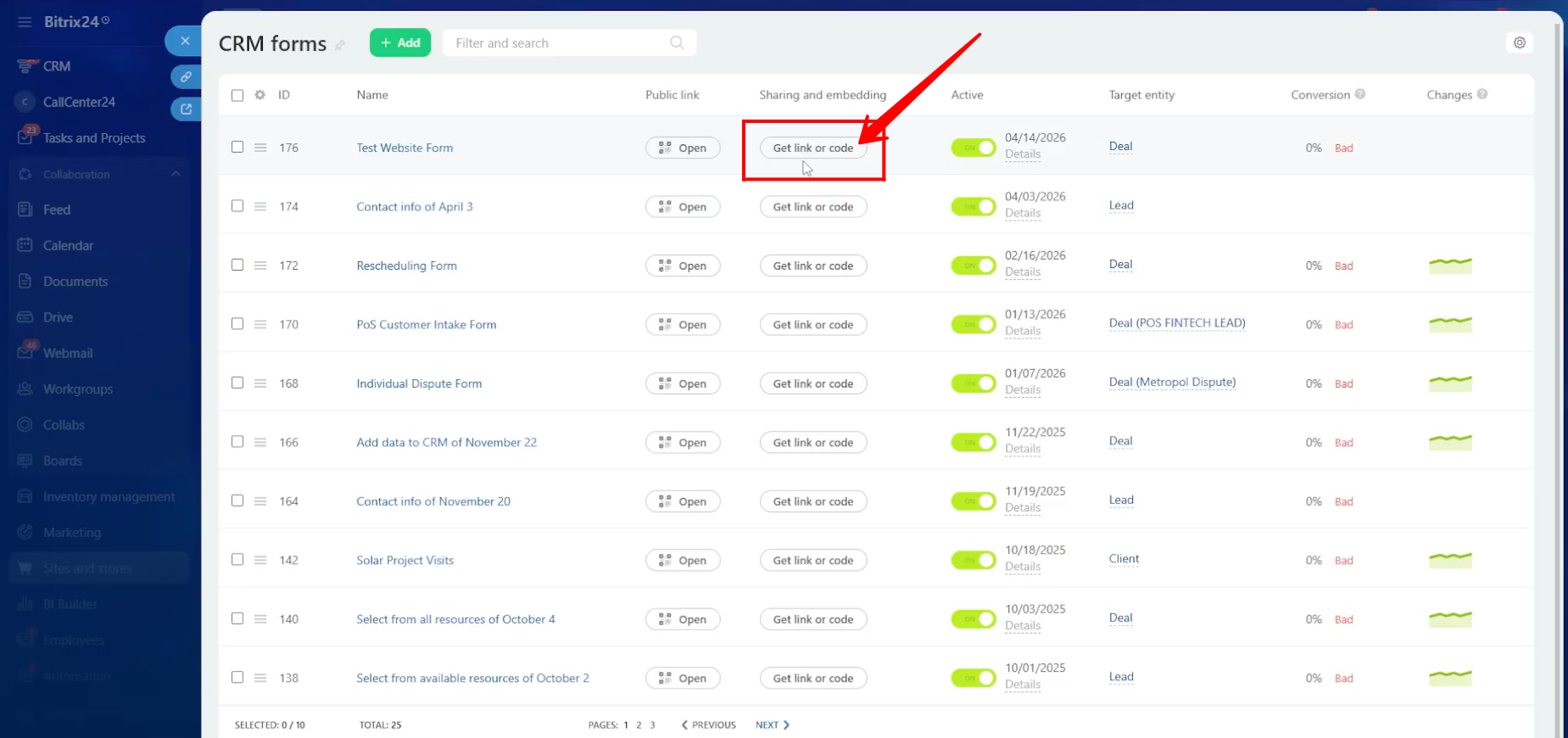
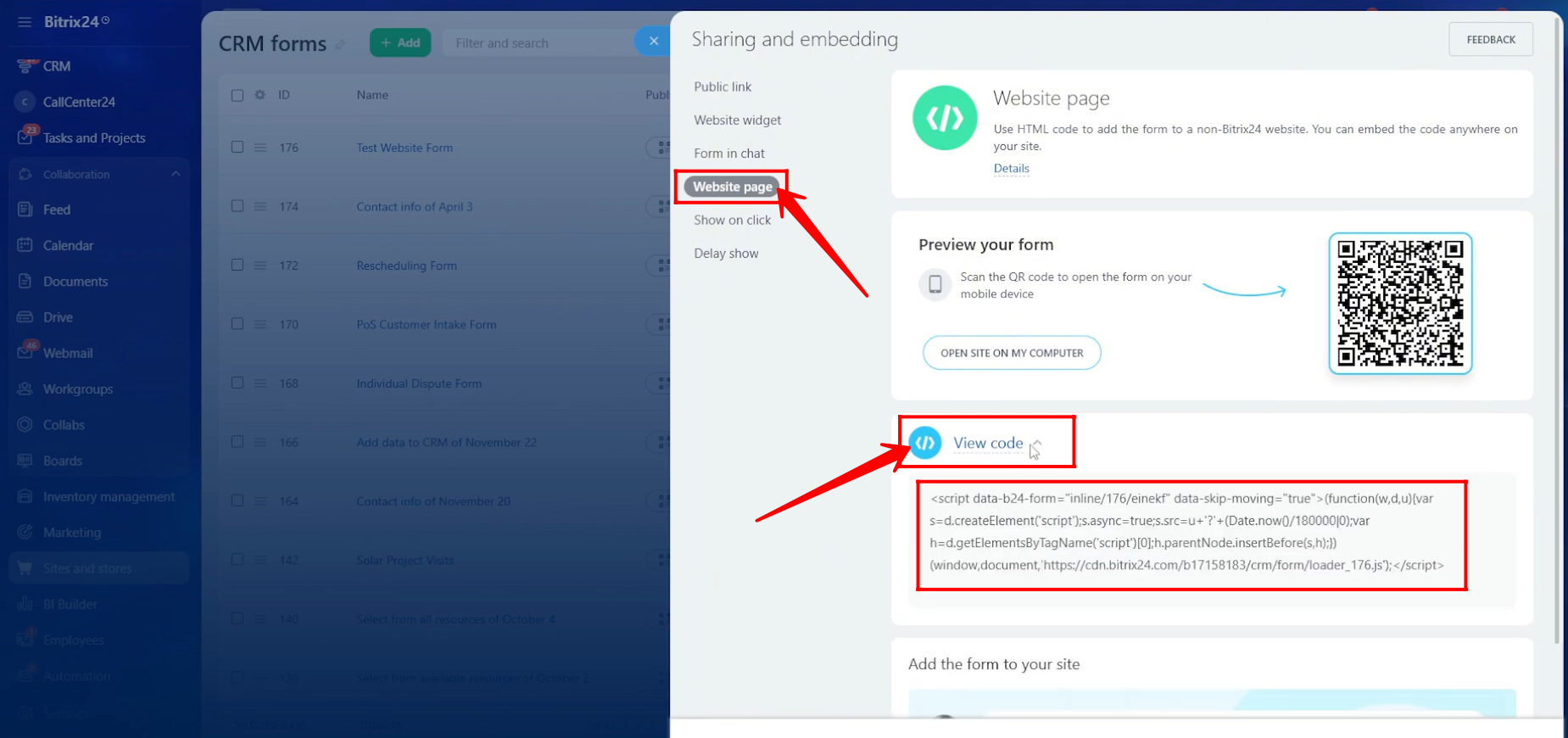
20. In the Website Page tab, open the View Code section and copy the provided embed code. Then paste this code into your external website editor/page where you want the CRM form to appear.
“You can also watch video on Youtube”